Why can't I add an image to a block in Maze when using Chrome on macOS?
Last updated: July 22, 2026
To add an image to a study using the Upload image option, your browser should be able to access images stored locally on your computer.
If using Chrome on macOS, you must grant Chrome explicit permission to access your files. Otherwise, it won’t be able to browse images.
If this permission is missing, Chrome will prevent the file browser from opening when you click Upload Image in the study builder.

Chrome may lose this permission due to system or browser updates. If this occurs, you’ll need to re-authorize Chrome.
Solution
Authorize Chrome
If you prefer not to give Chrome full-disk access, you can still add images by dragging them directly from Finder into the Upload Images button.
Open the Apple menu in the top left corner of the menu bar.
Open System Settings.
Open Privacy & Security.
Select Full Disk Access.
Make sure that Google Chrome is visible in the list of apps on the right, and that it’s enabled as shown in the image. If it’s listed but not enabled, click the toggle on the right side. If it isn’t listed, click the + icon to browse for Google Chrome and add it to the list.
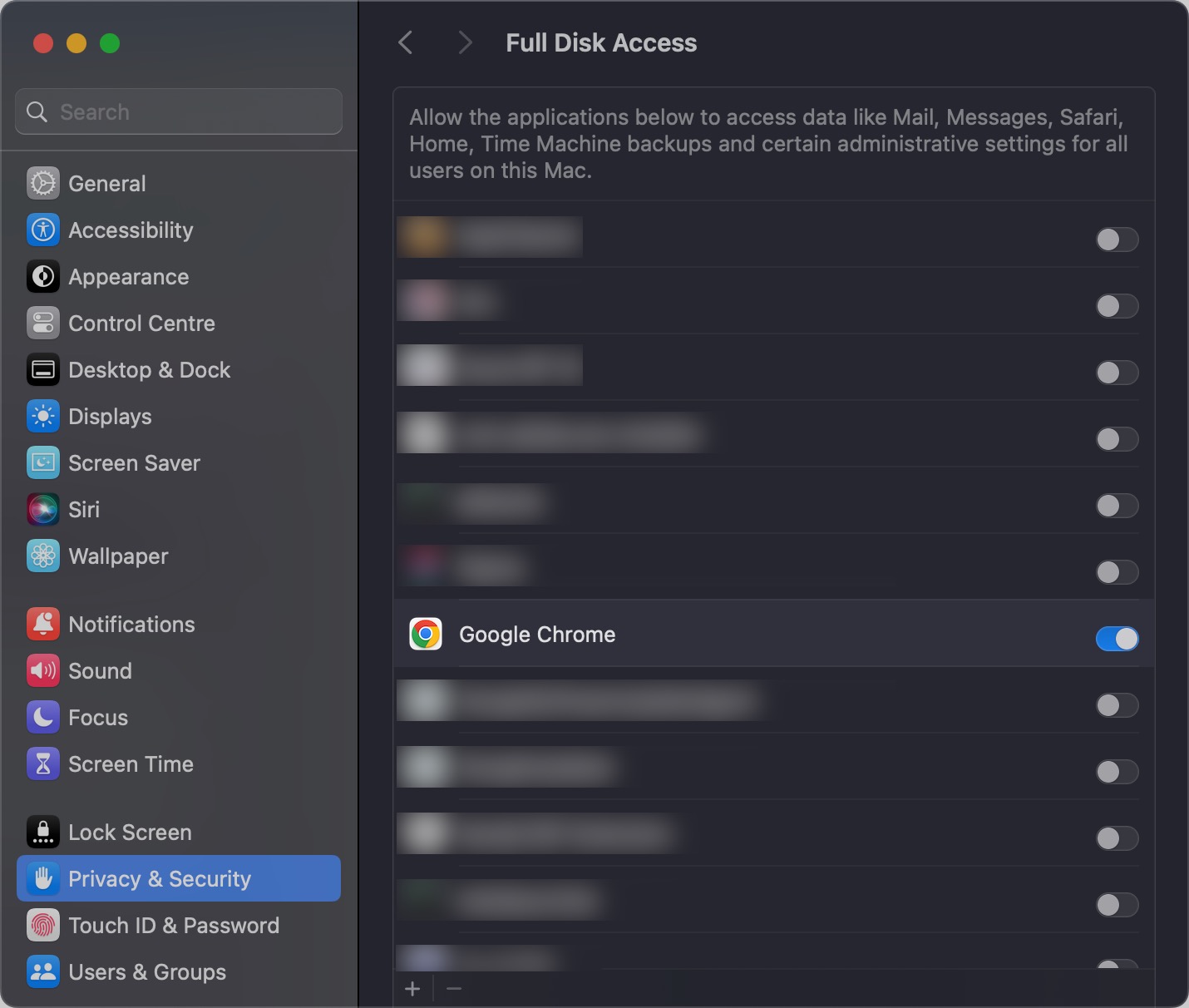
You’ll need to restart Chrome for the changes to come into effect.
Update Chrome
In some cases, the issue may persist even after giving Chrome full disk access.
To prevent this, please make sure that you are using the latest version of Chrome. An outdated version may lead to unexpected issues.
Still need help?
If you have any questions or concerns, please let our Support team know — we'll be happy to help!