Commenting on unmoderated study blocks
Last updated: September 14, 2026
You can use comments to collaborate within Maze. Commenting on blocks allows you to discuss and receive feedback from your stakeholders before sending an unmoderated study out to participants.
Who can use this feature
Commenting and reviewing are Enterprise plan features.
All team members and project collaborators can view and add comments on a block in a draft study.
Adding comments to your study blocks
To comment on a block:
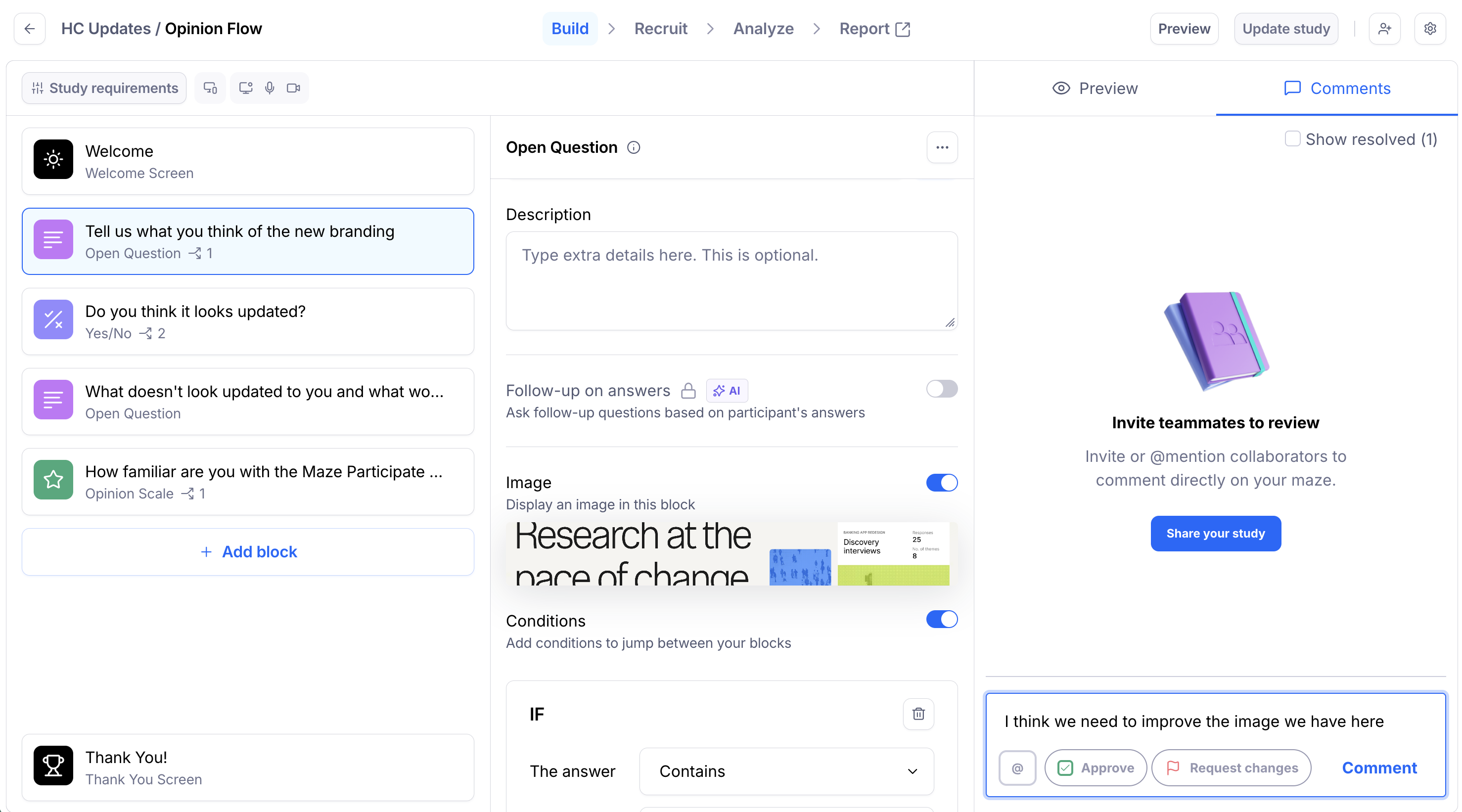
On the Build page, click the block you want to comment.
Click the Comments tab on the right-side panel.
Write your comment. To notify team members about the comment, use the @mention feature.
Submit your comment by clicking Comment.
Viewing comments
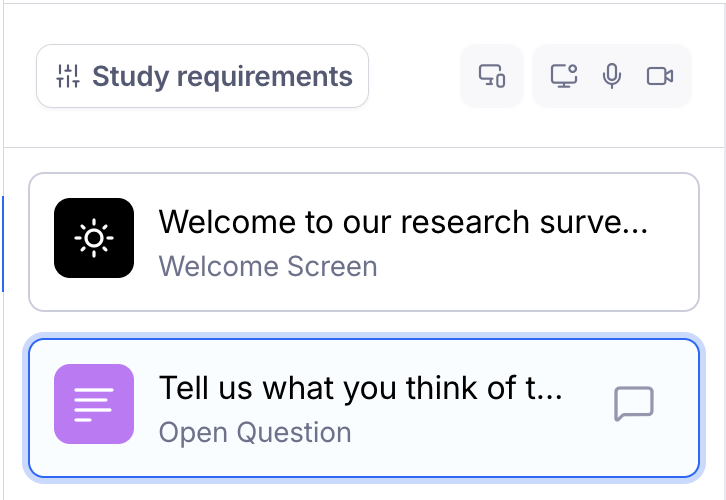
Open each block and click the Comments tab on the right-side panel to see the comments.
Blocks that contain comments have an icon on the right.
Solving comments
To solve a comment:
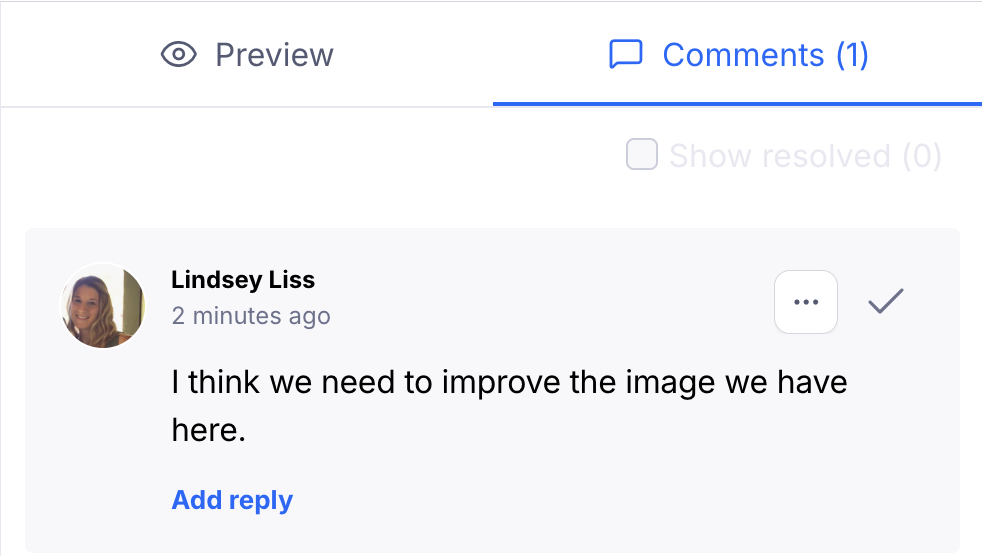
Open the Comments tab on the right side panel of your draft study.
To the right of any open comment, click Resolve comment (✔).
The comment will disappear from the open comments view, but can be still viewed via the Resolved comments toggle at the top right corner of the comments panel.
Re-opening comments
To re-open a comment:
Open the Comments tab on the right side panel of your draft study.
Click Show resolved to see all resolved comments for that block. The number in parentheses indicates the number of resolved comments.
Click Re-open comment.
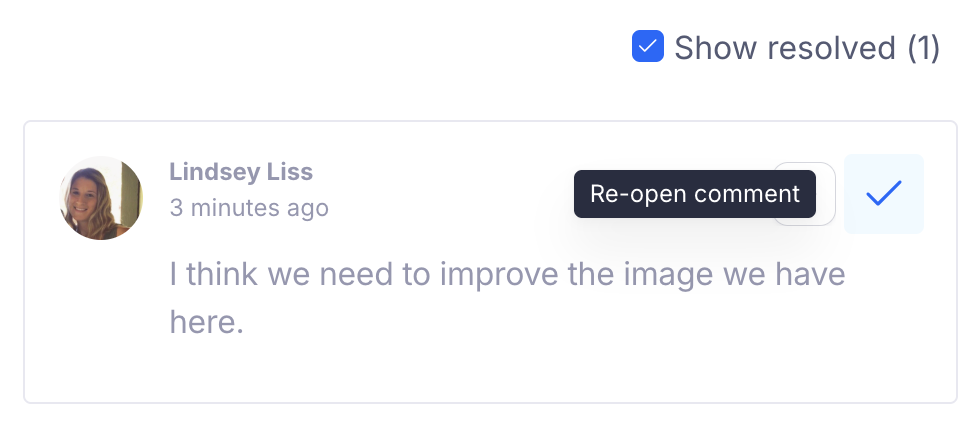
The comment will return to the open comments view.
Reviewing and approving blocks
When previewing a study, you can approve each block.
Learn more about reviewing and approving unmoderated study blocks
Email notifications
You’ll receive a comment notification via email when:
Someone @mentioned you in a comment
Someone replied to your comment
Someone commented in a thread you’re participating in
Someone solved one of your comments
Still need help?
If you have any questions or concerns, please let our Support team know — we'll be happy to help!