Skip logic
Last updated: November 6, 2026
Skip logic lets you decide where participants go after a block. You can send everyone to the same block, or send participants to different blocks based on their answer or how they completed a task.
Use skip logic to ask follow-up questions only when they're relevant, show different content to different participants, and keep your study short.
Who can use this feature?
Skip logic is available on all paid plans.
Set up skip logic
Open your study in Build mode and add all the blocks you want to route between.
Select the block participants should be routed from.
In the block settings, turn on Skip logic. You'll find it under Block is required. When Skip logic is off, participants continue to the next block.
Choose how to route participants:
Branch with conditions: Send participants to different blocks based on their answer. This is selected by default and starts with one condition.
Jump to block: Send everyone to the same block.
If you chose Branch with conditions, set up your condition. Each condition reads If answer [Contains/ Does not contain] jump to [block choice]. On task blocks, it reads If participant [Didn't succeed/ Succeeded/ Misclicked] instead.
Click Add condition to add more routes.
Set Otherwise to choose where everyone else goes. It's set to Next block by default.
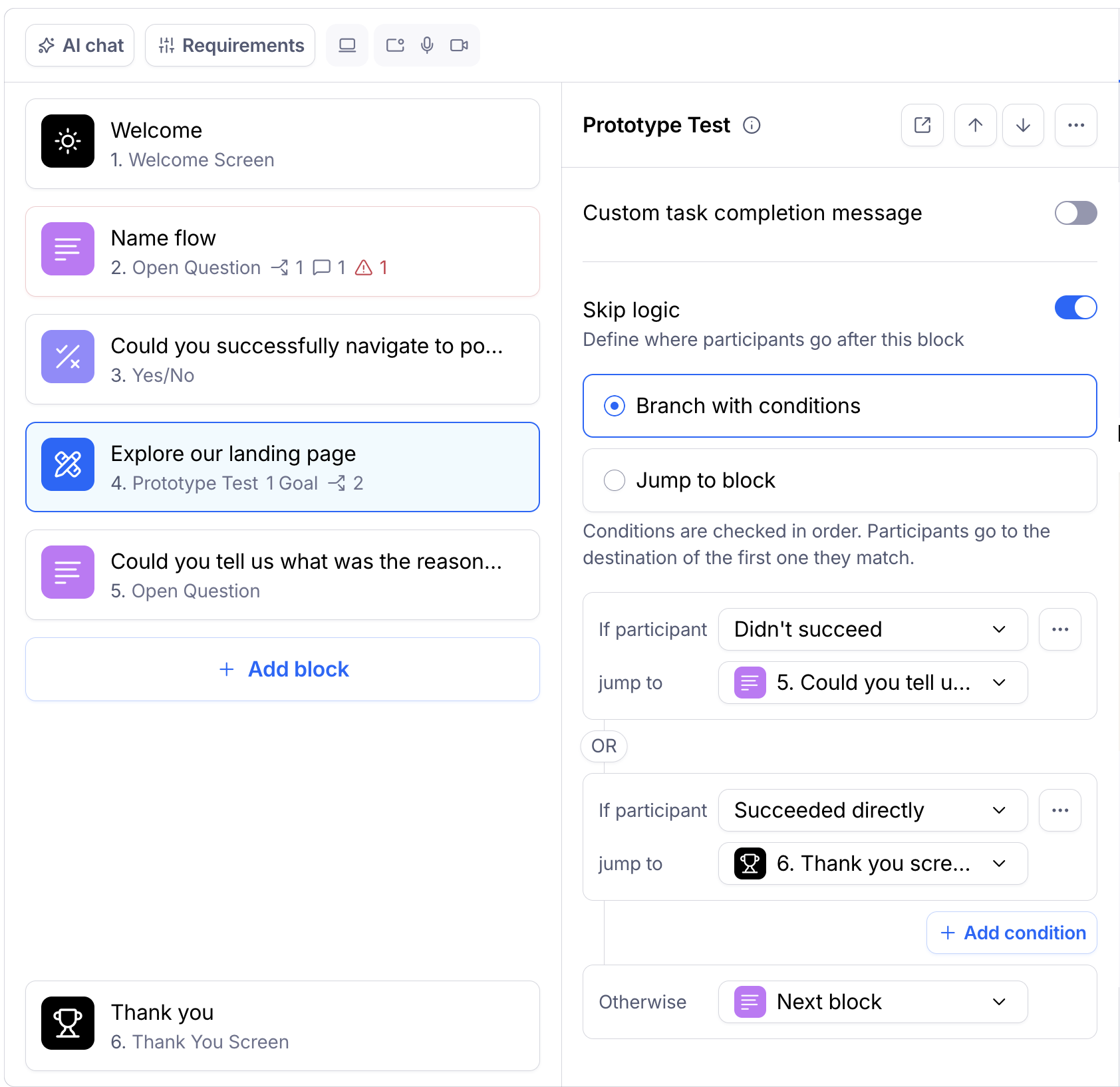
In the jump to menu, each block is shown with its number and icon, as in the block list. Blocks inside variants are included. The last option is Thank you screen, which ends the study.
How conditions are checked
Conditions are checked in order, from top to bottom. Participants go to the destination of the first condition they match, even if they also match a later one. If they don't match any condition, they go to the Otherwise destination.
The OR tag between conditions is a reminder that only one condition applies to each participant.
To change the order, open the ⋯ menu on a condition and select Move up or Move down. Put more specific conditions above broader ones.
Good to know:
A block with Branch with conditions needs at least one condition, so the last condition can't be deleted. To remove all conditions, turn off Skip logic or switch to Jump to block.
Your conditions are kept if you switch to Jump to block and back, or turn Skip logic off and on again while editing.
Bring branches back together
When you split participants into different paths, they need a way back to the main study. Otherwise, participants on one path will continue into the blocks for the next path.
To bring a branch back:
Select the last block in the branch.
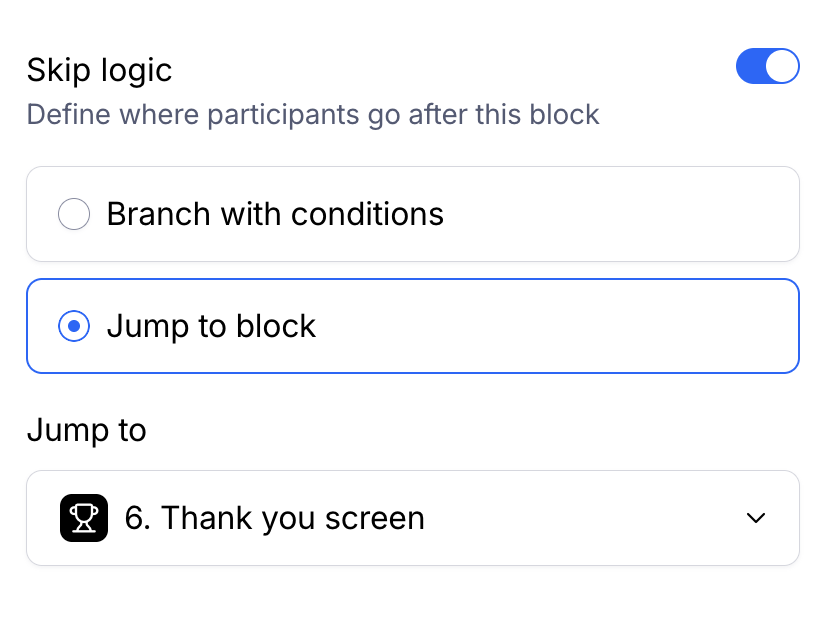
Turn on Skip logic and select Jump to block.
Choose the block where the paths meet again, or Thank you screen to end the study.
Repeat this for each branch that should skip the blocks below it.
Example: Follow up on confusing screens
Say you're testing a prototype and want to learn why participants found it confusing, without asking everyone.
Your study has four blocks:
Prototype test
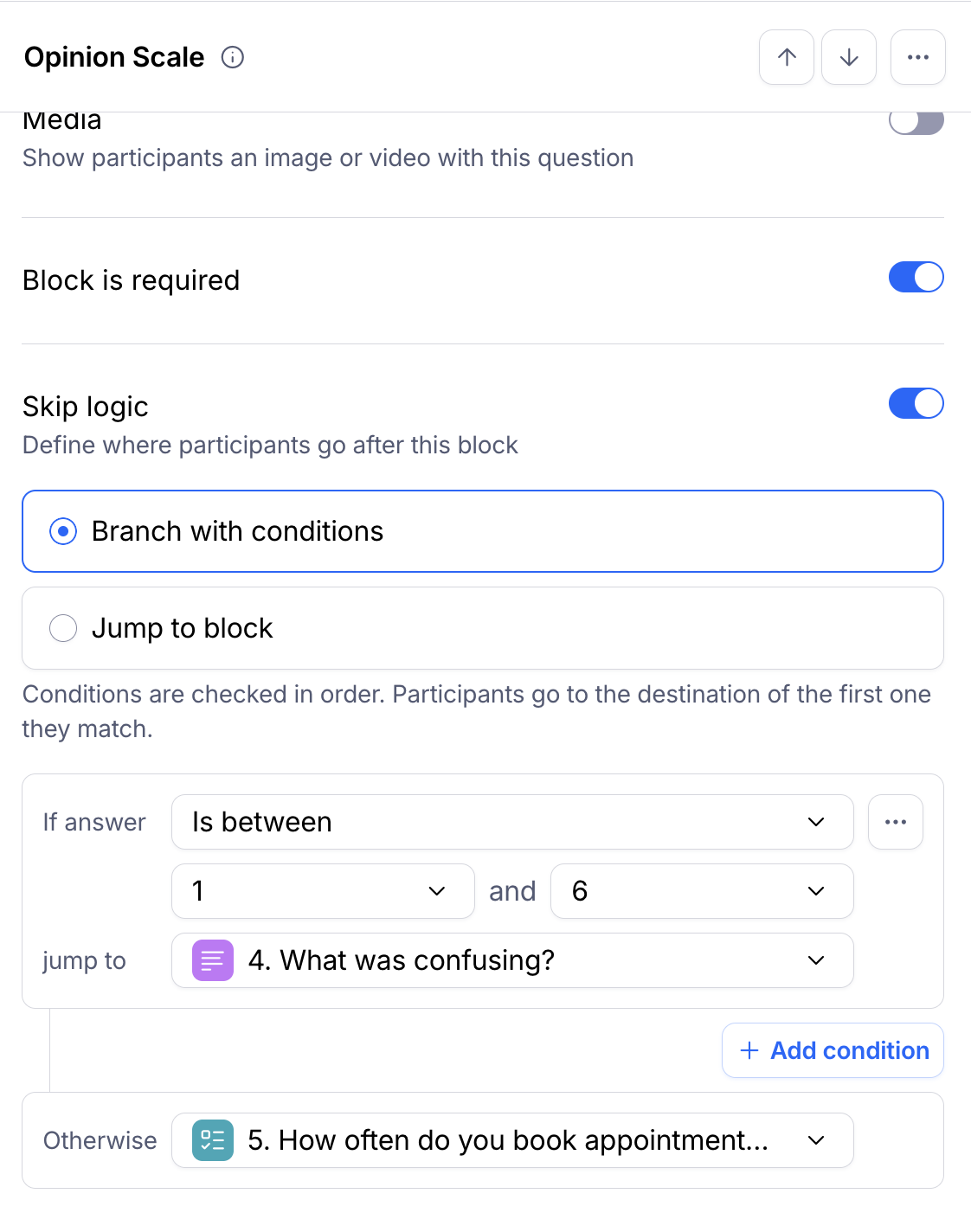
Opinion Scale: "How clear were the screens?" (1 = Very confusing, 10 = Very clear)
Open Question: "What was confusing?"
Multiple Choice: "How often do you book appointments online?"
To route participants:
On block 2, turn on Skip logic and select Branch with conditions. Add a condition for answers from 1 to 6 that jumps to block 3. Set Otherwise to jump to block 4. Participants who found the screens clear skip the follow-up question.
On block 3, you don't need skip logic. Participants continue to block 4, which is the next block.
If you later add blocks that only some participants should see, use Jump to block at the end of each branch to bring participants back to the main path.
Skip logic options by block type
Every block that supports skip logic can use Jump to block. The blocks below also support Branch with conditions.
Block | Branch on |
|---|---|
Prototype test | If participant didn't succeed, succeeded directly (via an expected path), succeeded indirectly (reached the final screen via an unexpected path), took a specific path, or misclicked (clicked outside a hotspot) |
Yes/No | The answer given |
Multiple Choice | One or more answers. Pick several answers in one condition to route them together. |
Opinion Scale | Any range on the scale, for example 1–3, 4–6 and 7–10 |
Simple Input | Text in the answer: contains, is exactly, or does not contain |
Open Question | Text in the answer: contains, is exactly, or does not contain |
Matrix | The answer given |
MaxDiff | The items picked, for example Most often picked as best is [item] |
These blocks only support Jump to block:
Website test: Paths are optional in website tests, so you can't route on the task outcome.
Context Screen, Tree Test, Card Sort, 5-Second Test, and Legal Screen.
Errors and warnings
The skip logic panel checks your logic as you build. Errors must be fixed before you can start the study. Warnings don't block launch.
Message | What it means | How to fix it |
|---|---|---|
Participants can't jump back. Choose a block after this one. | The destination comes before the current block. | Pick a later block or Thank you screen. |
This condition duplicates an earlier one. | Two conditions are the same. Only the later one is flagged. | Delete or change the later condition. |
An earlier condition already covers this one. Reorder or delete this condition. (warning, Multiple Choice) | An earlier condition already matches these answers, so this one never applies. | Move it above the broader condition, or delete it. |
You'll also see a message if a condition is missing a value, or if its destination block was removed or hidden.
Studies created before the redesign
Skip logic was previously called Conditions. Existing studies work the same way, and participants are routed exactly as before. When you open an older study:
Blocks with an Always condition now show Jump to block.
Blocks with conditions now show Branch with conditions.
Your logic only changes if you edit it.
Still need help?
If you have any questions or concerns, please let our Support team know — we'll be happy to help!