Why do I see a “We couldn’t access your camera and microphone” warning?
Last updated: September 15, 2026
What’s Maze? If you see this screen, that means that someone has shared with you a survey or interview invite in Maze, a product research platform. For more information on Maze, visit maze.co or follow @mazedesignHQ.
In some cases, Maze may require research participants to enable audio and camera permissions on their browser. This includes:
Unmoderated studies where user recordings are required
Moderated interview studies
AI Moderated studies
In those cases, before continuing to the study or interview, you must follow the steps on the screen to allow the required permissions.
If you block video and audio permissions in your browser for an unmoderated or moderated session, you’ll see the following warning:
We couldn’t access your camera and microphone
Permissions are required for this study. If you don’t know how to enable these settings, follow our guide.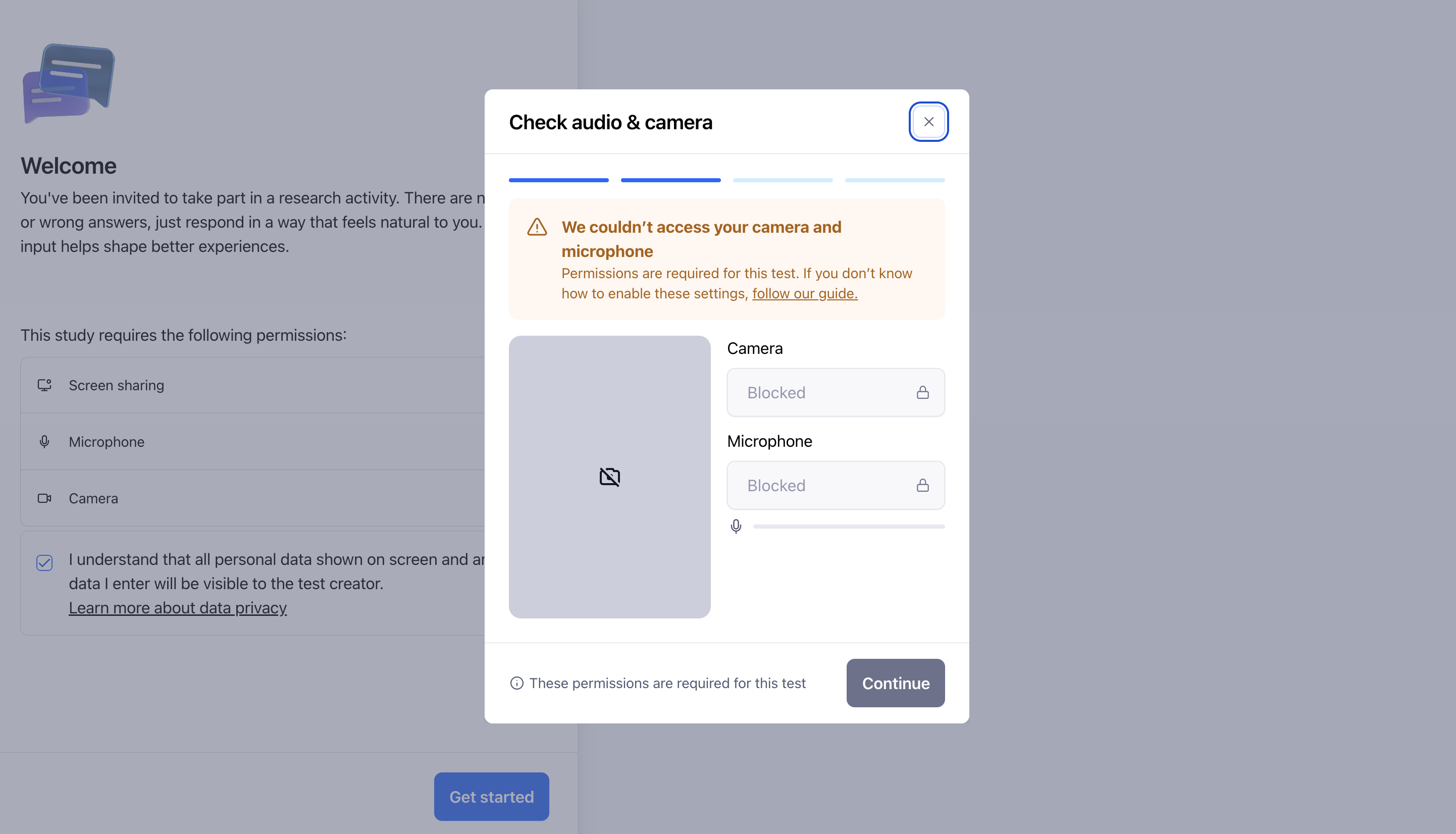
If you block audio permissions in your browser for an AI moderated session, you’ll see the following warning:
Microphone access is required for this study
If you're not sure how to enable the microphone, please follow our guide.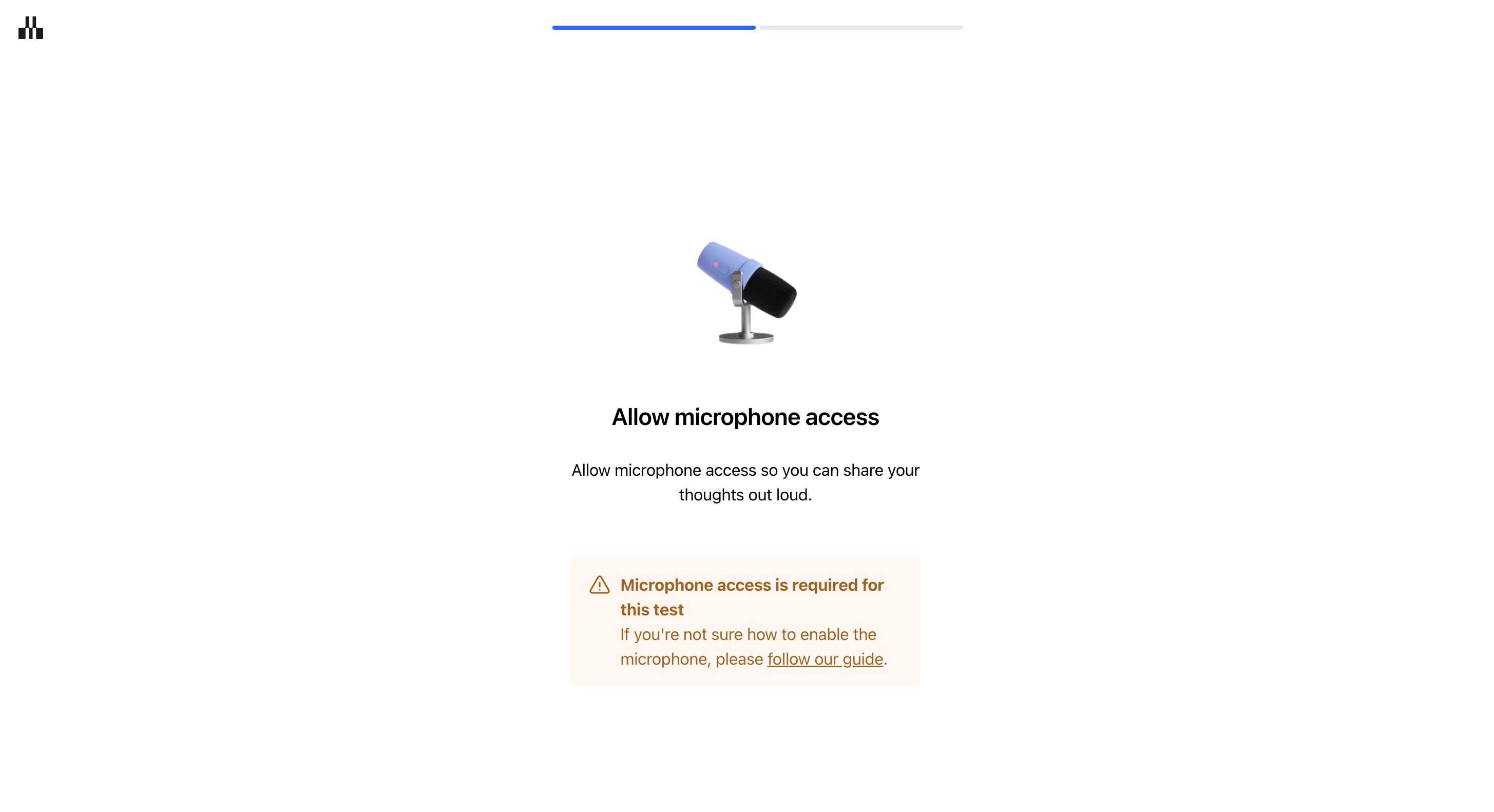
If you block camera permissions in your browser for an AI moderated session, you’ll see the following warning:
No camera detected. To enable it, please follow our guide.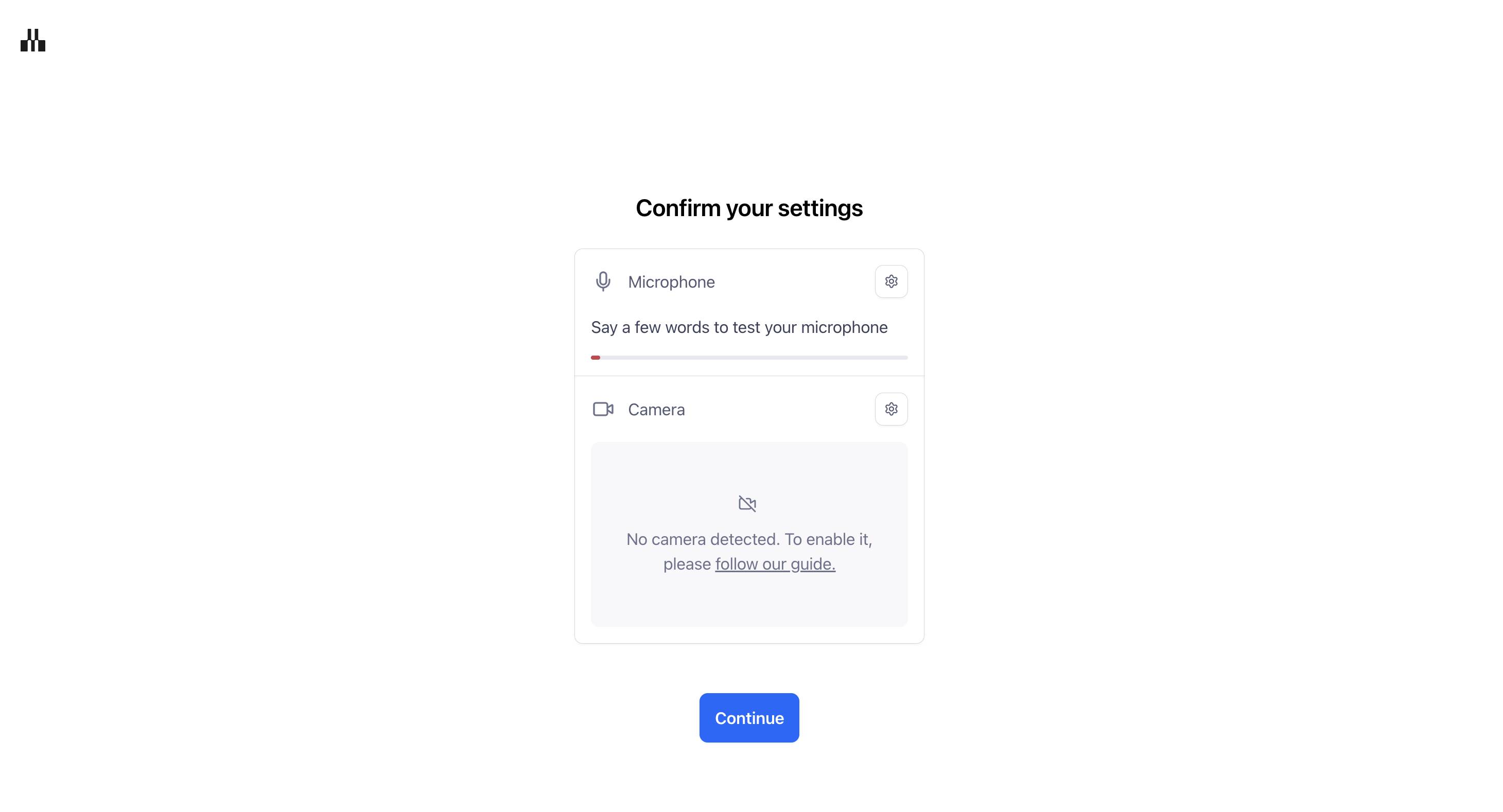
Solution
If you’ve previously blocked audio and camera permissions in your browser, you’ll need to allow these permissions to continue. Here’s how you do it:
Chrome
To the left of the web address, click View site information.
Enable the Camera and Microphone toggles.
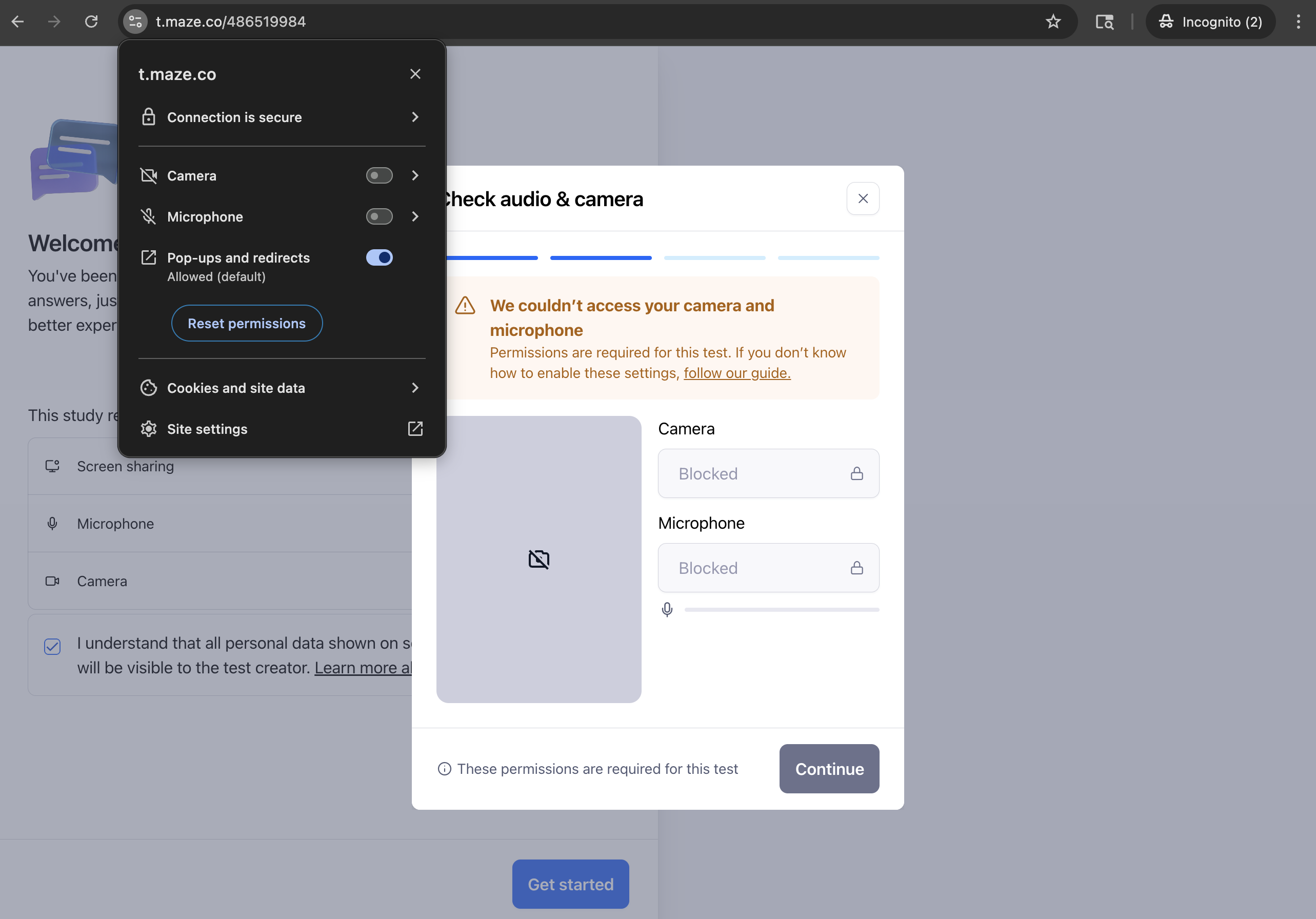
Learn more about site settings permissions in Chrome
Firefox
Remove the block from the contextual confirmation pop-up.
Refresh the page to get the latest settings.
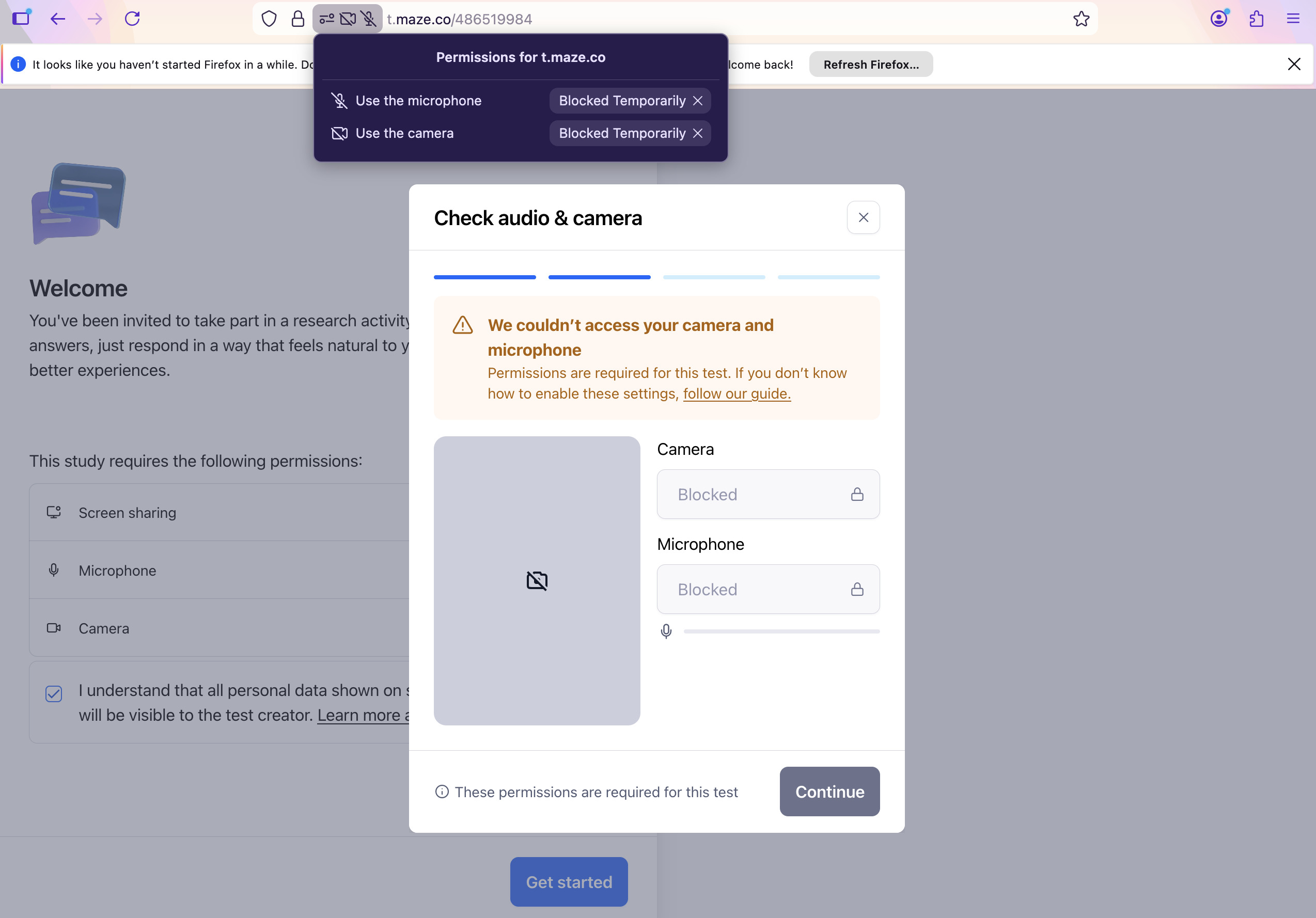
Learn more about camera and microphone permissions in Firefox
Safari
Open Safari > Settings for t.maze.co…
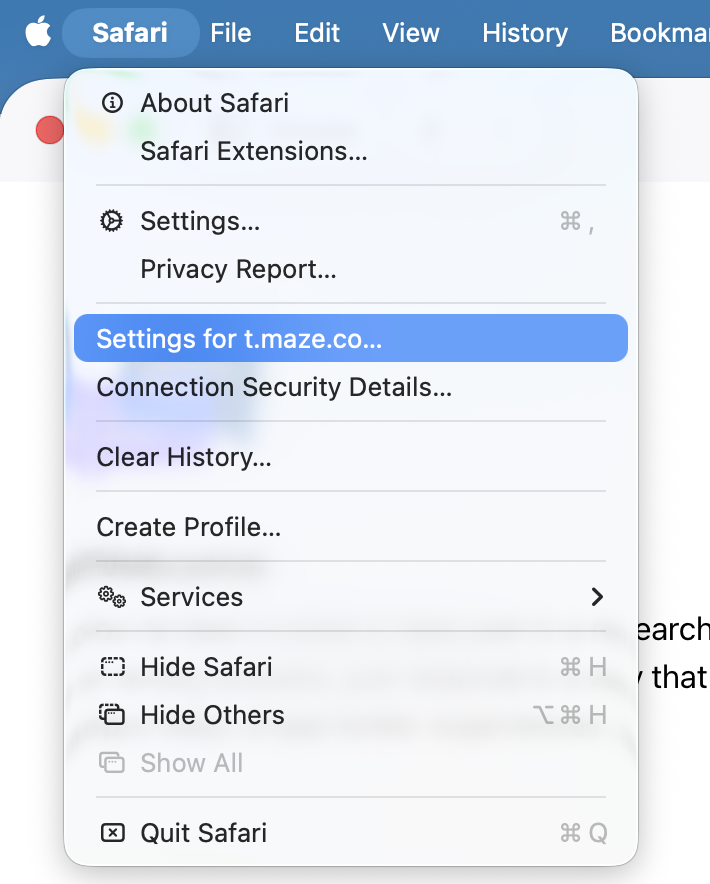
Select Allow from the drop-down next to ‘Camera’ and ‘Microphone’.
Refresh the page to get the latest settings.
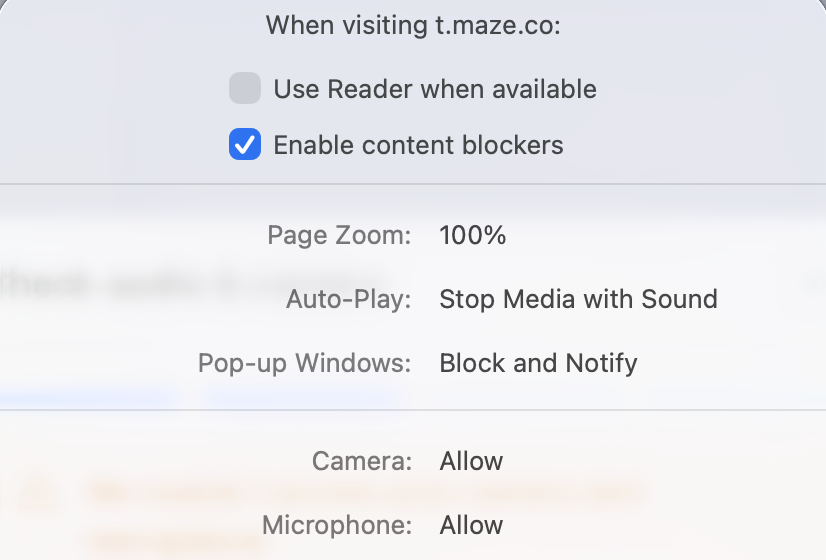
Learn more about changing website settings in Safari
Edge
To the left of the web address, click View site information.
Enable the Camera and Microphone toggles.
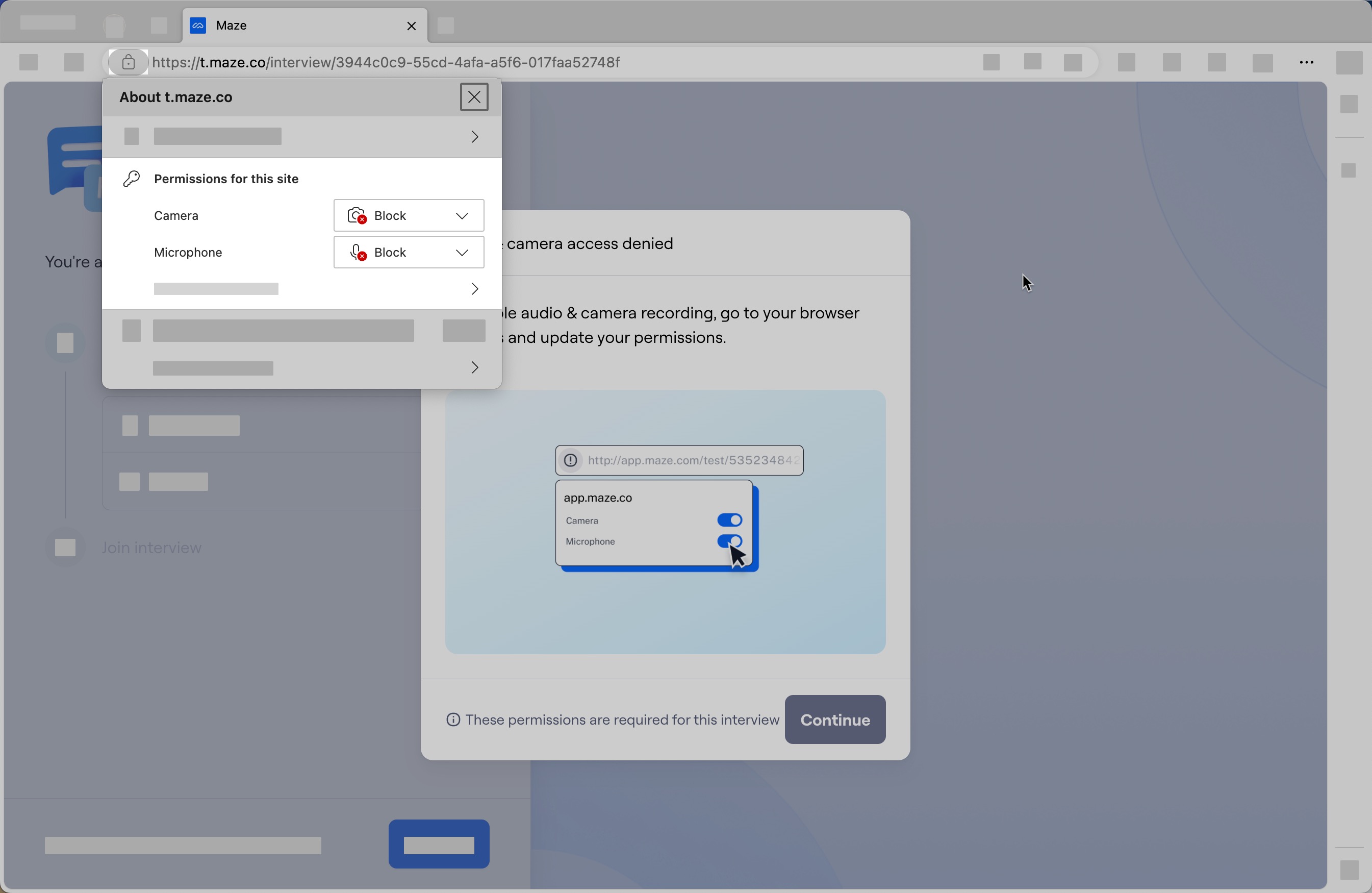
Learn more about privacy permissions in Edge
Additional resources
Where can I learn more about security measures at Maze?
Still need help?
If you have any questions or concerns, please let our Support team know — we'll be happy to help!