Using stimuli in AI-moderated studies
Last updated: April 29, 2026
AI-moderated studies support two types of stimuli you can attach to your research goals: images and links. Images let you show participants a visual (such as a design, screenshot, or ad) and collect their reactions during the conversation. Links let you send participants to a URL (such as a live website, Figma prototype, or competitor product) to explore while sharing their screen and thinking aloud.
Both stimuli types are configured through the Format dropdown on each goal.
AI-moderated studies are only available on Enterprise plans.
Goal formats
Each goal in your study has a Format setting that determines how participants interact with it. You can set a different format for each goal within the same study.
To choose a format, select a goal in the Build tab and open the Format dropdown. There are three options:
Conversation only: A standard discussion with no visual or interactive element. The AI moderator asks questions and follows up based on what the participant says.
Conversation with image: An image is displayed alongside the conversation. Participants can reference and react to the image while the AI moderator asks questions.
Conversation with link: Participants are sent to a URL in a separate browser window. They share their screen and think aloud while exploring, then return to the session for follow-up questions.
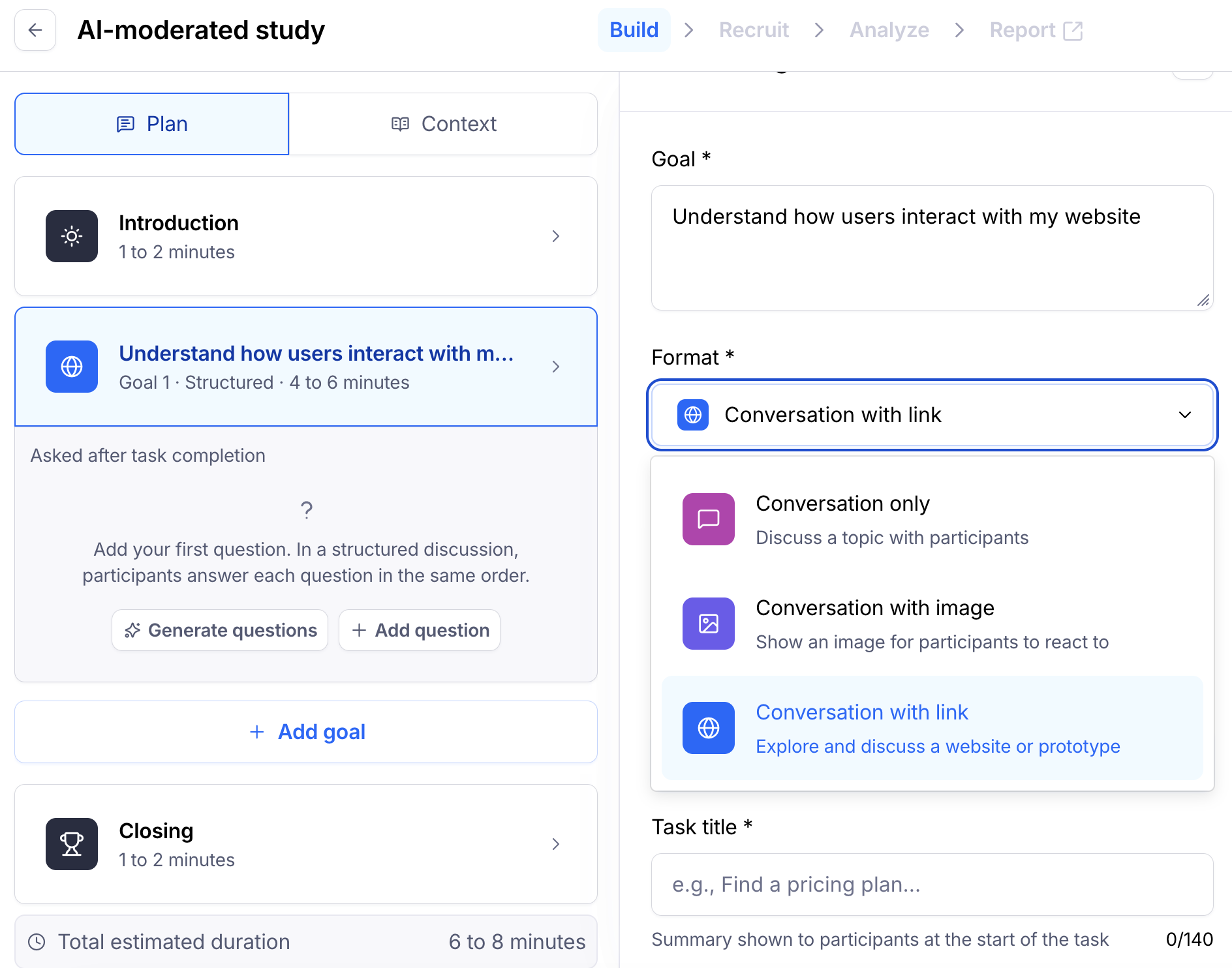
Conversation with image
You can add images to support your study's goals and collect feedback on visual content during the conversation. Images are shown to participants throughout the entire discussion for that goal.
Adding images during study creation
When creating a new study, you can add images from the Describe study tab. After adding the context to describe your study, click Upload image to add a supporting image to your learning goal.
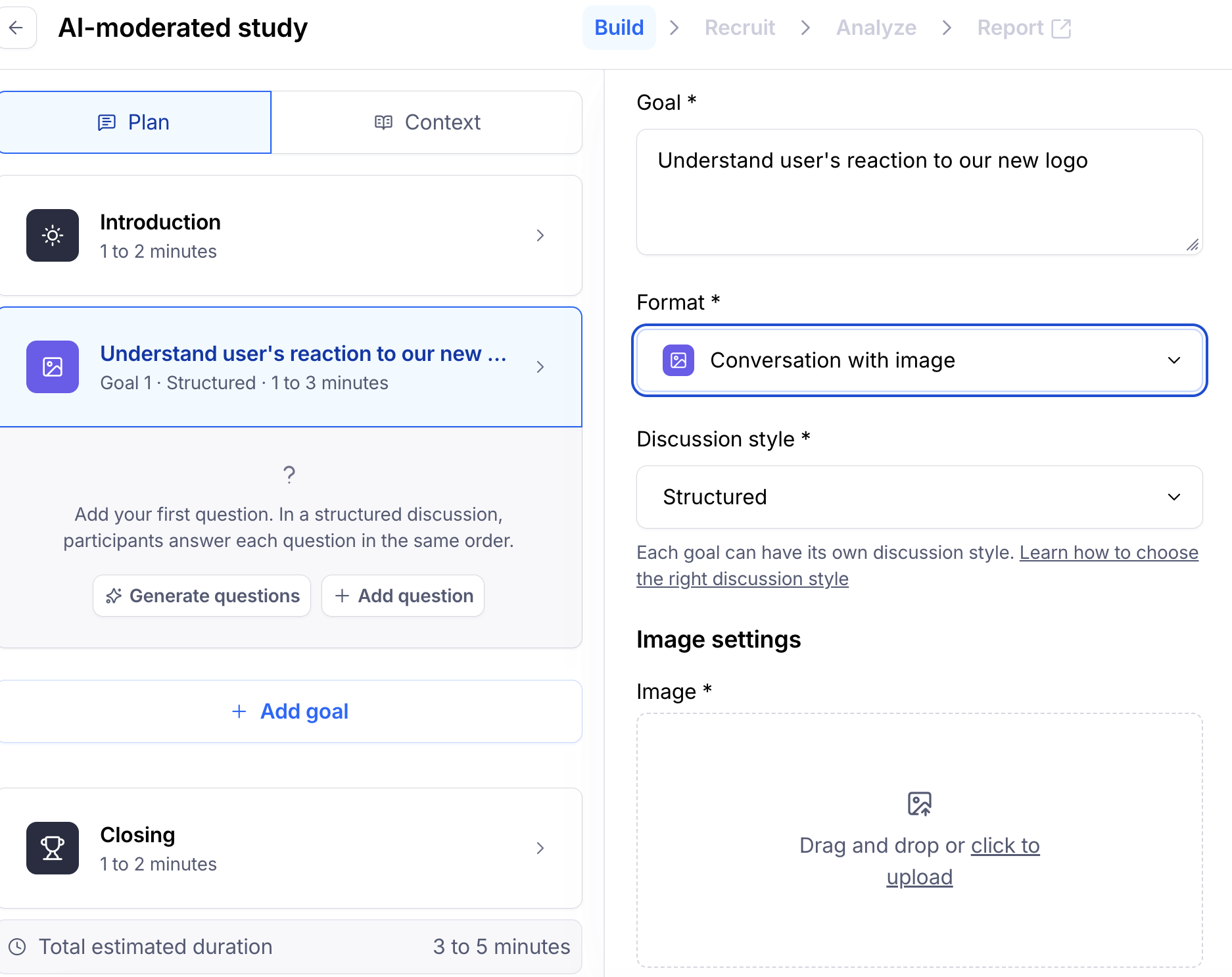
After adding your images (up to 5 per study), click Next to proceed. You can add more images in the builder after creating your study.
Once you've added the context for your study, you'll be able to review your research goals. From the Review goals tab, you can edit any existing images or upload additional images as needed. Click the edit icon next to a specific goal and then click the image icon below the text field to upload additional images. If you need to remove an existing image, hover over the image and click the trash icon.
[Insert screenshot: Review goals tab showing a goal with an image attached]
Adding images in the builder
You can also add images directly in the builder. Select your goal from the left side panel, toggle Show image on, and either click to upload or drag and drop your image.
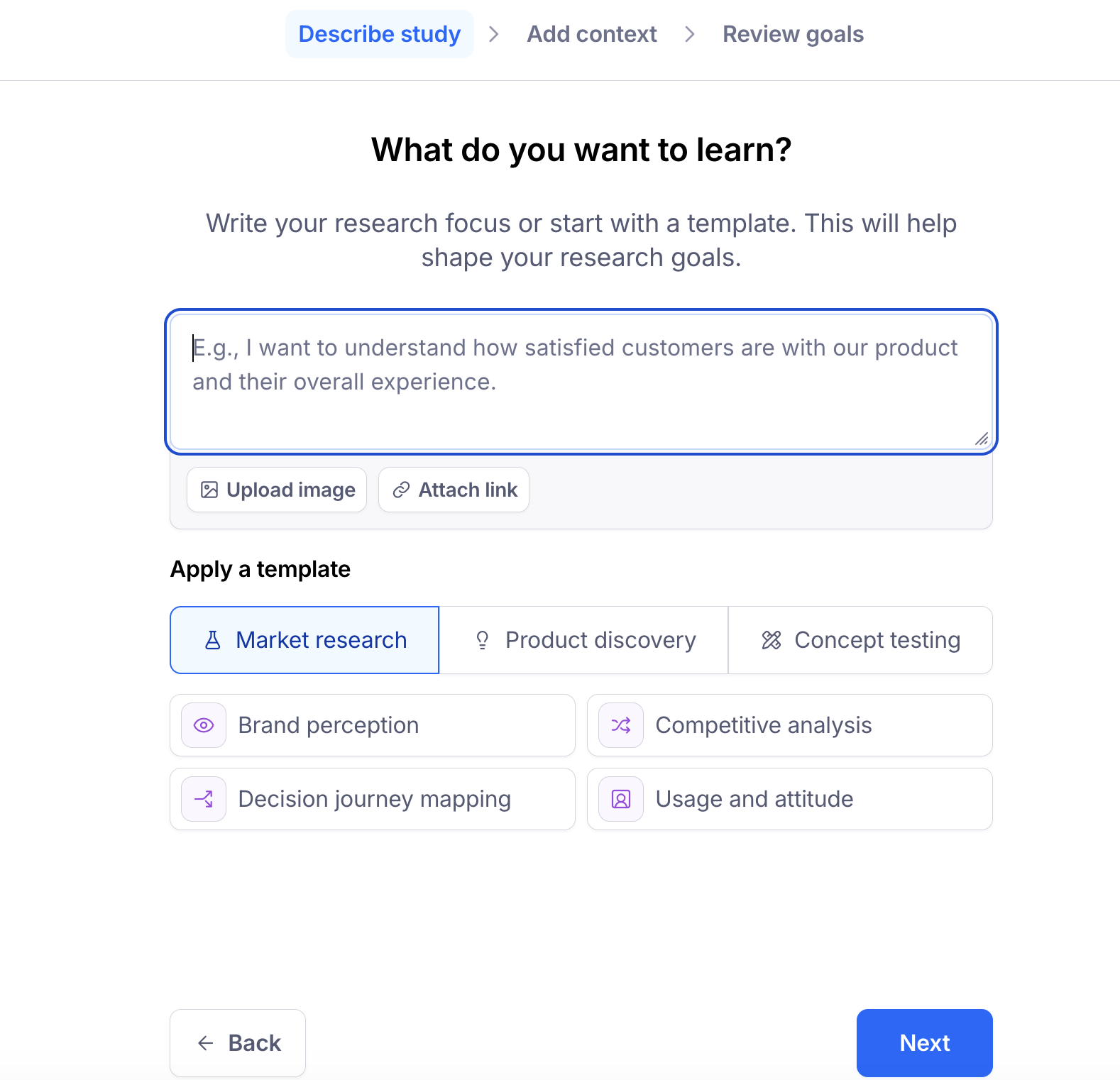
If you already have an image associated with your goal and need to replace it, click Replace image and select your new image. If you need to remove the image, click the trash icon.
Maze automatically generates an image description based on its understanding of the image, focusing on visual elements, text, and style. Review this description to make sure Maze correctly understands your image. You can edit the description to add more context about the image itself. Keep in mind that this field is meant for describing the image, not for adding moderation instructions.
Note: There is a maximum of 5 images per study. Images can be assigned to a goal, not to individual questions. Each image should be no larger than 10MB.
Conversation with link
Linked tasks let you send participants to any URL during a session while capturing screen recordings and think-aloud feedback. This is useful for usability testing, competitor research, and concept validation.
Adding a linked task
Open your AI-moderated study and go to the Build tab.
Select an existing goal or click + Add goal from the plan sidebar.
In the Research goal panel, enter a description for your goal.
Open the Format dropdown and select Conversation with link.
Under Task settings, enter the URL you want participants to visit in the Task link field. This can be any publicly accessible URL: a live website, Figma prototype, staging environment, or competitor site. If the link requires authentication, participants will need to log in manually after the window opens.
Add follow-up questions that the AI moderator should ask after the participant returns from the task. You can write your own or click Generate questions to have Maze suggest questions based on your goal.

Note: When you select "Conversation with link" for any goal in your study, the study automatically becomes desktop only. Participants on mobile or tablet will not be able to open the study. A warning appears below the Format dropdown to confirm this. This restriction applies to the entire study, even if other goals in the study use a different format.
What participants experience during a linked task
Before the session begins, participants see a consent prompt requesting permission to record their screen. This works like a standard browser permission request (similar to allowing screen recording in a video call). Participants must grant consent to proceed.
When the session reaches a linked task goal, the following happens:
The AI moderator prepares the participant. It explains that a link will open in a new window, asks them to think aloud as they explore, and reassures them there are no right or wrong answers.
The link opens in a separate browser window on top of the AI moderator. The participant explores the site or prototype while sharing their screen.
When the participant is ready to move on, they return to the Maze session window and click the End task button. The AI moderator acknowledges they've returned and begins the follow-up conversation.
Note: Each linked task opens a fresh browser instance. If your research requires a multi-step flow on the same site (for example, "find a filter" followed by "apply that filter"), configure each step as a separate goal with its own link.
How the AI moderator behaves during a linked task
While a participant is exploring the linked URL, the AI moderator stays intentionally silent. This preserves natural behavior and avoids biasing how participants interact with the experience.
The moderator will still help with logistics if needed. For example, it can:
Remind the participant to think aloud if they go quiet
Answer questions like "What was I supposed to do?" or "How do I come back?"
Acknowledge when the participant is done
The moderator does not ask research questions, probe, or comment on what the participant is doing while the task is active.
Follow-up questions after a linked task
Once the participant clicks End task and returns to the session, the AI moderator picks up with the follow-up questions you configured for that goal. These follow-ups work the same way as questions in any other goal (you can use either a freeform or structured discussion style).
The AI moderator's follow-up questions are informed by what the participant said during the task. If a participant mentioned being confused about navigation while exploring, for example, the moderator may probe deeper on that topic.
Important: Encourage participants to think aloud throughout the task. The AI moderator bases its follow-ups on what participants say during the exploration, so the more they narrate, the richer the follow-up conversation will be.
Screen share recordings and transcripts
Each linked task session captures a screen recording alongside a full transcript, including what the participant said during the task. Both are available in the Analyze tab alongside the rest of the session recording.
You can review screen recordings, navigate the transcript, and create highlights the same way you would for any other AI-moderated session.
Still need help?
If you have any questions or concerns, please let our Support team know — we'll be happy to help!