Managing interview themes
Last updated: June 24, 2026
A theme is a concise way to describe and categorize the highlights in your interview study.
Documenting highlights and common themes in Maze makes it a breeze to identify patterns across sessions and share them with your stakeholders.
Adding a new theme
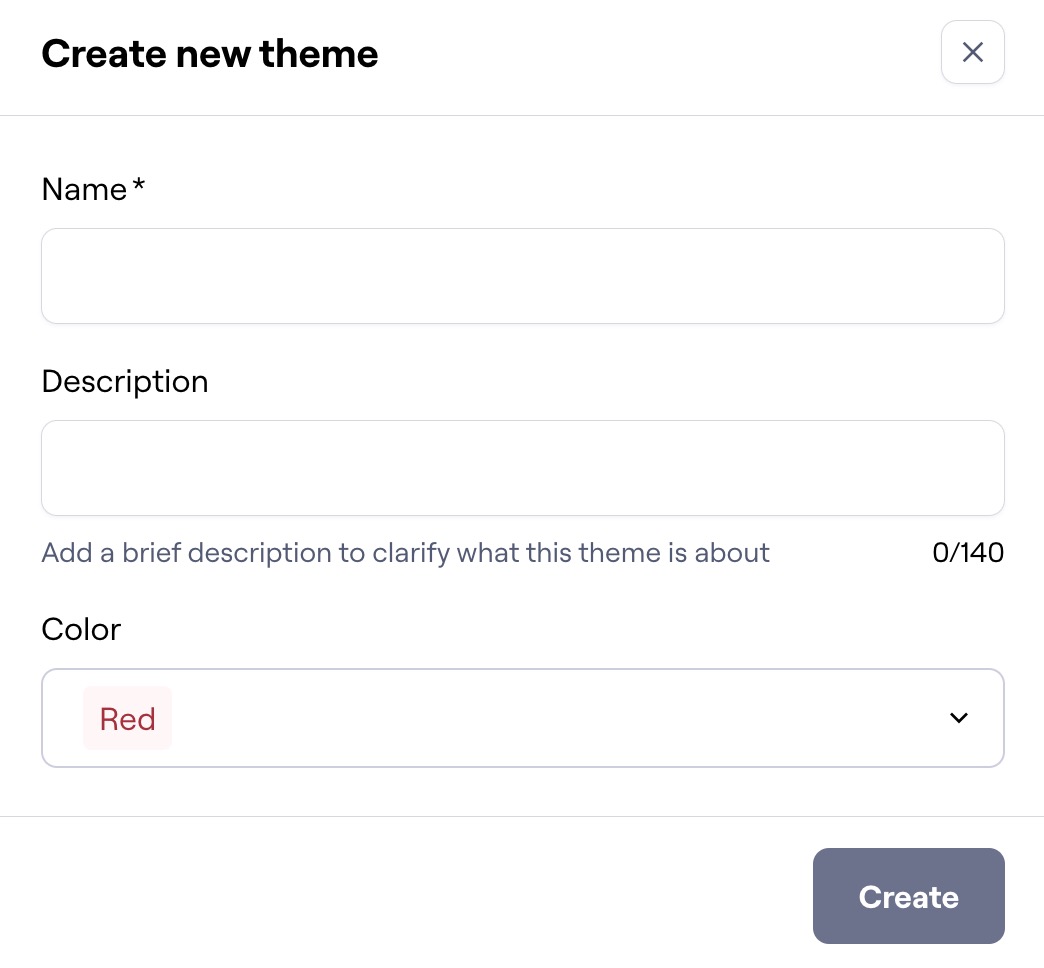
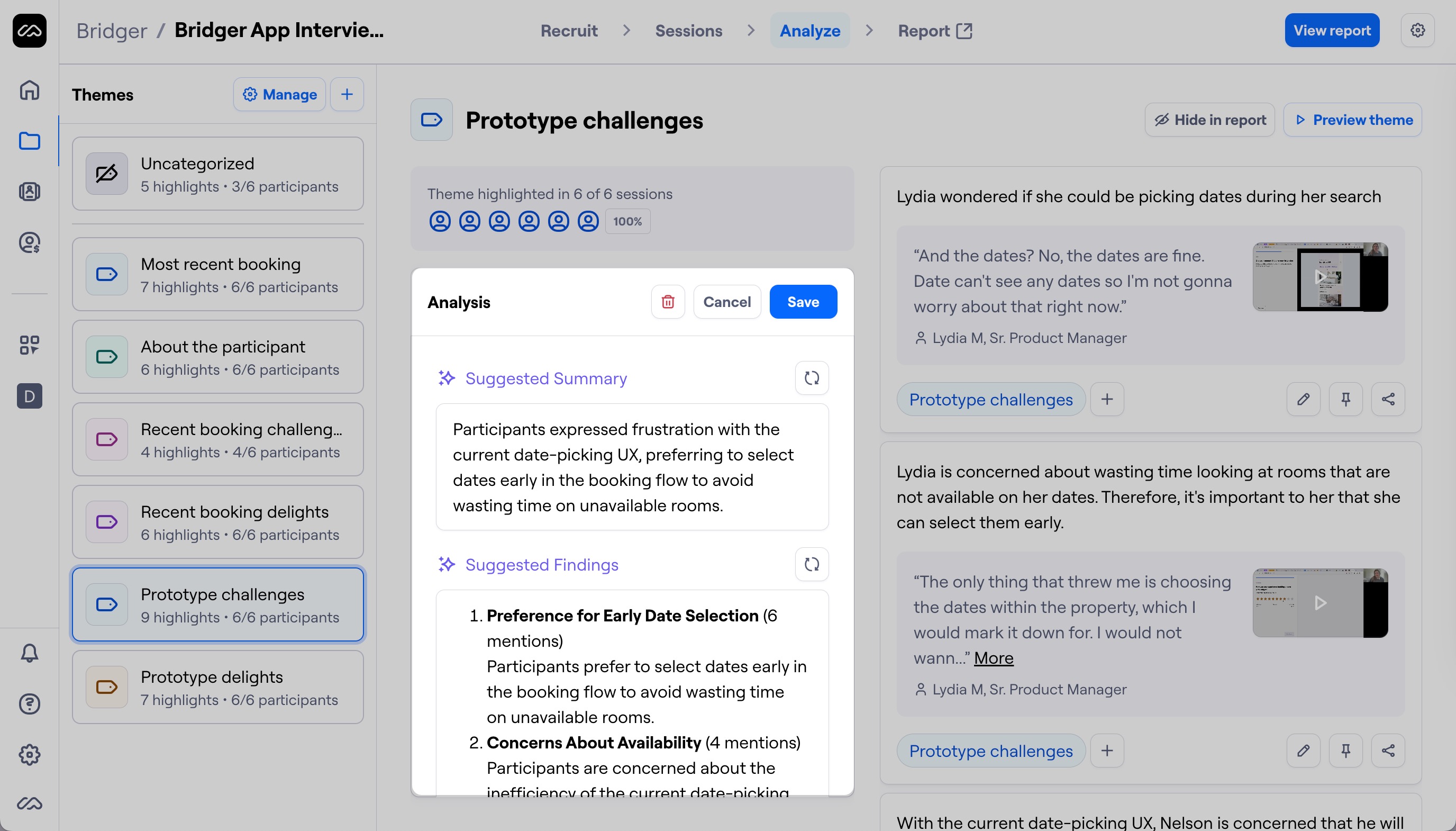
To add a new theme, open the Analyze tab of your interview session and click the + button at the top of the Themes list.

Enter the theme name, a brief description, and assign a label color.
Theme analysis
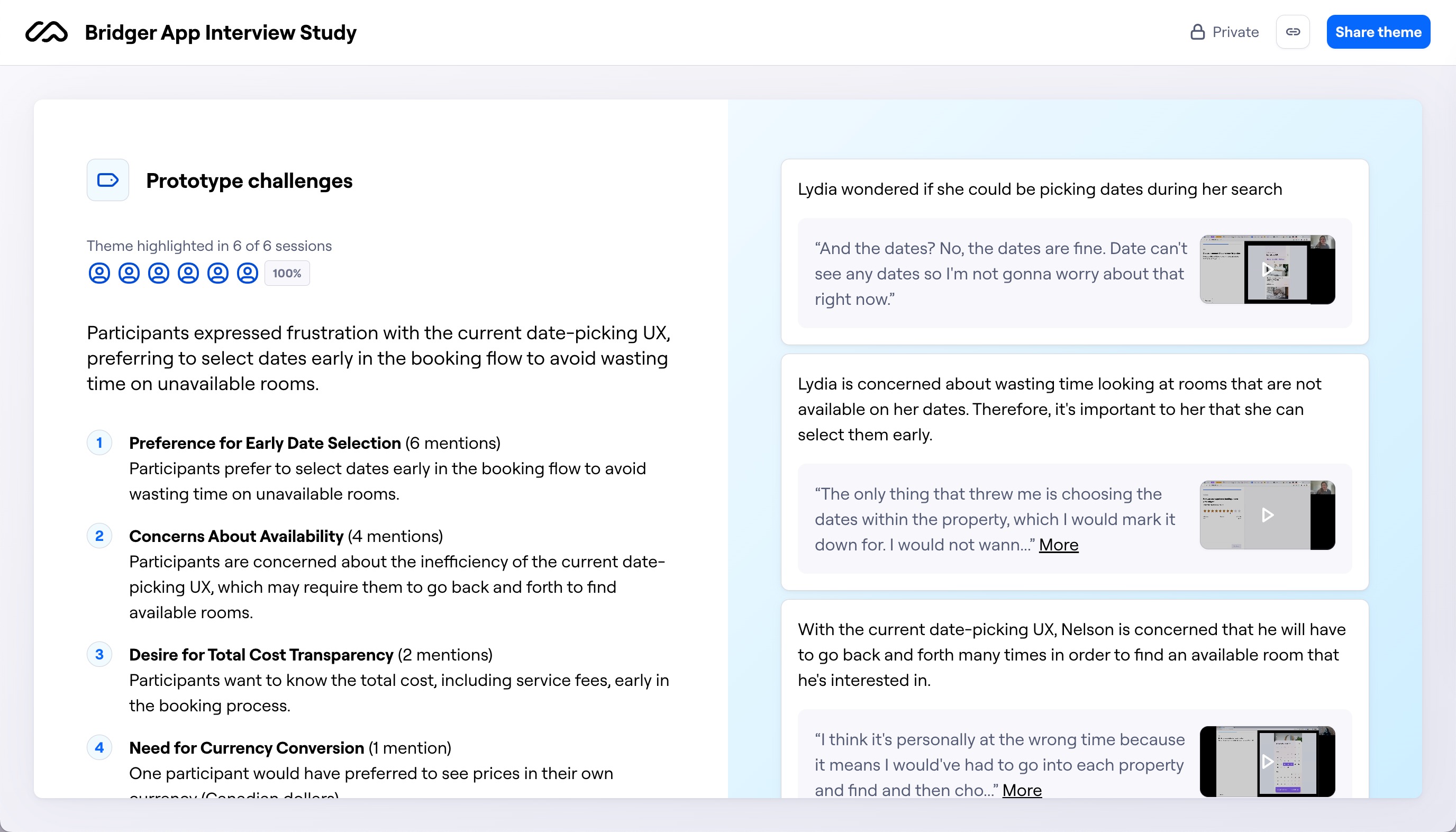
The analysis section (summary & findings) is where you can document patterns and insights from each theme. It’ll appear in the report.
It’s possible to share individual themes. Learn more in this article: Sharing and embedding content from interviews
To add a summary and key findings to a theme, click the Analyze theme button to get an AI-generated analysis based on the highlights associated with that theme. Depending on the amount of highlights to be analyzed, this may take a few moments.
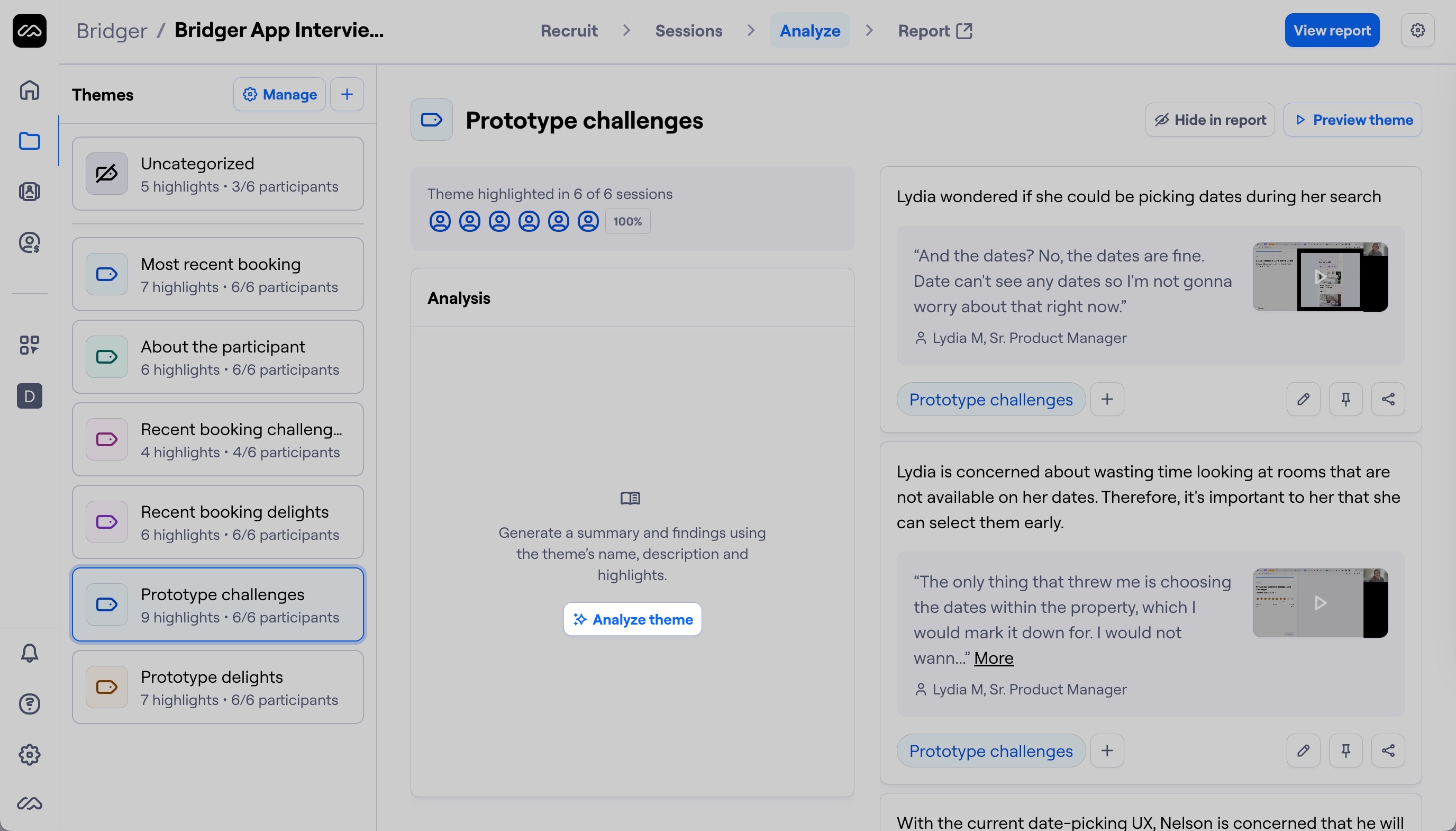
You'll be able to manually adjust the AI-suggested summary and findings.
Managing themes
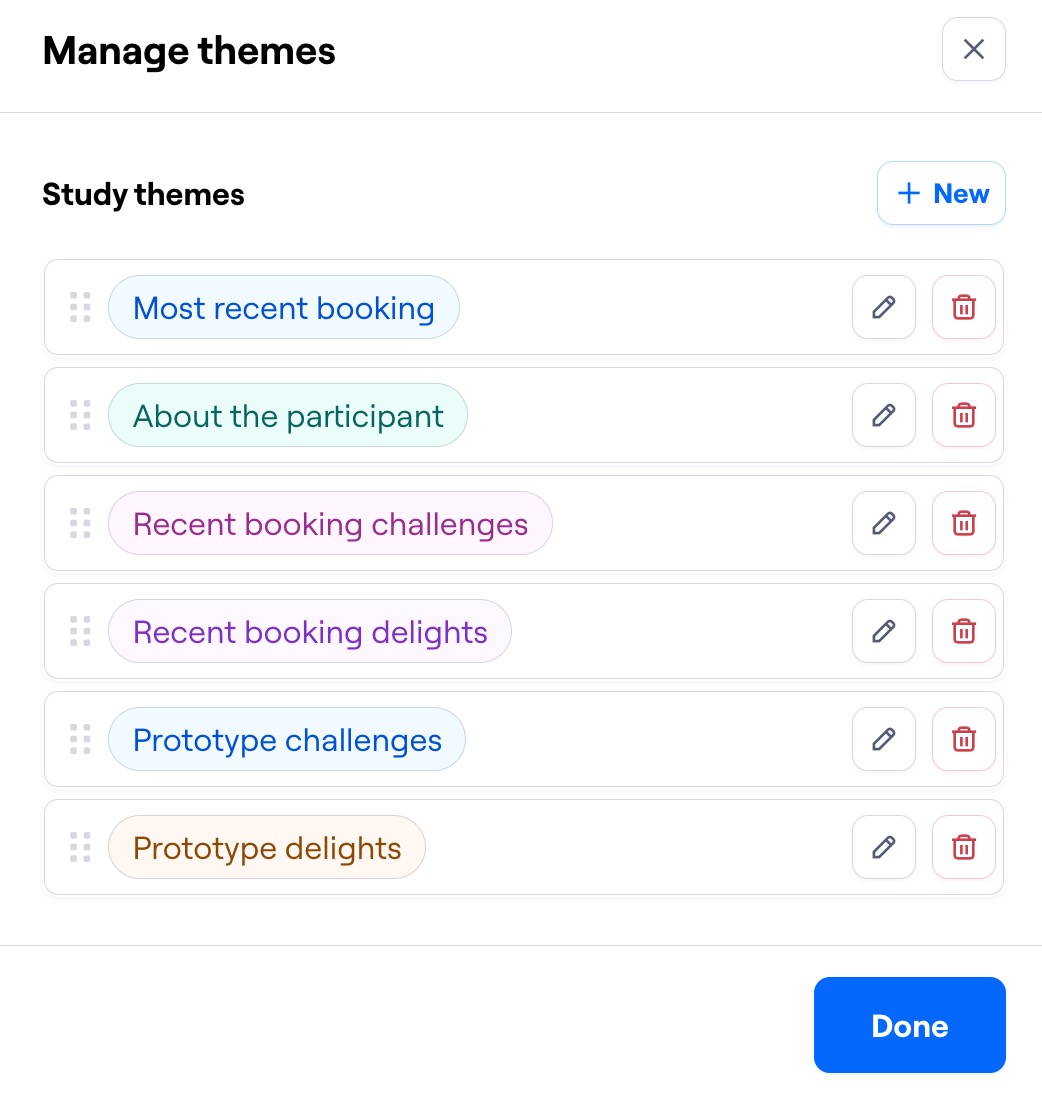
Click the Manage button at the top of the Themes list to edit your themes.

Here, you can:
Add a new theme
Change the order of the themes
Rename themes
Change the label color
Delete themes
Hide/show themes in the interview report
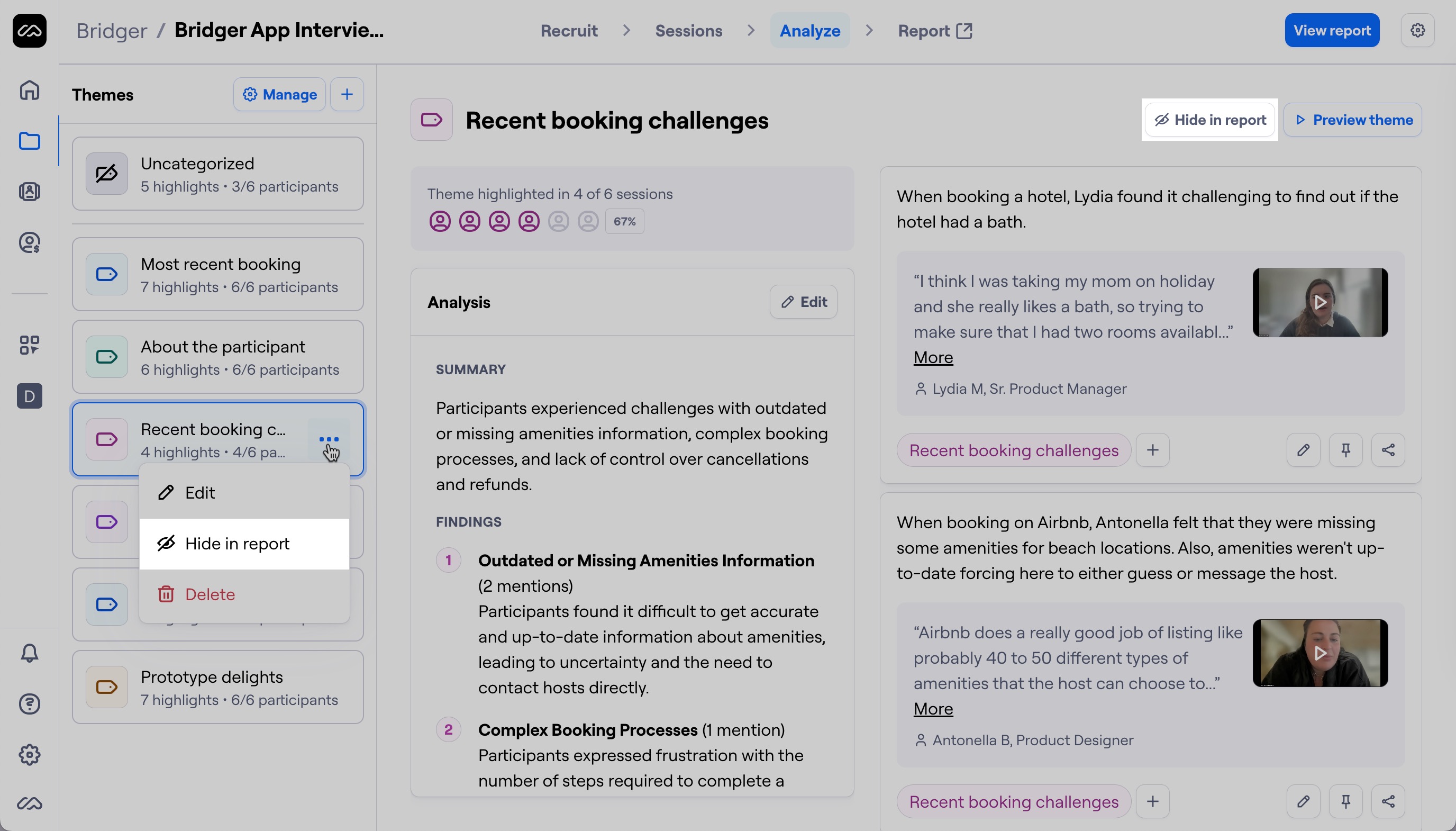
To hide a theme from the report, click the ••• menu next to the theme on the list and click Hide in report. You can also do this using the button at the top right corner.
To show the theme again, click Show in report.