Results and reporting in moderated studies
Last updated: June 24, 2026
Unlock the full potential of moderated research. Maze moderated studies allows your team to streamline analysis and sharing of insights from user interviews.
See a demo report with the insights you can get from moderated studies.
Extract insights from sessions in the Analyze tab
You can access the study's insights after adding your first highlight.
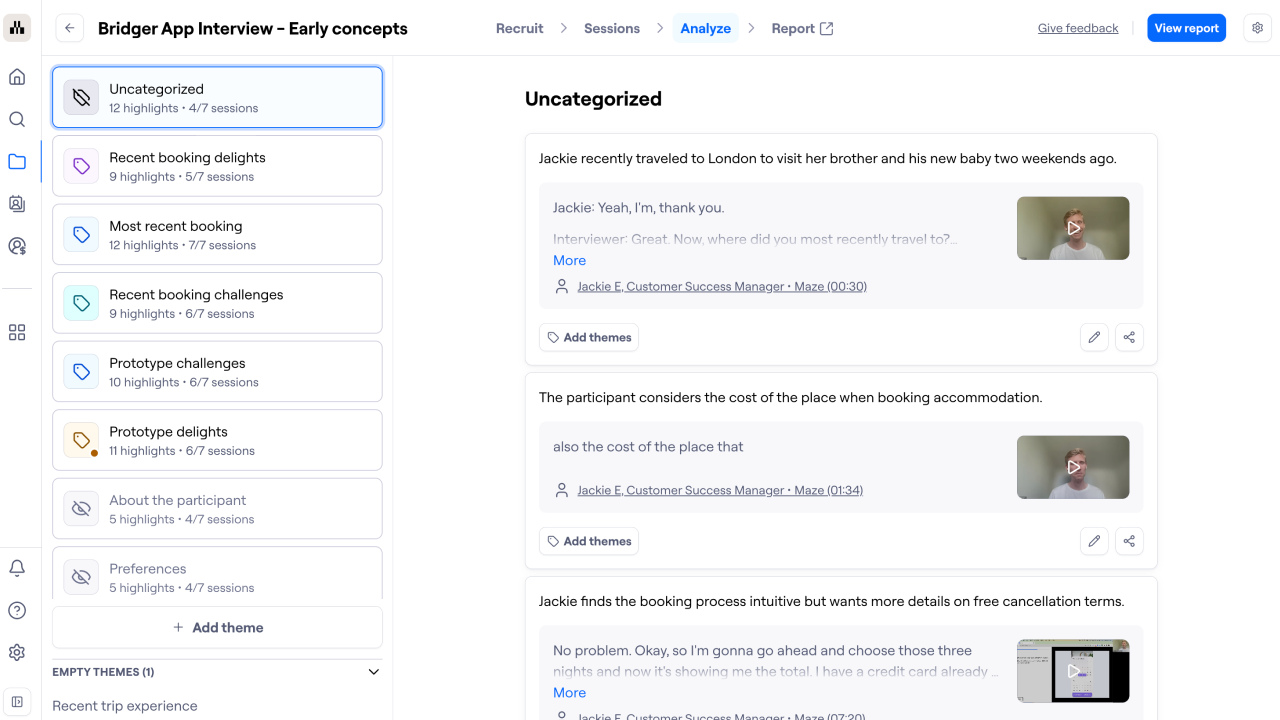
The Analyze page provides an aggregated view of all highlights across sessions, clustered by theme.

Categorize highlights
Open Uncategorized to view all highlights that aren’t currently associated with a theme. Highlights without a theme aren’t visible in the report.
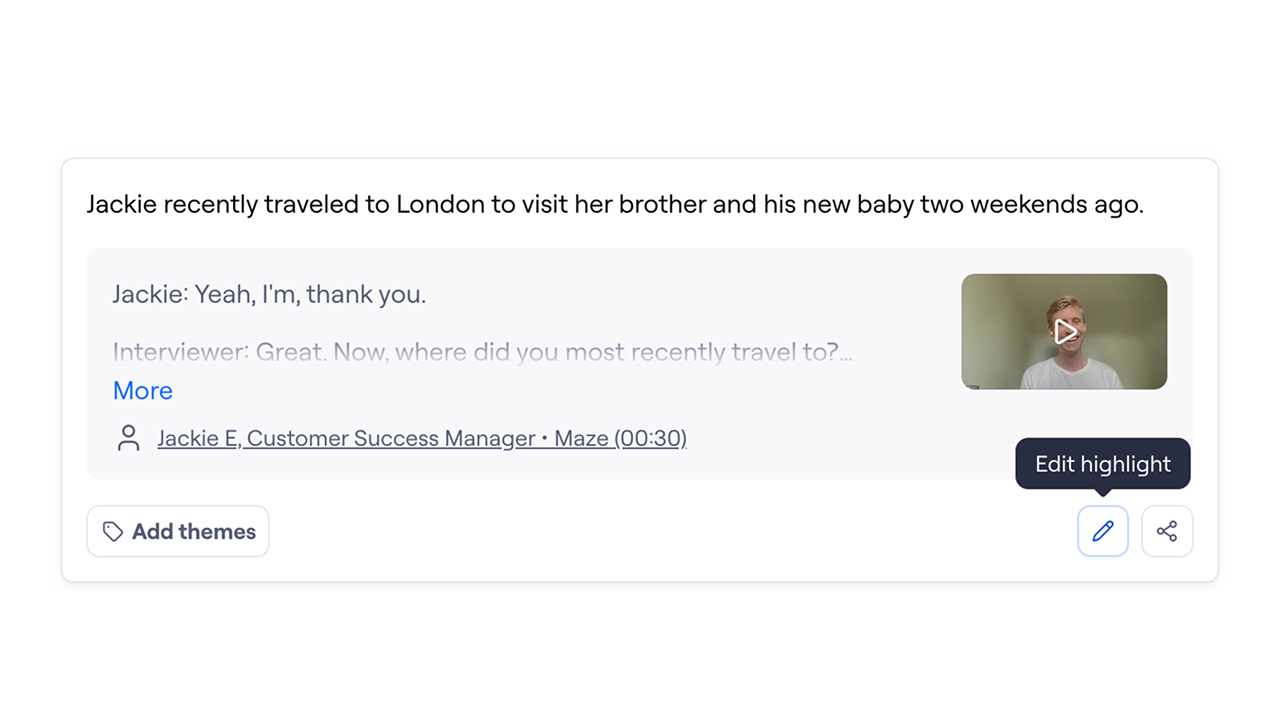
To assign a theme to a highlight:
Next to each highlight, click Edit highlight (✏)
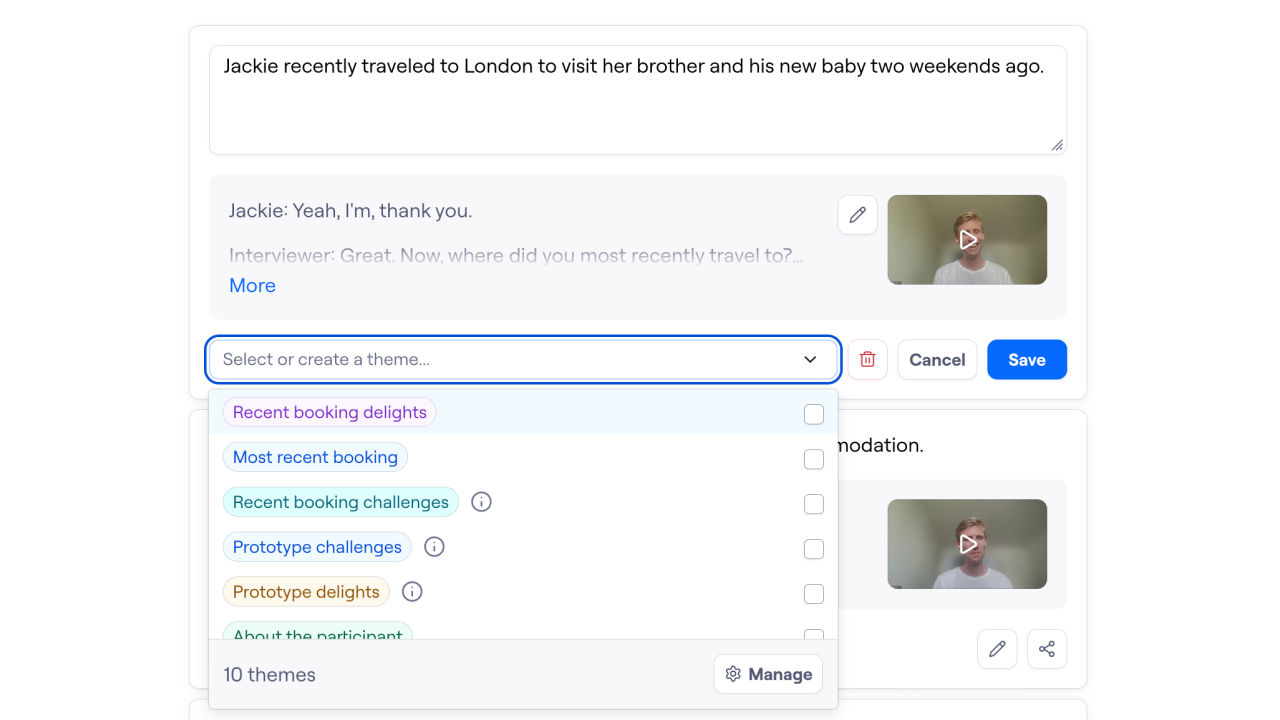
Click the dropdown to select an existing theme, or create a new one.
Click Save.
Creating and sharing a theme highlight reel
You can add highlights within a theme to a highlight reel to showcase key moments, feedback, and quotes across multiple interviews. Theme highlight reels make it easy to spot patterns within a theme and share insights with your team.
Add theme highlights to a reel
From the Highlights pane, you can add one or more highlights to a reel by either:
Clicking the Add to reel button on the highlight
Dragging the highlight from the Highlights section into the Highlights reel section.
Customizing a theme highlight reel
Once your highlights are in a reel, you can adjust and organize them to best fit your audience.
Trim or expand highlights to include exactly the moments you want.
Reorder highlights in your reel using drag and drop.
Remove highlights from your reel by either:
Clicking the Remove from reel button on the highlight, or
Dragging the highlight from the Highlights reel section back into the Highlights section.
Sharing a theme highlight reel
You can share a highlight reel with your team to showcase key insights within a theme. Highlight reels can be shared in two ways.
Copy a link to share or embed the reel in your tool of choice.
Download the reel as a video file and share it directly via the download icon (next to Share theme). More details on Highlight reel downloads here.
Sharing session and theme highlight reels
Share findings with an auto-generated interview report
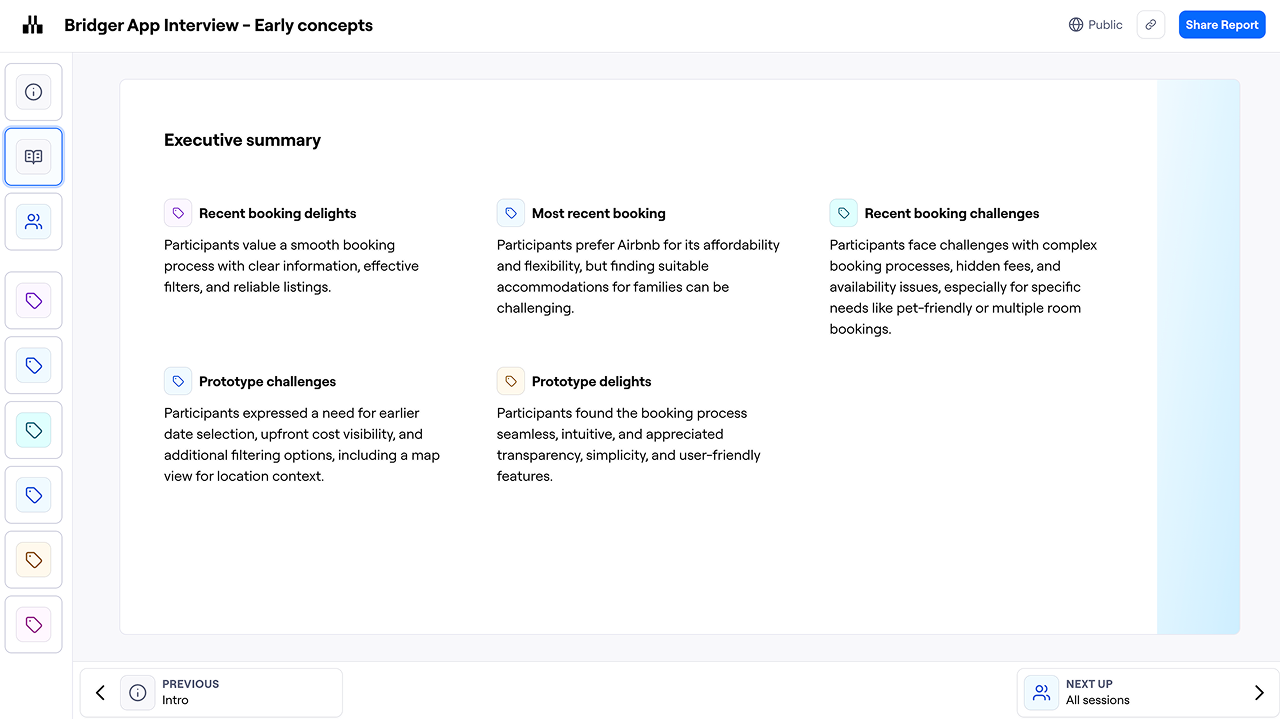
The interview report is a presentation that provides an overview of each theme and its associated highlights, as well as an overview of each session. Reports make it easy to share and present your findings.
Maze automatically generates a report for every moderated study with at least one added highlight.
To access the report, open the Report tab.

You can see a demo report here.
Executive summary
Study participants
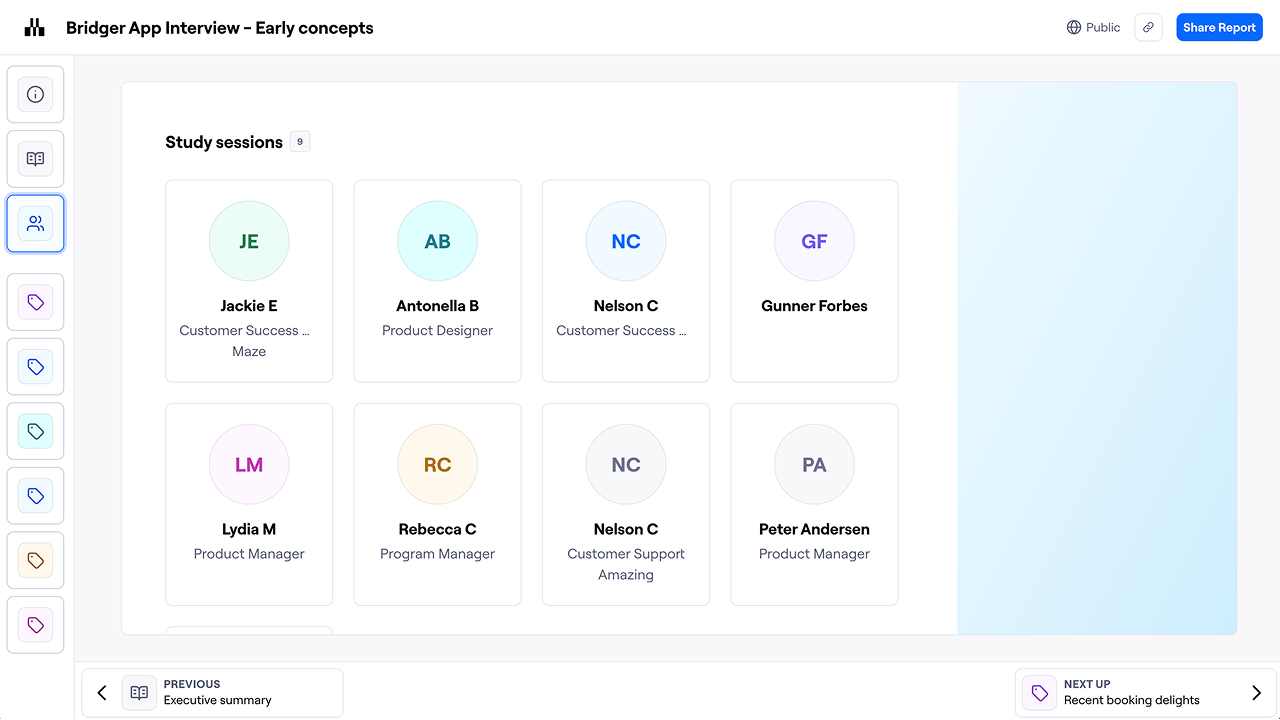
All individual participants are grouped at the beginning of the report.
Here, you can click through each participant to view the associated highlights, as well as any relevant video or audio excerpts.
Themes in the report
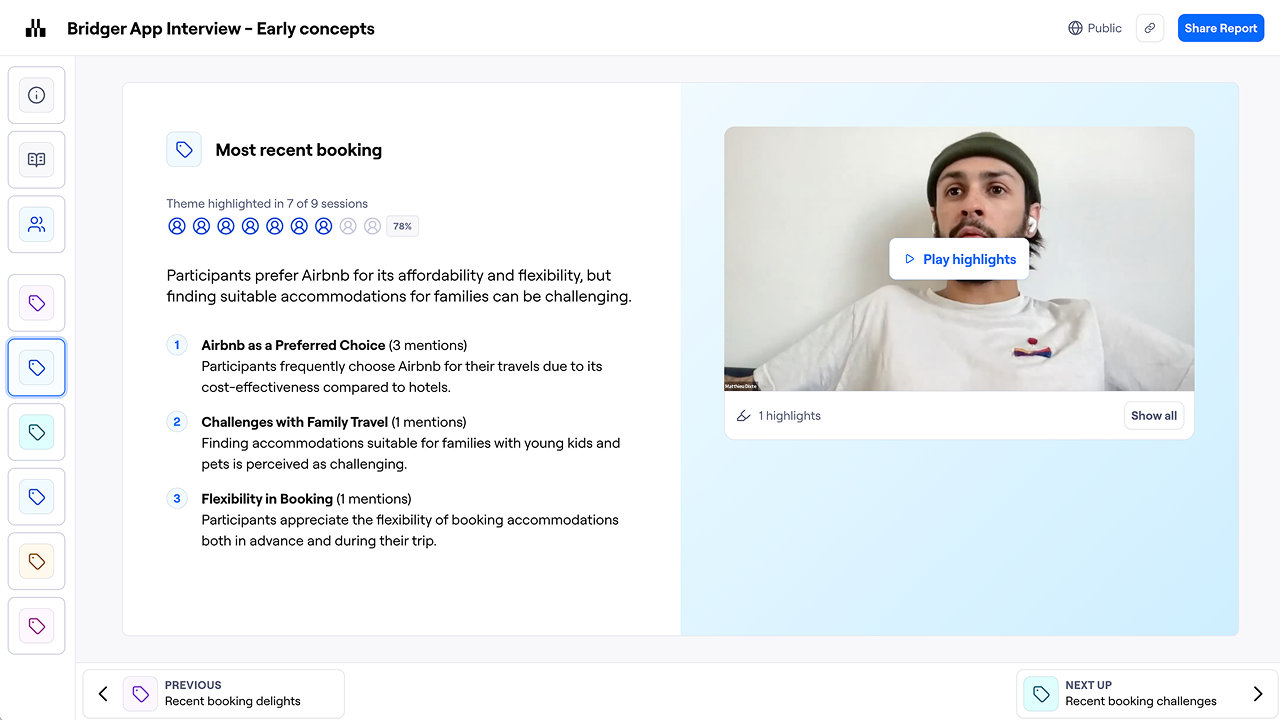
Each theme slide shows you all the highlights associated with that theme. The theme summary and key findings also appear here.
Share public or private reports
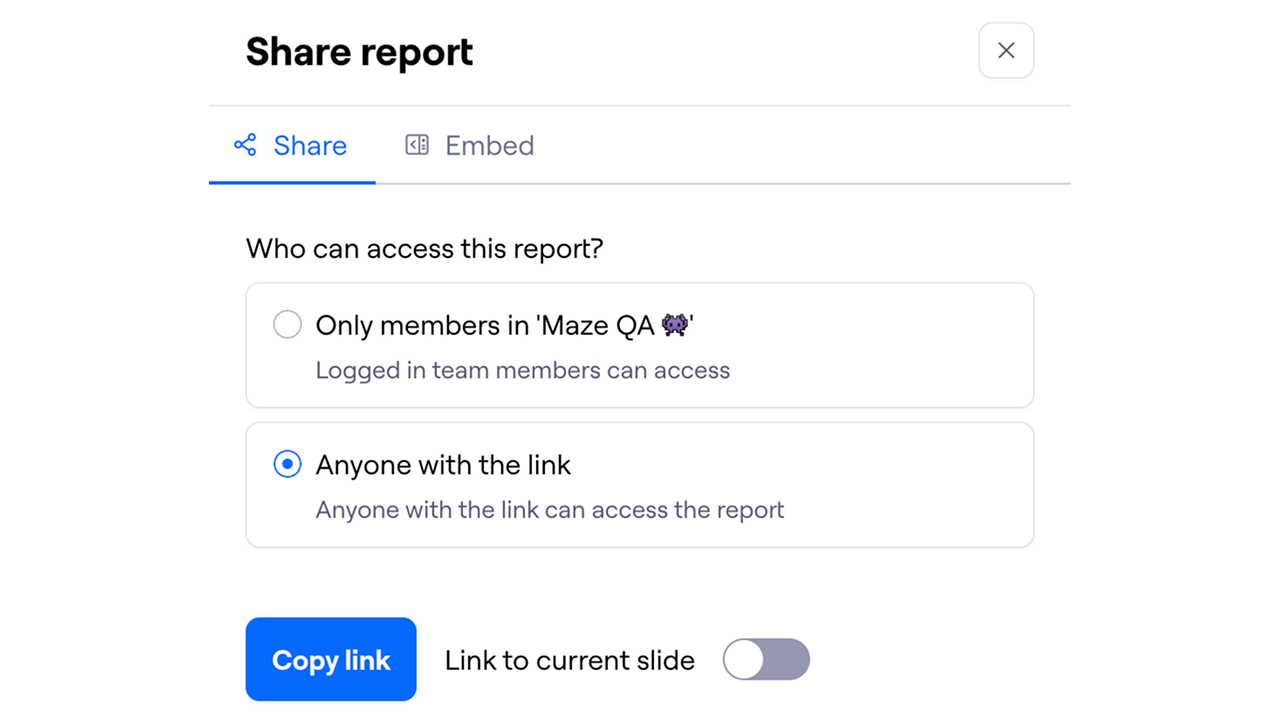
Users can share the report or a specific slide with stakeholders. Open the report and click Share report to copy the share link. You can also copy the embed link to view the report in your tool of choice.
Learn more about sharing interview content

Report links can either be:
Private: Only authenticated team members can view them. If the study belongs to a private workspace, only members of that workspace can view the report link.
Public: Accessible by anyone with the link.
For the time being, it’s not possible to comment or download reports from interview studies.
Still need help?
If you have any questions or concerns, please let our Support team know — we'll be happy to help!