Sharing and embedding content from interviews
Last updated: June 24, 2026
You can easily share links to interview highlights, sessions, themes, and reports.
Sharing interview highlights
A highlight is an observation made during an interview that carries particular weight and value.
To share a link to an individual highlight:
Click the Preview and share button next to the highlight you want to share.
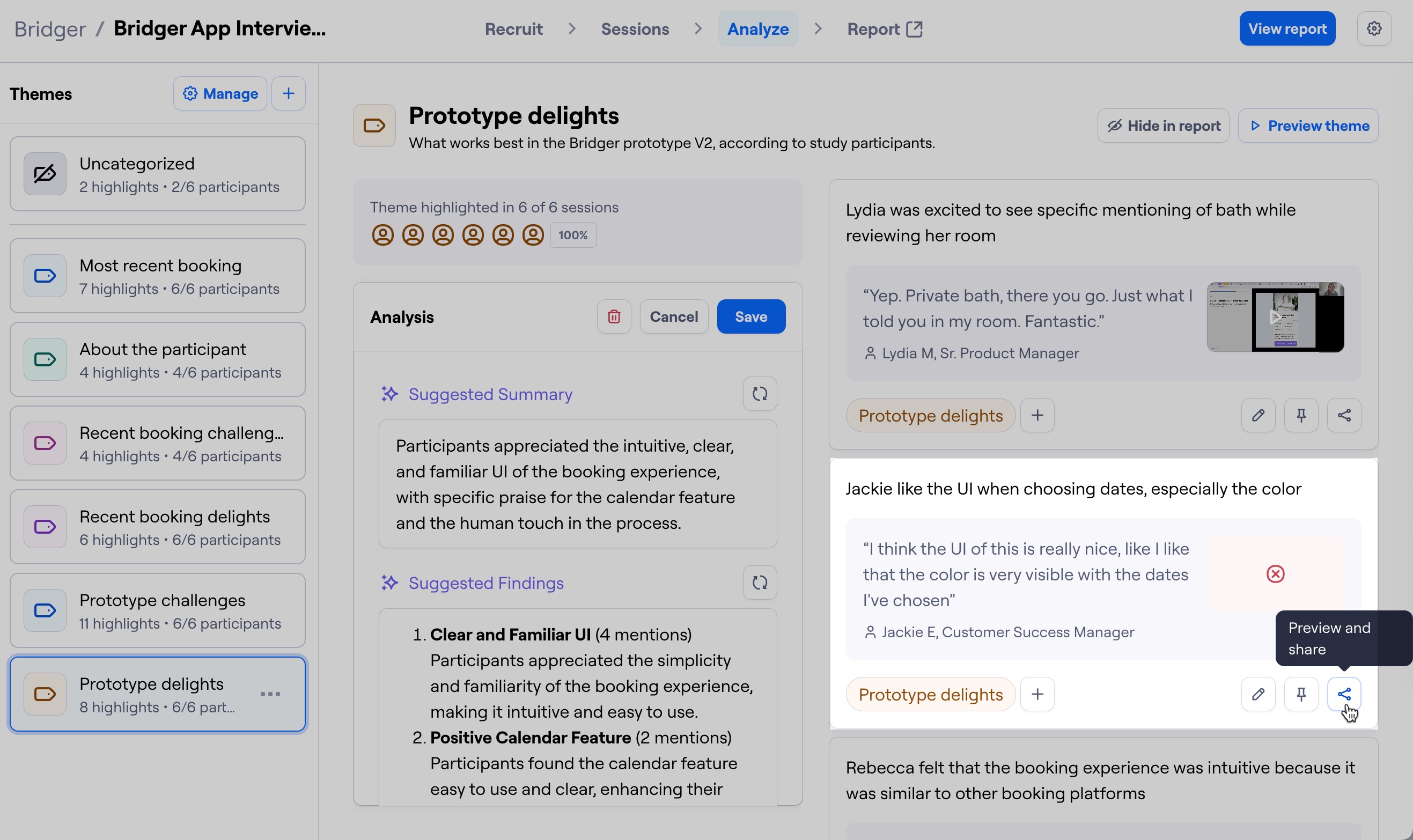
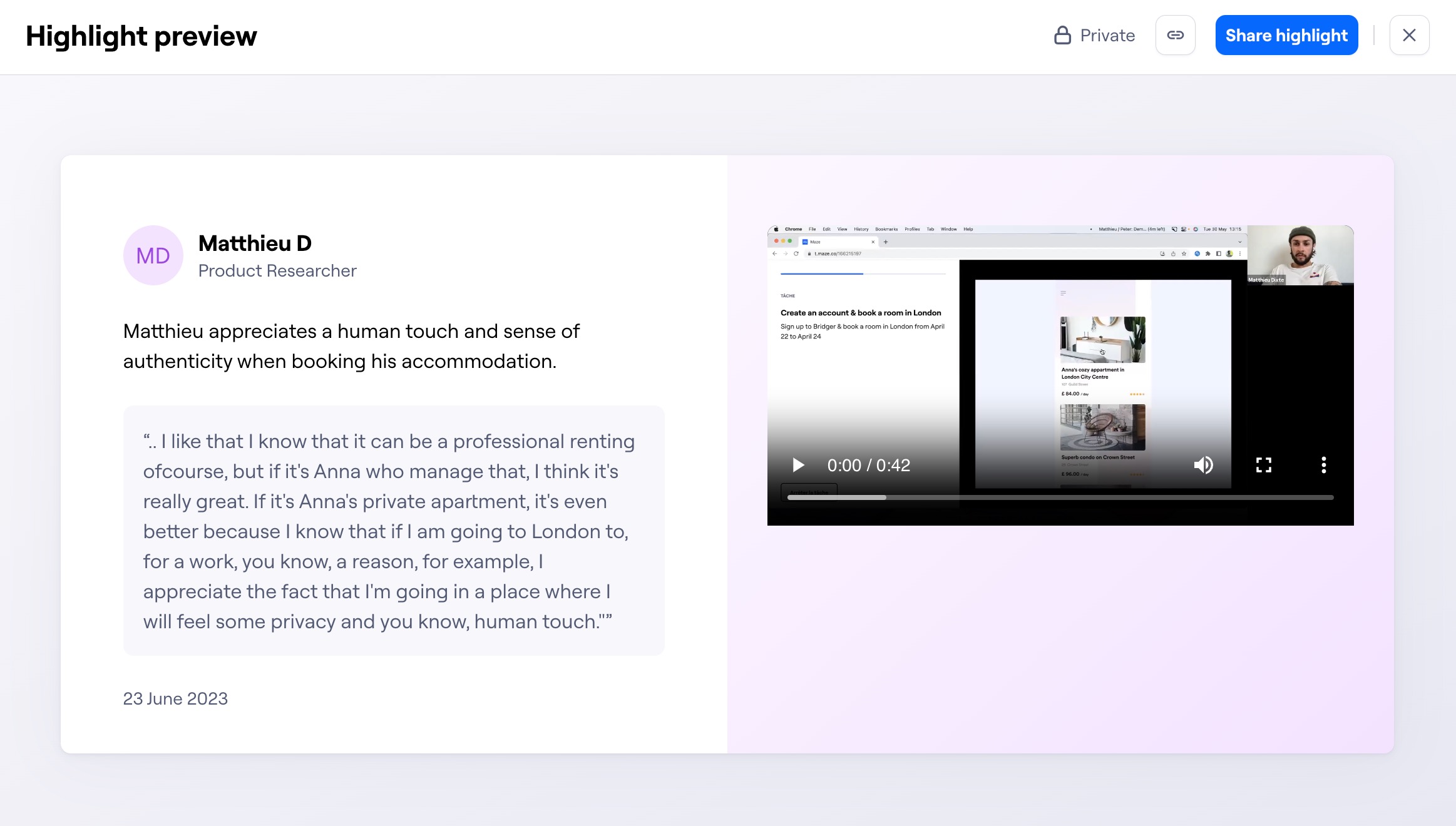
In the highlight preview, click Share highlight.
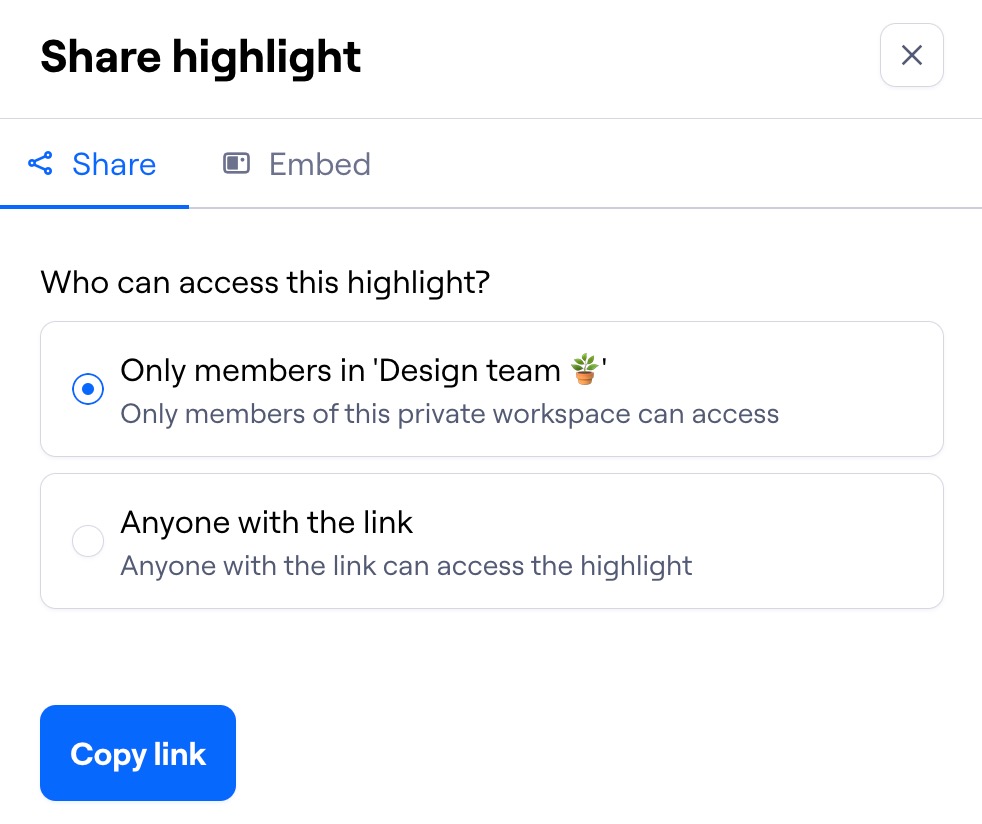
Select your preferred sharing settings and click Copy link. Alternatively, copy the embed link to view the highlight in your tool of choice.
Sharing highlight reels
A highlight reel is a curated selection of key feedback and quotes from moderated or AI-moderated studies. You can create highlight reels for both individual participant sessions and individual themes.
Sharing session highlight reels
To share a link to a participant session highlight reel in either the Sessions page (for Moderated studies) or the Analyze page (for AI-moderated studies):
Open the participant session you want to share.
Click Share session above the Highlights pane.
In the session preview, click Share session.
Select your preferred sharing settings and click Copy link. Alternatively, copy the embed link to view the highlight in your tool of choice.
Sharing theme highlight reels
To share a link to a theme highlight reel:
Open the theme you want to share.
Click Share theme above the Highlights pane.
In the theme preview, click Share theme.
Select your preferred sharing settings and click Copy link. Alternatively, copy the embed link to view the highlight in your tool of choice.
Download highlight reels
You can download both session and theme highlight reels as a video file. To do this, open the Highlights pane and click the download arrow at the top of the Highlights reel section. A download link will then be sent to your email.
Sharing interview sessions
To share a link to an individual session:
Open the Sessions tab.
On the top right corner, click Preview session.
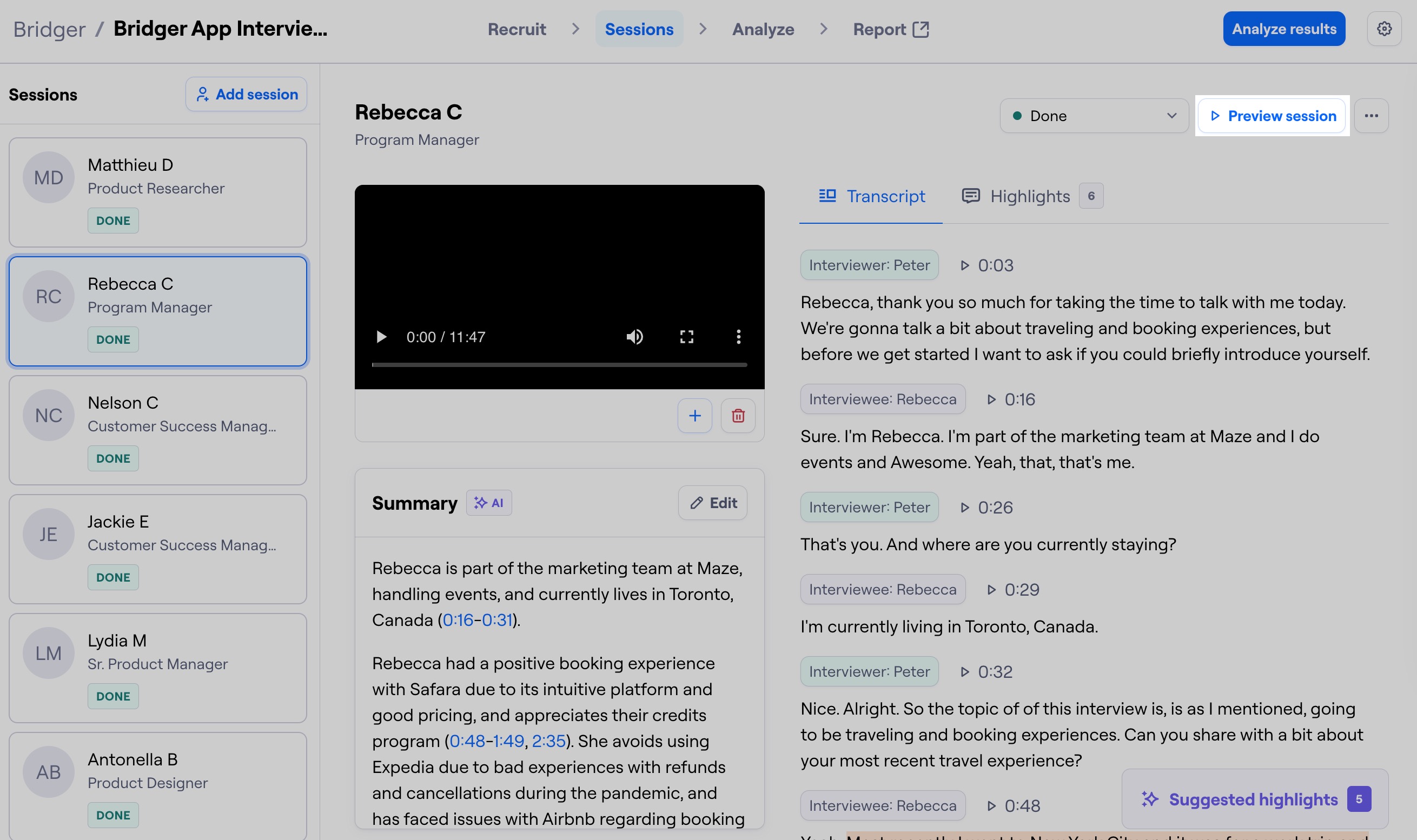
In the session preview, click Share session.
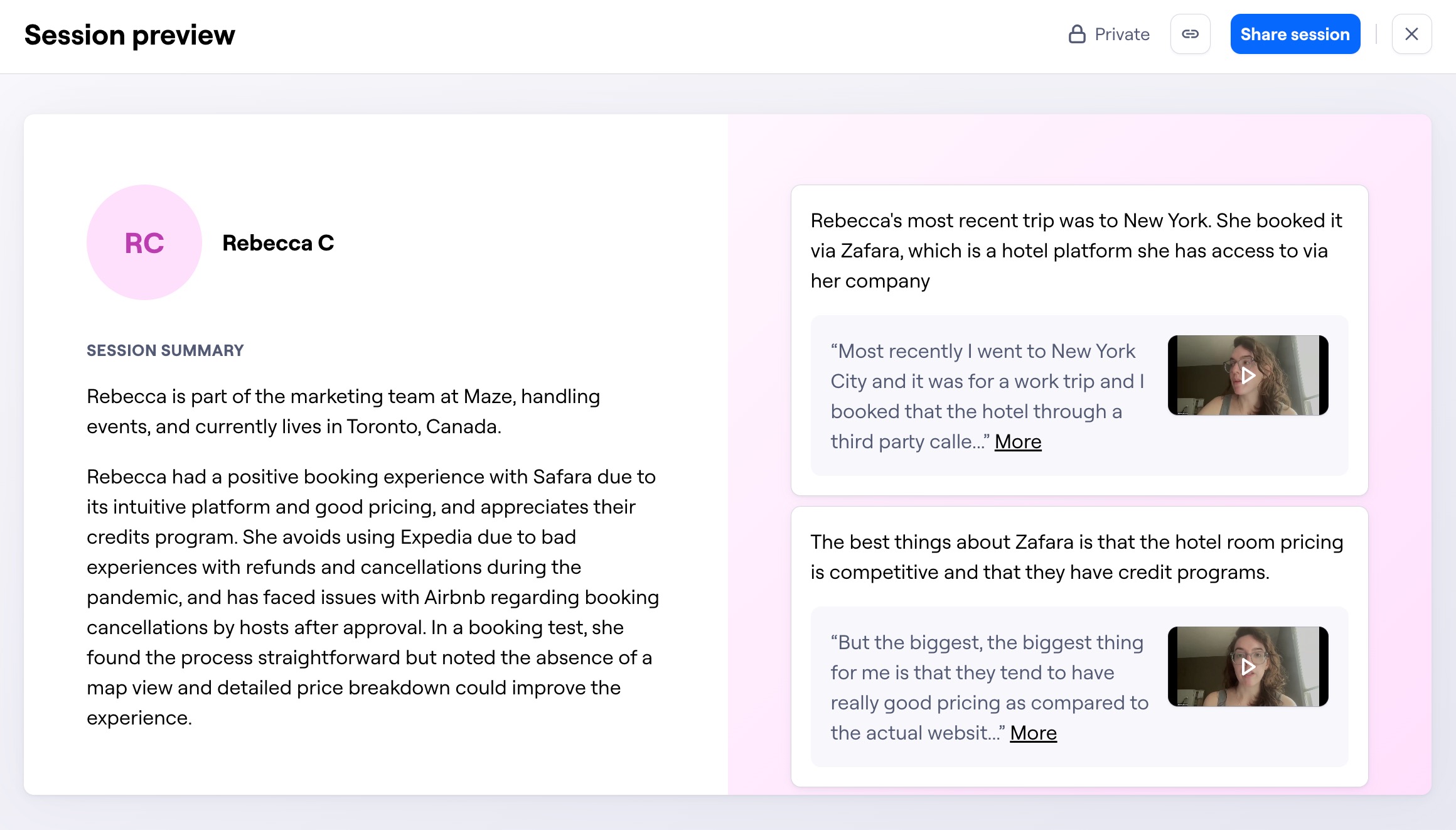
Select your preferred sharing settings and click Copy link. Alternatively, copy the embed link to view the session in your tool of choice.
Sharing interview themes
To share a link to an interview theme:
Open the Analyze tab.
Select the theme you want to share.
On the top right corner, click Preview theme.
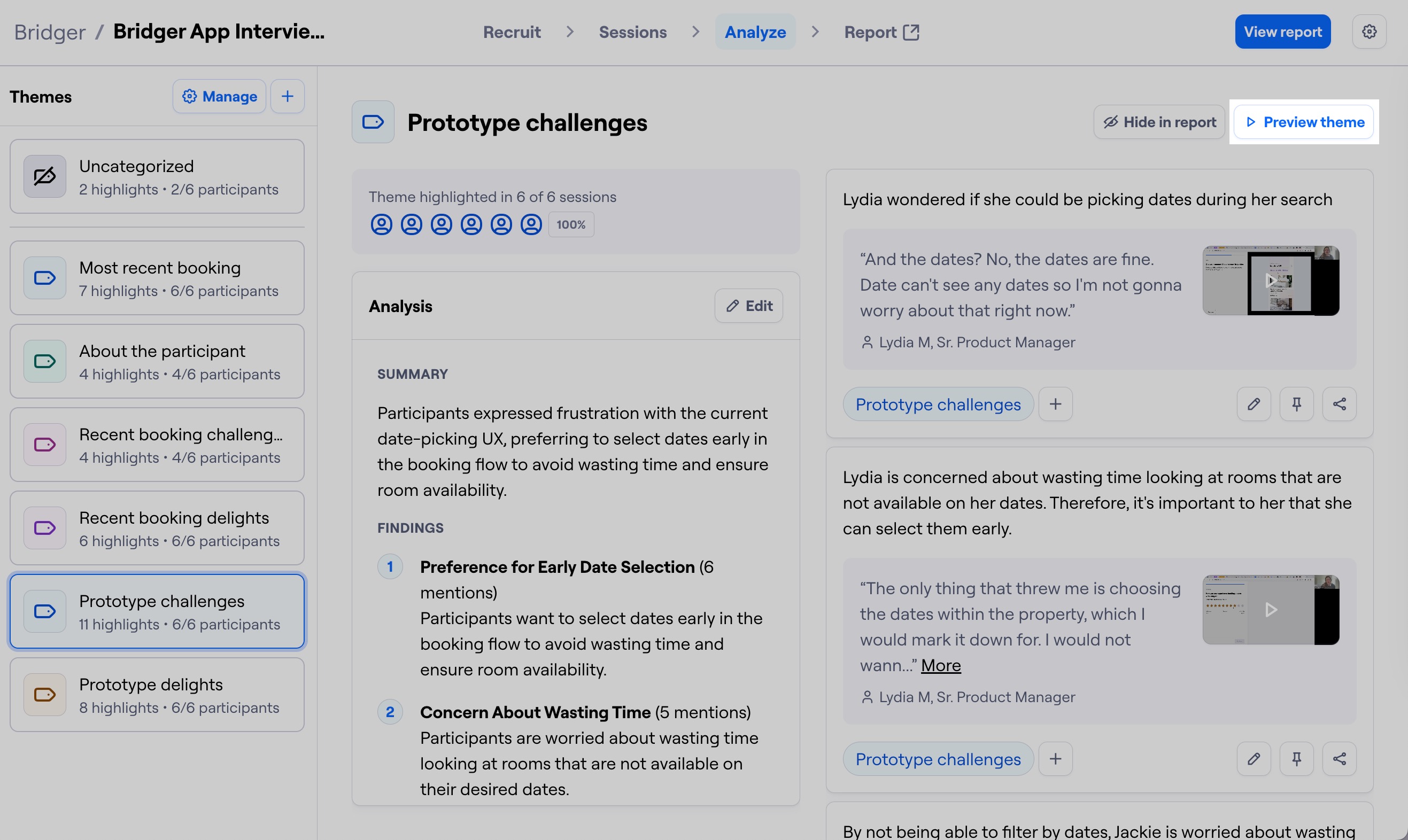
In the theme preview, click Share theme.
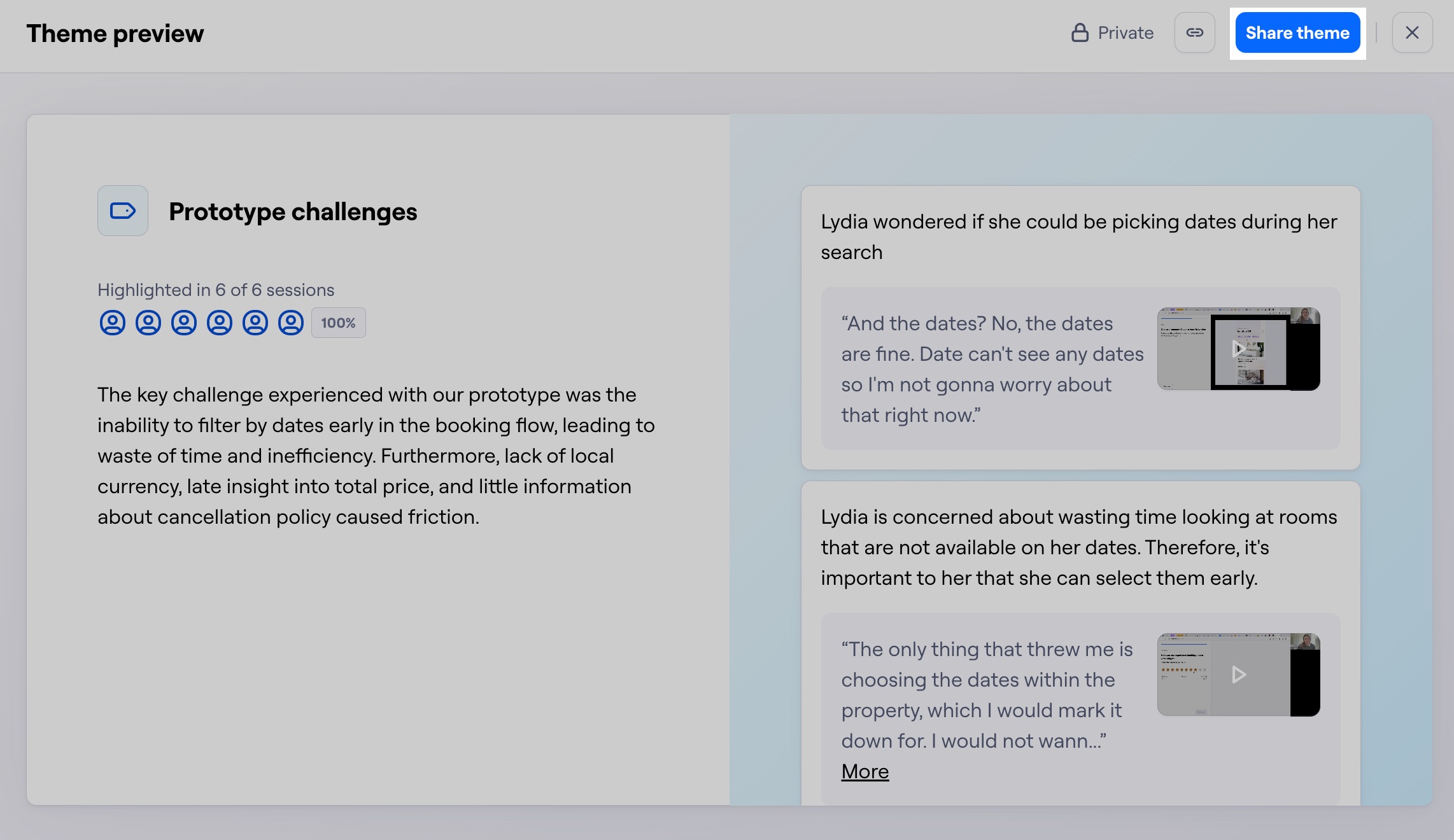
Select your preferred sharing settings and click Copy link. Alternatively, copy the embed link to view the theme in your tool of choice.
Sharing interview reports
To share a link to an interview report:
Open the Report tab.

On the top right corner, click Share report.
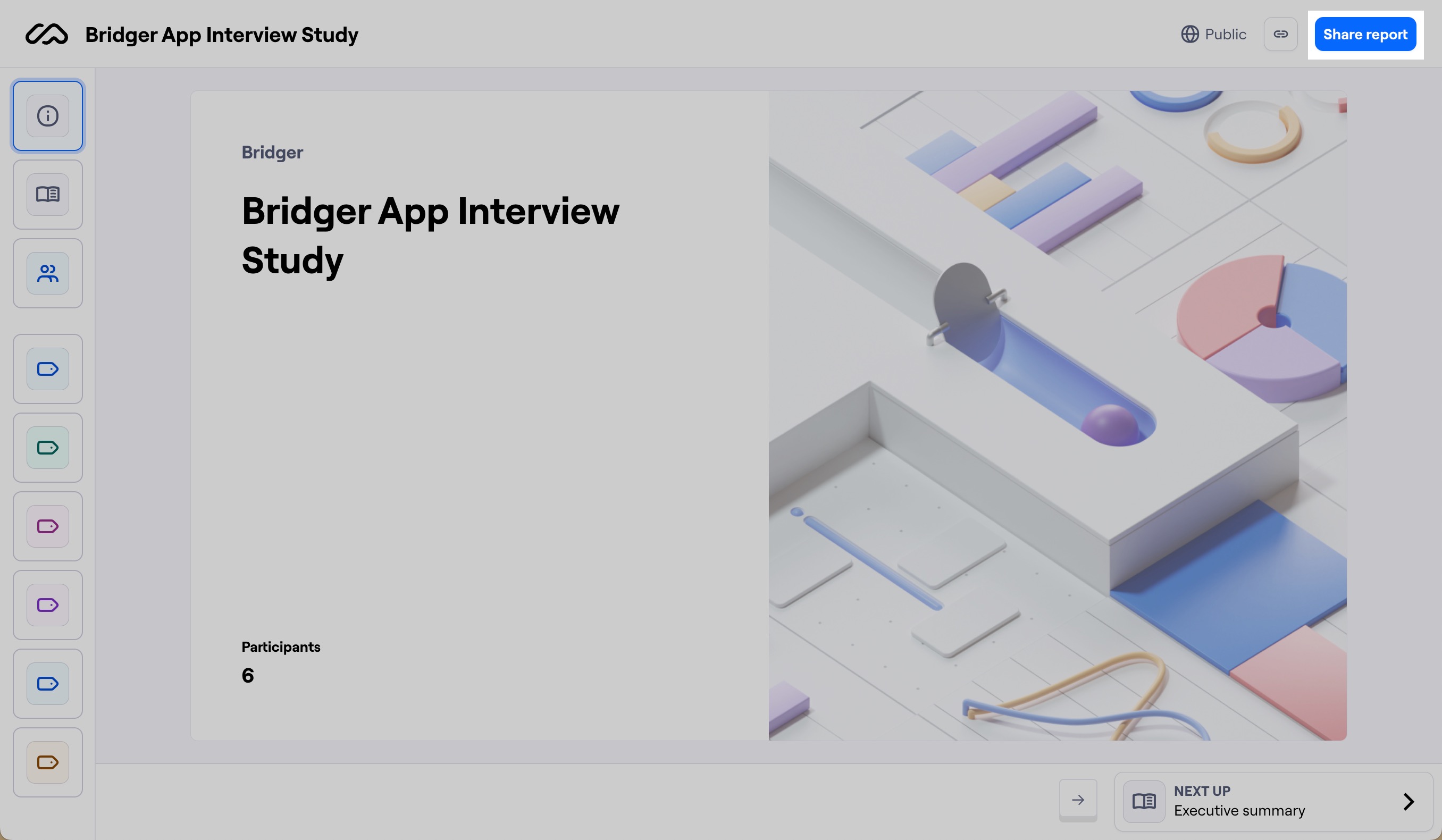
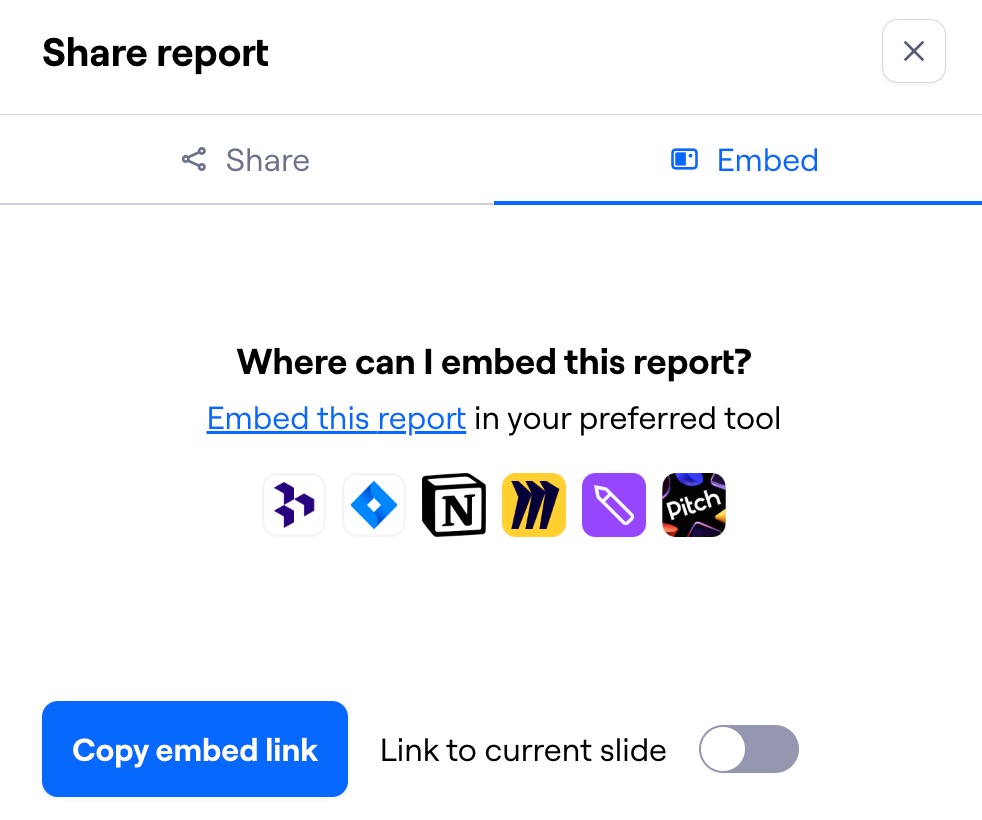
Select your preferred sharing settings and click Copy link. Alternatively, copy the embed link to view the report in your tool of choice.
Embedding interview artifacts
Embedding the interview links in supported applications allows your team to get a glimpse of a highlight, session, theme, or report, all from your team's tool of choice.
To embed interview content:
Open the Share module for the highlight, session, theme, or report.
Open the Embed tab.
Click Copy embed link.
Supported applications
Some tools that currently support report embedding include:
We also support other tools that meet our technical requirements:
The tool must support iframes;
The iframe functionality must be compatible with Embedly or oEmbed (via Iframely).