Transcript Downloads
Last updated: September 2, 2026
Clips containing audio from unmoderated studies and all sessions from Moderated or AI-Moderated studies are automatically transcribed, streamlining how you review and extract insights from participant conversations.
Transcripts are available for download across all study types, ready for use in AI assistants and integrated analyses with other data sources.
Unmoderated Studies
To access all export options for all sessions for your Unmoderated study, click into your study settings via the cogwheel icon in the top right side of your screen.
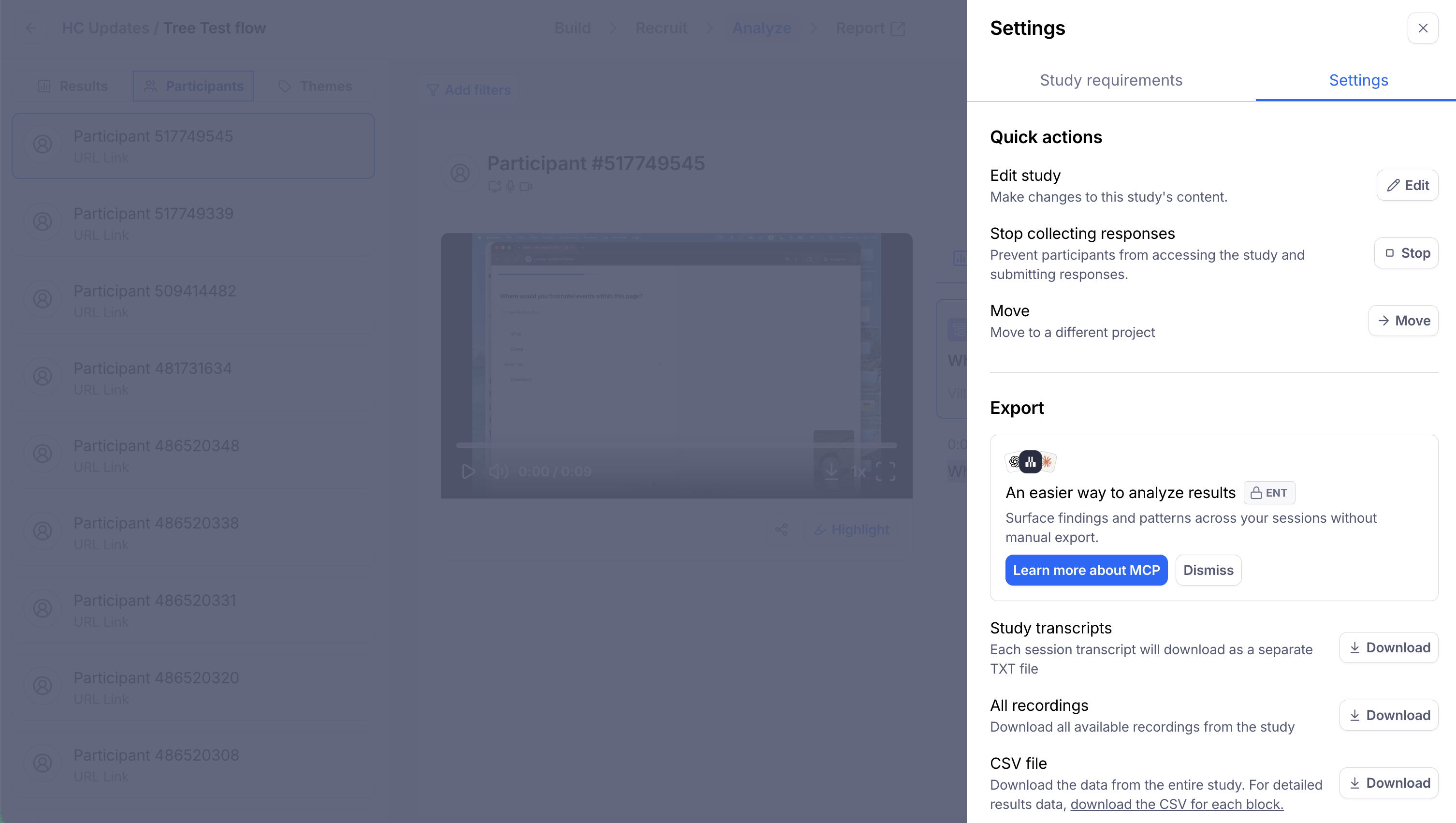
Under the Export section, you have three download options:
Study transcripts: Download a TXT file with the transcripts from all sessions. This option sends a download link to your email within minutes.
All recordings: (requires the audio setting to have been enabled in Clips) Download all available recordings from the study. This option sends a download link to your email within minutes.
CSV file: Download the data from the entire study instantly. For detailed results data, download the CSV for each block.
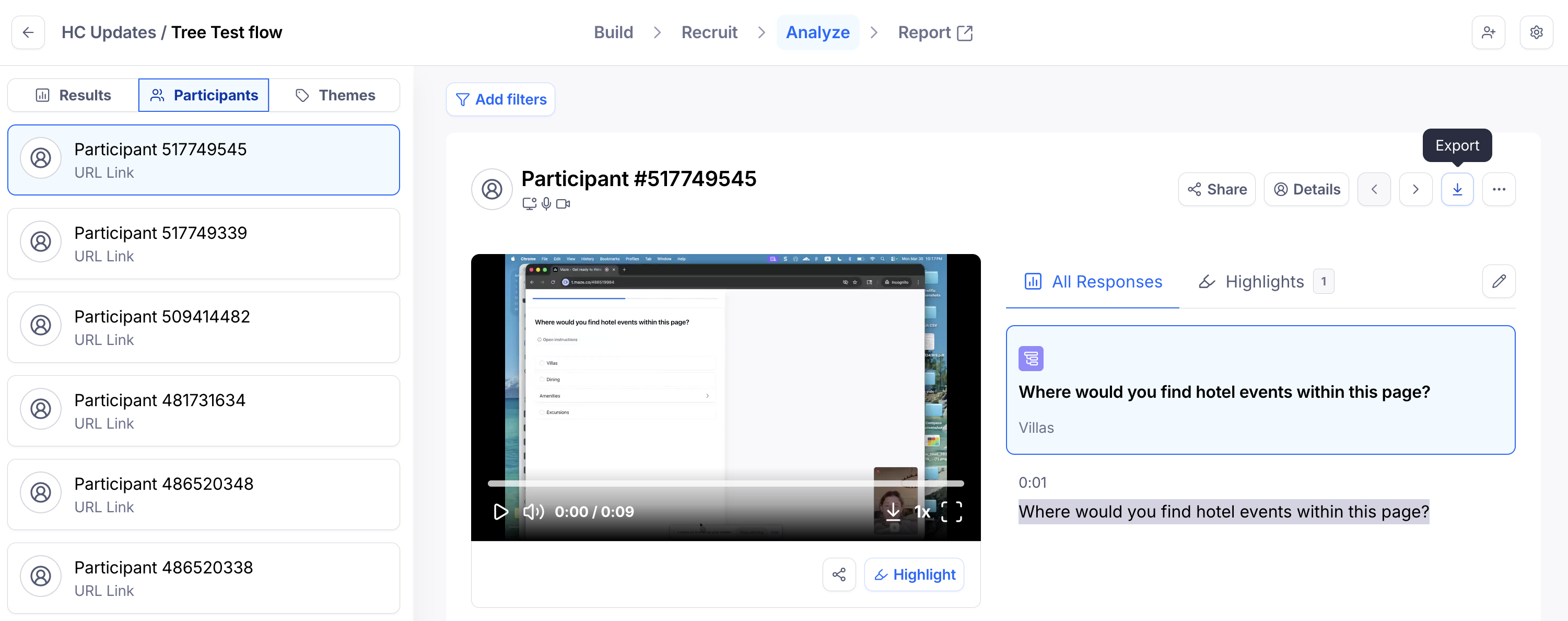
For individual sessions, navigate to the Participants tab in Results and either click the download/export icon or click into Session details and scroll to the Export section.
The Download session recording option will download the entire participant session as a single video file in mp4 format, instantly.
The Download transcript option will download your transcript as a txt file, instantly.
The format for the transcript download is split by block number and is time stamped, making it even easier to parse through your sessions’ transcript.
AI Moderated Studies
To access all export options for each session for your AI Moderated study, click the ... menu and choose from the list of export options.
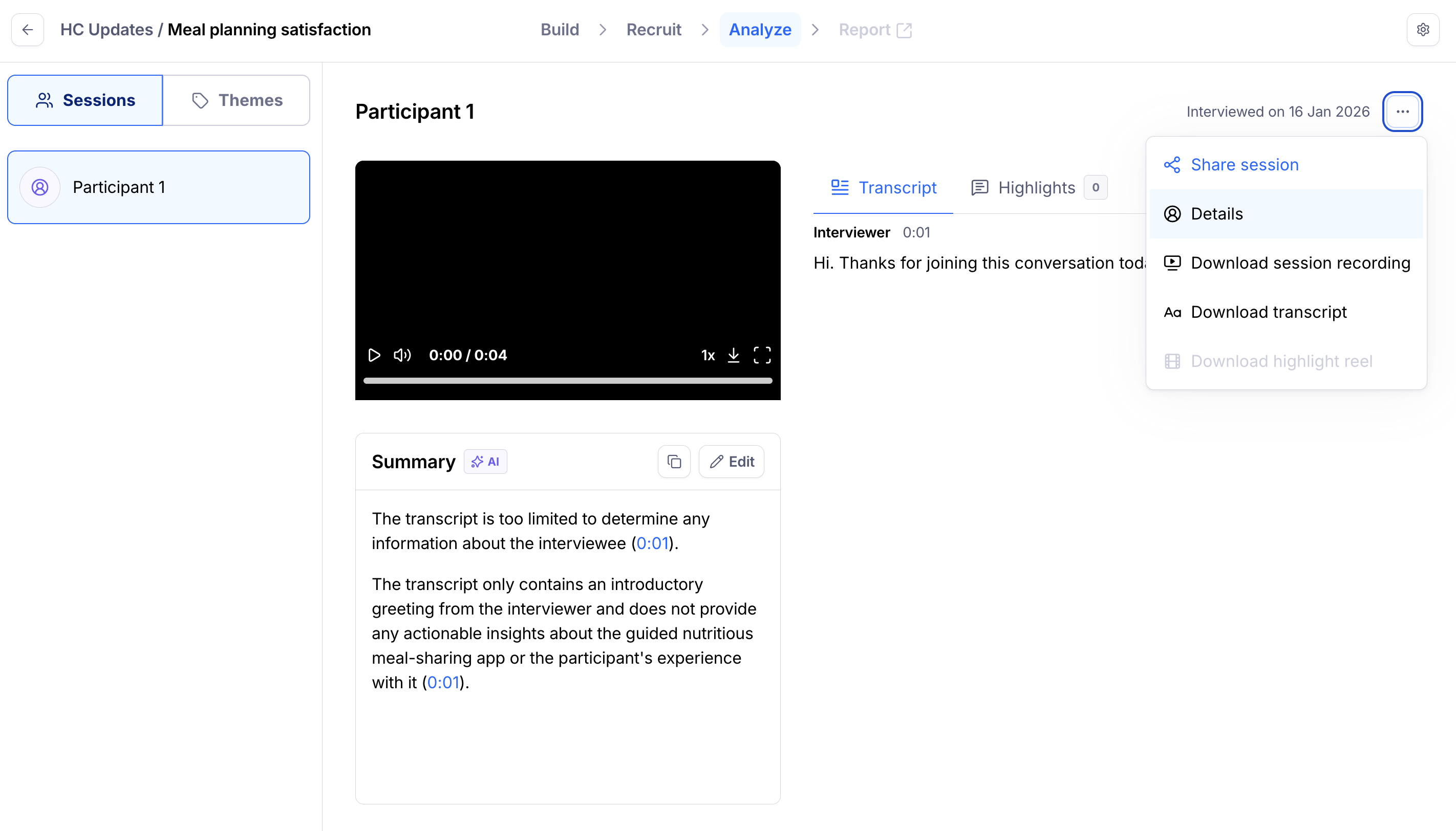
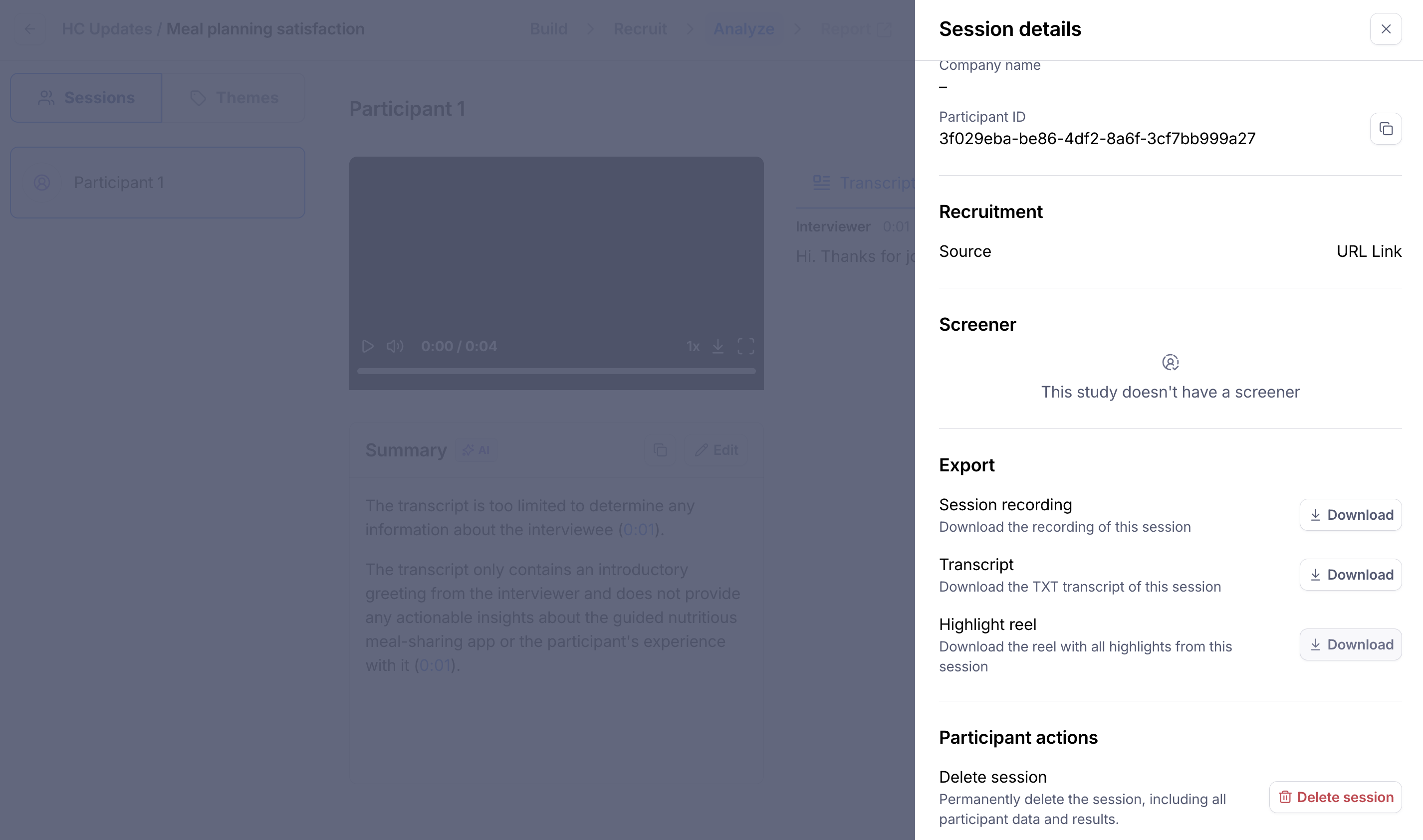
Under the Export section within Session details, you have three options:
Session recording: Download the recording of your session in mp4 format, instantly.
Transcript: Download the txt transcript of your session, instantly.
Highlight reel: Download the reel with all highlights from your session. After clicking the Download and Generate reel buttons, a download link will be sent to your email within minutes.
Please note: The Download buttons will appear disabled if no recording, transcript or highlight reel is available.
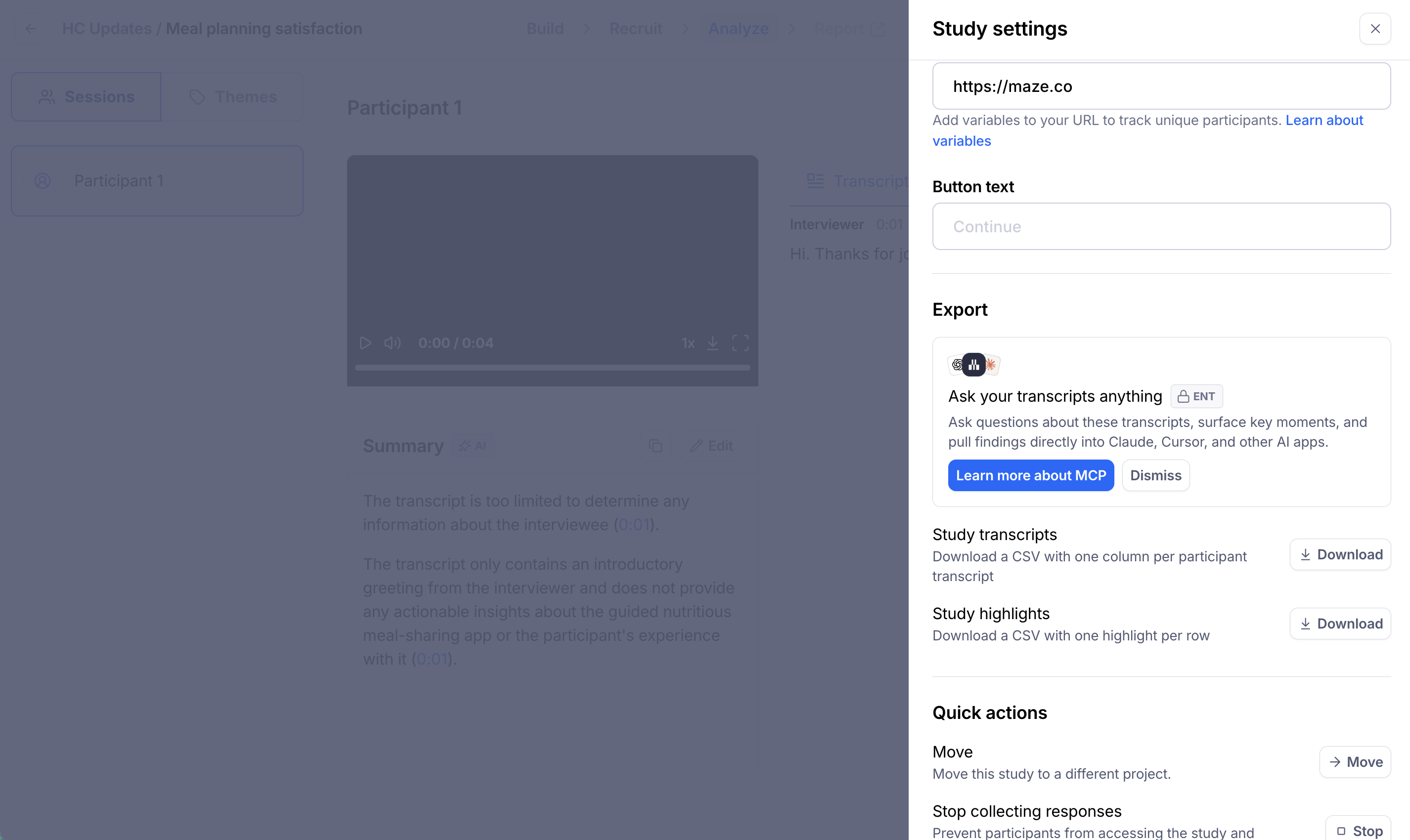
To download all transcripts in the study, navigate to your study settings via the cogwheel icon in the top right side of your screen. Under the Export section, the Study transcripts option will download the txt transcripts from all sessions in this study, instantly.
Moderated Studies
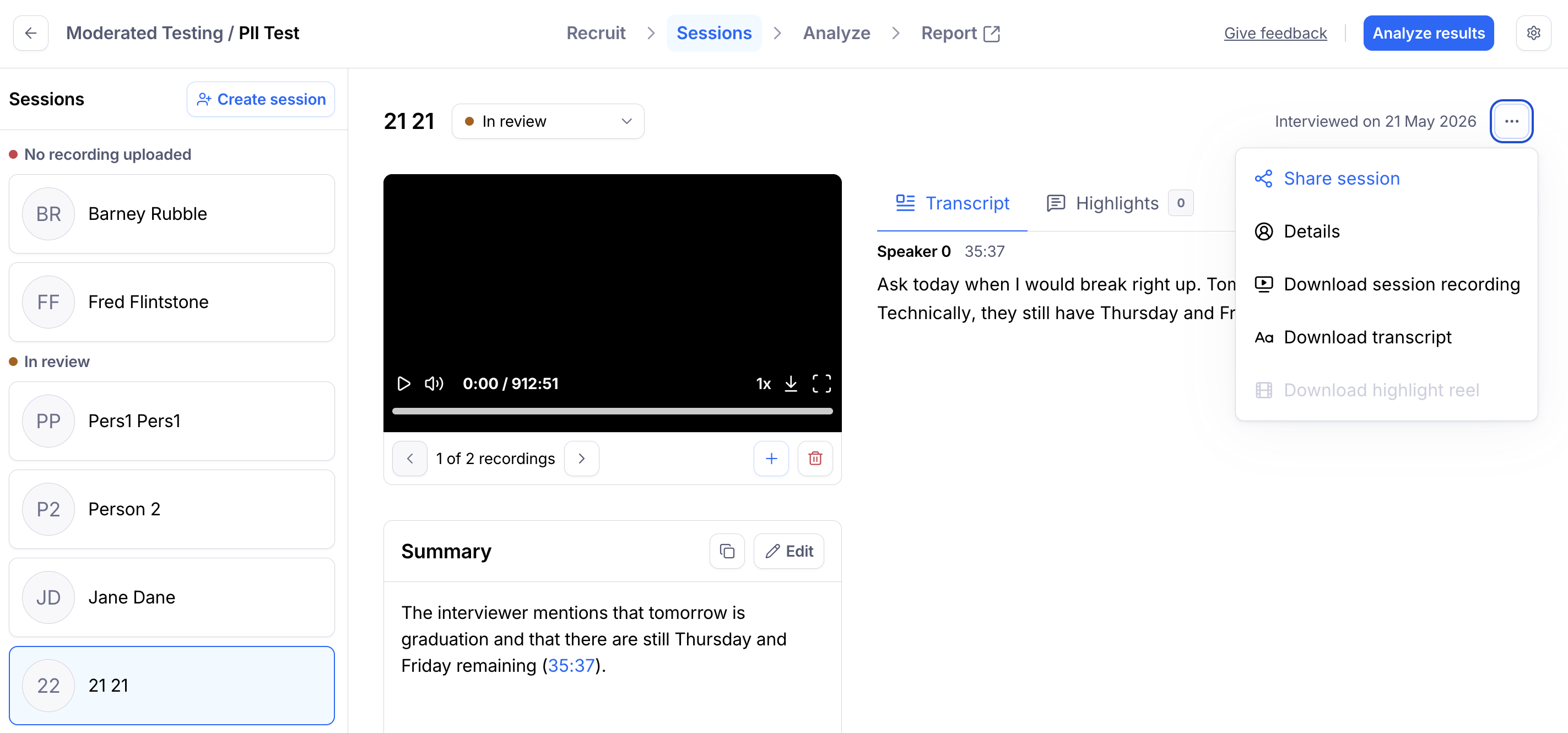
To access all export options for each session for your Moderated study, click the ... menu and choose from the list of export options.
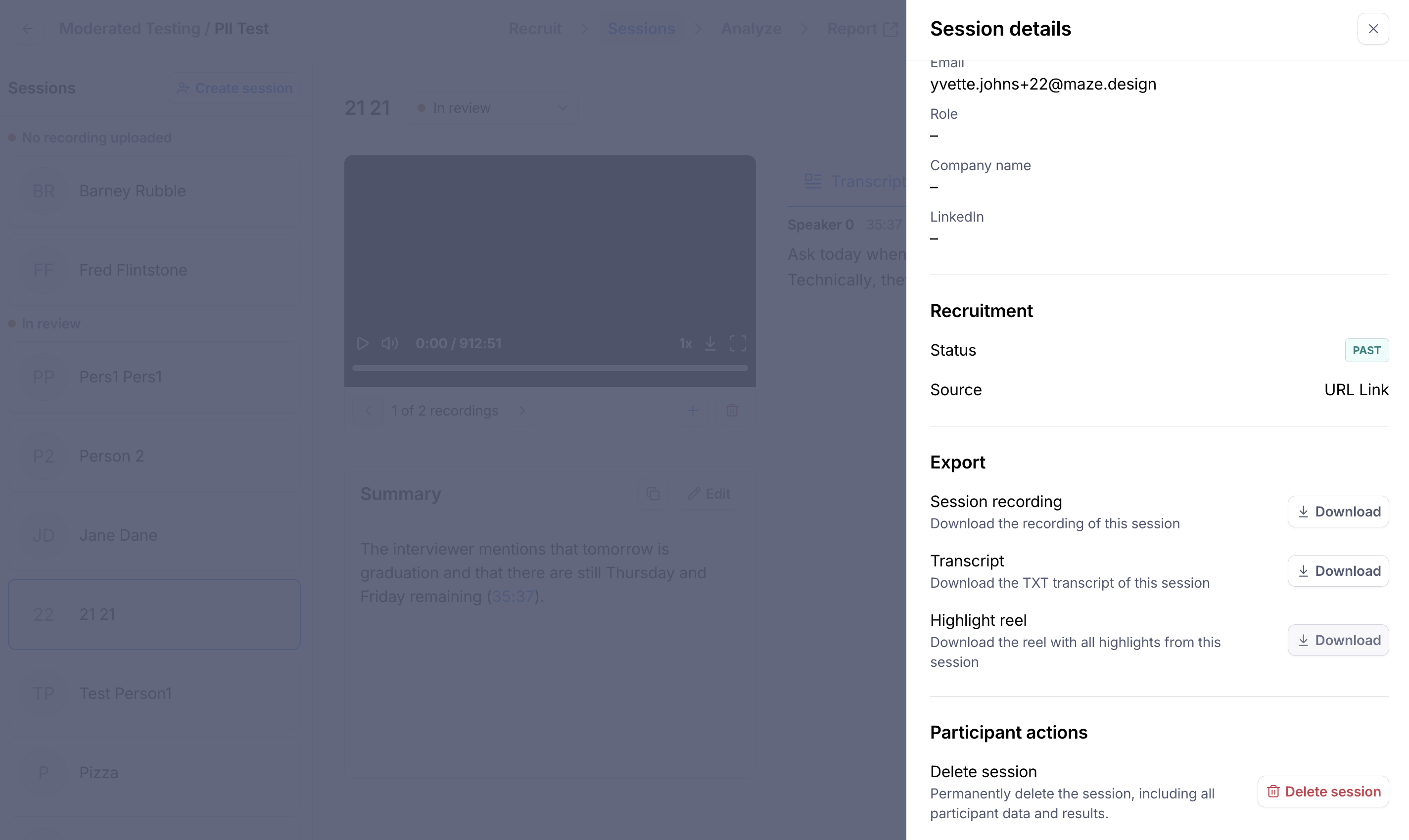
Under the Export section within Session details and from the download icon, you have three options:
Session recording: Download the recording of your session in mp4 format, instantly.
Transcript: Download the txt transcript of your session, instantly.
Highlight reel: Download the reel with all highlights from your session. After clicking the Download and Generate reel buttons, a download link will be sent to your email within minutes.
Please note: The Download buttons will appear disabled if no recording, transcript or highlight reel is available.
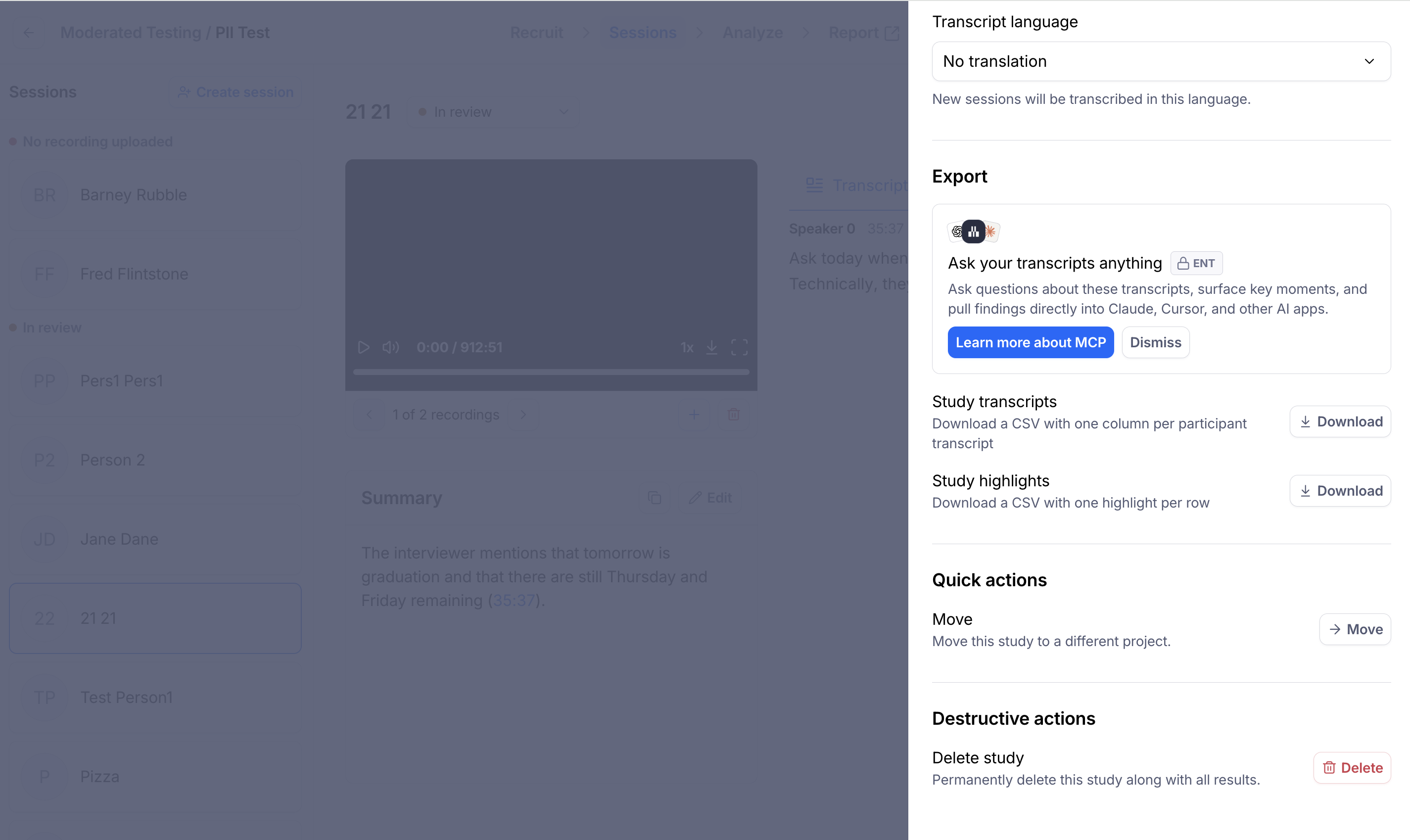
Within study settings via the cogwheel icon in the top right side of your screen, under the Export section, there is a Study transcripts option which downloads the txt transcripts from all sessions in this study, instantly.
Still need help?
If you have any questions or concerns, please let our Support team know — we'll be happy to help!