From sessions to insights: Analysis and reporting for AI-moderated studies
Last updated: September 29, 2026
Unlock the full potential of moderated research with the power of AI. AI-moderated studies allow your team to streamline analysis and sharing of insights from moderated user interviews with the convenience and scale of unmoderated research.
Analyze AI-moderated study sessions
You can access the study's results after the AI-Moderator conducts its first session with a participant. The Analyze page provides an aggregated view of all highlights across sessions, clustered by theme.

Sessions tab
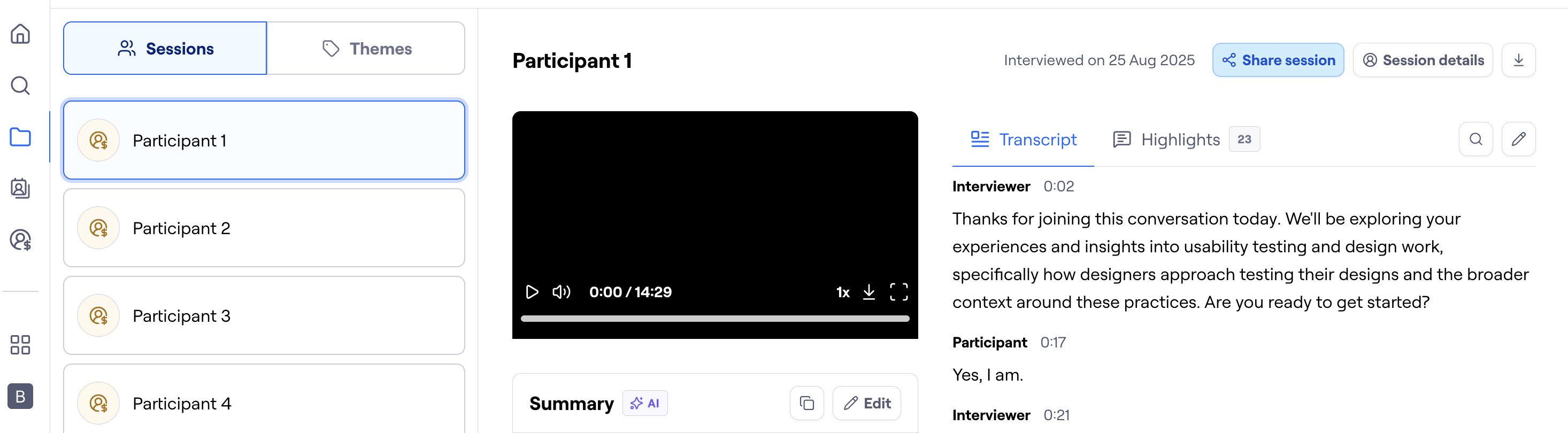
The Sessions tab is where you can see all of your participants, recordings, transcripts, summaries, and automatically generated highlights.
You can also export your session recording or download your transcripts either via the download icon to the right of Session details or via the Session details button.
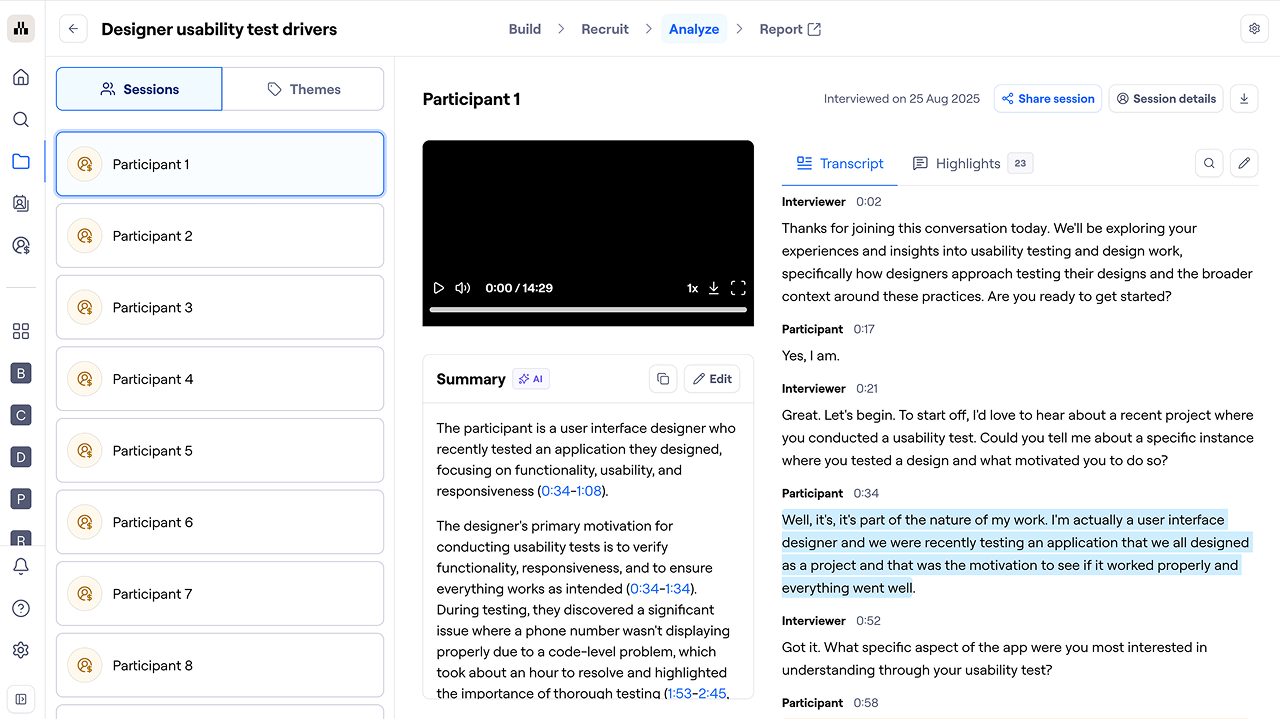
This is also where you can add your own highlights if you want to customize the analysis further.
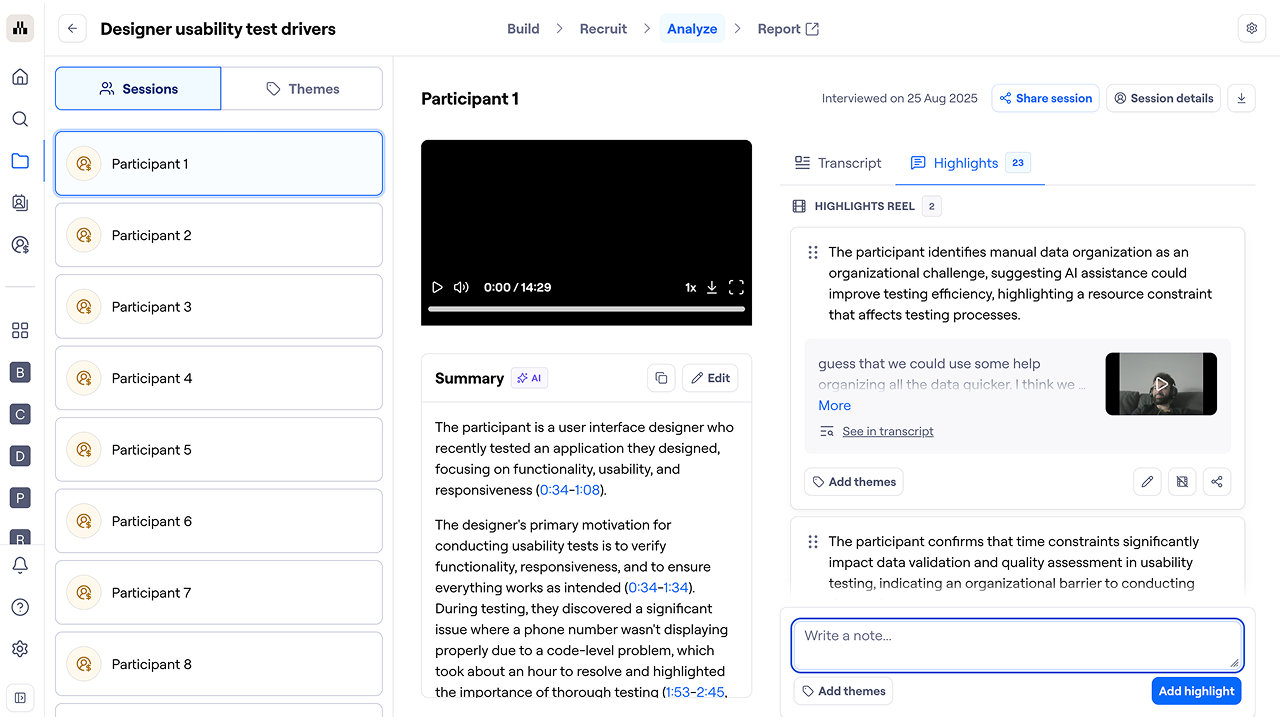
You can create a highlight reel for that participant session by either:
Clicking the Add to reel button on the highlight, or
Dragging the highlight from the Highlights section into the Highlights reel section.
You can also export you highlight reel either via the download icon to the right of Session details or via the Session details button.
Themes tab
After reviewing your sessions, you can move to the Themes tab to organize and analyze your insights.
Using thematic analysis to generate themes in your study
Thematic analysis automatically identifies patterns and insights across all participant sessions within your AI-moderated study, transforming individual participant feedback into comprehensive, actionable themes. This powerful feature analyzes your transcripts to surface key topics, sentiment trends, and findings that help you understand the bigger picture from your research.
At least 5 sessions are suggested for a more complete analysis, however you can click Start Analysis even if sessions are under the recommended amount.
How to run thematic analysis
Go to the Analyze page to view all participant sessions for your study

Click Themes in left sidebar
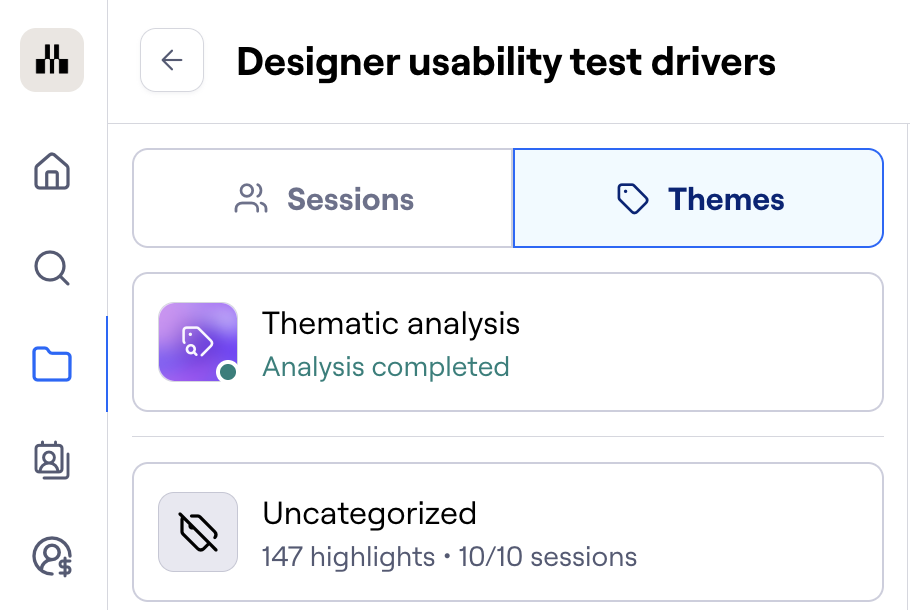
Click Thematic analysis
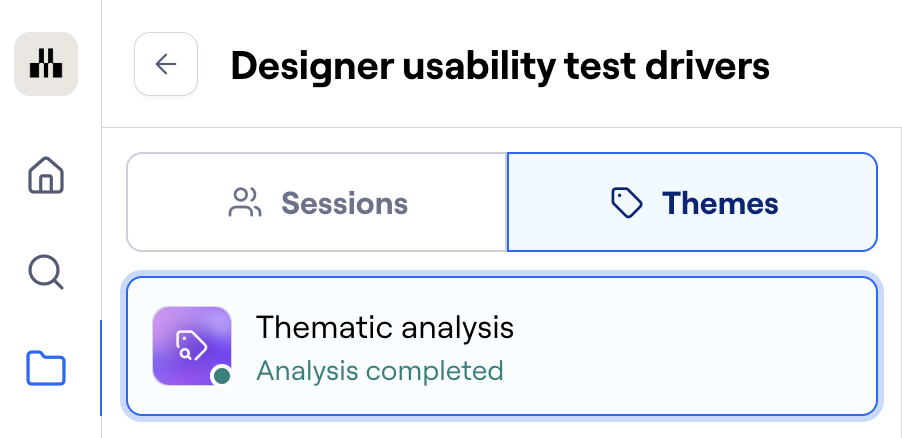
Note: There will be an orange icon and a 'New sessions' label if the analysis hasn't been run yet or if new sessions were added.
If the analysis hasn't been completed yet, a confidence rating will be displayed and you can click Start Analysis when ready.
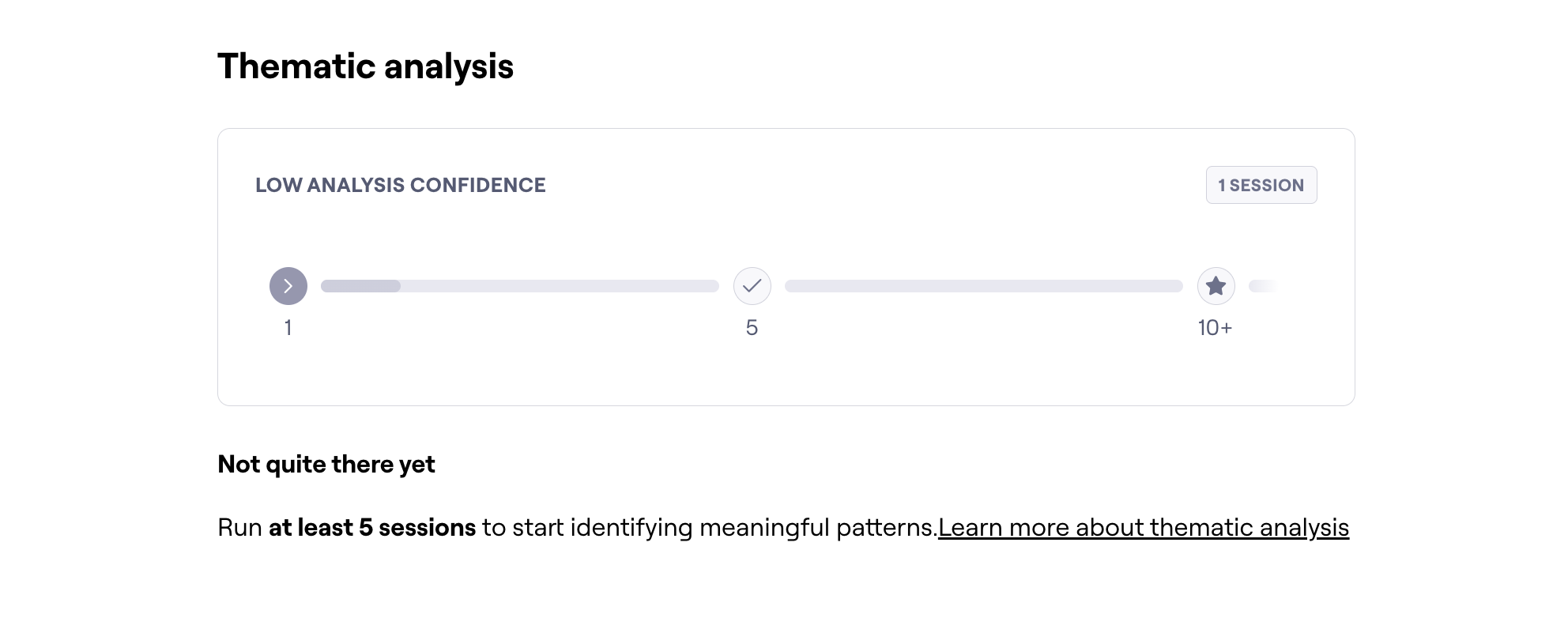
Low Analysis Confidence: 1 to 4 sessions
Medium Analysis Confidence: 5-9 sessions
High Analysis Confidence: 10+ sessions
After starting the analysis you can choose between Find themes with AI or My own themes. When adding your own themes, this will ensure that the AI takes them into account for analysis. It may also create themes on it's own.
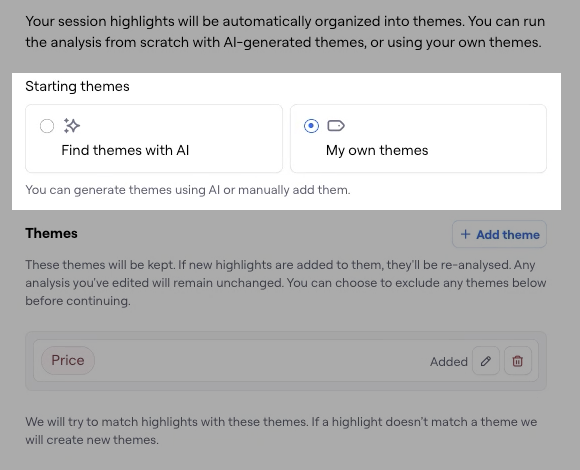
Once you've chosen your settings and added any themes you want the AI to take into account, select the Analyze button and the process will be begin.
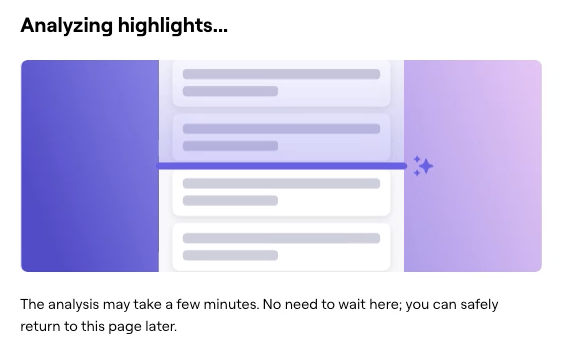
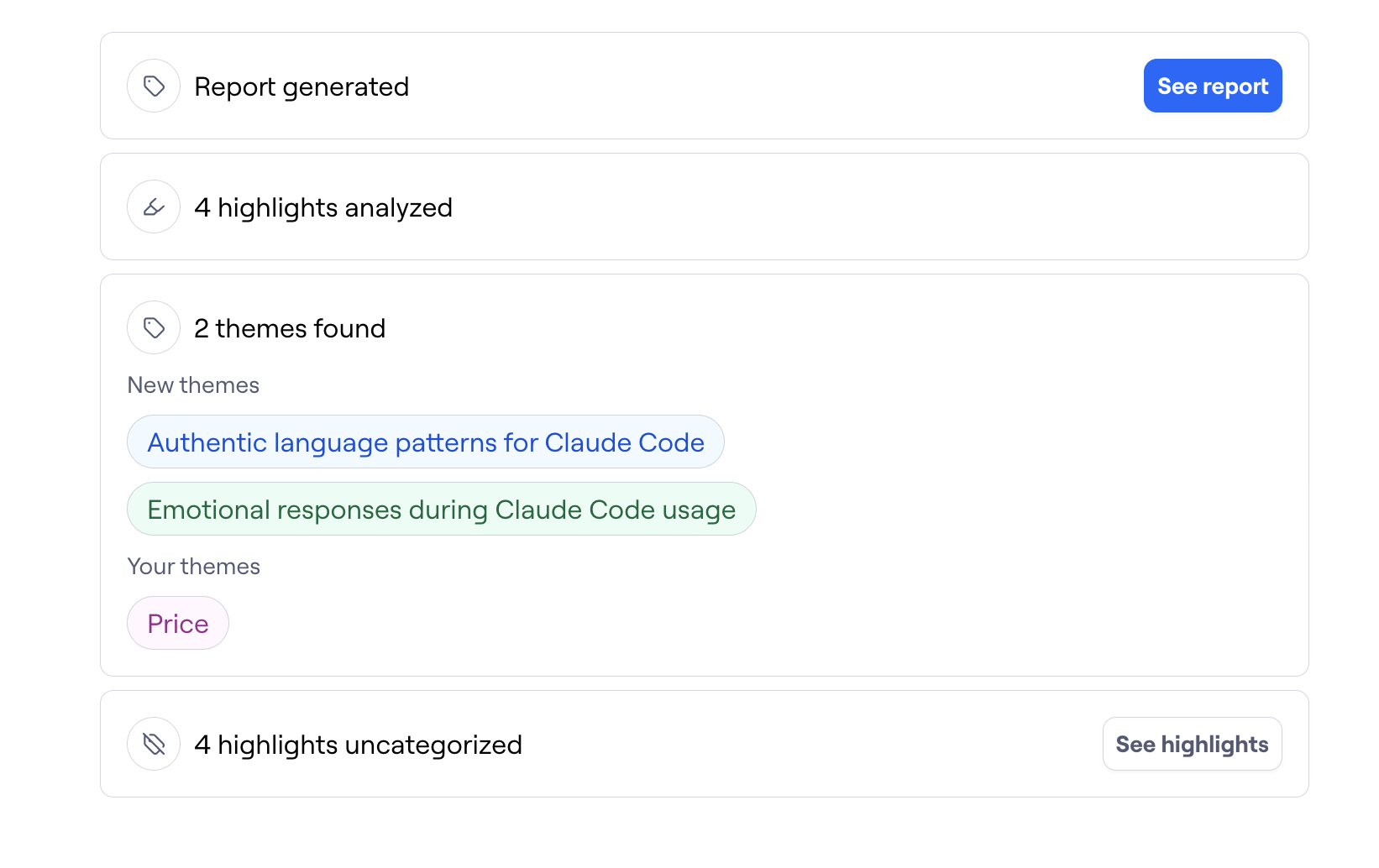
After the analysis is completed, you'll be presented with a link to the report, the number of highlights analyzed, the themes found along with your defined themes (if applicable) and the highlights that remain uncategorized.
How to re-run thematic analysis
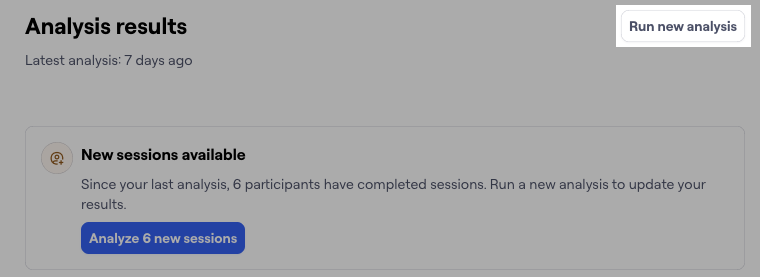
If new sessions have been added since the last analysis, or you'd like to re-run the analysis, you can do so by selecting Run new analysis or Analyze X new sessions
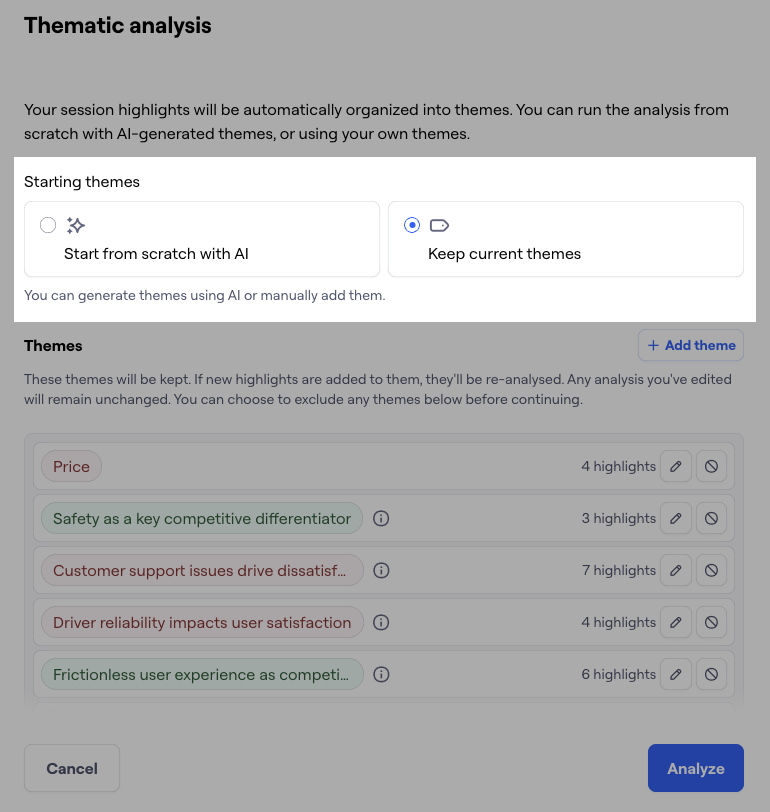
We'll default to Keep current themes and give you the opportunity to add, edit or exclude the existing ones. Much like the initial analysis, AI may still find and create new themes while taking the existing themes into account. Alternatively, you can use Start from scratch with AI if you don't want any manually added or existing themes to be considered.
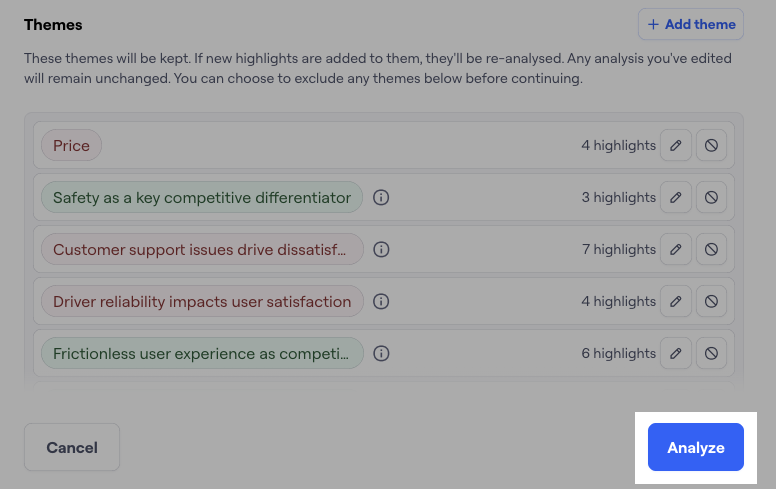
Once you've decided on your approach for re-analysis, click the Analyze button in the bottom right
Analysis results
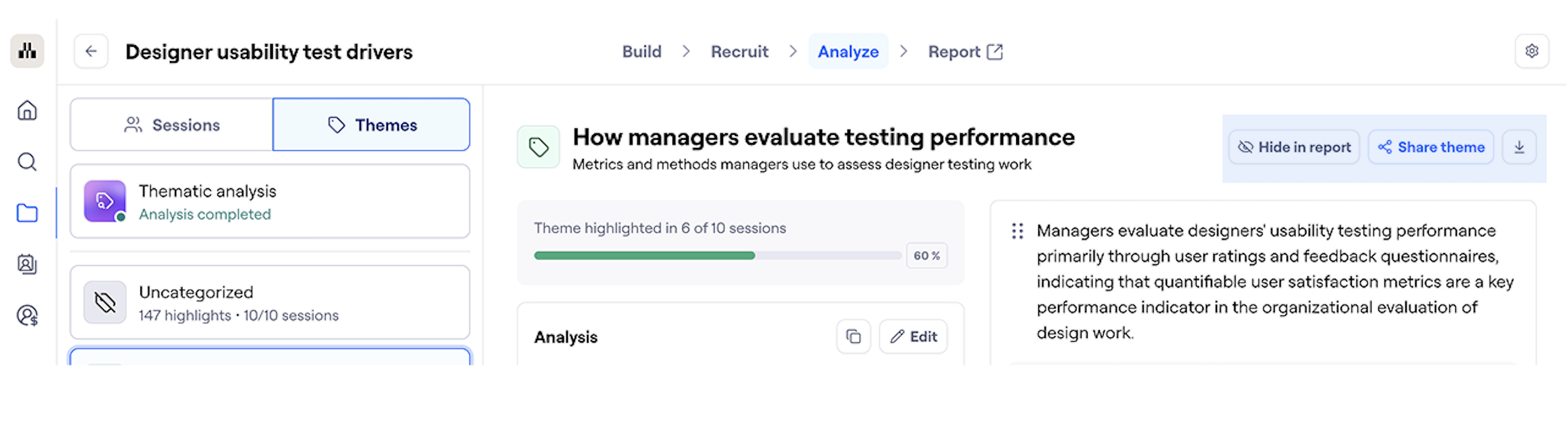
Once your analysis is complete, the results are displayed in the left sidebar as different themes, and include the following:
Session coverage: How many sessions have this particular theme highlighted via percentage
Theme sentiment: Whether it is positive or negative feedback. These will also be highlighted in transcripts with the corresponding color (green highlight for positive, red highlight for negative)
AI-generated insights: An AI-generated summary along with key findings
Highlight management: You can edit highlights, pin highlights to keep them front and center, or share them using the available options
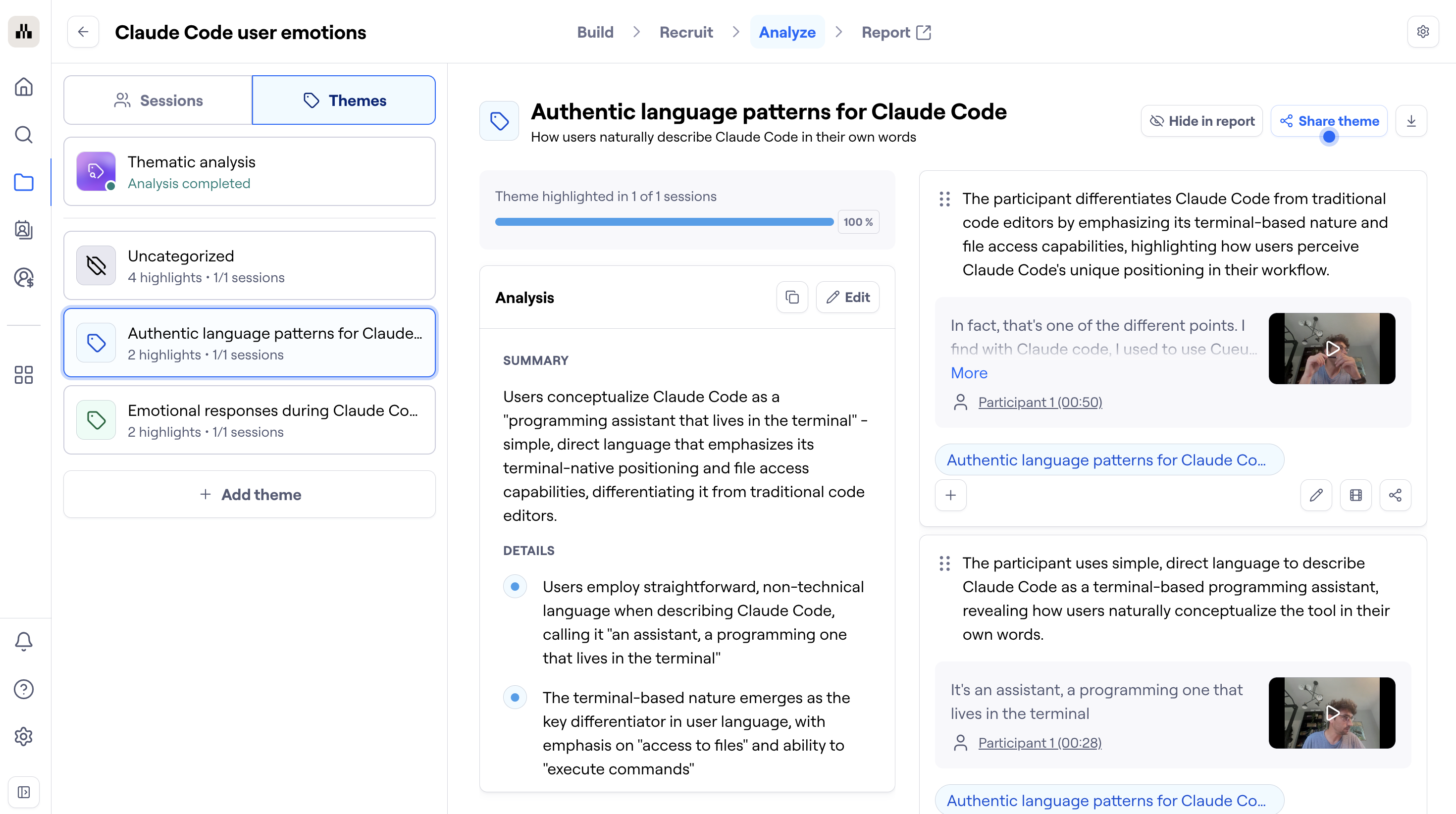
Click on any theme to dive into detailed analysis results including an AI-generated summary, key findings, and video highlights with embedded transcripts and timestamps. You'll also see how many sessions contributed to each theme, giving you a clear sense of how prevalent each topic was across your participant pool.
While you are able to rerun thematic analysis, this feature currently overrides all existing themes in your report meaning previous themes categorized automatically and manually will be deleted and replaced. We highly recommend running thematic analysis first and then managing uncategorized highlights after the AI-Moderator conducts most/all sessions.
Review individual themes
After running thematic analysis, you can review each theme individually to understand the insights and customize them for your report. Each theme provides detailed information including session coverage, sentiment analysis, and key findings that you can edit or refine as needed.
Manage uncategorized highlights
You can click Uncategorized to view all highlights that aren't currently associated with a theme. Highlights without a theme aren't visible in the report.
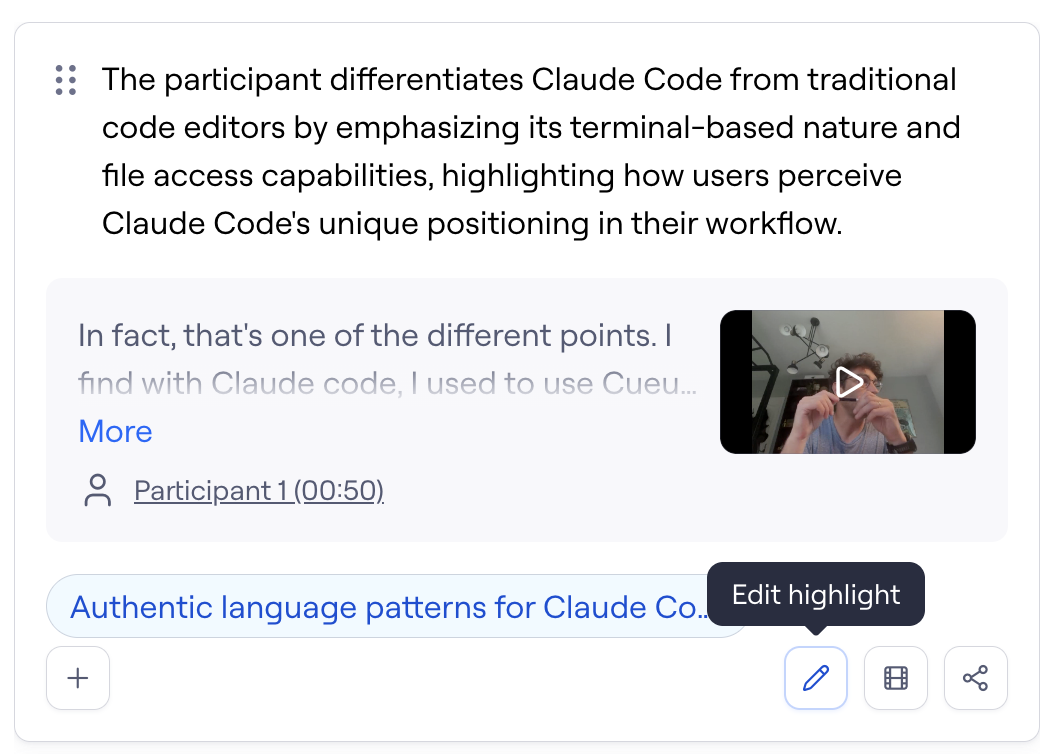
To assign a theme to a highlight manually:
Next to each highlight, click Edit highlight (✏).
Click the dropdown to select an existing theme, or create a new one.
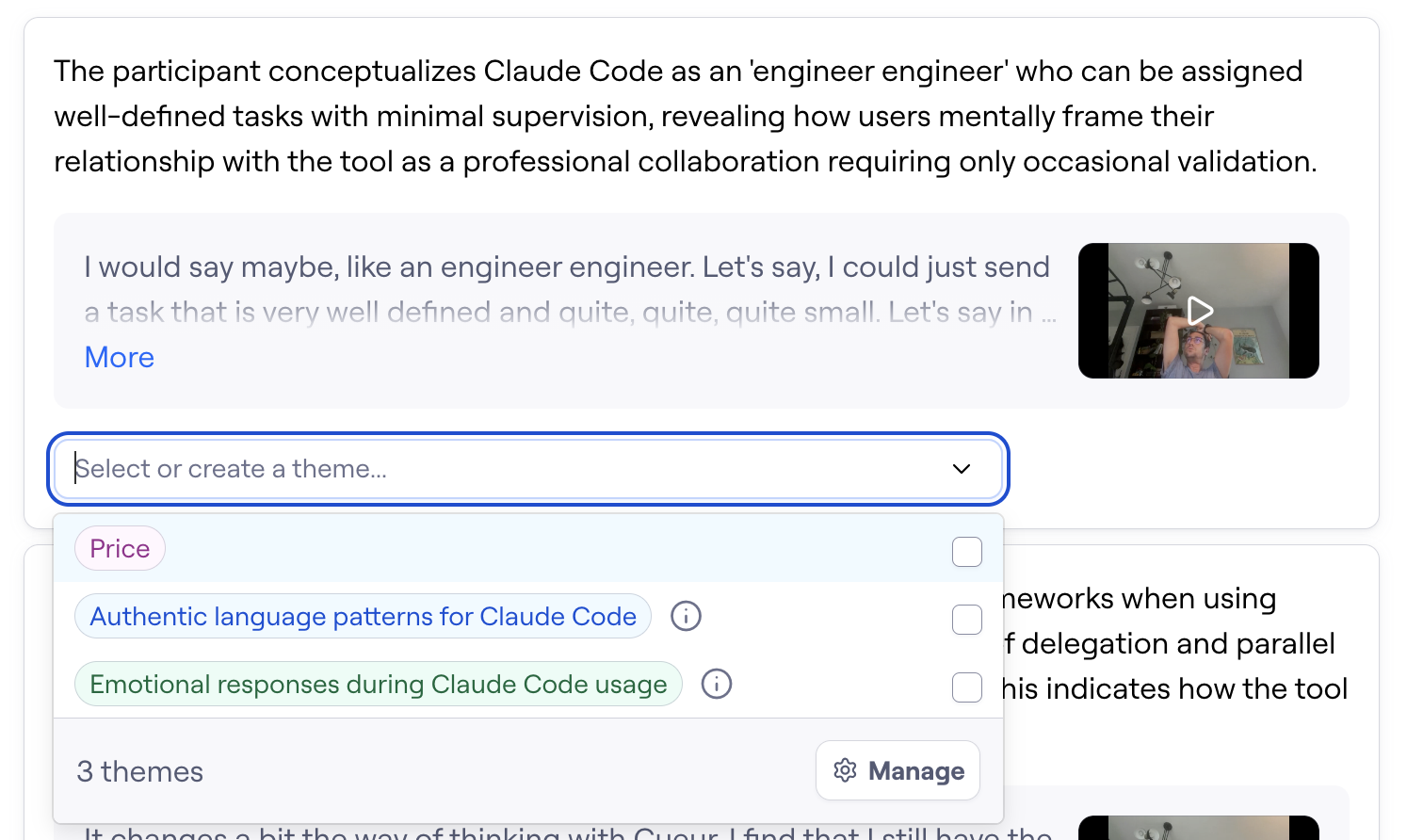
Click Save.
Creating a theme highlight reel
You can add highlights within a theme to a highlight reel to showcase key moments, feedback, and quotes across multiple interviews. Theme highlight reels make it easy to spot patterns within a theme and share insights with your team.
Add theme highlights to a reel
From the Highlights pane, you can add one or more highlights to a reel by:
Clicking the Add to reel button on the highlight
Dragging the highlight from the Highlights section into the Highlights reel section
Customizing a theme highlight reel
Once your highlights are in a reel, you can adjust and organize them to best fit your audience.
Trim or expand highlights to include exactly the moments you want.
Reorder highlights in your reel using drag and drop.
Remove highlights from your reel by either:
Clicking the Remove from reel button on the highlight, or
Dragging the highlight from the Highlights reel section back into the Highlights section.
Sharing a theme highlight reel
You can share a highlight reel with your team to showcase key insights within a theme. Reels can be shared in two ways.
Copy a link to share or embed the reel in your tool of choice.
Download the reel as a video file and share it directly.
Share session and theme highlight reels
Sharing automatically generated reports
The study report is a presentation that provides an executive summary, overview of each theme and its associated highlights, as well as an overview of each session. Reports make it easy to share and present your findings.
Maze automatically generates a report for every AI-moderated study with at least one added highlight. To access the report, open the Report tab.

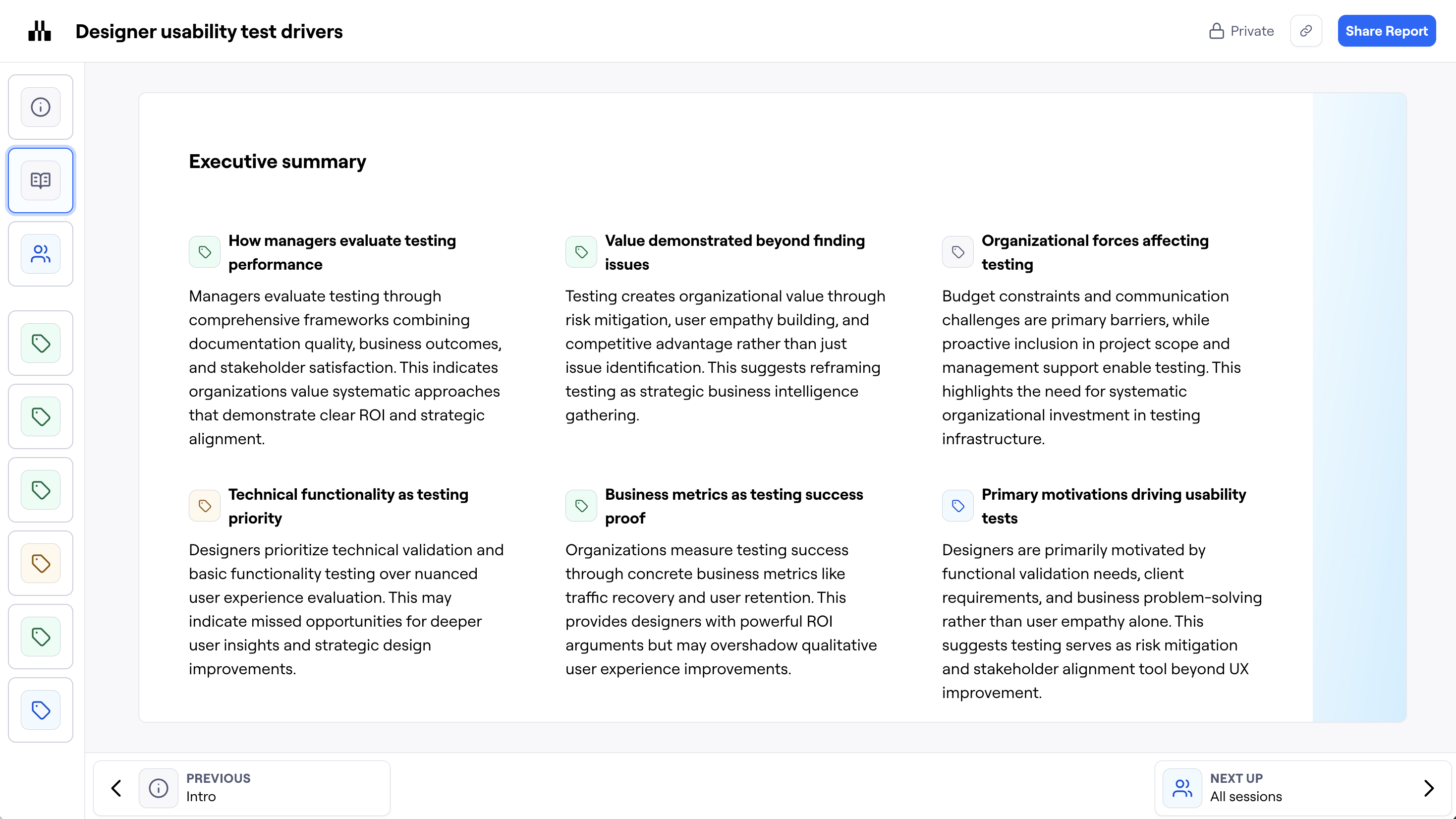
Executive summary
The report begins with an executive summary that provides a high-level overview of your study findings.
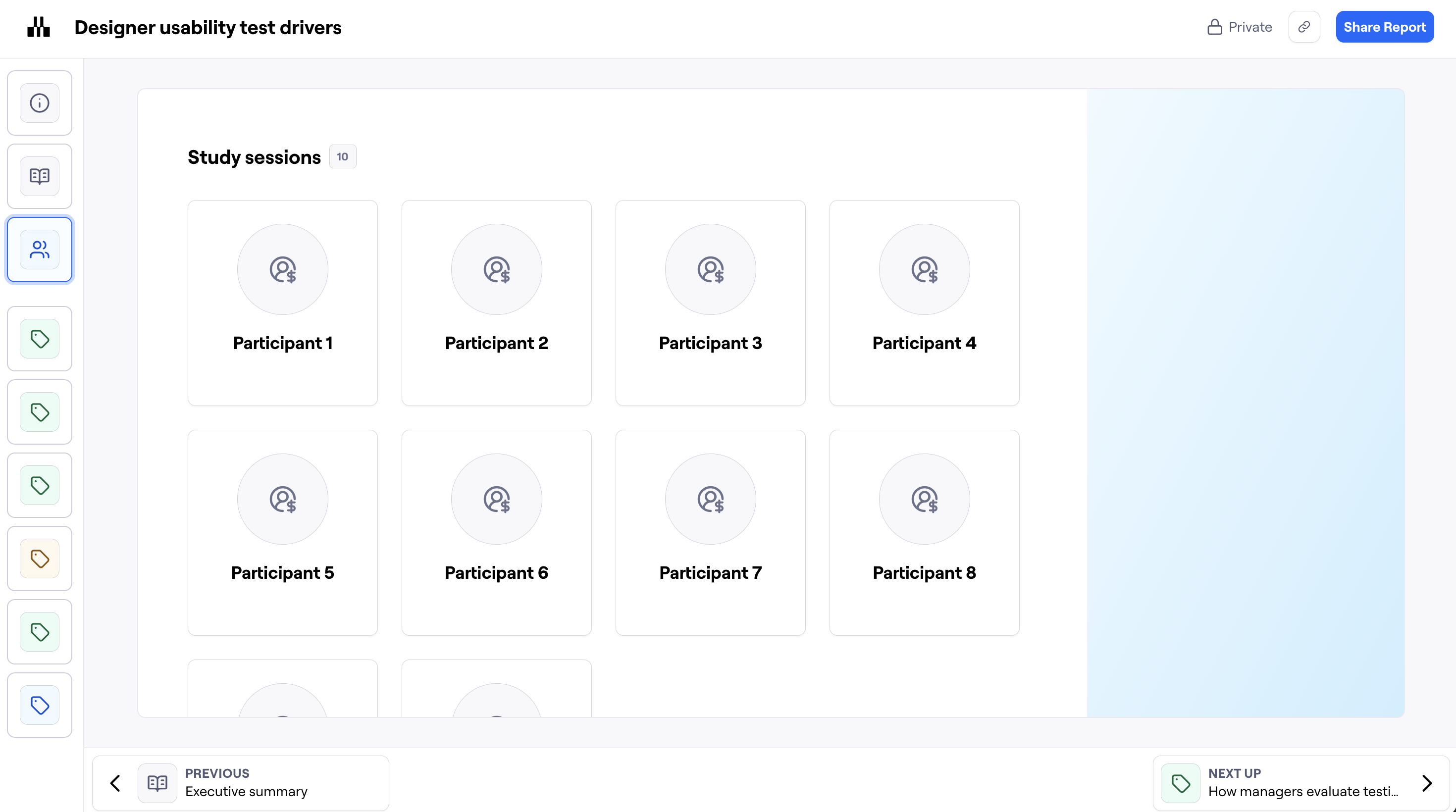
Study participants
All individual participants are grouped at the beginning of the report. Here, you can click through each participant to view the associated highlights, as well as any relevant video or audio excerpts.
Themes in the report
Each theme slide shows you all the highlights associated with that theme. The theme summary and key findings also appear here.
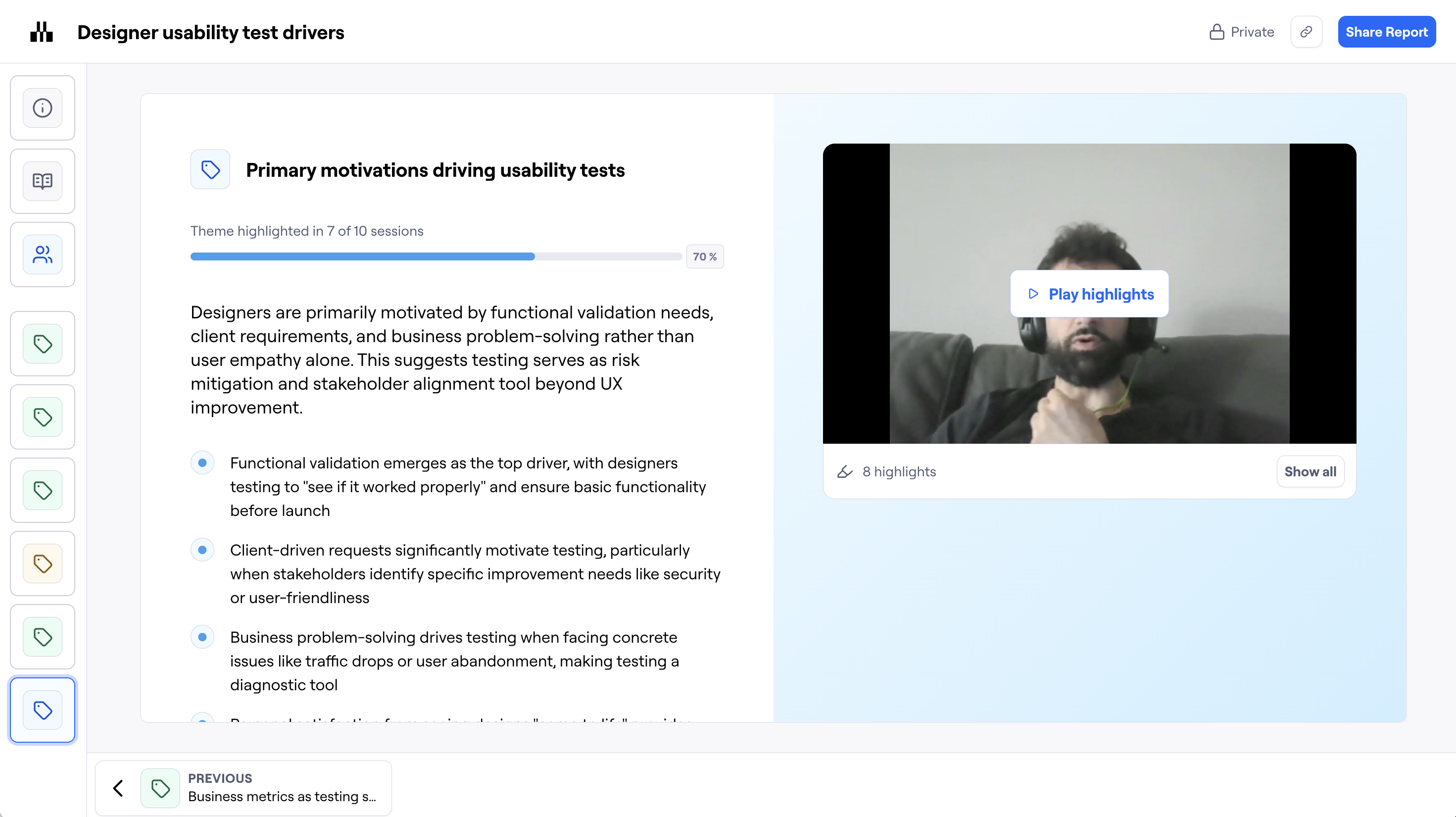
Edit report content
You can customize your report's content by editing the summary, findings, and highlights for each theme directly on the Analyze page. Any changes you make to theme summaries, key findings, or highlights will automatically update in your report. You can also hide specific themes from appearing in the report by using the Hide in report option.
Share public or private reports
Users can share the report or a specific slide with stakeholders. Open the report and click Share report to copy the share link. You can also copy the embed link to view the report in your tool of choice.
Learn more about sharing interviews content

Sharing individual content
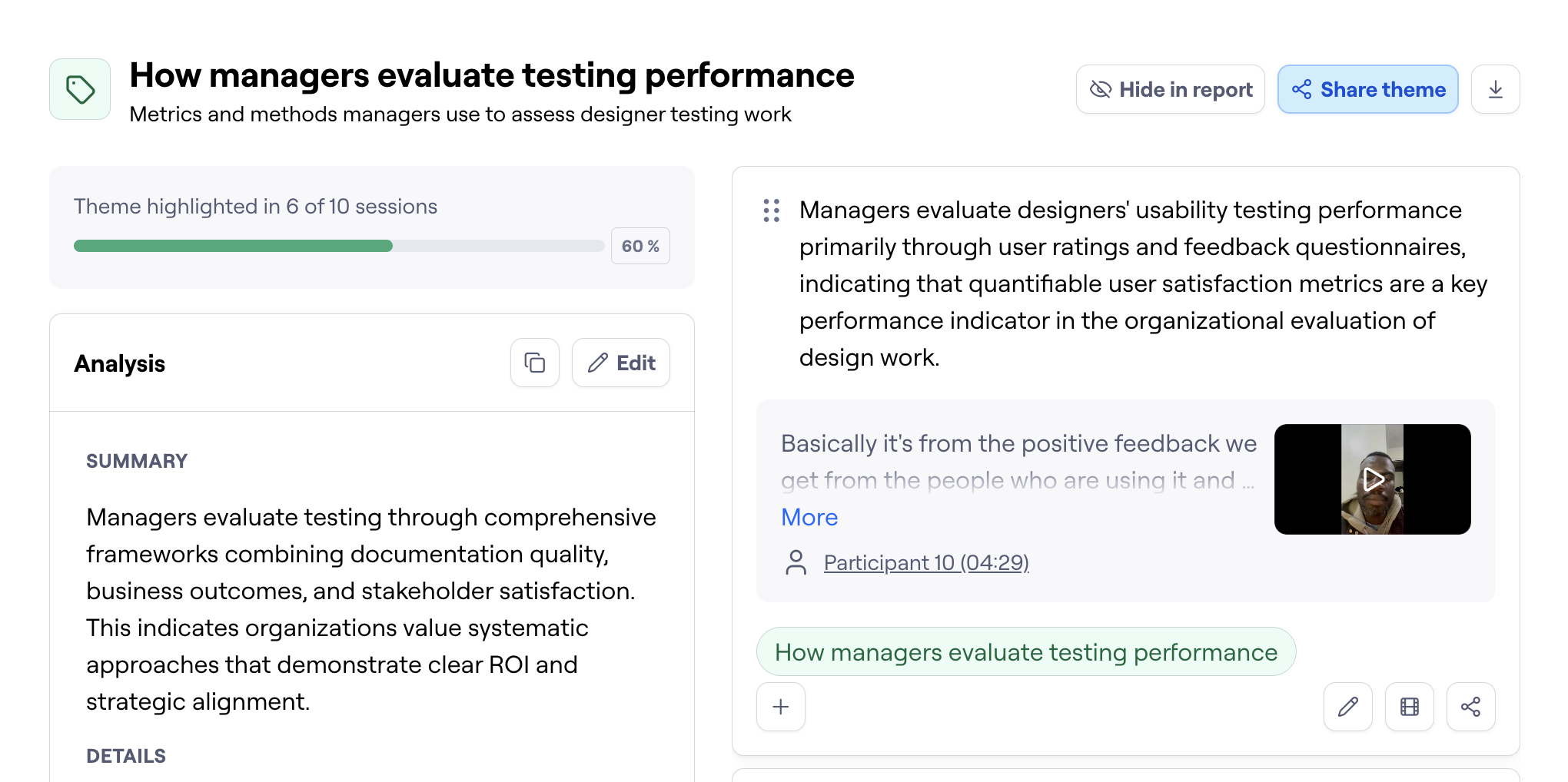
Themes - Share specific insights without the full report context by clicking Share theme
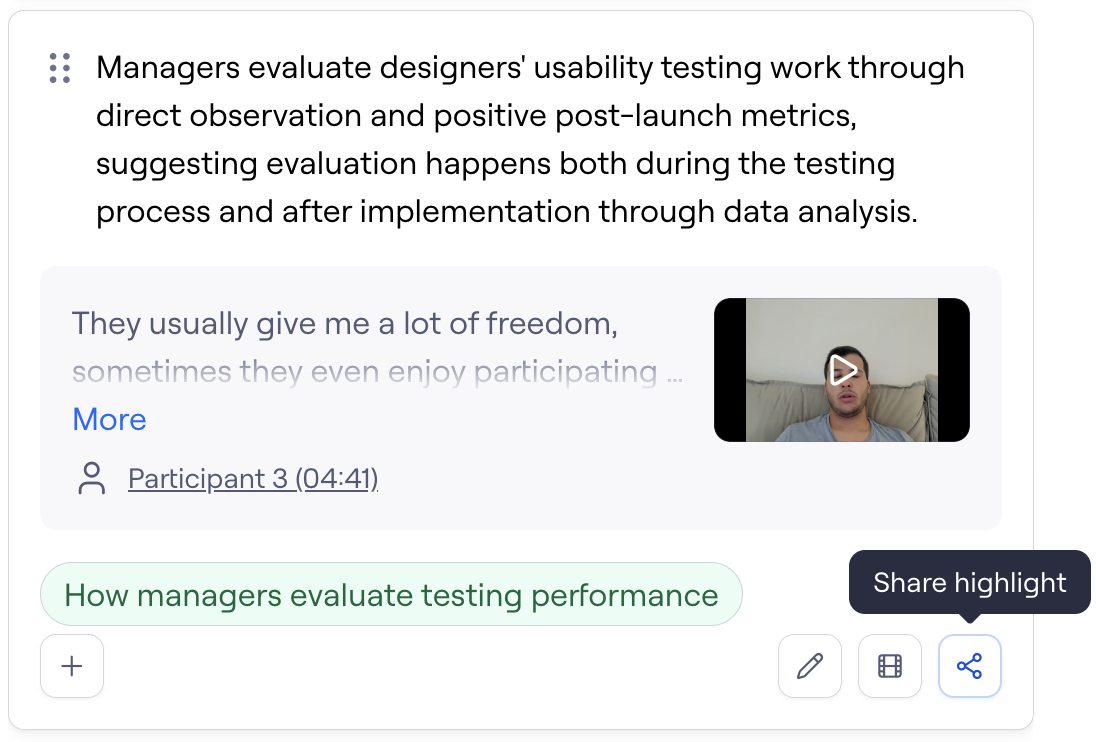
Highlights - Share particular participant quotes or observations by clicking the Share highlight icon.
Sessions - Share individual participant interviews by clicking Share session via the Sessions tab
This helps you share relevant insights without overwhelming your audience.
Sharing full reports
To share the full report or a specific slide, open the report and click Share report to copy the share link. You can also copy the embed link to view the report in your tool of choice.
Report links can either be:
Private: Only authenticated team members can view them. If the study belongs to a private workspace, only members of that workspace can view the report link.
Public: Accessible by anyone with the link.
Still need help?
If you have any questions or concerns, please let our Support team know — we'll be happy to help!