Invite observers to view moderated interviews
Last updated: June 9, 2026
Researchers can now seamlessly and discreetly bring stakeholders into live interview sessions without being visible to the participant.
Researcher Experience
Ability for study owners to invite observers with view-only permissions
Observer Experience
In-app chat system for private communication between observers + interview hosts
Silent viewing mode for all audio/video content
Before you start
The observers functionality is supported with Maze Conferencing (Zoom). It is not supported with the Zoom, Microsoft Teams, or Google Meet conferencing options at this time.
If study conferencing rooms are utilized, please note they do not have observer links by default before a participant has joined the interview. If observers are needed, researchers will have to share the direct observer link only after the participant has joined the interview.
Who can use this feature
Interview Studies are an Enterprise plan feature.
Invite an observer to an interview
To get started, create or navigate to an Interview Study. From the Recruit tab, select Recruitment settings and choose Maze conferencing.
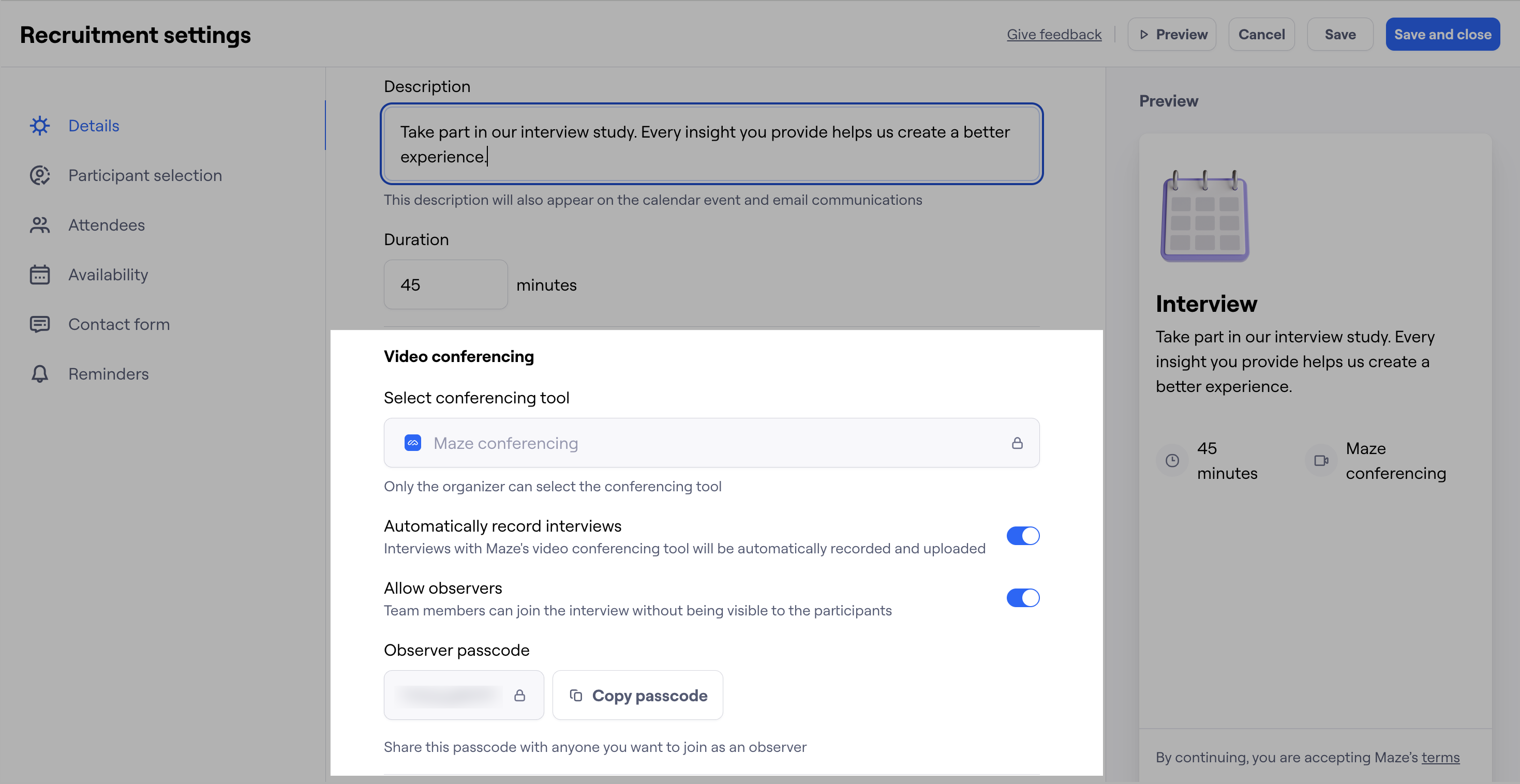
Toggle on Allow observers to enable the observer room and generate an observer passcode to join the interview sessions.
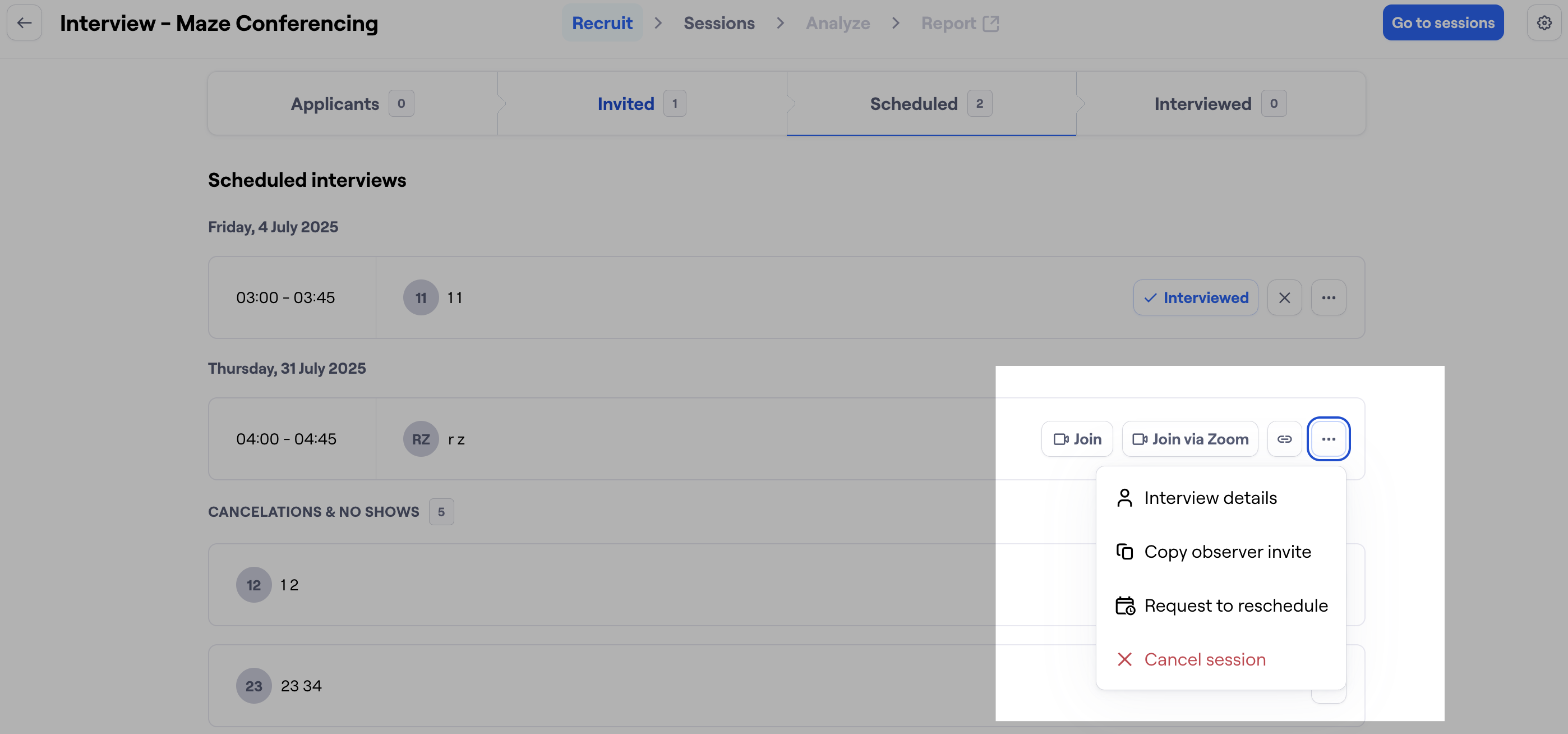
Recruit participants as usual. On the Recruit page, click the ellipsis (⋯) next to a scheduled session and copy the observer invite to share the unique conferencing link and passcode with stakeholders prior to the interview.
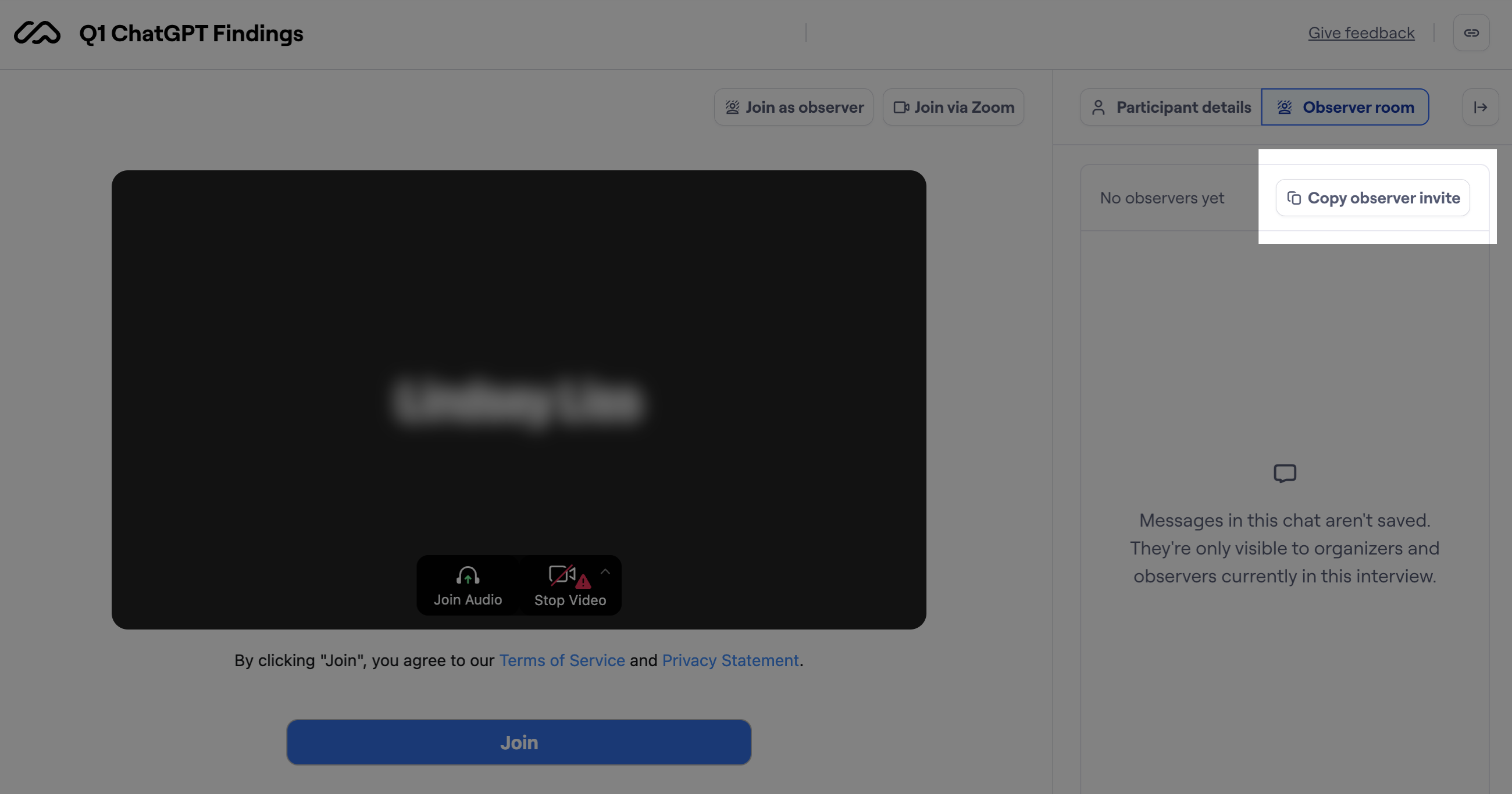
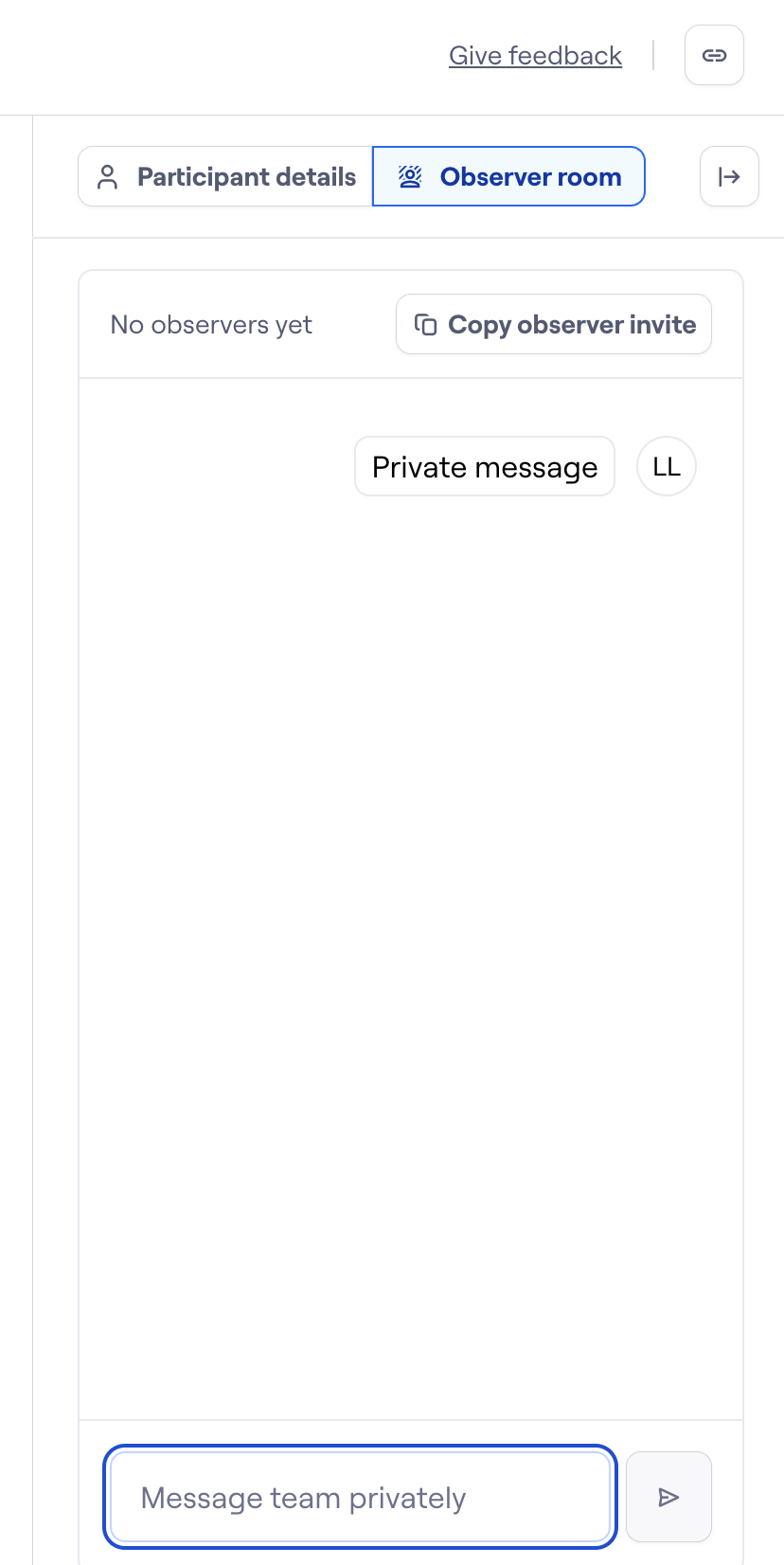
If you find yourself already in the interview and needing to add an observer last minute, you can easily grab the observer invite via the Copy observer invite button (far right).
Please note that when you copy the observer invite from either location, it is expected that the URL will appear like the following to ensure everything is shared with stakeholders: URL: https://t.maze.co/interview/12345d678-1234-812835dn9/observer-room
Passcode: ABCXYZ
Observers are then able to discreetly join the Observer room and use a private chat to communicate with the host, and other invited observers, in real-time.
How does an observer join an interview via a link directly shared?
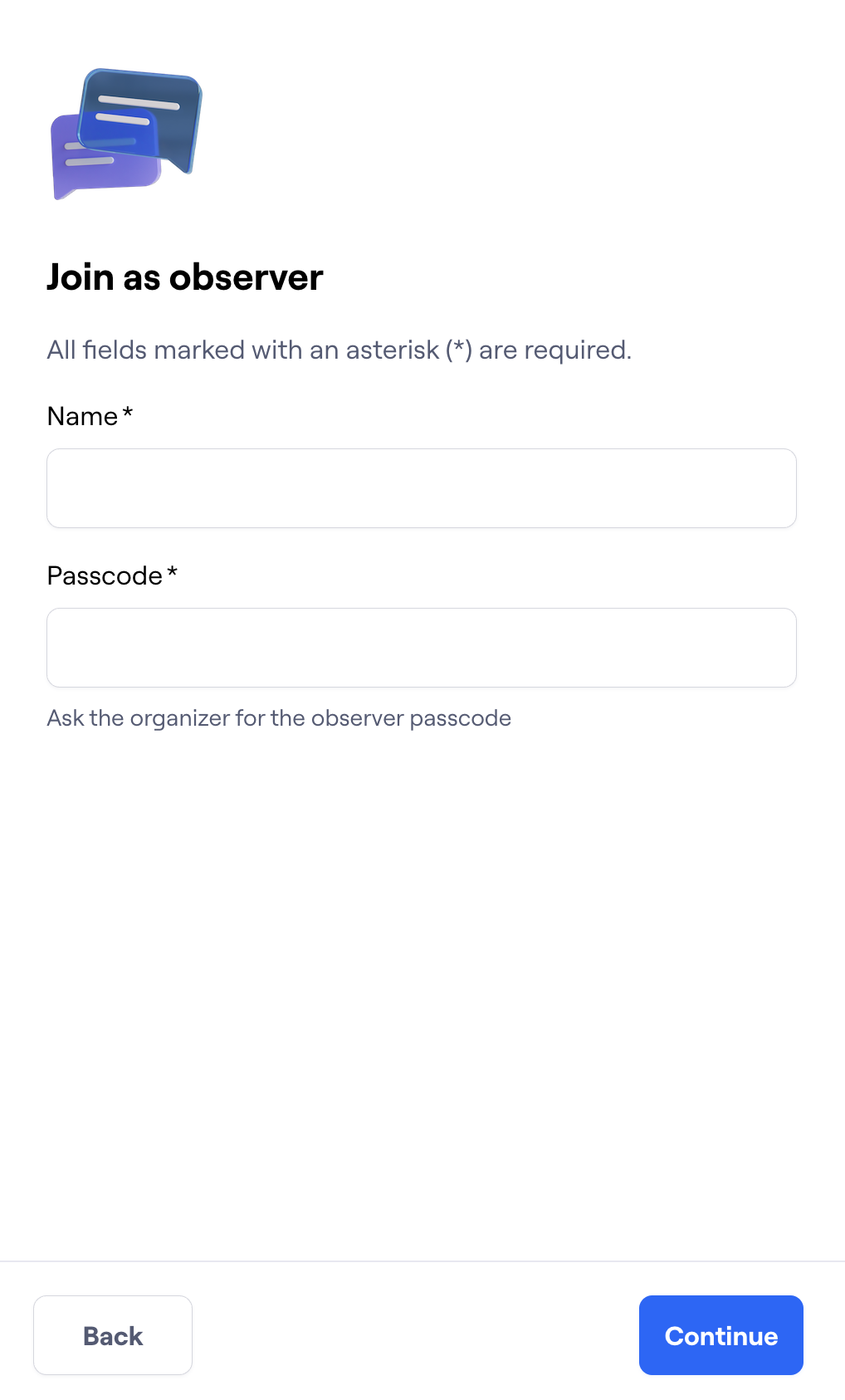
To join an interview as an observer, navigate to the link shared with you and enter your details as well as the unique observer passcode and press Continue. You will then enter the live interview session.
How does an observer join an interview via the main conferencing link?
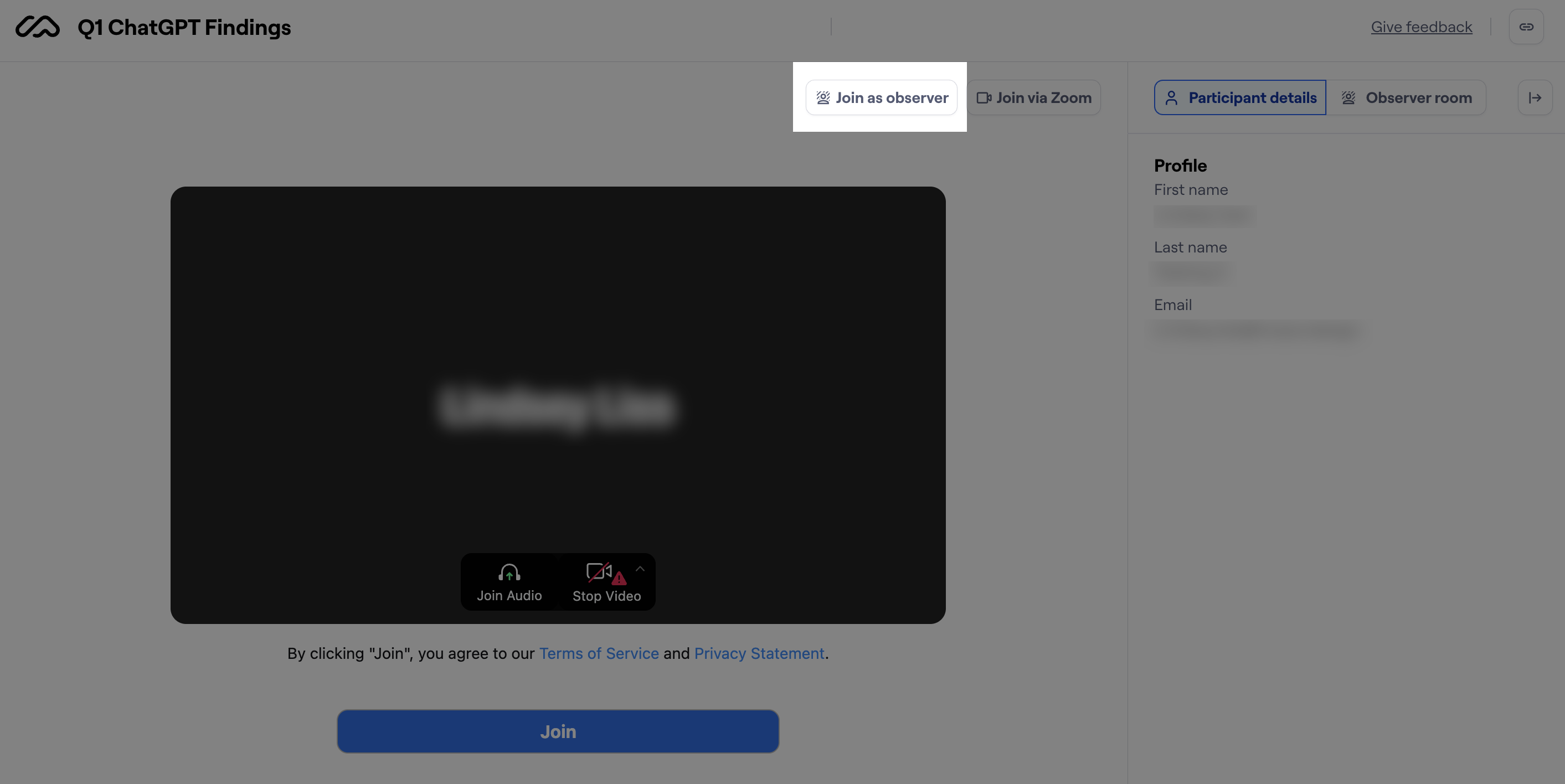
If you've used the main conferencing link to join the interview session, simply click the Join as observer button (top right corner of your session screen) to ensure you're in observer mode.
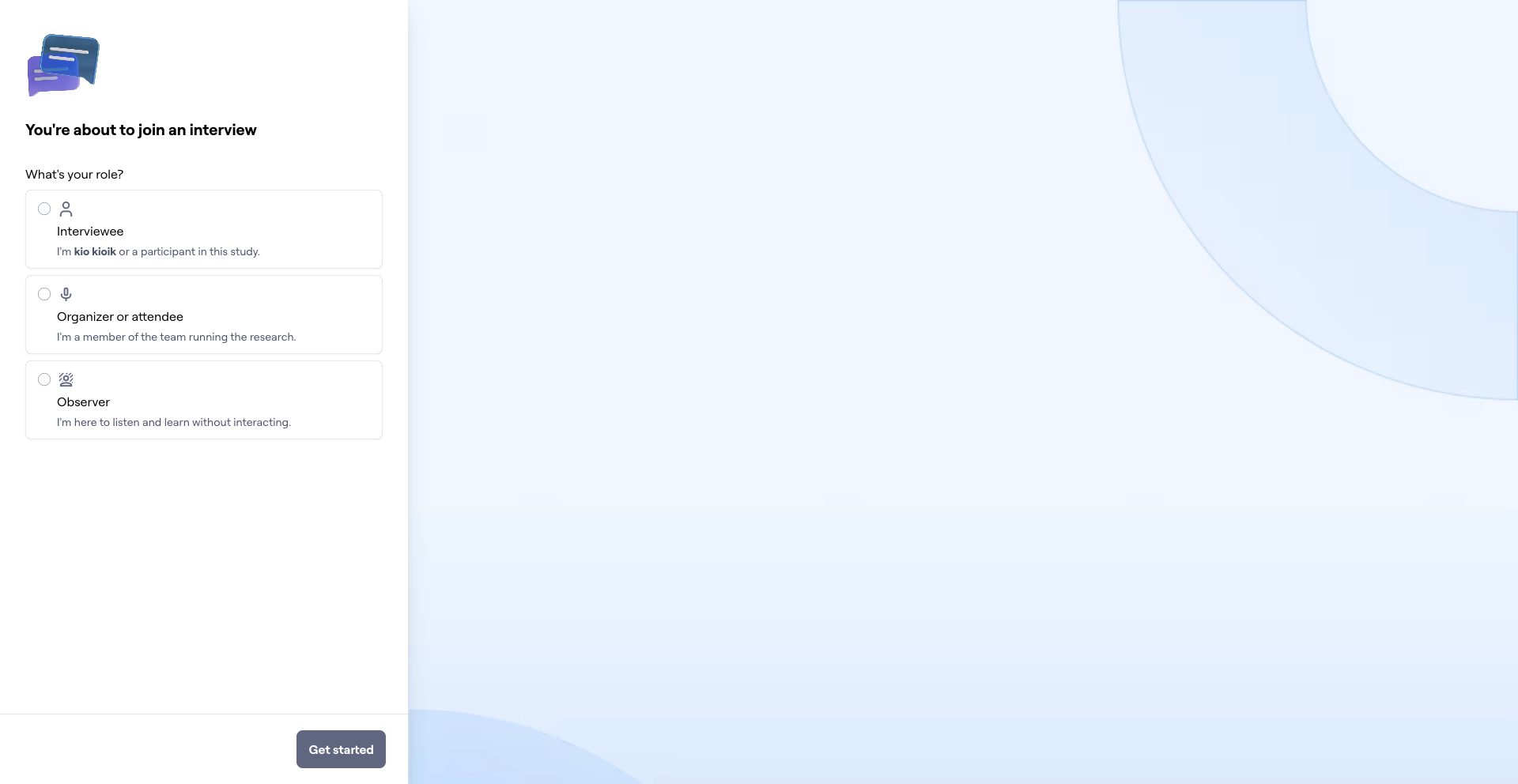
If you are not logged into Maze already and are joining an interview as an observer, access the link shared with you and you'll be prompted to enter your role, details and accept any relevant permissions.
How does an observer join an interview from a calendar invite?
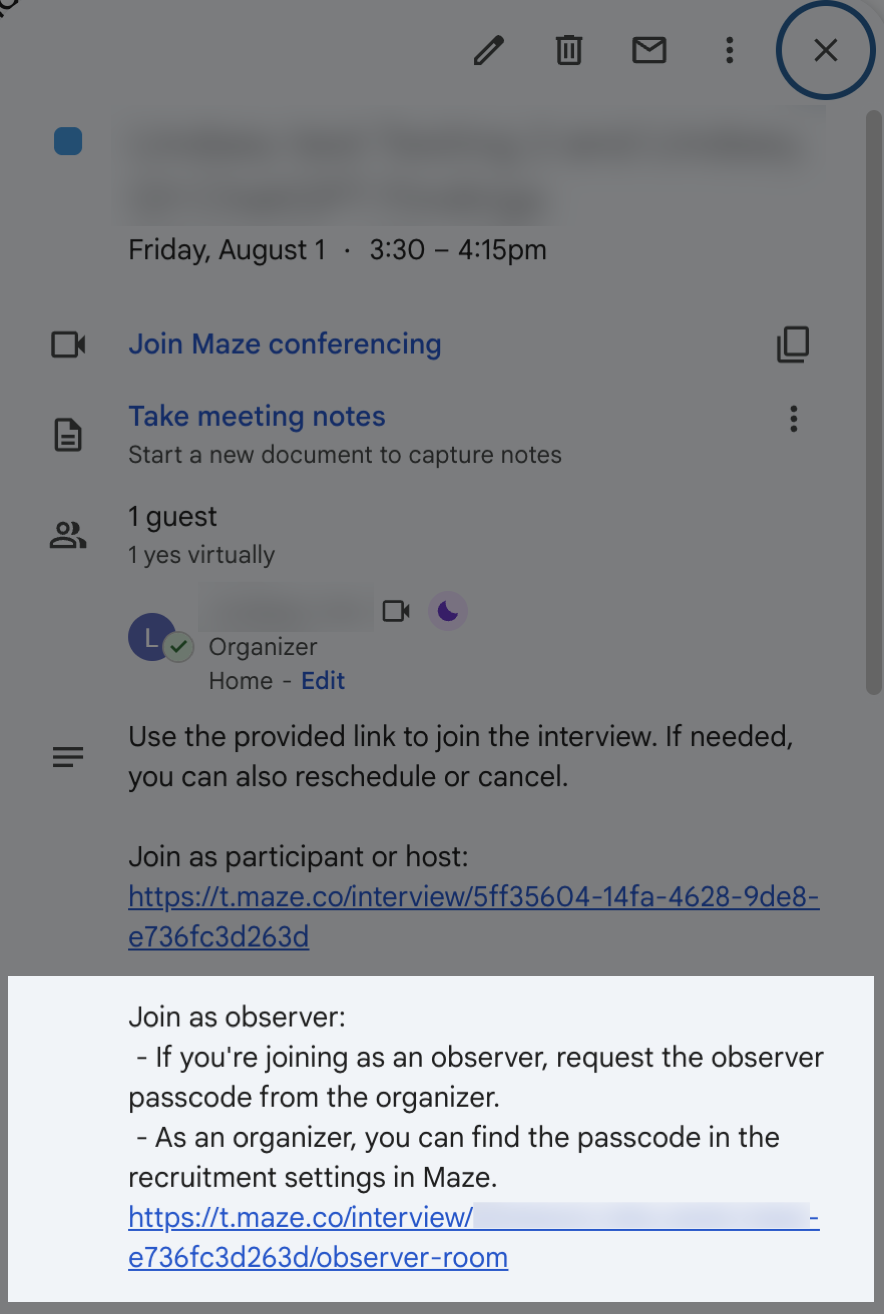
If you've received a calendar invite for an interview and you'd like to join as an observer, simply click the link in your calendar invite and request the observer passcode from the interview organizer/host. Then enter your details as well as the passcode and press Continue. You will then enter the live interview session.
Can I converse with the host as an observer?
Yes, both hosts and observers can switch between the participant details and private chat tabs on the right hand side.
Will messages added to the chat be saved to reference at a later date?
No, at this time, messages in the chat aren't saved. They're only visible to organizers and observers currently in the interview and only for the duration of the interview.
Will I know when there is an observer in the room?
You will be aware that an observer is in the room by an Observer Indicator displayed in the top right corner of your session. This indicator will be visible to all parties, including the participant. When the host turns the observer settings off during the call, all observer live streaming is stopped.
Is there a limit to how many observers can join an interview?
At this time, there is a limit of 1,000 observers who can join an interview at one time. If you feel that your team may be needing more than 1,000 please do reach out so that we can capture your feedback.
Troubleshooting playback in the observer room
If you're experiencing choppy or inconsistent playback, the observer room now includes two features to help:
Manual video quality selection
You can manually set the video quality to a level that matches your connection — down to 160p if needed. Unlike automatic quality switching, this locks playback to a stable setting so it won't jump unexpectedly. This is especially useful if you're on a corporate network with restricted or variable bandwidth.
First-to-join delay
If you're the first person to join an observer room, expect a short delay of around 20 seconds before the stream starts. This is a normal part of the room starting up (a "cold start") and will only happen once per session.
Still need help?
If you have any questions or concerns, please let our Support team know — we'll be happy to help!