Interacting with a live website test
Last updated: October 23, 2026
Website Test is the primary mission block for running usability tests to understand how participants interact with live websites. This block offers flexible testing modes, including the ability to test any URL without requiring a code snippet.
Previewing your unmoderated studies is a great way to ensure everything flows nicely, and that your participants see what you want them to see. Proactively testing your study beforehand helps prevent issues with content and performance.
Learn more about previewing your study before publishing
Understanding task blocks by stimulus
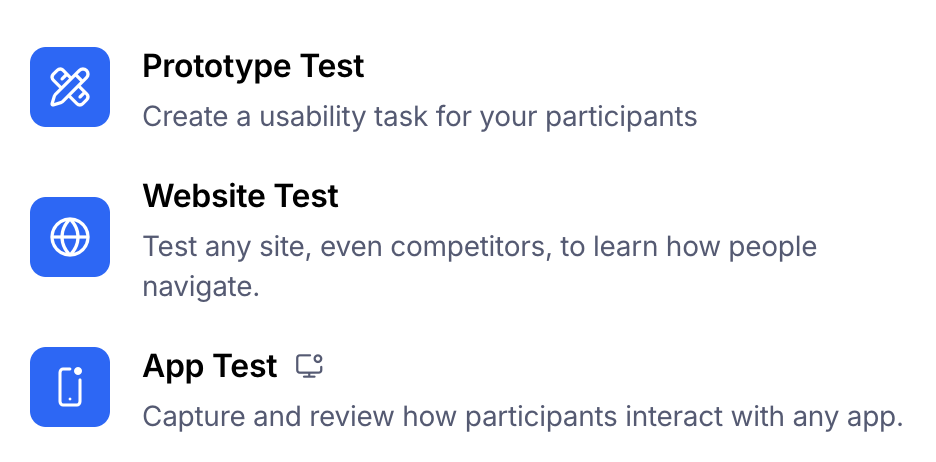
Maze organizes testing based on the stimulus or asset you are testing. When building your study, first identify which stimulus block is appropriate:
Mission Block | Purpose | Stimulus | Device |
|---|---|---|---|
Prototype Test | Figma prototypes | Figma prototype link | All devices |
Website Test | Testing any website, including competitor sites or AI-generated links (e.g., Figma Make, Lovable) | Any public URL. This also includes links to AI-generated prototypes such as Lovable or Figma Make | All devices |
App Test | Testing mobile applications on a participant’s mobile device | A link to the mobile app | Mobile only |
Website test capabilities
The Website Test block is designed for flexibility, supporting two modes of testing based on your needs:
1. Snippet-less testing
In this mode, you can test any public URL without installing the Maze code snippet.
How it works: Paste the URL into the website test block.
Data collected: Data is primarily collected via Clips recordings (screen, audio, and participant face/voice, if enabled), allowing you to observe user behavior.
Best for: Competitive analysis, testing external sites.
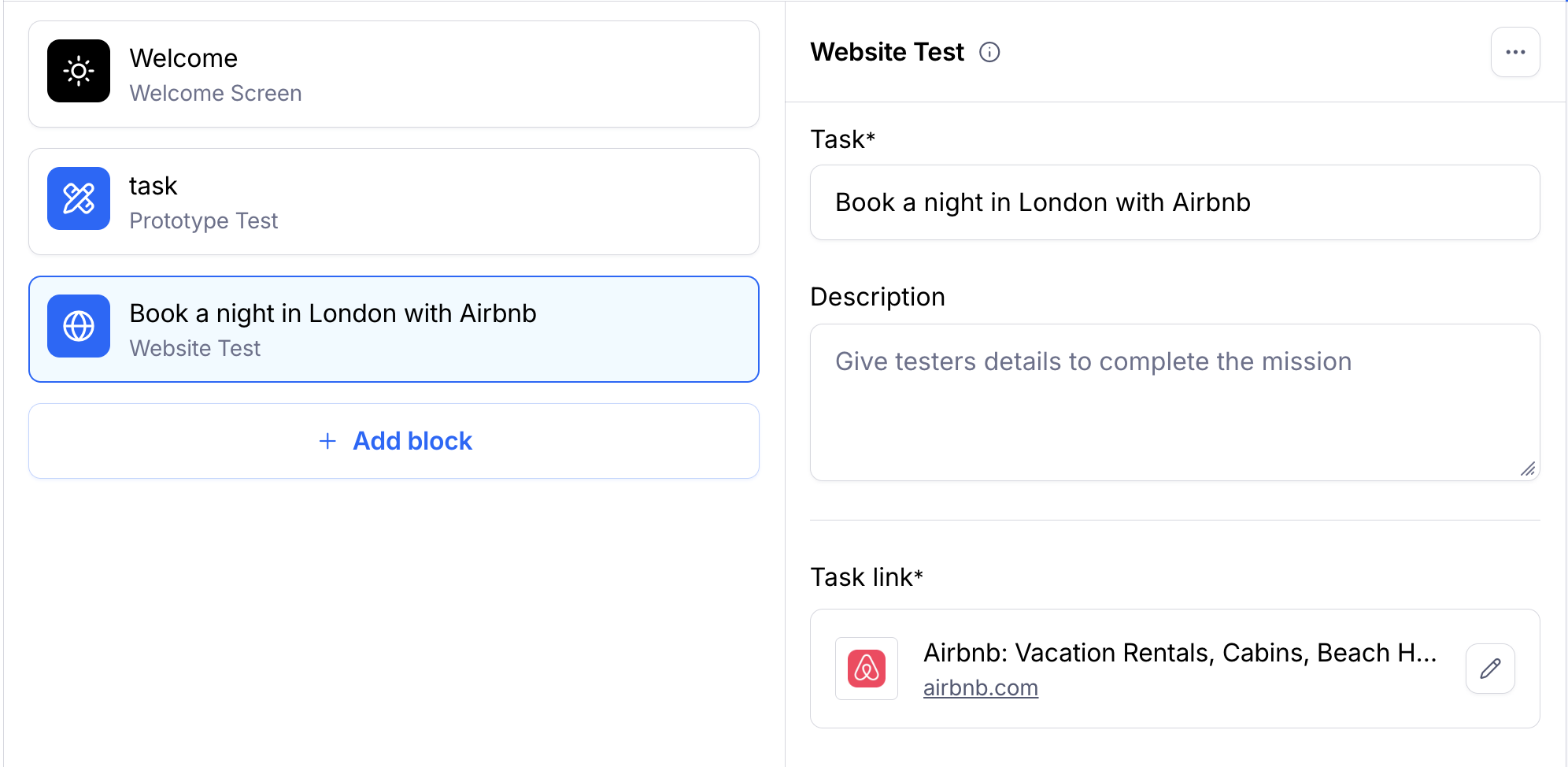
2. Snippet-based testing (with data)
This is an optional step when you need granular quantitative data on your own website.
How it works: You paste your website's URL and use the optional "Add snippet" feature to confirm the Maze code snippet is installed.
Data collected: Unlocks advanced quantitative data, including heatmaps and goal-based success metrics, in addition to Clips recordings.
Best for: Deep-dive analysis on your product's live site, where detailed metrics are essential.
Please note that for AI-generated prototypes, such as Figma Make or Lovable, both approaches can be applied. See how to install the code snippet on your AI prototyping tools here.
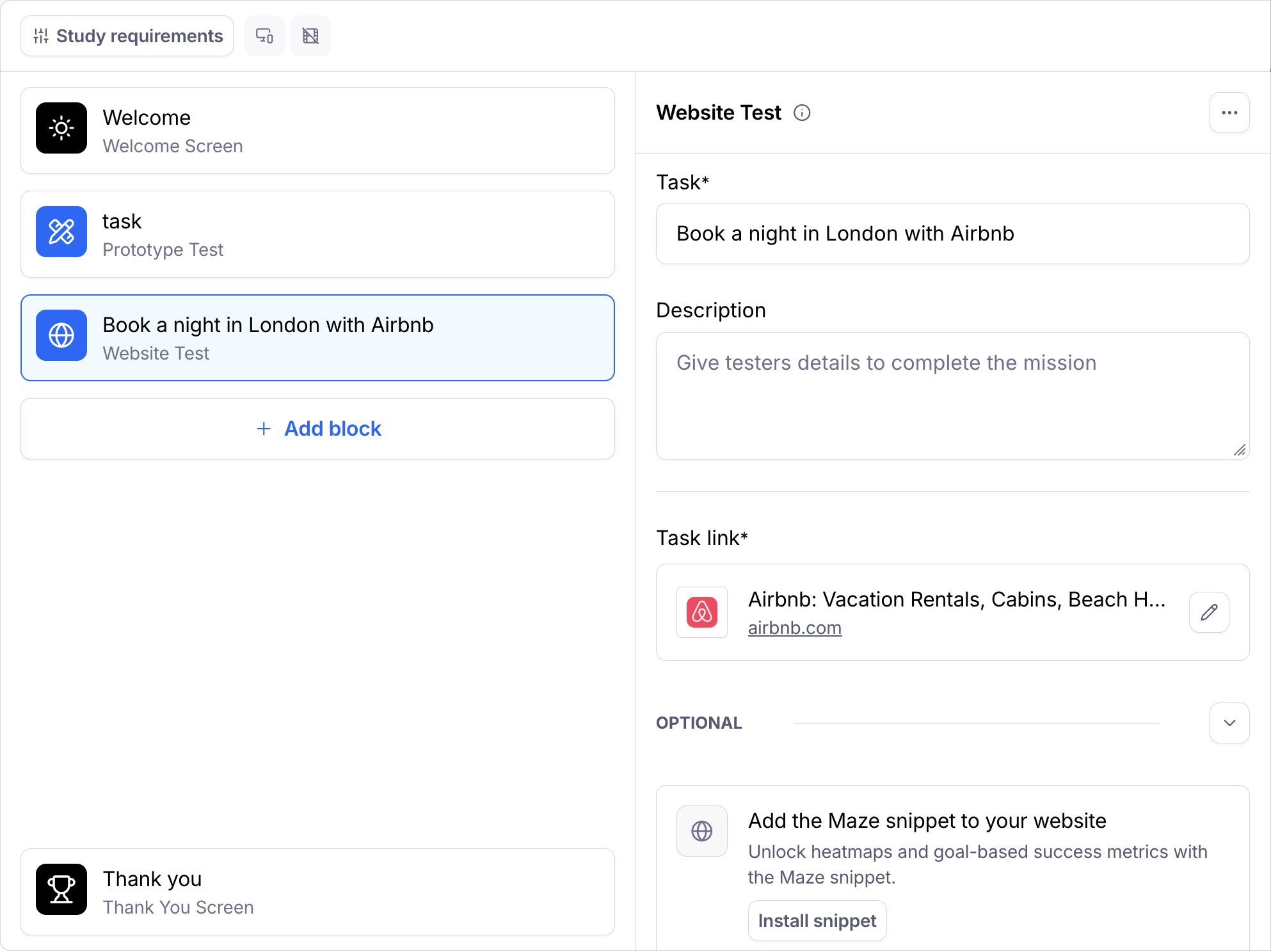
How the website is displayed
Depending on the website test setup, participants may see the website in one of a few ways:
Study page: The task appears in a card on top of the website. Participants can move, resize, and minimize the card as needed. They can also click Open in a new window to view the task separately.
New window with the snippet widget: If the Maze snippet is installed, the website opens in a new window with the Maze task widget displayed on the page.
New window with floating instructions: The website opens in a new window, and the task instructions appear in a floating instructions panel.
Plain new window: The website opens in a new window without an embedded task widget or floating instructions. Learn more about how website tests are displayed in Show your website side by side with the task.
Participant experience & technical considerations
Several factors govern the participant experience across all task blocks, particularly concerning device, screen size, access, and data privacy.
Supported languages
You can test websites in any region and language. However, at the moment, the task interface for website testing blocks will only display in English.
Device configuration (study settings)
When setting up a website test, you will select a device type (desktop, tablet, mobile). This is configured in the main study settings.
Screen dimensions: Maze enforces screen-size limits to ensure accurate click registration. The browser window must remain within the specified range:
Desktop tasks: The task window must range between 1180px and 1380px.
Mobile tasks: The maximum size of the task window is 580px.
Participants may see the following warning messages on their device if their device does not match the screen size range. We've implemented these limitations to ensure that clicks are recorded correctly in the results.
This page needs a larger screenWindow size too smallWindow size too largeCurrent limitation: Maze editors or participants using Safari with the setting 'Open pages in tabs instead of windows' set to 'Always' may see the website automatically opening in a separate tab. As a result, they may encounter the "Window size too large" error when building paths or completing a website test. To address this, we recommend manually resizing the screen, adjusting your settings, or using a different browser.
Access
Depending on the type of site being tested, the participant experience could be challenging if the participant doesn't already have an account or if the account requires a login.
For cases where a specific login is required, we recommend using the general login shown in the instructions, which multiple users can use simultaneously, or using URLs that enable automatic participant login. This will help ensure a seamless and secure testing experience for your participants.
Sensitive data
Depending on the selected anonymization option chosen by the creator of the unmoderated study (relaxed, balanced, or strict), personally identifying information (PII) displayed or input by participants (i.e. requesting login) may be visible in the results (e.g. heatmap). Please note that this requires installing the Maze snippet and does not apply to the recording. If there is concern about exposing PII, we suggest utilizing the anonymization feature by toggling Anonymize participant data to on.
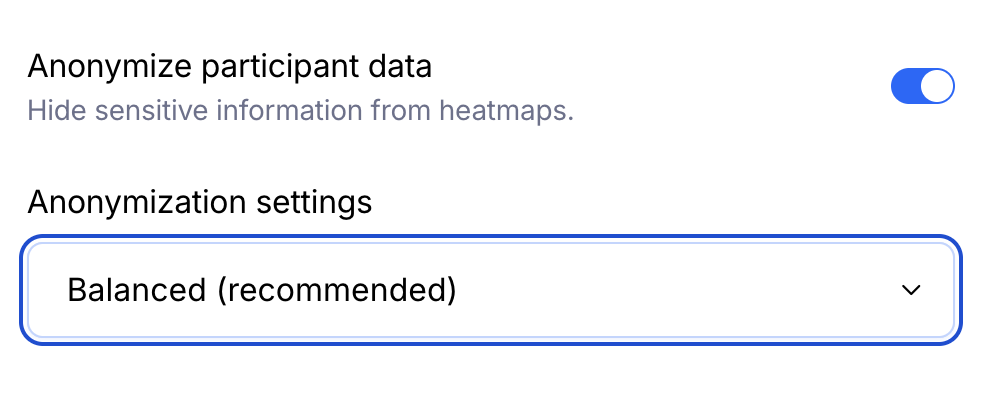
If you set screenshot anonymization to relaxed or balanced, participants will be warned at the start of the study that personal data may be visible to the study creator:
All personal data shown on-screen and data you enter will be viewable by the test creator.
If you enable Clips recordings (screen, audio, or video), the anonymization option is disabled, since anonymization does not apply to Clips recordings. Participants will always see the same warning, regardless of the anonymization option selected.
Ad blockers
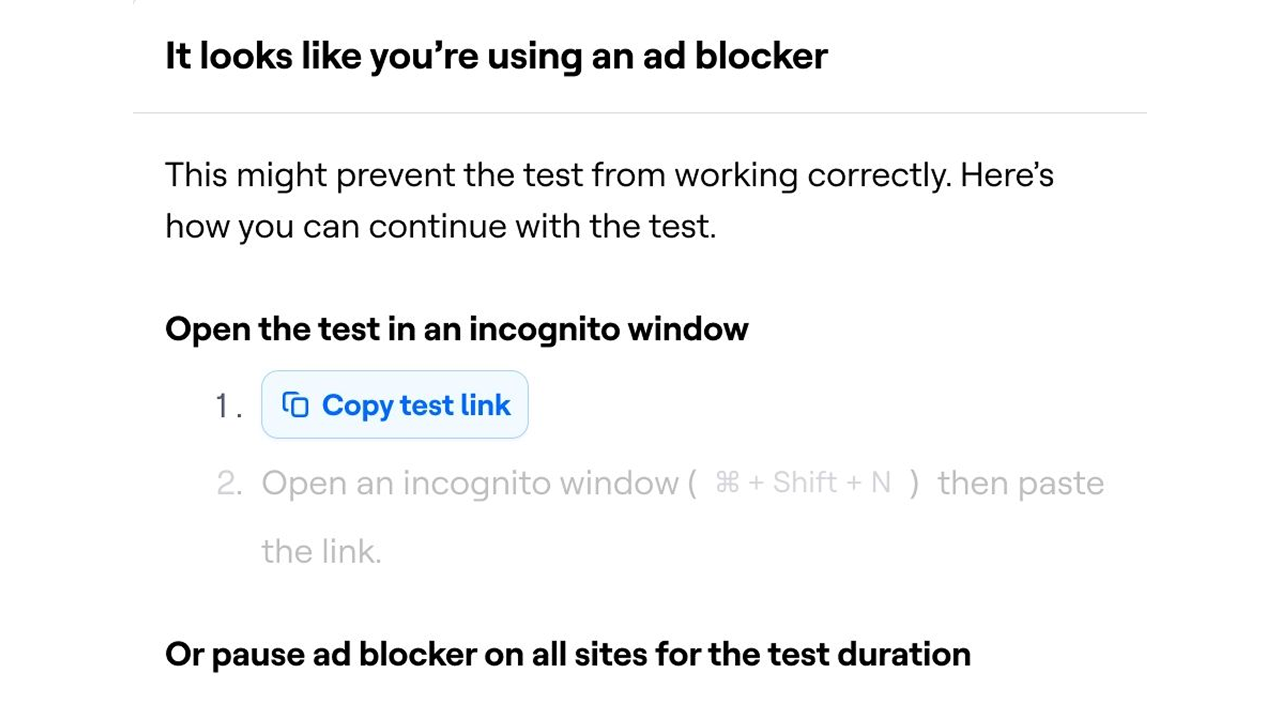
Many popular ad blockers disable content loaded via tag management systems (namely Google Tag Manager). This means that if you've installed the Maze snippet using Google Tag Manager, participants using an ad blocker likely won't be able to load the website test correctly.
To avoid this issue, we display an additional warning to participants:
It looks like you're using an ad blockerBefore continuing the task, they should either:
Open the study link in an incognito browsing window, or
Pause the ad blocker on all sites until testing is complete.
To prevent users from having to take this additional step, we recommend installing the code snippet directly on your website, if possible.
If the participant returns to the study before completing the task, they’ll see a reminder to finish:
The task is running in the other windowIf the task opens in a new window and the browser blocks it, participants will see the following message:
The task window was blocked.Participants should allow pop-ups for the study website in their browser settings, then click Refresh to reopen the task window and continue. If the task window still doesn’t open, they should check that pop-ups and redirects are allowed for the site and try refreshing the study page.
Instructions
During a website test, the task instructions may appear in different formats depending on how the website is displayed. In the study page experience, the task appears in a card on top of the website. Participants can move, resize, and minimize the card as needed.
They can also click Open in a new window to view the task separately. In other website test experiences, the instructions may appear in a floating panel. Participants can move the panel to another part of the screen by clicking the Drag icon.
Ending the test
Unlike prototype tests, the task doesn't end automatically when the participant reaches the success screen (i.e. the final screen in a path), and a success message won't be displayed.
When the participant believes they’ve completed the task, they should click End task in the task card or instructions panel to end the mission and return to the study.
You can customize the task description to make it extra clear for your participants that they should click the End task button once they believe they've reached the end of the task.
Still need help?
If you have any questions or concerns, please let our Support team know — we'll be happy to help!