Formatting text within blocks
Last updated: September 1, 2026
You can format the text within blocks using Markdown or the rich text editor.
Text formatting
You can use Markdown to format the text in your descriptions. Some examples:
Rendered text | Syntax |
Bold | **Bold** |
Italic | *Italic* _Italic_ |
| ~~Strikethrough~~ |
Bold and italic | ***Bold and italic*** |
| `Code span` |
| - Unordered list item 1 |
The Preview panel on the right side will show you the rendered text.
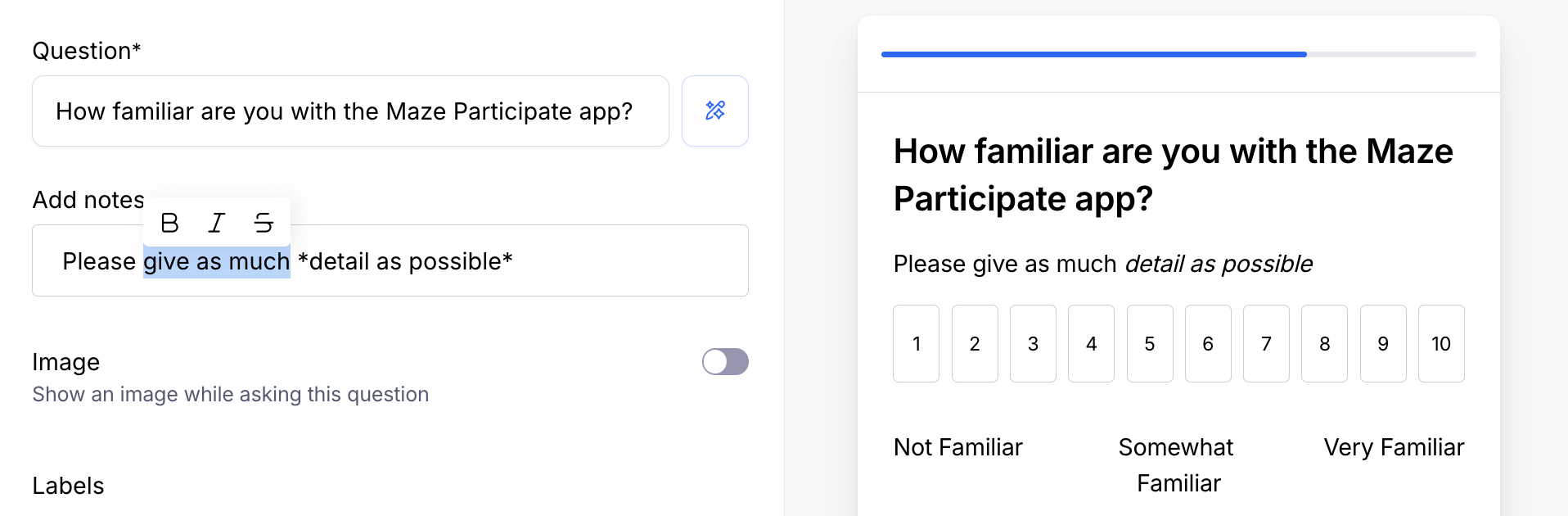
It’s also possible to select the text in the notes/descriptions to reveal the basic WYSIWYG editor.
Link Formatting
Pasted links
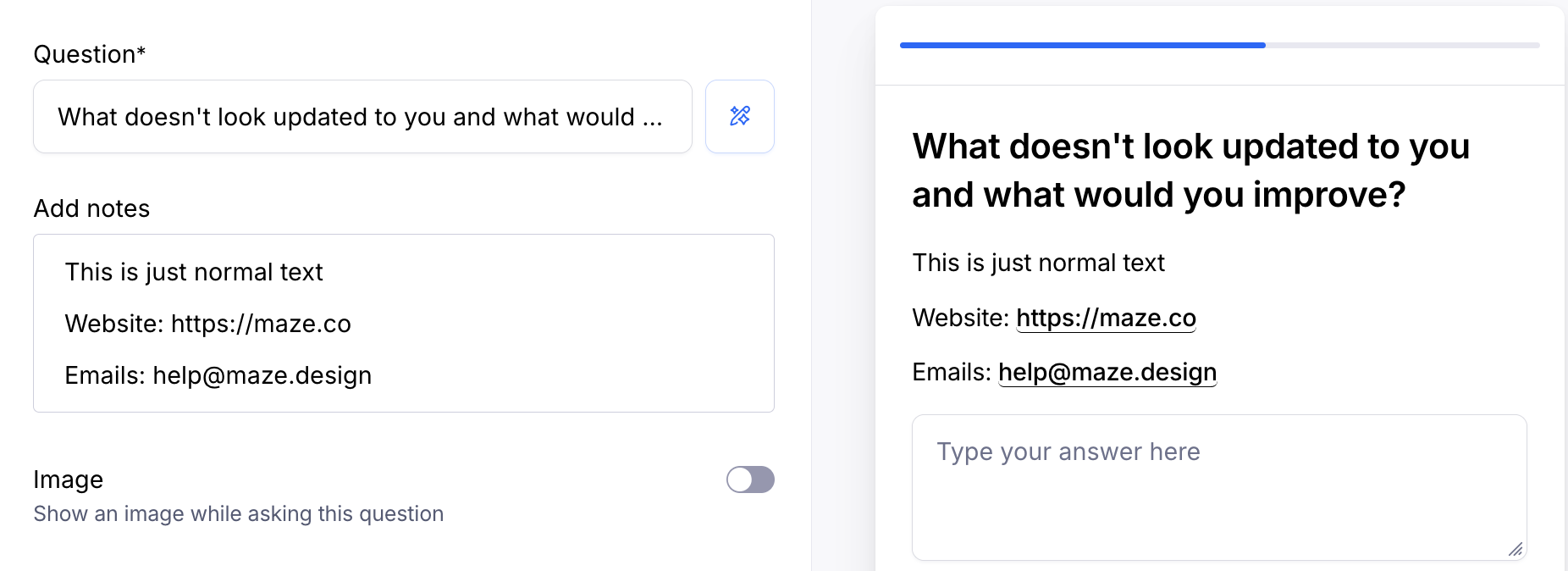
Web links and email addresses are automatically converted when pasted directly into the text box. Hyperlinks will appear in the preview on the right side of the editor.
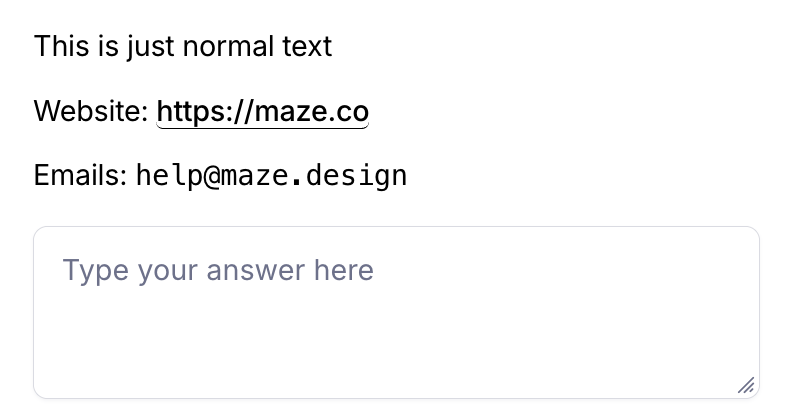
To prevent automatic hyperlinking, you can add ticks to wrap the URL or email in back ticks to appear as code as seen below:
`HELP@MAZE.DESIGN`
Embedded links
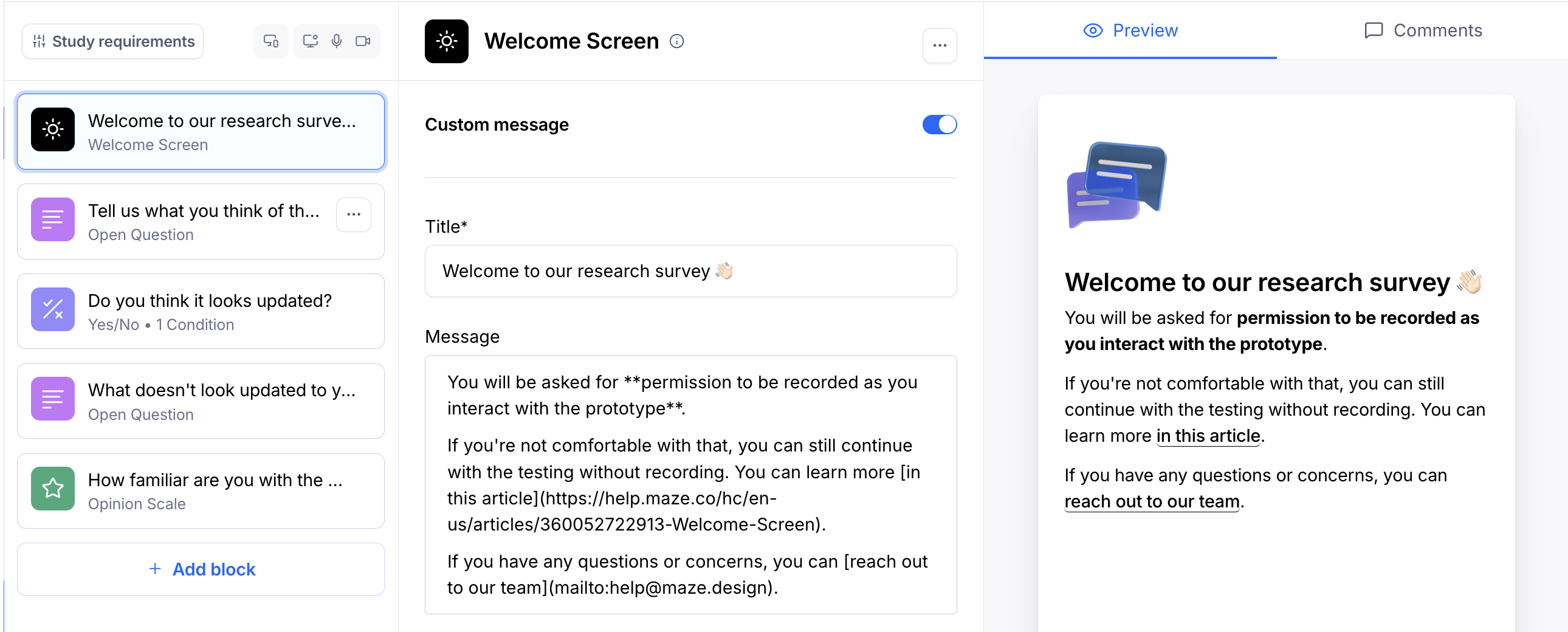
If you have a paid plan, you can also use these instructions to include custom links in the Welcome Screen and Thank You Screen.
To add an embedded link to your blocks, use the following syntax:
[LINK TEXT](URL)
Please keep in mind:
Links are only created when you include the HTTP or HTTPS identifier.
If you run into any issues with your links, please let us know.
Still need help?
If you have any questions or concerns, please let our Support team know — we'll be happy to help!