Send an unmoderated Maze study via Rally
Last updated: September 1, 2026
Rally is a participant recruitment and research operations platform that integrates with Maze, allowing you to send unmoderated studies to participants you've recruited through Rally.
This article covers how to set up an unmoderated study end-to-end — starting in Maze, then connecting it to a Rally study for distribution.
Step 1: Create and publish your Maze study
Before setting anything up in Rally, your Maze study needs to be live.
Build your unmoderated study in Maze as you normally would.
When you're ready, click Publish study to set the study live.
Keep the study open — you'll need to grab the study link in Step 3.
Step 2: Create an unmoderated test study in Rally
In Rally, navigate to Studies in the left navigation bar.
Select + New Study, then choose + Create from scratch (or select a template if your team has one set up).
Enter a Study Name, set the Language, and select the Team the study should live in.
Choose your recruitment type: In-House (recruit from your own Rally database) or External Panel (paid recruitment through Rally's panel).
Select Unmoderated test as the study type.
Select Continue to open the study builder.
Step 3: Connect your Maze study to Rally
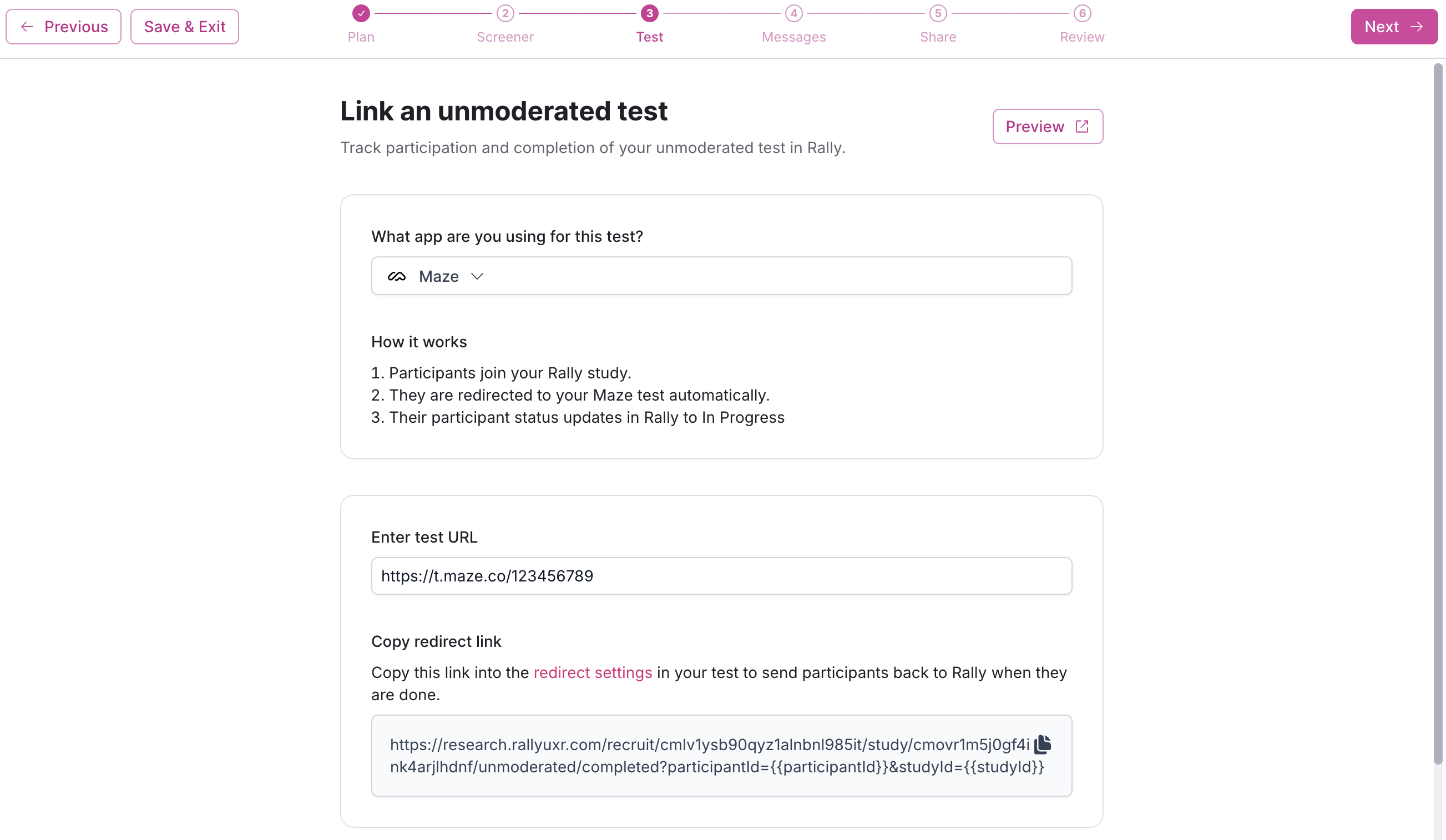
The study builder has six steps to work through. The most important one for Maze users is Test — this is where you link your Maze study to Rally and set up the redirect that lets Rally track study completions.
The steps below involve switching between Maze and Rally a couple of times. We recommend keeping both tabs open to make this easier.
In the Test step:
Under What app are you using for this test?, select Maze.
Go to your Maze study and navigate to the Recruit tab.
Select Study link, then select Copy link.
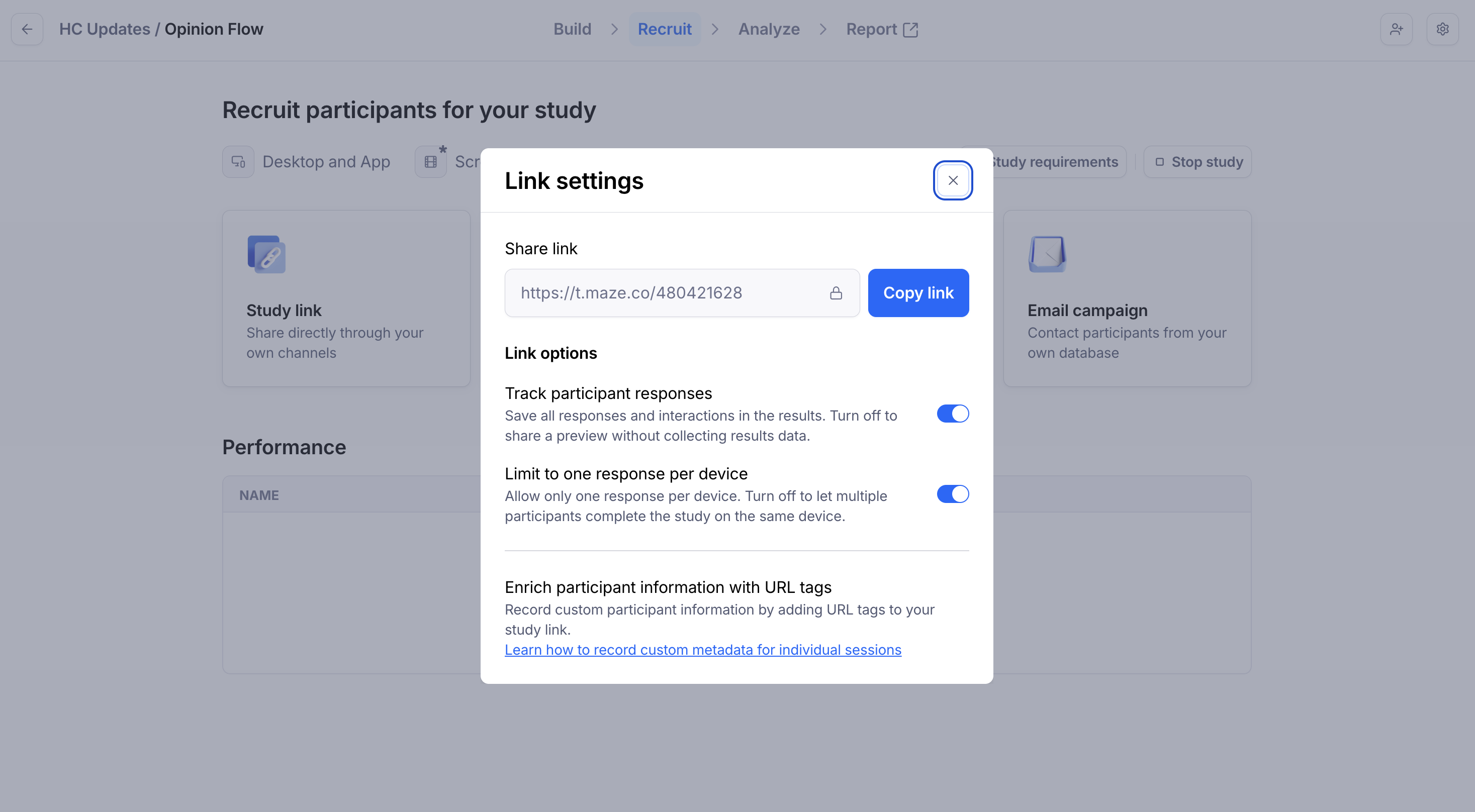
Return to Rally and paste the URL into the Enter test URL field.
In Rally, find the Copy redirect URL field and copy that link.
Return to your Maze study and go to the Build step.
Open the Thank you block and toggle on Add custom CTA.
Paste the redirect URL from Rally into the Website URL field.
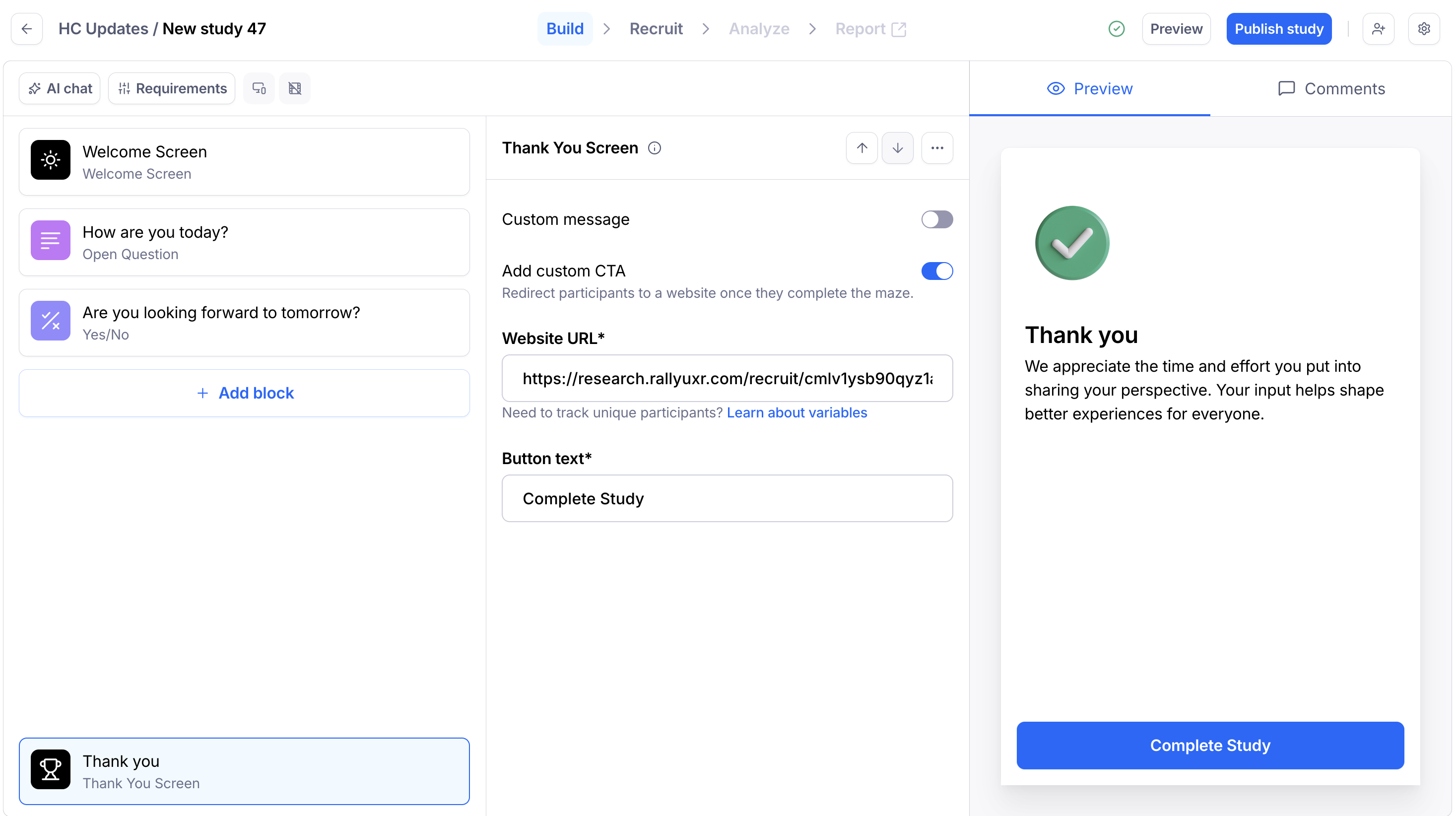
This redirect is what allows Rally to recognize when a participant has completed your Maze study and mark them as Test Completed.
Step 4: Configure your remaining Rally study steps
Once your Maze study is connected, work through the remaining steps in Rally's study builder.
Plan
Set up the key details of your study, including its name, research goal, participant limit, consent forms, incentives, and branding.
Screener (optional)
Configure a screener to qualify participants before they access your Maze study.
We recommend setting up your screener in Rally rather than within Maze, regardless of whether you're recruiting in-house or from an external panel. Using Rally's screener means qualification status is tracked directly in Rally — and if you have Immediate Testing enabled, qualified participants will be sent to your Maze study automatically without any manual follow-up needed.
Rally's integration with Maze does not currently detect participants rejected by a screener within Maze. If you opt for a Maze screener instead, that rejection data will be visible only in Maze — Rally will not have access to it.
Messages
Review and customize the outreach emails Rally will send to participants — including the study invitation, test link, and (if applicable) incentive emails.
Share
Set up your recruitment channels: email invitations, a shareable public link, or both. You can also configure a welcome page and contact information requirements for participants here.
Review
Rally will flag any errors or missing details before you publish. When everything looks good, select Create Study to launch — or Save & Exit to come back to it later.
Once your Rally study is live, you can start adding participants and sending invitations. Responses will be collected in Maze as usual.