Participant Quotas
Last updated: October 16, 2026
Quotas let you set the demographic mix you want in a single panel order. Instead of placing a separate order for each country, gender, or age group, you set a percentage split once and Maze recruits to that split for you.
You can add a quota by Country, Gender, or Age on top of your usual panel filters, and see a feasibility estimate for each segment before you place the order.
Quotas are available on unmoderated and AI-moderated panel orders for Enterprise plans.
Before you start
Each panel order can have one quota dimension. If you need to balance two dimensions at once, such as country and gender, place a separate order for each value of one dimension and add a quota for the other.
Your percentage split must add up to 100%, and every value in the split needs a percentage.
Known Limitations
Quotas can't be added to moderated panel orders
Quotas aren't supported for orders that use our Extended Network. Quota selection is turned off if you choose an Extended Network country, add B2B filters, or use a filter combination with no matching participants in our standard panel
Quotas aren't supported on studies with a variant comparison block in Exclusive mode. See below
You can set one quota dimension per order (Country, Gender, or Age)
Progress per segment isn't tracked live yet. The Order Summary and Panel Order details page show your planned split, not how many participants have completed in each segment
Results can't be filtered or segmented by quota yet
Quota settings aren't saved in draft orders. If you save an order and come back to it later, set your quota again
Reusing an audience from Previously used audiences doesn't restore its quota
Add a quota to your panel order
Quotas are set while you hire testers for an unmoderated or AI-moderated study.
Open your study and go to the Recruit tab.
Start a panel order by clicking Panel participants and set your filters as usual.
Go to the Preferences & quotas step (blue button at the bottom of the page)
Choose the dimension you want to balance: Country, Gender, or Age.
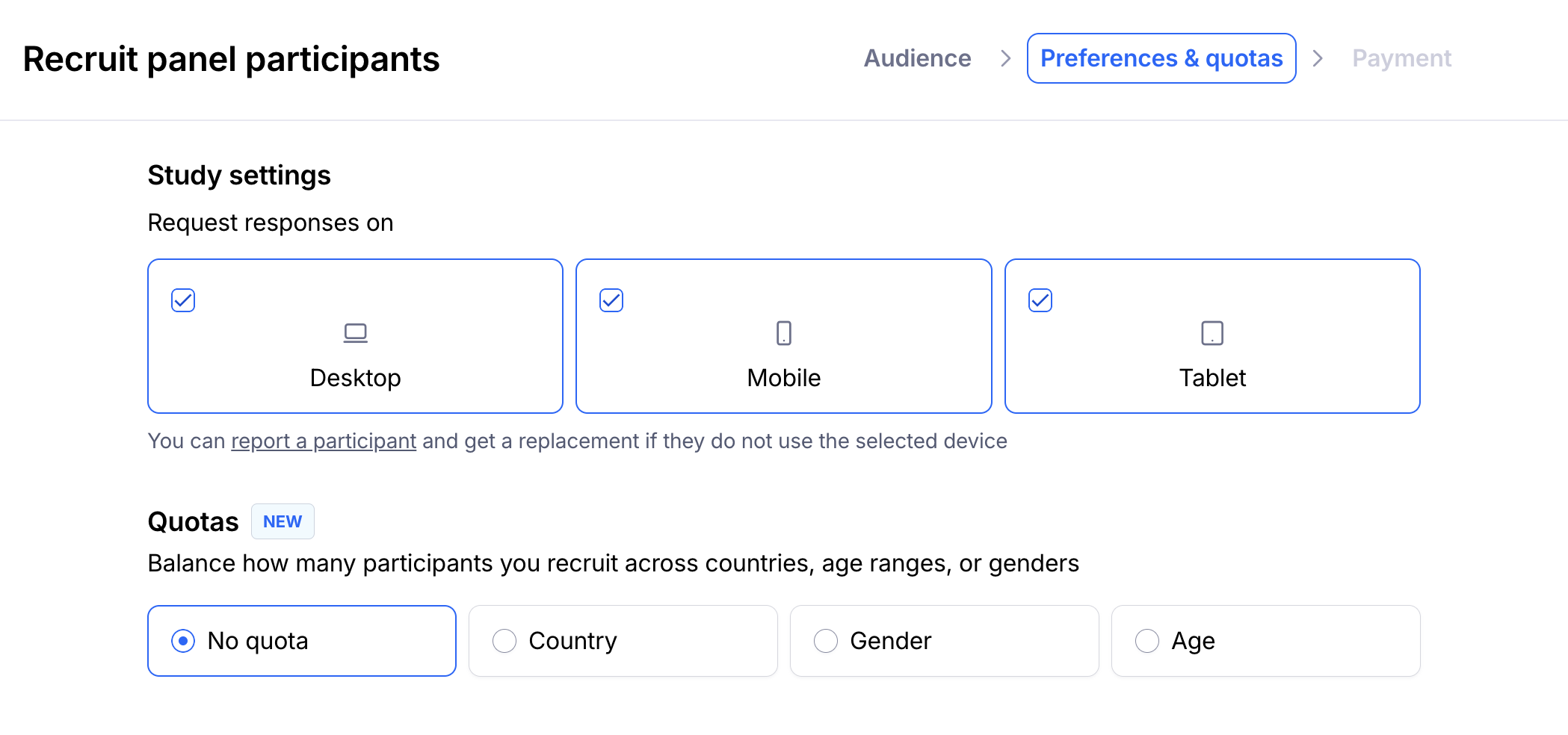
Add the values you want to include, such as specific countries or age ranges.
Enter a percentage for each value. The percentages must add up to 100%.
Review the feasibility estimate for each segment (see below), then continue to your Order Summary.
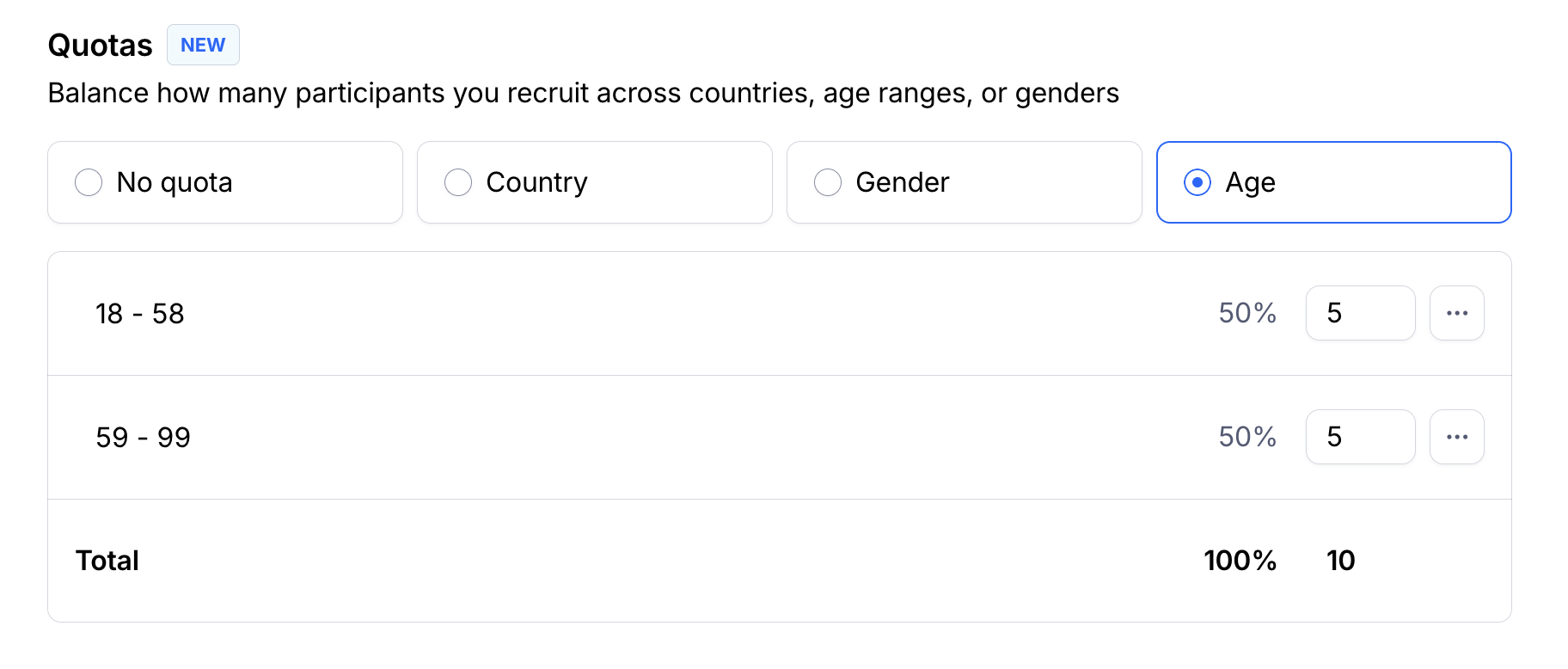
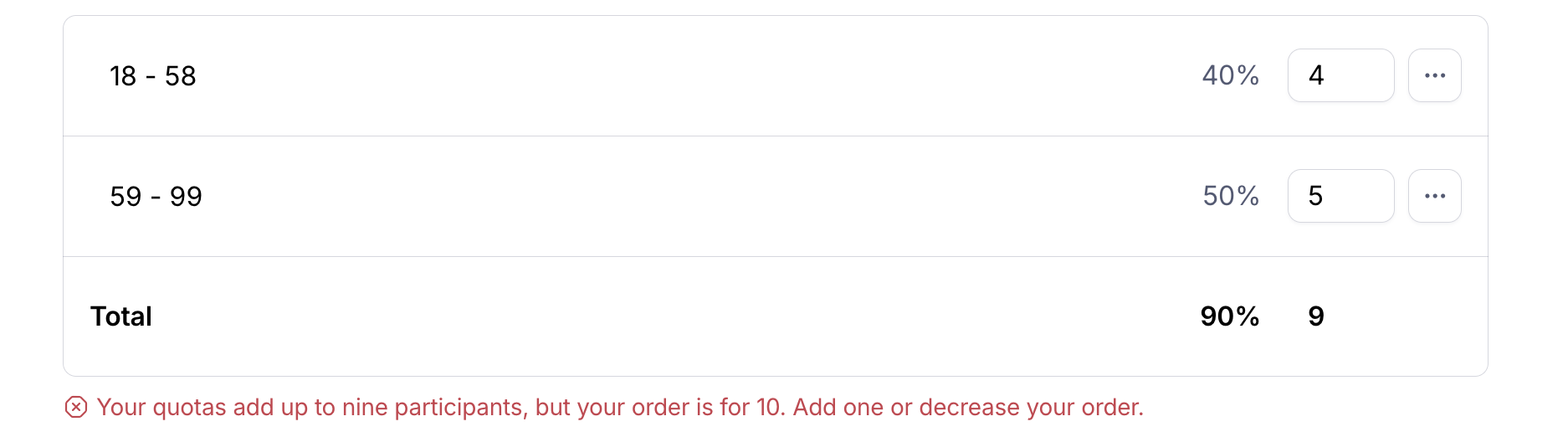
You can add, remove, or edit values at any time before you place the order. If your split doesn't add up to 100% or a value is missing a percentage, Maze will flag it before you can continue.
Quotas and variant comparison blocks
Quotas can't be added if your study has a variant comparison block set to Exclusive mode. Variant comparison blocks in Alternating mode work with quotas as usual.
Mode | What each participant sees | Works with quotas |
|---|---|---|
Exclusive | One variant only | No |
Alternating | All variants, in a rotated order | Yes |
Why Exclusive mode isn't supported: in Exclusive mode, each variant is seen by a different group of participants. Variants are assigned in turn as participants arrive, without taking your quota into account. This means the group that sees each variant can end up with a different demographic mix. For example, with a 50/50 gender quota and two variants, most men could see variant A and most women variant B, which would make your comparison unreliable. In Alternating mode, everyone sees every variant, so each variant gets the same mix as your whole study.
If your study has an Exclusive block, you'll see this message in the Preferences & quotas step:
Quotas aren't supported with exclusive variant comparison.To add quotas, edit or
hide the block.
To add a quota to your order:
If your study isn't live yet: switch the variant comparison block to Alternating mode, or remove the block.
If your study is already live: the mode can't be changed once a study is live. Instead, duplicate the block, set the copy to Alternating, and hide the original. Learn more about editing a live study
Check feasibility for each segment
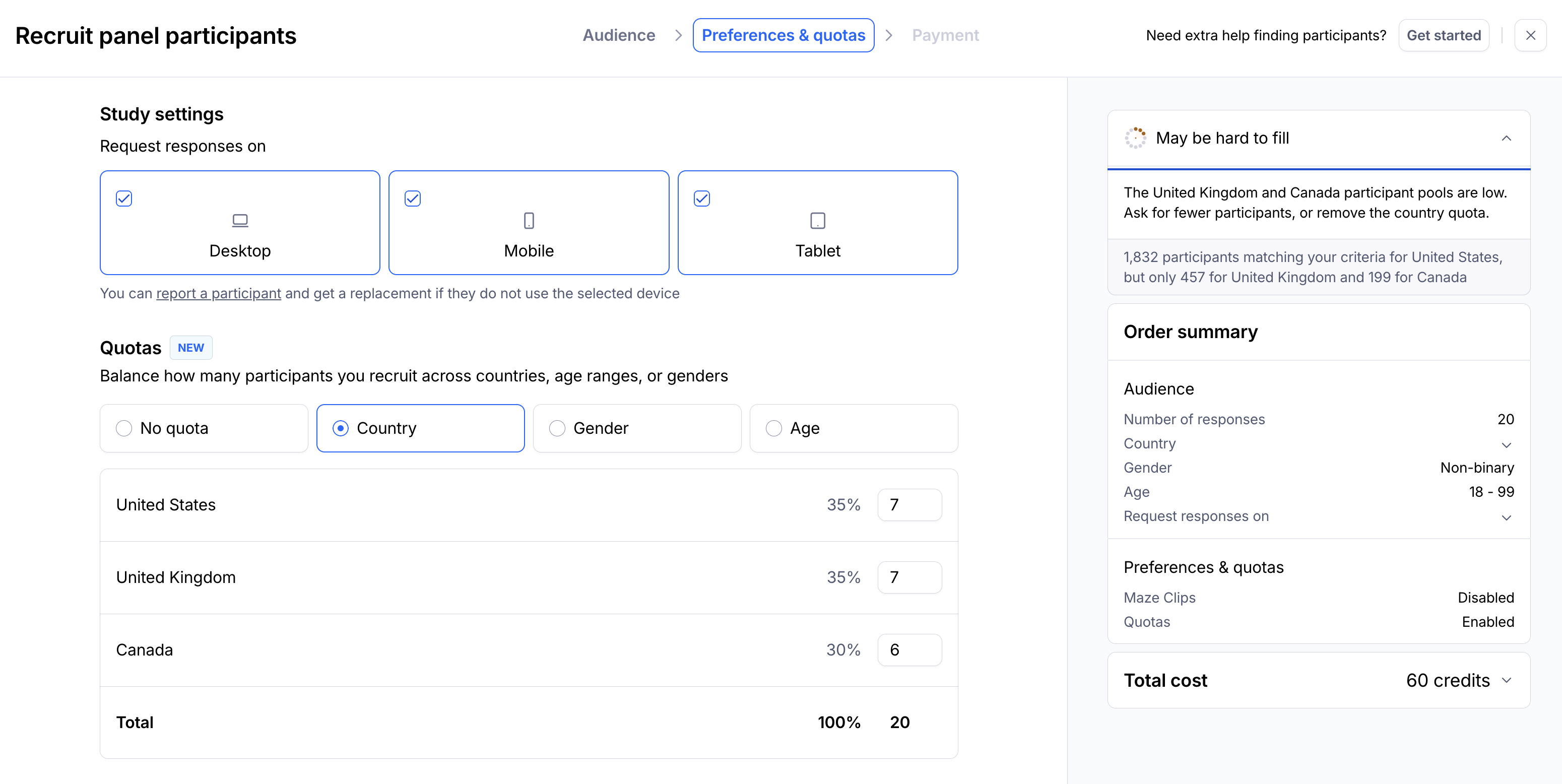
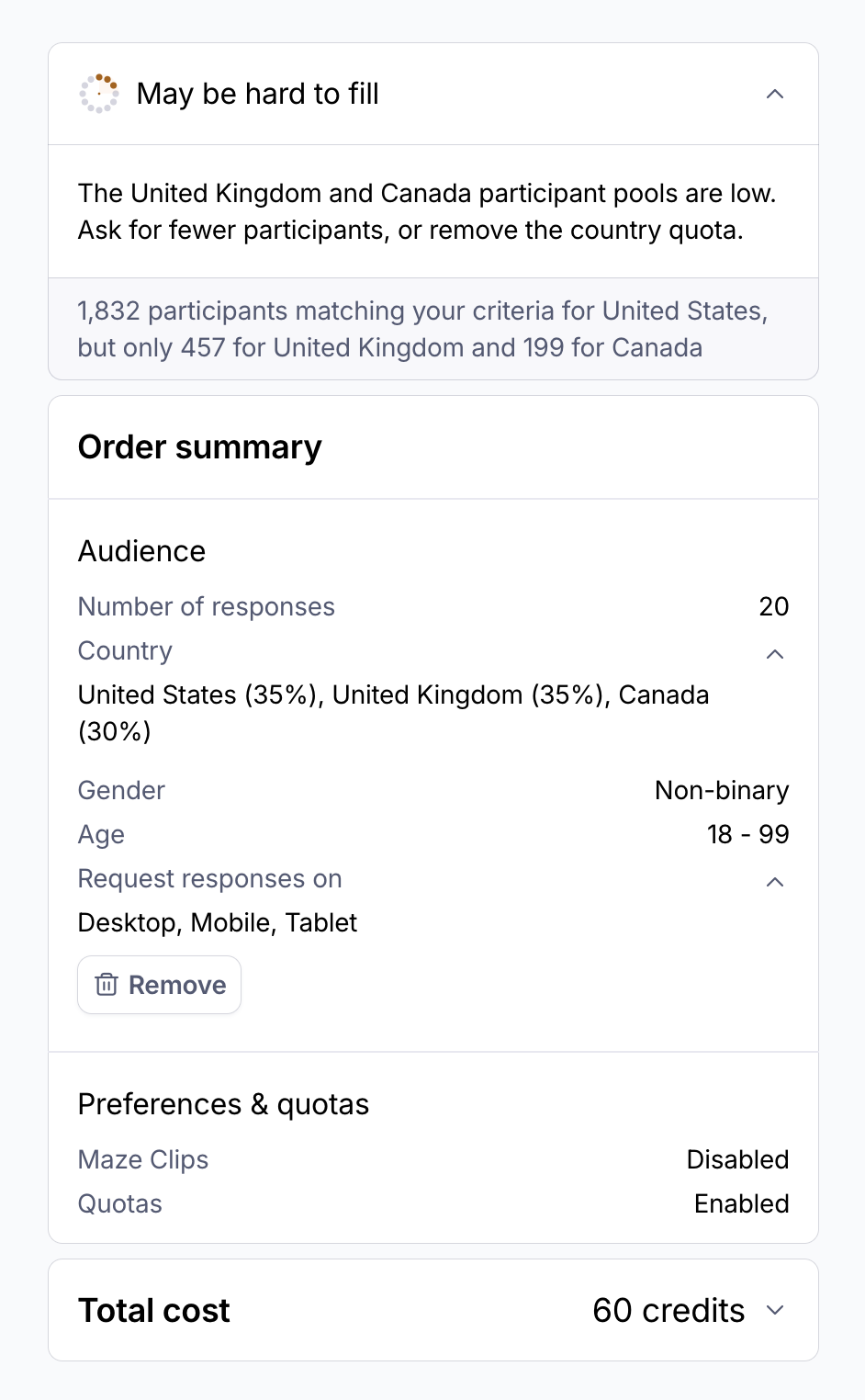
When you set a quota, Maze shows a feasibility estimate for each segment in your split. The estimate updates as you change your percentages or values.
If a segment shows low feasibility, try one of these:
Lower that segment's percentage and raise another
Broaden the value, such as a wider age range
Relax other filters on the order that narrow that segment's pool
Place your order and view quota details
Before checkout, the Order Summary shows that quotas are enabled and lists your planned split. Review it, then place your order as usual.
After the order is placed, you can see your quota configuration on the order's Panel Order details page.
Remove a quota
To go back to a standard panel order, select No quota in the Preferences & quotas step. Your quota settings are cleared and won't appear in the Order Summary.

Best practices
Pick the dimension that matters most to your research question. Since each order supports one quota, use it where an uneven mix would skew your findings most.
Check feasibility for every segment, not just the overall order. A small segment can slow down the whole order.
Set your quota just before you place the order. Quotas aren't saved in drafts, so finishing in one sitting avoids re-entering it.
Still need help?
If you have any questions or concerns, please let our Support team know — we'll be happy to help!