How to Reset an Unmoderated Study in Maze
Last updated: May 27, 2026
Researchers often go live with a study to test it and collect a few responses, but then want to make significant structural changes. If you've gone live with a study and need to make changes, you can use the Reset study action to return it to draft. This lets you freely edit your study before publishing it again.
Resetting a study will permanently delete all existing responses and results. This action cannot be undone.
How to Reset a Study
Open your live unmoderated study and go to Study Settings.
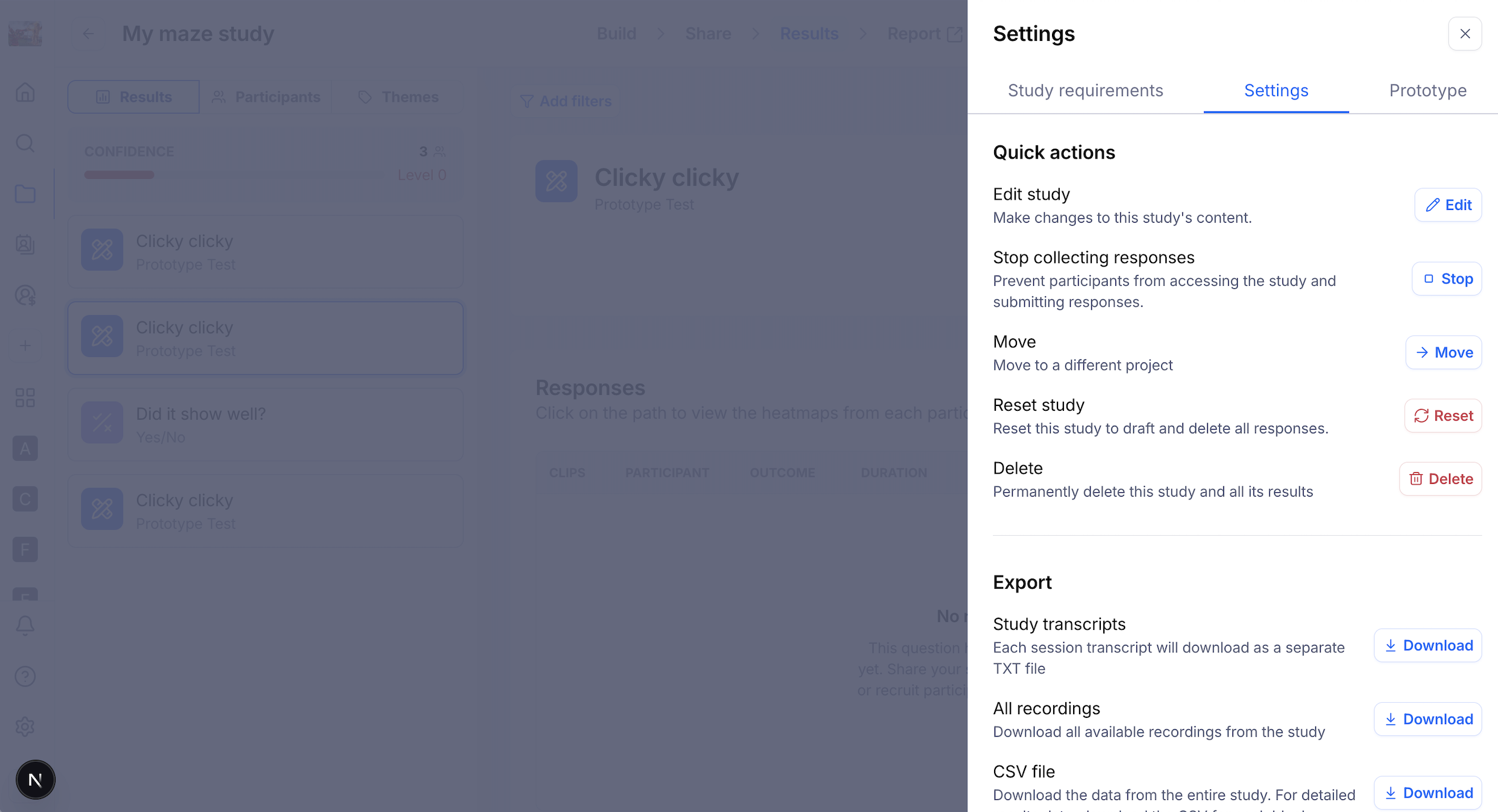
Under Destructive actions, find the Reset study option.
Click Reset.
Confirm the reset by typing your study name.
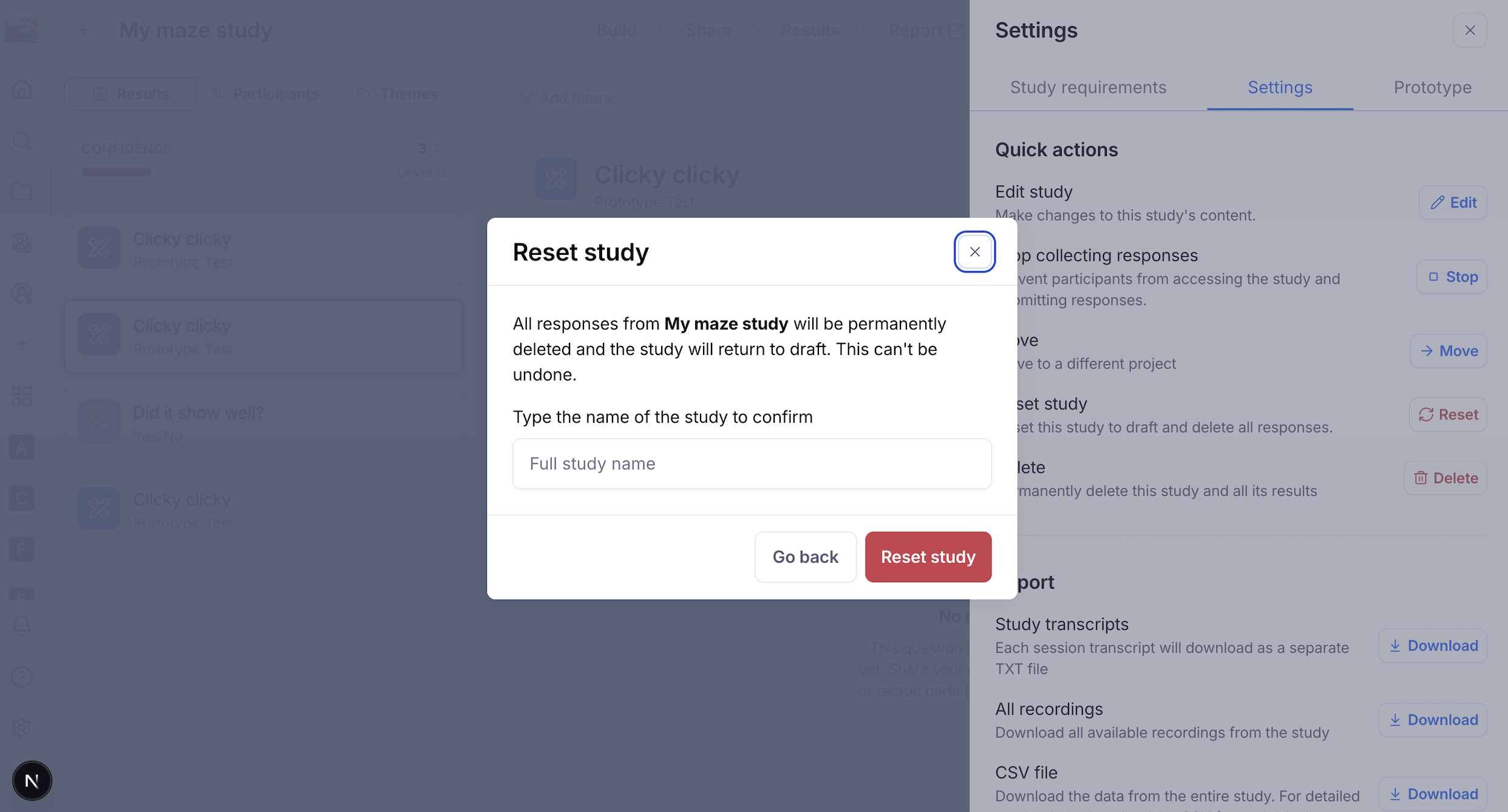
Once confirmed, all participations will be deleted from results and you'll be able to edit your study freely, without restrictions.
Things to Know Before Resetting
Reset is only available for live studies — it cannot be applied to draft or archived studies.
All participant responses and results will be permanently deleted and cannot be recovered.
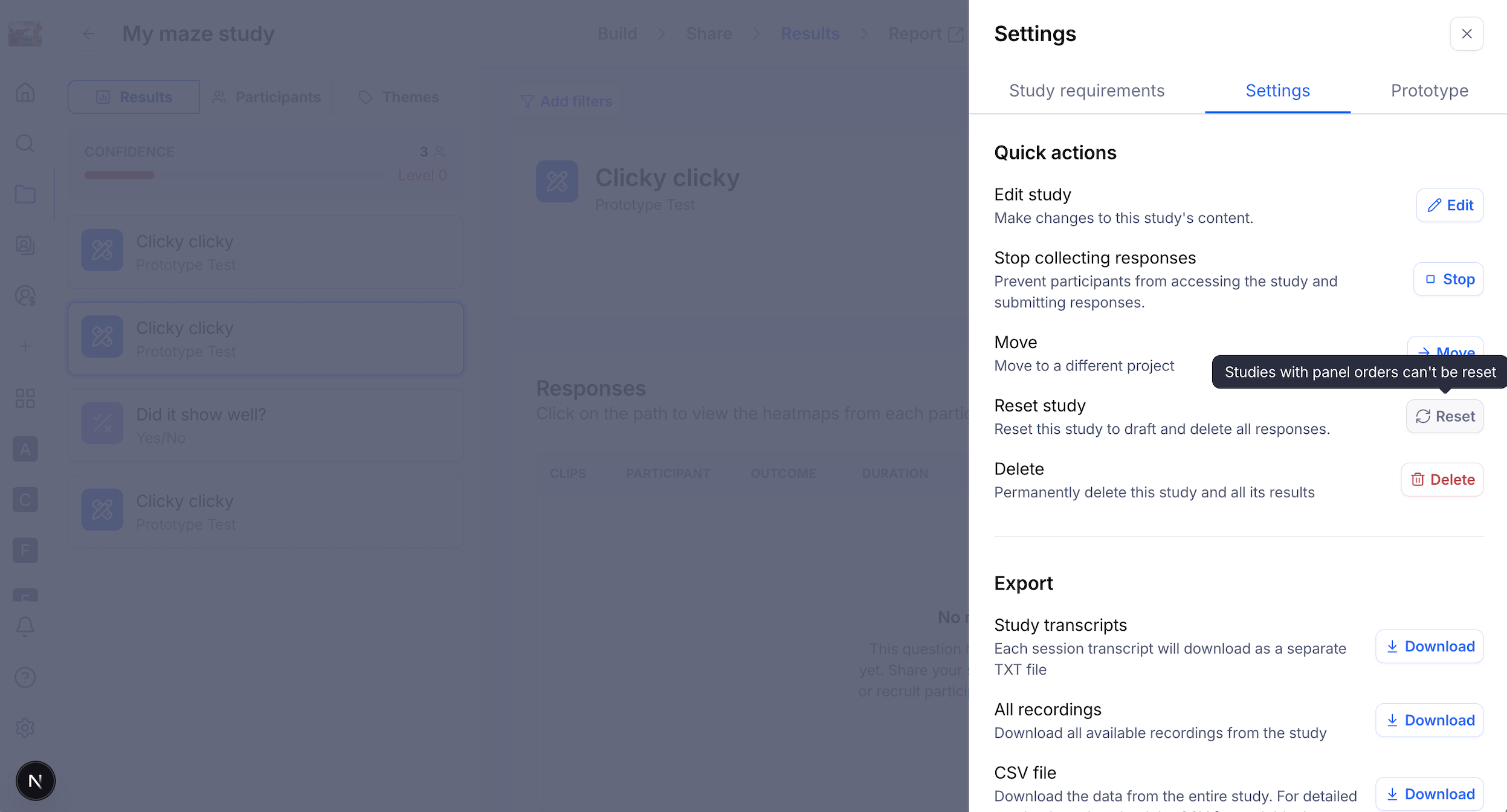
Reset is not available if any panel orders exist for the study, regardless of their status.
Still need help?
If you have any questions or concerns, please let our Support team know — we'd be happy to help!