Team templates
Last updated: October 5, 2026
Templates are a quick and easy way to solve a particular problem using a library of pre-built tests. If you're on the Enterprise plan, you can create and reuse your own team templates.
Team templates are only available for teams on the Enterprise plan.
Creating a team template from a study
If you're on the Enterprise plan, you can save your own studies as team templates. To create a team template:
Open a project in Maze.
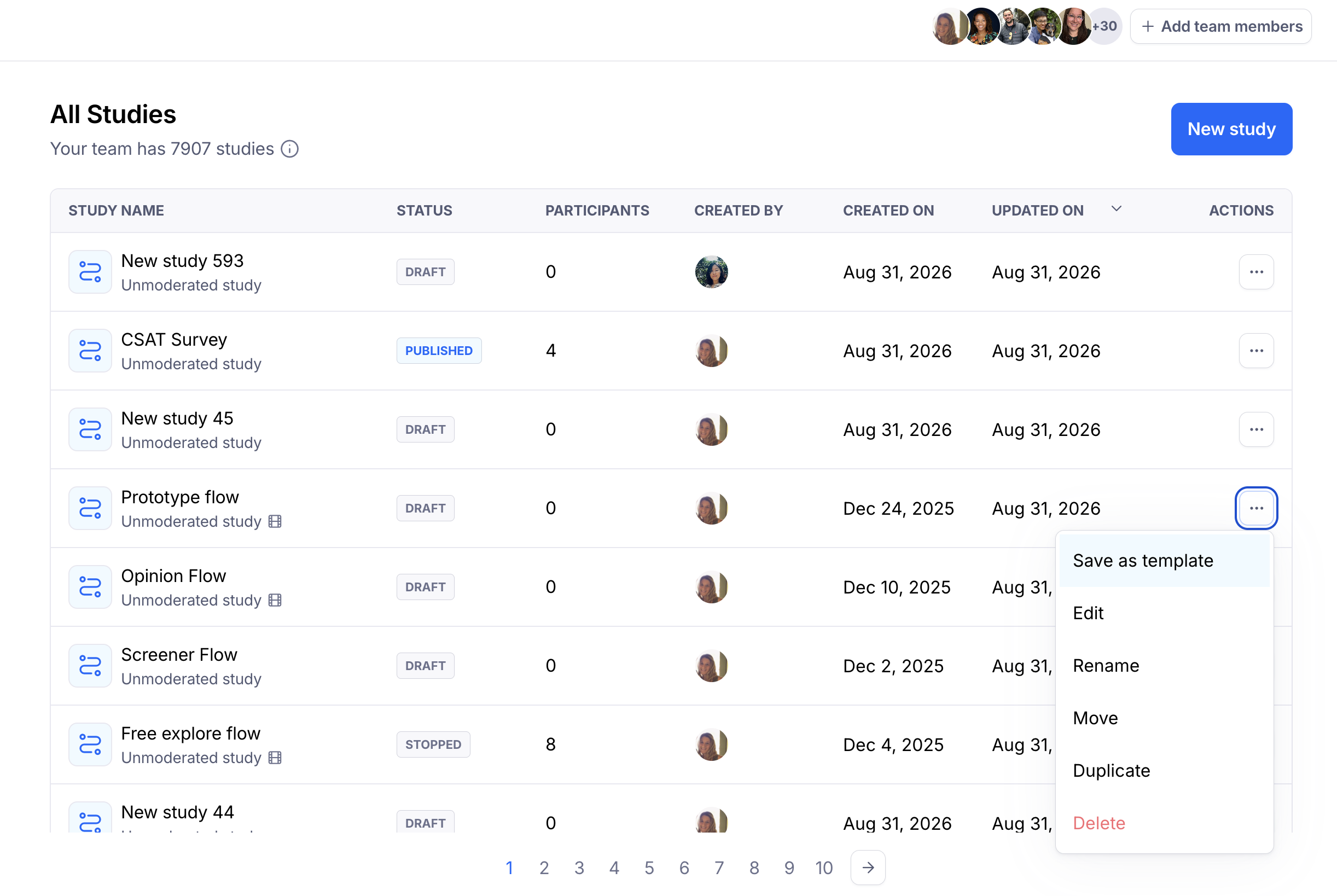
In the list of studies inside the project, click the More menu (•••) to the right of the study you want to save as a template.
From the drop-down, select Save as template.
Enter the name of the template.
Click Save.
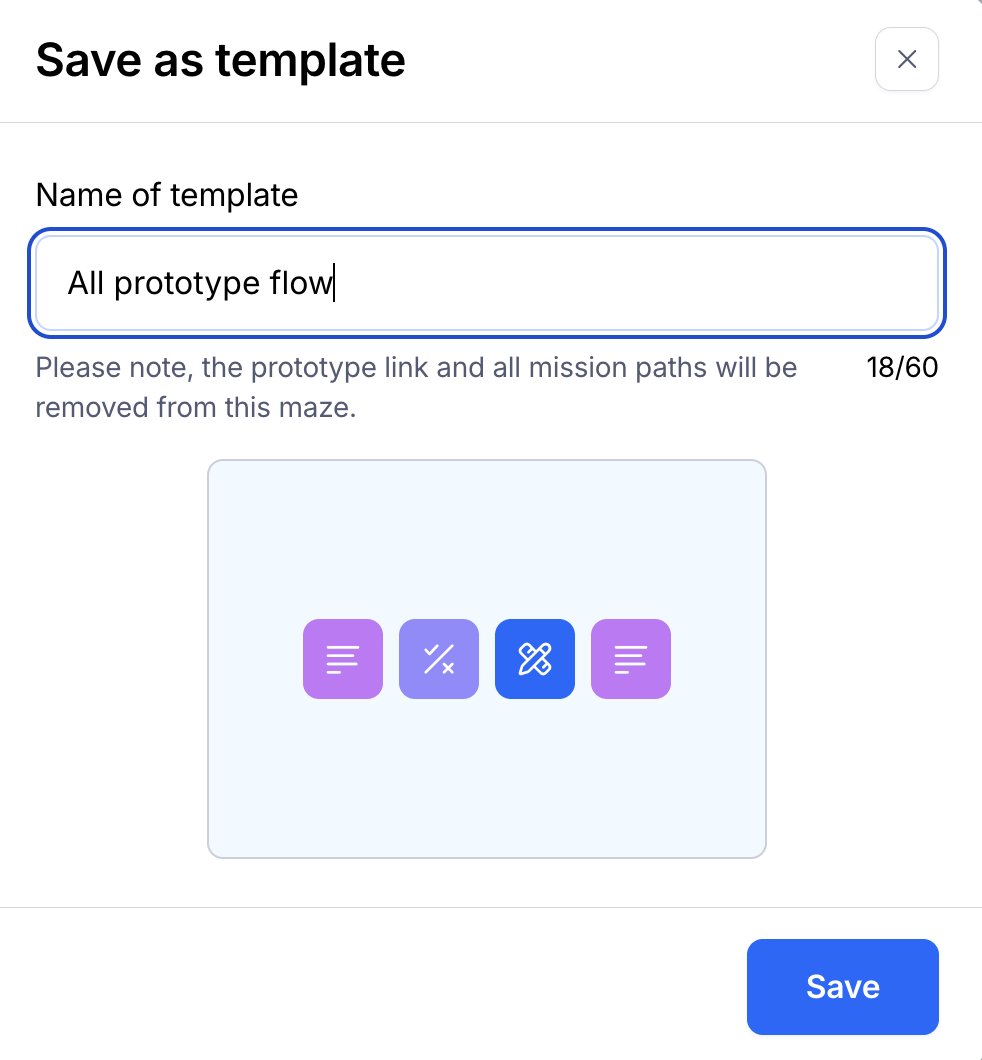
When saving a study as a team template, the original prototype link, as well as all mission paths are removed from the template.
Team templates are independent of the original study. Changes to the original study aren't reflected in your team template.
To update your team templates, please follow the steps in the section below: Edit team templates
Applying a team template
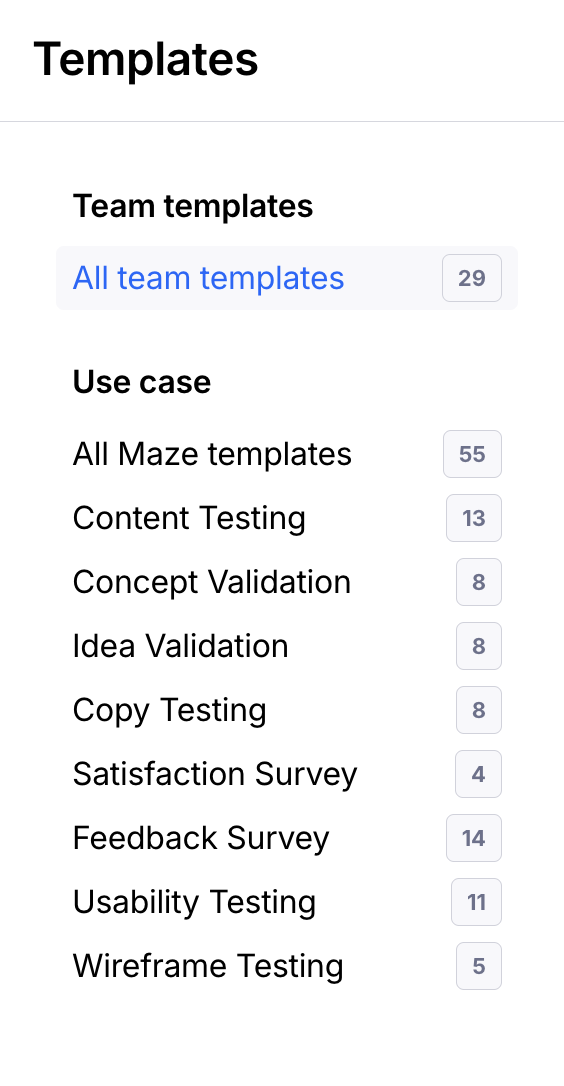
Your team templates will appear at the top of the templates list.
Edit team templates
To edit the team templates that have been saved for your team:
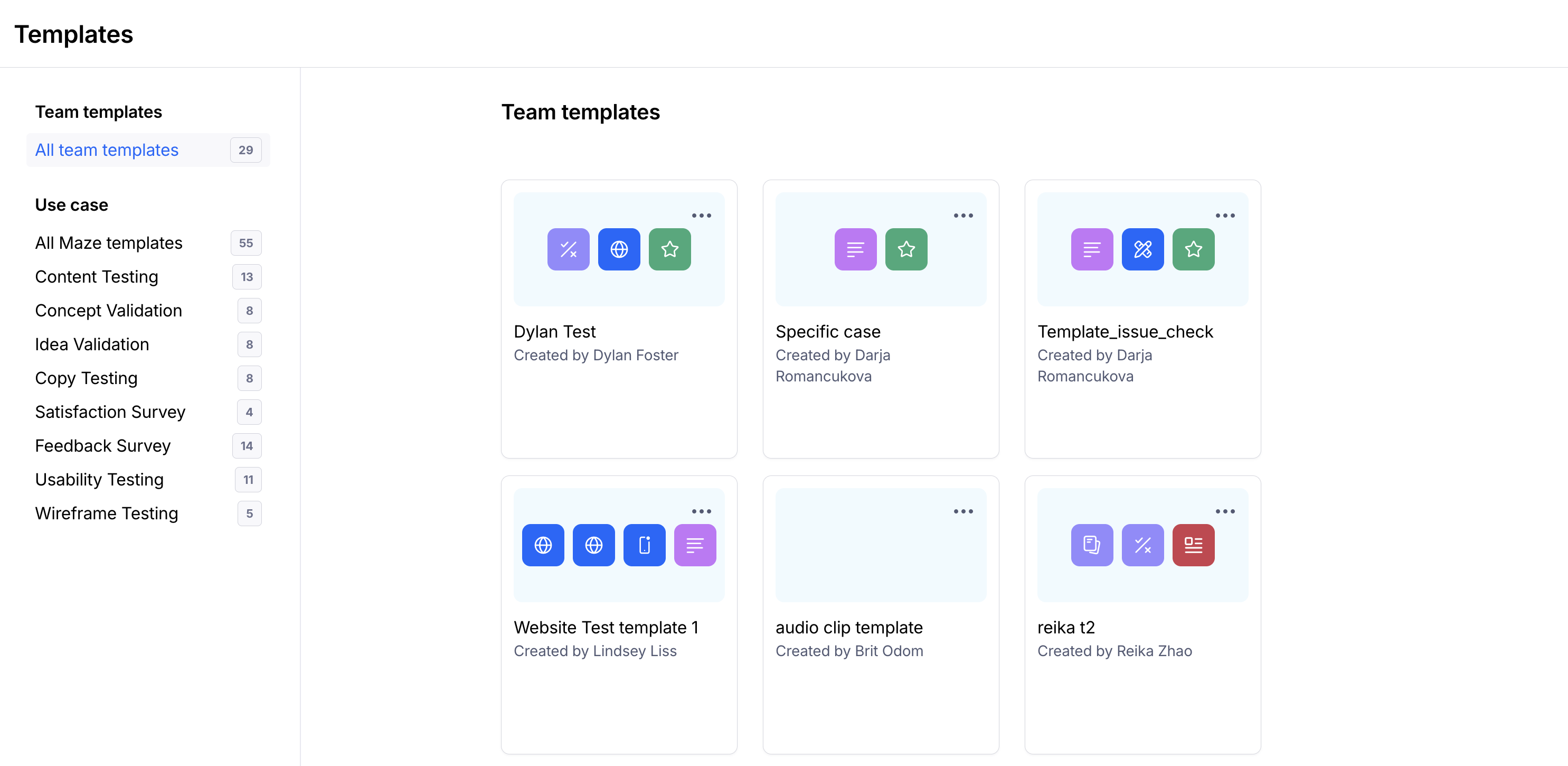
On your projects dashboard, click View templates (app.maze.co/templates).

Select All team templates and click the template thumbnail to open it.
Click Edit this template.
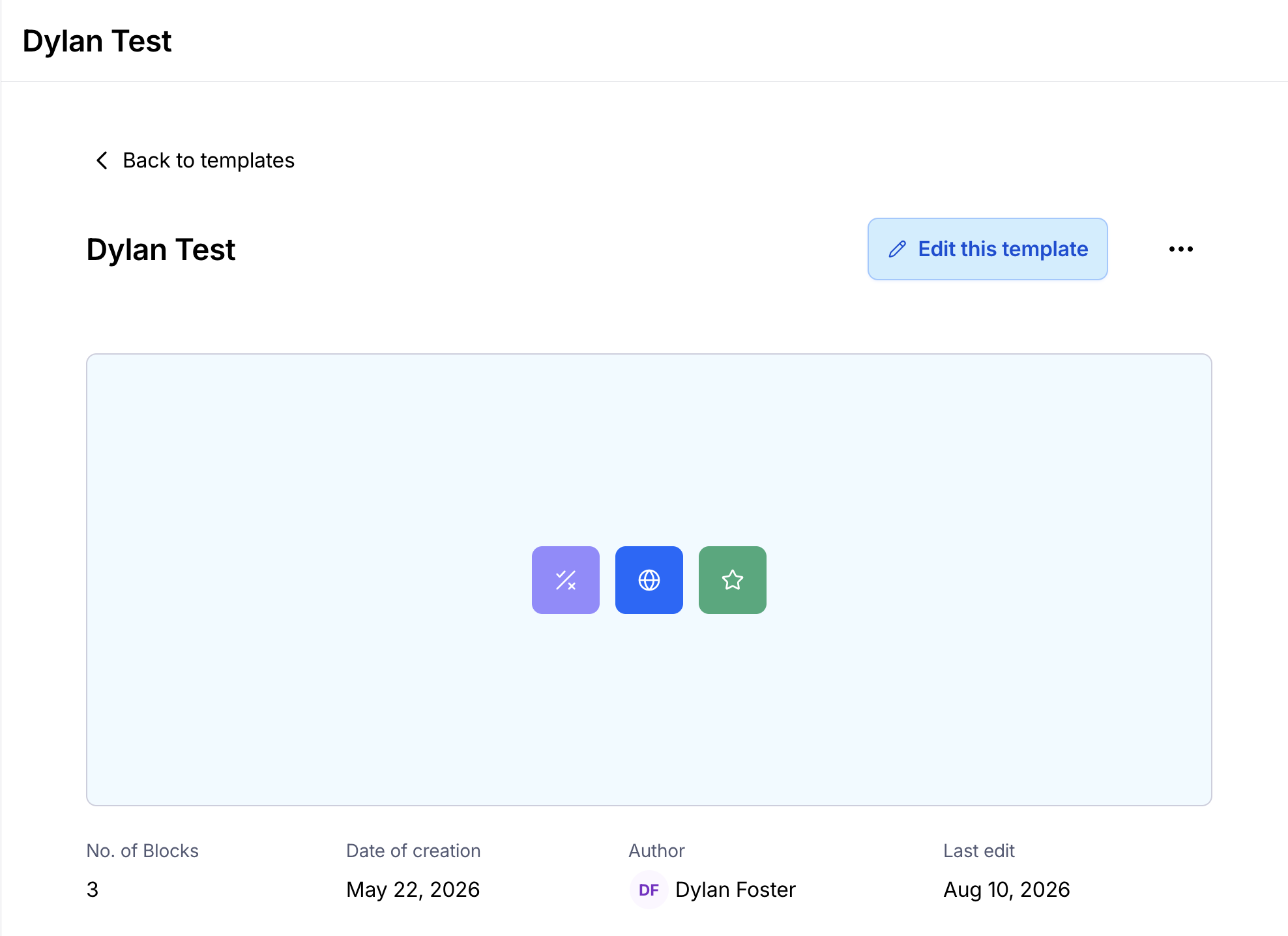
In the template editor, make all necessary changes. Changes are automatically saved.
Rename or delete team templates
On your projects dashboard, click View templates (app.maze.co/templates).
Select All team templates from the sidebar on the left to open your team templates.
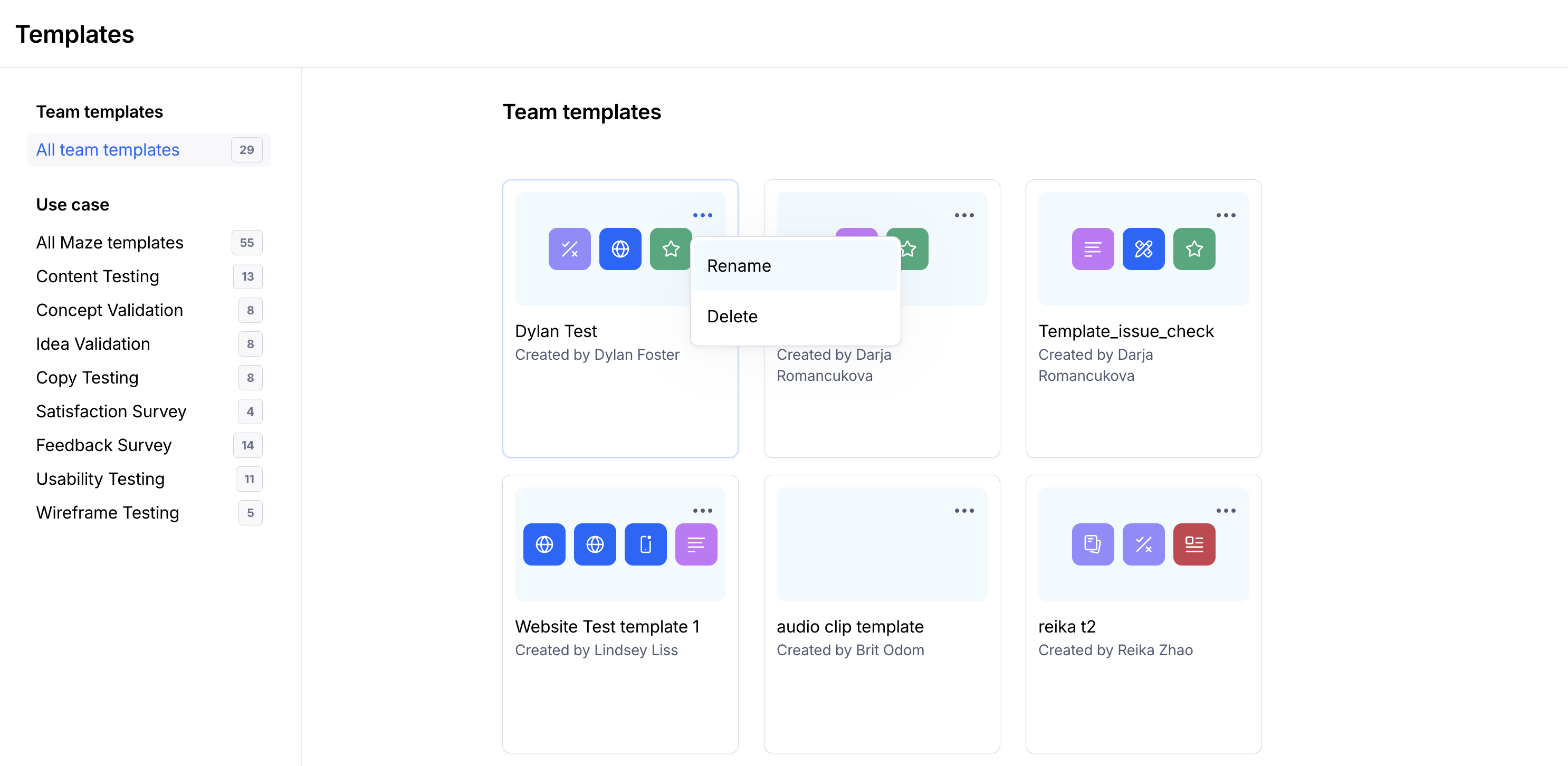
In the team template thumbnail, click the ••• (more) menu
Select Rename or Delete from the dropdown.