Create studies with Maze MCP
Last updated: October 23, 2026
With the Maze MCP, you can ask your AI app to build a Maze study for you. Describe what you want to learn in Claude, ChatGPT, Cursor or any MCP-compatible app, and Maze plans, drafts, refines and creates an unmoderated or AI-moderated study, without you opening Maze.
Your AI app doesn't design the study on its own. It calls Maze's own AI Study Builder, so you get the same methodology, block types and validation as when you build a study in Maze. The result is the same, whichever AI app you use.
This works hand in hand with reading your research. Ask what you already know about a topic, then ask Maze to set up a study for what's still missing, all in the same conversation.
Before you start
Plan: Creating studies via MCP is available on Enterprise plans.
Connection: Connect the Maze MCP to your AI app once, with the server URL
https://connect.maze.co/mcpand your Maze account. Steps for each app are in Set up Maze MCP. If you already use the Maze MCP to read your research, there's nothing new to set up.Permissions: Studies are created with your own Maze permissions. You can only create studies in teams and projects where you can already create studies in Maze.
Prototypes: To test a Figma prototype, make sure your Maze account is connected to Figma.
Mention Maze in your prompt, for example "Ask Maze to…" or "…with Maze". This tells your AI app to use Maze's study builder instead of drafting the study itself.
How it works
You stay in control at every step: nothing is added to your Maze workspace until you approve it.
Describe what you want to learn. Share your goal, a Figma prototype or website link, or attach a research plan, PRD or images. You don't need to know which study type to pick.
Maze plans the study. Your AI app may ask a few clarifying questions, then recommends a study type and explains why.
Review the draft. Every draft comes with a preview link that shows the full study. In Claude, ChatGPT and Cursor, you also see the preview right in the chat. Share the link with a colleague or researcher before you go ahead.
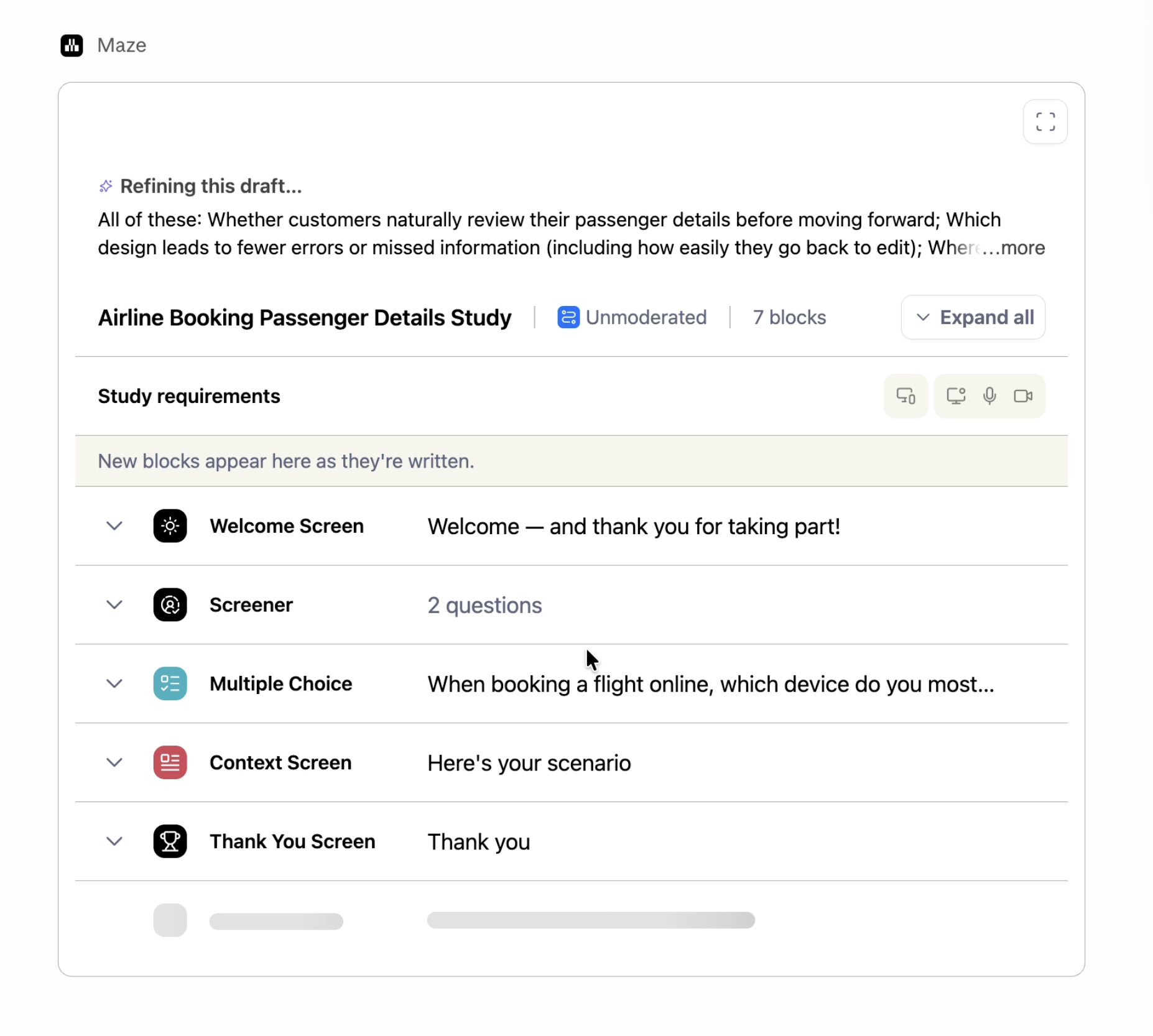
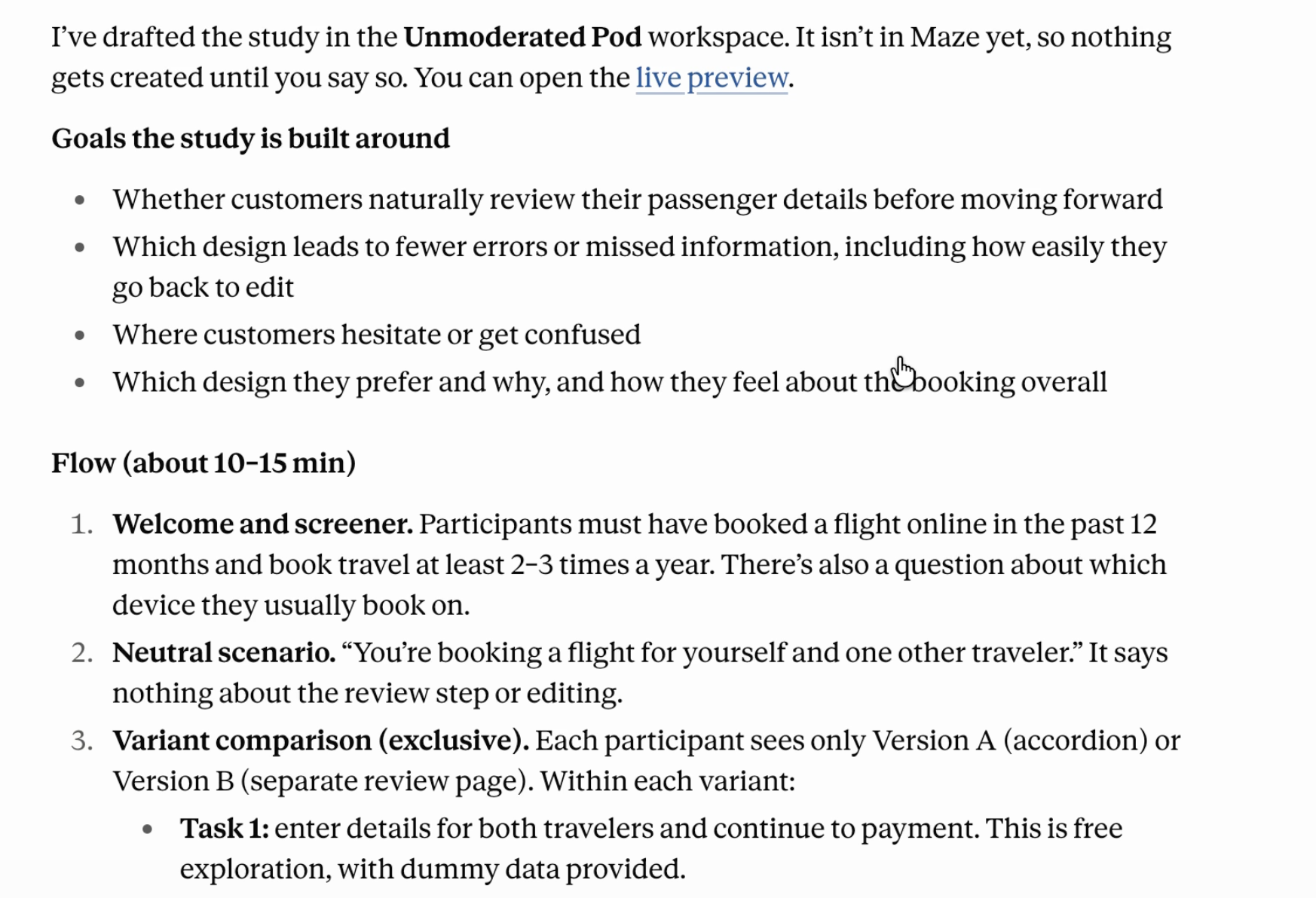
Refine it in conversation. Ask for changes in plain language, such as "Swap Q3 for an opinion scale" or "Move the screener to the start". Only the blocks you mention change, and you get an updated preview.
Create the study. Say "Looks good, create it." The study is saved as a draft in your Maze project, and your AI app shares the link to open it in Maze.
Publish and share. Unmoderated studies can be published from your AI app, which then shares the study link. Participants only take part once you share that link or order participants from the Maze panel in Maze.

What you can create
You can create unmoderated studies and AI-moderated studies. Moderated interview studies aren't supported yet.
Unmoderated studies | AI-moderated studies | |
|---|---|---|
Plan and draft with a preview link | Yes | Yes |
Refine before creating | Yes | Yes |
Create in your Maze project | Yes | Yes |
Edit after creating | Yes, from your AI app | In Maze only |
Publish | From your AI app or in Maze | From your AI app or in Maze |
Unmoderated studies can include prototype tests on Figma prototypes (/proto/, /design/ and /file/ links), live website tests, surveys and the question blocks you know from Maze. You can also add a screener so only the right people take part.
AI-moderated studies are set up with a goal, context, questions and optional stimuli, such as images of concepts or designs. Make any changes before you create the study, since it can only be edited in Maze afterwards.
Example prompts
What you want to do | Try asking |
|---|---|
Test a prototype | "Use Maze to set up a usability test for this Figma prototype: [link]. I want to see if people can complete checkout without help." |
Turn a document into a study | "Here's our research plan [attached]. Ask Maze to turn it into a study." |
Compare concepts | "Create a Maze survey comparing these three ad concepts [images] for clarity and appeal." |
Run interviews at scale | "Set up an AI-moderated study with Maze to understand why trial users don't invite teammates." |
Test a live website | "Ask Maze to create a website test for [URL] to see if people can find the pricing page." |
Close a research gap | "What do we already know about onboarding drop-off in Maze? Set up a study for what's still unanswered." |
Tips for better studies
Be specific about your goal. Say what decision the study should inform, not just the topic.
Describe your audience. Mention who should take part, and ask for a screener if it matters.
Bring your context. Attach research plans, PRDs or briefs. Maze uses them to write more relevant questions.
Review the preview before you create. It's the quickest way to catch a missing question or a wrong order.
Available tools
You don't need to call these by name. Your AI app picks the right one from your request. They're listed here so you know what each step does, and so admins can review them.
Tool | What it does | Changes your workspace? |
|---|---|---|
| Recommends a study type and approach for your goal | No |
| Drafts or refines an unmoderated study and returns a preview link | No |
| Drafts or refines an AI-moderated study and returns a preview link | No |
| Retrieves a draft so you can review or keep refining it | No |
| Uploads images or files you attach, for use as stimuli | No |
| Saves the approved draft as an unmoderated study in your project | Yes |
| Saves the approved draft as an AI-moderated study in your project | Yes |
| Changes an unmoderated study you've already created | Yes |
| Publishes an unmoderated study so you can share it | Yes |
| Gets the tracking snippet for a website test | No |
Most AI apps ask for your approval before running a tool that changes your workspace.
Good to know
Moderated studies can't be created via MCP yet. Create them in Maze.
Recruiting from the Maze panel happens in Maze. Once your study is created, open it in Maze to order participants.
AI-moderated studies can't be edited or published from your AI app after they're created. Make your changes in the draft, then publish in Maze.
Website tests need the Maze snippet installed on your site. Ask your AI app for the snippet, or follow Set up a website test.
Prototype size: very large Figma files can take longer to import or fail. If that happens, use a smaller file or a specific starting frame.
Prototype starting screens and goal screen: if you are using a Figma protoype, the starting screens and/or goal screens have to be setup directly in Maze.
Results vary slightly between AI apps. Maze builds the study, but each app phrases its questions and replies differently.
FAQ
Will my AI app publish a study without asking me? No. Maze only creates or publishes a study when you ask it to, and most AI apps also ask you to approve the action first. Participants can only take part once you share the study link or submit a panel order in Maze.
Where does the study end up? In the team and project you choose. If you don't say, your AI app asks you or suggests one you have access to.
Does it use Maze's AI or my AI app's AI? Both. Your AI app handles the conversation, and Maze's AI Study Builder designs the study.
Can I keep working on the study in Maze? Yes. Once created, it's a regular Maze study. Open it in Maze to edit, recruit or publish.
Troubleshooting
Issue | What to try |
|---|---|
Your AI app drafts the study itself instead of using Maze | Mention Maze in your prompt, for example "Ask Maze to create…". Check that the Maze MCP is turned on in this chat. |
"You don't have access" or no teams shown | Make sure your workspace is on an Org plan and that you can create studies in that team in Maze. |
The Figma prototype won't import | Check the link is shared, your Maze account is connected to Figma, and the file isn't too large. |
The preview link doesn't open | Make sure you're signed in to Maze with the same account you connected to the MCP. |
Still need help?
If you have any questions or concerns, please let our Support team know — we'll be happy to help!