Build a usage dashboard with the Maze MCP
Last updated: October 23, 2026
With the Maze MCP, your AI app can build a usage dashboard for your Maze team: studies created, sessions, study credits used against your allocation, block usage, top creators and a full study table. You paste one prompt with your contract dates and allocation, and your AI app reads your workspace and builds the page.
It's a good fit for research ops and admins who track adoption across teams and want to see how credit use is pacing against their contract.
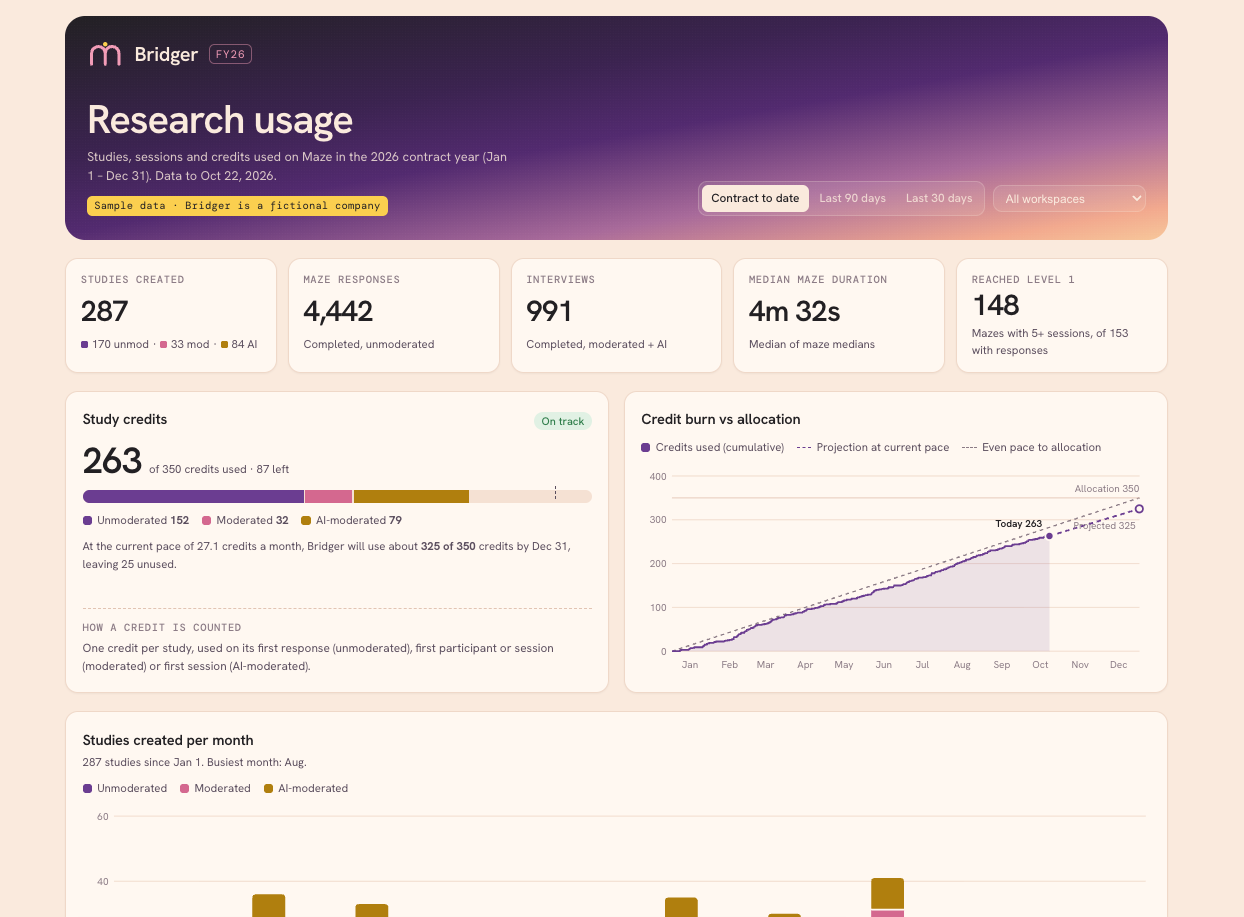
See an example: Usage dashboard (built on a fictional brand with made-up data).
Before you start
The Maze MCP is available on Enterprise plans.
Connection: Connect the Maze MCP to your AI app with the server URL
https://connect.maze.co/mcp. Steps for each app are in Set up Maze MCP.Permissions: The MCP reads Maze with your own permissions. To see usage for the whole team, run it with an account that can see every workspace and project.
Contract details: Have your contract start and end dates and your study credit allocation ready. Your account manager can confirm them.
AI app: These prompts were built and tested in Claude, which builds the [repository/dashboard] as a shareable page (an artifact).” Article 1 keeps “including the ‘Ask our research’ box.
Time: Your AI app opens every study to count sessions, so large teams take several minutes.
What's in the dashboard
Headline figures: studies created by type, completed maze responses, completed interviews, median completion time across mazes, and mazes that reached 5+ completed sessions.
Credits: used of your allocation, what's left, a projection to the end of your contract, and whether you're on track.
Credit burn: credits used over time, with a projection line and an even-pace line to your allocation.
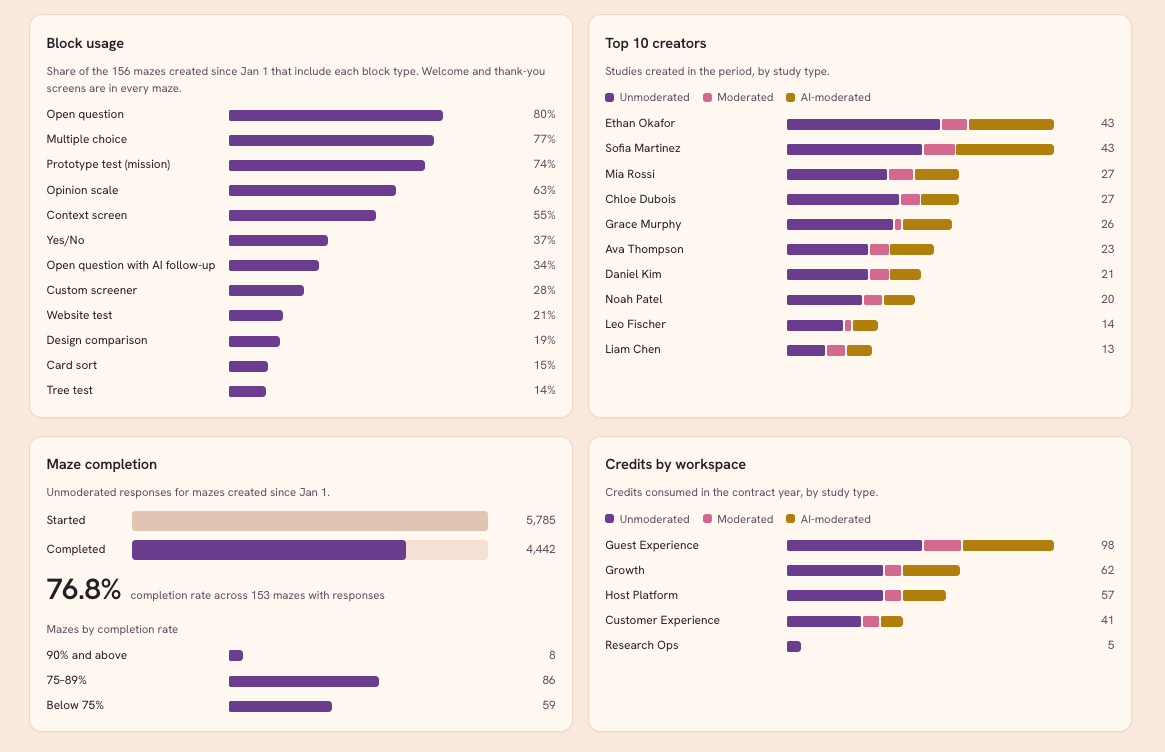
Activity: studies created per month, block usage, and top 10 creators.
Maze completion: started vs completed responses, and mazes grouped by completion rate.
Credits by workspace.
Two study tables (unmoderated, and moderated & AI-moderated) you can search, sort and filter, each linking to its study.
Filters at the top switch between contract to date, the last 90 days and the last 30 days, and between workspaces. The credit card always shows the full contract.
How to build it
Copy the prompt below into a new chat with the Maze MCP turned on.
Fill in the placeholders: your Maze team name for
[TEAM NAME], your contract dates for[START DATE]and[END DATE], your credit allocation for[N], and either your brand colors or "a clean neutral style".Send it. Your AI app finds your team, lists every study in the contract period and opens each one for its sessions and setup.
Check the numbers. Compare the study count and credits used with what you see in Maze. See Understanding your account usage.
Refine it in conversation, for example "Add a chart of credits by creator" or "Remove the block columns from the table".
Share it. In Claude, use Share on the artifact to give your team a link.
The prompt
You have access to my Maze workspace through the Maze MCP.
Goal: build a usage dashboard for my Maze team "[TEAM NAME]" for my contract from [START DATE] to [END DATE], as a shareable artifact.

1. Inventory
- Call get_user_details and pick the team named above.
- Run `search` once per study type (entityTypes: unmoderated_study, then moderated_study, then ai_moderated_study) with teamId, query "", includeArchived true, dateFilter { dateField: "createdAt", from, to }. Page with pagination.nextCursor until pagination.complete is true; check each list's row count equals pagination.total.
- Keep: id, name, link, created date, creator name and email, workspace and project (from the location breadcrumb), status.

2. Details per study (split across parallel sub-agents if there are more than ~50 studies; one output file each)
- Unmoderated (get_unmoderated_study):
  - detail "summary": maze type, block counts by block type, recording enabled and required, device restrictions, prototype name, type and provider, and website-test hostnames.
  - detail "sessions" (includeTranscripts false, limit 100, increase offset until hasMore is false): started = all sessions; completed = sessions with a completed status; first and last answer dates; average and median duration of completed sessions; panel sessions.
- Moderated / AI-moderated (get_moderated_study / get_ai_moderated_study, detail "summary"): total, completed and in-progress sessions, first and last session date, average duration where available, languages (AI-moderated).

3. Rules
- A study uses one credit as soon as it has its first response (unmoderated), first participant or session (moderated), or first session (AI-moderated). The credit date is that first answer; for moderated studies use the earliest session and mark it as approximate (≈).
- "Counts towards current contract?" = Yes when the credit date falls inside the contract.
- My allocation is [N] credits. Projection = average daily credits since the start × days in the contract. Show "On track" when the projection is at or below the allocation, otherwise "Over allocation".
- "Level 1" = an unmoderated study with 5+ sessions; its date is when the 5th session came in.

4. Output
- Header with filters: contract to date / last 90 days / last 30 days, plus a workspace selector. All sections follow them, except the credit card, which always shows the full contract.
- Headline figures: studies created (split by type), maze responses (completed), interviews (completed), median of maze medians, mazes that reached Level 1.
- Credit card: used of allocation with what's left, a meter split by study type with a projection marker, the on-track status, a one-line projection sentence and the credit rule.
- Credit burn: a cumulative line from the start of the contract to today, a dashed projection to the end date, an even-pace line to the allocation, and a hover tooltip.
- Studies created per month, stacked by type; block usage (% of mazes using each block type); top 10 creators stacked by type.
- Maze completion: started vs completed, the overall rate, and mazes grouped by completion rate (90%+, 75–89%, below 75%).
- Credits by workspace, stacked by type.
- Two searchable, sortable, paginated tables with a filter on "counts towards contract", each linking to its study:
  - Unmoderated: ID, maze name, project, workspace, creator email, type, status, usage consumed at, counts towards current contract?, created at, first response at, last response at, responses started, responses completed, completion rate, average and median response duration (seconds), reached Level 1 at, enabled recording, required recording, total blocks plus one count column per block type, net credits consumed, panel sessions, prototype name, prototype type, prototype provider, device restrictions, start URL hosts.
  - Moderated & AI-moderated: UUID, is AI moderated, name, status, creator email, created at, usage consumed at, counts towards current contract?, total, completed and in-progress interviews, project, workspace, first and last interview started at, net credits consumed.

Use [our brand colors / a clean neutral style], with one color per study type used consistently. Add a methodology note covering the credit rule, the Level 1 definition, the projection, and known gaps: deleted studies and waived credits aren't visible through the MCP, and moderated credit dates are approximate.
Make it your own
What you want | What to change in the prompt |
|---|---|
One workspace only | Add "Only include the [name] workspace" under Inventory |
A different period | Change |
A shorter table | Delete the columns you don't need from the table lists under Output |
A different milestone | Change the Level 1 rule, for example to 10+ sessions |
Your branding | Replace the style placeholder with your hex colors and font, or attach your brand guide |
Good to know
It's an estimate, not your bill. The dashboard counts credits from study activity. Your official usage is in Maze; see Understanding your account usage.
Some things aren't visible through the MCP: deleted studies and waived credits. Totals can be slightly off for those.
Moderated credit dates are approximate. They use the earliest session date and are marked with ≈.
The projection assumes a steady pace. It multiplies your average daily credits so far by the length of your contract.
"Level 1" means an unmoderated study with 5 or more sessions, dated when the 5th session came in.
It's a snapshot. To refresh it, run the prompt again in the same chat, or ask "Update the dashboard with today's data".
Troubleshooting
Issue | What to try |
|---|---|
Fewer studies than expected | Check the team name matches Maze exactly and that your account can see every workspace. Ask your AI app to confirm each row count matches the total. |
Credits don't match Maze | Deleted studies and waived credits aren't visible through the MCP. Your account usage page in Maze is the source of truth. |
The AI app stops partway or runs out of space | Use a shorter date range, or one workspace at a time. See Get token-efficient answers from the Maze MCP. |
Still need help?
If you have any questions, please let our Support team know. We'll be happy to help!