Editing your study with the Study Assistant
Last updated: October 11, 2026
The Study Assistant brings AI into the builder through a chat panel, so you can move back and forth between editing by hand and asking the Assistant to make changes for you. It's available on any draft unmoderated study, whether you started it with AI-guided setup, a template, or from scratch.
Who can use this feature
The Study Assistant is available for users on our Enterprise plan
Before you start
The Study Assistant is available for unmoderated studies, however they were created. Open any draft study in the builder and the Assistant is ready to use.
The Assistant is only available before a study is launched. Once your study is live, the AI chat option no longer appears. To change a live study, see Editing a live study.
Only the study creator can use the Study Assistant on a given study.
The Assistant works alongside manual editing — you can keep using the builder as you normally would at any point.
Opening the Study Assistant
Open a draft unmoderated study in the builder.
In the builder, click AI chat (near the upper-left corner of the builder header).
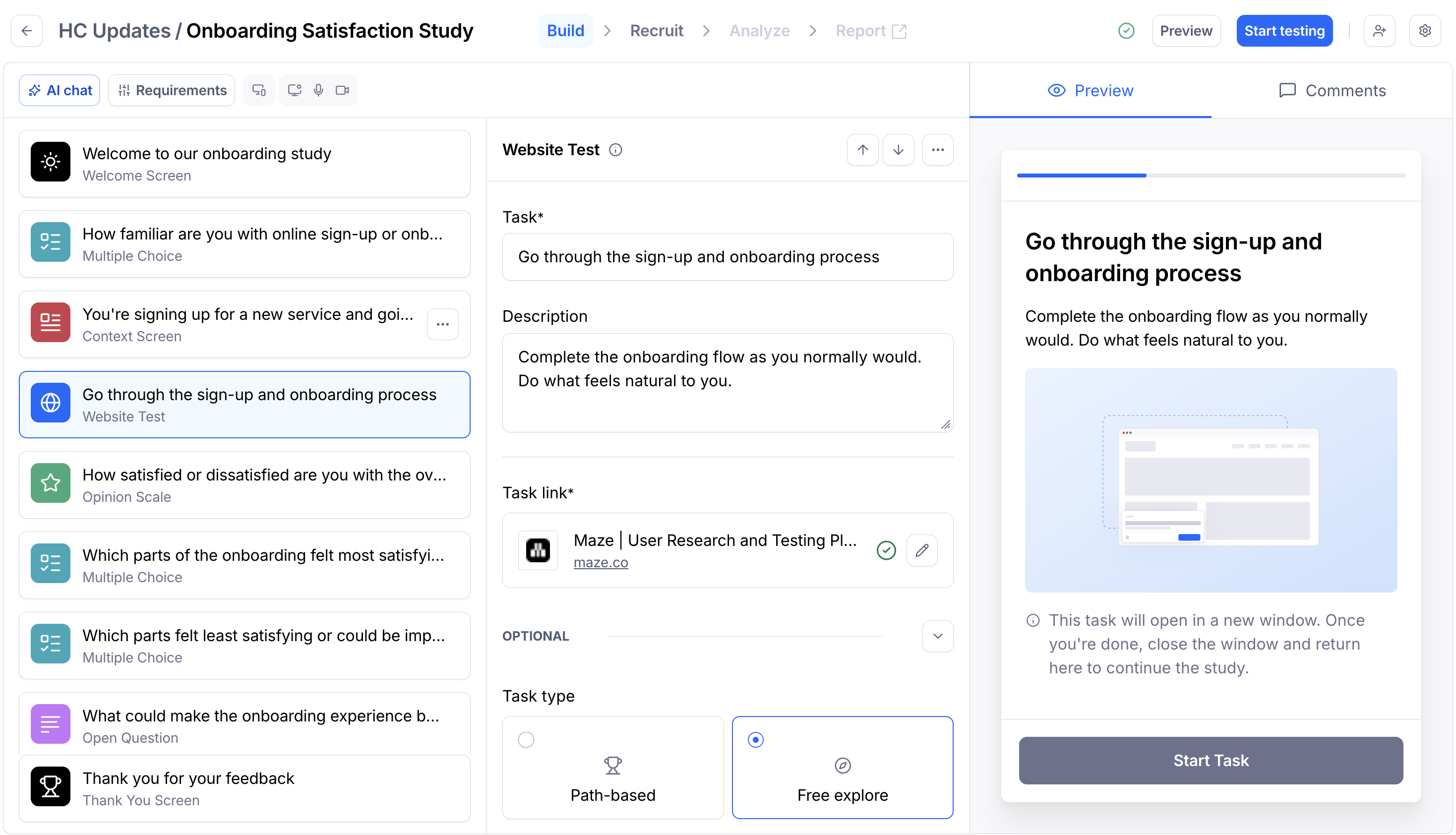
The Study Assistant panel opens on the left side of the builder. The block list on the right becomes more compact to make room for the conversation.
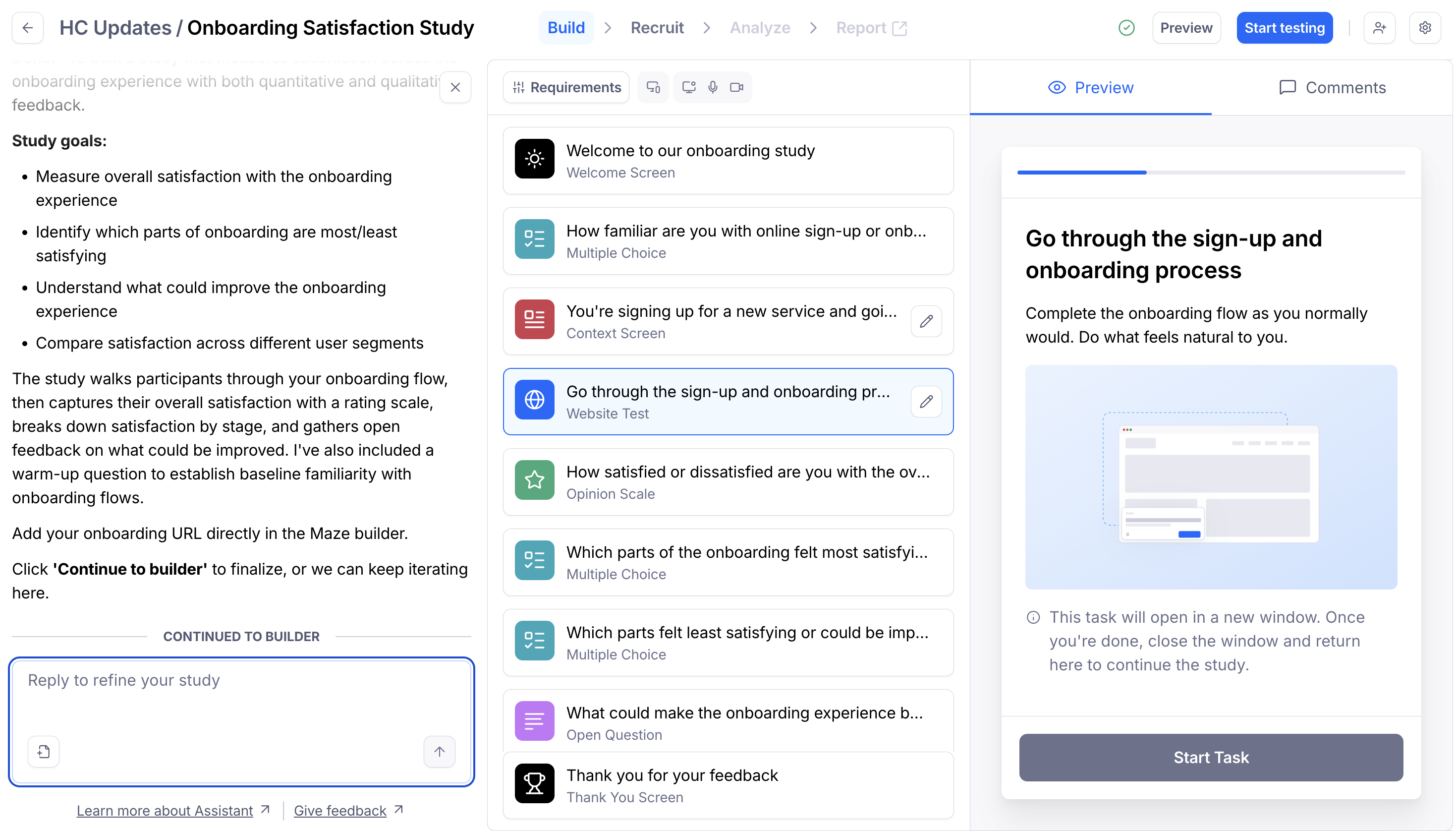
From here, type what you'd like to change in the chat input and the Assistant will apply the change to your study. When suggestion chips appear, you can tap one to guide your next step instead of typing a full request.
Make small, targeted edits
Use the Assistant for precise, single-block changes. Be specific about which block you mean and what you want changed.
Example requests:
"Add a rating scale block after the first question."
"Remove the second opinion scale."
"Change the third question to ask about ease of use instead."
"Make the welcome screen greeting more friendly."
The Assistant updates only the block you're referring to and leaves the rest of your study intact.
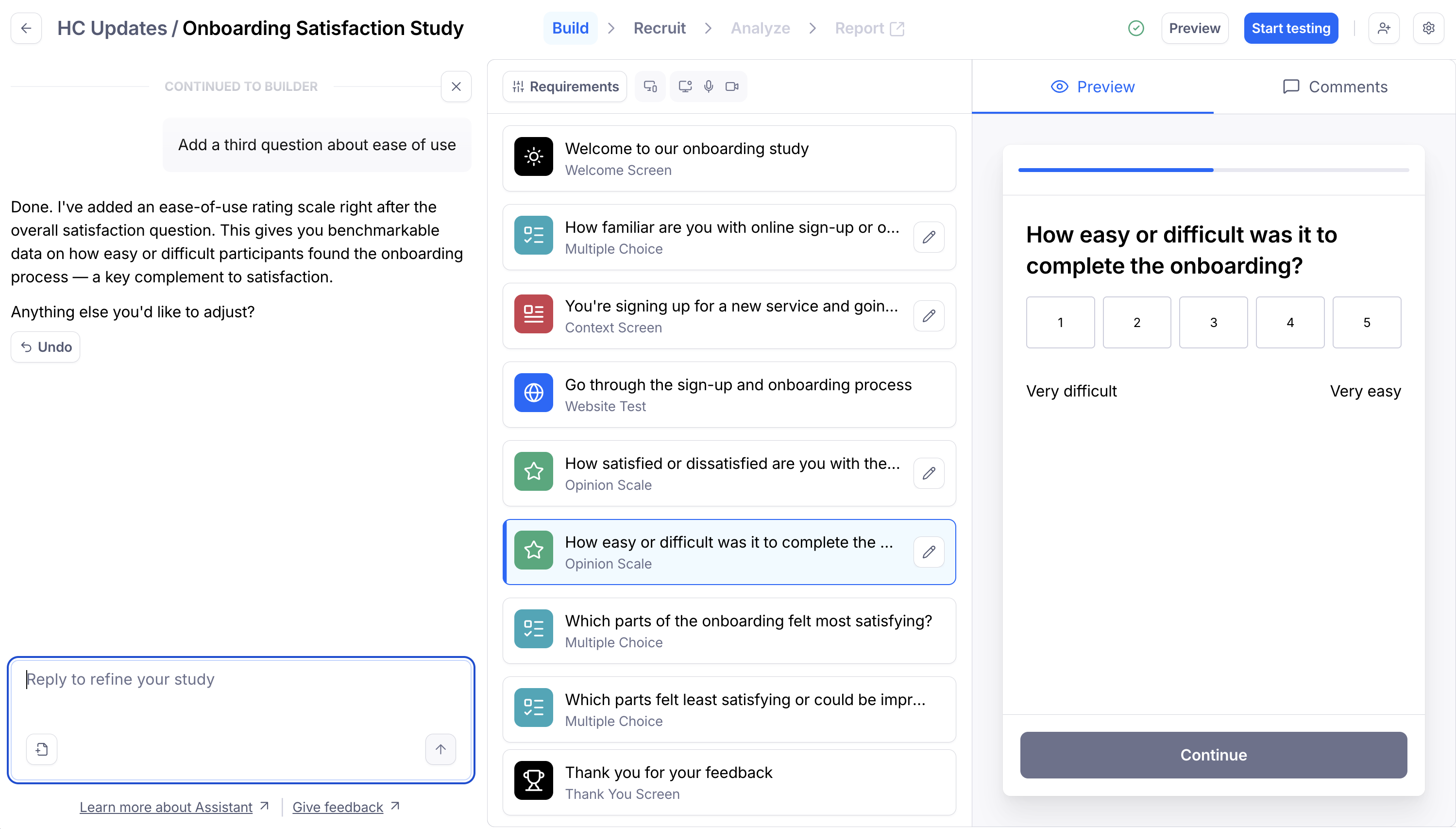
Make larger, structural edits
The Assistant can also handle broader requests that affect multiple blocks or the overall shape of your study.
Example requests:
"Make the study shorter — keep only the most important questions."
"Add a section about the onboarding experience with 2–3 questions."
"Reorder the blocks so demographic questions come last."
For bigger changes, review the result to make sure the new structure matches what you intended before moving on.
Change study-level settings
Beyond blocks and questions, you can ask the Assistant to update study-wide settings.
Example requests:
"Rename this study to 'Q3 Checkout Usability'."
"Restrict this study to mobile devices only."
"Enable session recording."
After the Assistant makes the change, you can verify it in the builder UI just as you would for any setting you'd changed manually.
Undo a change
Every AI-driven change can be reversed.
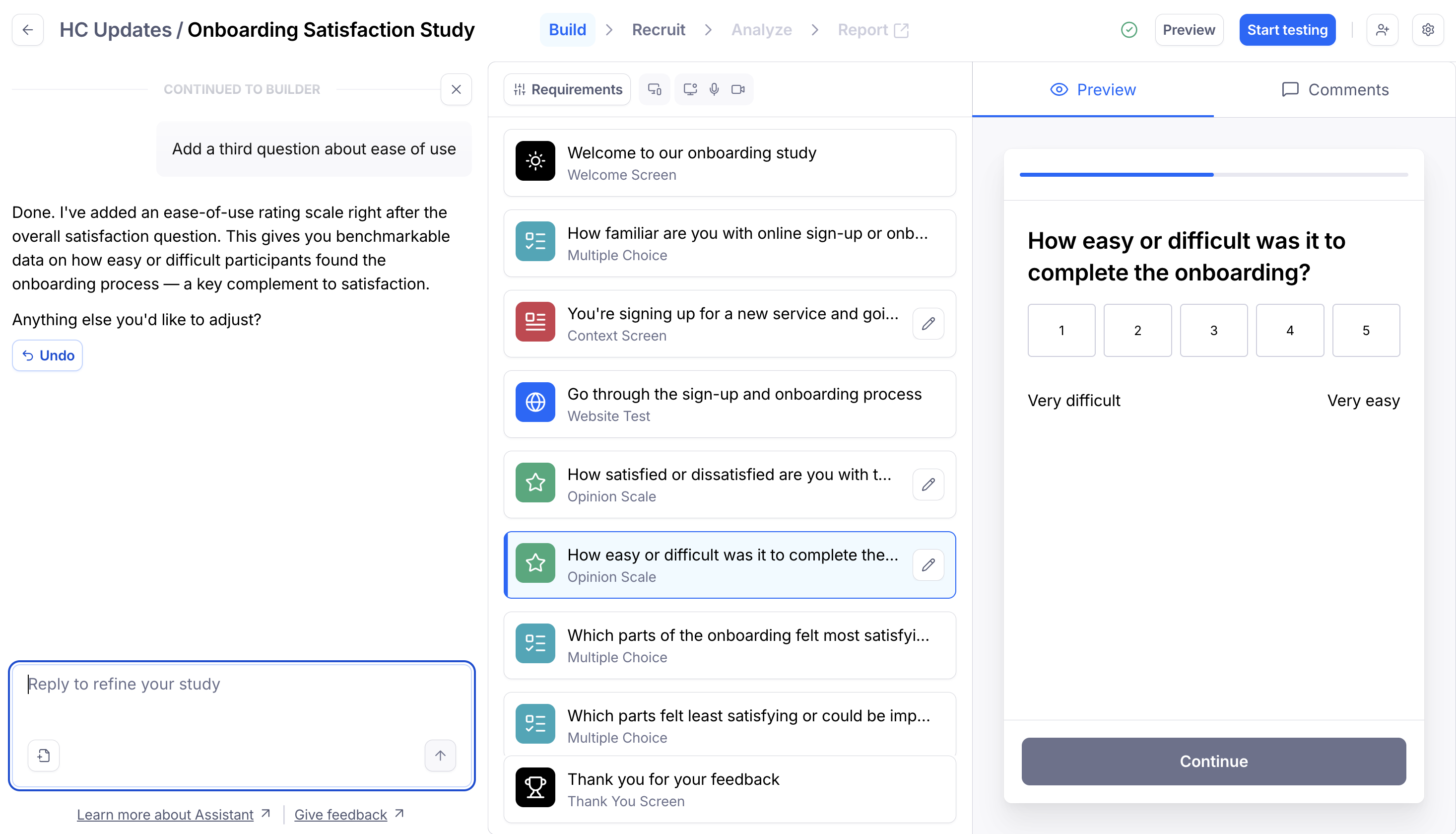
After the Assistant makes an edit, an Undo button appears below the text.
Click Undo to return your study to the exact state it was in before that change — including blocks, their order, and study-level settings.
You can then continue the conversation and ask for a different change.
Mix manual and AI edits
The Study Assistant is designed to work together with manual editing, not replace it. You can:
Use the Assistant to generate a few blocks, manually tweak one, then ask the Assistant for another change.
Manually add a block (for example, a prototype test or a form), then ask the Assistant to modify the rest of the study.
Delete a block by hand, then ask the Assistant to add something new.
Your manual edits are preserved when the Assistant makes unrelated changes, so you can move between the two ways of working freely.
Best practices
Getting great results from the Study Assistant comes down to clear requests and a quick review of each change. Think of it as a building partner that's fast at making edits but works best when you point it in the right direction.
Be specific. Name the block and the change you want — for example, "reword the second question" rather than "fix the questions."
Make one change at a time for precision. Smaller, targeted requests are easier for the Assistant to apply accurately and easier for you to review.
Review larger edits. After structural changes, check that the resulting flow and questions match your research goals.
Use Undo freely. If a change isn't quite right, undo it and rephrase your request — nothing is committed until you're happy with it.
Preview before going live. Once your study looks right, preview it to confirm the flow reads the way you intend. The Assistant isn't available after launch, so make your AI-assisted edits before you publish.
Why don't I see the Study Assistant?
If you're not able to see the study assistant, please check the following:
The study is already live. The Assistant only appears on draft studies. To make changes after launch, see Editing a live study, or duplicate the study to get a new draft.
You're not the study creator. Only the person who created the study can use the Assistant on it.
It's not an unmoderated study. The Assistant is available in the unmoderated study builder.
Your plan doesn't include it. The Study Assistant is available on the Enterprise plan.
Still need help?
If you run into any issues with the Study Assistant — change quality, unexpected edits, or anything technical — please contact our Support team.