Previewing a card sort block
Last updated: August 31, 2026
Preview your study
Previewing is a great way to ensure your study flows nicely, and that your users see what you want them to see.
Testing your study beforehand will help ensure you and your team are completely happy with the content and performance. Please note that certain changes aren’t allowed after sending a study live.
To preview a draft study:
Open the study builder.
Click on the Preview button in the top right corner.
To preview a live study, you can also disable participant tracking in the recruit > study link option. This will allow you to see how your participants will experience your study without recording any data.

Interact with a card sort block
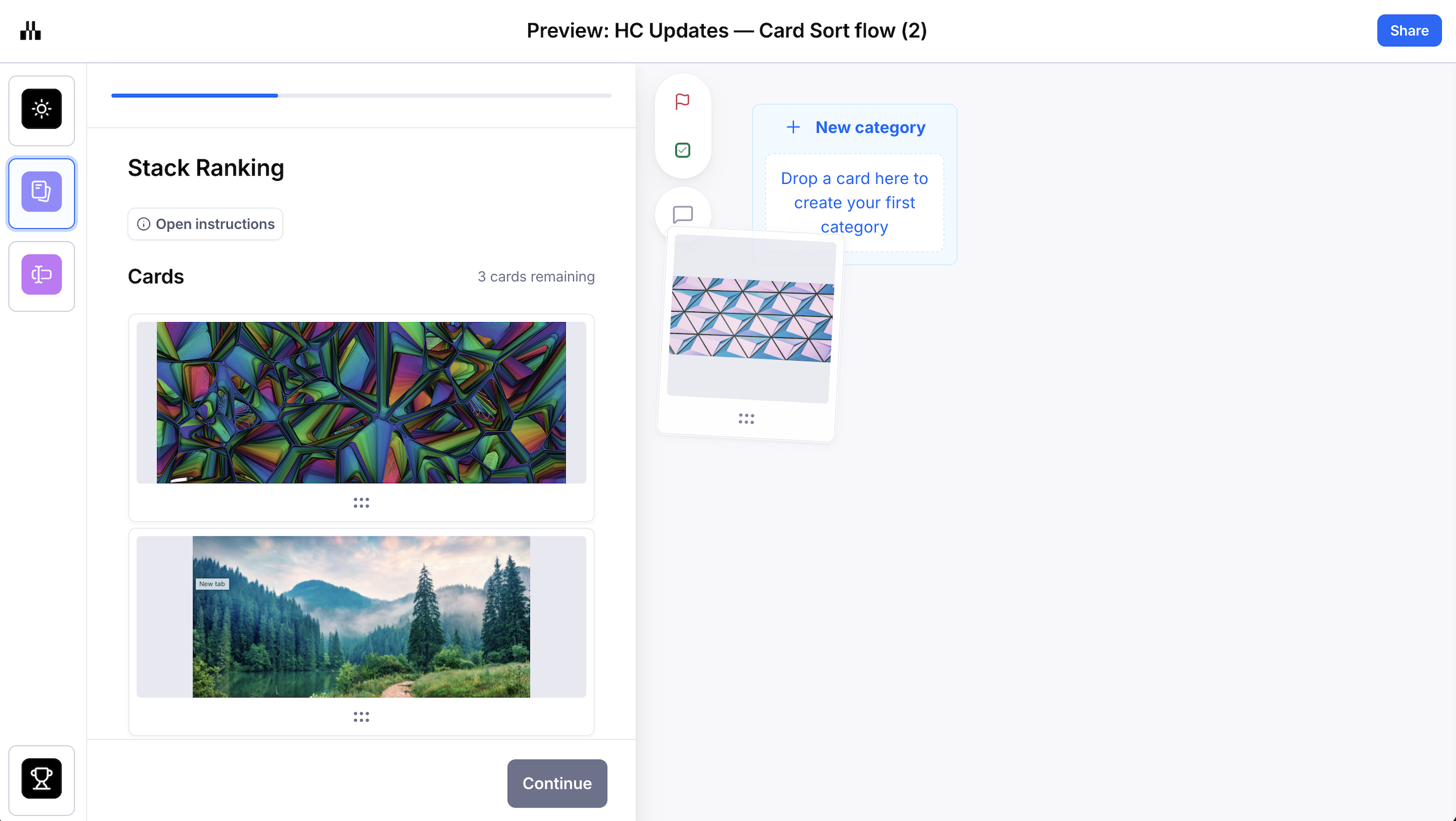
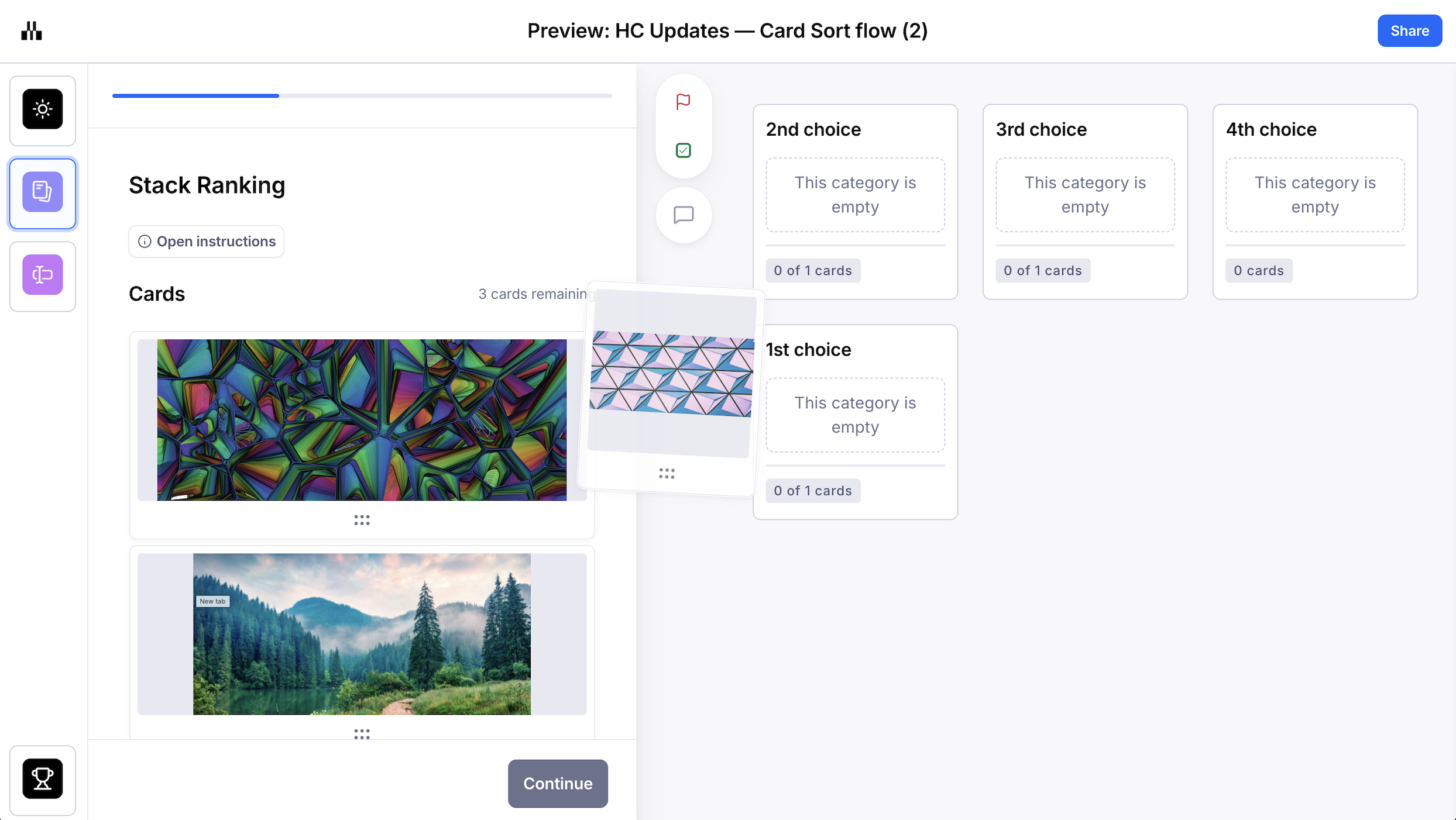
When you include a card sort block in your study, participants see a list of unsorted cards on the left.
Closed card sorting
To complete the closed card sort, participants should drag the cards into the predefined categories on the right.
They’re able to freely drag and drop cards to rearrange them across categories.
Open card sorting
To complete the open card sort, participants should drag the cards into categories defined by them.
They’re able to freely drag and drop cards to rearrange them across categories.