Running picture sorting exercises with Card Sort blocks
Last updated: August 31, 2026
You can attach an image to each card to display to participants during a card sort. This allows your participants to sort pictures, rather than just text, into categories.
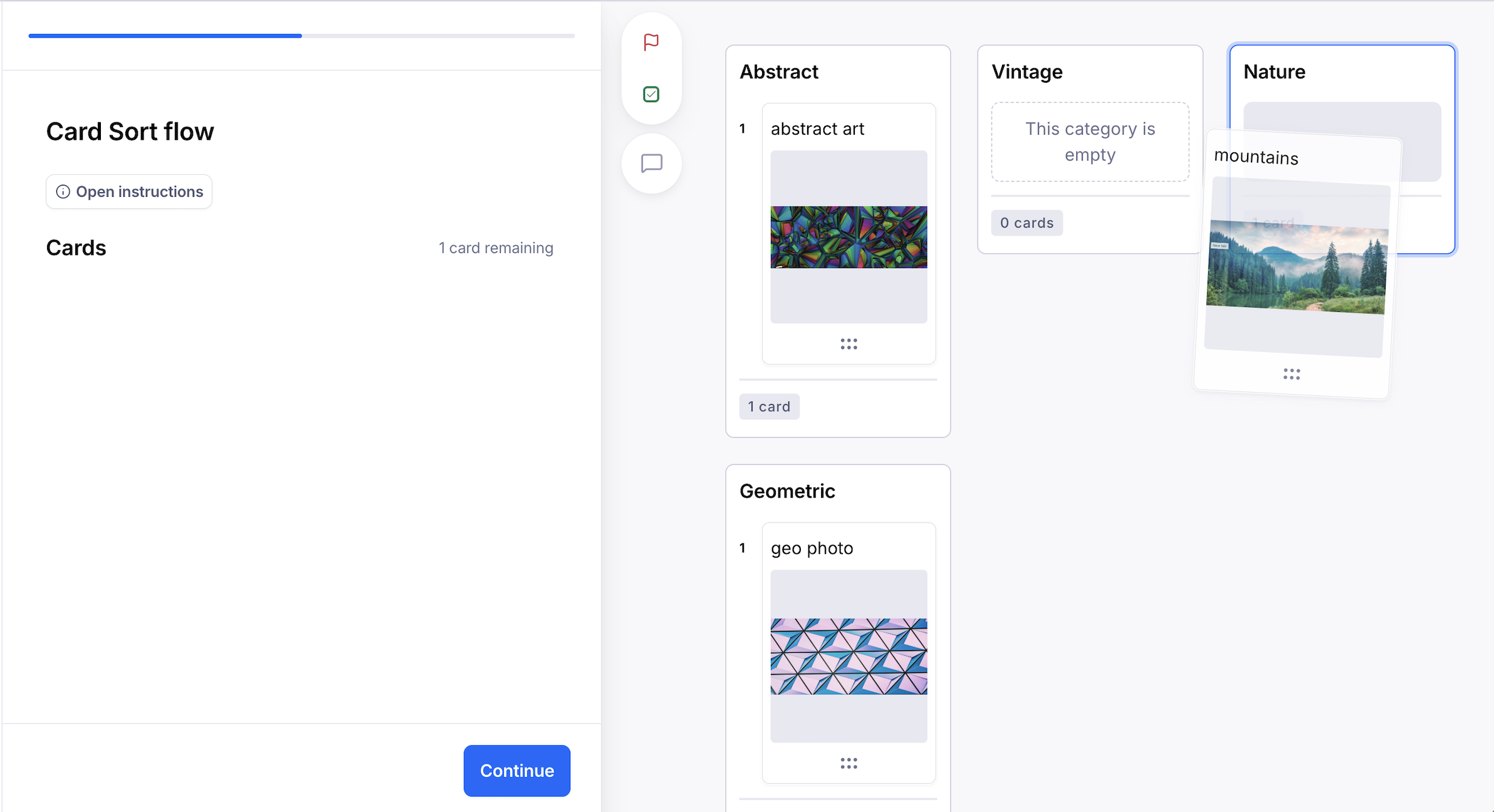
To create an image sort:
Open your draft study, or create a new one.
Choose Card Sort from the list of blocks. Learn more about card sorting
Open the card editor.
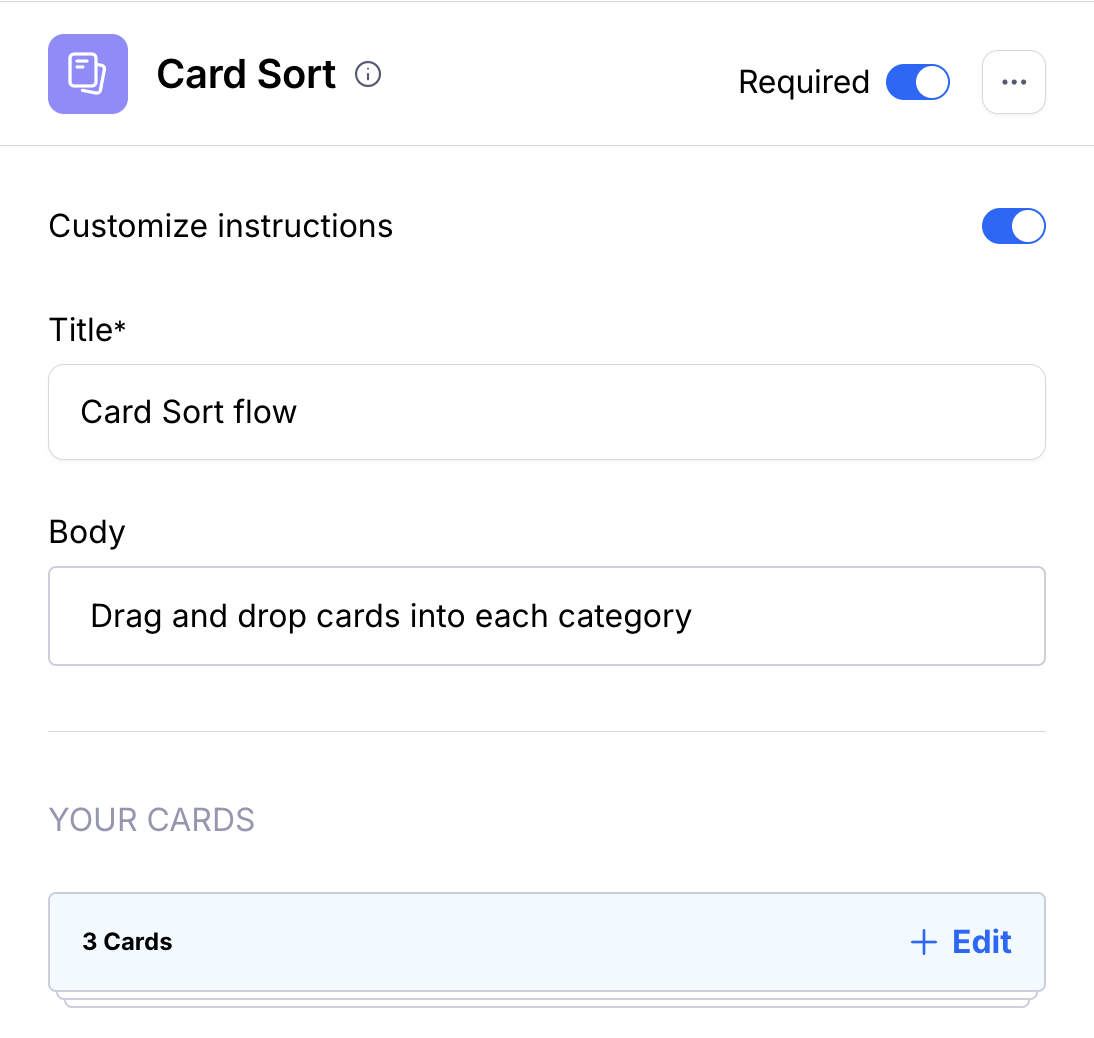
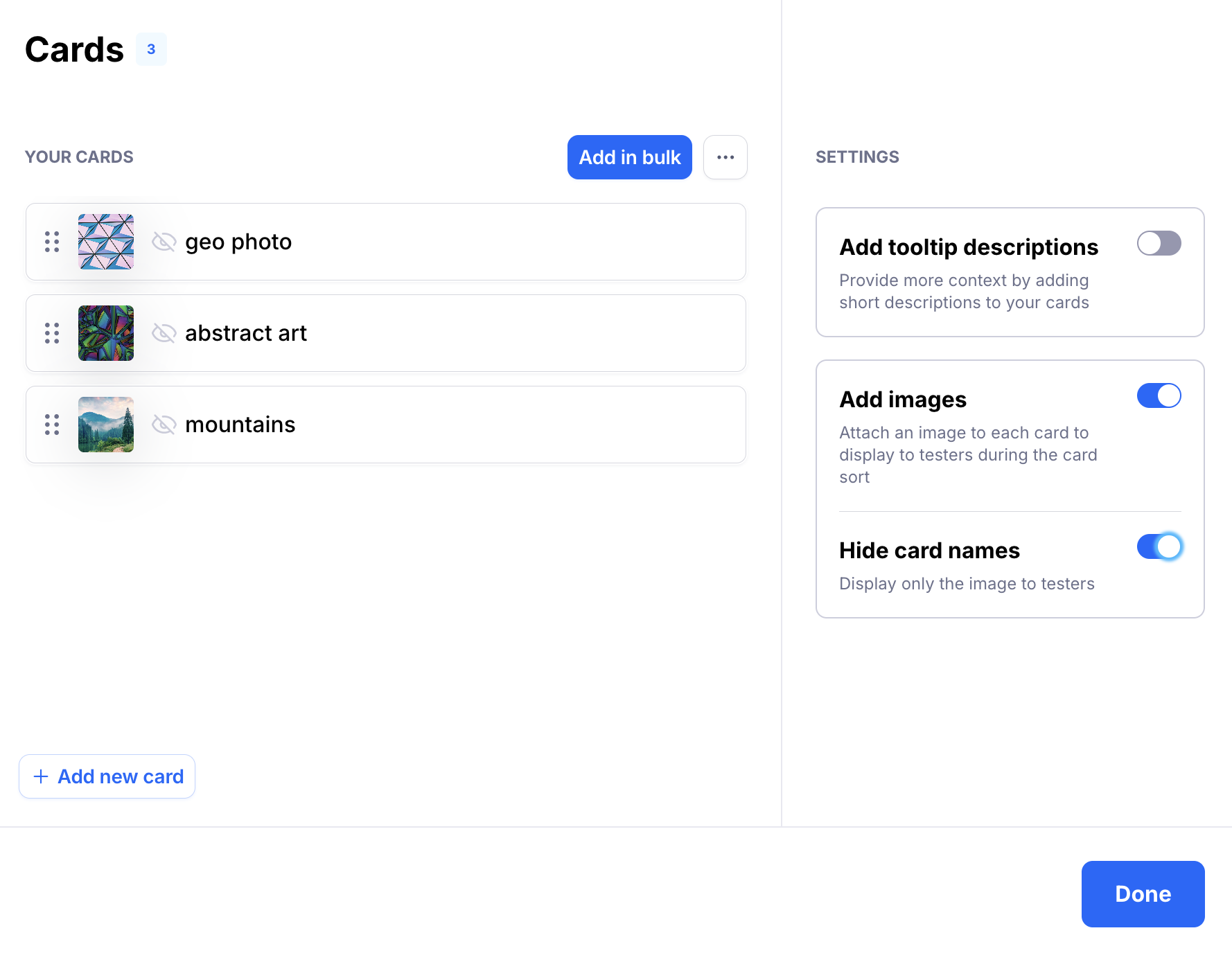
Click the toggle Add images.
This will reveal a button to upload an image for each card. Maze supports JPG, PNG, and JPG files. The maximum image size is 5 MB.
To display only the image to participants, click the toggle Hide card name in the card editor.
To save, click Done.
If needed, you can customize the instructions, shuffle the order of the cards, and fine-tune other settings before sending your study live.
Troubleshooting
Why can't I add an image to a block in Maze when using Chrome on macOS?
Still need help?
If you have any questions or concerns, please let our Support team know — we'll be happy to help!