[Card sort] Ranking items on a card sorting exercise
Last updated: August 31, 2026
Stack-ranking exercises give you data about your participant's preferences. They let you see how your participant's rank items in a category in terms of how important or important they are.
Enable rankings on a study
To require participant's to rank cards inside a category:
Open your draft study, or create a new one.
Click Add block and select Card Sort from the list of blocks. Learn more about card sorting
Toggle Require participants to rank cards.
If needed, customize the instructions, shuffle the order of the cards, and fine-tune other settings before sending your study live.
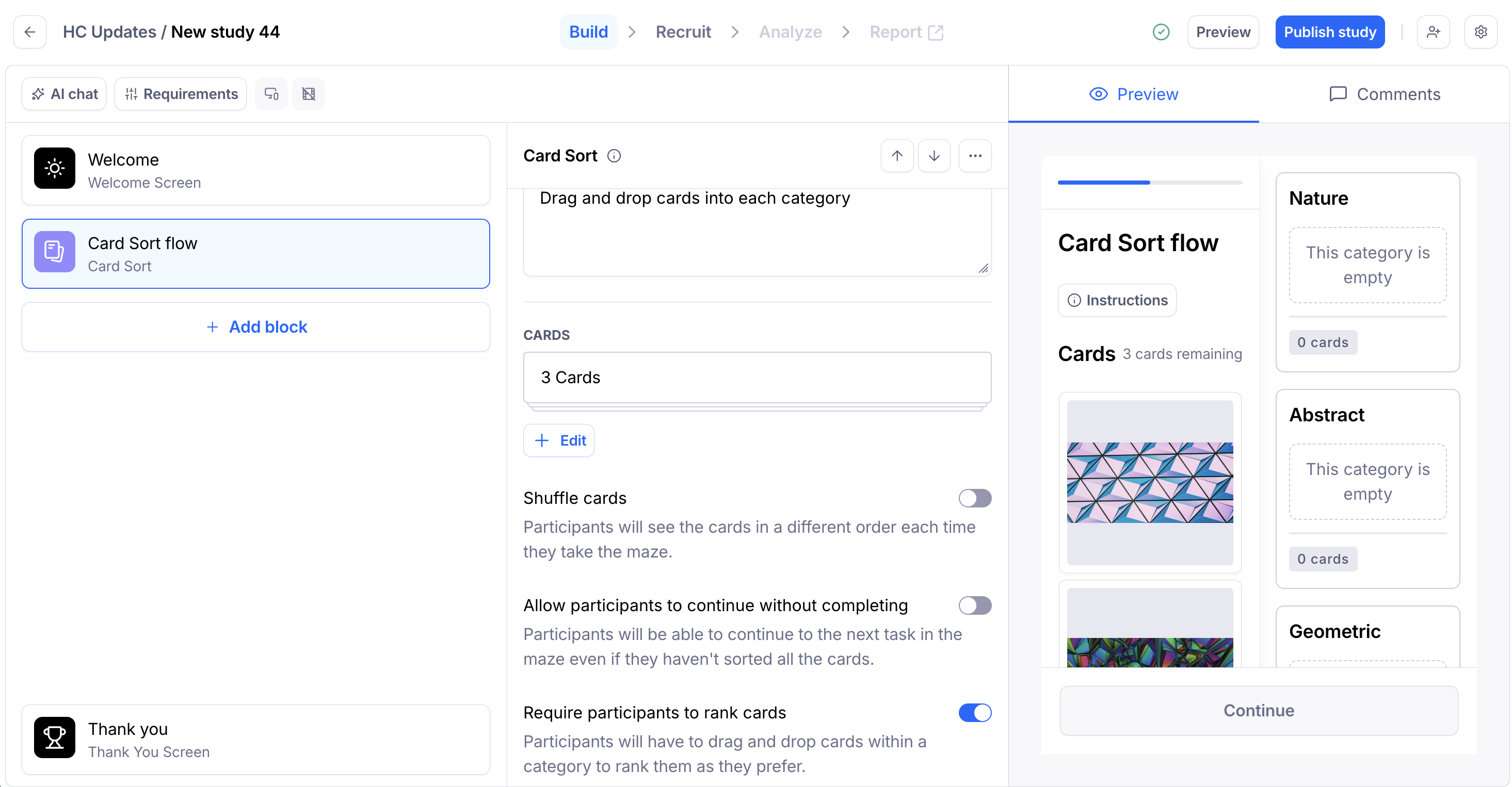
Preview
When going through the study, participants will be prompted to sort the cards inside the category/categories in order of preference, with the following callout:
The order is important
Rank the cards in each category by placing the most important ones at the top. 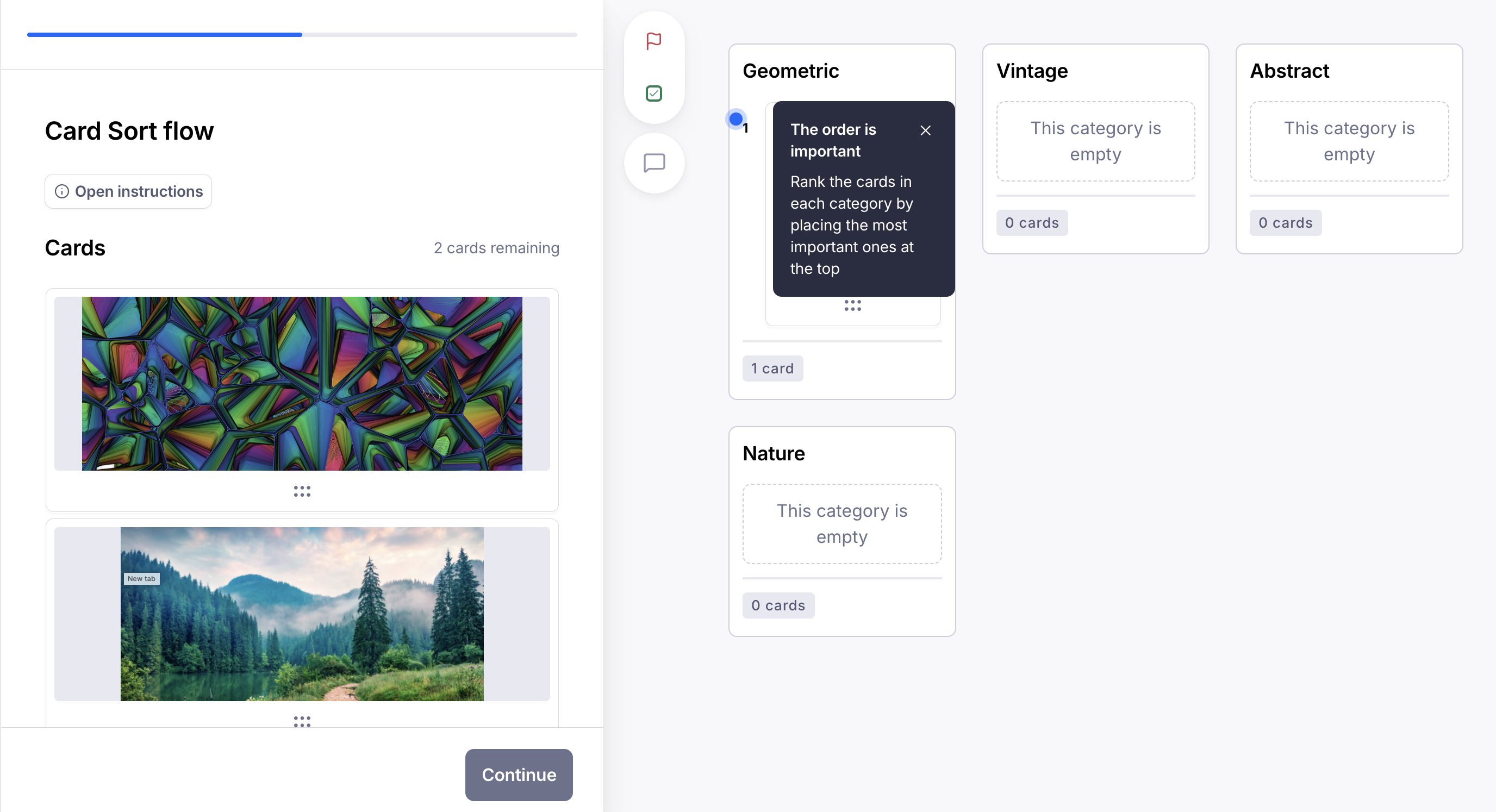
Analyze your results
As participants complete your live study, you’ll start seeing insights in the Results dashboard.
To learn more about how to visualize and understand your results, check out this article: Understanding your card sorting results
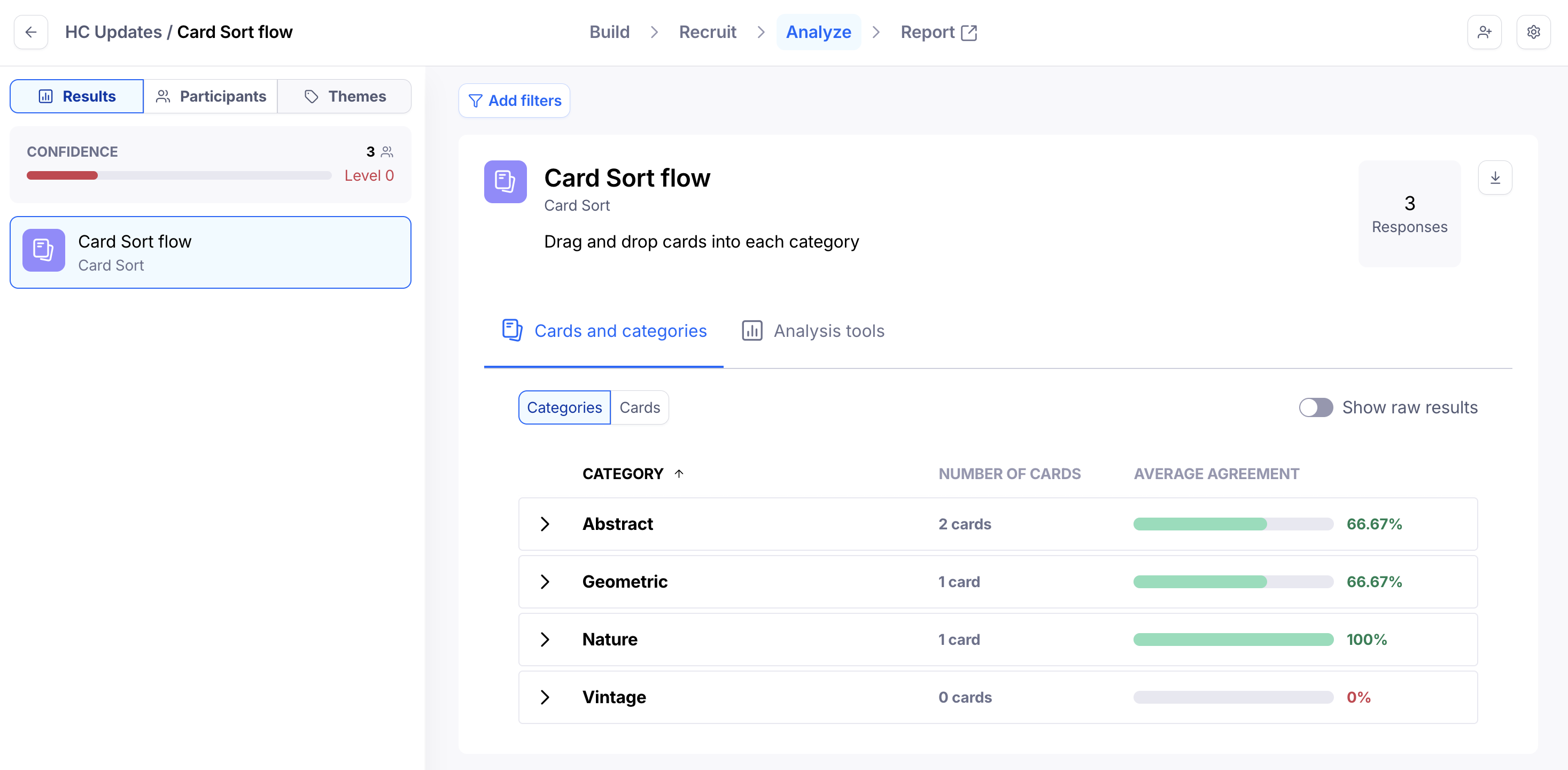
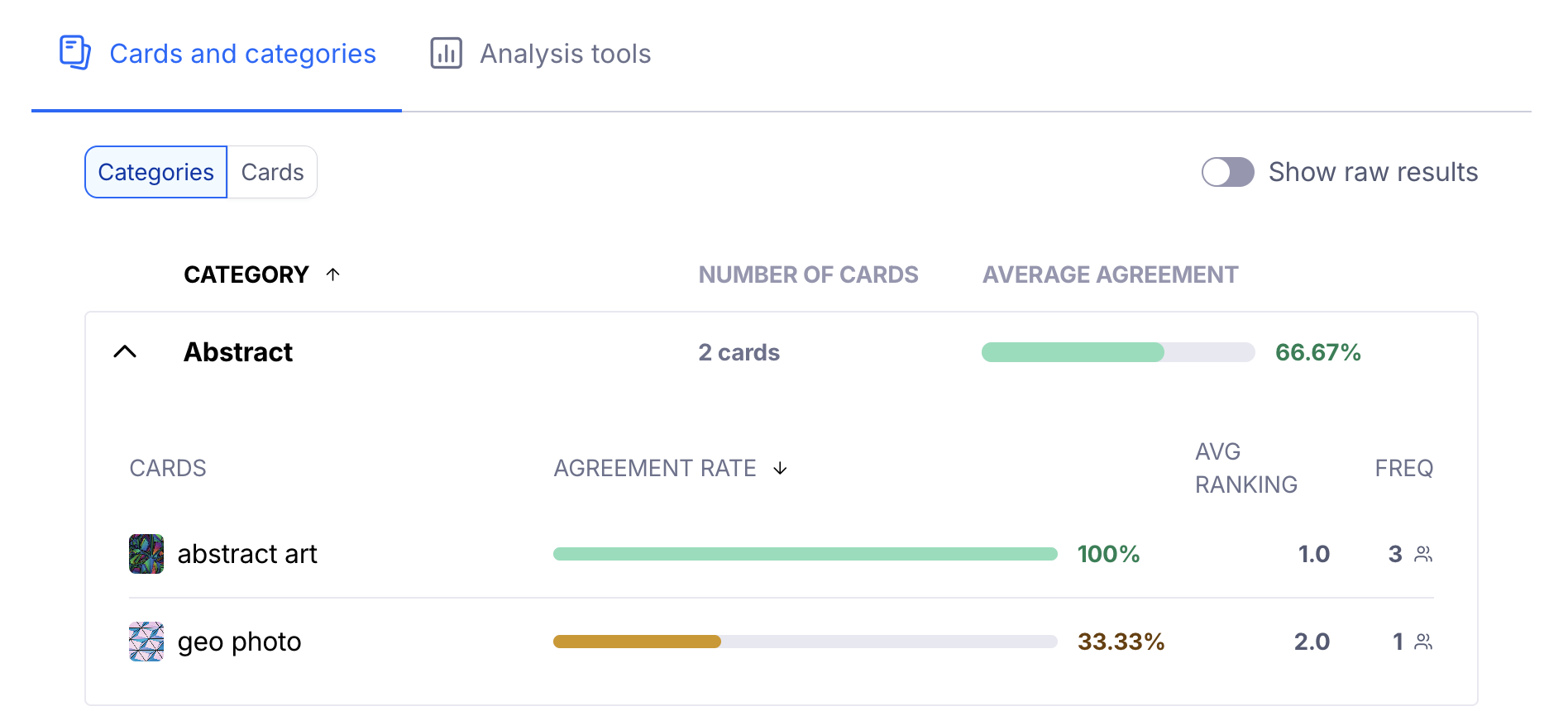
If you’ve enabled rankings on the card sorting block, expand each category in the Results dashboard to see the average ranking of each card inside that category.
The average ranking is a calculation of the average position participants attributed to each card within a category. It’s a sum of the positions assigned to each card by all participants, divided by the number of participants. This calculation is a numerical representation of how participants perceive the relative importance/priority of each item within a category.
Cards are sorted by the agreement rate by default. Click the AVG RANKING header to sort the cards by their ranking inside that category. Learn more about sorting your results
Alternative method: Forced distribution using categories
Alternatively, you can prompt participants to rank cards across categories. This approach can be useful if you want participants to pick a few options and exclude the rest.
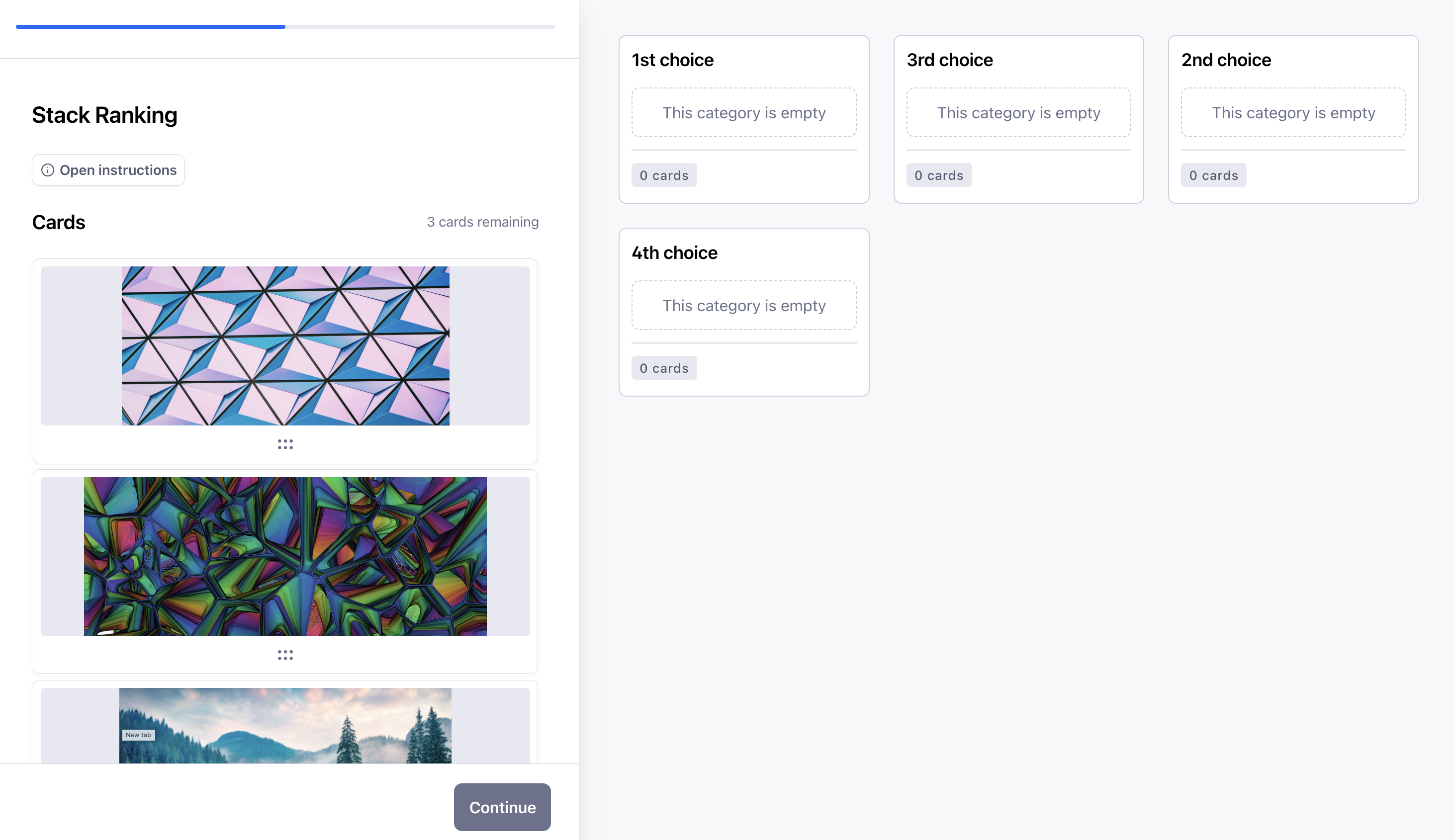
Open your draft study, or create a new one.
Choose Card Sort from the list of blocks. Learn more about card sorting
Add categories corresponding to each rank on the scale—e.g 1st, 2nd, and 3rd choice.
Set a maximum of 1 card that can be sorted into those categories.
If there are more cards than ranking categories, create a category for all remaining cards.
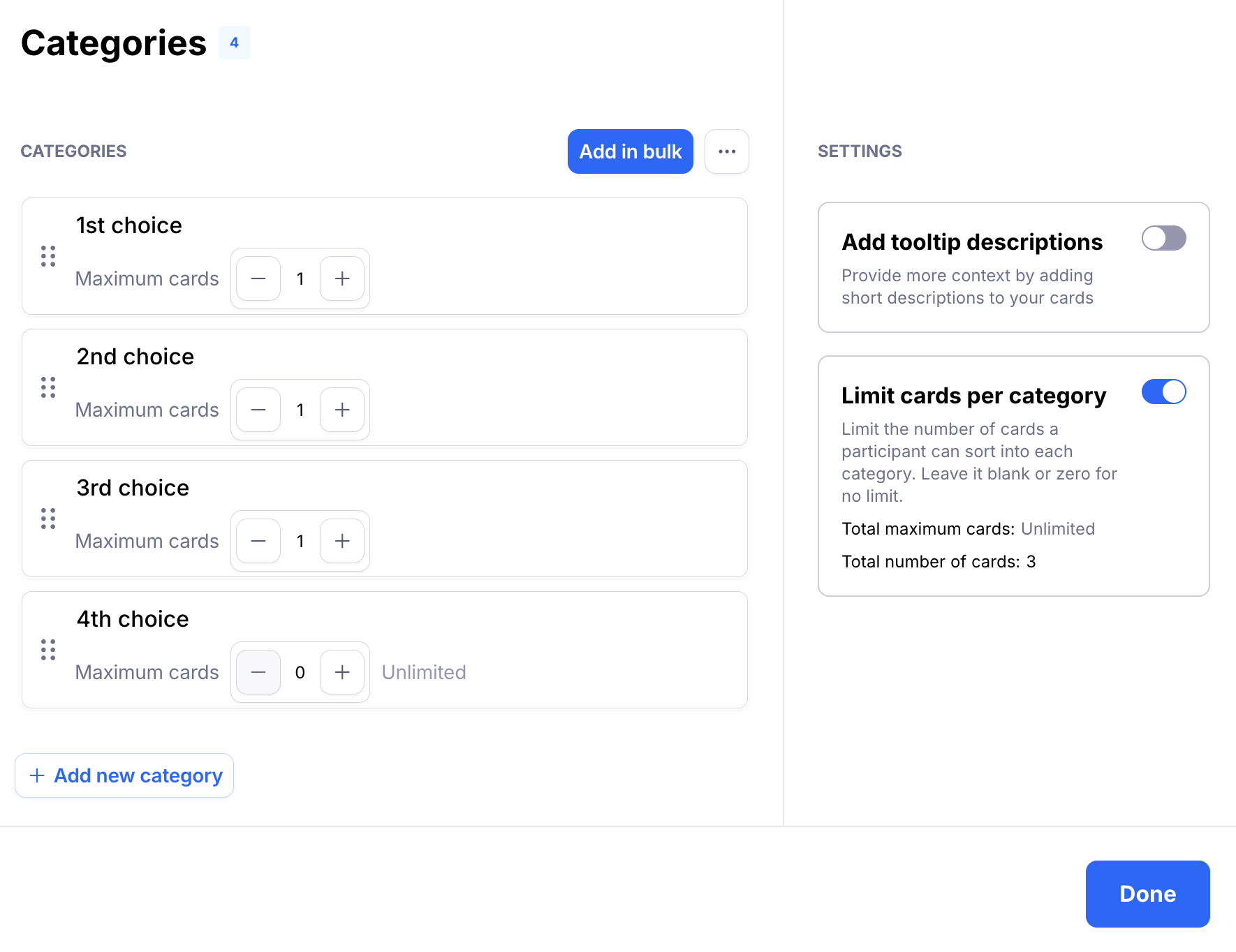
Add your cards.
If needed, customize the instructions, shuffle the order of the cards, and fine-tune other settings before sending your study live.
Still need help?
If you have any questions or concerns, please let our Support team know — we'll be happy to help!