Collect preference order with the Ranking block
Last updated: October 15, 2026
The Ranking block lets participants put a short list of items in their preferred order. Use it when you want to understand the relative order of a complete set of options, such as which ideas, concepts, or features participants prefer most to least.
Ranking works best when participants can compare every item in the list, so keep the list short.
Add a Ranking block
Open your study in the builder.
Add a new block.
Select Ranking.
Add a title and optional description, as you would for other blocks.

Set items and shuffle
Add the items you want participants to rank.
You can add between 2 and 10 items.
Each item label can have up to 50 characters.
Items can’t include images.
Ranking blocks work best with short lists. If you add more than 7 items, Maze shows this warning in the builder: “Rankings work best with 7 items or fewer.”
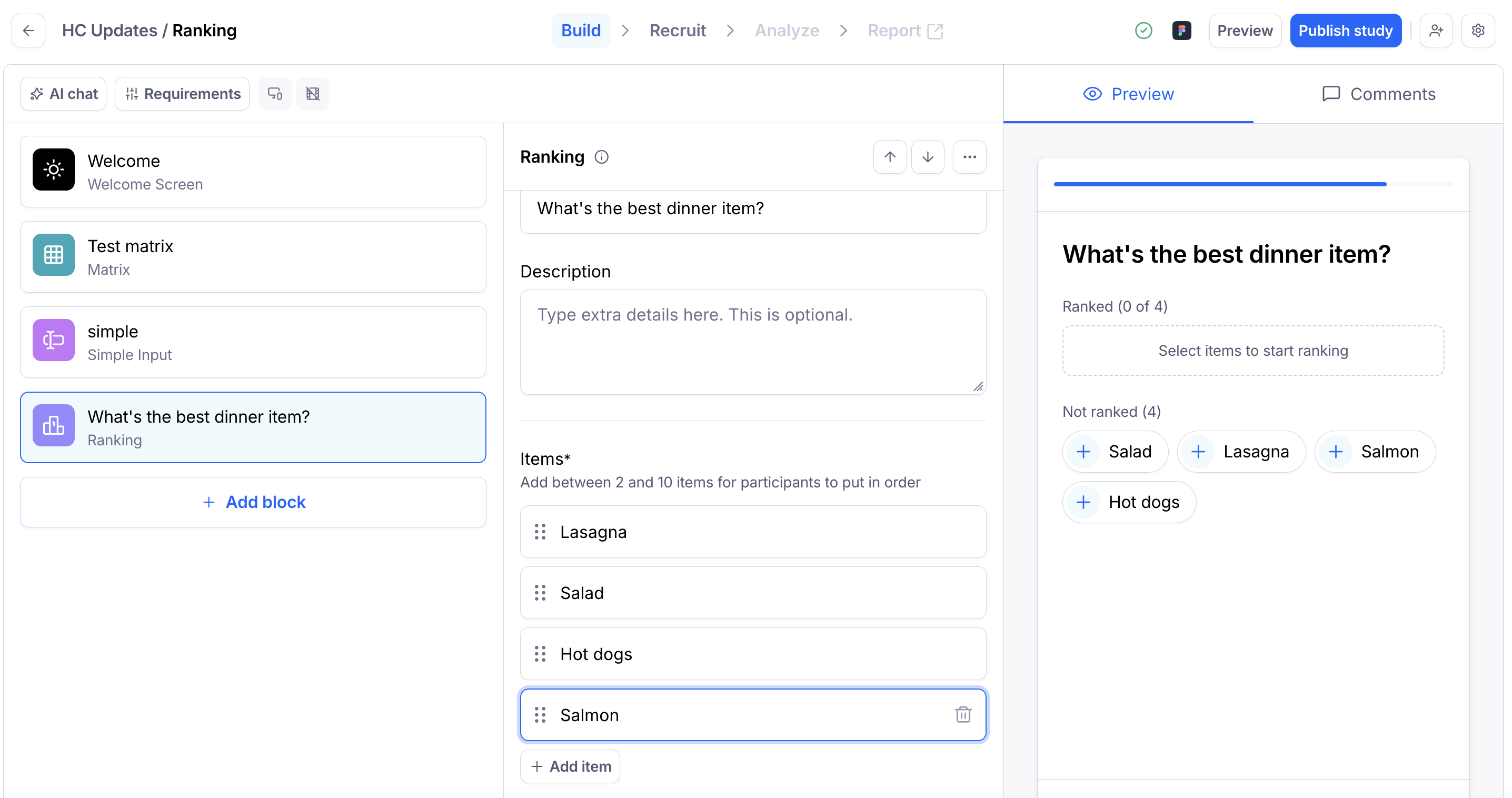
Shuffle the starting order
The Shuffle the starting order toggle is on by default. Shuffling helps reduce bias from the item that appears first.
In preview, items appear in a random order when Shuffle the starting order is on, and in the order you added them when it's off.
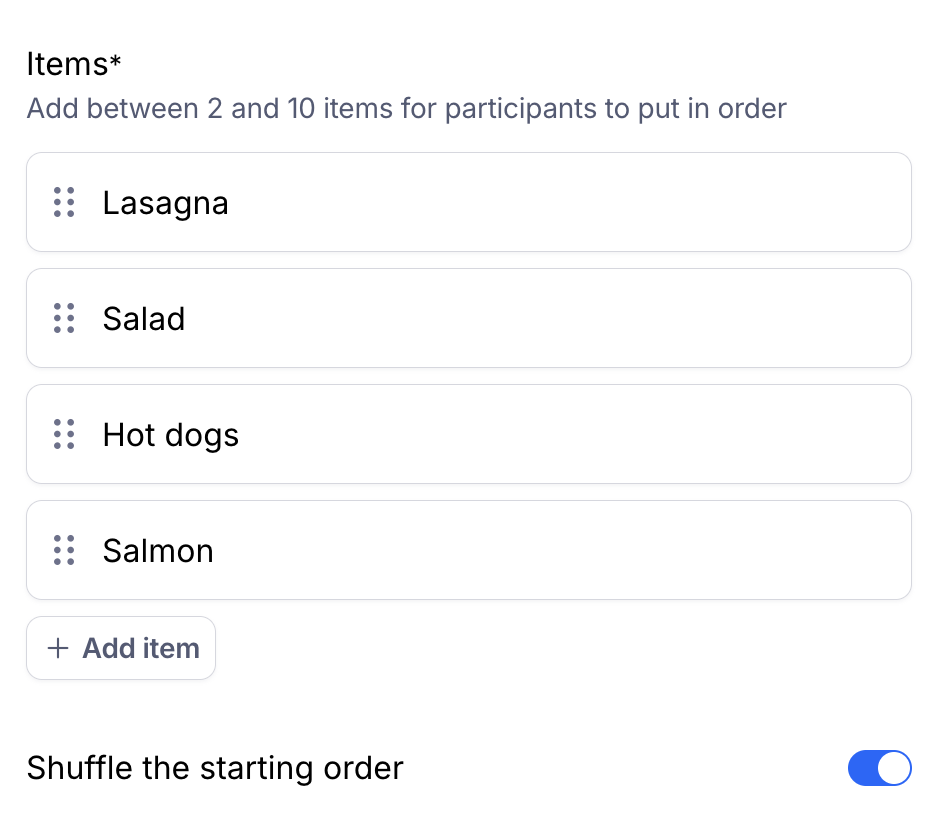
Require a response
The Required toggle is on by default. When a Ranking block is required, participants have to rank every item before they can move on.
If Required is off, participants can skip the block.
What participants see
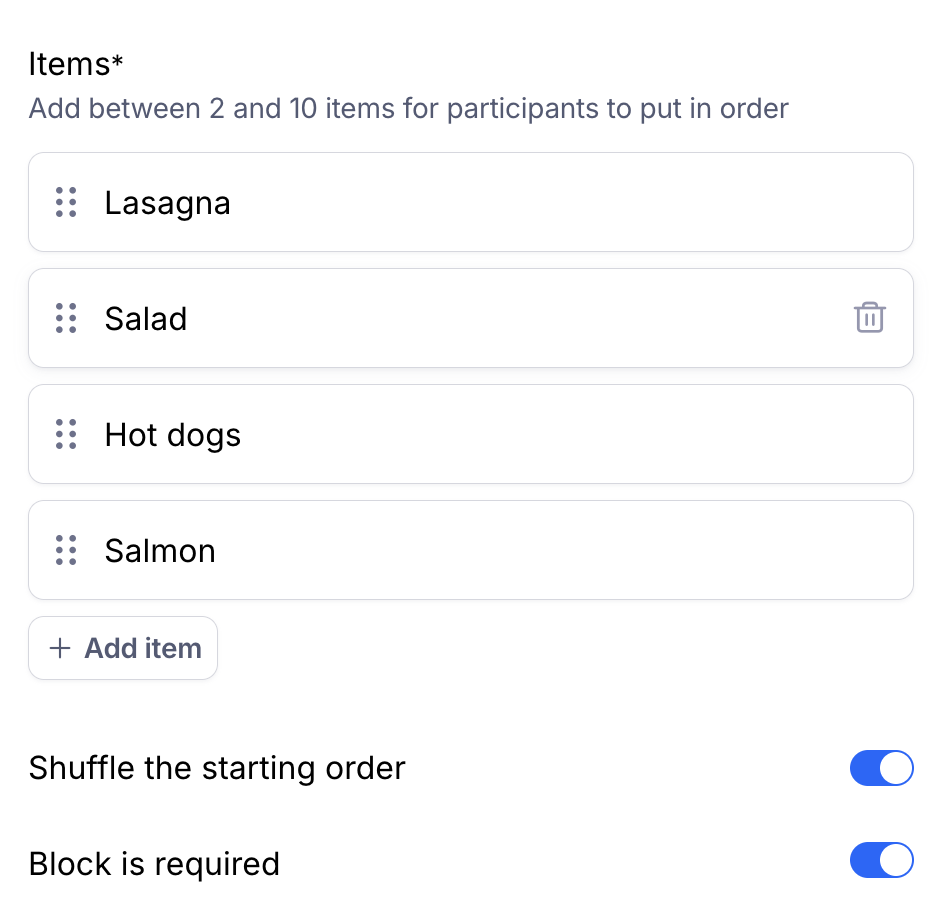
Participants start with all items in a Not ranked group. They see the following helper message: "Select items to add them to your ranking. Drag them or use the arrows to change the order."
Participants can rank items by:
Selecting an item to add it to their ranking, then dragging it into place.
Using the up and down arrows on each row. The arrows are also available as the touch option.
Using the keyboard: press Space to pick up an item, use the arrow keys to move it, and press Space again to drop it.
Participants can also remove an item from their ranking to send it back to the Not ranked group.
The submit button stays disabled until every item is ranked, and shows how many items are left.
Best practices and limits
Use Ranking when you need participants to order a short list from most to least preferred.
Keep the list to 7 items or fewer when possible.
Use clear, concise labels so participants can compare items quickly.
Use shuffle to reduce starting-order bias.
Edit a Ranking block after collecting responses
After a study receives responses, the ranking items are locked. To change the items, add a new Ranking block instead.
You can still edit the block title, description, shuffle setting, and Required setting.
Results
Results show your items as a leaderboard, with the highest-ranked item (the one with the best average position) at the top. Switch between two views:
Chart shows each item's average position on a track from first to last. The closer an item is to "1st", the higher participants ranked it.
Grid shows the percentage of participants who ranked each item in each position, from first to last. Darker cells mean more participants. The "1st" column shows how often an item came out on top.
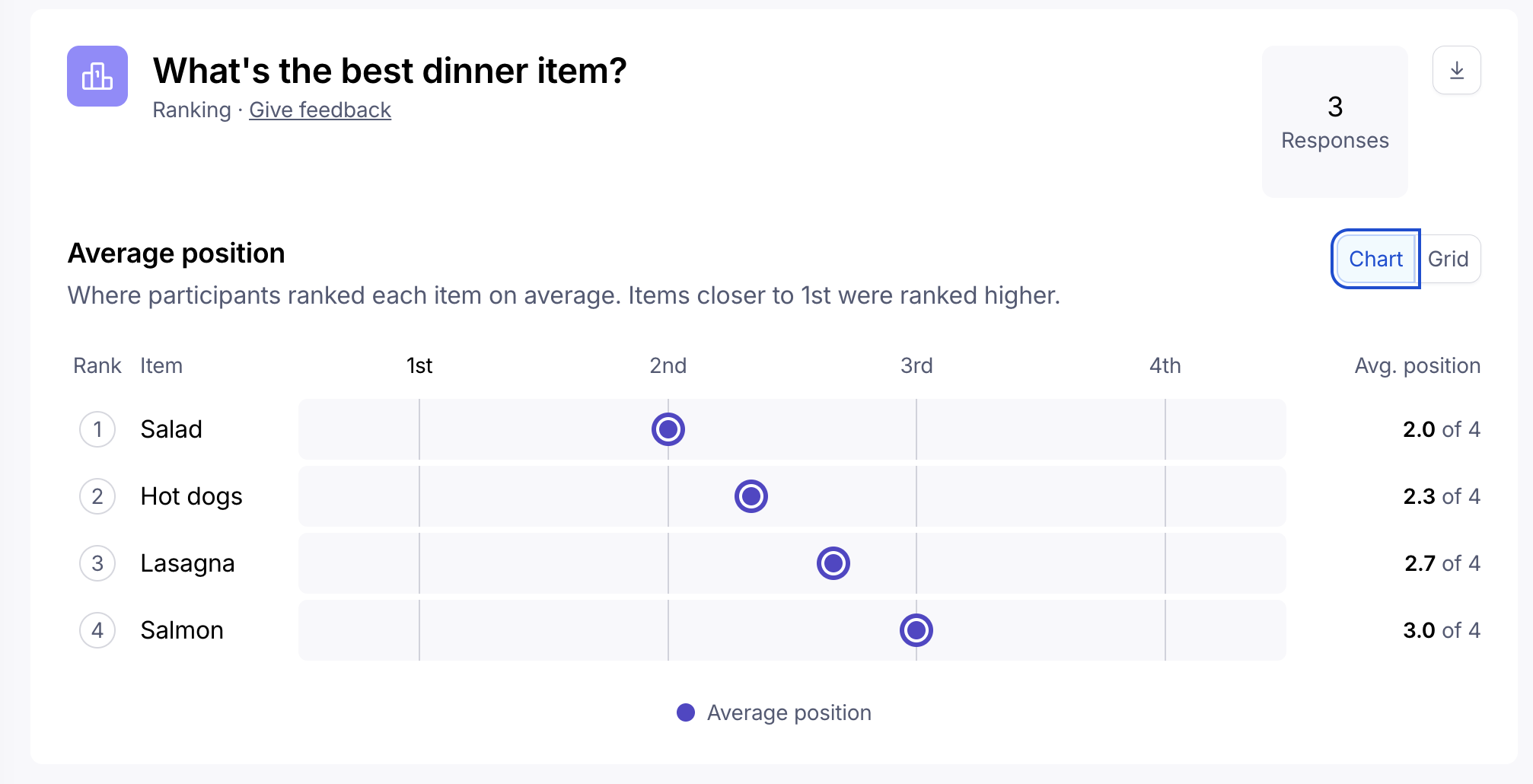
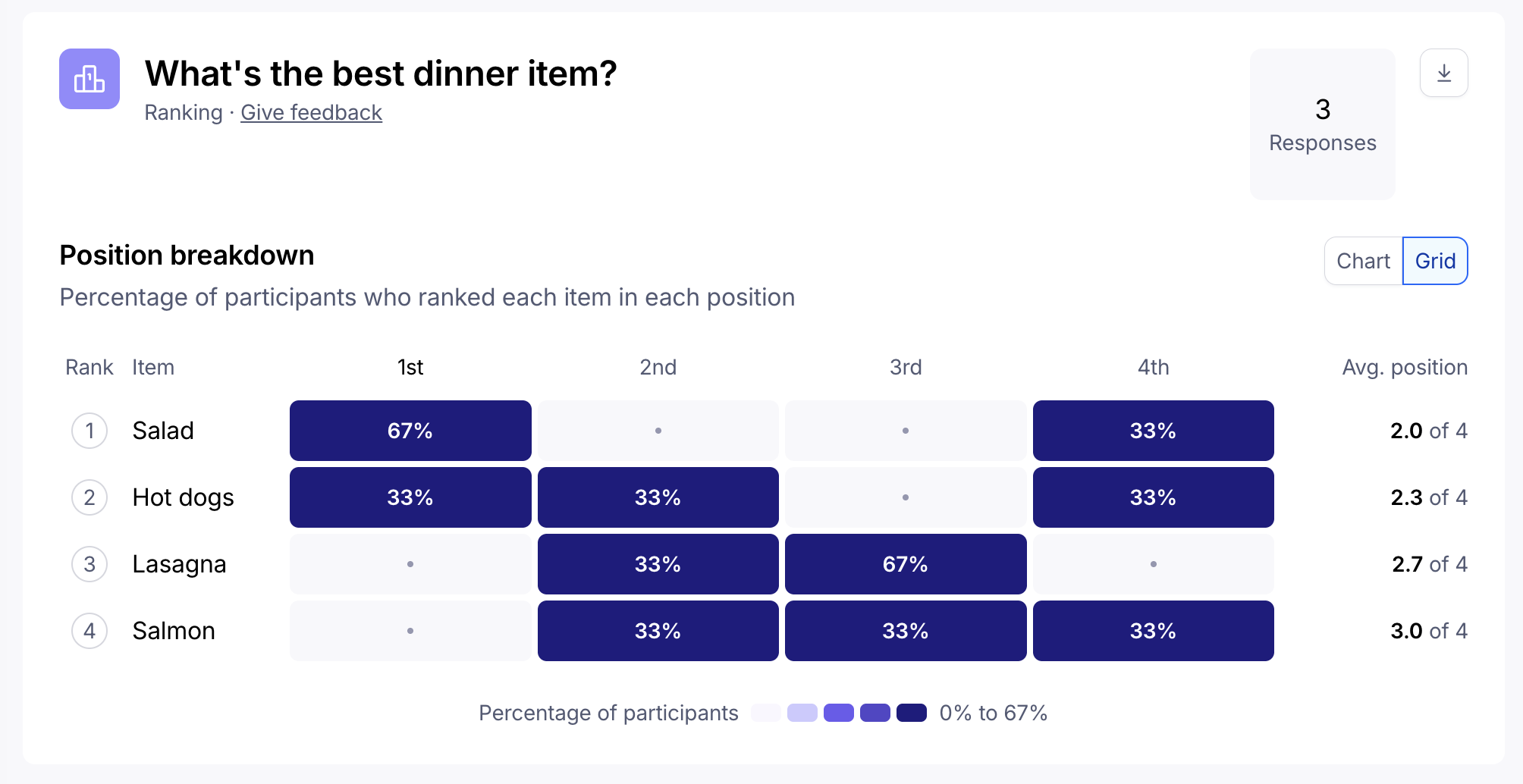
Items with the same average position share a rank. The item that more participants ranked first appears first.
Hover over an item to see its exact average position. Items that no participant has ranked yet show as "Not ranked yet".
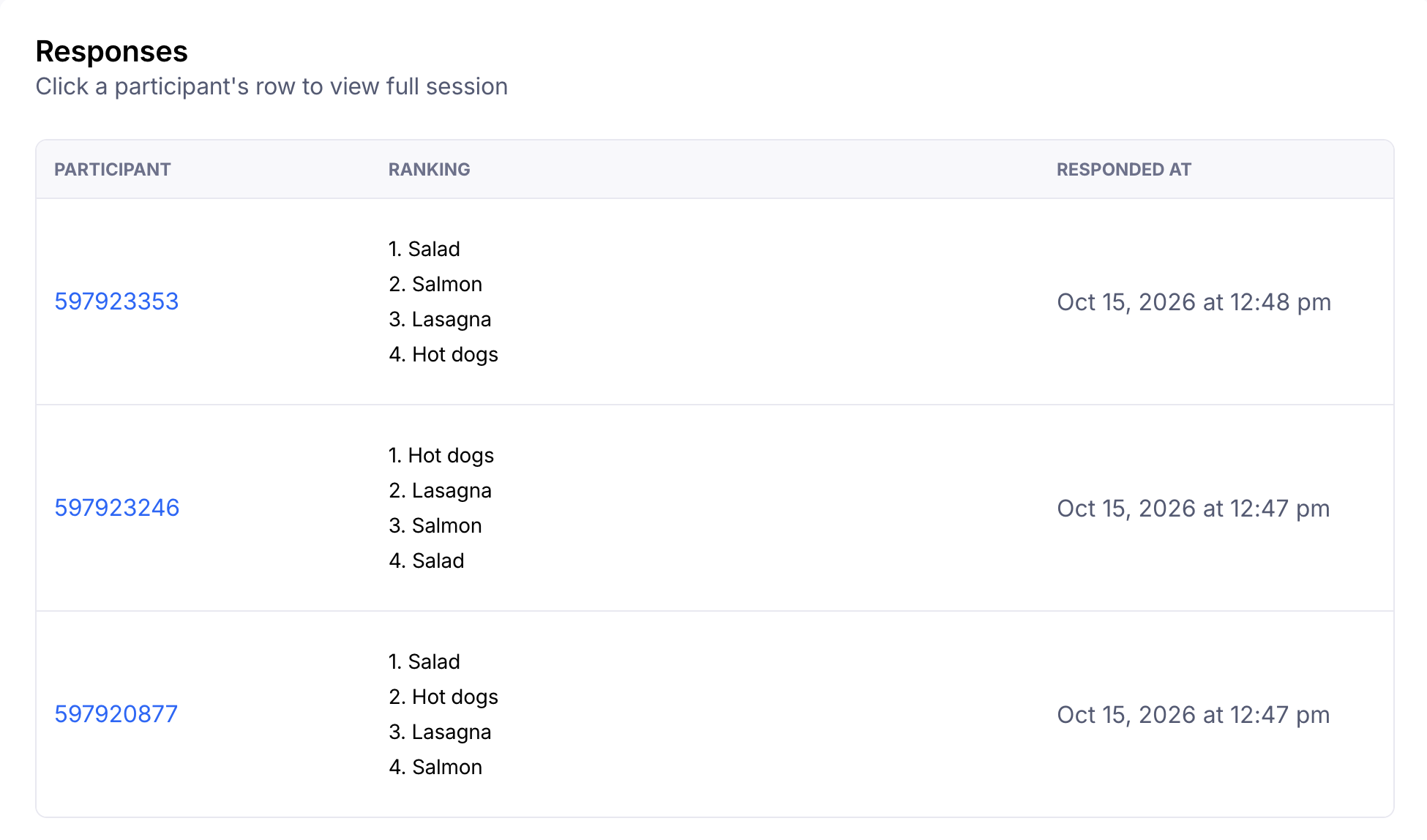
To read individual answers, open a participant's session from the results. If they skipped an optional Ranking block, you'll see "Participant has skipped this block".
Still need help?
If you have any questions or concerns, please let our Support team know — we'll be happy to help!