Improve your navigation with Tree Testing
Last updated: August 5, 2026
Tree testing allows you to test navigation branches. It's a great way to validate the ease of finding items in your product structure, even before designing.
If you're designing from scratch, it might be helpful to start with card sorting first, then tree testing.
See this case study to learn how the team at West Monroe used a tree test to explore different directions in their site navigation.
Who can use this feature?
Tree testing is available on the Enterprise plan.
Use cases
Tree testing can answer questions like: | So that you can: |
Do my labels make sense? | Validate ideas before designing |
Is my content grouped logically? | Test the usability of your navigation |
Can users find the information they want easily and quickly? If not, what's stopping them? | Build a foundation for the design that will lay on top of your product structure |
How to create a Tree Test
To create a Tree Test in Maze:
Open your draft study, or create a new one.
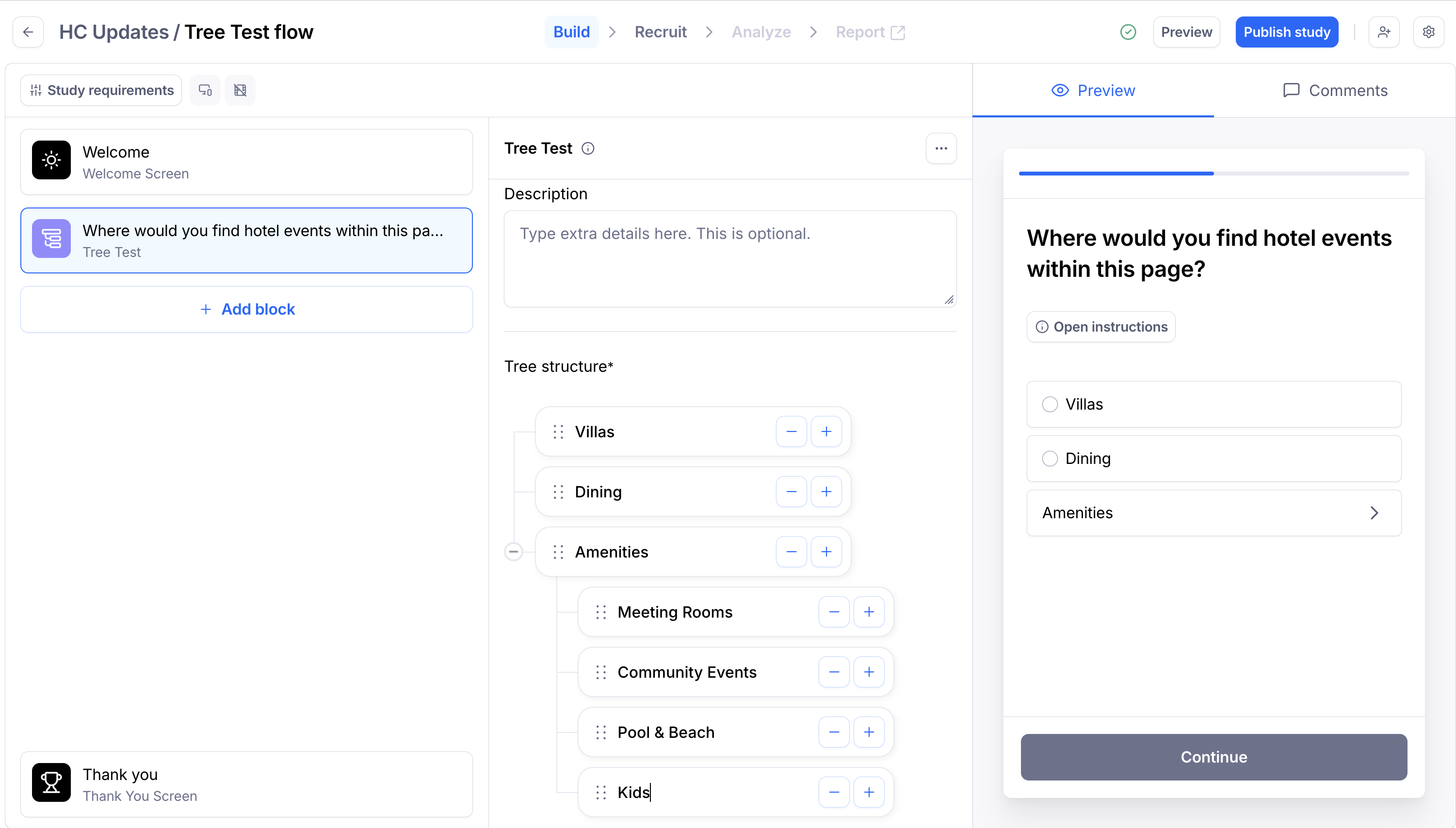
In the blocks list, click Add block, then select a Tree Test block from the drop-down.
Type your Task. Optionally, add extra details in the Description.
Add pages to your Tree Structure and organize them according to your product structure.
You can see how this block will appear to participants on the right-side Preview panel.
Analyzing Tree Test results
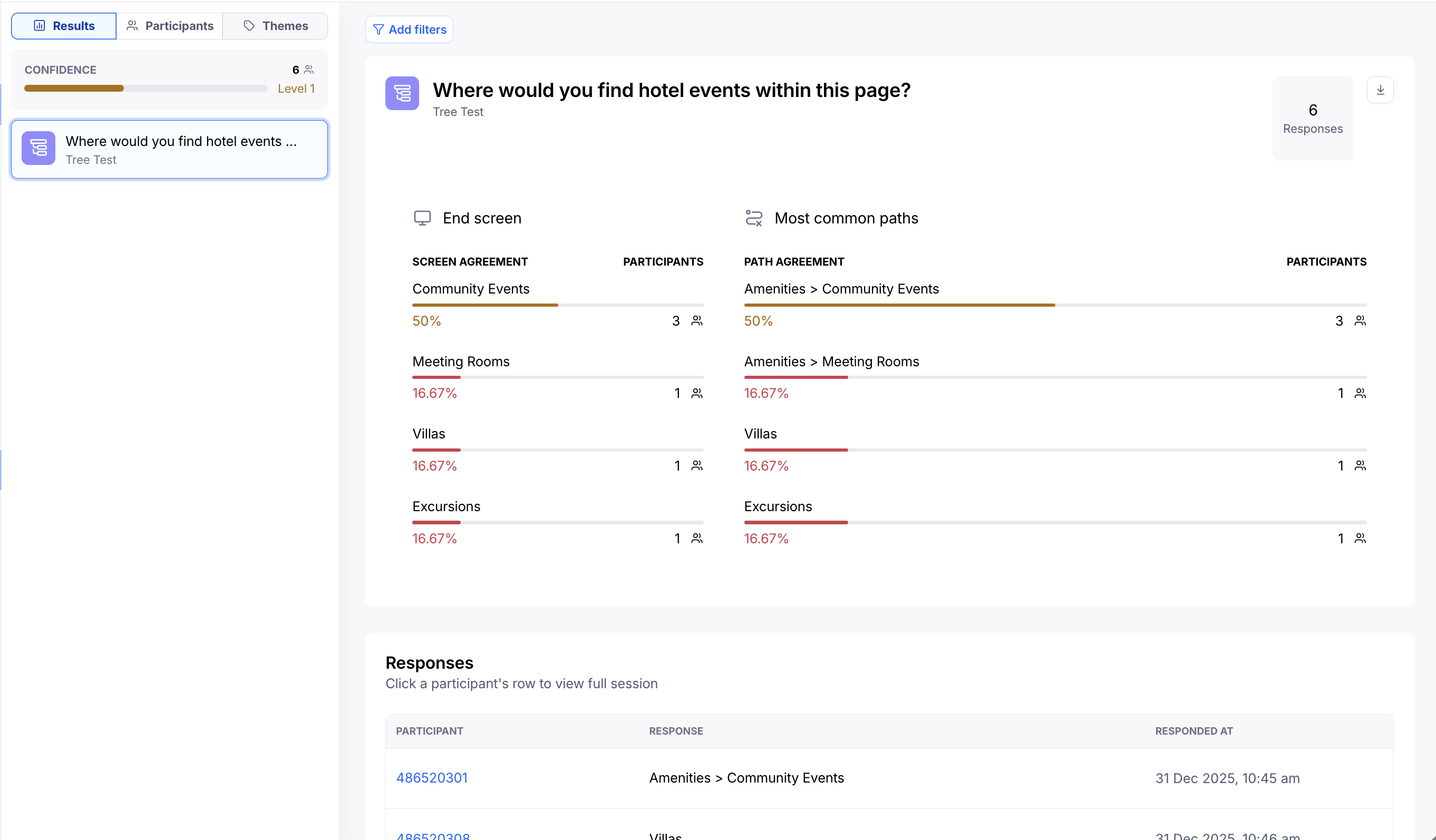
Once participants start completing your study, you'll see in the results both the most popular final category selected by participants (listed as the "End screen"), and the most common hierarchy that participants selected (listed under "Most common paths").
This allows you to see at a glance if there's consensus or disagreement over how to categorize/navigate to content.