App Tests
Last updated: August 4, 2026
The App Test block is a new block introduced to record user behaviors in and out of the Maze Participate mobile app. It can record participants’ interactions with a website on any live mobile app or even beta apps that you have granted access to.
Before you start
If a study includes an app test, participants on mobile devices are required to download/install and use the Maze Participate mobile app.
The App Test block is only available to Enterprise plans.
Adding an App Test block
Open a draft study.
Click Add block, then select App Test.
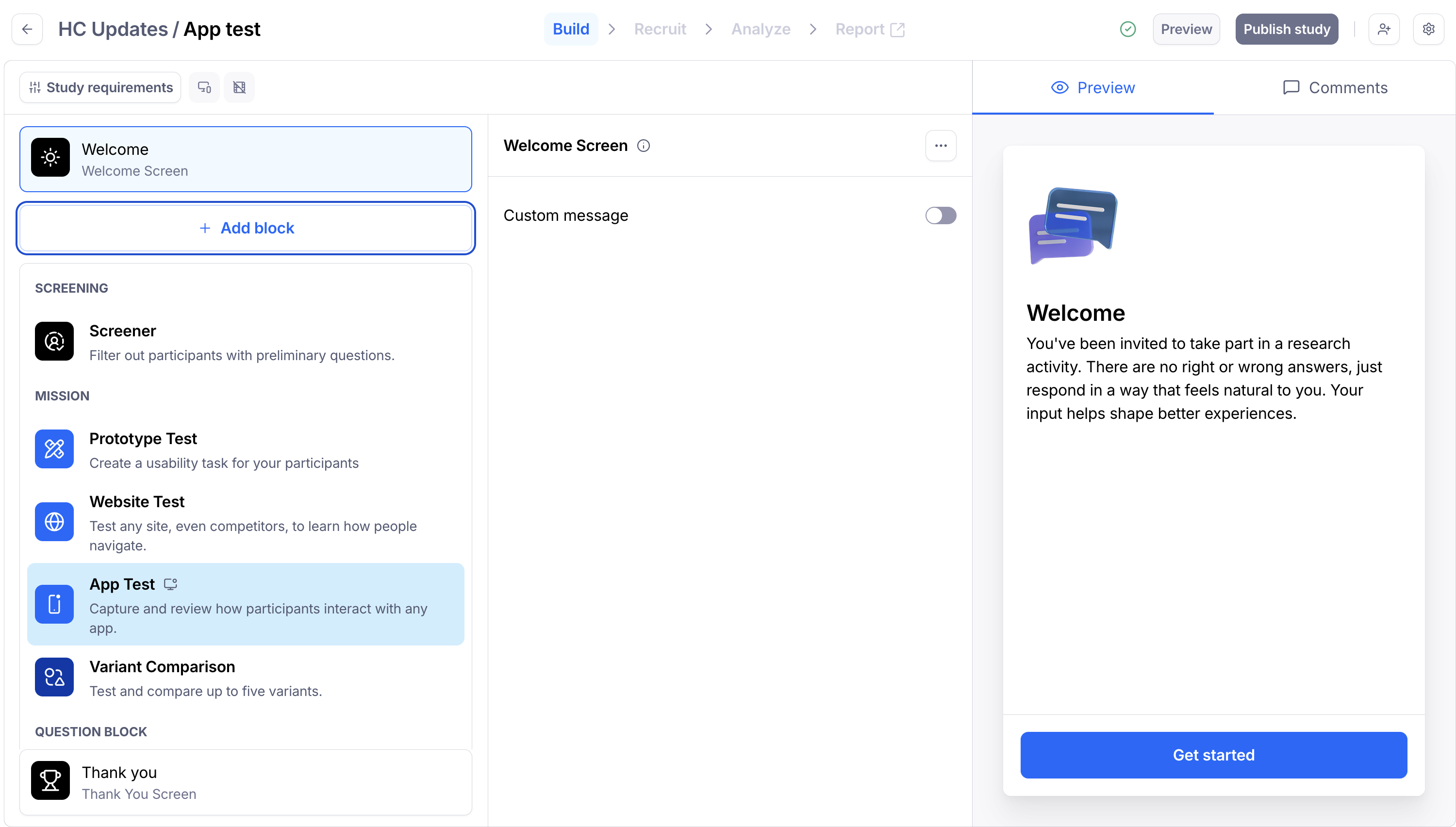
Note: Adding an App test changes the following study requirements:
Screen recording is enabled
Clips settings are mandatory
Setting up an App test
Write the task and an optional description. For a little help, check out our best practices for writing tasks and descriptions.
Add a task link. This is where the participants will be directed to when starting the task.
Best practices for adding task links
Tasks in an App test will always require a URL, but you'll want to make sure to utilize a publicly accessible link such as:
App store link
https://apps.apple.com/us/app/amazon-shopping/id297606951Universal link
https://www.google.com/Deep link
myapp://path/to/page?pageid=1
When using a link that requires participants to log in, we recommend adding a Context Screen before the App Test block to instruct participants to log in before starting the test. Learn more about our privacy best practices here.
Connect with your engineering team first if using deep links to specific screens inside your app to ensure you have the proper link.
Note: URLs require https:// in front in order to open up the browser/app successfully.
Requirements
If adding an App Test block, you’ll need to enable the following study requirements:
Screen recording
Required Clips
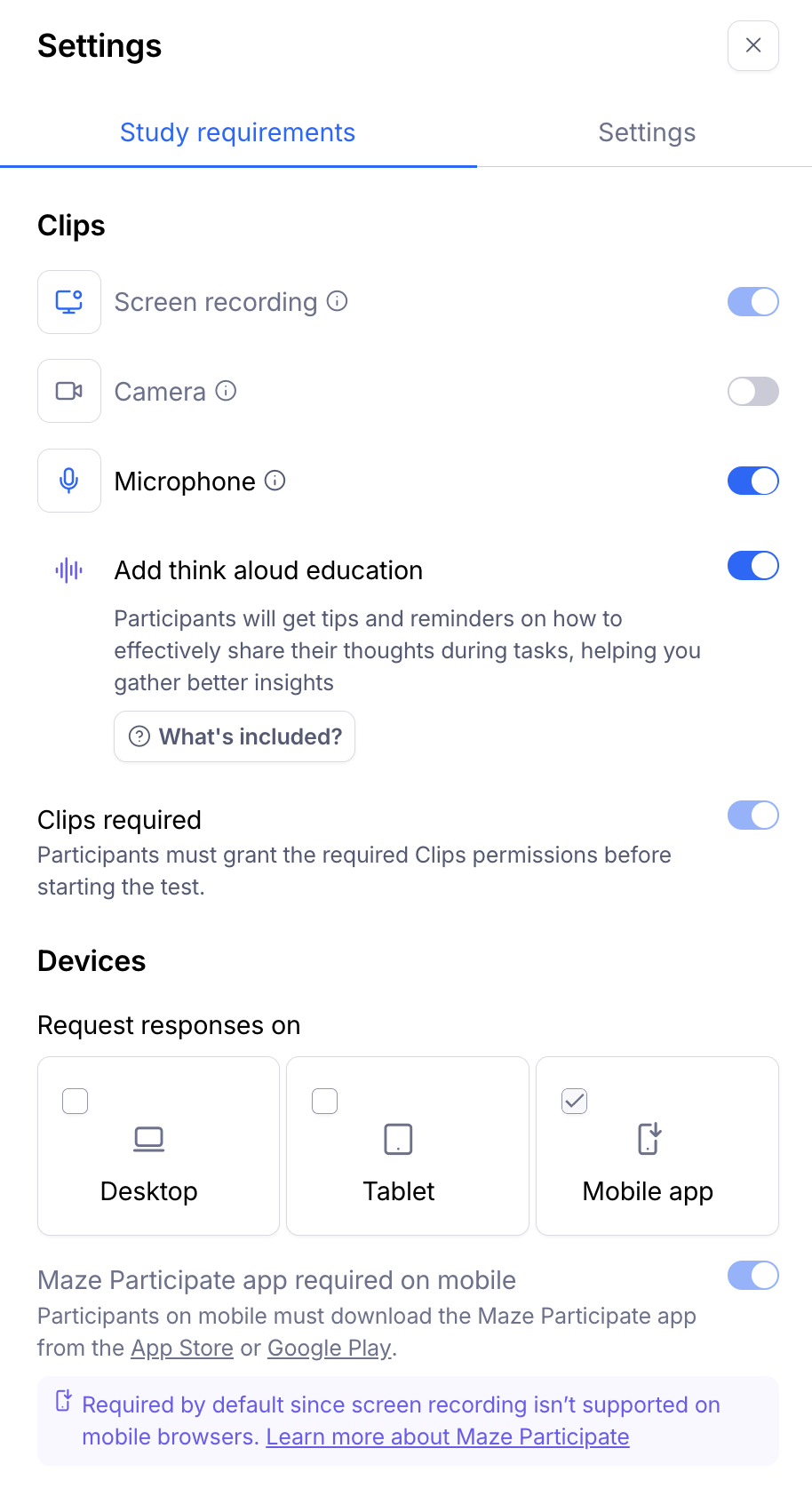
When selecting screen recording/broadcasting, the Camera option will automatically toggle off as there are no native options to record the screen outside of an app and the front camera.
For further context, additional permissions are required, and iOS imposes stricter limitations on background tasks to ensure privacy and security. Running this process in the background could also lead to performance issues, such as overheating or battery drain, especially on lower-end devices.
To learn more about the different device settings and requirements, check out Maze Device Settings.
Results & Reports
When utilizing an App Test block, only the recording will be available. If you require quantitative data (i.e. heatmaps, path analysis, etc), consider using a Prototype Test block instead.
To learn more about the metrics measured in an App Test block, check out Maze reports.