Using Figma Make in a website test
Last updated: August 5, 2026
Figma Make allows you to publish responsive websites directly from your Figma designs, and integrating Maze's tracking code enables you to conduct user testing and gather feedback on your live Figma Make projects.
Maze lets you test your AI-generated sites with or without the snippet installed. If you want to iterate quickly, you can launch a test without it and still gain valuable insights through recordings. Installing the snippet only takes a few extra minutes and enables quantitative data collection for deeper insights—choose the option that best fits your workflow. See here how to test without snippet
Prompting for URL path changes
When setting up paths on a website test block, the URL needs to change between screens to register a new step in the path. Otherwise, you might see a message that states no clicks were detected when setting up expected paths.
To solve for this, you can leverage the following example prompt templates below to ask the AI to build the site with URL path changes in mind. As a note, these prompts are meant to function as a foundation. We recommend adding additional instructions on how you’d like Figma Make to structure the paths in your URL.
Multi-page sites
This should be a multi-page website where, when I click any links to navigate to a new location, the browser should go to a new page and the URL should change (not a single-page application). I am going to perform UX testing in Maze with this prototype website, so in order to track participant activity, I need the URL to be unique for each separate page. Please also use a shared layout or template so all pages pull in the same head section.
Single-page applications (SPAs)
This should be a single-page application where when I click any links to navigate to a new location, the browser should update the URL so that they each have a unique path. I am going to perform UX testing in Maze with this prototype website, so in order to track participant activity I need the URL to be unique for each separate page.
Install the Maze tracking code on your website with snippet-based testing
To enable snippet-based usability testing on your live website, you’ll need to install a unique code snippet that enables this feature to run on your website.
You’ll also be prompted to follow these steps from your draft study if you haven’t added the code to your URL’s domain yet when creating a website testing block.
Learn how to install the Maze tracking code on your website
How to add tracking code to Figma Site
Once you have obtained your tracking code from Maze, follow these steps to add the snippet to your code in Figma and use your Make in a Website Test:
Create a new Make in Figma
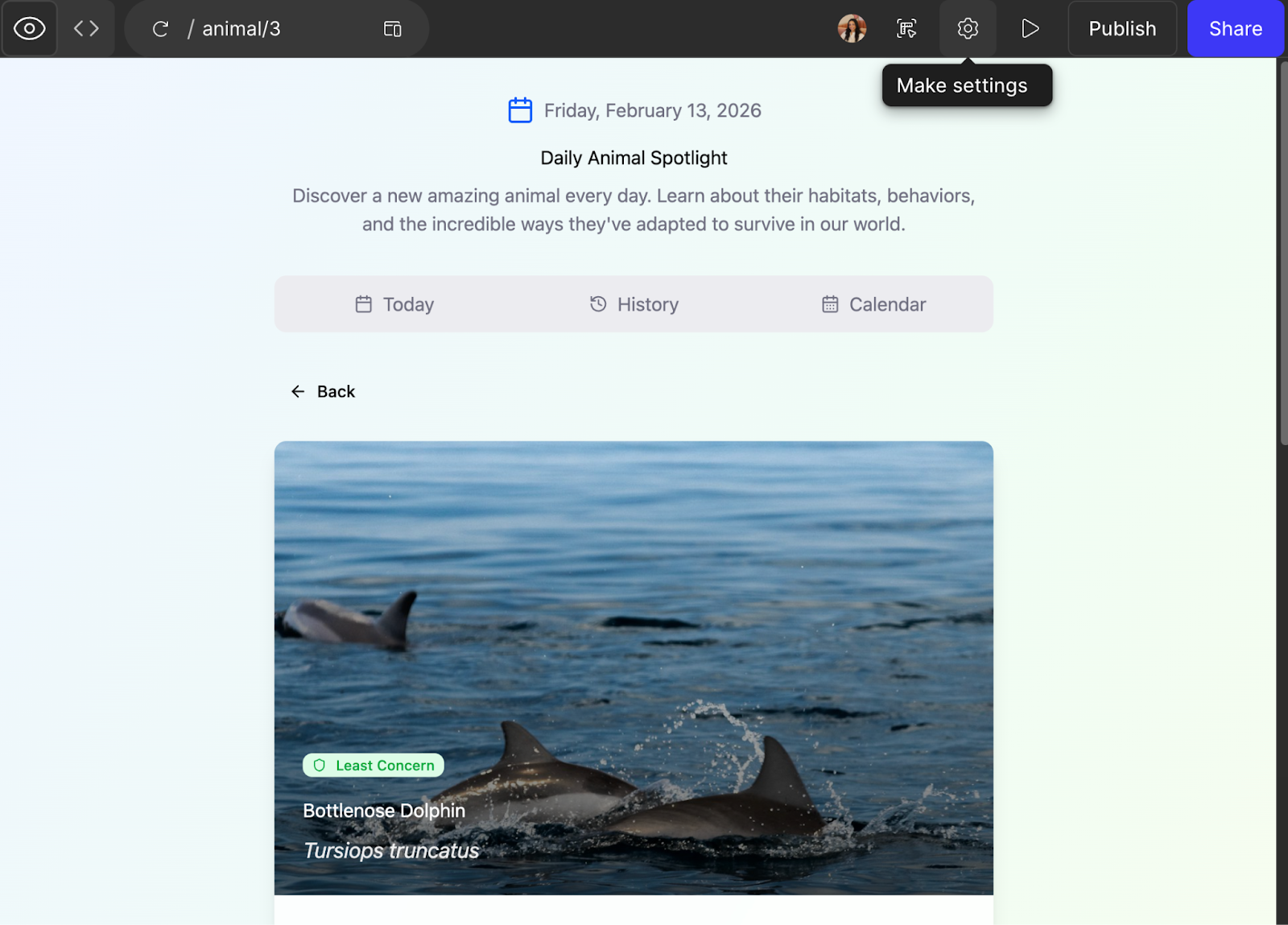
Go to Make Settings (⛭) at the top right of the page
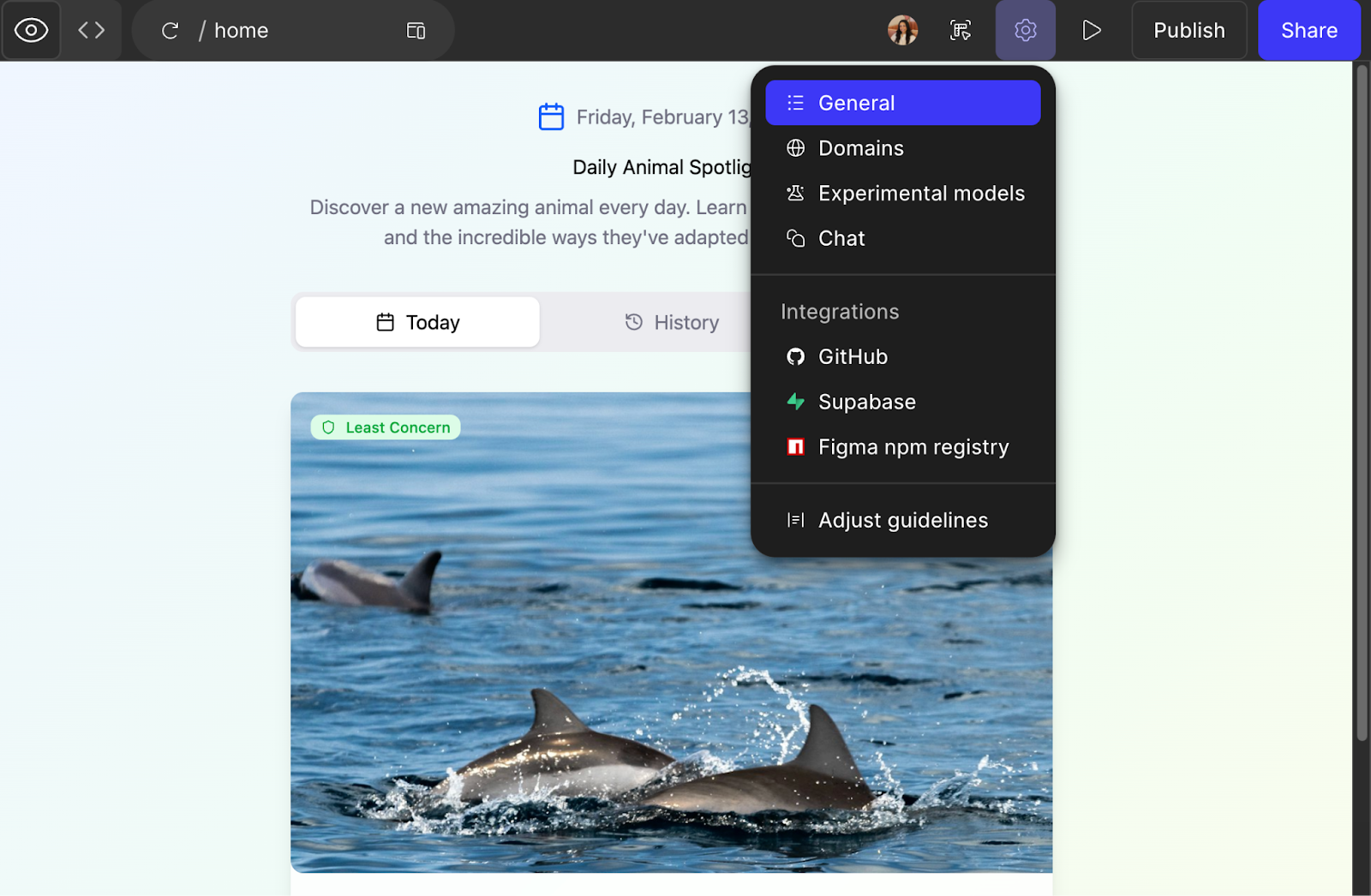
Click on General
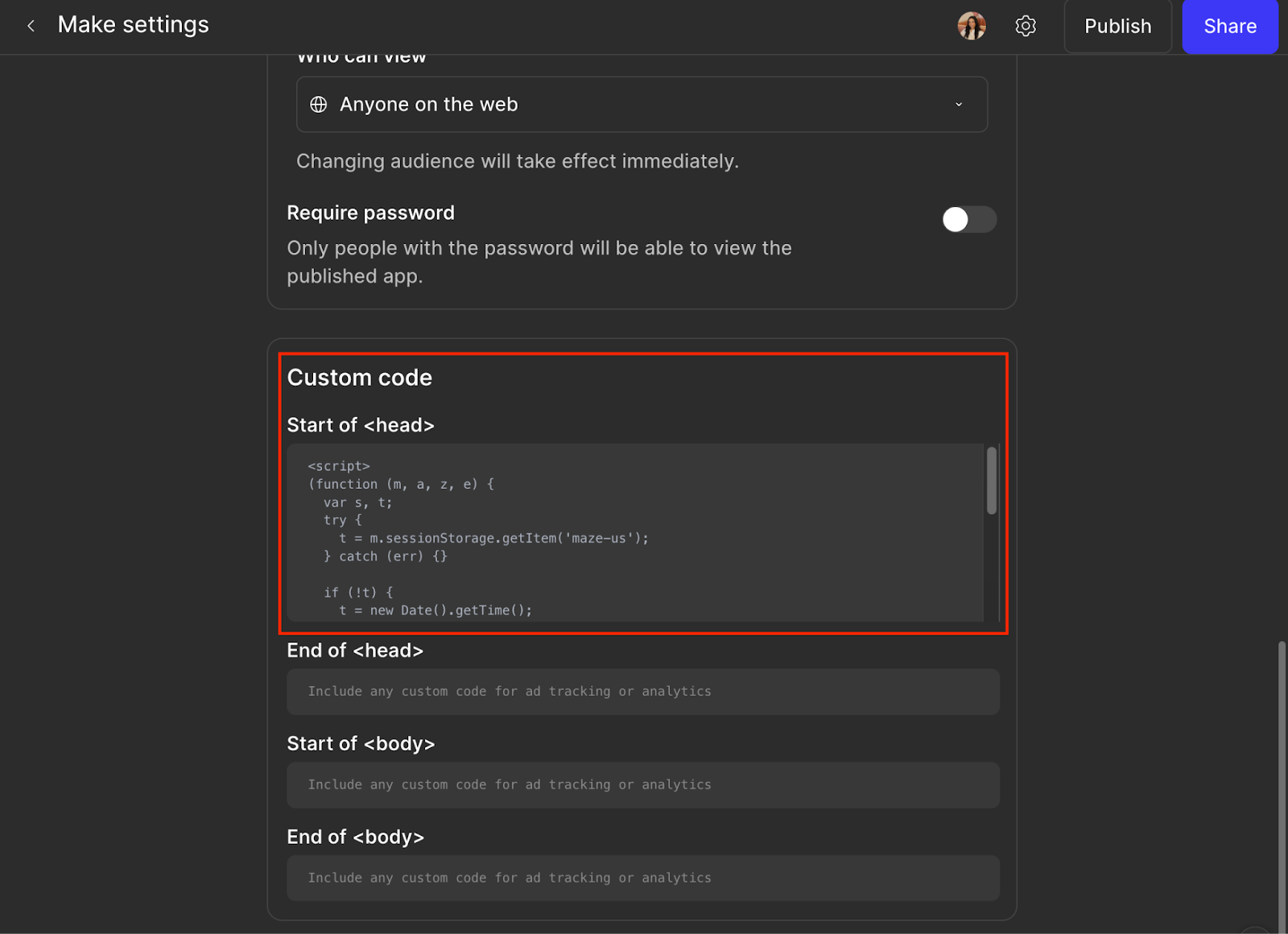
Paste Maze snippet into Start of under Custom code
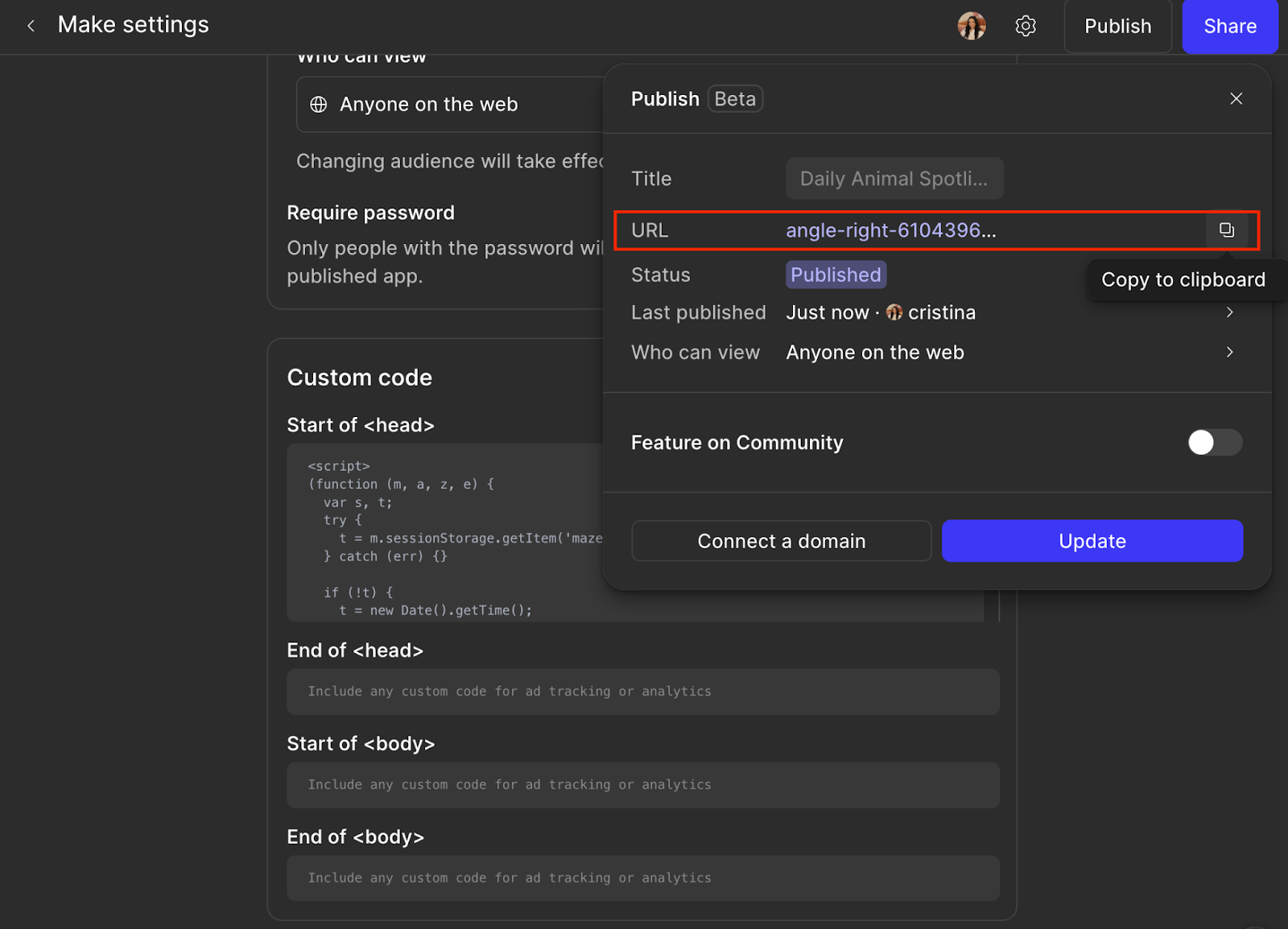
Hit the Publish button on the top right & copy the Make URL
Create a new study and add a Website Test block
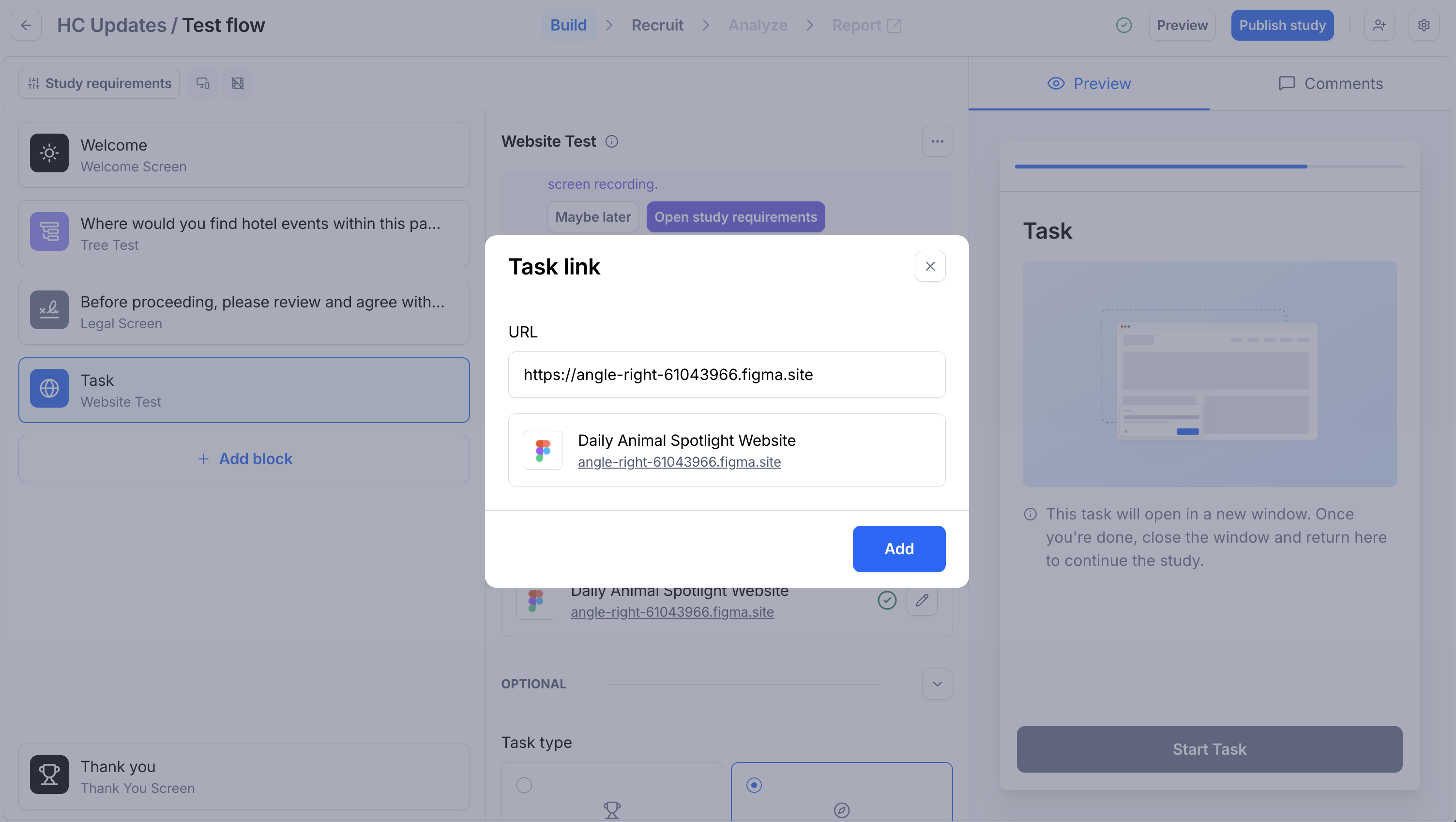
Click Add link under Task link, paste in the Make URL, and click Add
Still need help?
If you have any questions or concerns, please let our Support team know — we'll be happy to help!