Setting up an unmoderated study with the AI Study Builder
Last updated: August 3, 2026
The AI Study Builder is an AI-powered research assistant that helps you design rigorous, bias-free studies from a single prompt. Rather than starting from scratch, you can describe your research goal and let the AI generate a complete study structure — selecting appropriate blocks, drafting unbiased questions, and configuring key settings like device type and recording permissions.
In this article, you'll learn how to use the AI Study Builder:
Access the AI Study Builder
You can reach the AI Study Builder in two ways:
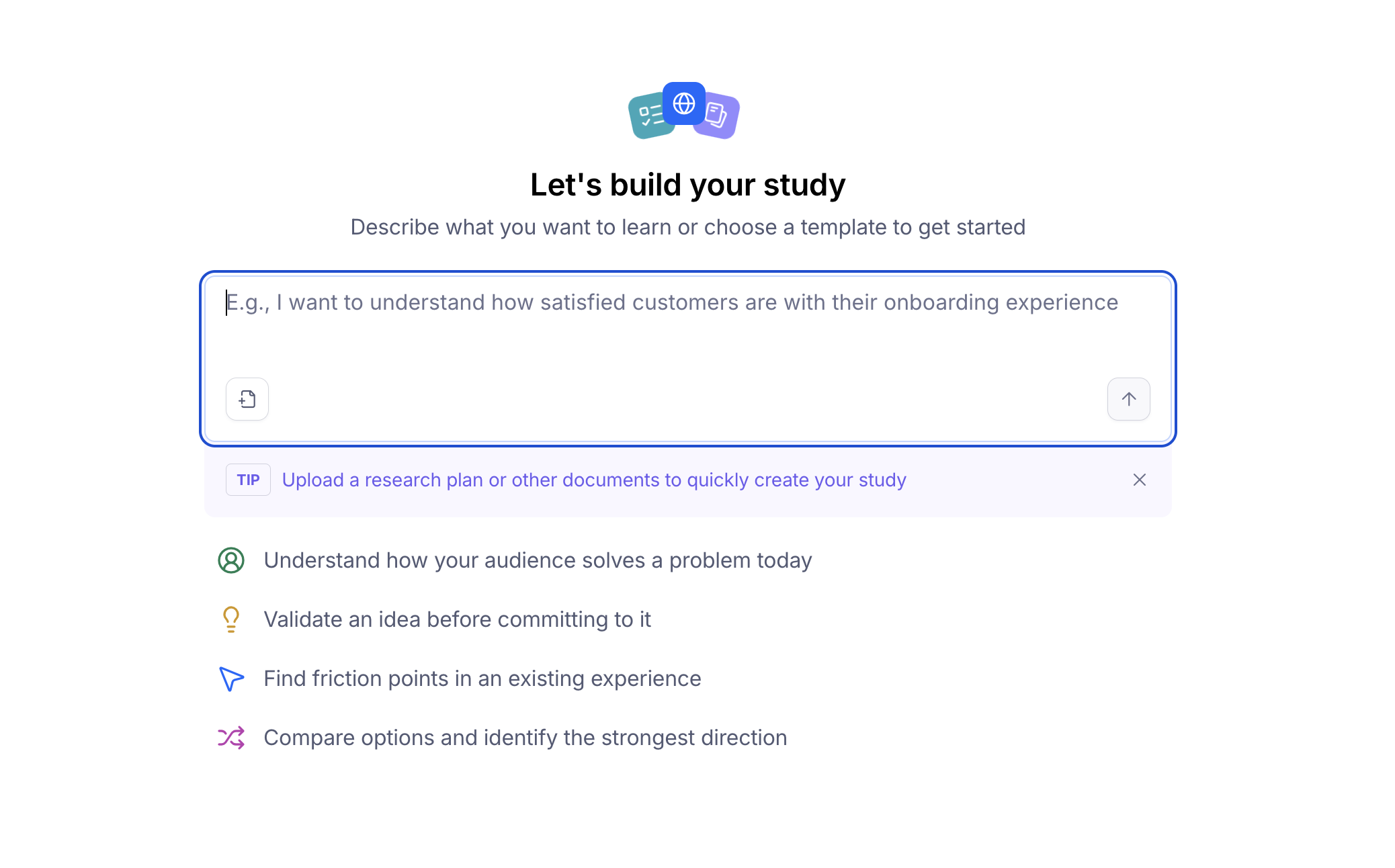
From the Home screen: Describe what you're trying to learn in plain language. Maze's AI Assistant will ask a few follow-up questions and recommend the best study type for your goal — if unmoderated is the right fit, you'll be handed off into the AI Study Builder with your context already carried over. You can also attach a file, like a research brief or PRD, to give the Assistant more context and sharpen its recommendation.
From within a project: Click the Unmoderated study card as your study type, then choose Build with AI to launch the AI Study Builder directly.

Describe your research goal
Once you're in the AI Study Setup Builder, describe what you're trying to learn in the chat. You can:
Write a free-form prompt — the more context you provide about your research objective, target audience, or the product you're testing, the more tailored your draft study will be.
Select a template to kick off the conversation with a pre-defined research scenario.
Attach images for the AI to use as context or as stimulus — for example, screens to react to in a preference test, or reference material to inform the study design.
Paste a link in the chat, either as background context (like a live product or competitor site) or as stimulus for participants to visit and respond to.
Note: When you attach an image or link, the AI may ask whether it should treat it as context (background information used to inform the study) or stimulus (something included directly in a block for participants to see and respond to).
Review the draft structure
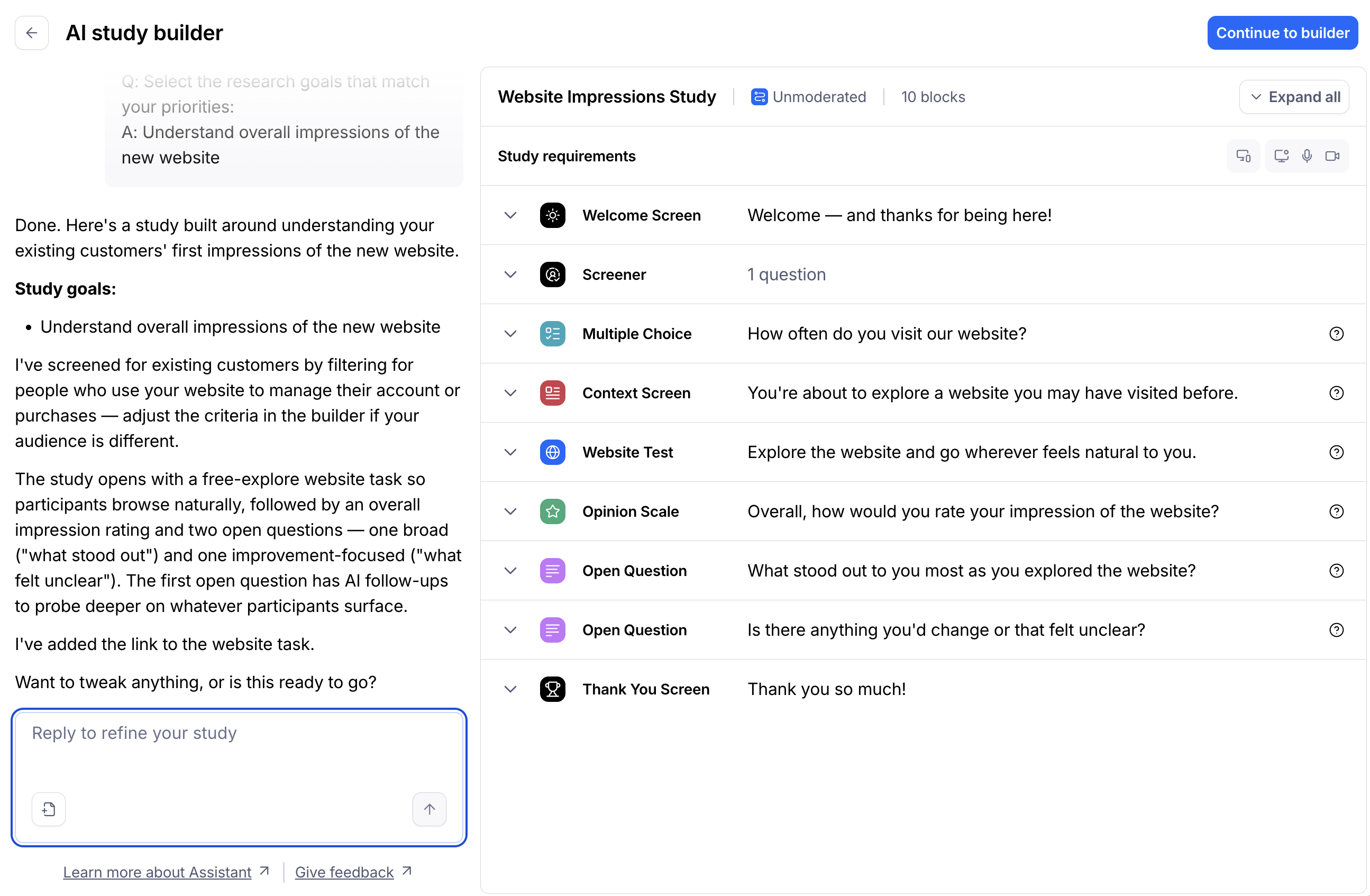
Based on your prompt, the AI will generate a suggested study outline that includes:
Recommended block types (e.g. prototype tests, card sorts, open questions)
A logical flow and order for your tasks and questions
Suggested question copy, written to minimize bias
Stimulus mapping: any attached images or links are mapped to the block they're most relevant to (for example, an attached screenshot mapped to a preference test block)
Take a moment to review the full draft before moving forward — this is your opportunity to shape the study before it's built.
Refine your study via chat
If the draft doesn't fully reflect what you need, iterate directly in the chat. You can ask the AI to:
Add or remove blocks
Rewrite or reframe specific questions
Adjust the study flow or logic
Clarify a research goal that feels too broad or vague
Attach an image or link to a specific block, or move an existing attachment to a different block
The AI will flag potential cognitive biases in your study design and suggest improvements where relevant.
Note: AI-assisted setup is a one-way flow. Once you move to the builder, you can't return to the AI setup experience — take the time to refine the structure in the chat before continuing.
Continue to the builder
When you're satisfied with the draft structure, click Continue to builder. The AI will confirm that you want to apply the change and then proceed to apply the study structure to the builder, pre-populating your blocks - including any attached images or links - based on the conversation.
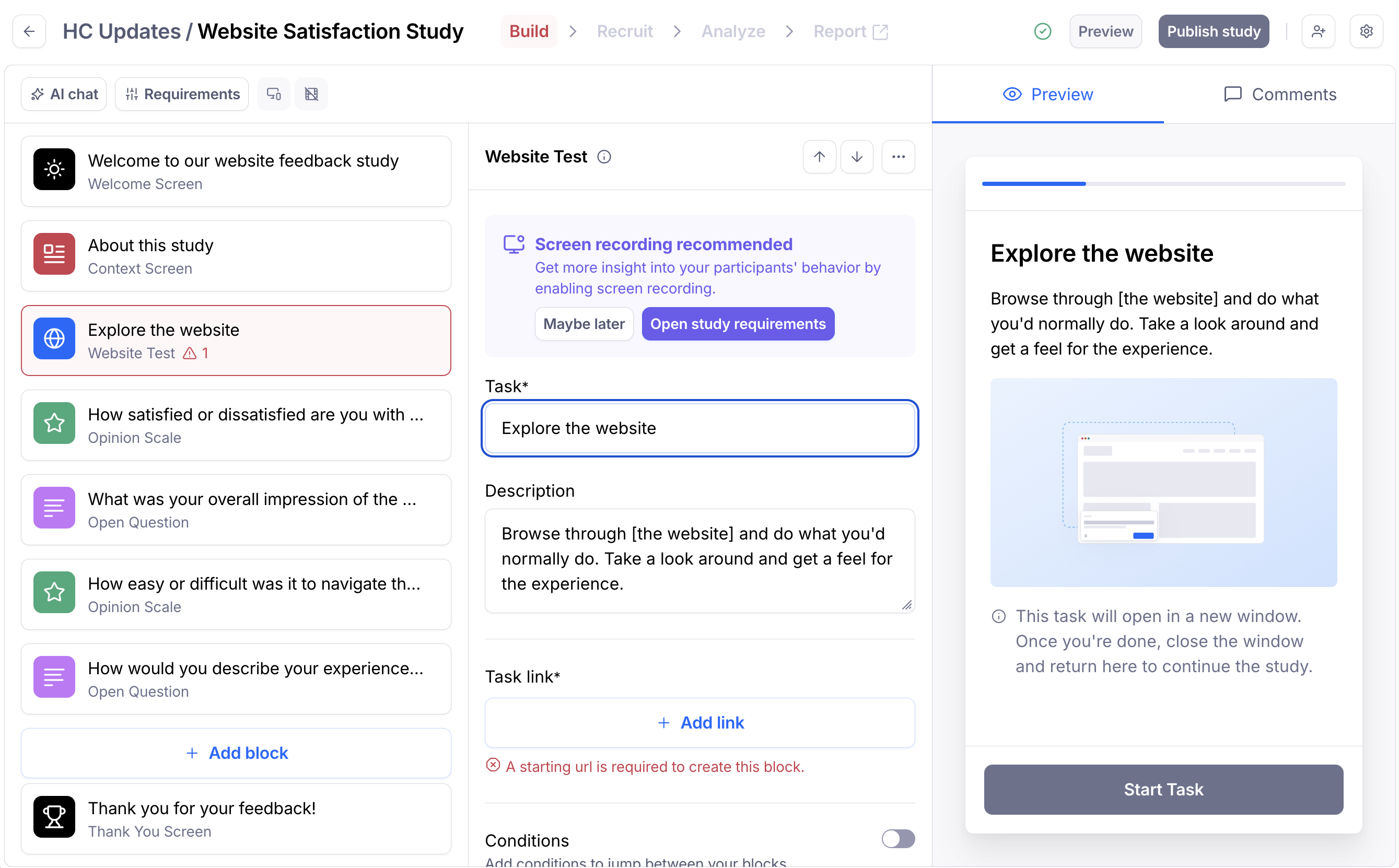
In the builder, any blocks that still require your input will appear in an error state. You'll be automatically dropped into the first block that needs attention so you can work through the configuration in order.
Note: The following features are not currently supported in the AI Study Setup Builder:
File uploads
Multi-select questions with an "Other" + text input option
Configure your blocks
Once you're in the builder, review and complete the configuration for each block. Depending on the block types included in your draft, this may involve:
Connecting a prototype or website URL
Adjusting task instructions or question copy
Setting device requirements or response options
Confirming that an attached image or link landed on the correct block, and adjusting placement if needed
Learn more about all the block types you can use. When your study is fully configured, you're ready to preview and publish.
FAQ
Do I have to start from the unmoderated creation flow to use the AI Study Builder?
No. You can also start from the Home screen by describing your research goal in plain language — Maze's AI Assistant will recommend a study type and, if unmoderated is the right fit, hand you off into the AI Study Builder with your context carried over.
Can I attach images or links as stimulus in an unmoderated study?
Yes. When you attach an image or link in the chat, the AI will ask (or infer from context) whether it should be used as background context or as stimulus for a block. Stimulus is automatically mapped to the block it's most relevant to, and you can reassign it during the refine step or in the builder.
What's the difference between context and stimulus?
Context is background information that helps the AI understand your research goal, audience, or product — it isn't shown to participants. Stimulus is content included directly in a block (like a preference test or open question) for participants to view and respond to.
Will the AI add content I didn't provide?
No. The AI Study Builder only uses the prompt, template, and attachments you provide — it won't invent study content on your behalf. If something is unclear or missing, it will ask rather than assume.
Still need help?
Our support team is ready to assist with any questions about unmoderated testing. Please contact us — we're here to help!