Add projects and workspaces to your favorites
Last updated: October 19, 2026
Add the projects and workspaces you use most to your favorites. They appear in the sidebar, so you can open them in one click.

Before you start
Favorites are personal. Only you can see your favorites, and adding or removing one doesn’t change anything for your teammates.
The Favorites section only appears in the sidebar when you have at least one favorite.
Private workspaces show the star icon only to workspace members.
Add a project to your favorites
You can add a project to your favorites from the Projects page or from inside the project.
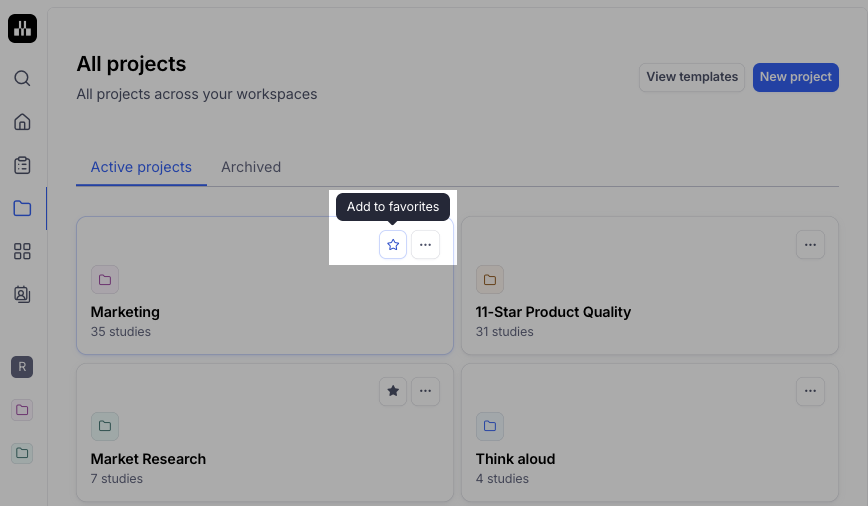
From the Projects page:
Hover over a project card.
Select the star icon (Add to favorites).
From a project:
Open the project.
Select the star icon next to the project name (Add to favorites).
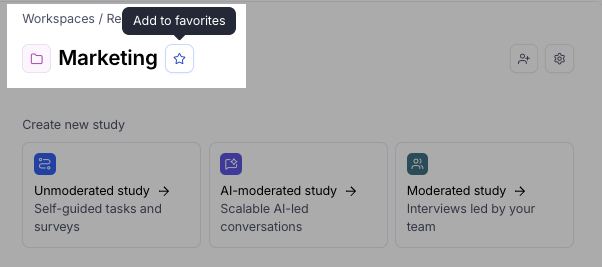
The project now appears under Favorites in the sidebar.
Add a workspace to your favorites
Open the All workspaces page, or open a workspace.
Select the star icon (Add to favorites).

The workspace now appears under Favorites in the sidebar.
Remove an item from your favorites
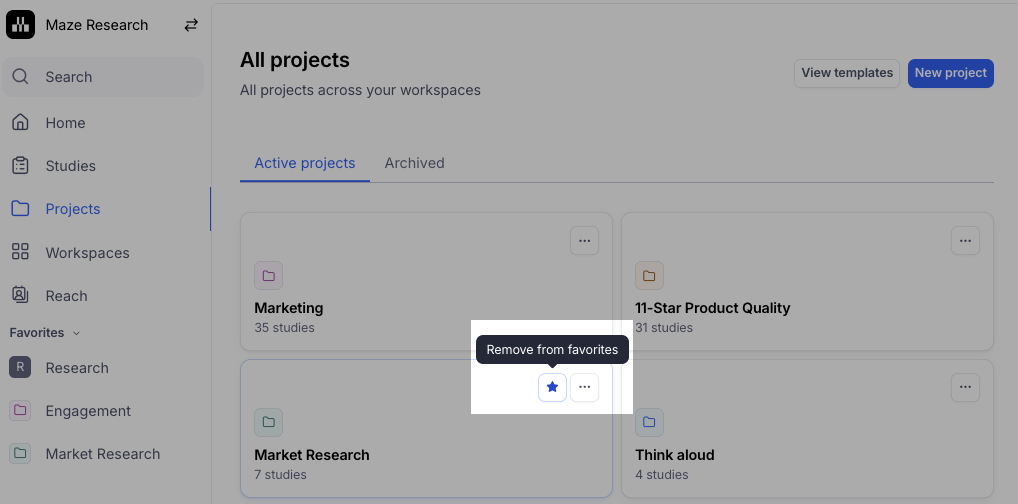
Select the filled star icon (Remove from favorites) on the project card, project page, workspace card, or workspace page.
Removing an item from your favorites doesn’t delete it or change who can access it.
Reorder your favorites
Drag and drop items in the Favorites section of the sidebar to change their order. Projects and workspaces share one list, and Maze saves your order.
Show or hide your favorites list
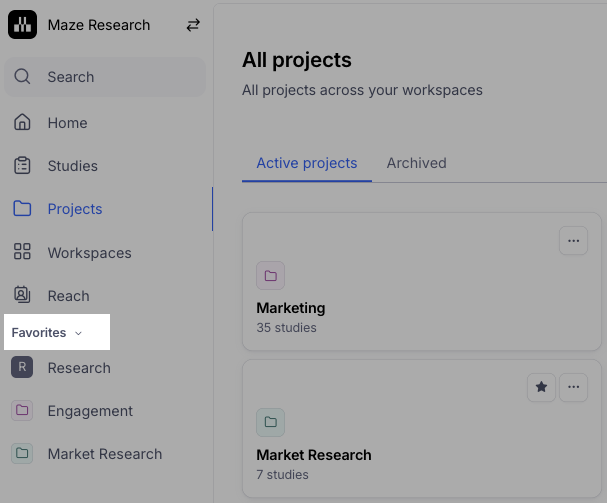
Select the Favorites heading in the sidebar to collapse or expand the list. Maze remembers your choice.
Tip: Add the projects you’re currently working in, and remove them when the work wraps up to keep your sidebar short.
Still need help?
If you have any questions or concerns, please let our Support team know — we’ll be happy to help!