Find what matters most with the MaxDiff block
Last updated: November 2, 2026
Use the MaxDiff block to find which choices matter most and least to participants. Participants compare a few choices at a time and pick the most and least important in each round. Maze uses those picks to rank every choice against the others.
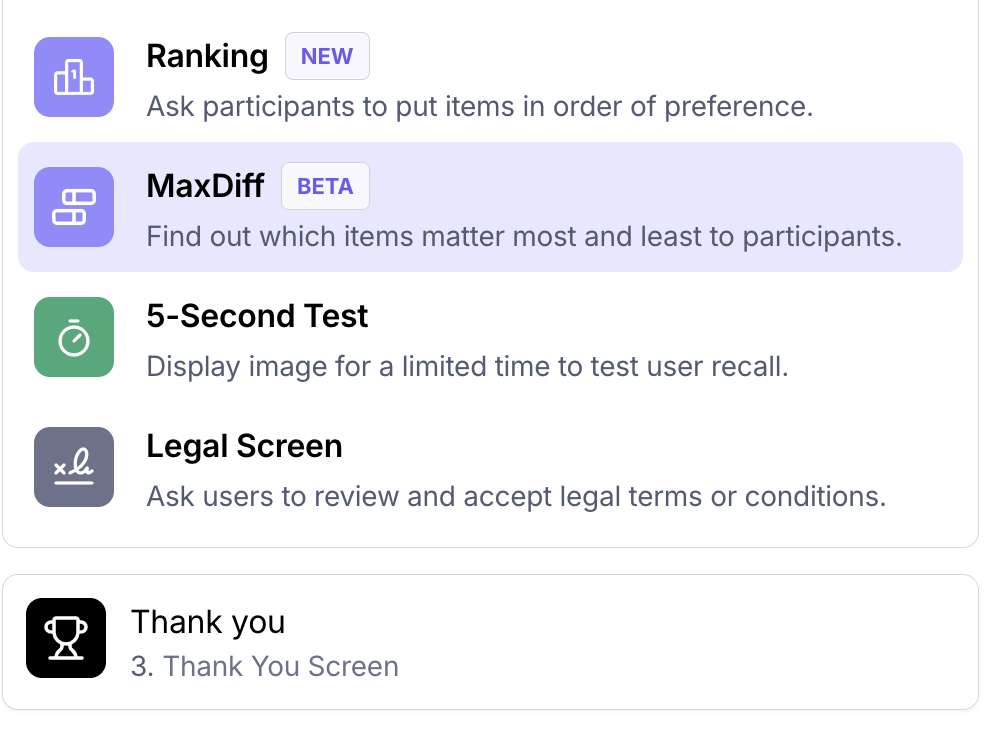
MaxDiff is in Beta for unmoderated studies on Enterprise plans. Look for the Beta badge in your block list. We'd love to hear what you think: select Give feedback in the block menu or next to the block title in your results.
When to use the MaxDiff block
Use MaxDiff when you have a long list of features, messages, claims or benefits and need to know which ones matter most. Rating scales tend to show everything as "important", and asking participants to rank a full list gets hard after about 7 items. MaxDiff forces a trade-off in every round, so the differences between choices are clearer.
Use MaxDiff to find which choices matter most and least across a longer list.
Use Ranking when participants should put a shorter list in order.
Use Multiple Choice when participants need to choose one or more options from a list.
Use the Matrix block when participants need to rate many statements on the same scale.
Add a MaxDiff block
Open your maze in the builder.
Add a new block.
Select MaxDiff.
Enter your question in the title field.
Optionally, select Add notes to give participants more context.
Choose whether the block is required.
If the block is required, participants must pick a most and a least choice in every round. If it isn't required, participants can skip the block.
Set up your block
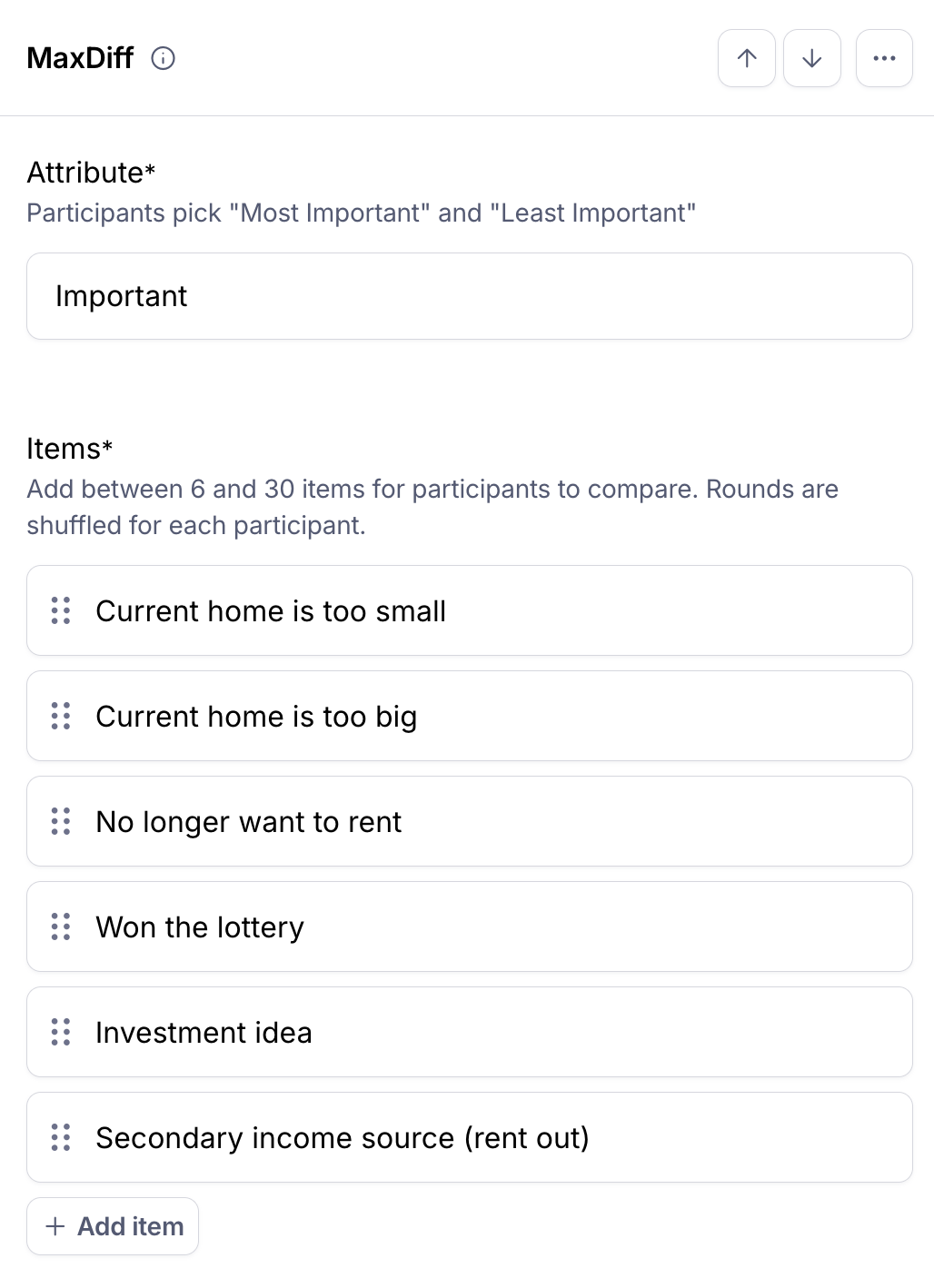
Attribute
The attribute is the quality participants judge, such as important, appealing or useful. Participants see it in the column headers as Most {attribute} and Least {attribute}. For example, the attribute appealing gives Most appealing and Least appealing.
The attribute is optional. If you leave it empty, participants see Most and Least. The attribute can be up to 30 characters.
Choices
Add between 6 and 30 choices. Each choice can be up to 50 characters.
You can:
Add an image to a choice
Reorder choices
Paste a list to create several choices at once (each line becomes one choice)
Choices shown per round
Choose how many choices participants compare in each round: 3, 4 or 5. To keep trade-offs meaningful, you can show at most half your total choices per round:
Total choices | Max choices per round |
|---|---|
6–7 | 3 |
8–9 | 4 |
10 or more | 5 |
If you remove choices, Maze lowers this setting automatically when needed.
Rounds
Maze calculates the number of rounds for you, so each participant sees every choice about 3 times. The builder shows how many rounds each participant will see.
Rounds = 3 × number of choices ÷ choices shown per round, rounded up, up to a maximum of 20 rounds.
For example, 12 choices shown 4 per round gives 9 rounds.
With a long list, the 20-round maximum can mean each participant sees each choice fewer times. If it drops below 2 views per choice, you'll see a warning. Between 2 and 3 views, you'll see a note that individual participant scores are less precise; results across all participants aren't affected. To fix it, show more choices per round or use fewer choices.
Participant experience
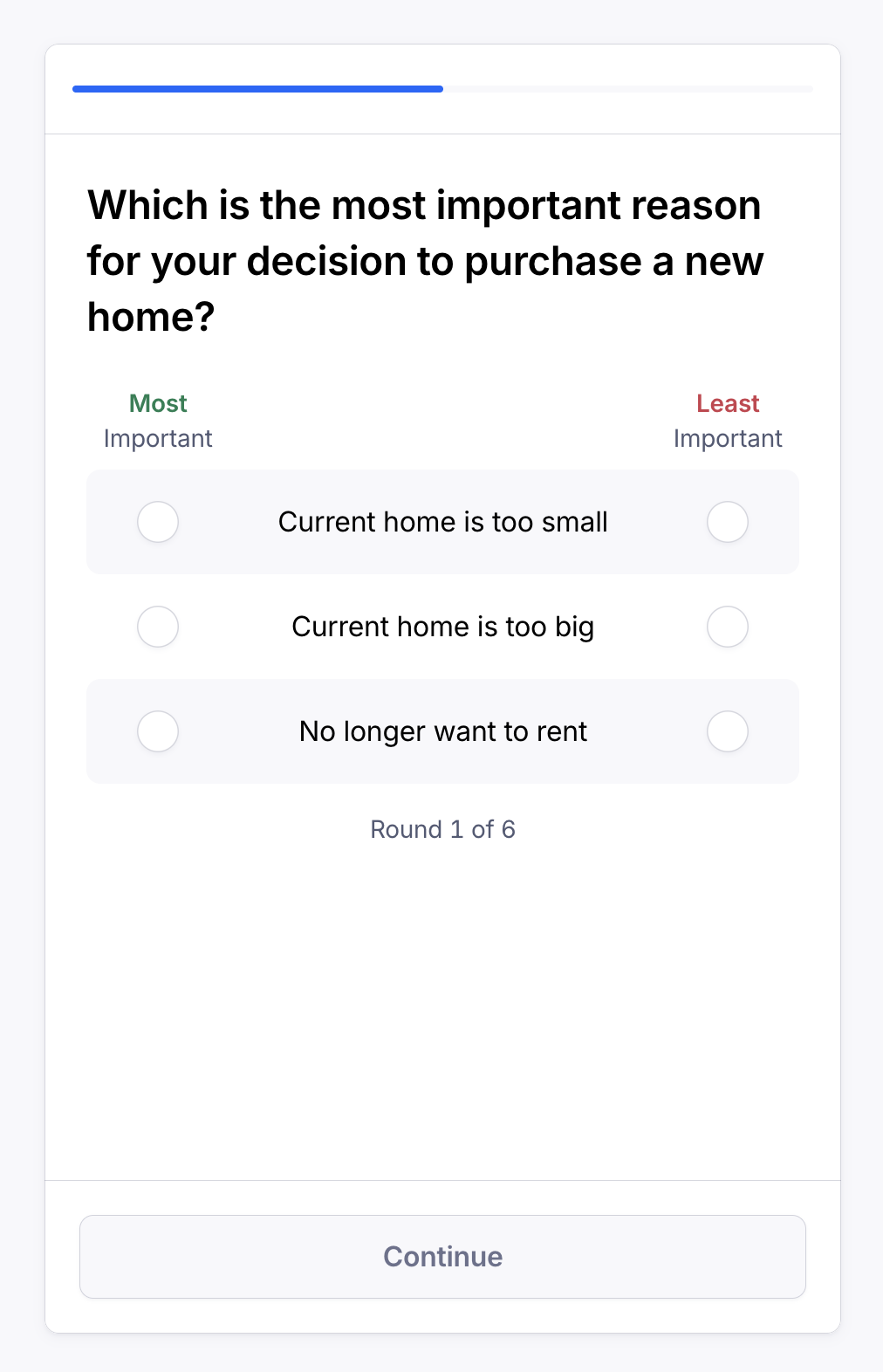
Participants see one round per screen.
Each round lists the choices, with Most {attribute} on the left and Least {attribute} on the right.
Participants pick one choice in each column. Continue stays disabled until both picks are made.
A counter under the choices shows which round they're on [confirm exact wording].
Participants can't go back to an earlier round or skip ahead.
If the block isn't required, participants can select Skip.
Each participant sees a different, balanced mix of choices, so every choice appears about the same number of times.
How scores work
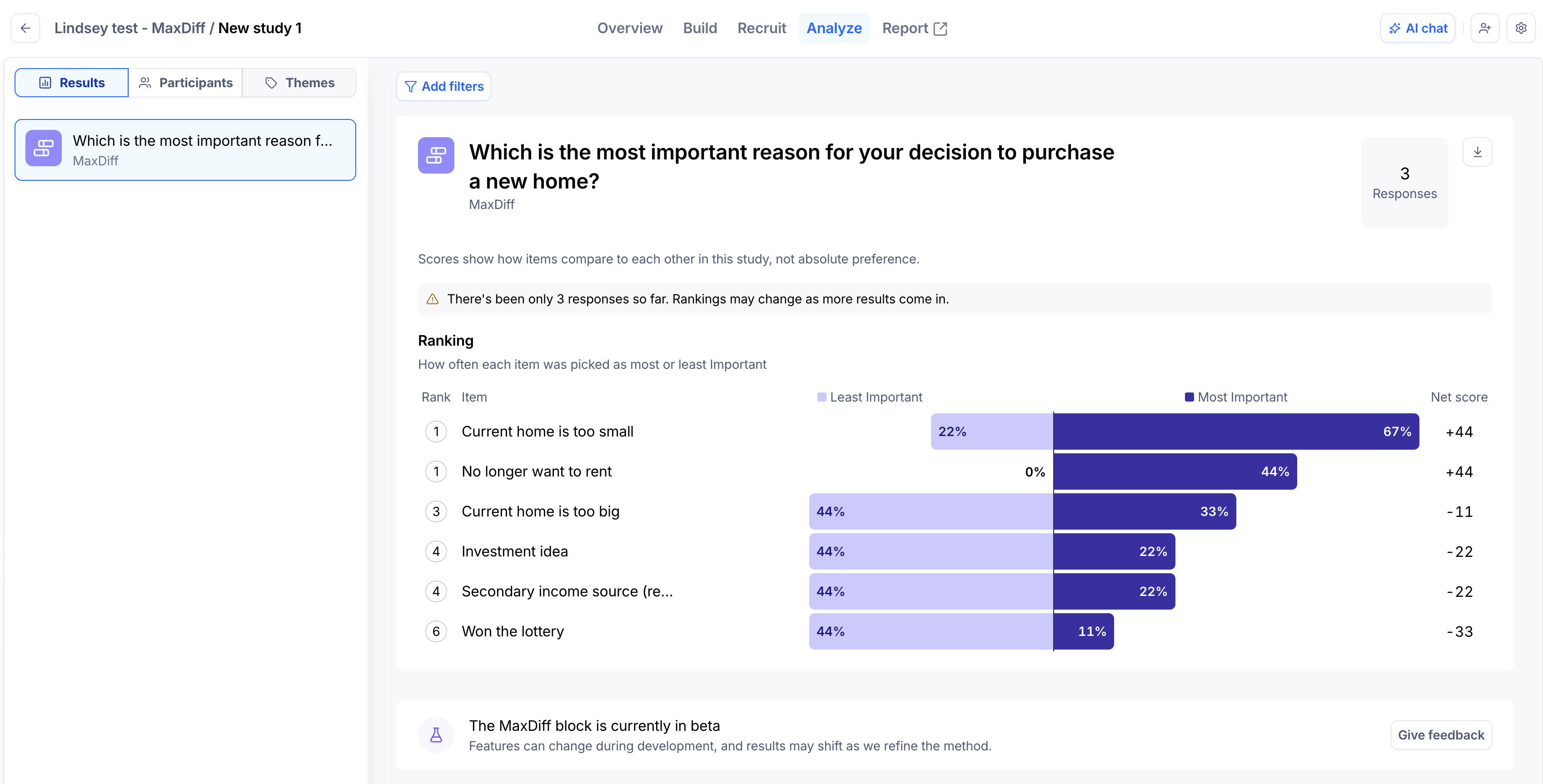
Each choice gets a net score:
Net score = % of times picked as most − % of times picked as least
Percentages are based on how many times the choice was shown. Net scores range from −100 to +100. For example, a choice picked as most in 49% of the rounds it appeared in, and as least in 8%, has a net score of +41.
A positive score means the choice was picked as most more often than as least.
A negative score means it was picked as least more often.
A score near zero means it was picked both ways about equally, or rarely picked at all.
Choices with the same net score share a rank.
Choices that were never shown display as Not shown and rank last.
Scores are relative. They rank choices against each other and don't measure how much participants like a choice in absolute terms.
Read the results
In your results, the Best and worst section shows:
A chart with one bar per choice, ranked by net score. Bars start at a center line: positive scores extend right, negative scores extend left.
A table with these columns for each choice: Shown (times each participant saw it), Best and Worst (% of times shown), and Net [confirm whether Share shipped].
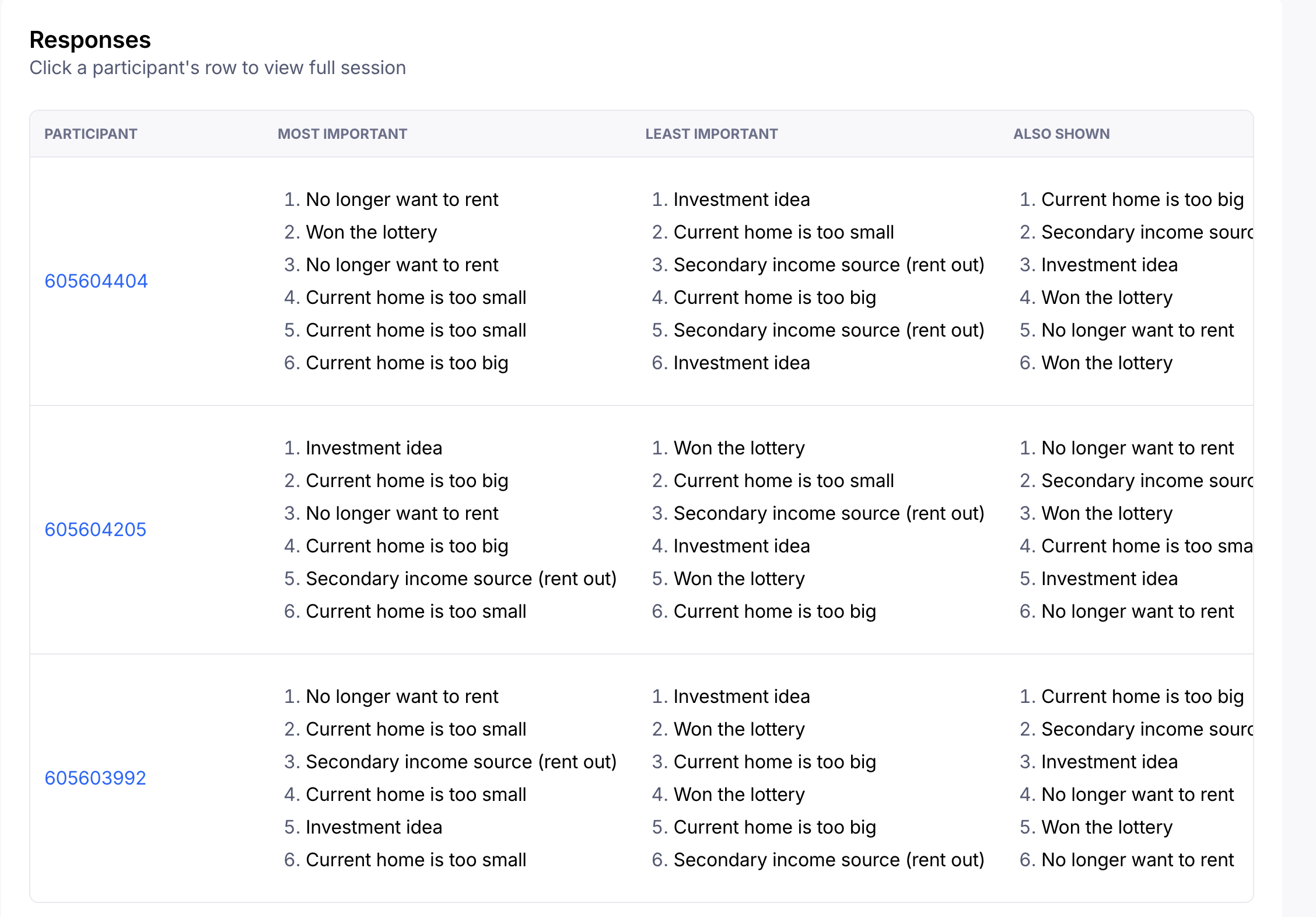
Below, the responses table shows each participant's picks in every round: what they picked as most, what they picked as least, and the other choices they saw. Select a participant to see their full set of answers.
You can also:
Filter results by MaxDiff picks
Export the block or the whole study as a CSV, with every round's choices and picks
Include MaxDiff results in shared reports
Get MaxDiff answers in Slack notifications
Build or analyze MaxDiff blocks with the AI Study Builder and Maze MCP
Use MaxDiff answers in logic
You can use MaxDiff answers in logic conditions to send participants to a later block. Branching options include:
Most picked best
Most picked worst
Picked best at least once
Picked worst at least once
You can also show or skip a MaxDiff block based on answers to earlier blocks.
Limits and locked settings
6 to 30 choices per block, up to 50 characters each
Attribute up to 30 characters
3 to 5 choices shown per round, up to half your total choices
Up to 20 rounds per participant
Choice images don't appear on the smallest phone screens [confirm]
Participants who leave partway through the block don't leave MaxDiff data, so the block can show fewer responses than the study [confirm]
MaxDiff isn't available in AI-moderated studies
Once your study has responses, you can't change the choices, choices shown per round or number of rounds. You can still edit the title, notes, attribute and Required setting. To test a different list, add a new MaxDiff block.
Best practices
Keep choices short, distinct and the same kind of thing, so they're easy to compare.
Don't add two choices with the same label. Results show them as separate rows you can't tell apart.
Pick one attribute per block. To judge two qualities, add two MaxDiff blocks.
Check the builder for warnings about how often choices are shown before you launch.
Add an open question after the block to ask participants why they picked what they did.
Wait for enough responses before acting on the ranking. Rankings can shift as more participants answer.
Still need help?
If you have any questions or concerns, please let our Support team know — we'll be happy to help!