Analyzing unmoderated study screener performance
Last updated: September 4, 2026
When you add a screener block to an unmoderated study, Maze shows you how participants performed on the screener directly on the Results page — including who qualified, who was disqualified, and how participants answered each question.
What you'll see
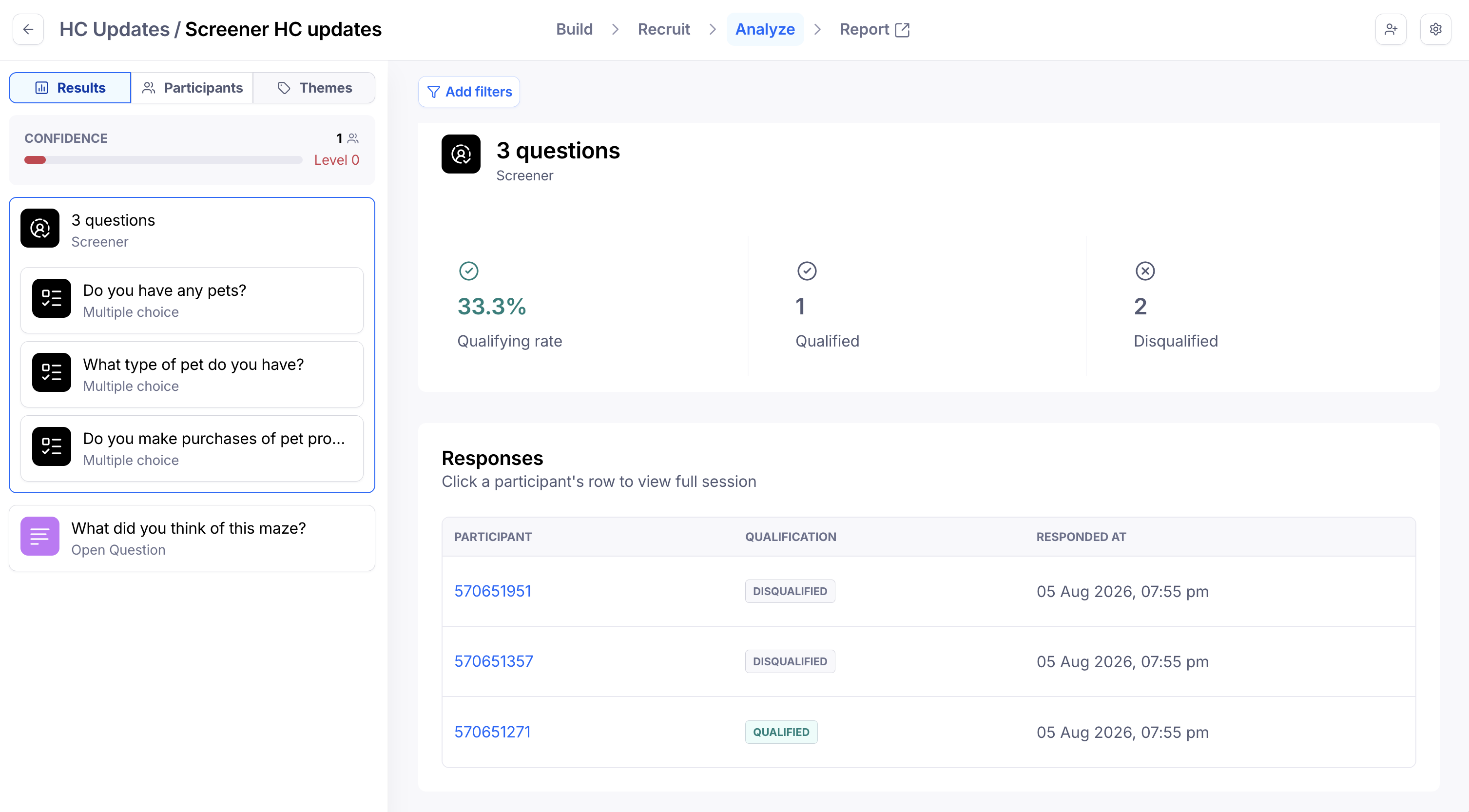
The Screener block appears in the left sidebar of the Results page, alongside your other blocks. It shows the number of questions in the screener and expands to show one row per question.
There are two views:
Screener overview — click the Screener block header to see:
The overall qualifying rate
How many participants qualified and how many were disqualified
A full table of participant responses, with a Qualified or Disqualified badge for each
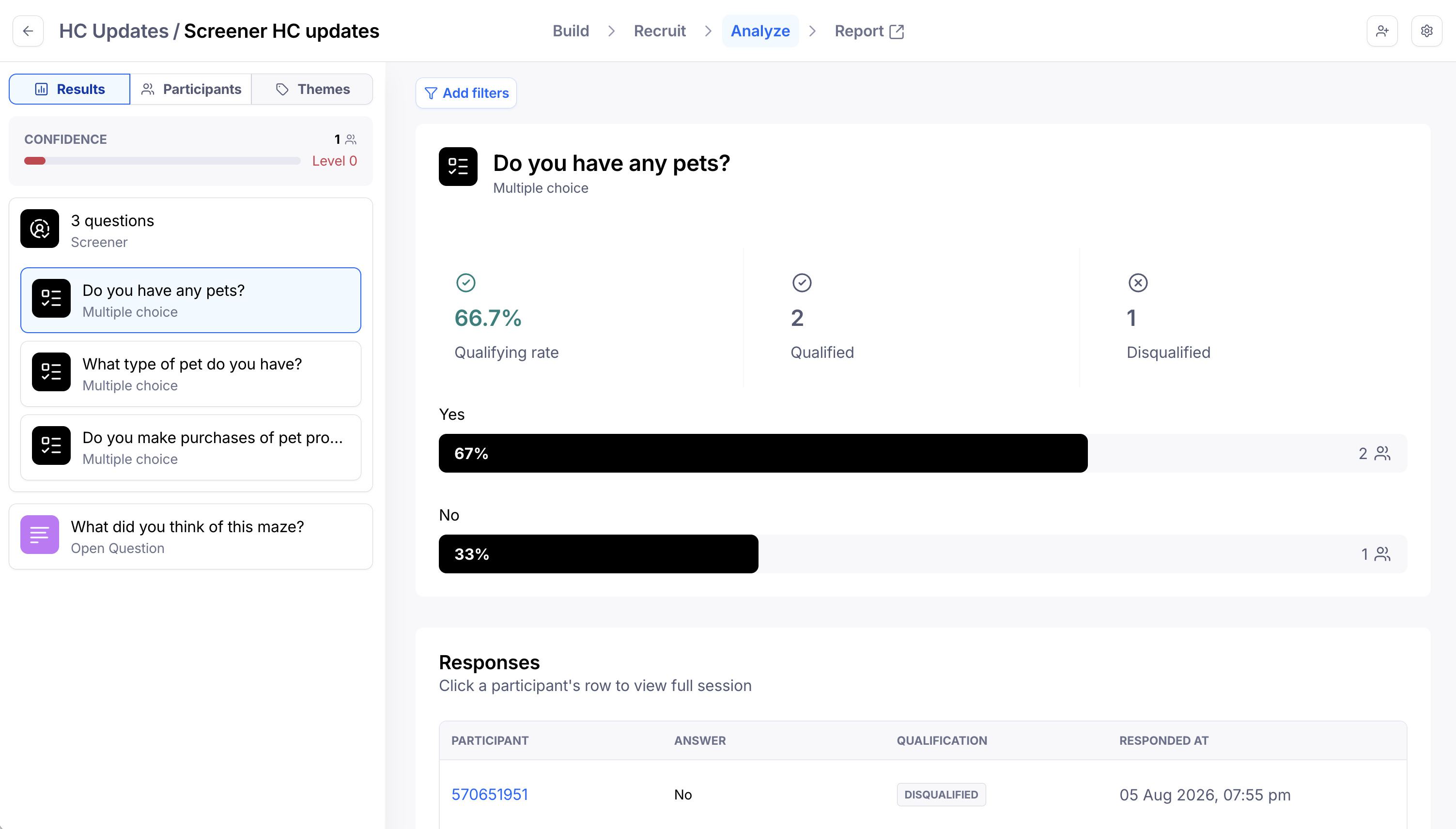
Question view — click a specific question to see:
The qualifying rate and counts for that question
A bar chart showing how participants answered
A table of participant responses for that question
Viewing individual participant responses
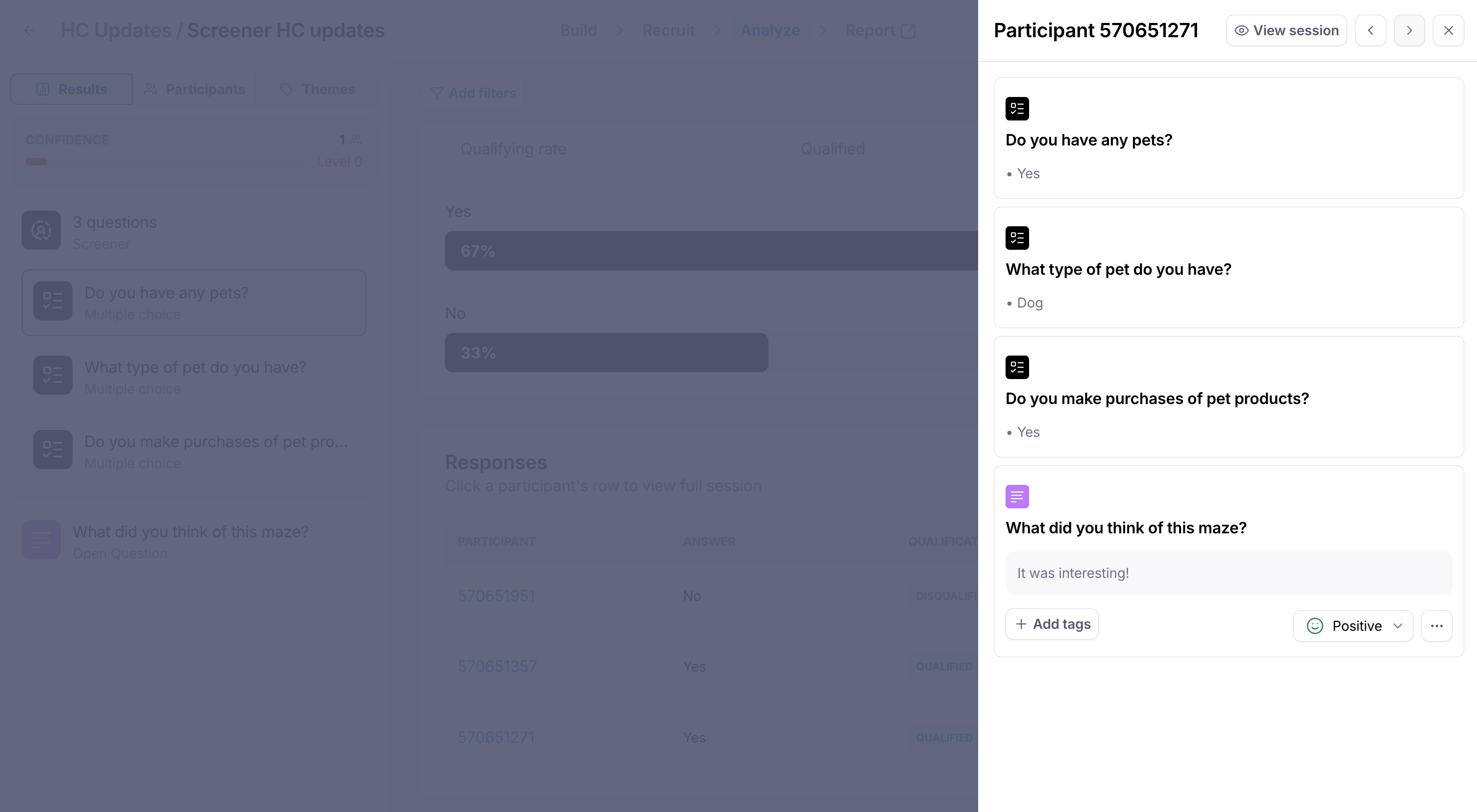
Click any row in the responses table to open a side panel with more detail.
Qualified participants — you'll see their full study session, and can click View session to jump to their complete results
Disqualified participants — you'll see their screener responses only; their session is not recorded since they did not complete the study
Use the arrow buttons in the side panel to move between participants.
Filtering results
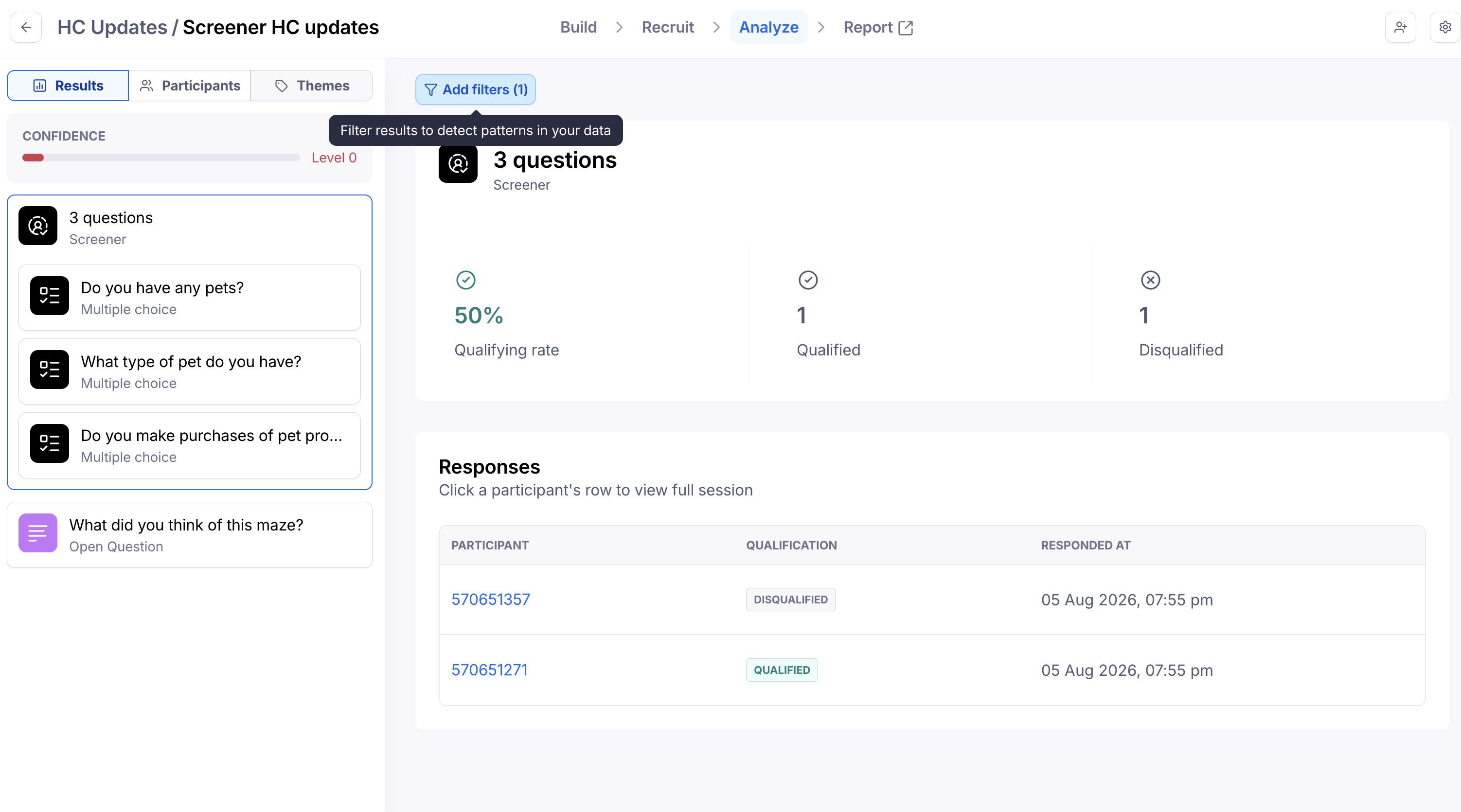
You can use Maze's existing result filters while viewing screener data. The qualifying rate, counts, and response tables will update to reflect the filtered set of participants.
For example, if you want to see the distribution of how customers who completed your study answered screener questions, simply click “Add filters” —> select “Participant metadata” —> “Study completion” —> “is True”.
Alternatively, if you want to see specific screener data like how many participants answered "yes" to a specific screener question, simply click "Add filters" —> select “Screener” —> your desired screener question —> “Has any of these selected" —> “Yes"
Availability
Screener results are available on any unmoderated study that has:
A custom screener block added in the study builder
At least one recorded screener response
The Screener block will not appear in Results until a participant has completed or attempted the screener.
FAQs:
Can I share a direct link to a specific screener question’s results?
Deep-linking to a specific question is not currently supported. Sharing a link from the Screener block always opens the overview.
Can I export a CSV of screener block results?
You cannot export a CSV of the screener block at the block level today. However, you can still export screener data at the session-level by exporting the CSV for the entire study. Each screener question and its answers will show up as a separate column.
What study types support the screener block in Results?
The dedicated Screener block in Results is currently available only for unmoderated studies. That said, we’re always working to improve the Results experience and will update you if this capability expands to additional study types.
Why do I see a screener question in Results that I did not add in the builder?
In some cases, to optimize recruitment outcomes and help you reach the right participants, our Panel Ops team may add additional screener questions to postings on our panel partners’ portals. As participants complete screeners on our partners’ platforms, their questions and answers appear in your study’s results so you have a clear picture of the participants recruited on your behalf.
Still need help?
If you have any questions or concerns, please let our Support team know — we'll be happy to help!