[Prototype test] Running a first-click test on a static image or screenshot
Last updated: November 13, 2026
If you have a static image, such as a screenshot or an exported design, you can still run a first-click test on it without building interactions in Figma.
Maze defines successful clicks using the elements in your Figma file, rather than areas drawn directly on an image in Maze. To mark parts of a static image as successful, place your image in a Figma frame and add a simple rectangle over each area you want to count. These rectangles don't need any prototype interactions.
Before you start
You'll need edit access to a Figma file.
Every clickable area you want to track as a success needs its own element in Figma. Clicks outside those elements are recorded as misclicks.
Prepare your image in Figma
Create a new frame and add your static image to it.
Draw a rectangle over each area you want to count as a successful click.
Set each rectangle's fill opacity to 0% so the image shows through.
Give each rectangle a unique, descriptive name (for example, "Pay bills button" or "Search bar"). This makes the areas easier to identify when you set up the task in Maze and review results.
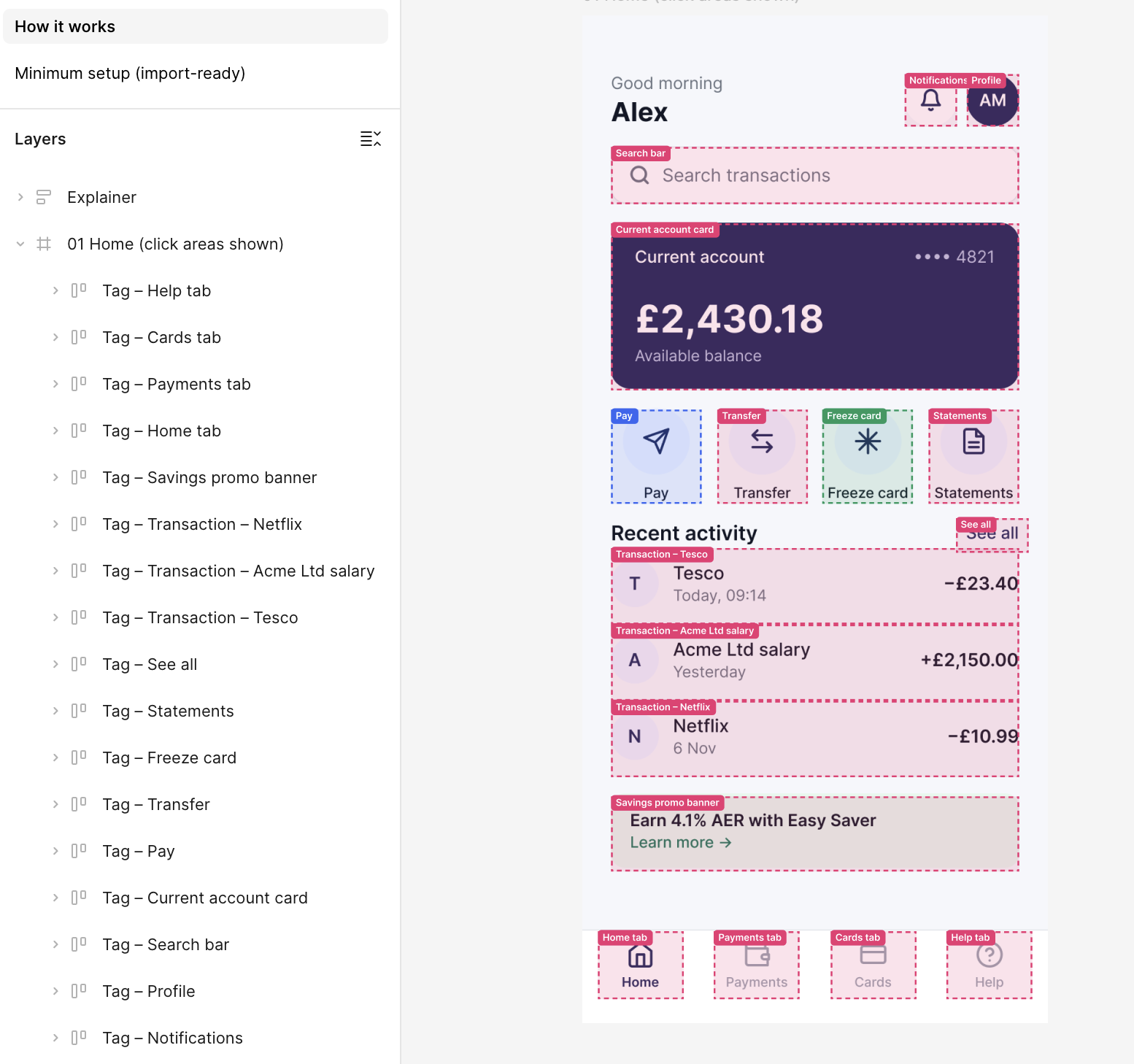
In the Prototype tab, add a Flow starting point to the frame containing your image.
Add a second frame to the same page. This frame can be empty and doesn't need any connections. Maze requires at least two frames to import a prototype.
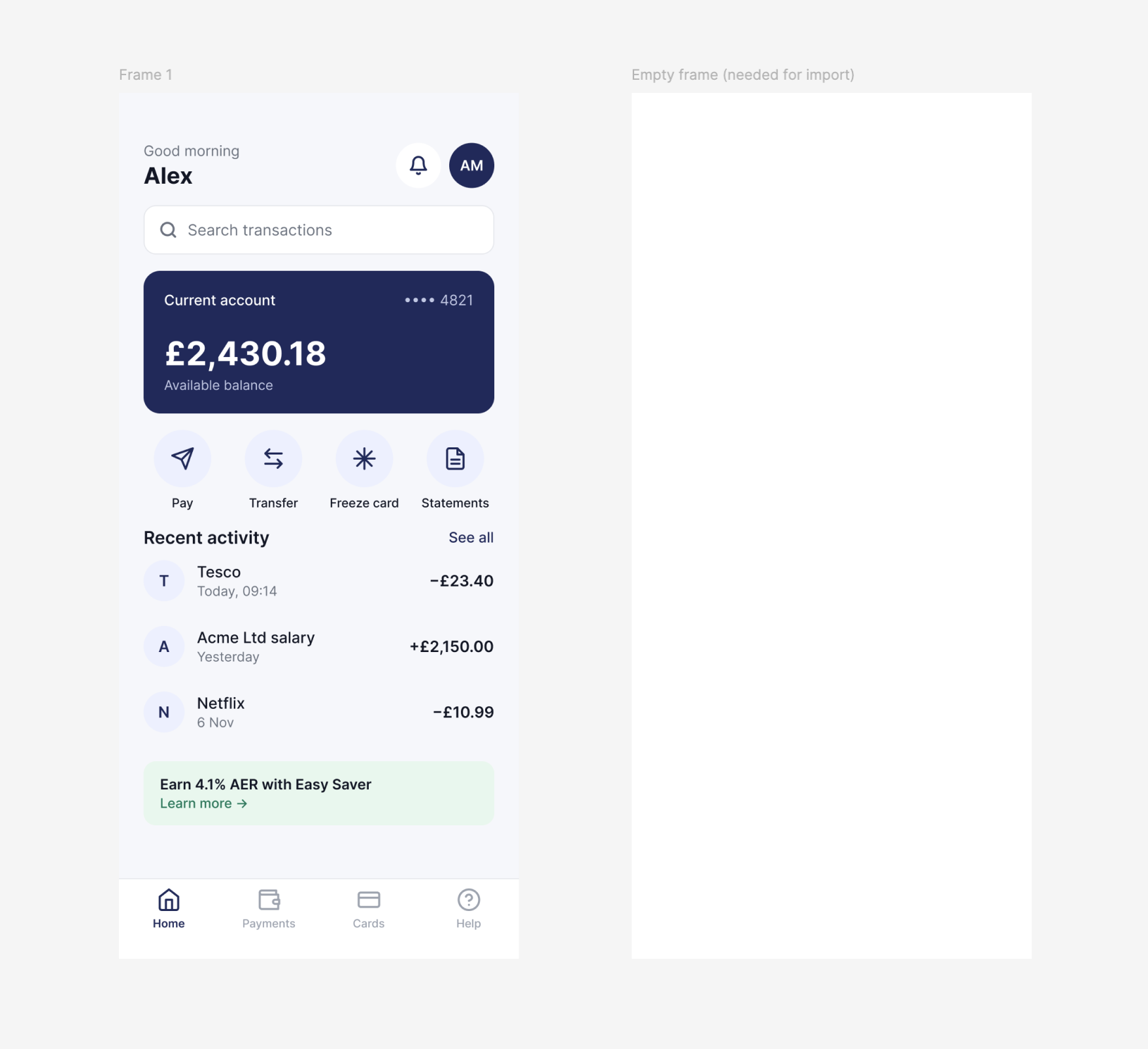
Click Share, set access to Anyone with the link can view, and copy the prototype link.
You don't need to add interactions or hotspots in Figma. Maze attributes each click to the element that was clicked, even if that element isn't interactive.
Set up the first-click task in Maze
Add a prototype test block and import your prototype by pasting the link you copied from Figma.
Write your task instructions, for example, "Where would you click first to pay a bill?"
Under Task type, select First Click.
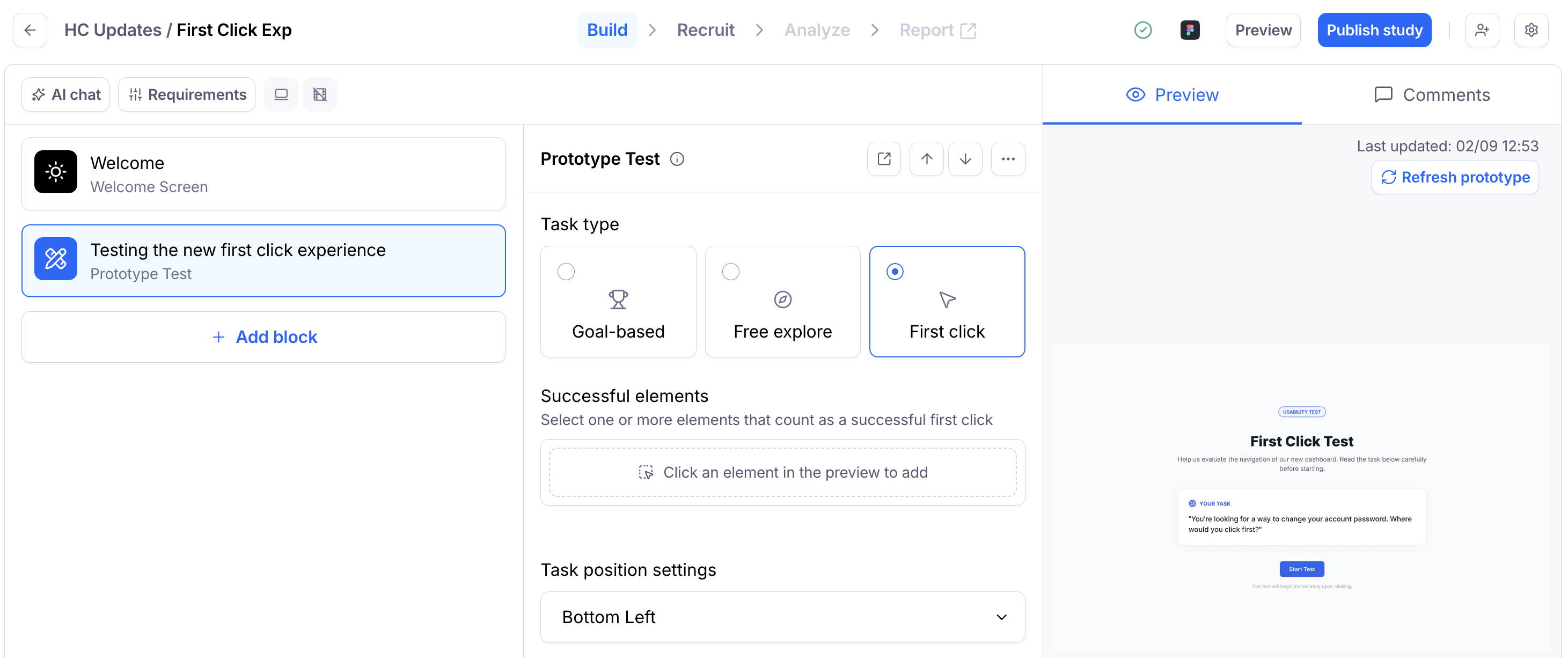
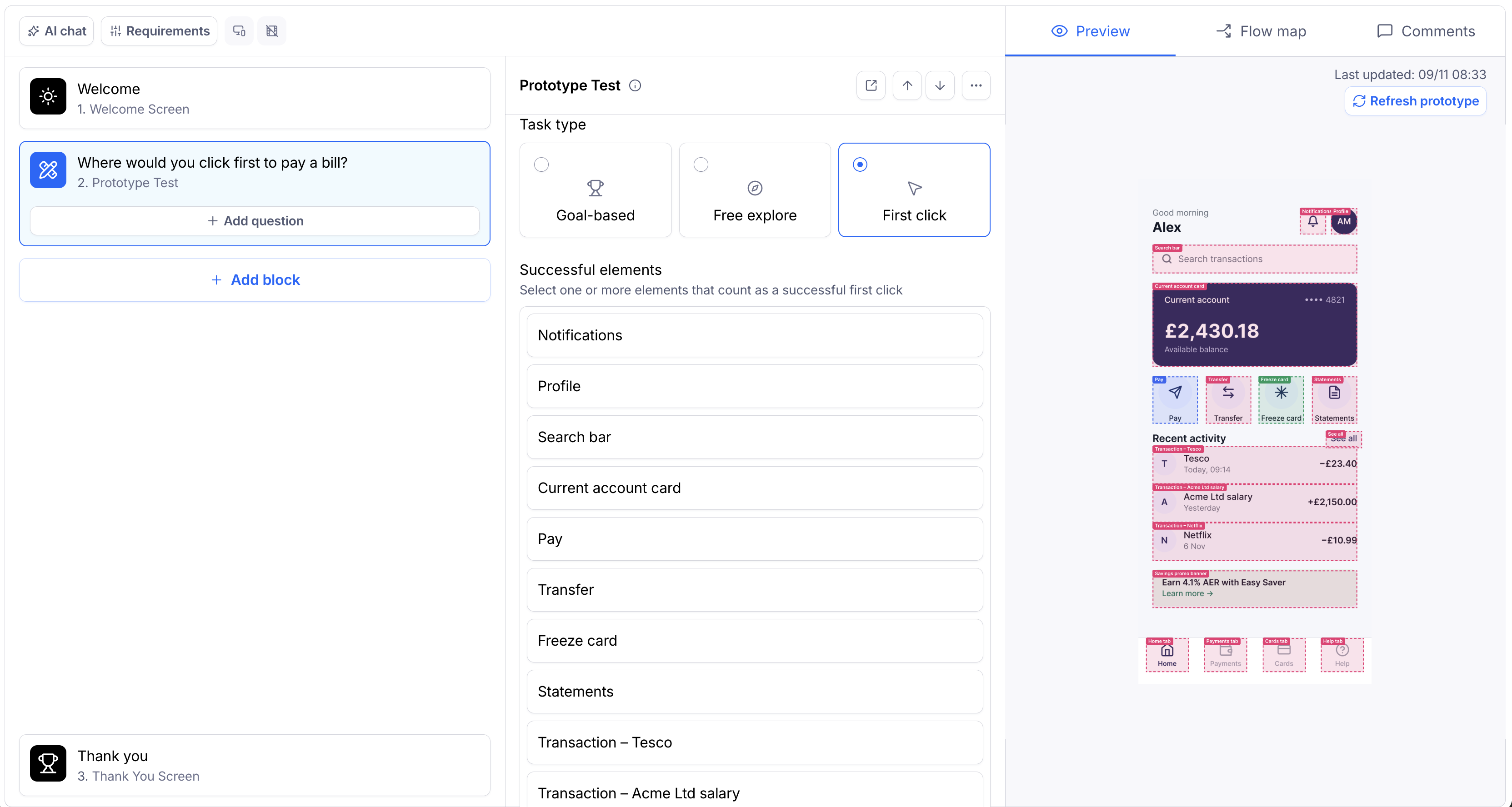
In the prototype preview, click each rectangle you drew to mark it as a successful click area.
Review your selected success areas and adjust them if needed.
Troubleshooting
I get an error when importing the prototype. Check that:
The image frame has a flow starting point.
There's at least one other frame on the same page.
The prototype is shared as Anyone with the link can view.
I can't select an area as a success. Success areas must be Figma elements. Make sure there's a rectangle (or another element) covering that area in your Figma file, then re-sync your prototype in Maze.
Still need help?
If you have any questions or concerns, please let our Support team know — we'll be happy to help!