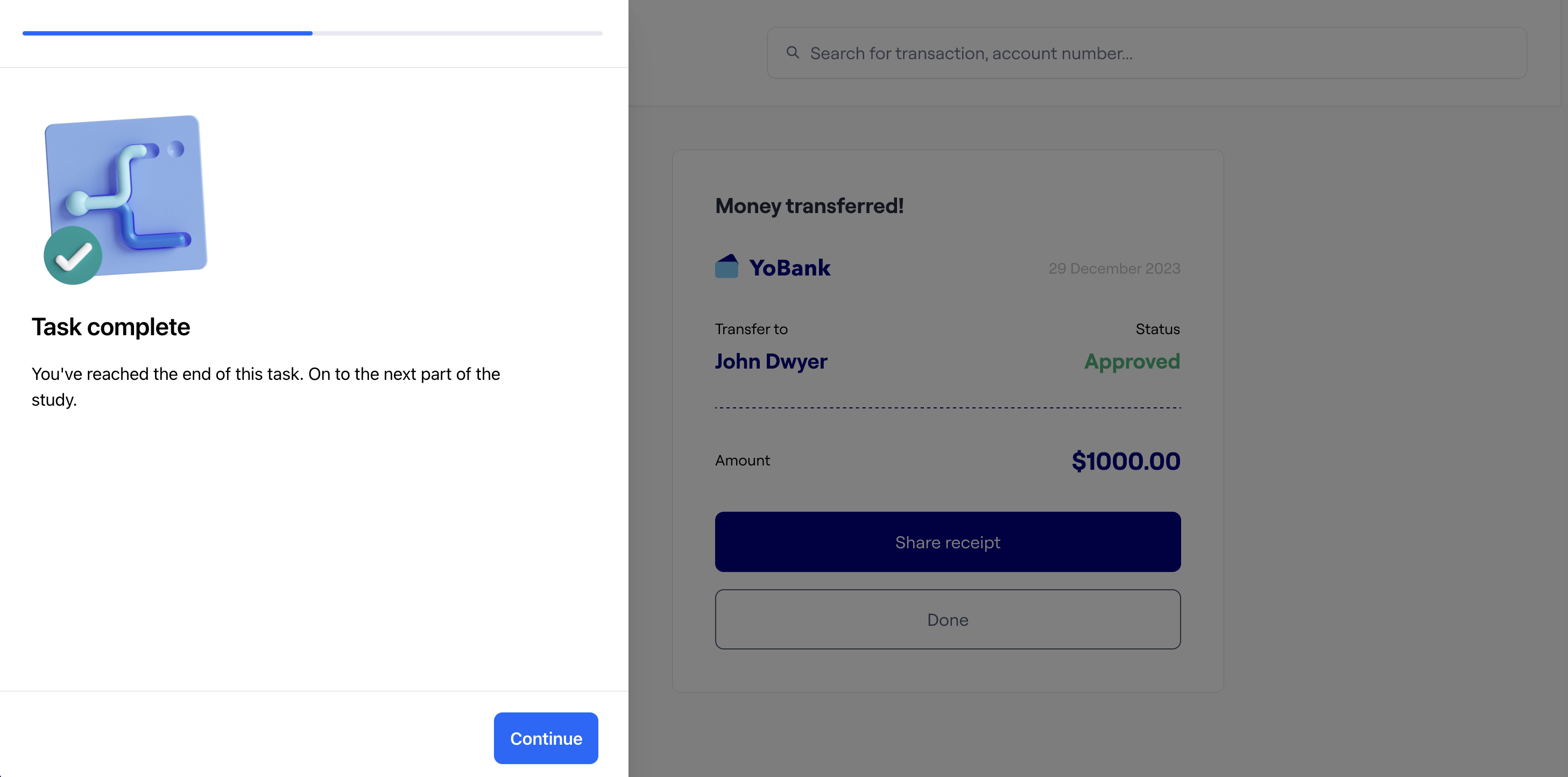
[Prototype test] Interacting with a prototype test
Last updated: August 7, 2026
This article gives you an overview of how prototype tests look like for your participants.
Previewing
Be sure to thoroughly preview your study on representative devices before sharing it with participants. This is particularly important if you expect them to test with a mobile device. If you know that your participants may be using older phones, test with the oldest phone you have. This will make sure that the study works as expected from start to finish.
Using the Quick Look feature
You can preview each prototype block in your study separately. This makes it quick and easy to ensure the test is ready for participants.
To preview a single mission in your study:
Open your draft study.
Click the specific mission you want to preview.
Click the Quick look button in the top right.

Previewing an entire study
You can also test an entire study from start to finish without recording interactions.
Learn more about previewing your studies before publishing
Starting the test
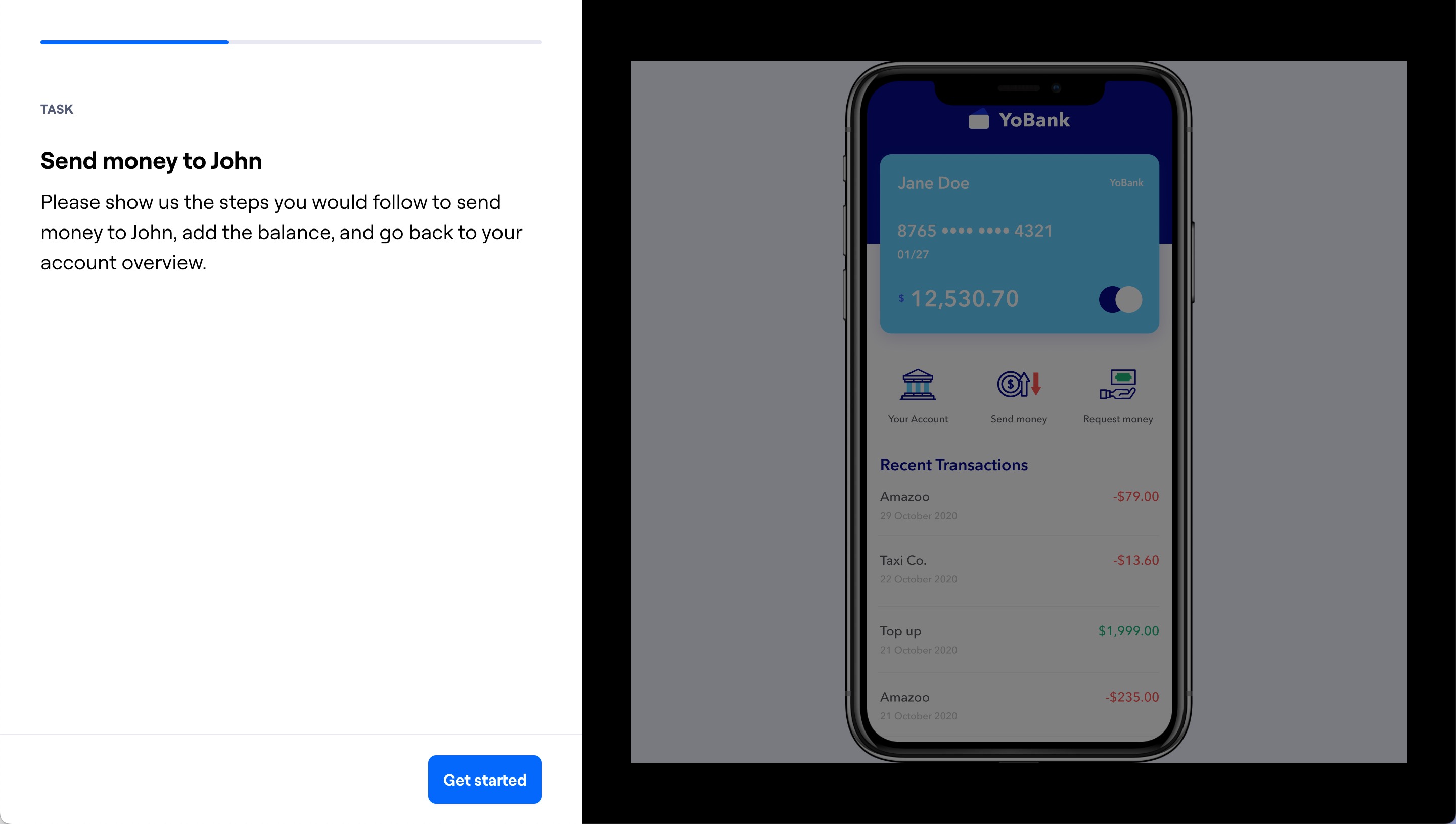
The first thing participants will see when interacting with a prototype test is an introductory screen with the task and description.
Clicking the Get started button will allow your participants to start interacting with your prototype.
Instructions
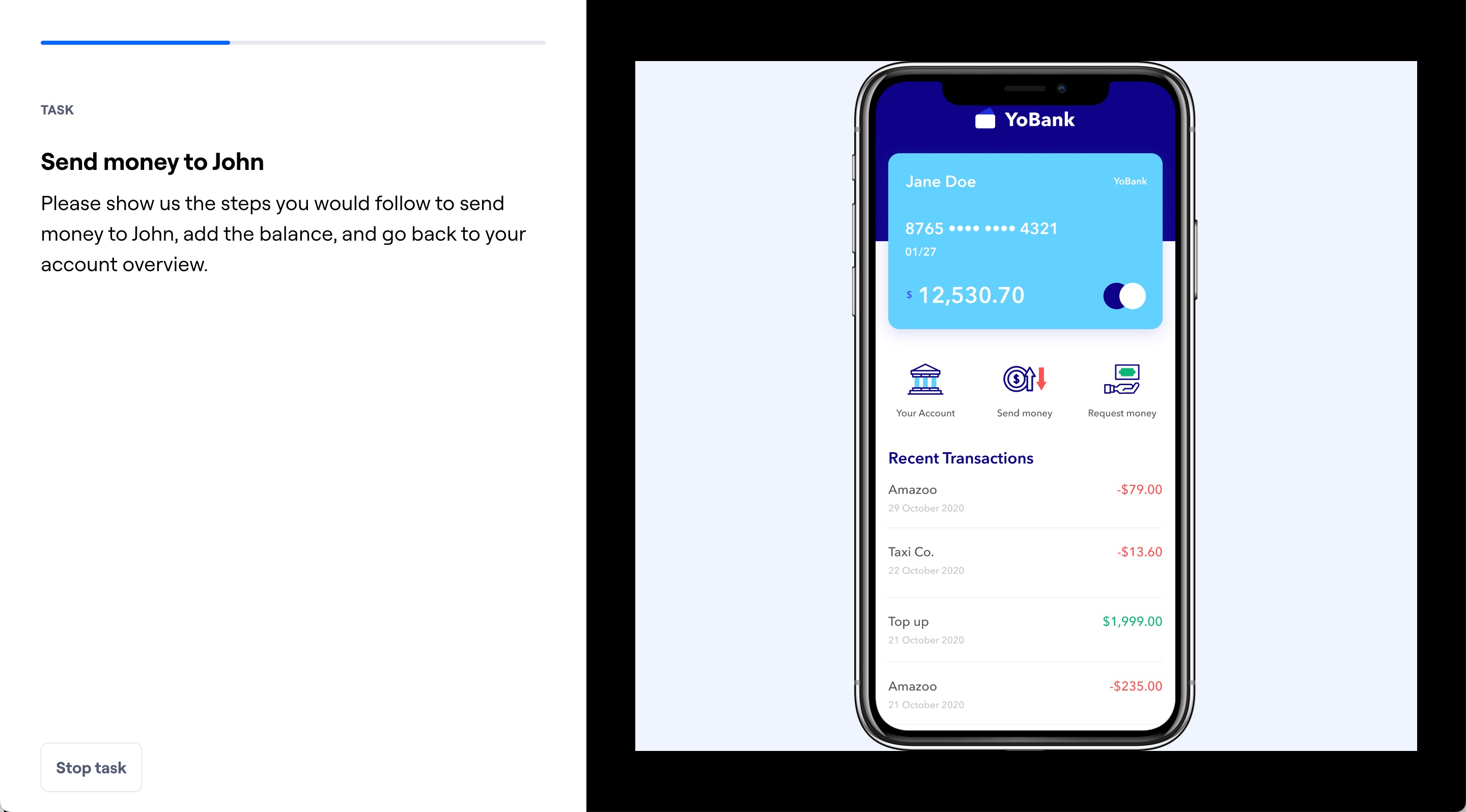
Mobile prototypes (on desktop)
Instructions for mobile prototypes are always visible in the left side panel.
Mobile prototypes (on mobile devices)
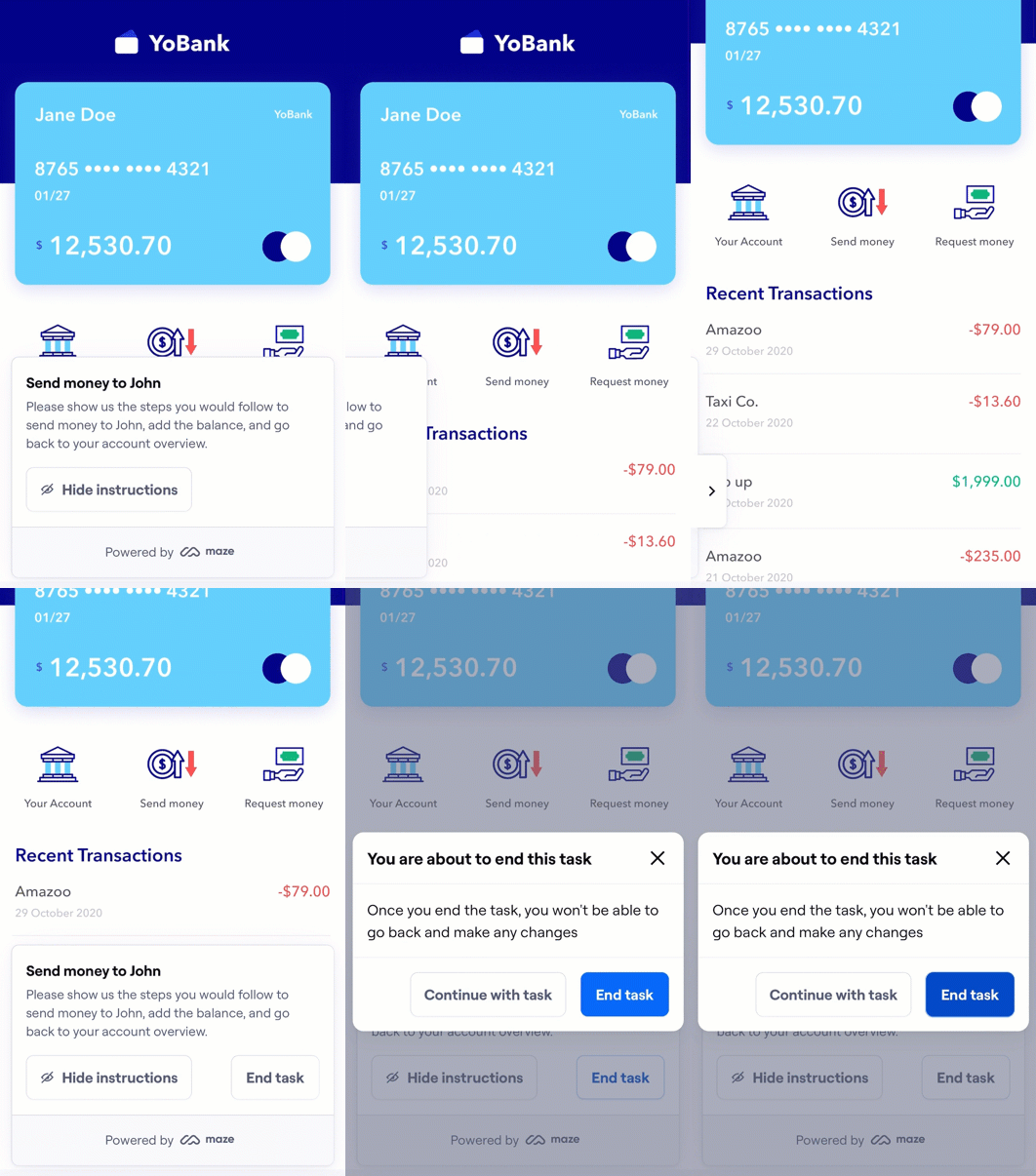
At the beginning of a prototype test on a mobile device, a panel with the task controls is displayed at the bottom.
To hide the panel to see the full screen, click Hide instructions.
Learn more about testing studies on mobile devices.
Desktop prototypes
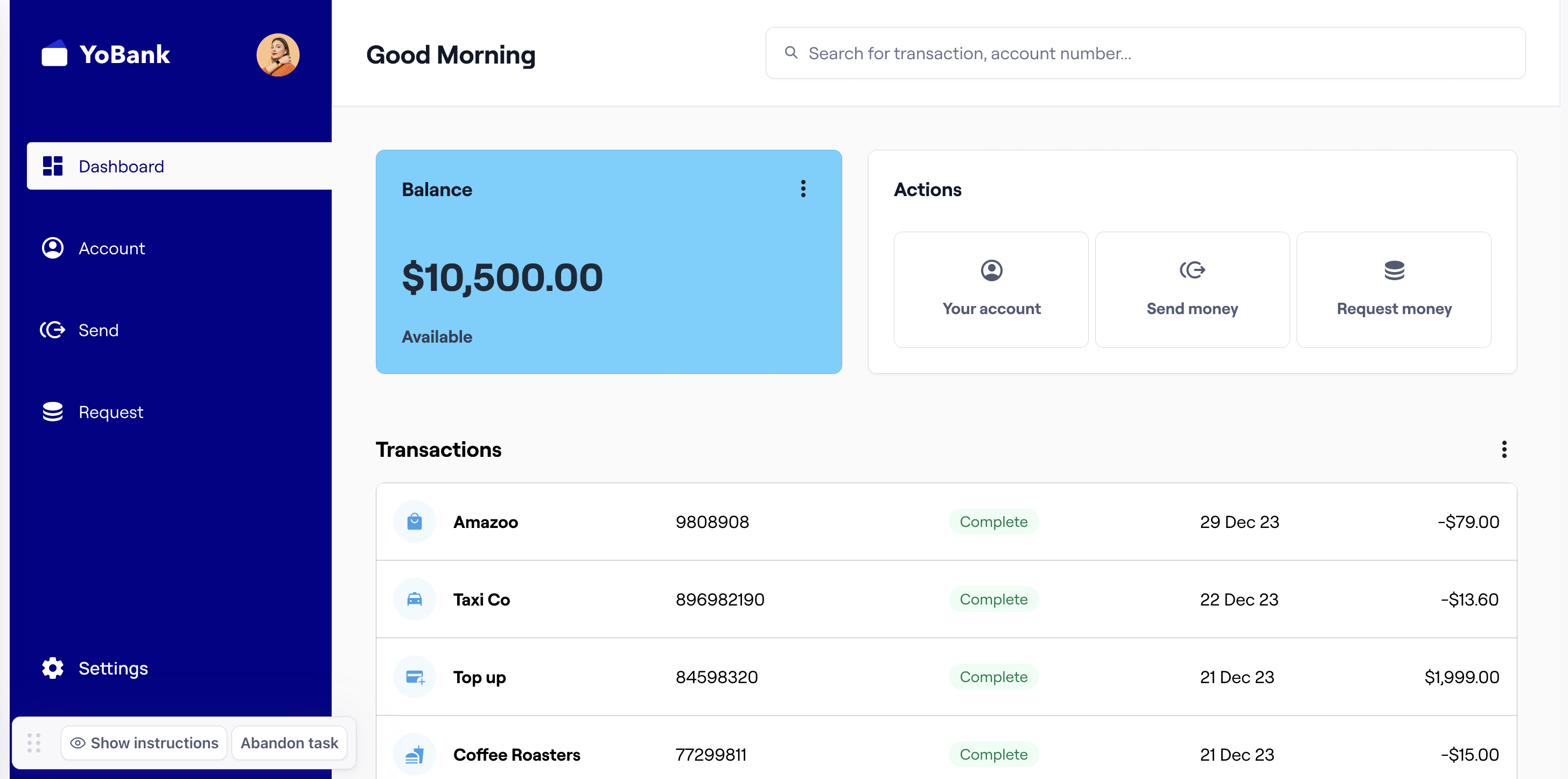
During a prototype test, the instructions modal will appear by default in the bottom left corner. Once participants start interacting with the prototype, the instructions window will collapse.
It’s possible to drag the instructions to a different part of the screen by clicking the Drag icon.
Ending the test
Goal-based tasks: The mission ends automatically when the participant reaches a success screen. Learn more about goal-based prototype tasks
Free explore tasks: Because the final screen isn’t defined, participants need to manually click the Abandon task once they believe they’ve reached the end. Learn more about free explore prototype tasks