Testing unmoderated studies on mobile and tablet devices
Last updated: October 7, 2026
It’s possible to test unmoderated studies with users on mobile devices (i.e. smartphones and tablets). This article walks you through best practices for setting up and successfully running mobile-friendly studies. If you're testing on tablets, see Testing on tablets for supported devices and known limitations.
Can Maze be used in native iOS or Android apps?
It’s possible to test mobile prototypes using a mobile device and browser, however, to test a native iOS or Android app, we recommend using the App Test block for participants to test using the Maze Participate mobile app.
Maze Participate supports iOS 16.5+ and Android 10+ on phones. On tablets, Maze supports iPadOS 17+.
How can I test my studies on mobile?
You can test mobile app designs using a prototype block Learn more about prototype testing.
To test on mobile, participants can open the study share link in a compatible mobile browser. Learn more about Maze’s browser requirements
For the best testing experience, we recommend utilizing our Maze Participate app for testing. Learn more about the Maze Participate App.
Testing on tablets
Unmoderated studies are supported on iPads running iPadOS 17 or later. Android tablets aren't currently supported.
Setting up a study for tablet participants
Decide whether screen recording is required. If it is, tablet participants are routed to the Maze Participate app, where the AI Conversation block isn't available. If your study relies on AI Conversation, set screen recording to optional or off.
Check your App Test blocks. If screen recording is on, the Camera option turns off automatically for tablet participants, so plan on screen-only recordings.
Add an orientation instruction. Use your Welcome screen or a Context Screen to ask participants to keep their iPad in one orientation for the whole study.
Preview on an iPad. Open the preview link on an iPad running iPadOS 17+ before launching.
Known limitations
Rotation during recording: Rotation is only partially supported during screen recording. If a participant rotates their iPad mid-block, the recording may look stretched and the camera may not adjust to the new orientation.
AI Conversation block: Studies that require screen recording run in the Maze Participate app on tablets, and the app doesn't support AI Conversation. The block works in the tablet browser when screen recording is optional or off.
Camera in App Test blocks: Tablets can't record the screen outside the app and use the front-facing camera at the same time, so the Camera option turns off when screen recording is enabled.
How do my prototypes appear to mobile users in browser?
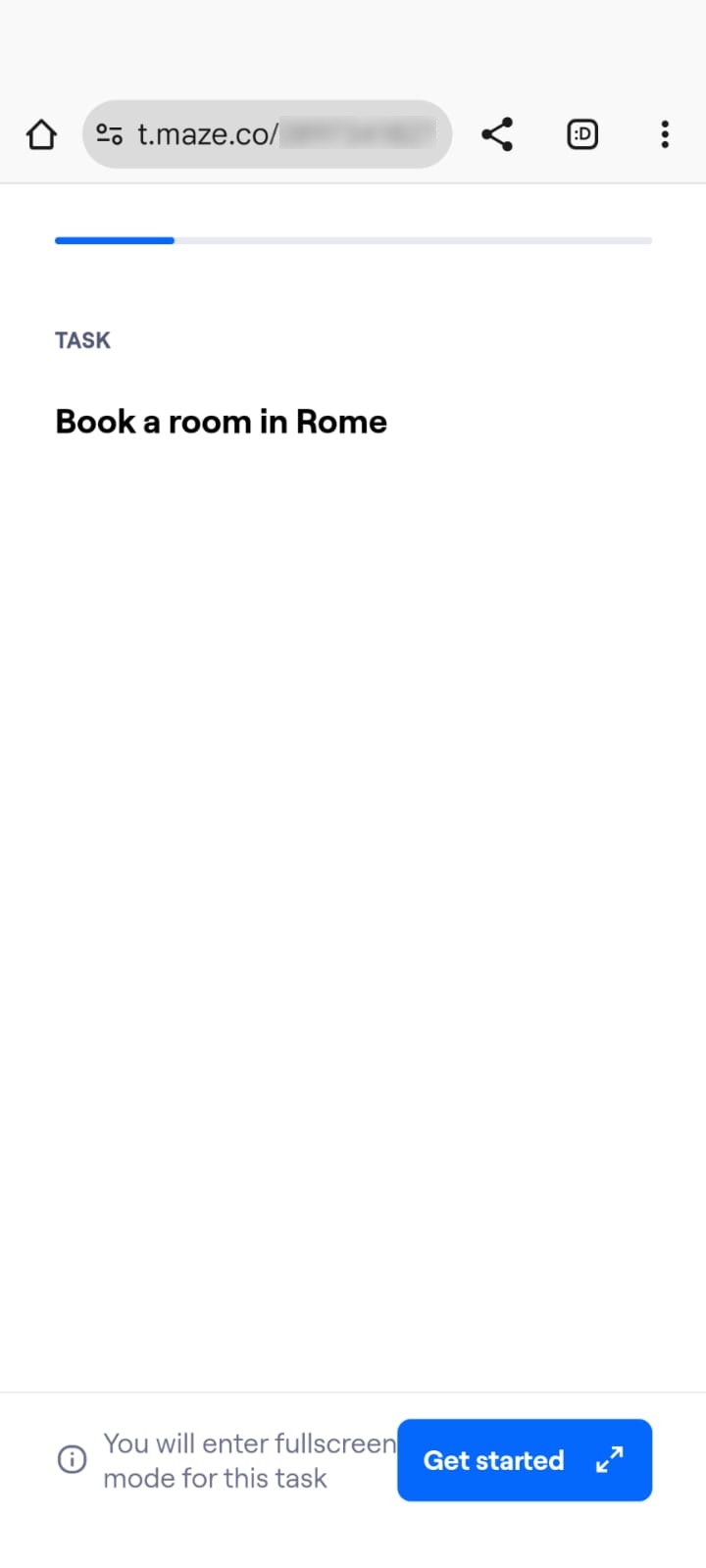
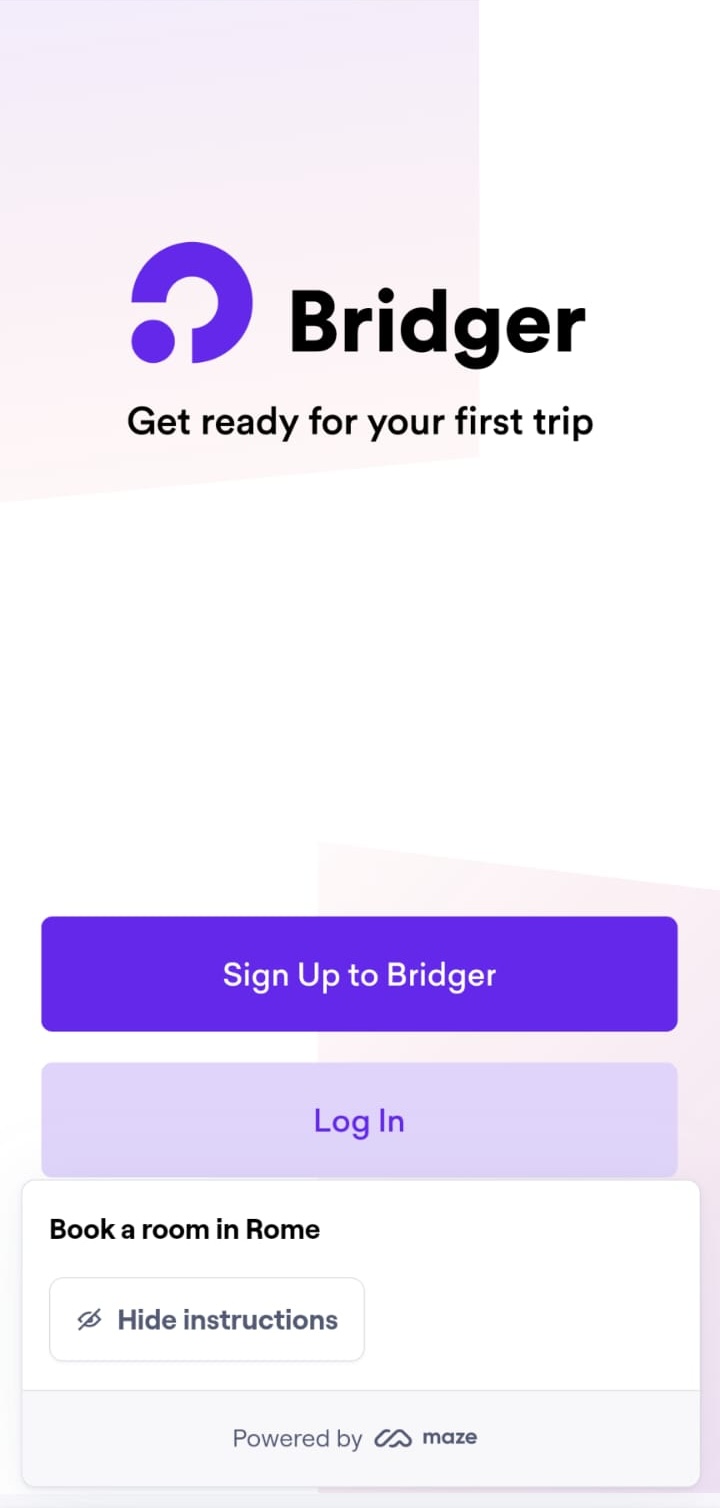
Android
After starting the prototype test, the prototype is displayed in fullscreen.
iOS
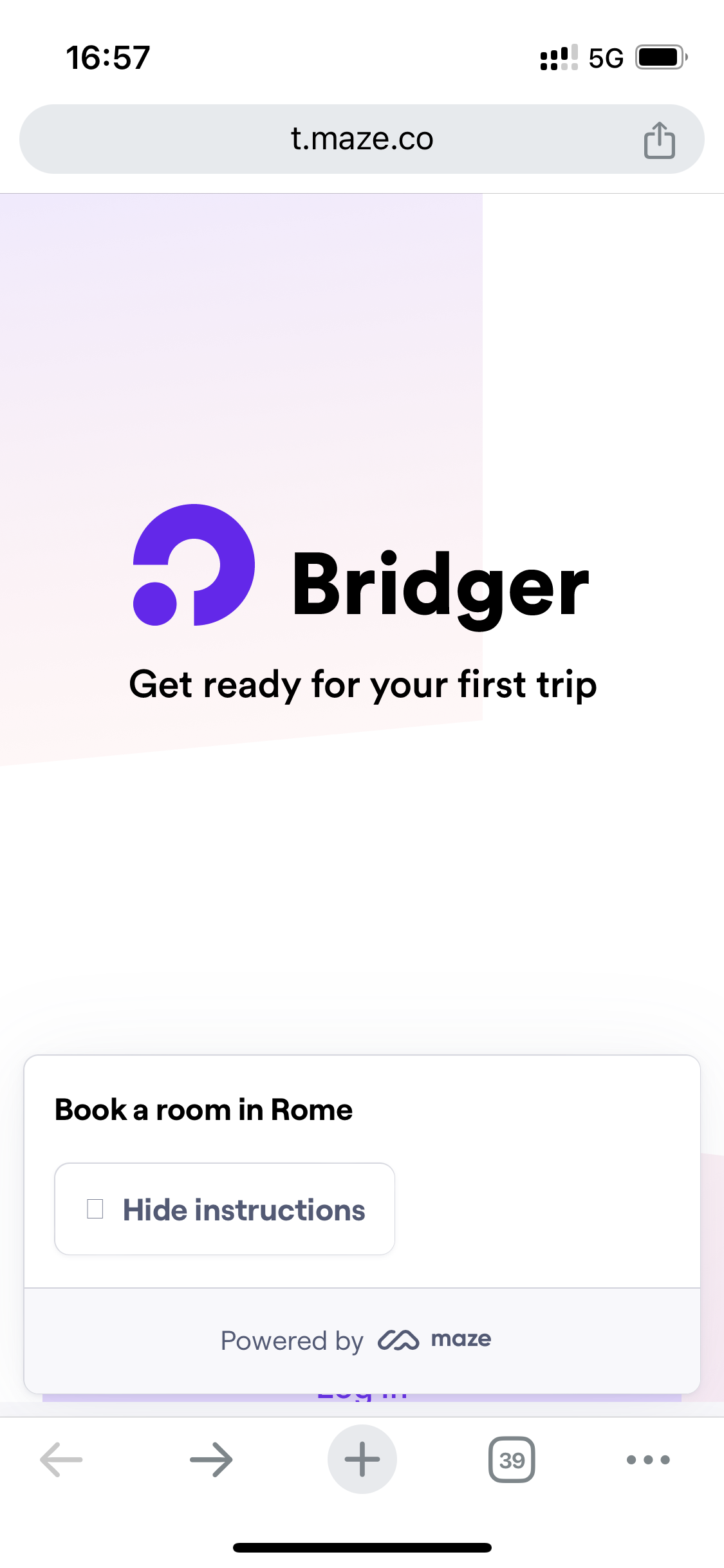
Prototypes don’t display in fullscreen when testing on browsers in iOS. For a more immersive testing experience, use the Maze Participate App.
Optimizing Figma files for mobile users
Screen width
Desktop prototypes aren’t supported in mobile tests.
If the screen width exceeds 1024px, participants on mobile won’t be able to open the study. Instead, they’ll see the following error:
This page needs a larger screen
When testing on mobile, please make sure that the prototype screens are optimized for mobile devices.
This includes ensuring that the prototype device is set to a mobile device in your Figma prototype settings.
Orientation
At the moment, we don’t support orientation changes (e.g. landscape to portrait) in Figma prototypes.
The orientation of your prototype should stay consistent throughout the test. In other words, always portrait, or always landscape.
On tablets, rotating the device during a screen recording can also affect the recording itself. See tablet limitations.
File size
We use Figma’s own embed feature so that your prototypes render exactly as they appear in Figma. This allows you to take advantage of many of their native features. However, it also means that you may encounter issues when loading particularly large Figma prototypes or files in Maze.
Mobile users, in particular, may struggle to open studies associated with large Figma prototypes due to limited available memory.
On iOS devices, memory limits implemented by Apple may cause the test to time out and crash completely.
Figma files can become quite large. This can happen due to multiple pages with many additional frames, or prototype frames that are large and/or contain high-resolution embedded PNGs. Files that are too large may lead to loading issues when importing prototypes as well as when testing.
For this reason, we highly recommend optimizing your Figma prototypes before importing them to Maze.
Learn Figma optimization best practices
Live website testing for mobile users
To test your website with mobile users, you’ll need to choose Mobile when setting the device type. With this setting, your website window will open on a mobile resolution (420px). Mobile users will only be able to open mobile tasks, not desktop tasks.
Learn more about setting the device type on website tests
Previewing your studies on mobile
Be sure to test your prototype on representative mobile devices before sending out the study.
This is best practice whenever using Maze, but it’s especially important if you expect participants to test on a mobile device. If you know that your participants may be using older devices, test with the oldest iPhone or iPad available to you. This way, you’re sure that the study works as expected from beginning to end.
To see how your study will look like for mobile users, open the preview link on a mobile device.
Using Clips
Clips recordings aren’t natively supported on mobile devices so we recommend using an App Test in conjunction with the Maze Participate mobile app to record on a mobile device.
Maze detects when participants are using a mobile device and prompts them to open the study on the Maze Participate mobile app.
On tablets, studies that require screen recording also run in the Maze Participate app, so some blocks, like AI Conversation, aren't available. See tablet limitations.
Hiring from the panel
If hiring participants from the Maze panel, you can specifically target participants on mobile phones and/or tablets.
If you target tablet users, note that only iPads running iPadOS 17+ are supported. Consider adding a screening question to exclude Android tablets.
Learn more about targeting filters
Testing both mobile and desktop prototypes
You can only link one prototype per study. We suggest creating two studies, one containing the desktop prototype, and the other the mobile prototype.
You can then use participant screening and URL redirection to direct participants to the correct study.
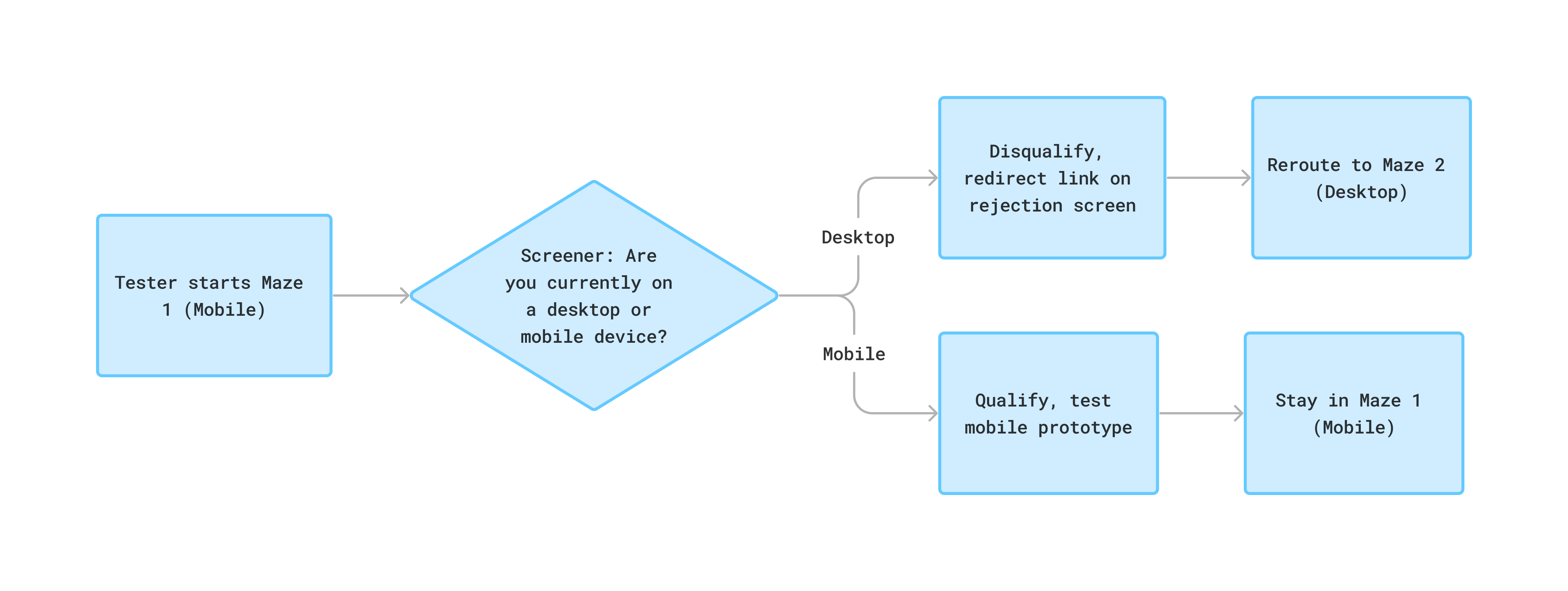
The basic setup should look like this:
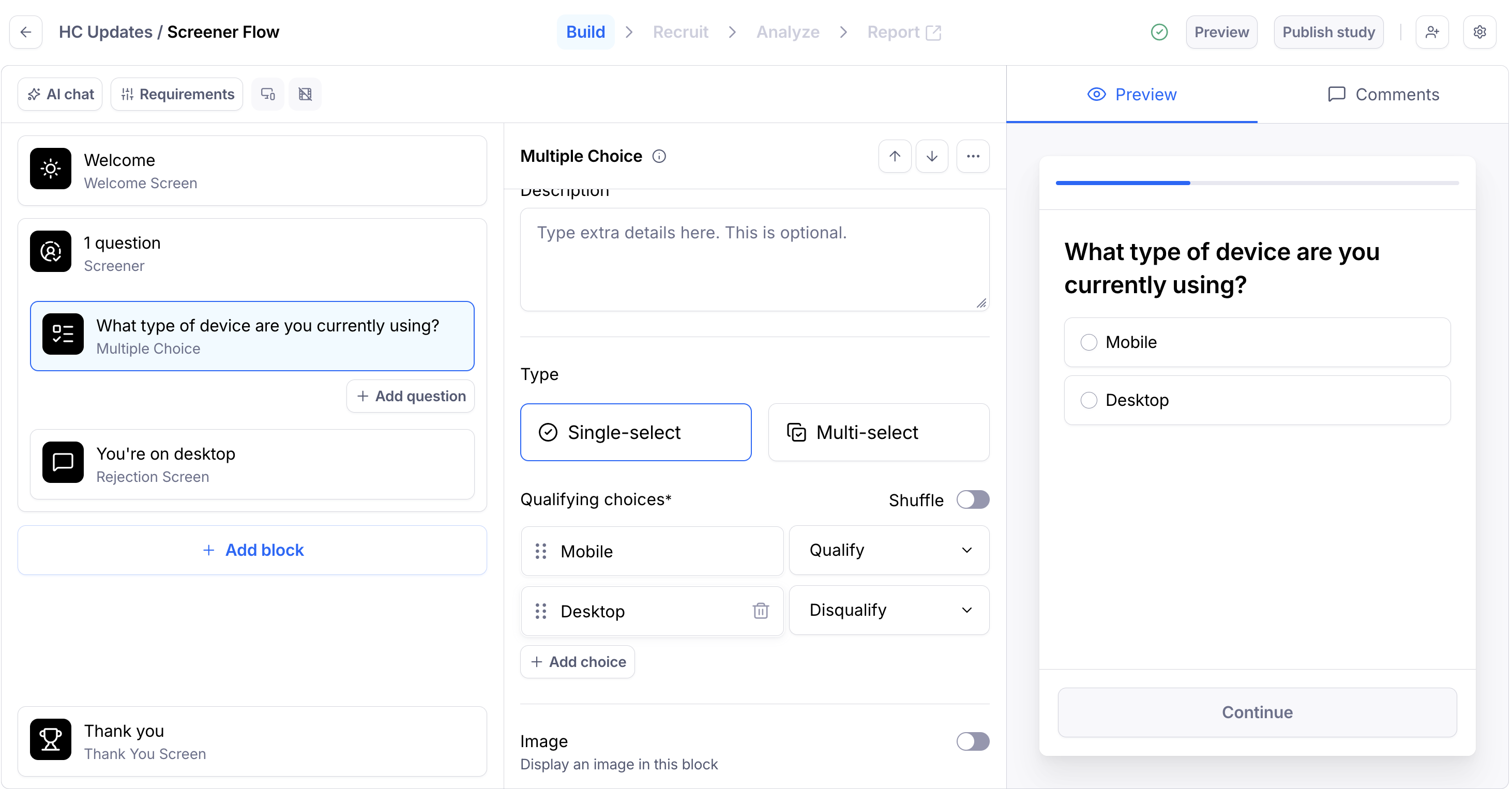
Screener block: Enterprise customers can add a Screener block containing a single-select question: ‘What type of device are you currently using?’
Qualifying logic: If the participant replies ‘Mobile’, they qualify and continue on the study. On the other hand, if the participant replies ‘Desktop’, they’re disqualified and taken to the rejection screen.
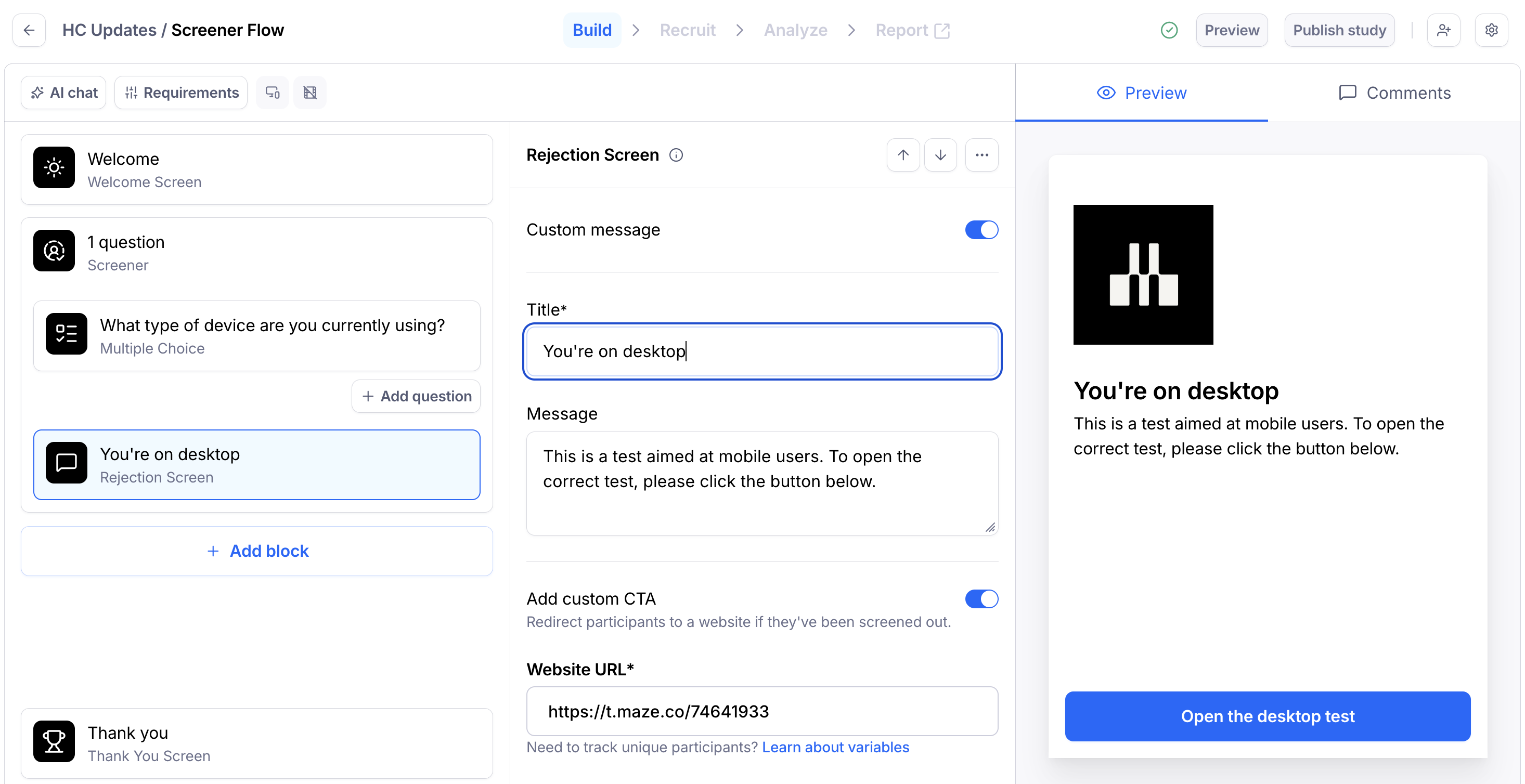
Link redirection: Customize the rejection message and include a redirect CTA to the Rejection screen rerouting desktop users to the desktop study.
If your plan doesn’t include custom screening, you can use conditional logic to route your participants to the correct study. You can add the redirect link to the Thank You screen instead.
However, since it’s not possible to add multiple Thank You screens, you should make it clear that only desktop users should click the redirect button.
We also don’t recommend using this workaround if you’re using the Maze panel. Participants from our panel are entitled to compensation for participating. If you exclude panel participants from completing your test using this method, you must pay for each session.
Please note:
Desktop users can test both desktop and mobile prototypes. However, mobile users can only test mobile prototypes. If a participant on mobile opens a study linked to a desktop prototype, they won’t be able to run the study, and instead will see an error: “This page needs a larger screen”. For this reason, you should first send out the study with the mobile prototype.
Keep two separate design files for mobile and desktop for a lightweight testing experience. Learn more about optimizing your files
When placing a panel order for a study with a Screener block, a panel response with screening questions costs 3 credits per qualified participant (instead of 1). This allows us to compensate participants for the time they spend completing screening questions, even if they don’t qualify. Learn more
Interacting with a mobile test
To give participants more information and instructions about the task, you can add a Context Screen before the prototype/website block.
Prototype instructions on mobile
At the beginning of a prototype test on a mobile device, a panel with the task controls is displayed at the bottom.
To hide the panel in order to see the full screen, click Hide instructions.
Ending a prototype task on mobile
If participants get stuck after starting the task, clicking the Show instructions button (>) at the bottom left of the screen will reveal the instructions again, as well as the Stop task button.
Ending a live website test on mobile
Unlike prototype tests, on a website test, the task doesn’t end automatically when the participant reaches the success screen (i.e. the final screen in a path), and a success message won’t be displayed.
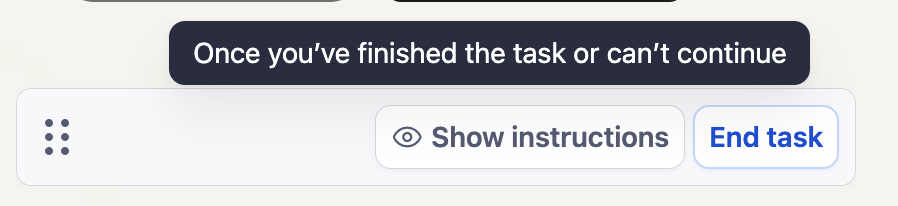
When the participant believes they’ve completed the task, they should click End task in the floating modal at the bottom to end the task and return to the study.
Still need help?
If you have any questions or concerns, please let our Support team know — we'll be happy to help!