Streamlined interview scheduling with the Cronofy calendar integration
Last updated: September 1, 2026
Connect your calendars to smoothly schedule interview sessions around your availability. The calendar integration is supported by Cronofy.
About Cronofy
The calendar integration in Maze Interview Studies is supported by Cronofy.
Cronofy is a calendar synchronization service that integrates with multiple calendar platforms, including Google, Apple, Outlook, Office 365, and Exchange. Their API allows us to embed calendar functions into Maze, allowing us to streamline scheduling. For additional information, visit cronofy.com
Cronofy adheres to strict data protection standards to safeguard user information. Their systems are designed to comply with global privacy regulations, so that all data handling meets the necessary security requirements.
For a detailed overview of Cronofy's security and privacy practices, please refer to cronofy.com/compliance-center
Supported calendar providers
Google
iCloud
Office 365
Exchange
Outlook
Security and privacy FAQs
What type of access do Maze and Cronofy require?
Cronofy requires access to your team’s calendars. This includes:
Reading calendar events
Creating new events
Updating existing events
Deleting events
By connecting your calendar, you’re granting us permission to view and modify all event data associated with it. This level of access is necessary for managing and coordinating recruitment links and calendar events.
However, we’ll only make changes (create/update/delete) to events that we’ve created specifically related to interview studies. We won’t modify any other events on your calendar. Nevertheless, we need access to those events to determine the availability of the invitees participating in the study.
It’s important to note that our access is restricted to the calendar data of the individual who’s authenticating, not the entire organization.
While we’ll only be modifying events scheduled through Maze, we understand that you may still have concerns about calendar access. You can disconnect your calendar at any time after completing a study. If you start a new study, you’ll need to reconnect the calendar. This way, you can control who can see your calendar data at any time.
How do Maze, Cronofy, and the calendar servers interact?
Please refer to the Cronofy documentation for an architecture diagram showing the data flow.
How does Maze access Cronofy internally?
The authentication and authorization process follows these steps:
Users grant access to their calendars to Cronofy.
Cronofy uses OAuth2 as its authorization model.
Maze integrates with Cronofy using the granted permissions.
Learn more about authorization and authentication in the Cronofy documentation
Are users connecting their calendars at an individual level or an organizational level?
Users connect their calendars at an individual level.
What permissions does Cronofy request from my calendar provider?
Where possible Cronofy requests the least broad permissions it needs to be able to schedule events. However, the permissions exposed varies by provider. Here are the permissions broken down by provider:
Office 365 and Outlook
Authentication is via the GraphAPI and the requested permissions are:
User.ReadCalendars.ReadWriteoffline_access
Exchange (for companies using on-premise Exchange)
Authentication uses EWS and the requested permissions are:
offline_accessopenidemailprofileUser.readEWS.AccessAsUser.All(the scope is broad but is required to create and update events - Cronofy explanation here)
Requested permissions include:
emailprofilecalendar
Apple iCloud
Authenticates using an App Specific Password as detailed here.
What are the specific scopes for calendar access?
The scopes for calendar access ensure that only necessary calendar-related actions are permitted.
Is there an access policy created for the application?
Since we authenticate with each team member’s account rather than at the account level, we don’t use a specific access policy. Instead, we request specific permissions as detailed in this FAQ.
Does the calendar integration comply with data protection laws?
The calendar integration complies with data protection regulations.
To learn more about our commitment to security and data protection, please visit the following pages:
Maze: compliance.maze.co
Cronofy: cronofy.com/compliance-center
Can I request documentation on your security practices?
Both Maze and Cronofy follow industry standards on security and privacy. We can provide documentation on our security practices upon request.
This includes:
SOC-2 compliance report
Penetration test results
Non-Disclosure Agreement (NDA)
Still have questions? If you still have any questions about the Cronofy integration, please don’t hesitate to reach out to our support team.
Connecting a calendar
You may need admin consent before connecting a calendar. Specifically, some Microsoft calendar users may need to ask their administrator to add Cronofy to their list of allowed Microsoft Graph applications. In those cases, the administrator can do this through the following links:
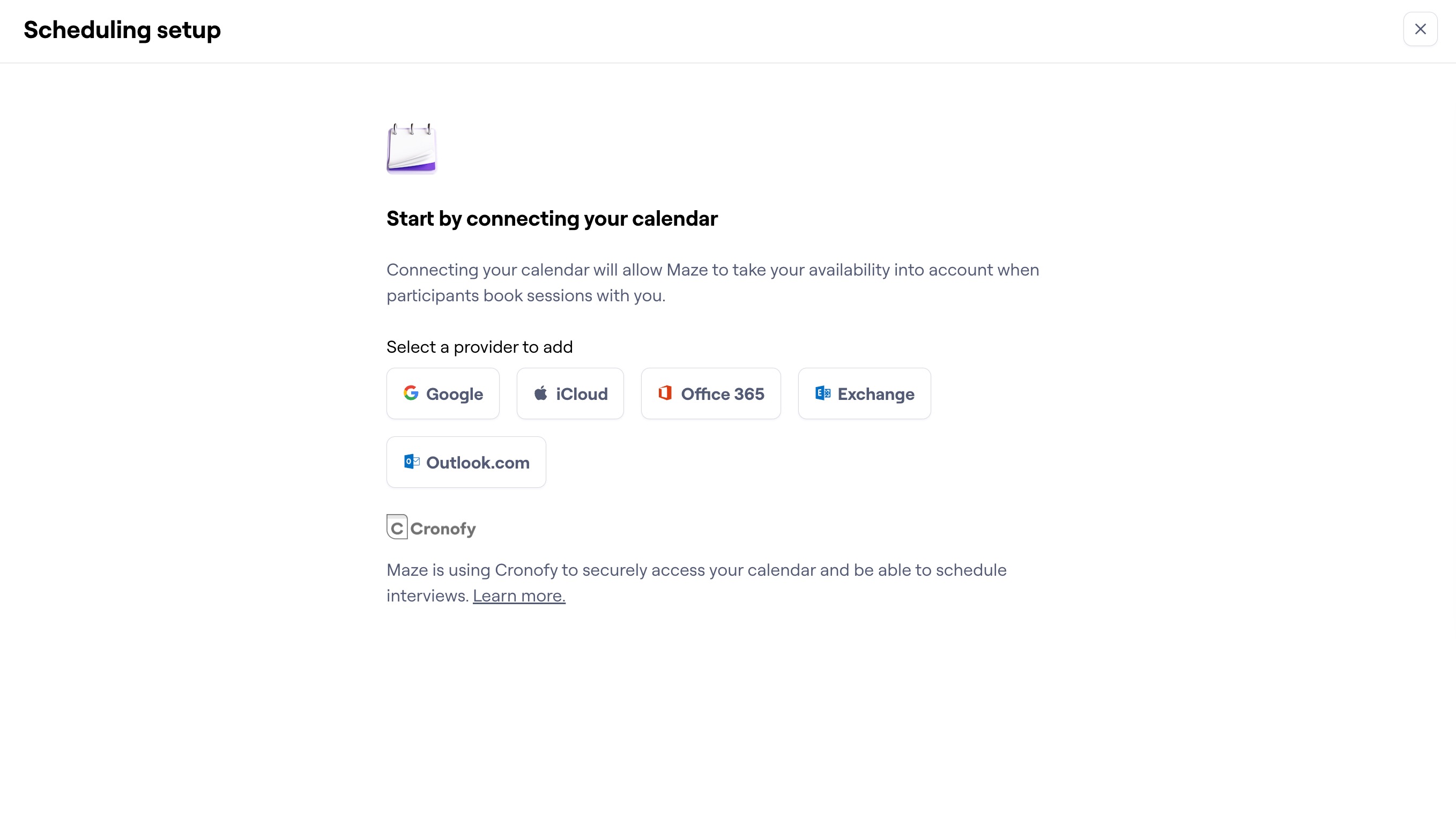
You’ll be prompted to connect your calendar when setting up a recruitment link for the first time:
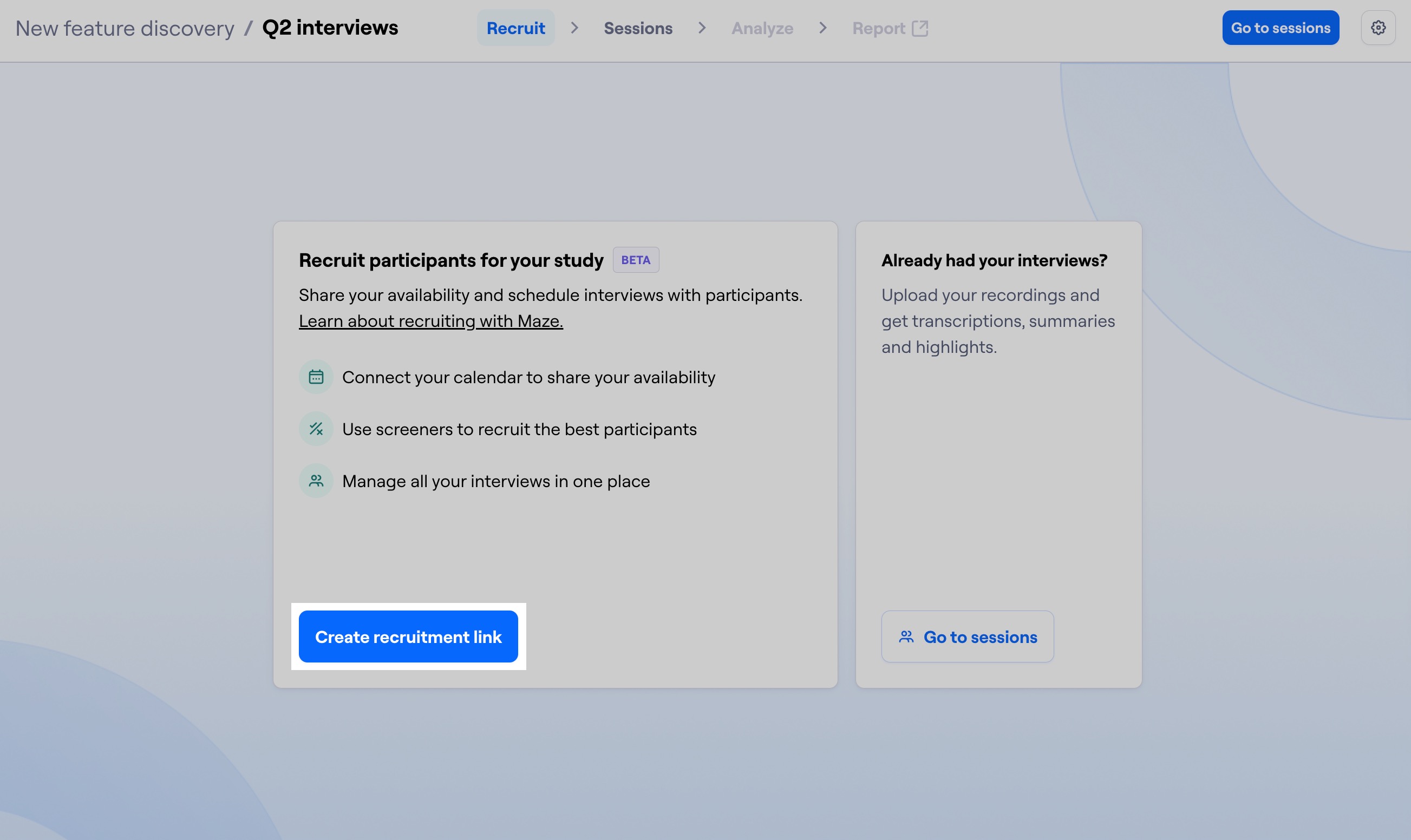
Create a new interview study.
In the ‘Recruit’ tab, click Create recruitment link.
Select your calendar provider and follow the steps to authorize Maze.
You can also connect one or more calendars from your personal settings:
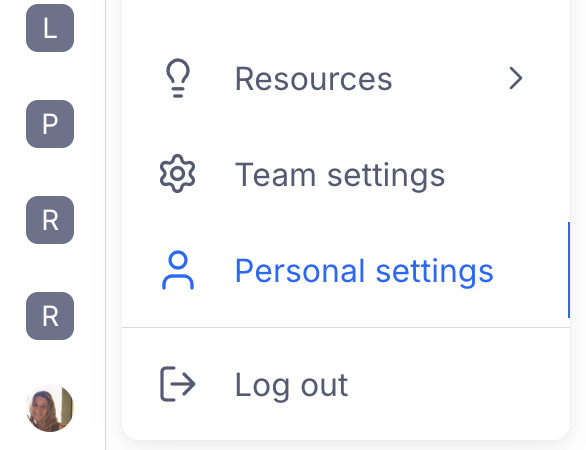
Hover over your avatar at the bottom left corner of the side navigation, and click Personal settings.
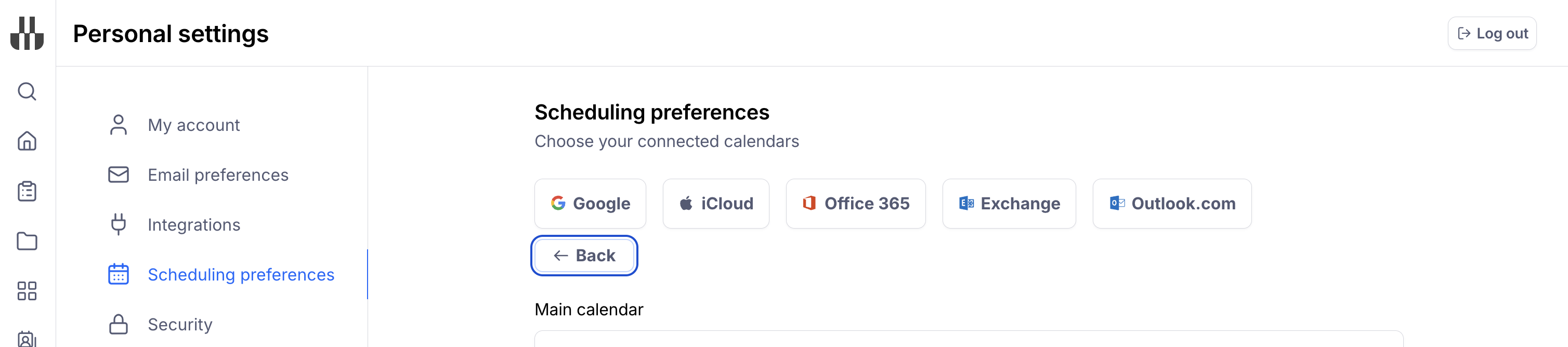
Open the Scheduling preferences tab.
Select your calendar provider and follow the steps to authorize Maze.
To add more calendars, click + Add calendar account.
Disconnecting calendars
Disconnecting a calendar will revoke Maze’s access to it.
If you’re the study organizer and you disconnect your calendar, the recruitment link will close.
If a co-host disconnects their calendar, the recruitment link will remain open. However, that co-host’s calendar availability will no longer be considered when determining available times.
To disconnect a calendar:
Hover over your avatar at the bottom left corner of the side navigation, and click Personal settings.
Open the Scheduling preferences tab.
Any linked calendars will be listed under ‘Calendar accounts’. To disconnect, click Edit accounts.
To disconnect, click the Unlink button to the left of the email address associated with the calendar.
Still need help?
If you have any questions or concerns, please let our Support team know — we'll be happy to help!