[Website Test] Show your website side by side with the task
Last updated: October 23, 2026
Website tests can now show the website inside the study page, with the task instructions on screen next to it. Participants no longer have to switch between windows to find the task, and you get fewer drop-offs and less confusion during the test.
When you add a URL to a Website Test block, Maze checks whether the website can be displayed inside the study page. If it can, participants see the website and the task together in one window. If it can't, Maze falls back to opening the website in a new window, and keeps the instructions as close to the website as the participant's browser allows.
Before you start
This applies to new Website Test blocks created after Oct 26th. Blocks created before this date will keep opening the website in a new window. To use the new experience in an existing study, edit the block's task link and save it again.
Whether a website can be shown inside the study page depends on the website itself. Many sites built with AI prototyping tools (Lovable, Bolt, v0, Figma Sites, Figma Make) can. Most large public sites (for example, google.com or github.com) block this for security reasons.
Results don't change. Your Website Test results look the same regardless of how the website opened for each participant.
Studies taken in the Maze mobile app aren't affected.
Who can use this feature?
Showing the website inside the study page is available for users on all plans that include live website testing.
How it works
Maze runs a quick check on the URL you enter and decides how the website will open for participants.
Check result | What participants see |
|---|---|
The website can be shown in the study | The website and the task instructions side by side in the same window. |
The website blocks being shown in other pages | The website opens in a new window, as before. Participants come back to the study page to continue. |
The Maze tracking code is still required either way. If you haven't installed it yet, see Installing the Maze tracking code.
Set up a website test with side-by-side display
In your study, add a Website Test block.
Enter the task participants need to complete.
Paste the URL of the website you want to test.
Wait a moment while Maze checks the website. The builder shows the option and a recommendation to show in the study page (if possible) or in a new window.
Click Preview to see exactly what participants will experience.
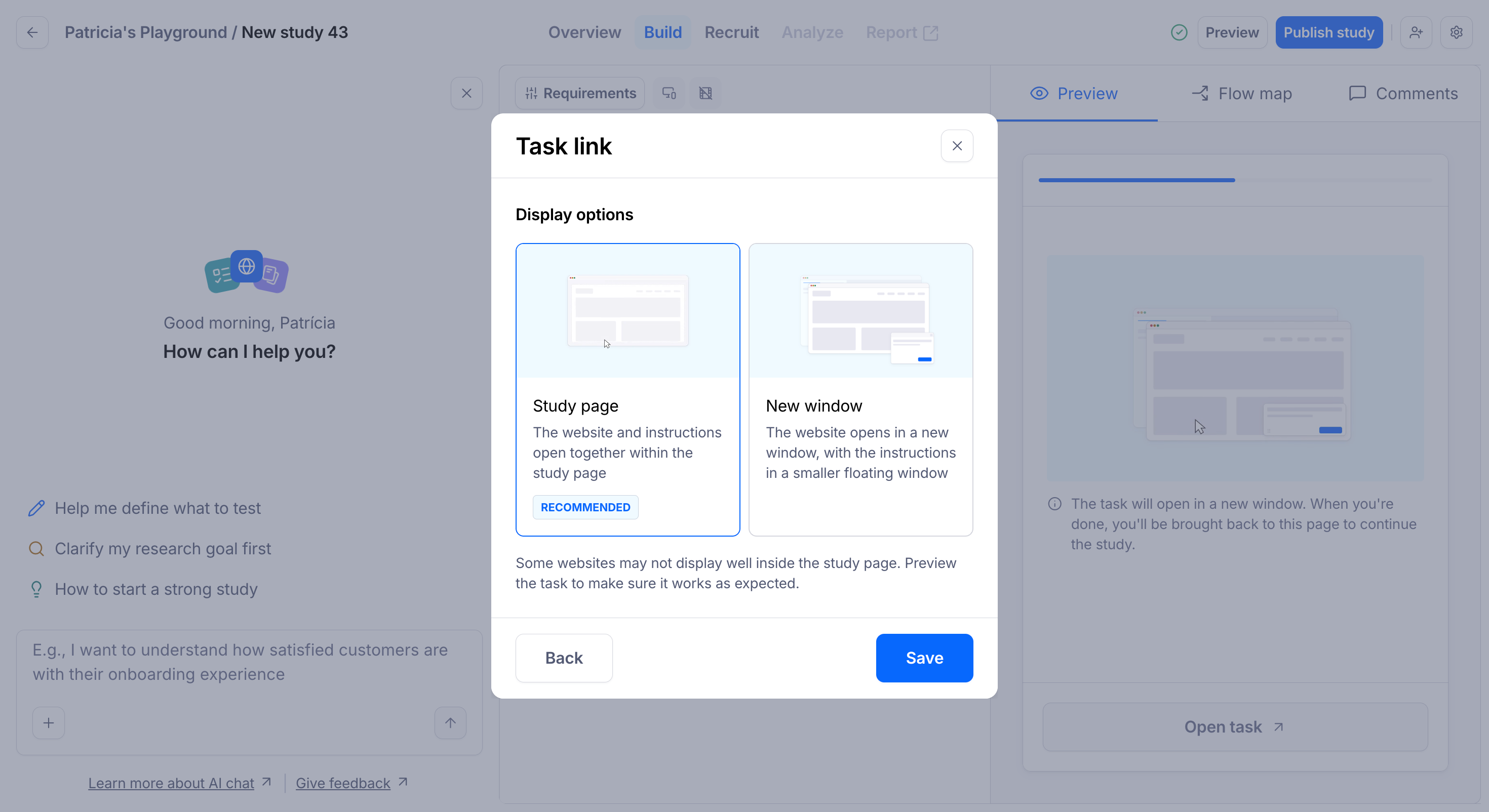
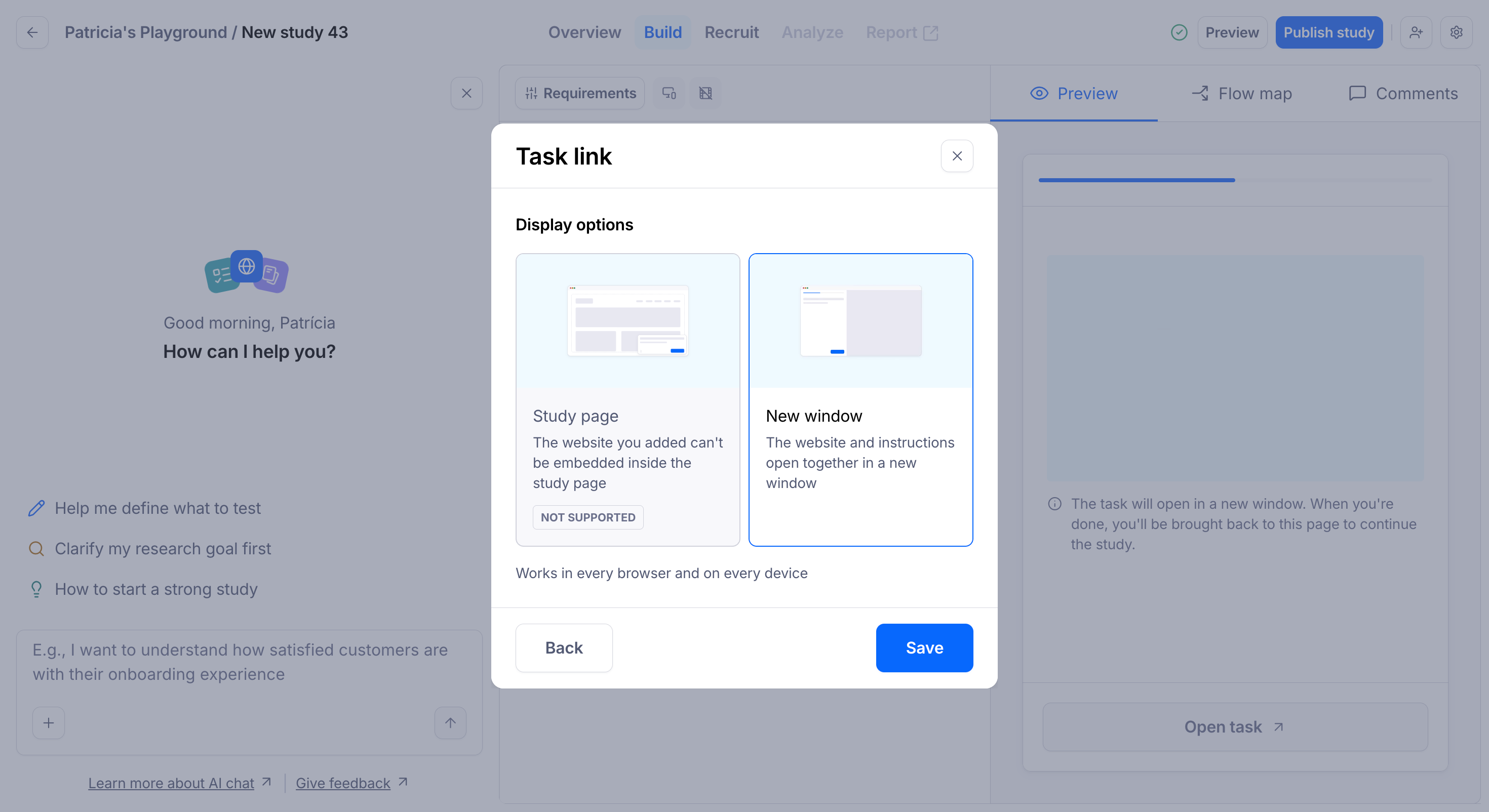
If your website opens in a new window and you'd prefer it side by side, check whether your site sets security headers that prevent it from being shown inside other pages (such as X-Frame-Options or a frame-ancestors Content Security Policy). Your development team can allow Maze's domain to remove this restriction.
What participants see
When the website is displayed in the study page:
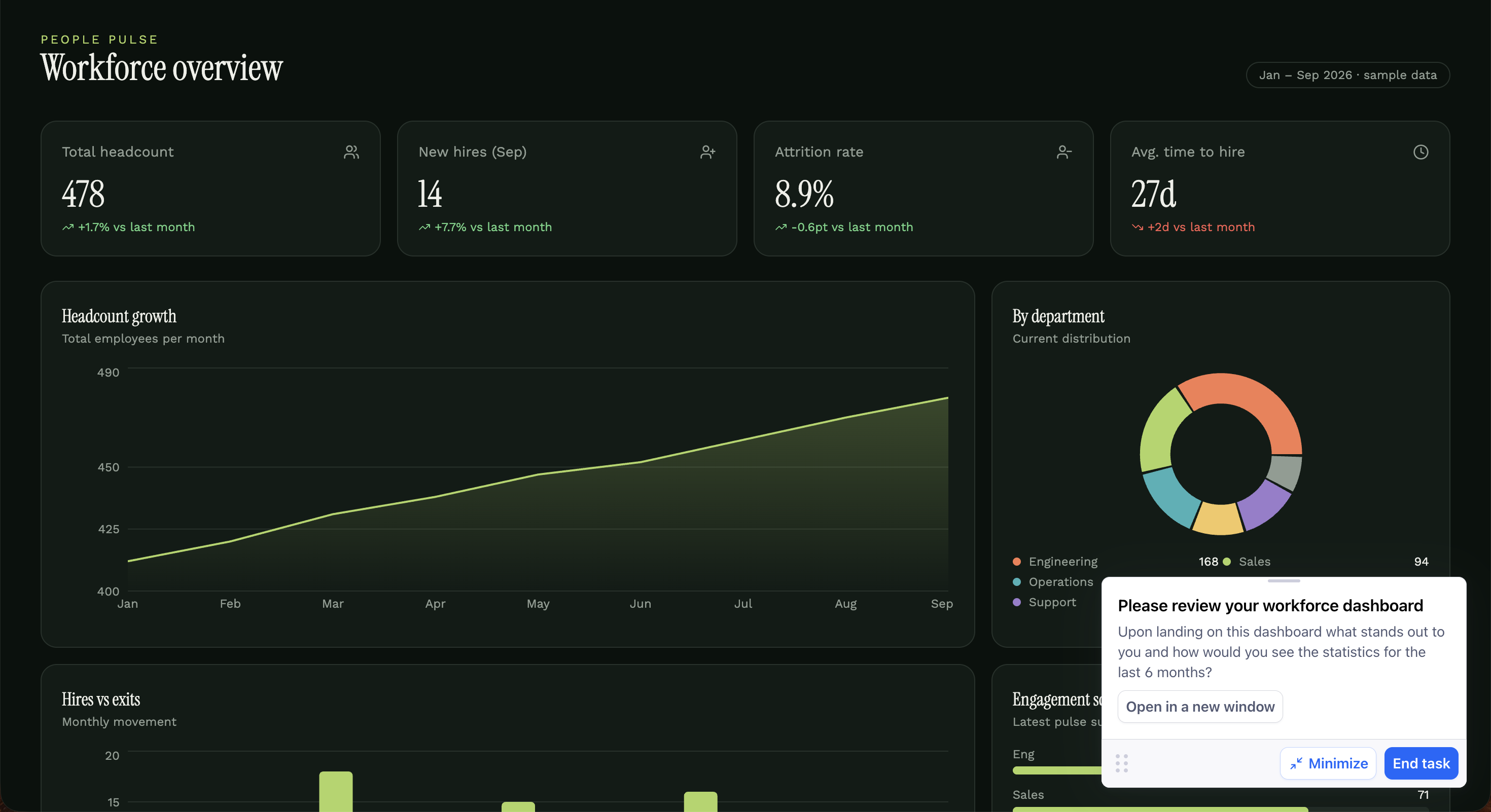
The task instructions stay visible next to the website for the whole task, so participants don't need to remember them.
Participants interact with the website as they normally would: clicking, scrolling, filling in forms, and navigating between pages.
When they're done, participants click Finish task (or Give up) in the task panel, without leaving the page.
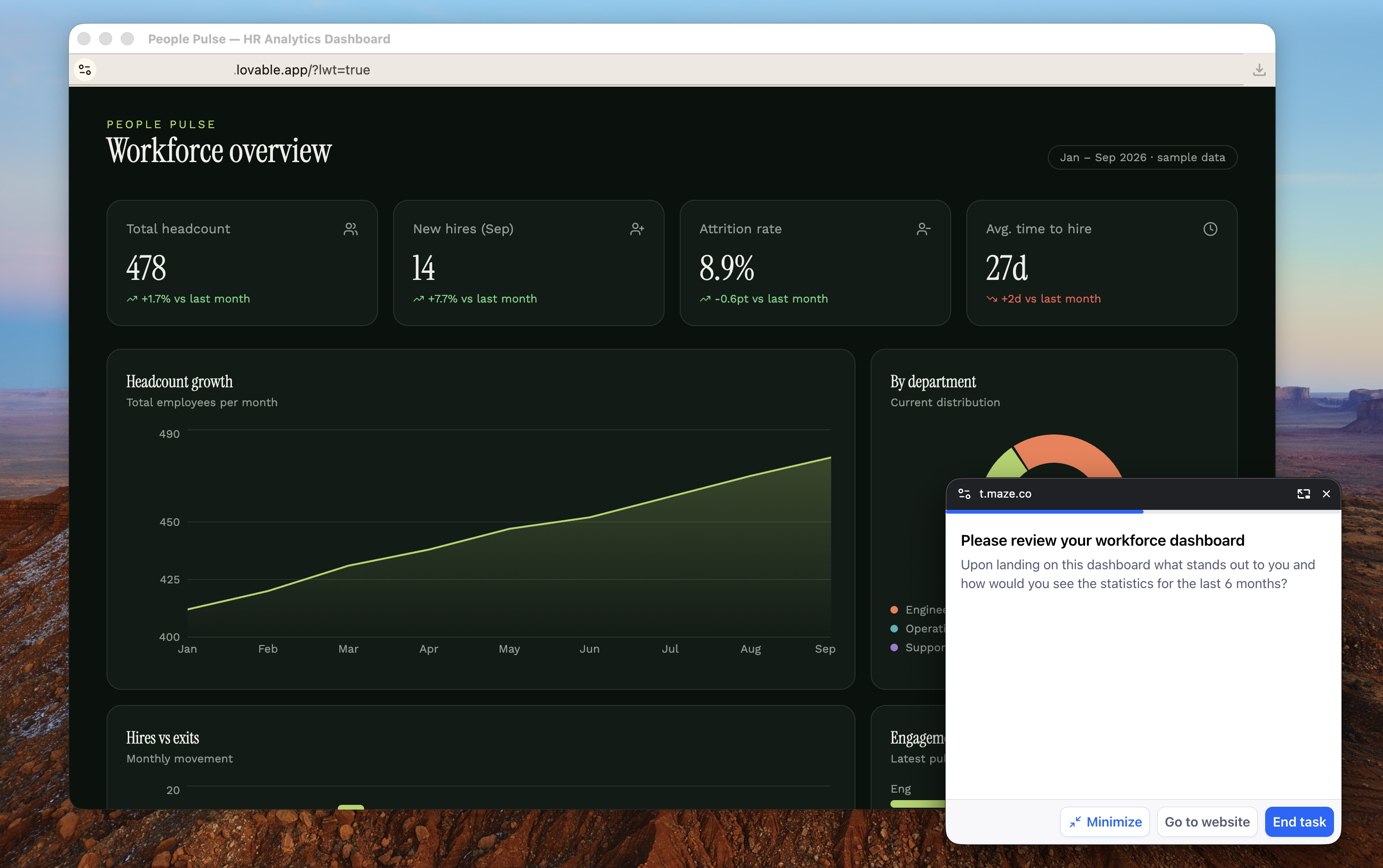
When the website opens in a new window, participants follow the same steps as before: they read the task, open the website, complete the task, and return to the study.
Participant view with the task panel next to the embedded website:
Participant view with the task panel next to the website in a new window:
Results
Nothing changes in your results. You'll still see success rates, time on task, paths, and clicks for each participant, whether the website opened in the study page or in a new window.
Limitations
Follow-up questions still appear after the task, not next to the website. Showing questions alongside the website is coming soon.
Websites that block being shown inside other pages always open in a new window.
Some sites behave differently inside the study page, for example sign-in flows or third-party logins (like "Sign in with Google") that require their own window.
Existing Website Test blocks aren't updated automatically.
FAQs
Can I force the website to always open in a new window? No, upon adding the website URL you'll always be given the choice, if possible.
What happens if my website has the Maze snippet installed? It depends on whether the website can be shown inside the study page and which option you choose:
Display option | What participants see |
|---|---|
Study page (website can be shown in the study) | The website inside the study page, with the task in a card on top. The snippet widget is hidden, so participants only see one set of instructions. The snippet keeps collecting data, so heatmaps and paths still work. |
New window (you chose it, or the website can't be shown in the study) | The website opens in a new window and the task shows in the snippet widget, the same as before. |
The floating instructions window is never used when the snippet is installed. Heatmaps, paths and other snippet data are available whichever way the website opens.
Why does my website open in a new window when it worked in Preview before? Maze checks the website when you save the URL. If your site's settings changed after that, edit the URL and save it again to re-run the check.
Does this work on mobile? Participants taking the study in a mobile browser see the website and task the same way, adapted to their screen. Studies in the Maze mobile app aren't affected.
Still need help?
If you have any questions or concerns, please let our Support team know — we'll be happy to help!