AI-Moderated Studies
Last updated: October 15, 2026
AI-moderated studies give you the best of both worlds: the convenience and scale of unmoderated research with the rich, detailed insights you'd get from live interviews. Our AI-Moderator conducts intelligent user research sessions by asking relevant follow-up questions based on your learning goals and participant responses.
AI-moderated studies are only available on Enterprise plans.
Before you start
While there isn't a limit to the number of sessions an AI moderated study can hold, we recommend to limit the number of sessions to 500 to avoid any performance issues.
Known Limitations
There is a maximum upload of 8 images
Images can only be assigned to a goal, not a question
Images should be no larger than 10mb
AI Moderator experiences are not currently supported on the Maze Participate app
Participants can complete AI Moderated sessions from a mobile device via a web browser, but screen sharing within AI Moderator is not currently supported on mobile
Videos must be MP4, MOV, or WebM files, up to 5 minutes and 500 MB
Videos don't currently appear in session replays, clips, or exports
Create an AI-moderated study
Create your study
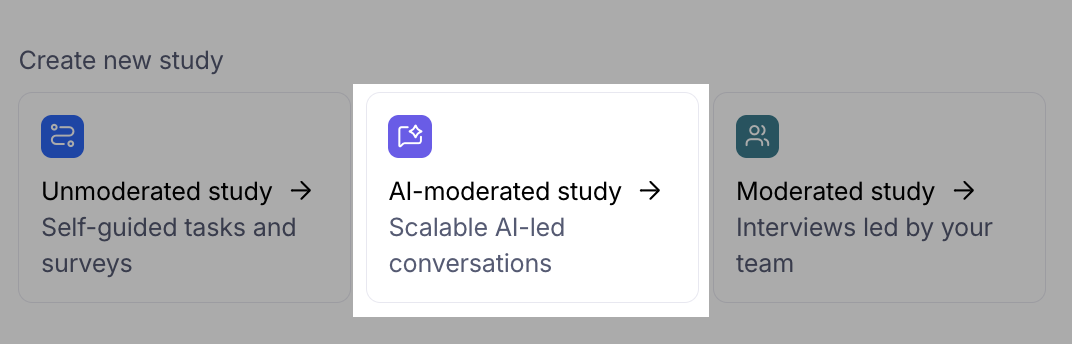
Create a new study and select AI-moderated study:
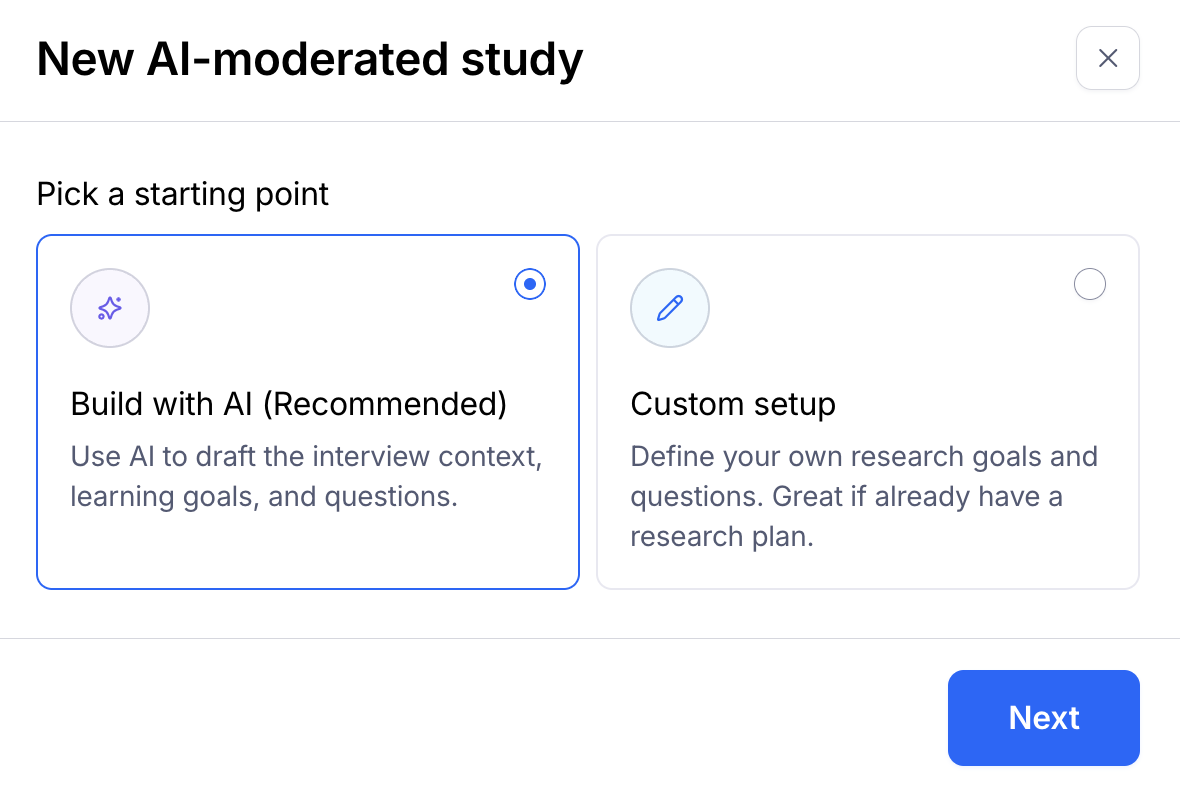
Choose between Build with AI to follow along with a template or Custom setup to start building your study from scratch.
Set language preferences for both speaker, the way the AI-moderator interacts with participants, and analysis, the way our AI analyzes the recording of the study. You can select multiple languages, and different languages for both speaker and analysis.
Current Supported Languages:
English (US), English (UK), Chinese (Mandarin, Simplified), Czech, Danish, Dutch, Finnish, French, German, Greek, Hungarian, Italian, Norwegian, Polish, Portuguese (European), Portuguese (Brazilian), Romanian, Russian, Spanish, Swedish
Configure media and device controls
AI-moderated studies require microphone access, since the conversation with the AI Moderator is based on audio. When building your study, you can also decide whether participant camera access is required, optional, or off. Turning camera access off can be helpful when video image quality or participant images create privacy or PII concerns.
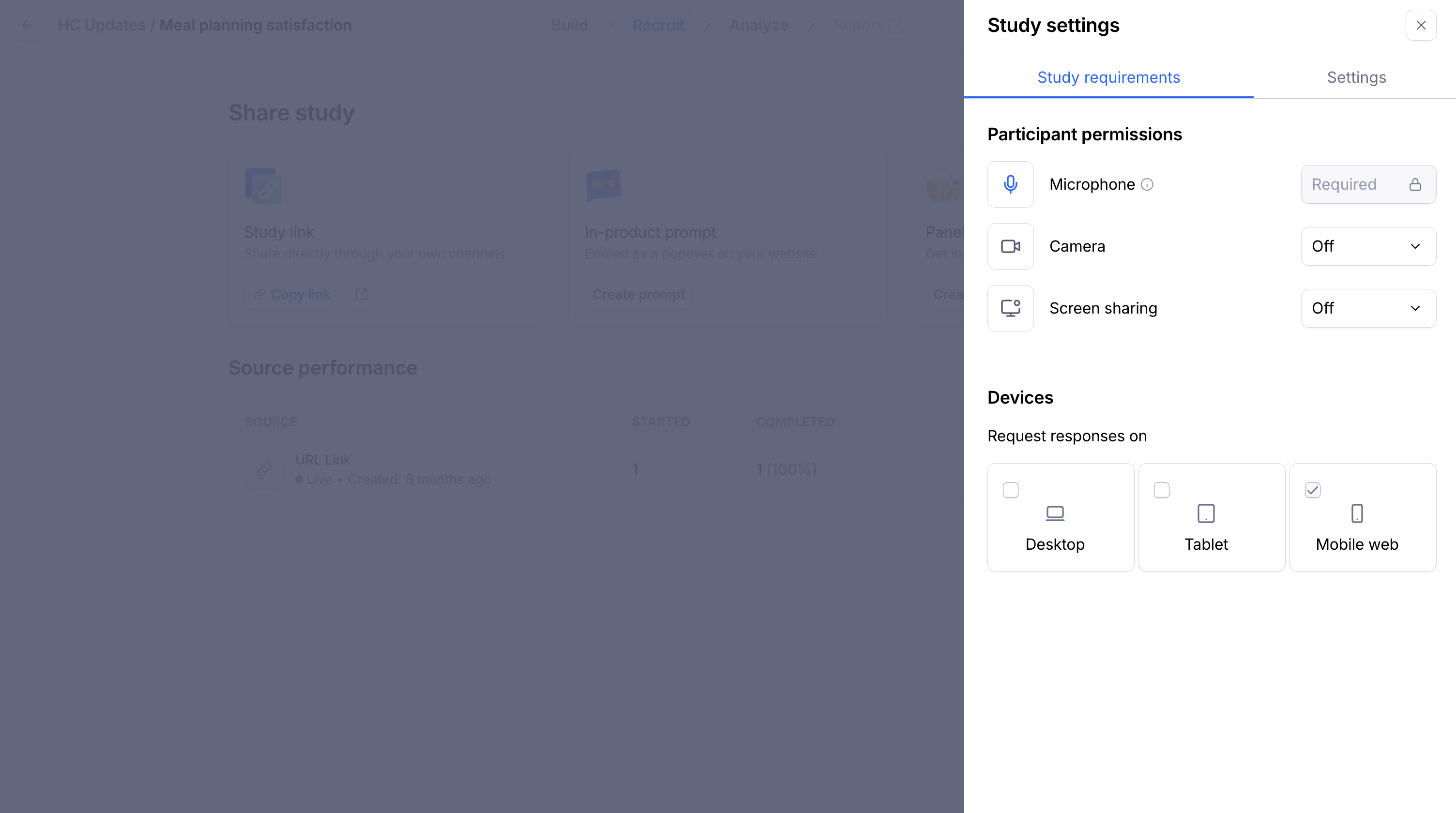
You can also set screen sharing to required, optional, or off. These settings determine the media access participants are asked to grant when they start the study.
To help make sure participants join from the right device, you can choose which device types are allowed: desktop, tablet, and/or mobile. If a participant opens the study on a device that isn’t allowed, they’ll see a blocker message asking them to join from an allowed device.
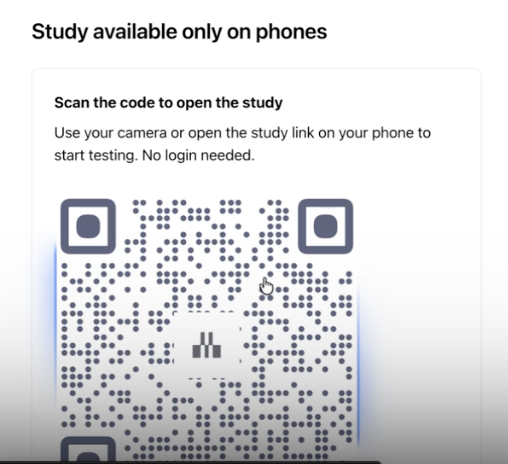
AI-moderated studies on mobile continue to support the mobile web experience only. The Maze Participate app isn’t supported for AI-moderated studies.
Some block types may automatically update your media and device settings. For example, if you add a Website task block, where participants interact with a link and share their screen, screen sharing becomes required. Since screen sharing isn't supported on tablet or mobile devices for AI-moderated studies, tablet and mobile will be turned off automatically for that study.
To configure these settings:
Open your AI-moderated study.
In the study builder, select the Plan tab and click Study requirements or simply jump to these options from Settings (cogwheel button in the top right corner).
Under Participant permissions, choose whether camera access and screen sharing are required, optional, or off.
Under Devices, select the device types participants can use: Desktop, Tablet, and/or Mobile web.
Review any automatic updates made by Maze based on your selected block types, then save or continue building your study.
Set up your goals
Describe your study by letting the builder know what insights you’d like to gather or select one of our templates to generate a prompt for you. Add visual stimuli by uploading images alongside your study description. You can also upload a research plan or other documents to assist with quickly creating your study.
Add context about your company or product, and hypotheses or open questions to create a more personalized experience during the conversation. You can paste publicly accessible websites for our builder to scrape information from or simply type in the name of your Company for our AI Search to pull in information.
When using AI Search, be sure to review information for accuracy and condense information as needed.
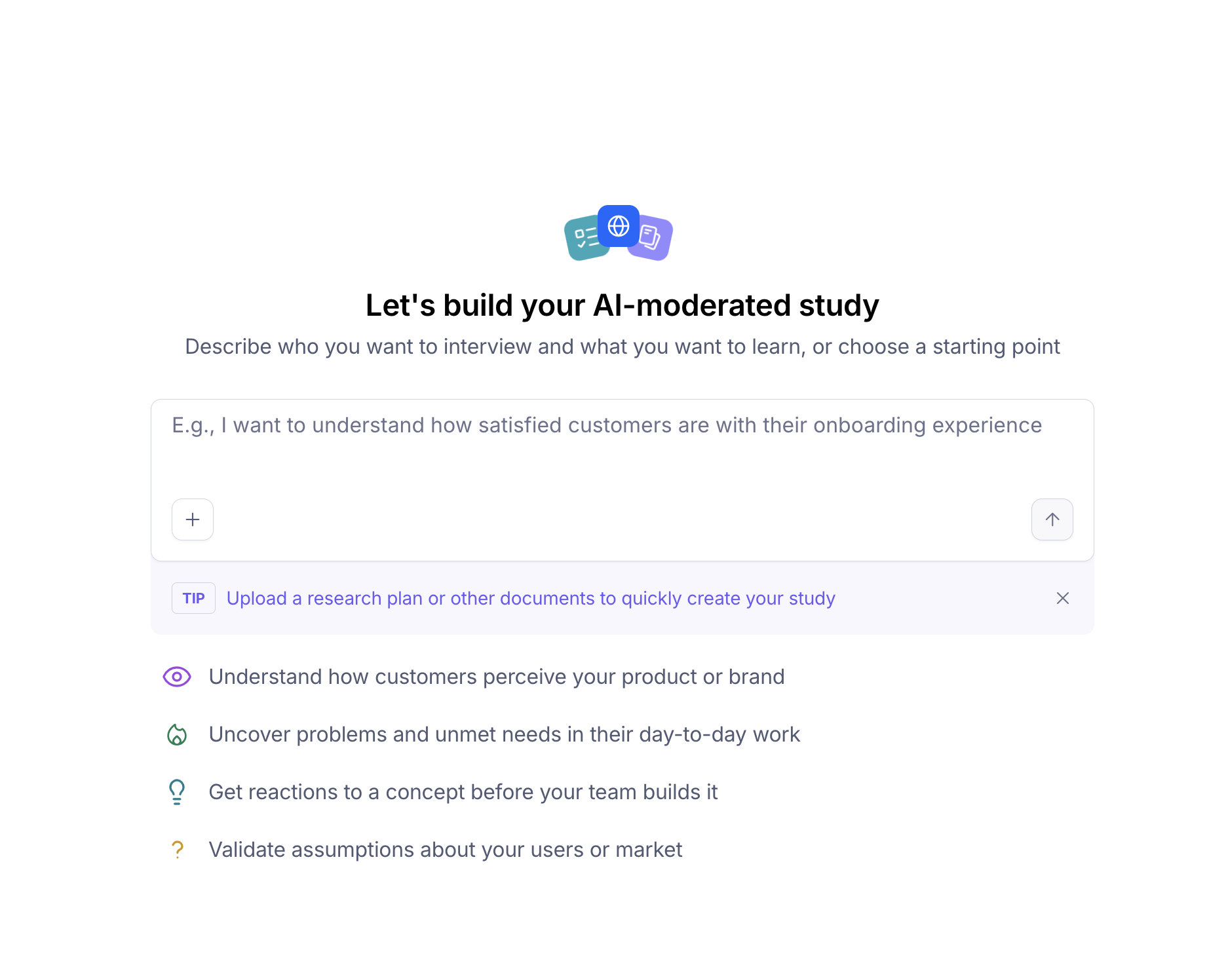
Maze uses best research practices to help you set up your study. The system creates structured research objectives based on your inputs. Review these and edit, delete, or add custom goals as needed. You can also add images within each goal section. The images will display within all questions in a specific goal.
AI-moderated studies are currently limited to 8 goals.
Structure your study
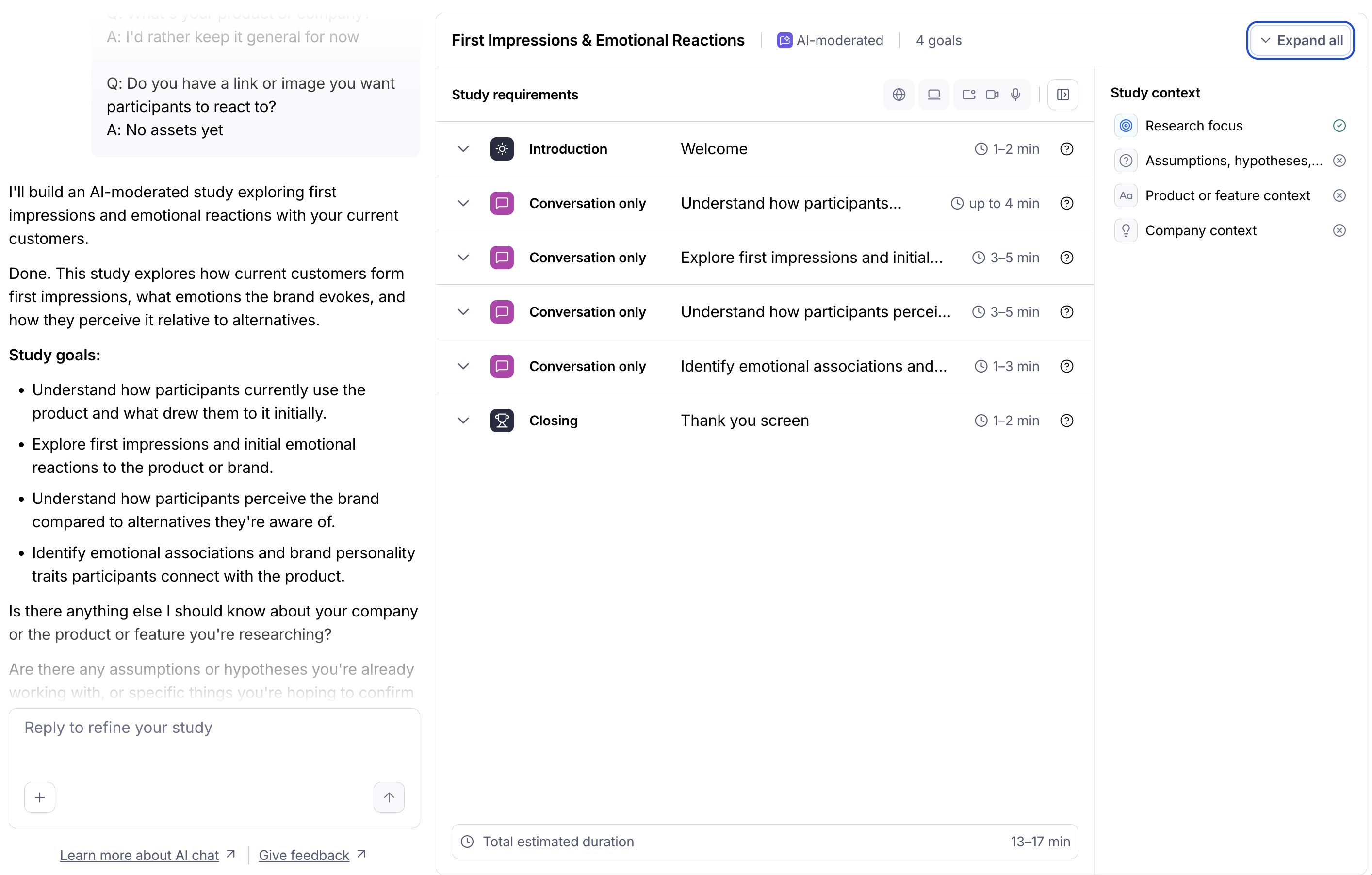
After reviewing your study goals, hit Next to view a high-level overview of your study plan. The Context section lets you edit the context settings you set up in the previous window. Under Plan, you can edit the introduction and closing sections, and add the blocks that make up your conversation.
Used AI-moderated studies before? Some names have changed. Existing block types work the same way, and existing studies are not affected.
Previous name | New name |
|---|---|
Conversation only | Discussion |
Conversation with image | Image discussion |
Conversation with link | Website task |
Freeform | Exploratory |
Structured | Scripted |
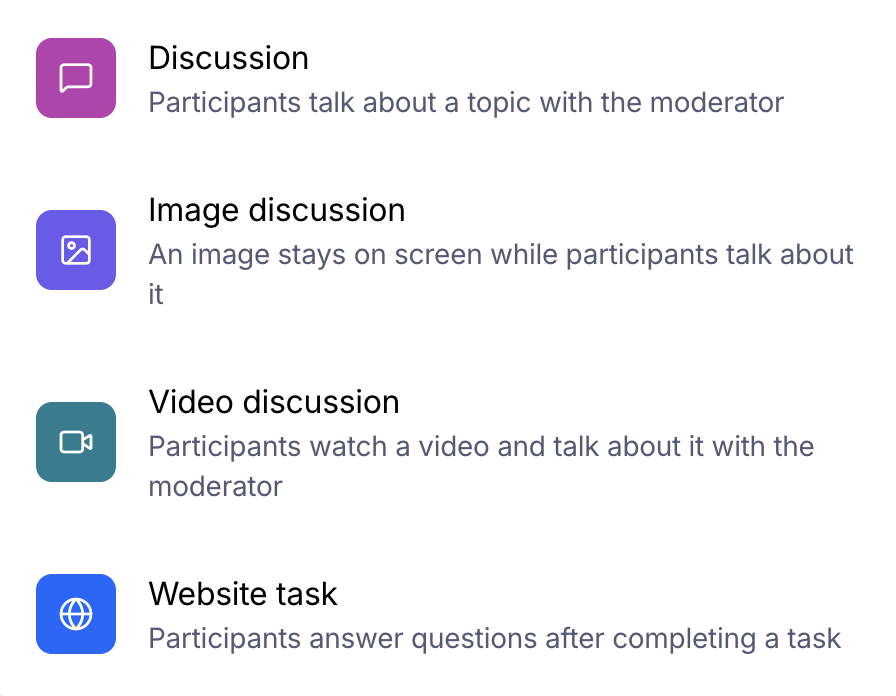
The block types are:
Discussion: discuss a topic with participants. Choose an Exploratory or Scripted discussion style.
Image discussion: show an image for participants to react to. Choose an Exploratory or Scripted discussion style.
Video discussion: show a video for participants to react to. Choose an Exploratory or Scripted discussion style.
Website task: participants explore and discuss a website or prototype. Uses the Scripted discussion style only.
What participants see vs. instructions for the AI moderator
Each block separates what participants see from instructions only the AI moderator uses. In the builder, internal fields are marked Not visible to participants.
Fields marked Not visible to participants guide how the AI moderator runs the conversation, such as what to probe on. Participants never see them.
All other fields are shown or spoken to participants, such as a task title and description.
Keep moderation guidance in fields marked Not visible to participants, not in participant-facing fields.
Exploratory vs. Scripted discussion styles
Each block can have its own discussion style. The style sets how questions are presented and how the discussion flows: asked exactly as written, or adapted by the AI based on participants' answers. This helps you balance consistency and depth in your research.
With the Scripted style, add the questions you'd like the AI moderator to ask, or generate them using AI.
With the Exploratory style, choose a discussion depth to control how detailed the conversation is for that block:
Brief (1 to 3 minutes)
Thorough (3 to 5 minutes)
Learn more about selecting the right discussion style for your study
Learn more about Exploratory vs. Scripted discussion styles
Discussion
For this block type, set the discussion style, then add your discussion questions (Scripted) or discussion instructions (Exploratory).
Image discussion
For this block type, upload an image for participants to react to. Add an image description to help AI understand what's in the image. Maze AI generates a description automatically, focusing on visual elements, text, and style. Use it to check that Maze correctly understands your image, and edit it to add context. This field describes the image only. Put moderation guidance in a field marked "Not visible to participants."
Video discussion
Show participants a video, such as a concept, prototype walkthrough, or ad, and get their reactions in their own words.
For this block type, upload a video file:
Formats: MP4, MOV, or WebM
Maximum length: 5 minutes
Maximum size: 500 MB
After uploading, you can trim the video so participants see only the part you need. Add a video description to help the AI understand what's in the video, so it asks relevant follow-up questions.
How participants experience the video:
The video plays in full before the conversation starts, so every answer is grounded in what they just watched.
Participants watch once, with play and pause only. They can't skip ahead, rewind, or replay it.
The AI moderator stays silent while the video plays, then follows up on what participants say about it.
Participants can watch on desktop and mobile web.
Videos don't currently appear in session replays, clips, or exports.
Website task
For this block type, add a publicly accessible task link, such as a website or prototype URL. Then add a task title and task description. Participants see these as guidance while they complete the task.
Add screening questions to your study
Screening questions are key to selecting participants based on characteristics such as demographics, work profiles, consumer preferences, and more which increases the quality of your conversations. Adding screening questions to your AI Moderated study guarantees that the participants involved in the study match your desired audience and allows for more meaningful insights.
If you need to add screening questions to your study, navigate to the Recruit tab and click + Add screener (top right):
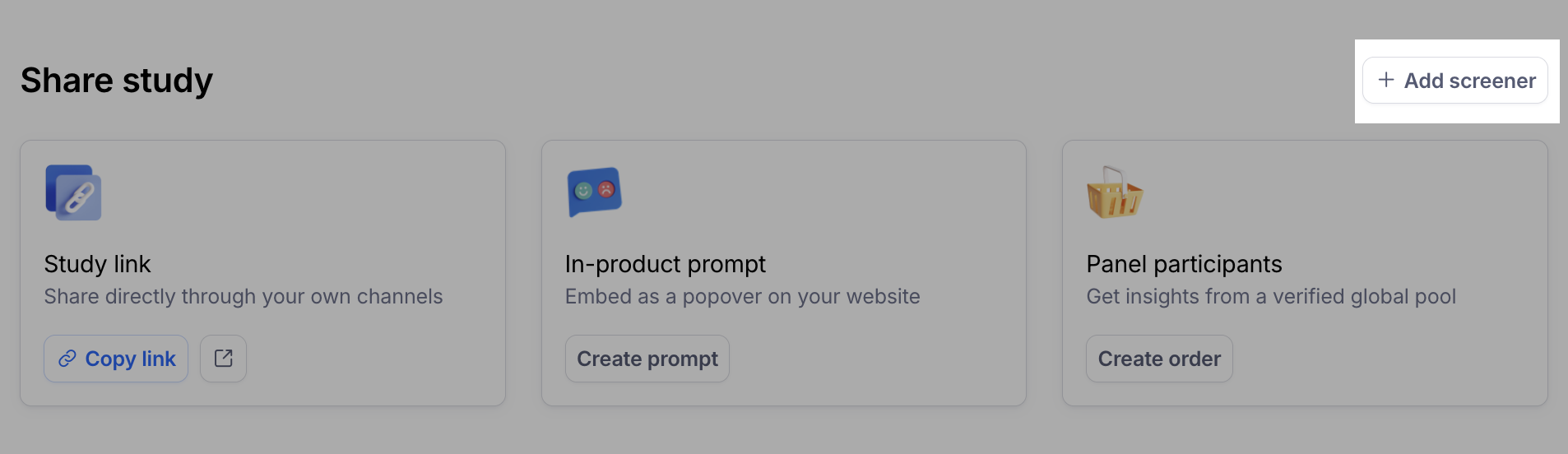
A new screener page will open and the first screening question will be active and ready to edit.
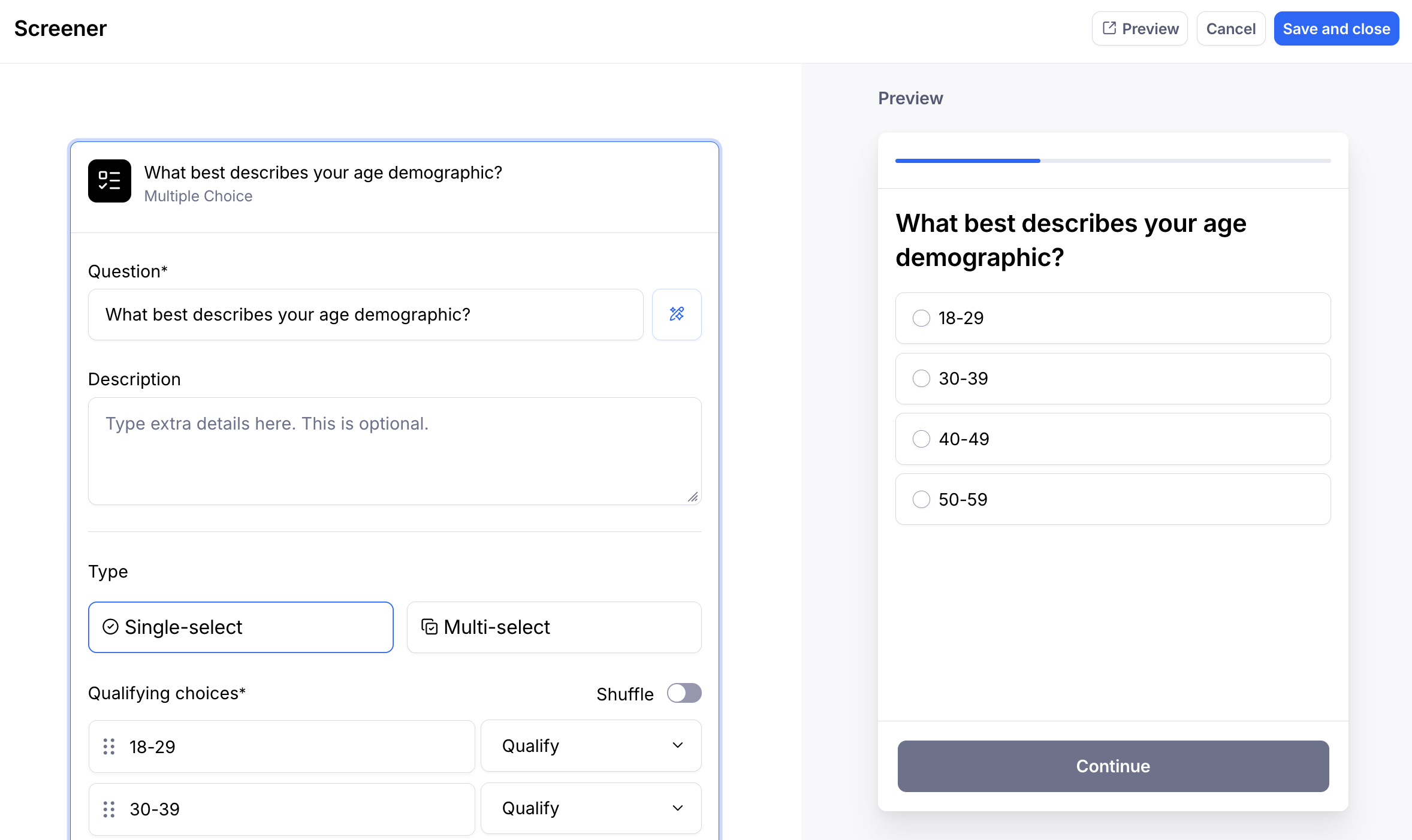
Enter the question(s) you want your participants to answer. You can add up to 5 screening questions. Define your acceptance and rejection rules.
Once complete, take a spin through the screener questions based on your rules by utilizing the preview option (top right corner). If you need to delete or duplicate a screener question, hover over the screener question and click the ... (ellipsis) in the right corner.
If you are happy with your screening questions, click Save and close to attach the screener to your study. If needed, you can always return to your screening questions by clicking the edit icon from the recruit tab.
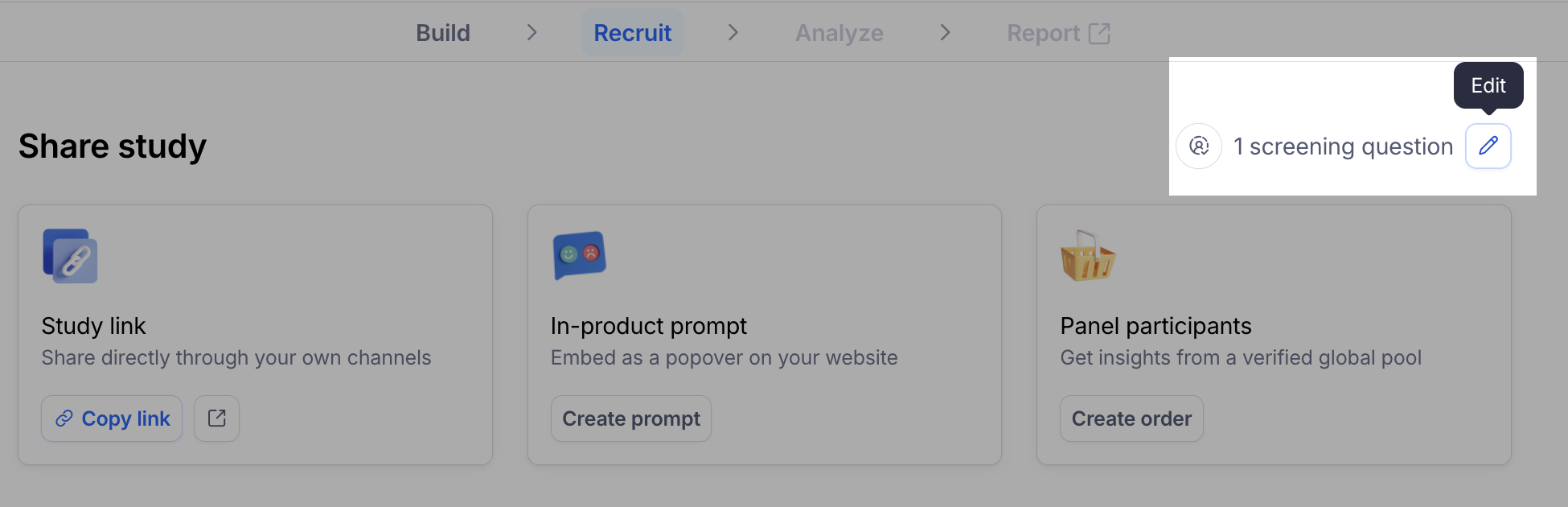
If you decide that you don’t want to save the screener question(s), click Cancel (top right) from the initial screen to discard changes and exit the editor.
Redirecting participants to a URL at the end of your AI Moderated study
Log in to your study dashboard and select the AI Moderated study you want to configure.
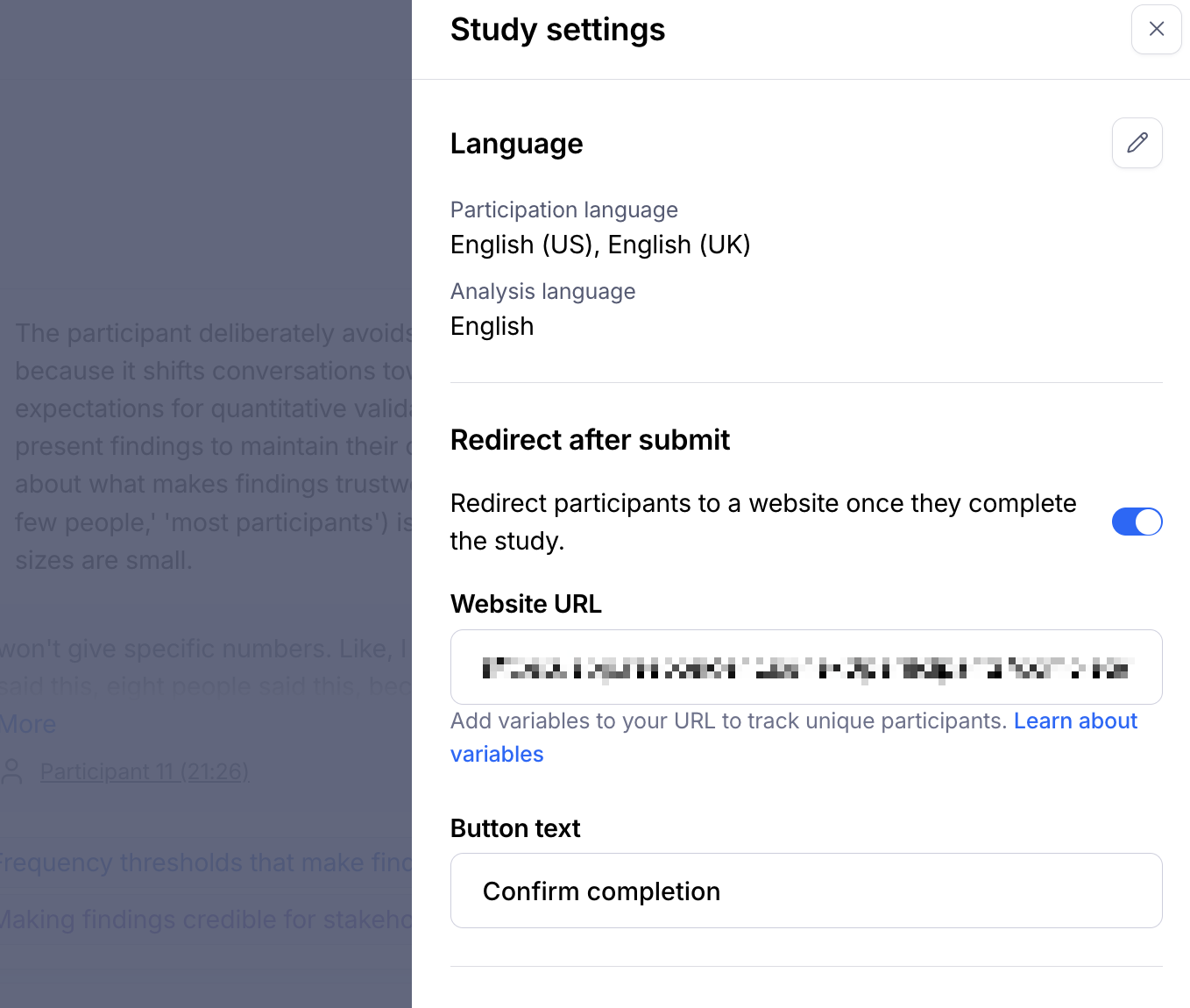
Navigate to your Settings (top right).
Locate the section labeled Redirect after submit.
Toggle the switch on and enter the desired URL where participants should be redirected after completing the study.
Enter text for how you'd like the button to appear to participants.
Test the study flow to confirm participants are redirected correctly upon completion.
Preview your study
You can test your study before sharing it, either one block at a time or end to end.
Preview a single block: select a block, then click Preview this block on the right side of the screen to test just that part of the conversation. This is the quickest way to check how the AI moderator handles a block after you edit it.
Preview the full study: click the ▷ Start Preview button in the center of the preview window, or click Preview in the top right corner to open it in a separate tab.
Share your study
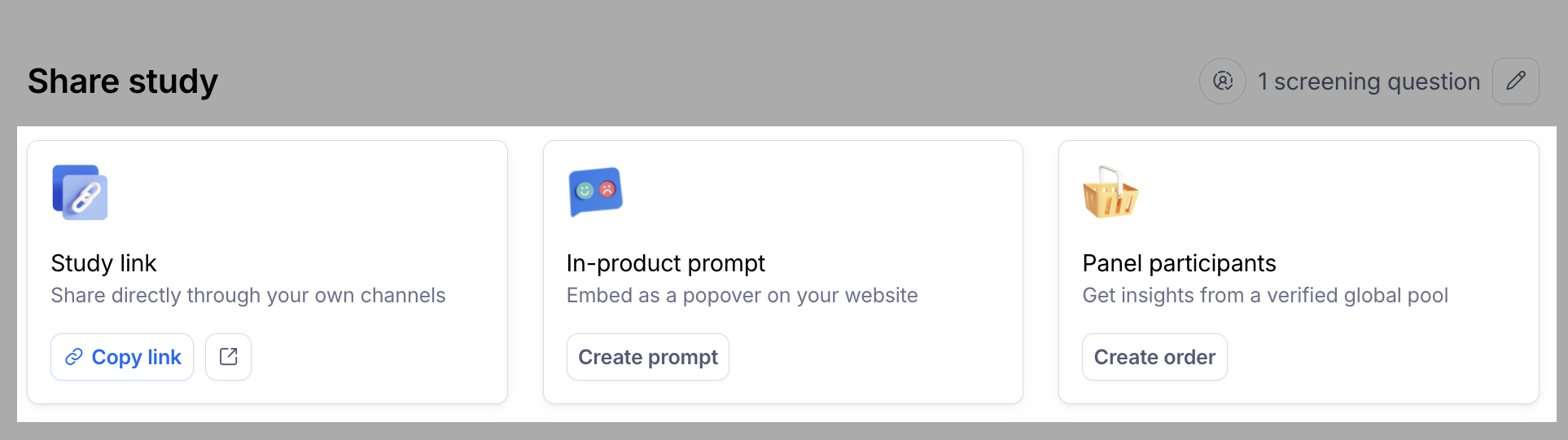
Now that your AI-moderated study is built, you can share it directly with your own channels, embed as an 'In-product prompt', or recruit through our panel integration with Prolific.
Learn more about plans & pricing.
Analysis and reporting
Each AI-moderated session automatically generates a comprehensive analysis package including AI summaries, editable transcripts with speaker separation, and timestamped highlights of key moments.
You can easily navigate between recordings and transcripts, organize insights by themes, and share important findings as clips or pinned highlights for your team.
You can also export your session recordings, download your transcripts and download your highlight reels via the Session details button from the Analyze tab.
Learn more about AI-Moderated Study results
Thematic analysis
Ready to dive deeper into cross-session insights? Learn more about our thematic analysis feature that automatically identifies patterns across all your participants and generates comprehensive theme-based reports with sentiment analysis and customizable findings.
Learn more about using thematic analysis to generate themes in your study
How participants interact with the AI-Moderator
Once you've started your recruitment, participants will join a video call where an AI-moderator will lead the conversation, asking questions based on the parameters you’ve set up (learning goals, extra context, etc).
It will display different states (waiting, listening, thinking, or ready to interrupt) to make it easier for conversation to flow, allowing participants to speak naturally and interrupt when needed.
The AI-Moderator will pick up key elements during the conversation to generate relevant follow-up questions in real-time, digging into topics based on the conversation depth you've set up. They understand whole sentences, opinions and experiences, as well as tonal shifts, and can react accordingly during the conversation.
Best practices
Getting great results with the AI-Moderator is all about setting it up for success. Think of the AI as a research assistant who's really good at following up on interesting topics, but needs you to point it in the right direction first.
Here are a few key suggestions that'll help you get the most out of your AI-moderated sessions:
Give the AI context so it can ask the most relevant follow-up questions.
Write concise and clear learning goals and questions, then trust the AI to ask follow-up questions. Use plain language and avoid writing overly complex or conditional questions.
Use Preview this block after each edit to check the conversation before previewing the full study.
Keep the learning goals of the study top of mind as they will define what results you get.
Consider sharing your study with a few participants or internally first to validate that the conversation matches your needs. Share your study more widely once you’re confident it’s complete.
Reporting Issues
If you run into any issues with AI-Moderator functionality, conversation quality, or technical issues, please contact our Support team.
You'll also receive feedback forms after sessions where you can share detailed feedback about your experience.