Filters & Segments in Reach
Last updated: September 11, 2026
Segments are saved filtered views that allow you to target specific participant groups more quickly and precisely in your Reach database.
Limits
Campaigns can be sent to a maximum of 1000 participants at a time. As such, we'd recommend that each segment shouldn't exceed 1000 participants. Learn more about Reach usage limits
Applying a filter
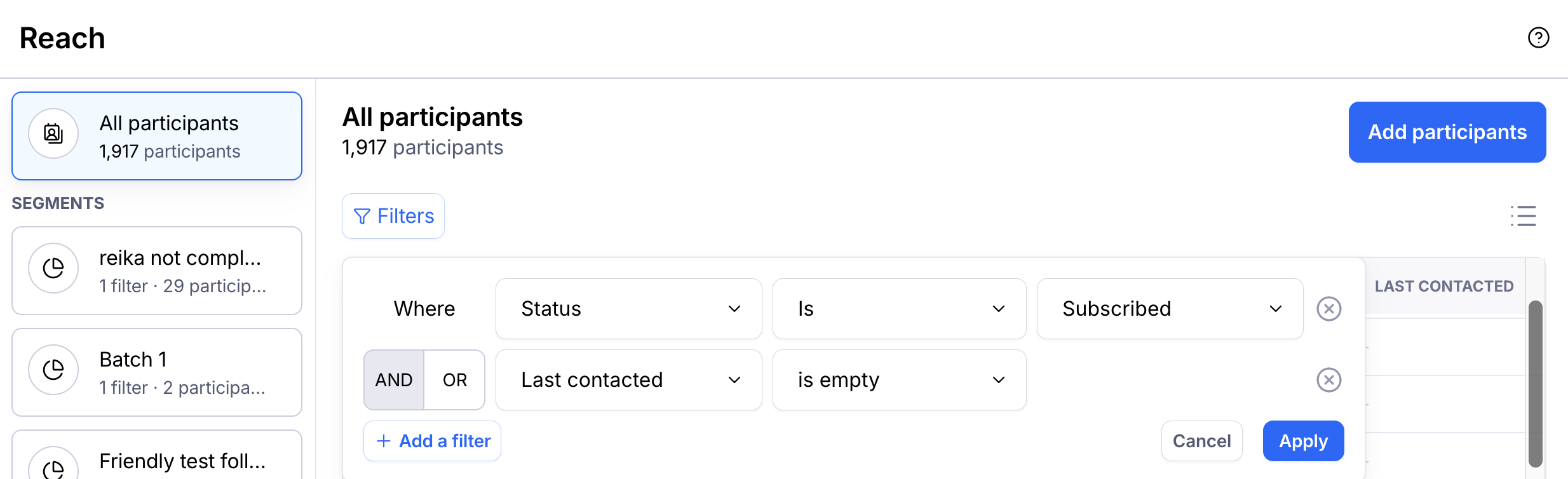
Click the Filter button to filter down the list of participants. Available filters include:
Email: The email address of the participant
Status: Email preference for Reach campaigns
Last contacted: Date the participant was last sent a campaign via Reach
Studies sent: Total number of studies sent to a participant via Reach
Studies started: Number of studies started from received campaigns
Studies completed: Number of studies completed from received campaigns
Start rate: Percentage of studies started from received campaigns
Completion rate: Percentage of studies completed from received campaigns
Average time to respond: The average time to start a study after receiving a campaign
[column name]: Any columns you've added when importing the participants
Creating a new segment
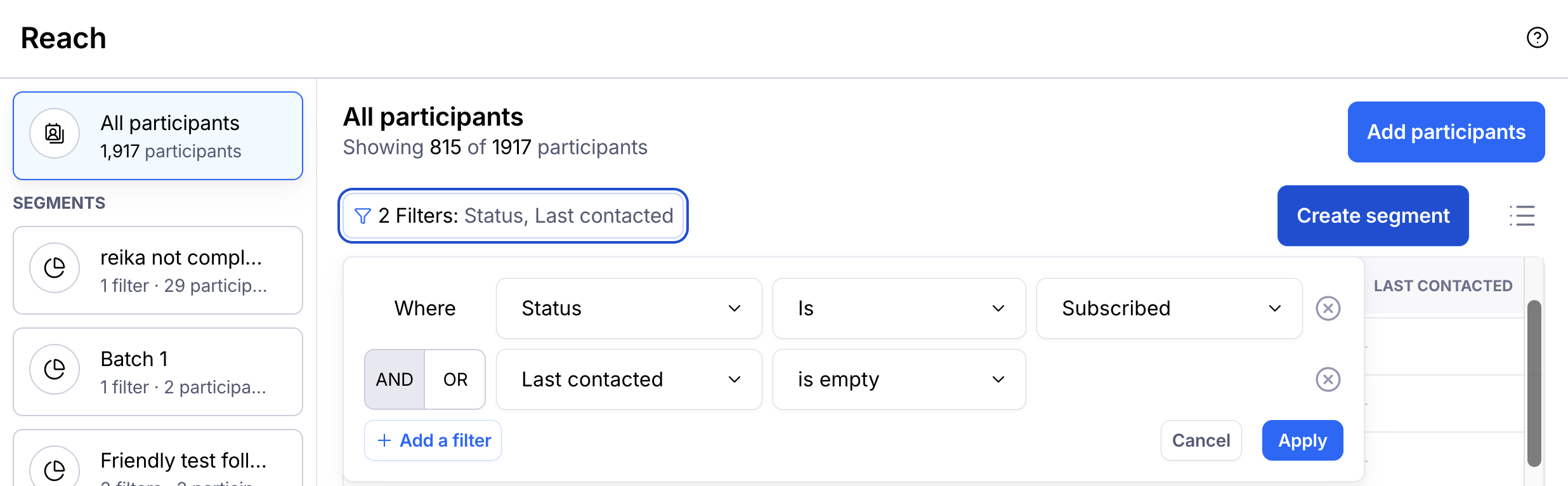
Once you've applied a filter, you can save it as a segment:
In the filtered view, click Save filters.
Enter a name for the new segment.
Click Create Segment.
The new segment will now be available in the Segments list on the left side panel.
After creating your first segment, you are ready to start sending out campaigns.
Editing segments
Renaming a segment
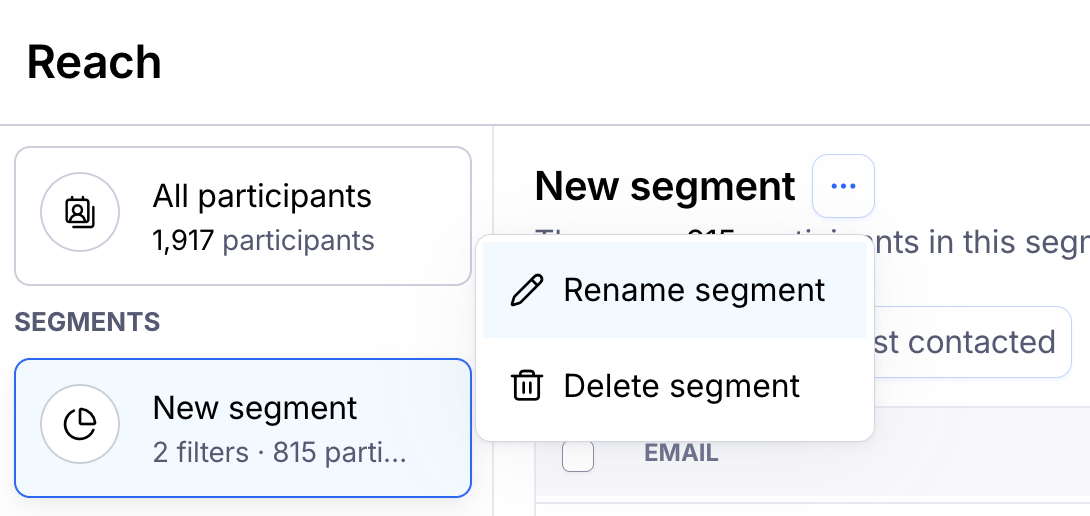
To rename a segment:
Open the segment and click the More menu to the right of the segment name.
Click Rename segment.
Enter the new name for the segment and click Save.
Deleting a segment
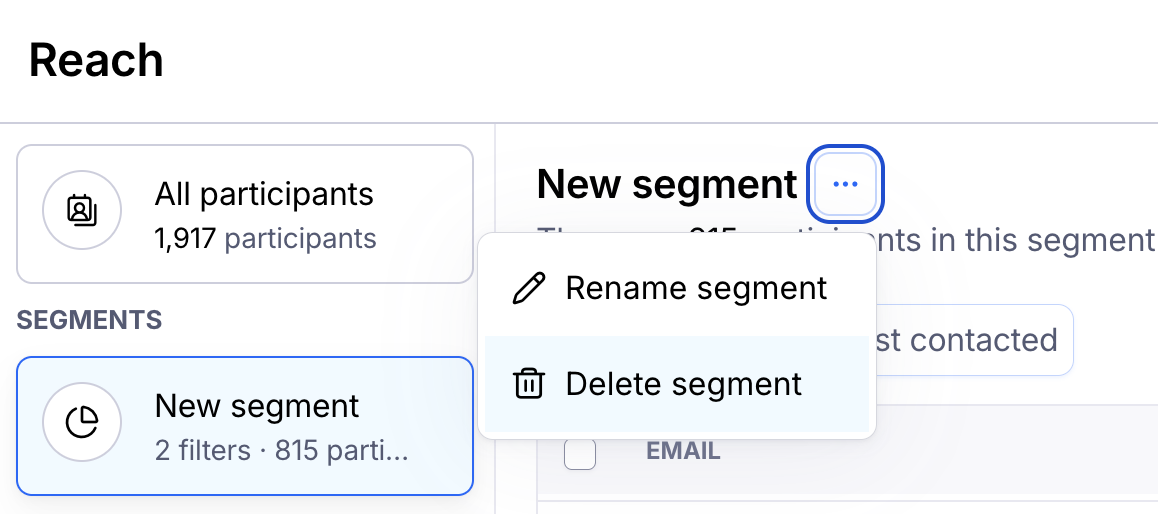
To delete a segment:
Open the segment and click the More menu to the right of the segment name.
Click Delete segment.
Confirm by clicking Delete.
Deleting a segment does not delete the participant entries contained in it.
Still need help?
If you have any questions or concerns, please let our Support team know — we'll be happy to help!