Collect multi-dimensional feedback with the Matrix block
Last updated: August 4, 2026
The Matrix block allows you to combine multiple statements (rows) with shared response options (columns), making it easy to gather comparative feedback in a single, organized view. Use it for Likert-scale surveys, feature satisfaction ratings, or any scenario where you want participants to evaluate multiple items using the same criteria.
Adding a Matrix block
Open your draft study, or create a new one
In the blocks list, click Add block
Select Matrix from the dropdown
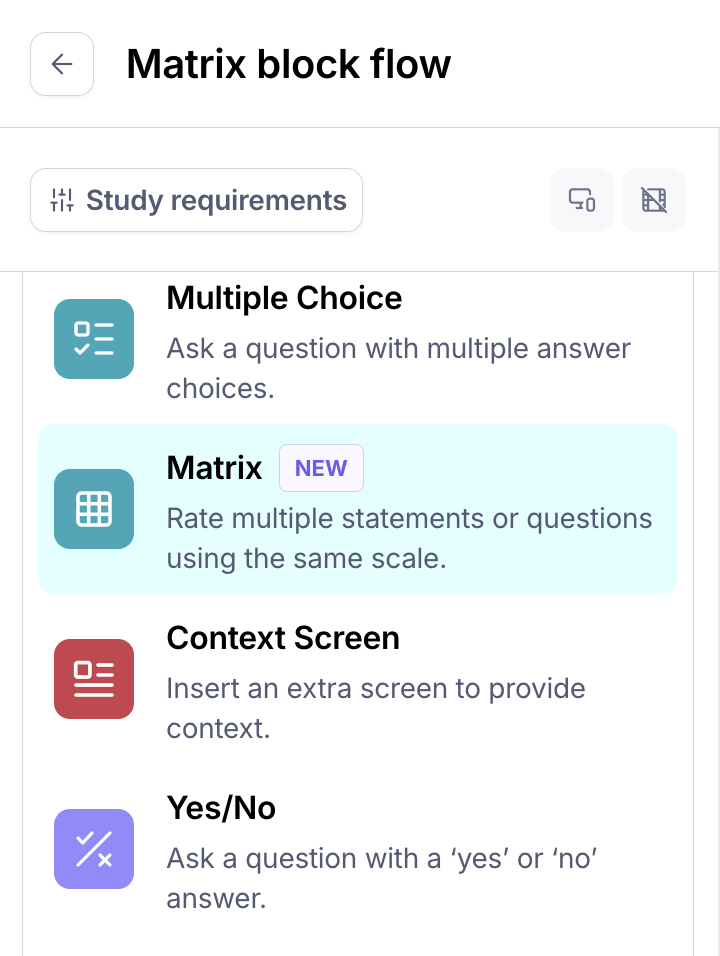
Enter your question in the title field
Optionally, add extra details in the Notes
If needed, add an image next to the question

Setting up row questions
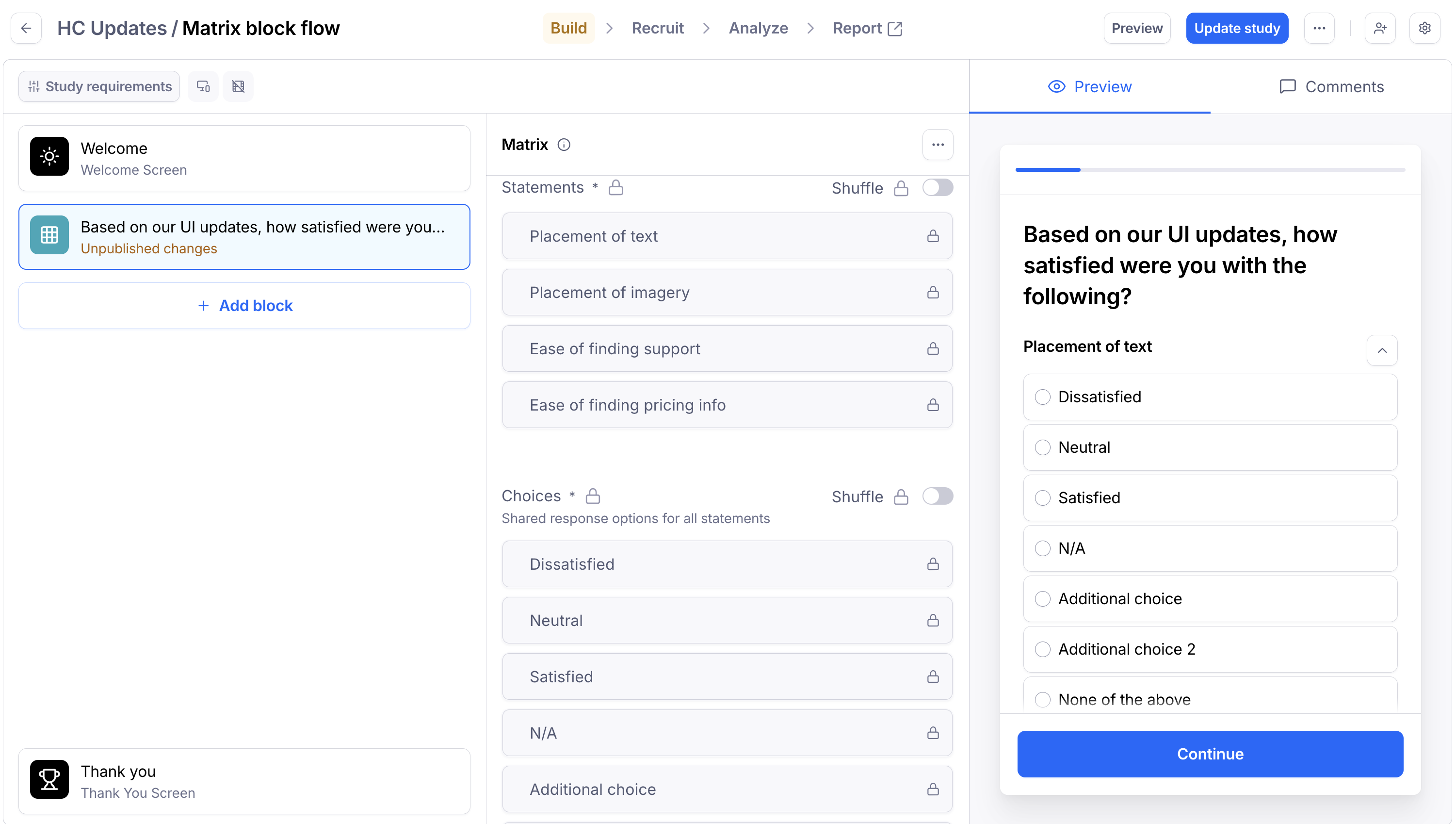
Row questions are the statements or items participants will evaluate. Each row represents one item to rate.
Click in the row input field to add a statement
Press Enter or click Add row to add more rows
Drag rows to reorder them
Click the × button to remove a row
You can add up to 10 rows per Matrix block. Each row question can be up to 150 characters.
Keep row statements concise and parallel in structure for easier comparison.
Setting up column choices
Column choices are the response options shared across all rows. These typically represent a scale or set of options.
Click in the choice input field to add an option
Press Enter or click Add column choice to add more choices
Drag choices to reorder them
Click the × button to remove a choice
You need at least 2 column choices, with a maximum of 7. Each choice can be up to 50 characters.
Paste multiple options at once by copying a list with line breaks—each line becomes a separate choice.
Selection type
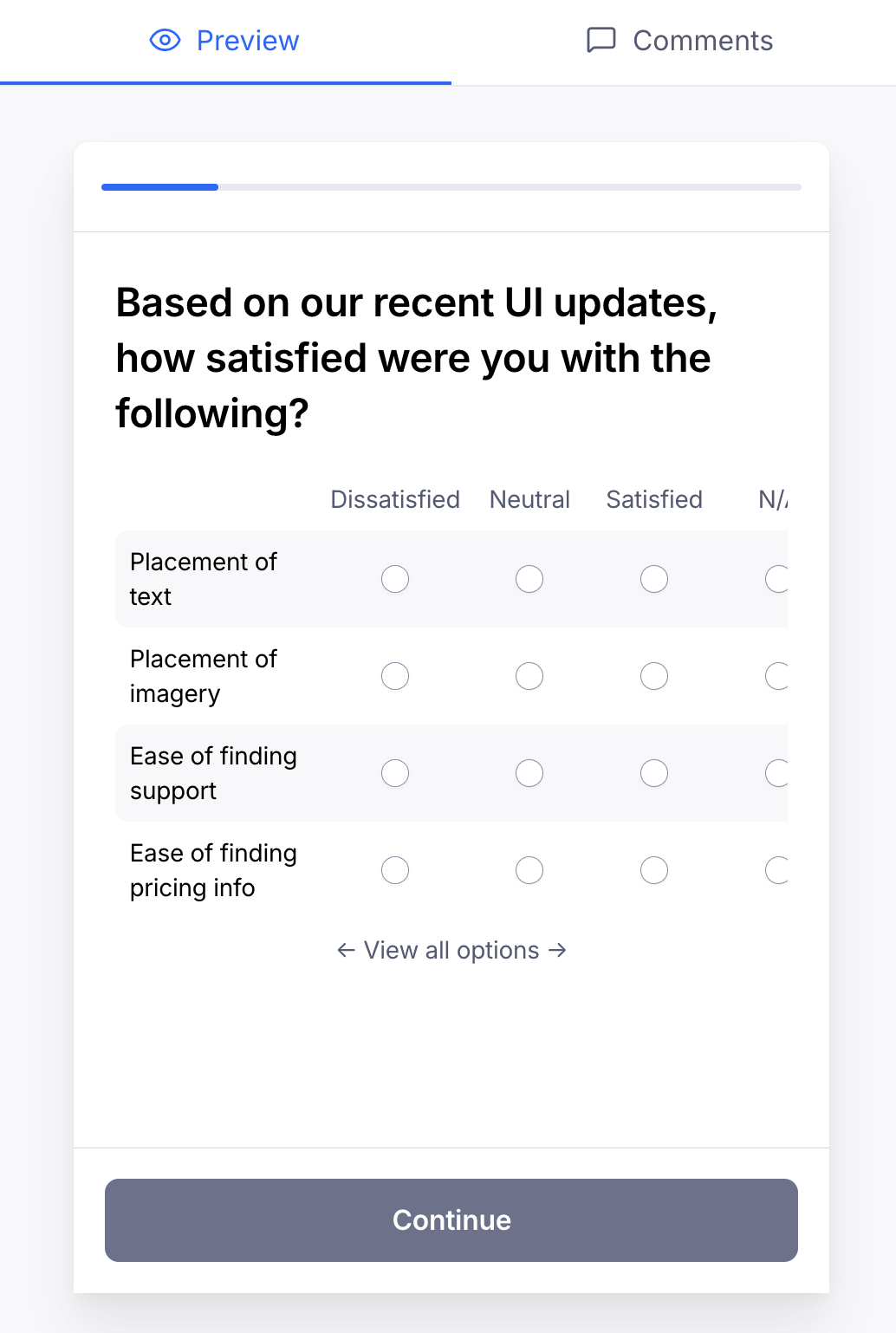
In the Type section, choose how participants can respond:
Single-select (default): Participants choose one option per row—ideal for rating scales
Multi-select: Participants can select multiple options per row—useful for "select all that apply" scenarios
Shuffle options
Randomize the order to reduce bias with the shuffle toggle:
Shuffle row questions: Displays rows in random order for each participant
Shuffle column choices: Displays response options in random order
Note: Shuffle settings can only be changed before your study is published.
Optimize for mobile
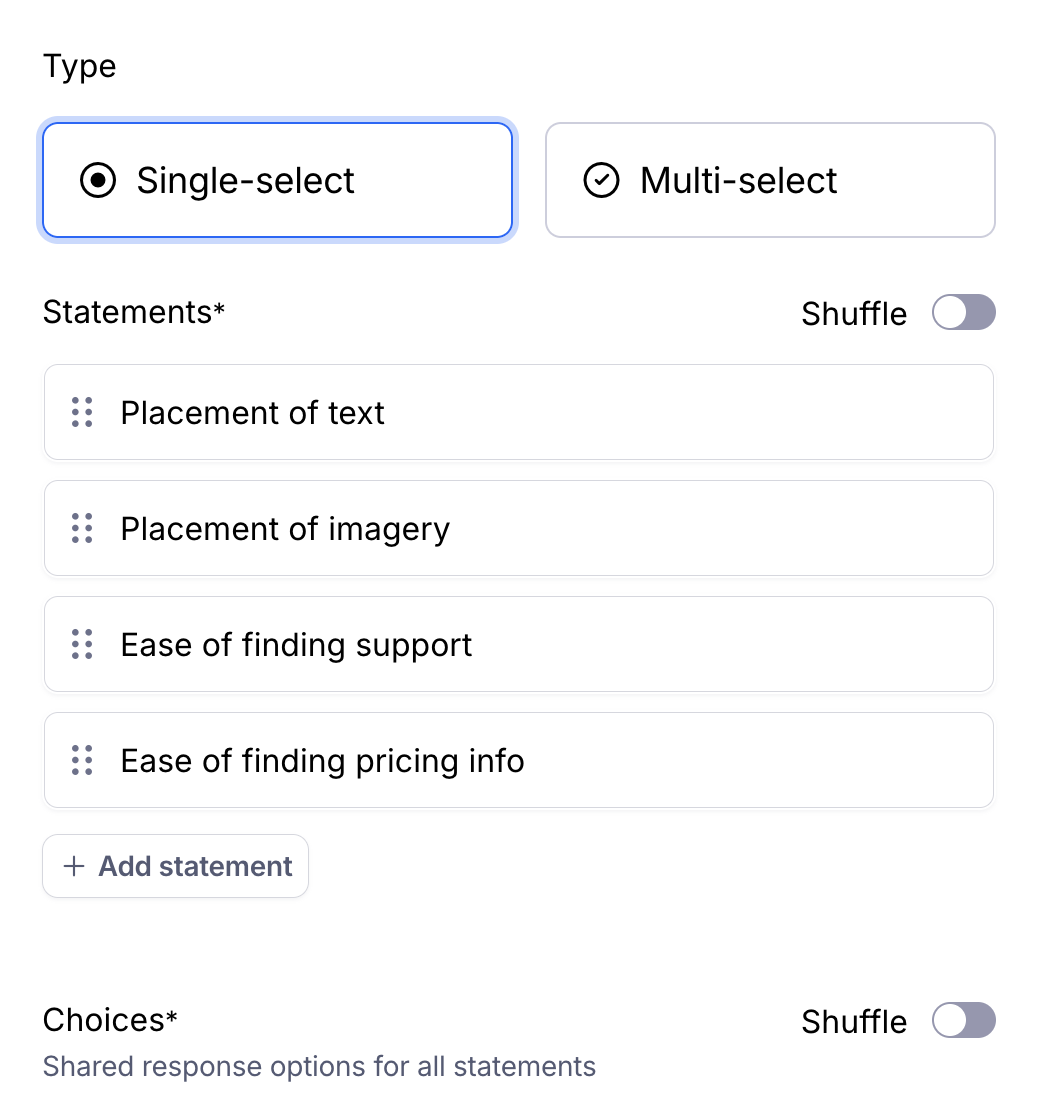
Choose how the Matrix block displays on mobile devices and smaller screens:
Scrollable grid (default): Maintains the table layout with horizontal scrolling—preserves the comparative view
Cards: Each row appears as a separate card with choices stacked vertically—better readability on small screens. Toggle "Optimize for small screens" to enable the card display. Use the Cards layout when your column choice labels are long, as they display better vertically.

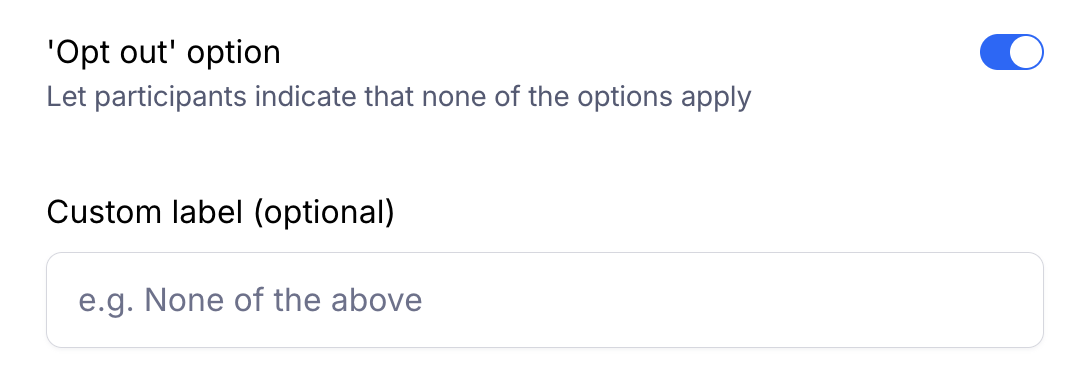
'Opt out' option
Toggle on the 'Opt out' option to add a "none of the above" to each row. This is useful when participants may not have an opinion on certain items.
You can customize the label text—the default is "None of the above."
Viewing results
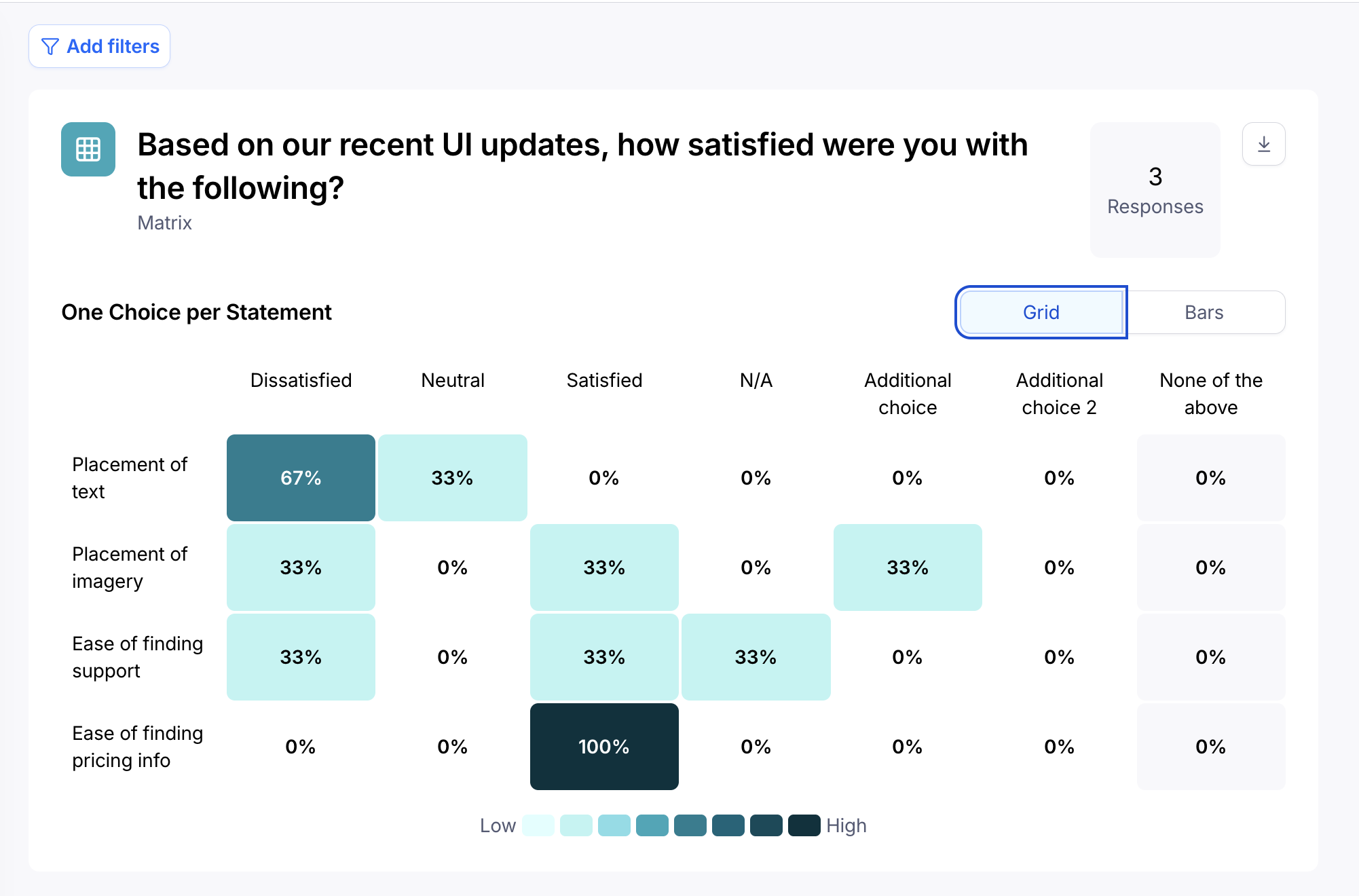
When viewing results for a Matrix block (either by Grid or Bars), you'll see:
Aggregated responses for each row in a visual breakdown
Compare how participants rated different statements
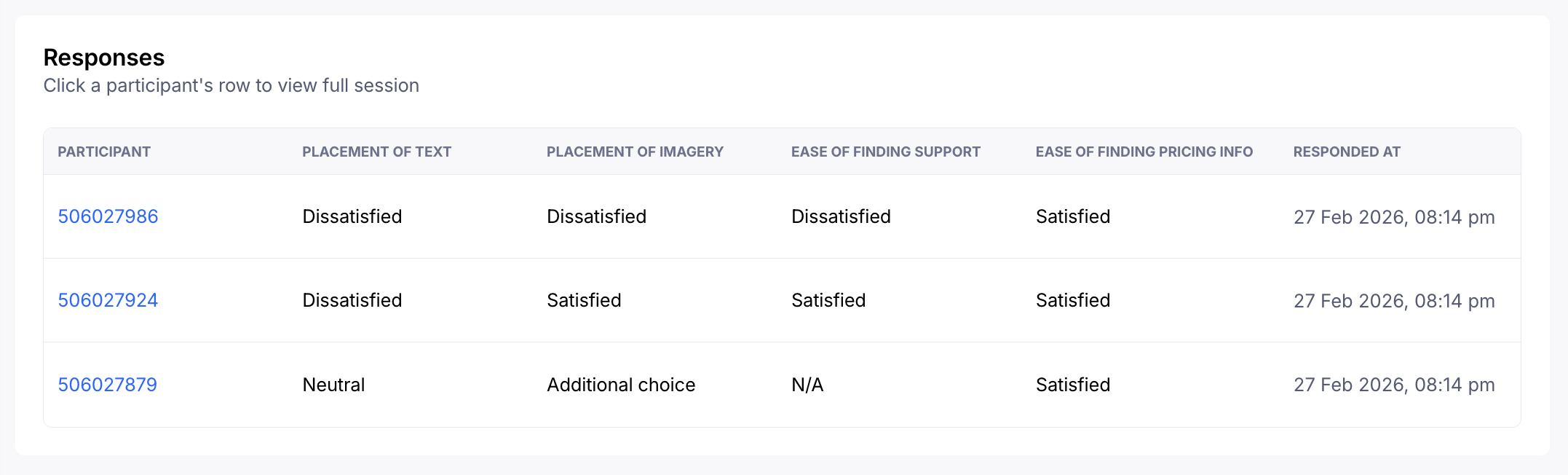
Scroll down to see individual responses
Beneath the matrix, you can view individual responses of your participants as well as the date and time of their response.
In the exported CSV, you'll find:
row_id: Identifier for each row statement
choices: Numerical index of selected choice(s) per row
values: The actual text of selected choices
Best practices
Keep your column choices balanced (e.g., equal positive and negative options) to avoid response bias.
Limit rows to 5-7 statements to prevent survey fatigue. For longer surveys, split into multiple Matrix blocks.
Use consistent scale direction across your studies—if "Strongly Agree" is on the right in one Matrix, keep it there in others.
Use cases
Feature satisfaction surveys: Rate satisfaction with multiple product features on the same scale
Likert-scale questionnaires: Measure agreement with multiple statements (Strongly Disagree to Strongly Agree)
Importance vs. satisfaction: Compare importance and satisfaction ratings for the same items
Competitive analysis: Rate multiple products or brands on the same criteria
Usability evaluation: Assess multiple aspects of a design (clarity, ease of use, visual appeal)
Known Limitations
There is a 10 row, 7 column maximum
There is a 150 character row limit, 50 character choice limit
Once the study is published, the shuffle and selection type cannot be changed
Still need help?
If you have any questions or concerns, please let our Support team know — we'll be happy to help!