Setting up SCIM for your team
Last updated: October 5, 2026
Maze supports SCIM (System for Cross-domain Identity Management) integration with identity providers (IdPs) via WorkOS. SCIM automates team management directly from your IdP, eliminating manual user provisioning while ensuring secure, compliant access control at scale.
Before you start
SCIM is only available for teams with SSO enabled
You must be an Owner or Admin to configure SCIM integration
Ensure your identity provider supports the SCIM 2.0 protocol
Who can use this feature
SCIM support is available on all Enterprise plans with SSO enabled.
How SCIM works with Maze
What roles can be managed
Admins and Members: SCIM can provision, update, and remove these roles
Owner protection: Owners are protected from automated changes to prevent account lockouts
What changes are supported
SCIM automatically reflects the following changes from your IdP:
User added: New users are invited to Maze and can log in via SSO
User removed: Users are deactivated and removed from your Maze workspace
Role changed: User permissions are updated when a valid
mazeRolevalue is passed (Admin and Editor only). Omitting the value for a user who already exists on your team leaves their current role unchanged.
Webhooks notify Maze immediately when directory changes occur.
Enabling SCIM on a team that already has members
If your team already has members or pending invites when you enable SCIM, Maze preserves those roles and invites. A missing or unmapped mazeRole value won't remove them or downgrade them. Existing members are only removed when they're removed in your identity provider, and their role only changes when a valid mazeRole value is passed — including collaborator, if you want to downgrade someone.
Important: SCIM uses an invite-first approach—users are invited to Maze rather than having accounts automatically created. They must accept the invitation and log in via SSO to complete the process. This also enforces the “Required SSO Log-in” setting and updates team discoverability to “Hidden: invite only”.
How to set up SCIM for your team
As an Owner or Admin, navigate to your Team settings
Navigate to the Security section
If you have SSO enabled, you will see a new section for enabling SCIM
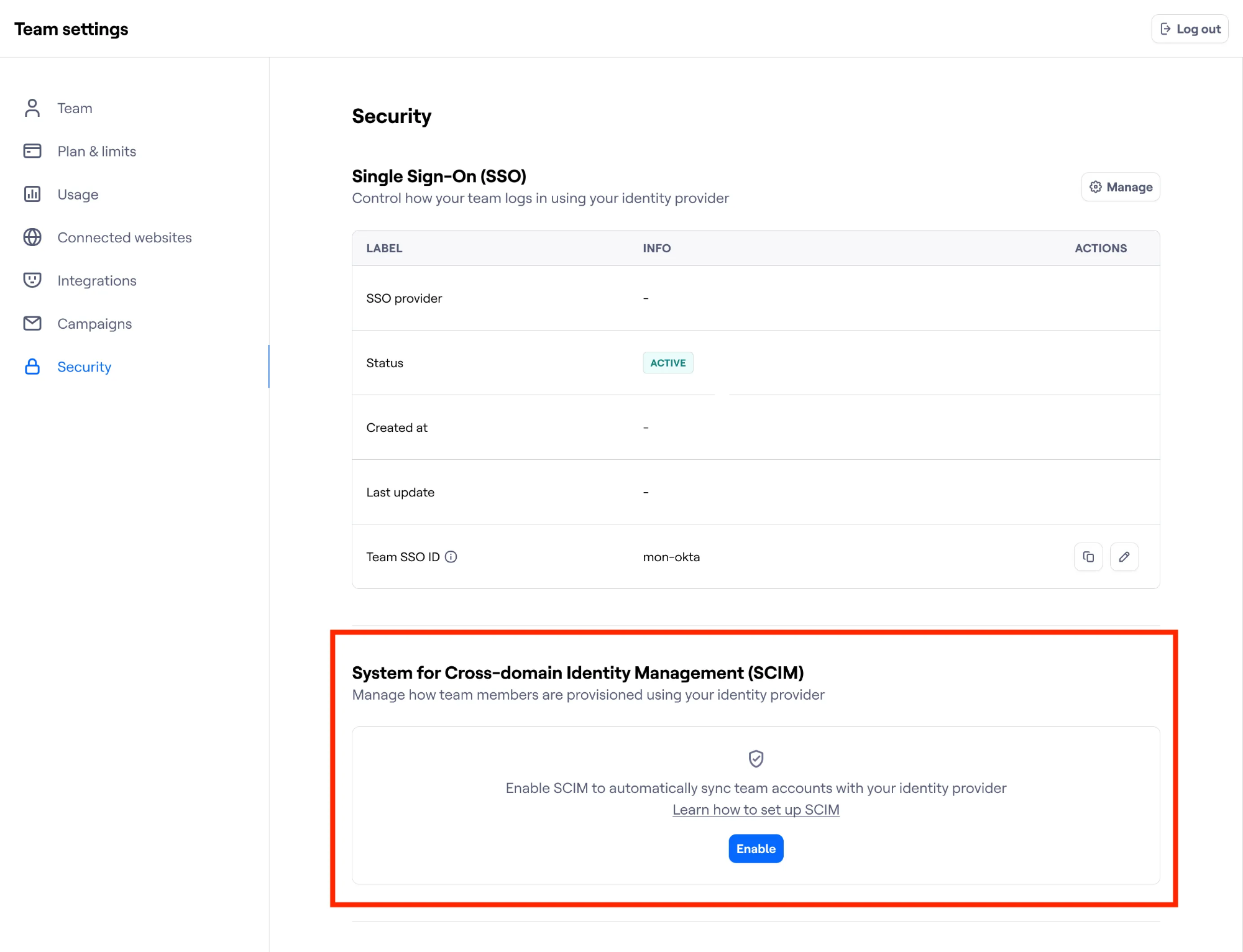
Click on Enable
This will redirect you to the WorkOS Directory Sync portal with further instructions
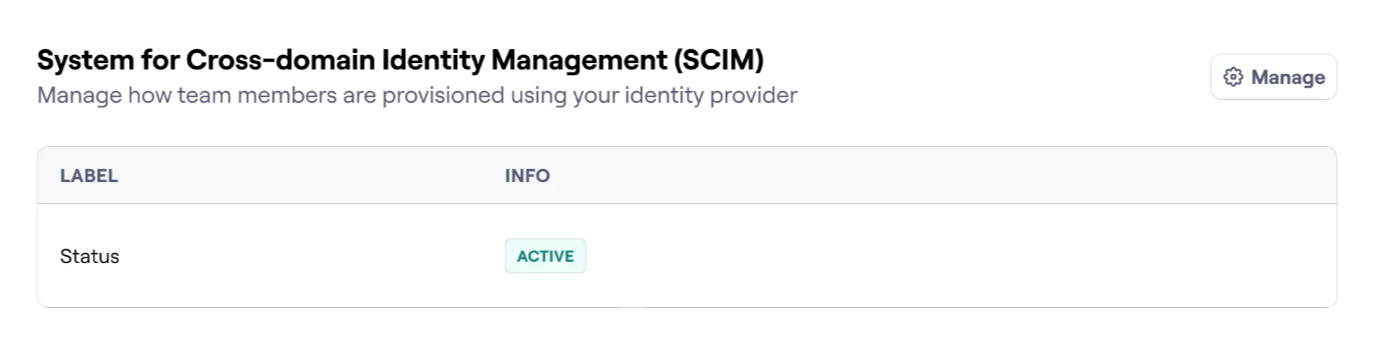
Once SCIM has been successfully set up, that status will change to Active
You can manage your SCIM connection by clicking on Manage
Managing User Roles via SCIM
Roles in Maze are managed through the custom user attribute mazeRole.
You can map your IdP user field to the mazeRole attribute in your SCIM configuration under Team Settings.
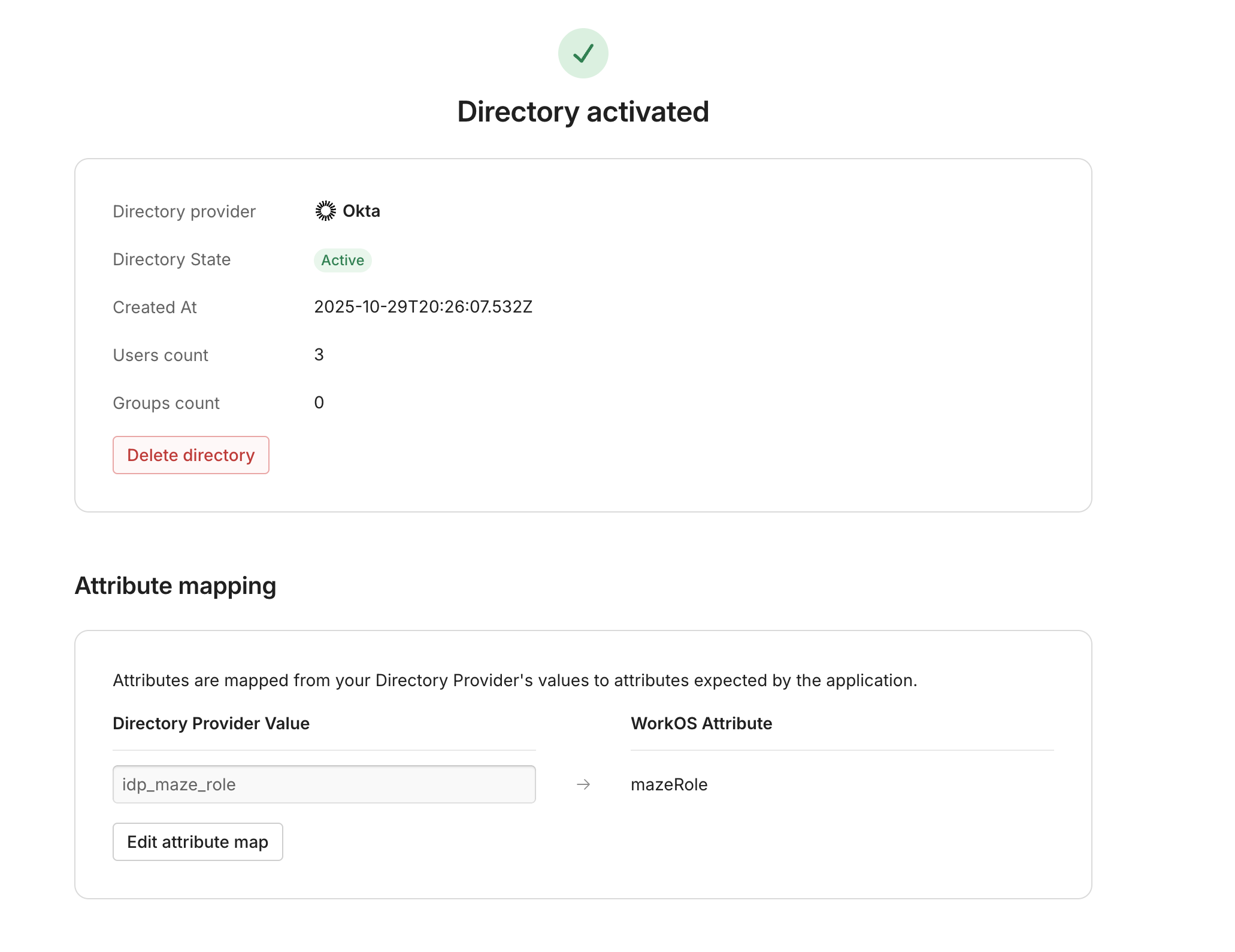
In the example above, idp_maze_roleis a custom user attribute defined in your identity provider’s SCIM application and mapped to the mazeRole attribute in your Maze Team Settings.
Configure this attribute with the following parameters to ensure it’s recognized by Maze during user provisioning:
Setting | Value |
Data Type |
|
Namespace |
|
The allowed roles in this field are as follows:
Admin
Editor
Collaborator
How a missing, empty, or unrecognized value is handled depends on whether the user already exists on your team:
New users with no existing relationship to your team: the user is not added to your team. This allows collaborators to authenticate through your identity provider without becoming a member of your team.
Users who already exist on your team, including those with a pending invite: their current role and membership are preserved, and nothing changes. To change an existing member to a collaborator, set
mazeRoletocollaboratorexplicitly.
You can manage all users via SCIM except the team owner. Any role change or user removal on the team owner will not be processed. Changing team ownership must be managed through your team settings.
Managing user roles in EntraID without extensionProperties
The standard setup process for SCIM in EntraID involves creating an extensionProperty to house the mazeRole value for users. However, EntraID limits the number of extension properties you can create, so you may need an alternative method. In this case, you can use App Roles instead.
Step 1: Define app roles
App roles ensure the correct value is passed into the mazeRole custom attribute for the right user or group.
Go to App registrations → [your-app-name] → App roles
Click + Create app role and create a role for each role type (Editor and Admin), filling in the following fields:
Display name: A recognizable name for the role
Value:
EditororAdminDescription: A recognizable description
Allowed member types: Users/Groups
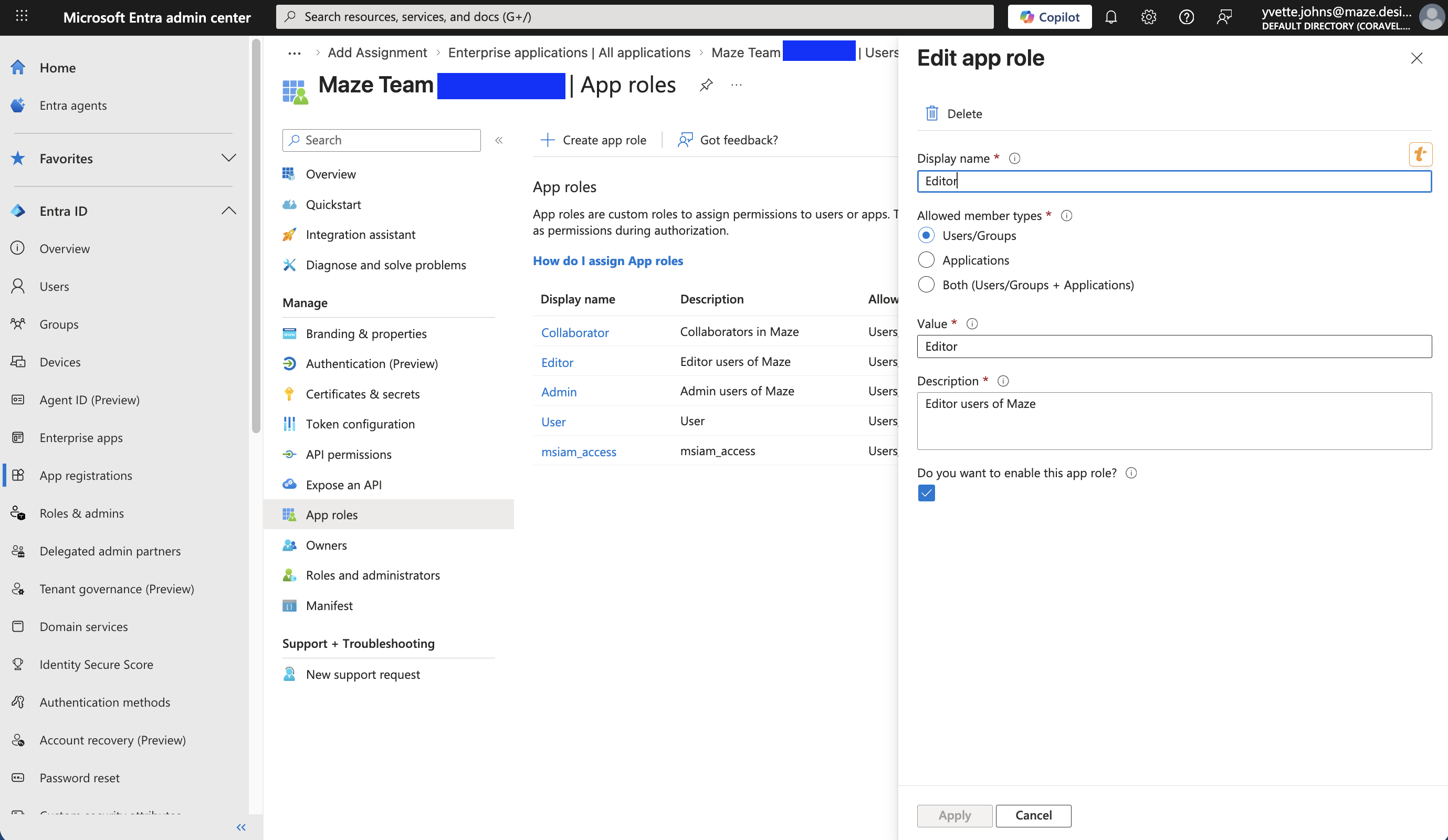
Click Apply
Step 2: Assign app roles to users or groups
Assign the appropriate app role to specific users or groups, depending on how you're provisioning users.
Go to Enterprise apps → [your-app-name] → Users and groups
Click + Add user/group
Under Users and groups, click None selected, then select the applicable user or group and click Select
Under Select a role, click None selected, then select the relevant role and click Select
Click Assign
Repeat for each role
If you've just created your App Roles, they may not be immediately available for assignment to your users or groups. Try waiting 10-15 minutes for the change to propagate within your tenant.
Step 3: Configure the mazeRole custom attribute
Next, create a custom mazeRole attribute and associate it with the app role assignments you've created. This ensures the correct role value is passed along for each user.
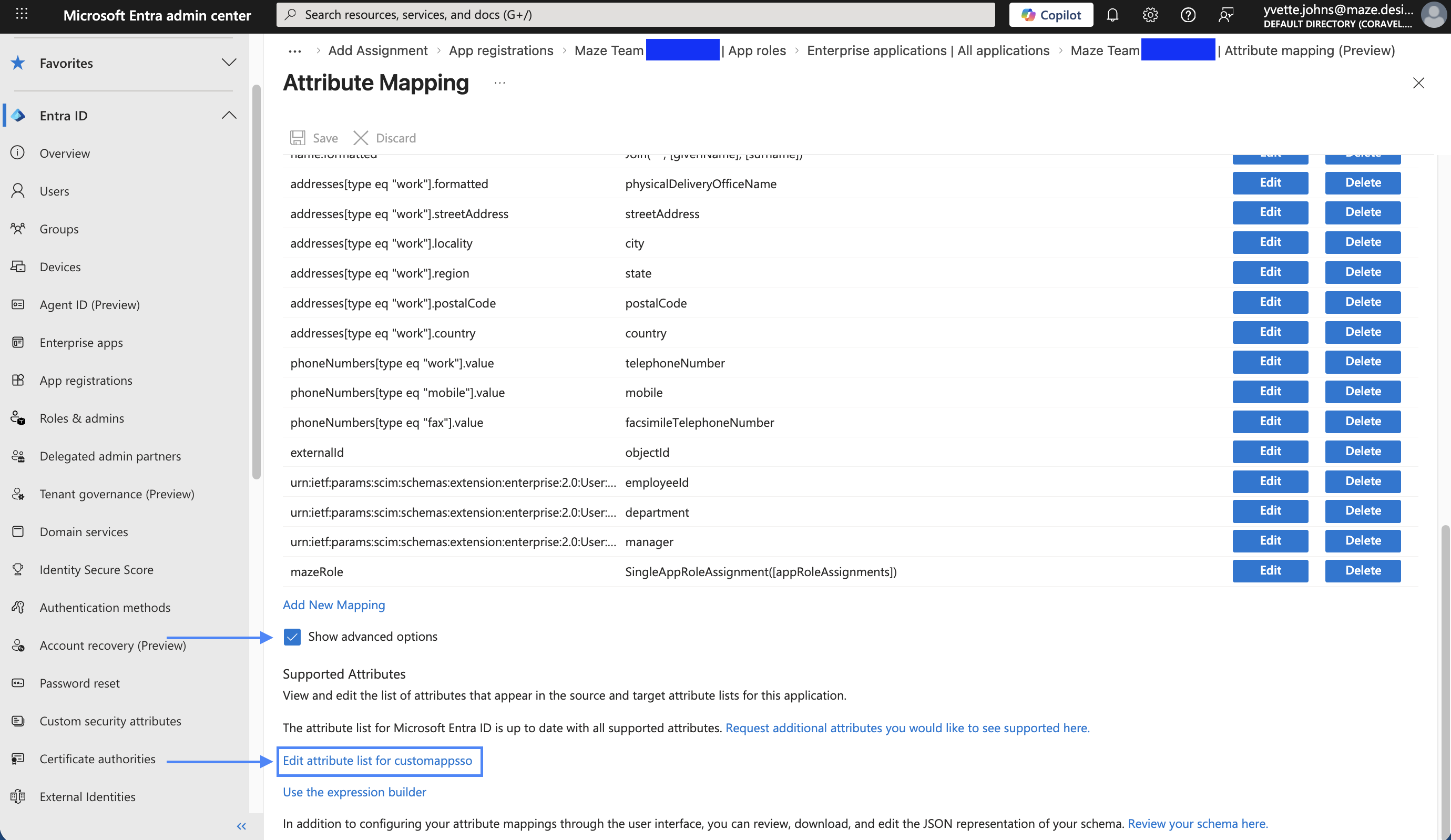
Go to Enterprise apps → [your-app-name] → Provisioning → Attribute mapping (Preview) → Provision Microsoft Entra ID Users
Confirm the setup for the
externalIdandemails[type eq "work"].valueattributes as described in the standard instructionsScroll to the bottom of the page and check Show advanced options
Click Edit attribute list for customappsso
Create a new attribute:
Name:
mazeRoleType: String
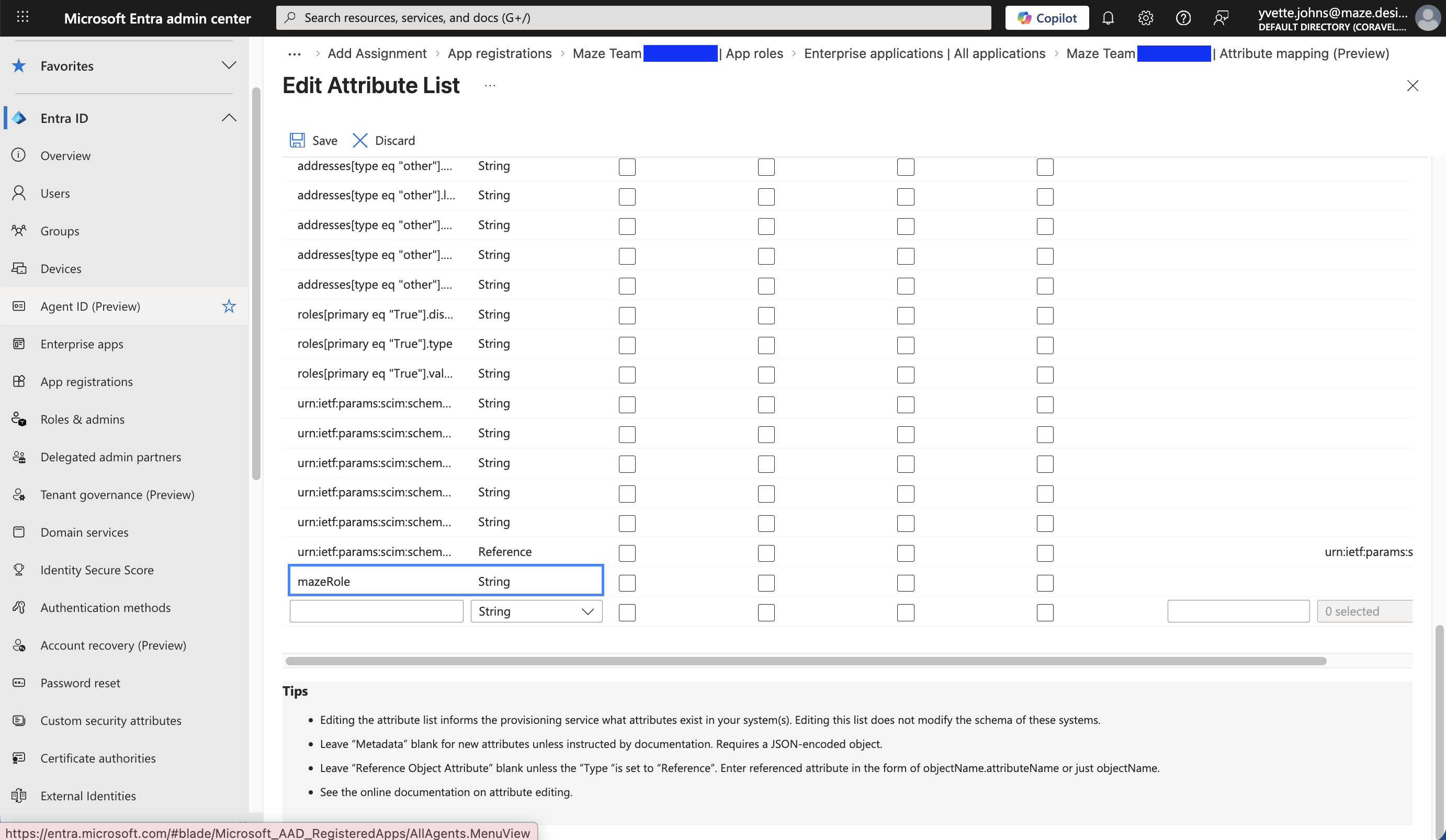
Click Save
Back on the Attribute mapping page, click Add new mapping
Fill in the following fields:
Mapping type: Expression
Expression:
SingleAppRoleAssignment([appRoleAssignments])Target attribute:
mazeRole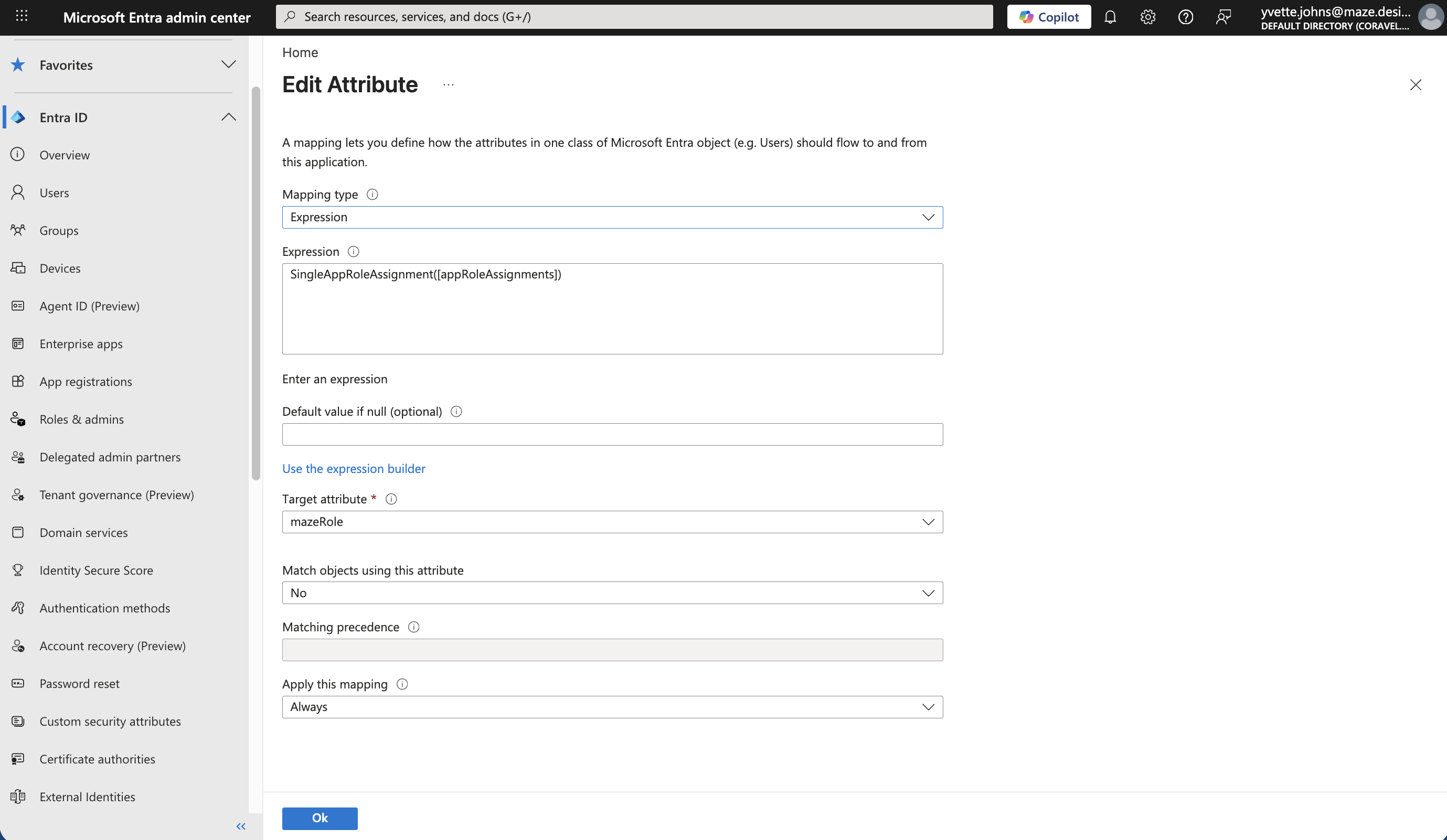
Click Save
From here, you can complete the remaining portion of the setup guide and provision your users or groups.
FAQ
Which identity providers are supported?
You can find a complete list of supported IdPs in the WorkOS documentation.
What happens if I disable SSO?
Maze automatically removes all SCIM settings when SSO is turned off.
What if there's a sync conflict?
Updates are applied one at a time per user, with the newest information always taking priority. As a backup, there’s a nightly sync to ensure Maze always matches your IdP directory and correct any potential drift.
Can someone use SCIM to access accounts they shouldn't?
No. The invitation-first pattern prevents unauthorized account access—users must accept an invitation before they can log in.
What if SCIM fails to sync a user?
Failed operations can be safely retried, and all SCIM actions are logged for troubleshooting. The nightly reconciliation helps catch and correct any missed updates.
I completed the SCIM configuration, and some of my users are missing from my Maze team!
This generally indicates that the mazeRole custom attribute hasn't been configured properly, so a valid role value isn't syncing from your directory. Users who weren't already on your team are not added when no recognized role is passed.
Check your mazeRole mapping, confirm the value matches one of the allowed roles, and re-run provisioning. Members who were already on your team before SCIM was enabled are preserved and won't be affected by a missing role.