Updating your account details in the personal settings
Last updated: September 15, 2026
You can update your user name, profile photo, email, password, and other personal details in the personal settings.
Access the Maze personal settings
Click your avatar at the bottom left corner of the side navigation, and click Personal settings.
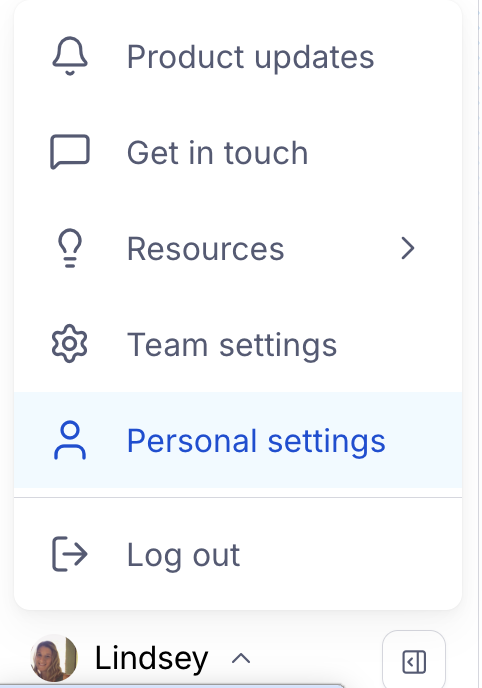
This will open the My account tab. Here you can:
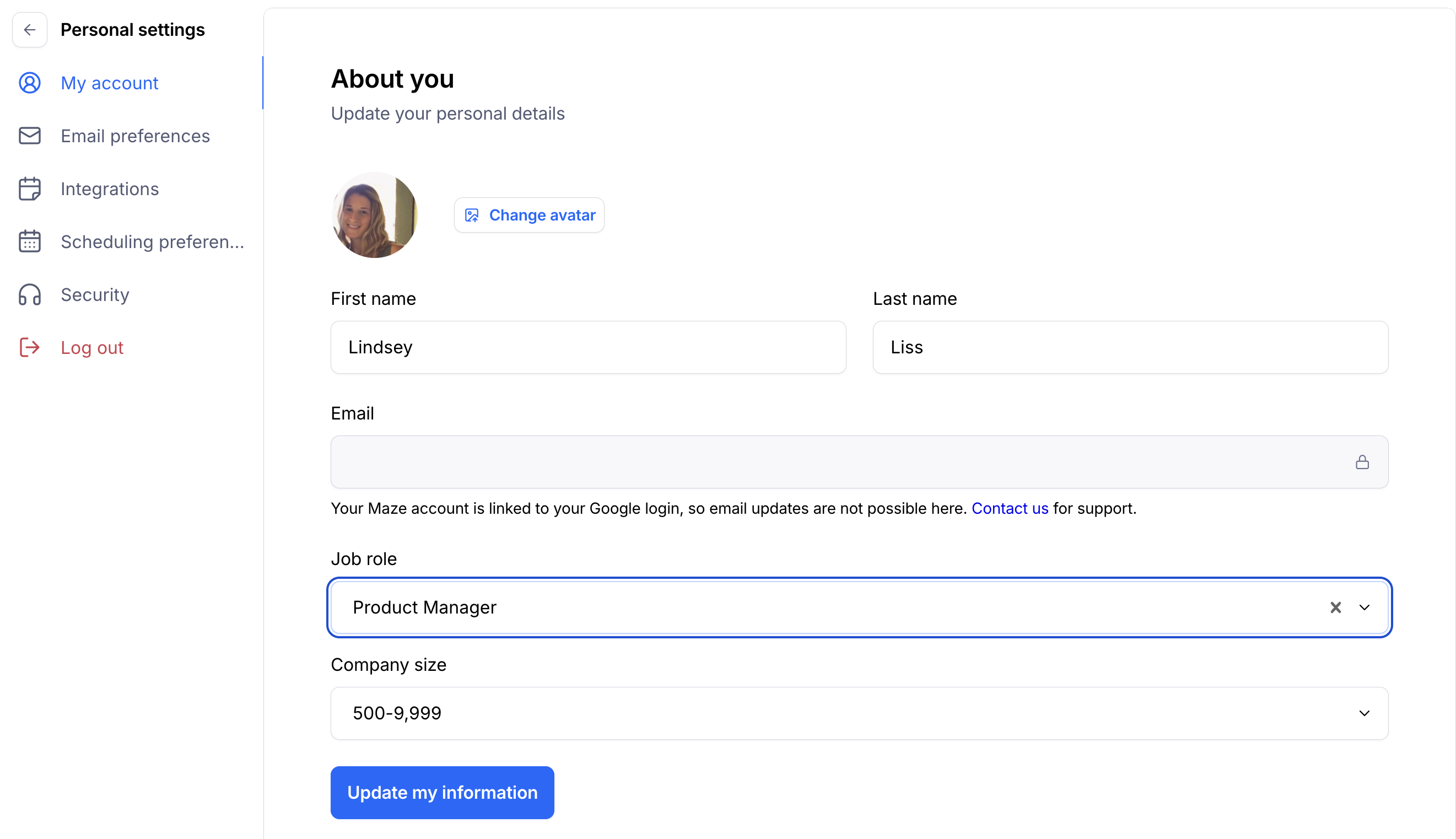
Update your name and profile photo
To change the name, profile photo, as well as other information associated with your Maze profile:
Select the My account tab.
Enter the updated First name and/or Last name.
Click the Change avatar button to add a new profile photo.
Update your email
Before you start:
If you’ve linked your account to Google, you won’t be able to update your maze email address. How do I change my email address in Maze if my account is linked to Google?
It’s not possible to use the same email address on two different accounts. Why am I seeing an “Email already used” error when updating my email address?
To change the email address associated with your Maze account:
Select the My account tab.
Enter the updated email address in the ‘Email’ field.
Click Update my information. The new email address will appear as “Unverified”.
Go to the inbox of the newly updated email address, and click the Confirm email button in the confirmation email to wrap up the email update process.
Update your password
Select the My account tab.
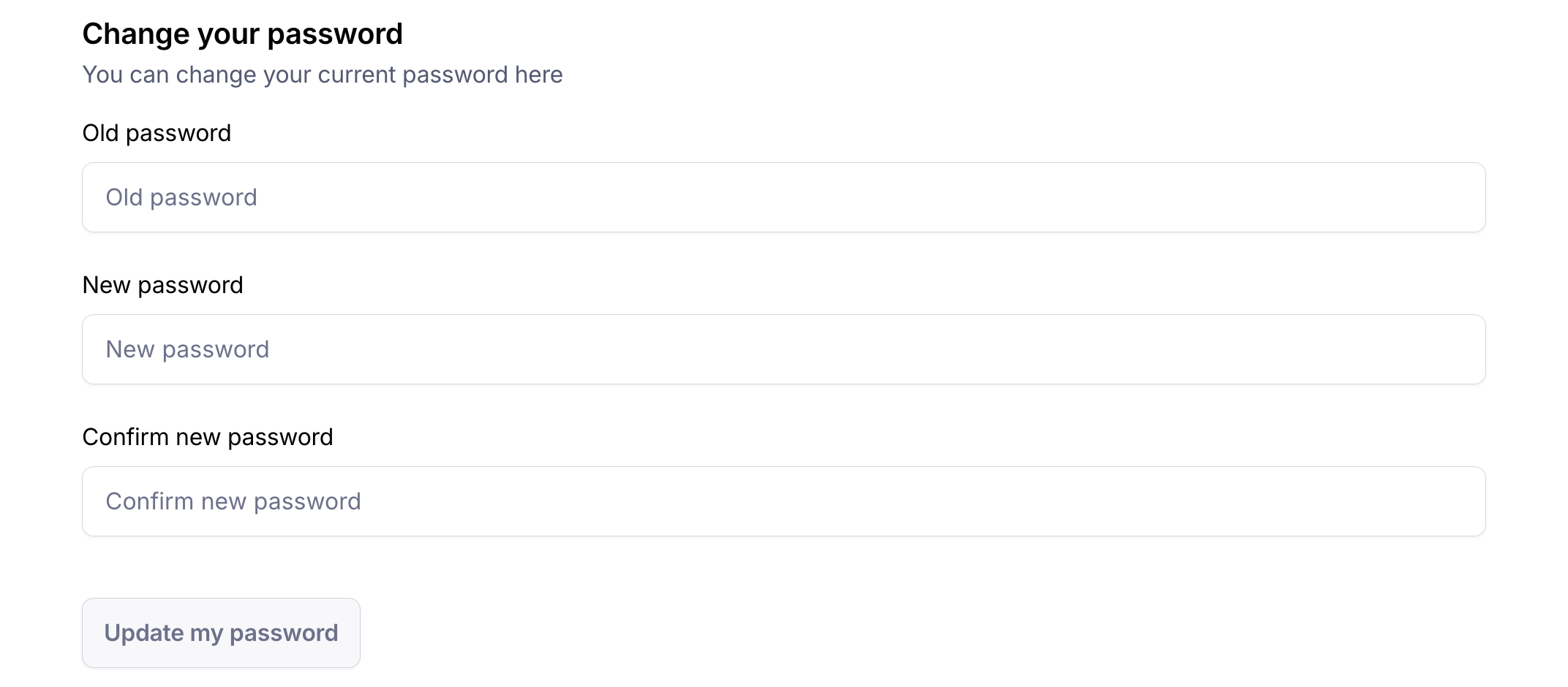
Scroll down to the Change your password section
Confirm your old password, and enter the new password twice.
Click Update my password.
Still need help?
If you have any questions or concerns, please let our Support team know — we'll be happy to help!