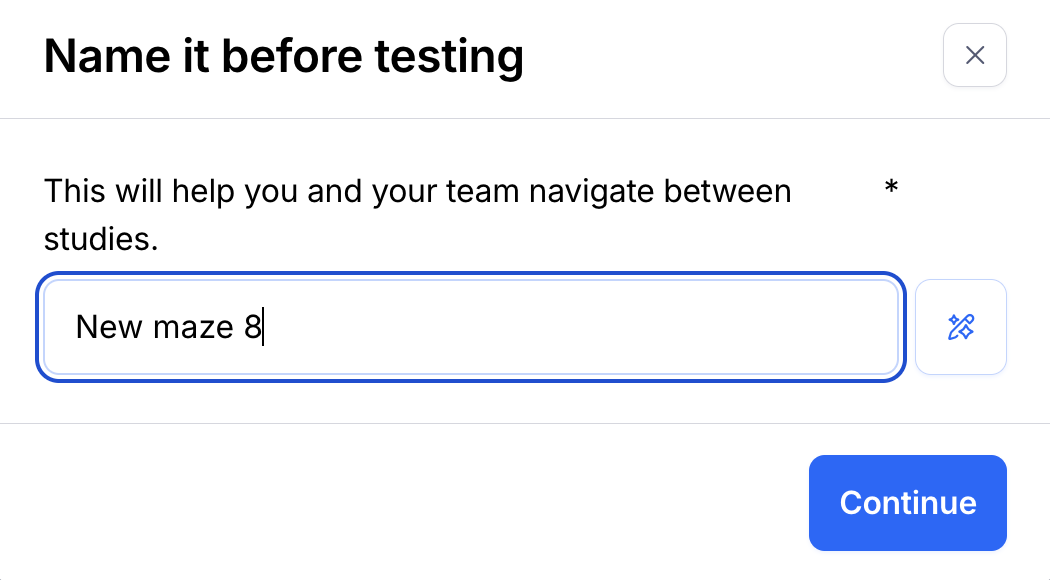
How to change the name of your study
Last updated: September 15, 2026
By default, new studies are named sequentially: the first study in a project is automatically named "New study 1", followed by "New study 2", and so on.
You can change these default names anytime, both before and after publishing a study.
Giving clear and descriptive names to your studies helps your team quickly identify and locate what they're looking for within your projects, without having to open studies to understand their content.
It's also possible to create AI-generated study names with a single click.
Rename a study
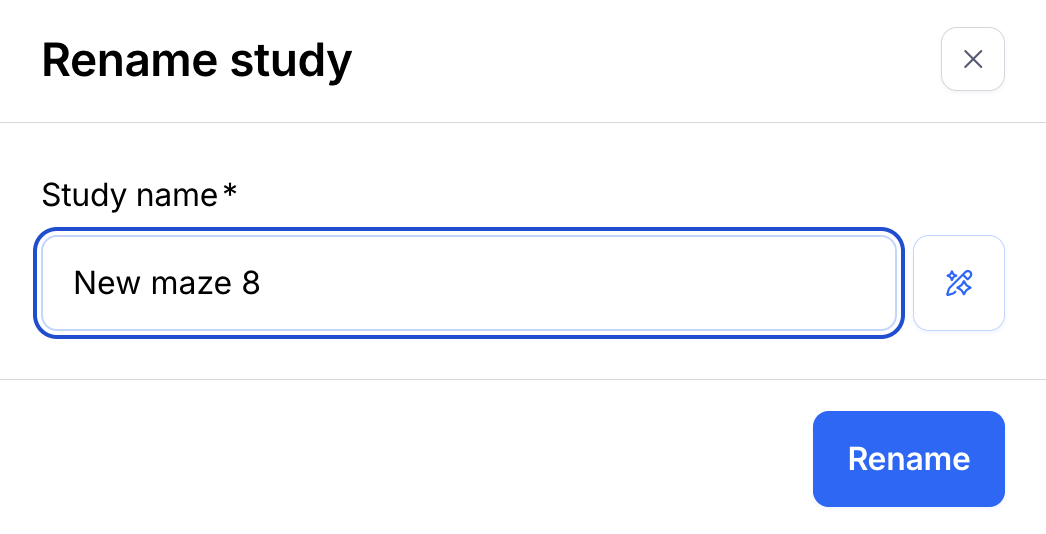
From the study builder
Open an existing study, or create a new one.
Hover and click the study name on the toolbar at the top.

Type the new name and click Rename.
From the project page
Open the project that contains the study you want to rename.
To the right of the study name, open the More (•••) menu, under 'Actions'.
Select Rename from the drop-down.
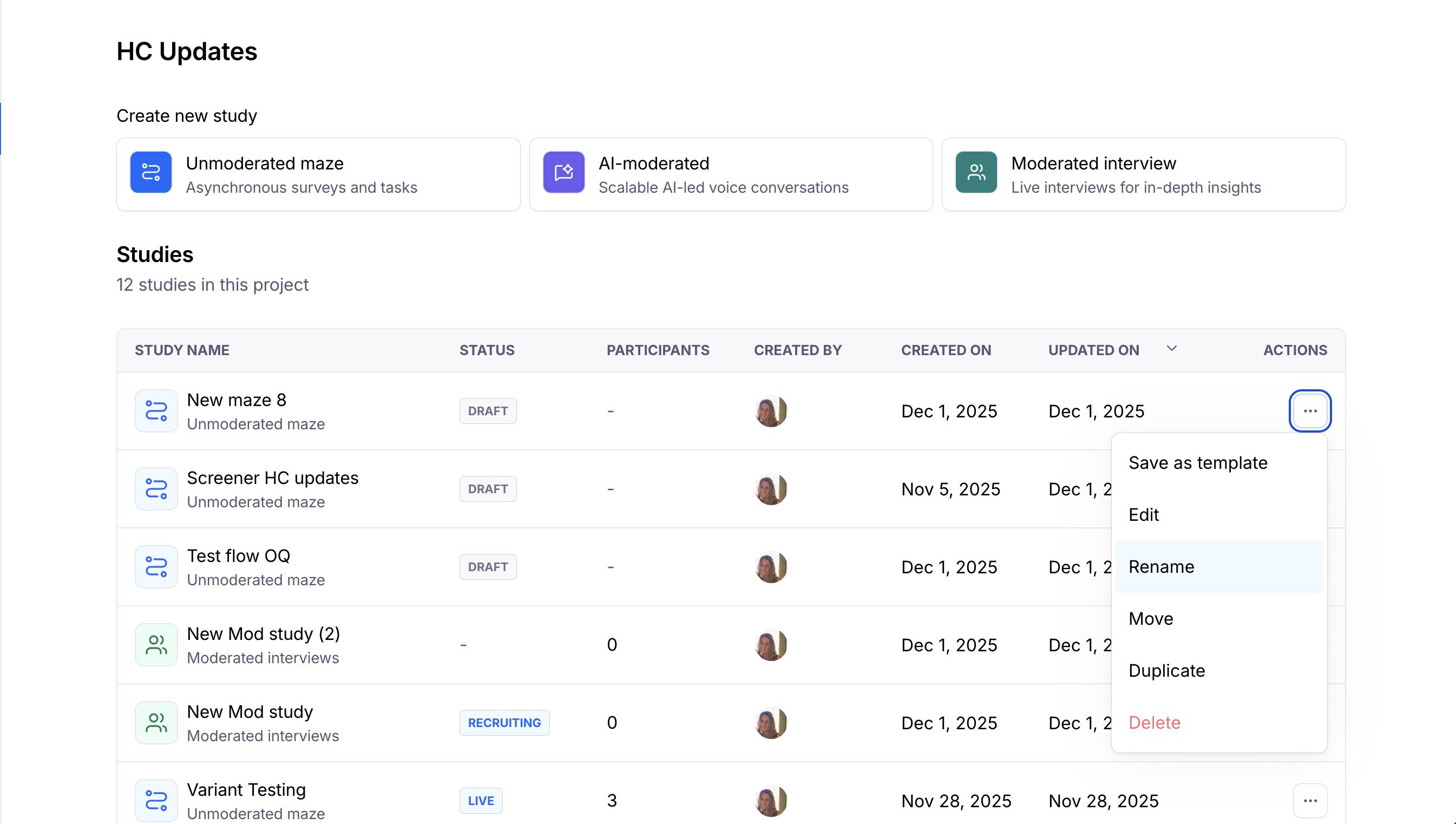
Type the new name and click Rename to save.