Automatic transcripts for Clips
Last updated: August 31, 2026
Transcripts are automatically generated provided that a Clip has audio. This streamlines the research process by providing native transcript support for unmoderated studies, helping you extract insights more efficiently from participant video and audio content.
Clips are available for users on Business and Enterprise plans.
Accessing your Clips transcripts
Transcription converts the spoken audio in your Clips into scannable text, making it easier to analyze participant feedback, identify key insights, and share findings with your team.
With automatic transcripts, you can quickly scan through participant responses for specific topics or keywords, and extract quotes without having to listen through entire recordings.
Transcripts for your unmoderated study clips are available in the following locations where Clips are found:
Individual participant sessions
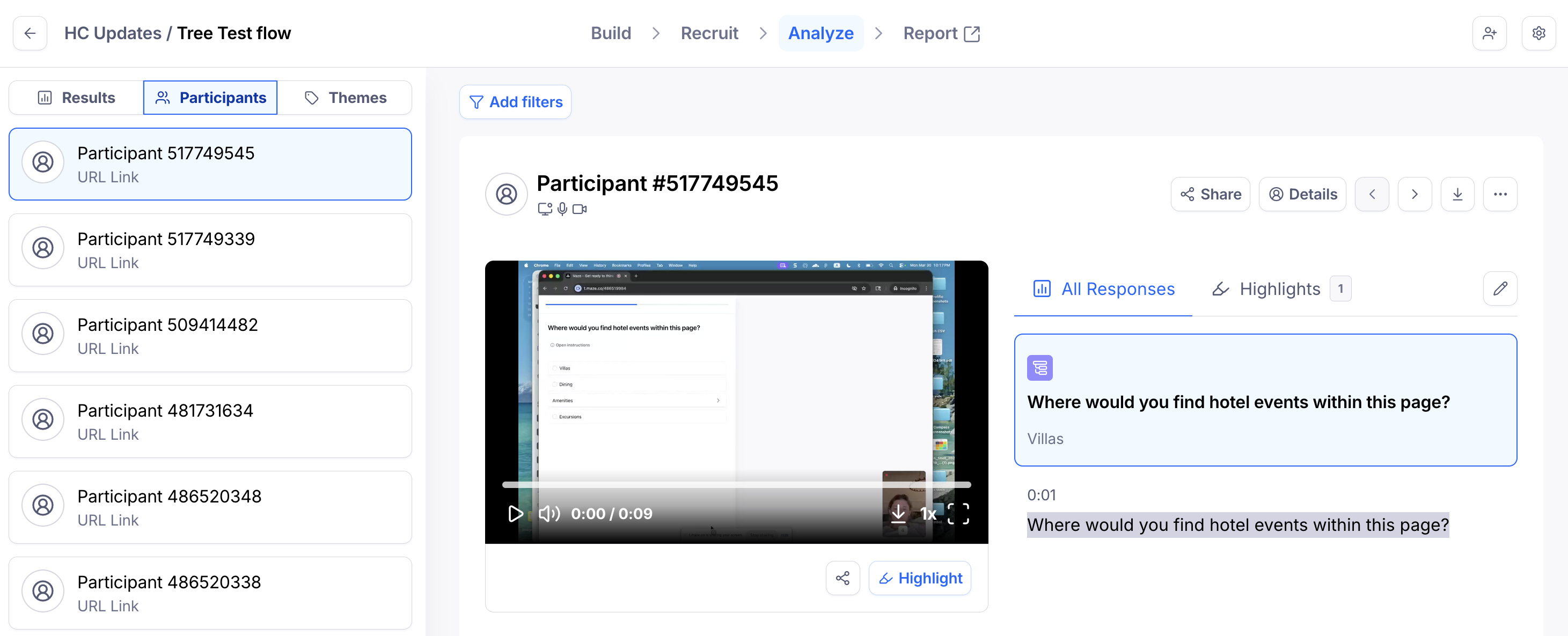
Clips preview in individual Block responses

Clicking on the clip preview opens up the player with transcripts:
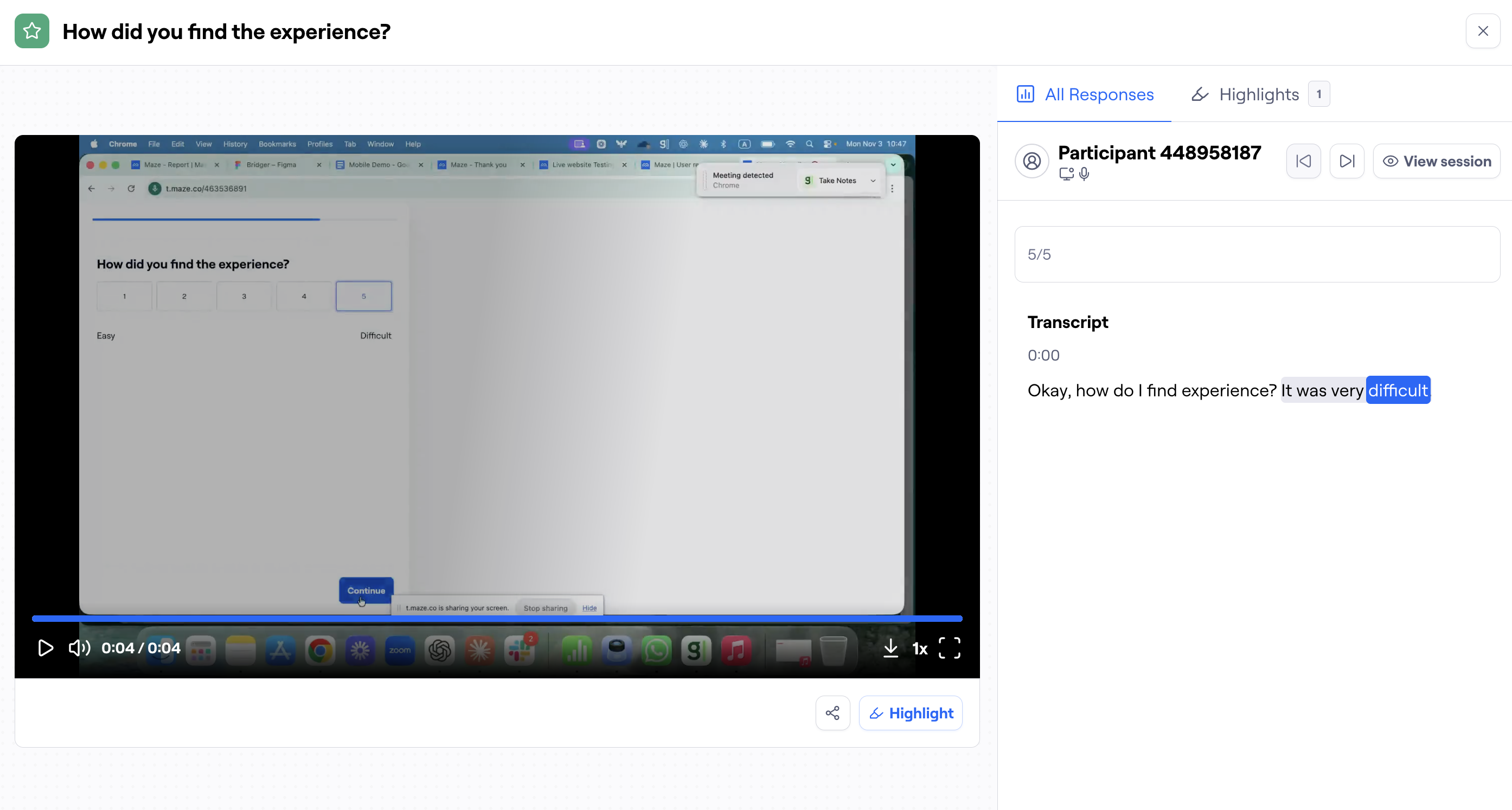
Downloading your Clips transcripts
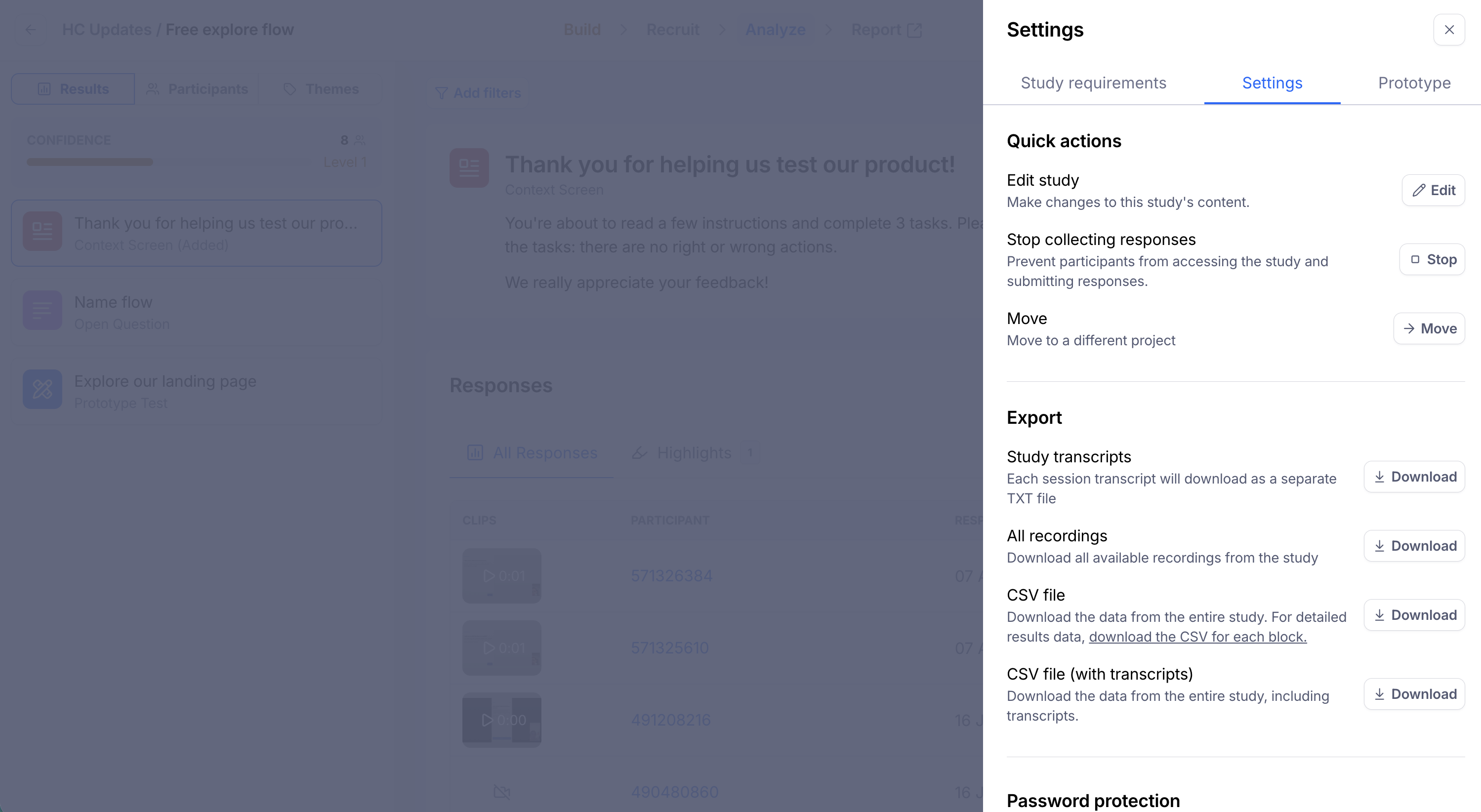
Export options are available for all sessions for your Unmoderated studies. To download your study transcripts, click into your study settings via the cogwheel icon in the top right side of your screen. Under the Export section, click Download next to Study transcripts.
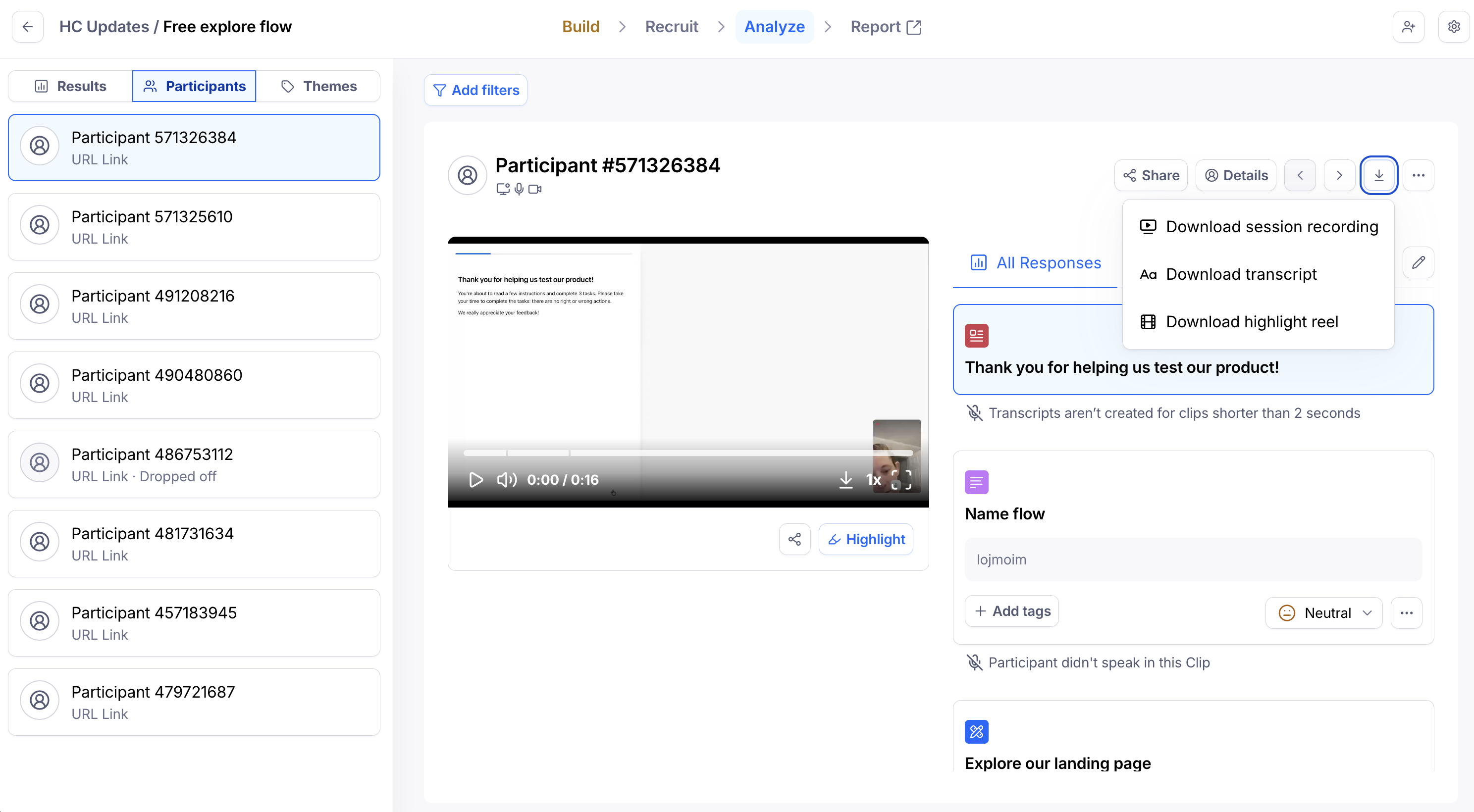
For individual sessions, navigate to the Participants tab in the Analyze page and click the download/export icon. The Download transcript option will download your transcript as a txt file, instantly.
Supported languages
Transcripts appear in the spoken language of the clip.
We support transcription in 54 languages. The full list can be found here.
Translate your Clips transcripts
In addition to transcribing in the participant's spoken language, Maze can automatically translate Clips transcripts into a language of your choice. This is useful when your team works in a different language than your participants, or when you want all research stored consistently in one language.
Translation can be configured at two levels:
Team default — set once in Team Settings and automatically applied to every new study
Per study — set in Study settings to override the team default for a specific study
Set a team-level translation default
Go to Team Settings.
In the left sidebar, click Transcripts.
Under Translate transcripts to, select your preferred language from the dropdown.
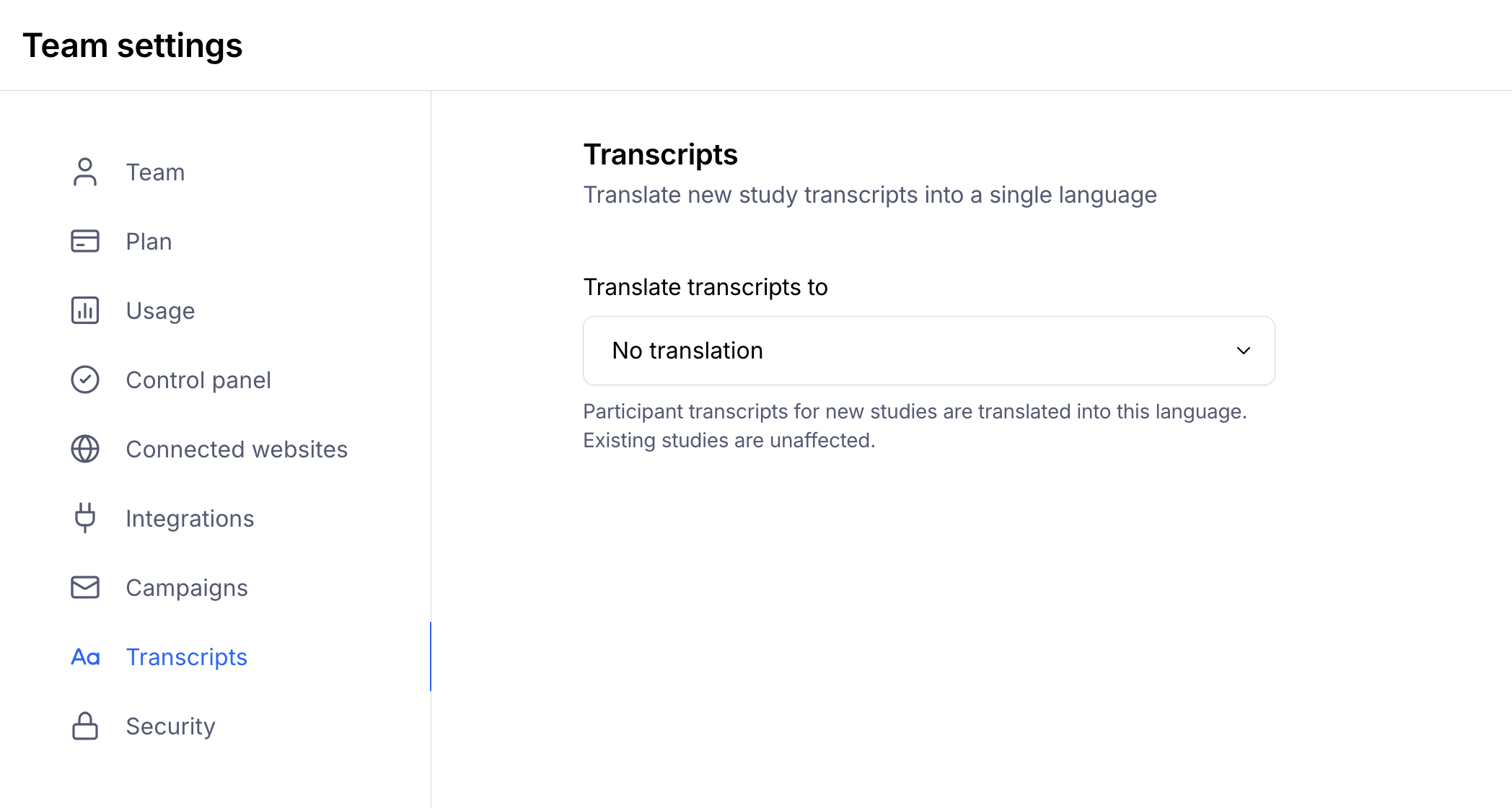
This applies to all new studies. Existing studies are unaffected.
Override the translation language for a specific study
Open the study and click the Settings icon (cogwheel) in the top right.
Under the Transcripts section, find Translate transcripts to and select a language from the dropdown.
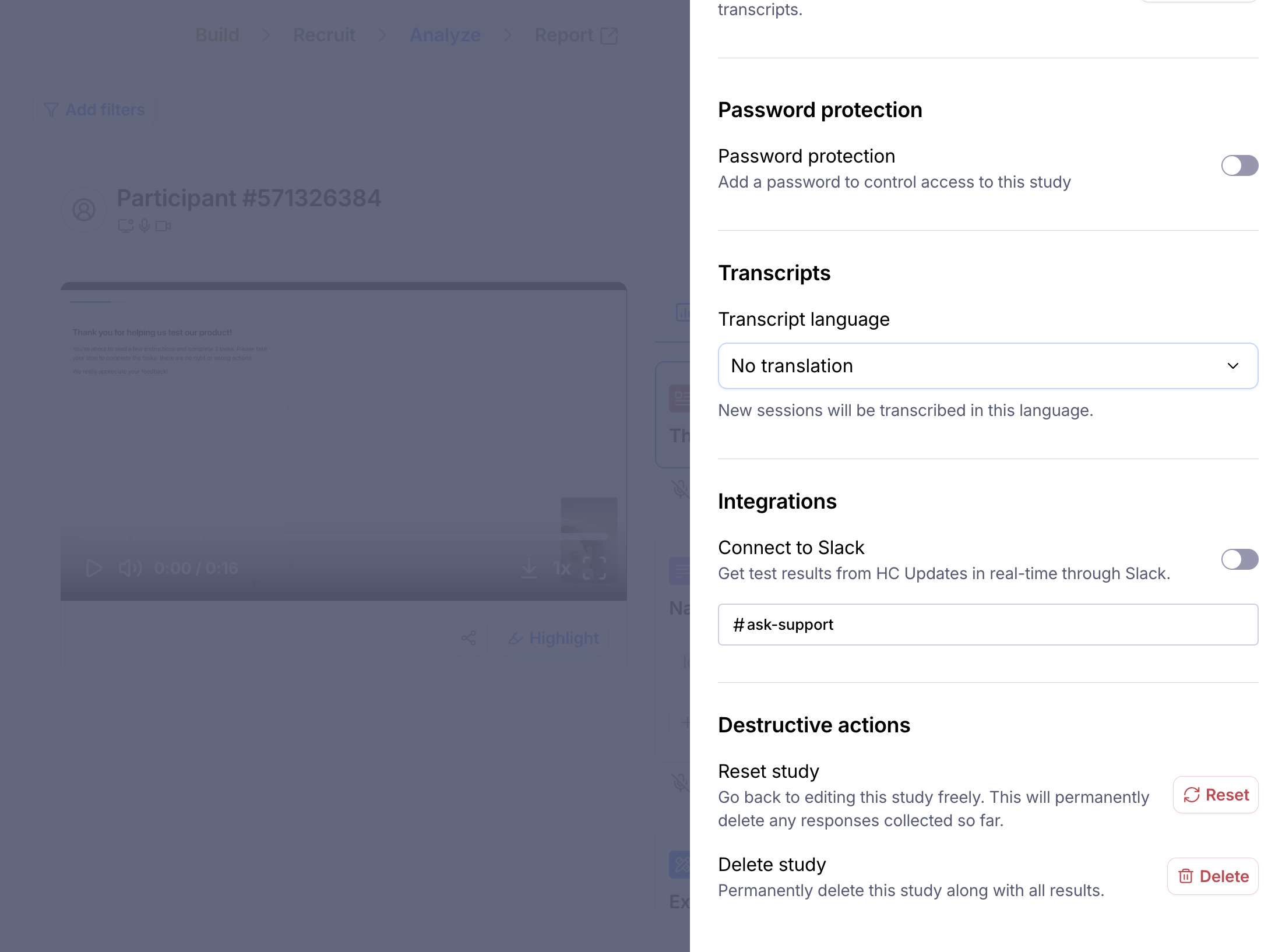
This only affects the current study — your team's default remains unchanged. If no team default has been set, the dropdown shows No translation.
Translation is applied when the transcript is first generated. Changing the language setting after transcripts have already been created won't re-translate them.
Troubleshooting Clip transcripts
While our transcription technology is robust, there are certain situations where transcript generation may not be possible.
Clip Duration Too Short
Issue: Clips under 2 seconds in length cannot be transcribed
Reason: This is a technical limitation of our transcription provider, which requires a minimum audio duration to process speech accurately
No Audio Detected
Issue: No transcript generated when audio is absent
Reason: The clip may contain only visual content, or audio recording may have failed during the session
Poor Audio Quality
Issue: Transcription fails due to audio clarity issues
Reason: Background noise, low volume, unclear speech, or technical audio problems prevent accurate transcription processing
Disable automatically generated transcripts
If you are the Owner or Admin of a Business or Enterprise plan, you can control transcript functionality through the Control Panel within your Team Settings.
Navigate to Admin Control Panel
Locate the AI Transcripts setting
Toggle the setting to enable or disable transcripts for both:
Unmoderated study clips
Moderated study sessions
Note: The AI Transcripts toggle manages transcription features across both moderated and unmoderated studies from a single setting, providing unified transcript management.
Still need help?
If you have any questions or concerns, please let our Support team know — we'll be happy to help!