[Prototype test] Creating a first-click test
Last updated: September 2, 2026
First-click testing helps you understand where participants click first when trying to complete a specific task. In Maze, you can create a first-click test directly in a prototype test block by selecting First Click as the task type.
With first-click testing, you can define which areas of your prototype count as successful clicks, then review results showing successful clicks and misclicks.
Set up a first-click test in Maze
Add a prototype test block, and import your prototype. You can also set up a prototype test inside a variant comparison block.
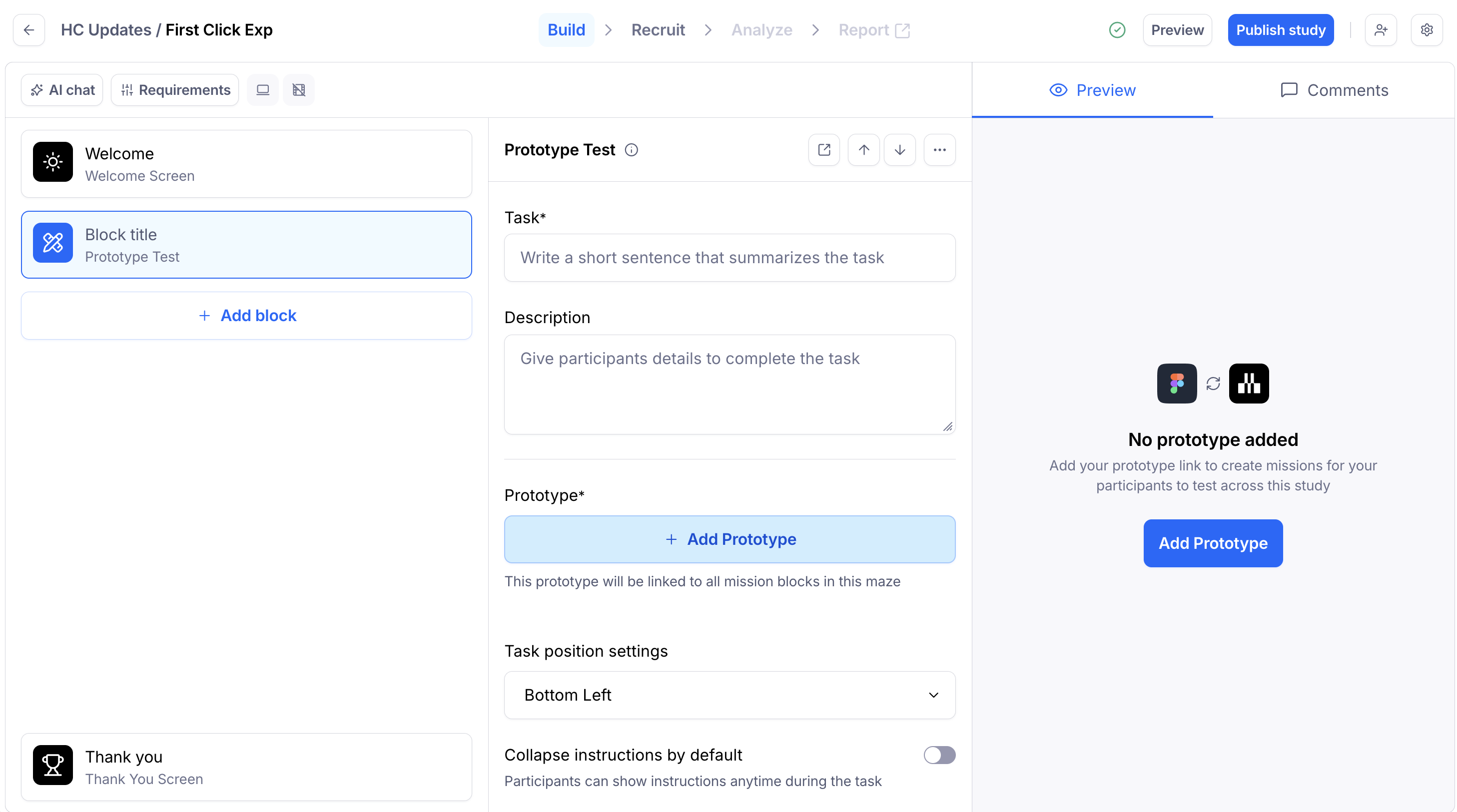
Write the task instructions you want to show participants. For example, ask them where they would click first to complete a specific action. You can also add a context screen for added clarity.
Under Task type, select First Click.
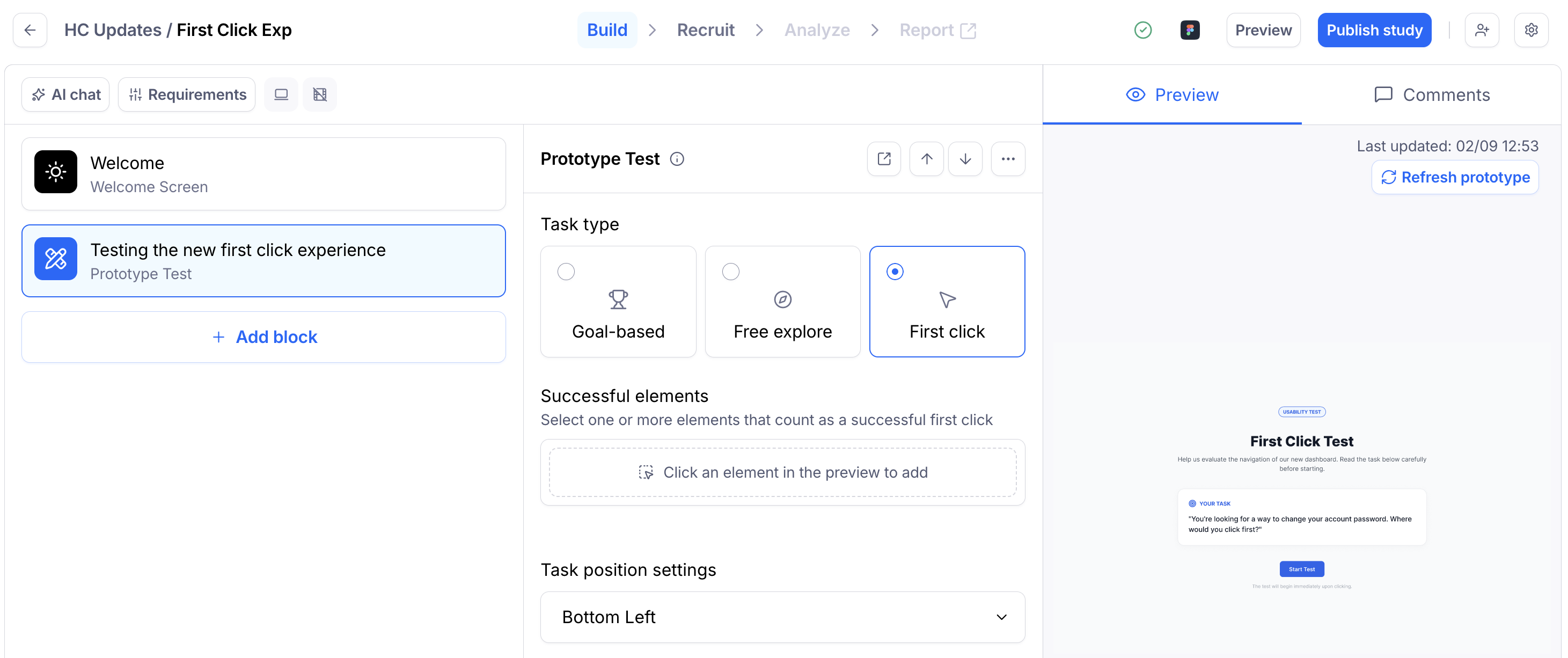
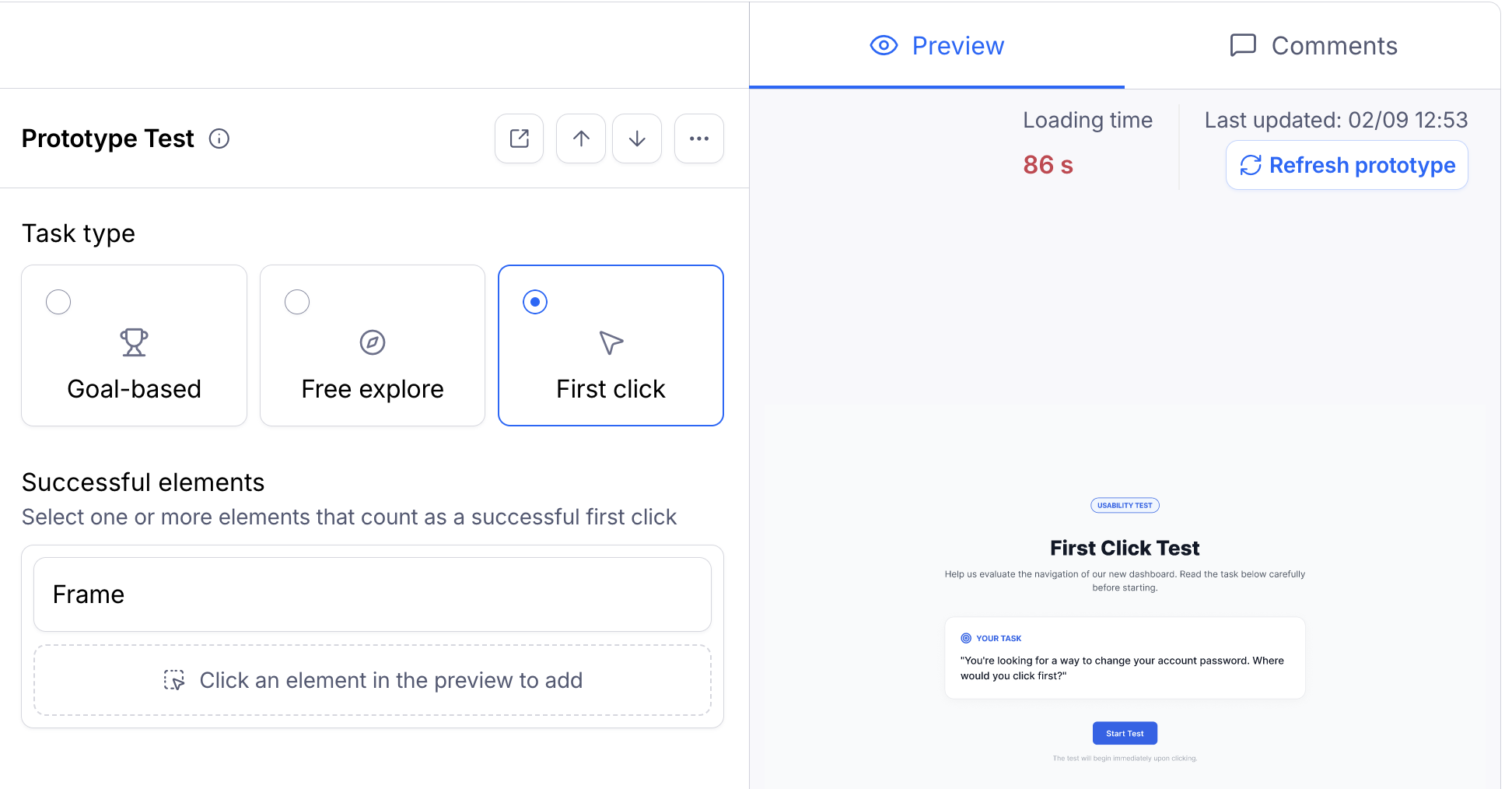
In the prototype preview, click the elements or areas that should be considered successful.
Review the selected success areas and make any adjustments needed.
Optionally, include any follow-up questions you want to ask participants about the screen they just saw, such as an opinion scale or a question block.
What participants see
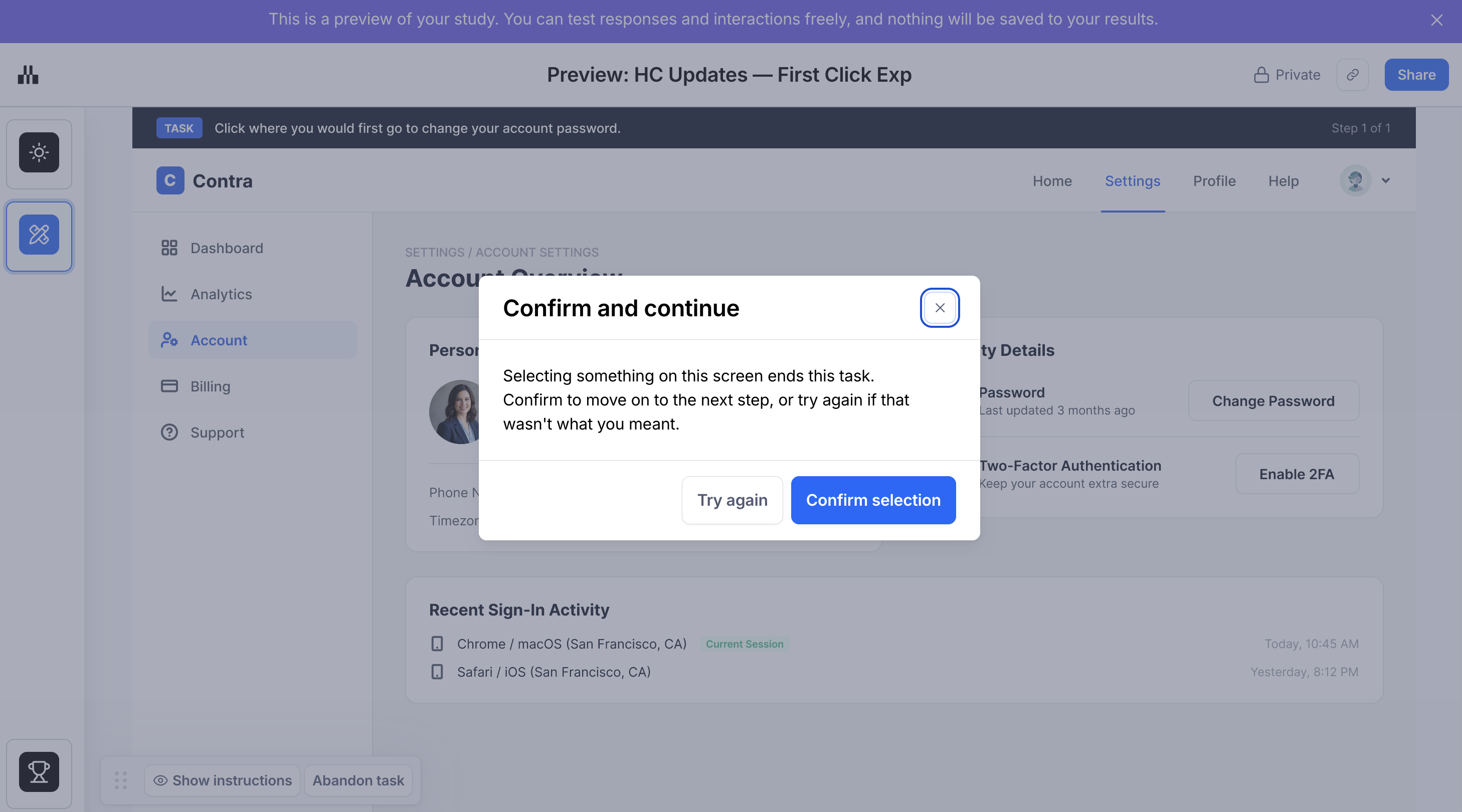
When participants reach a first-click task, they’ll be asked to click where they would go first to complete the task.
After clicking, participants can confirm their selection before moving on. This helps avoid accidental clicks or misclicks affecting the results.
Analyze your results
First-click results help you understand whether participants are drawn to the right areas of your design.
In your results, you’ll be able to review:
Successful clicks: clicks on the areas you marked as correct.
Misclicks: clicks outside the success areas.
Element Clicks data, where available, to understand which elements participants interacted with.
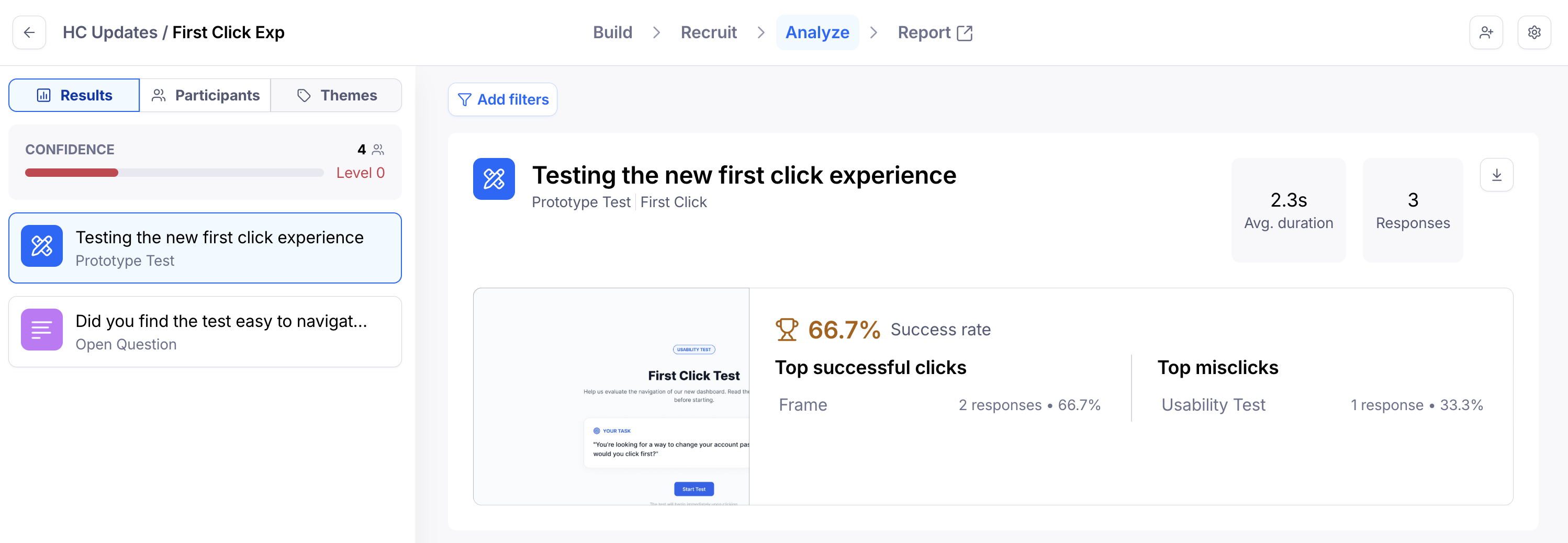
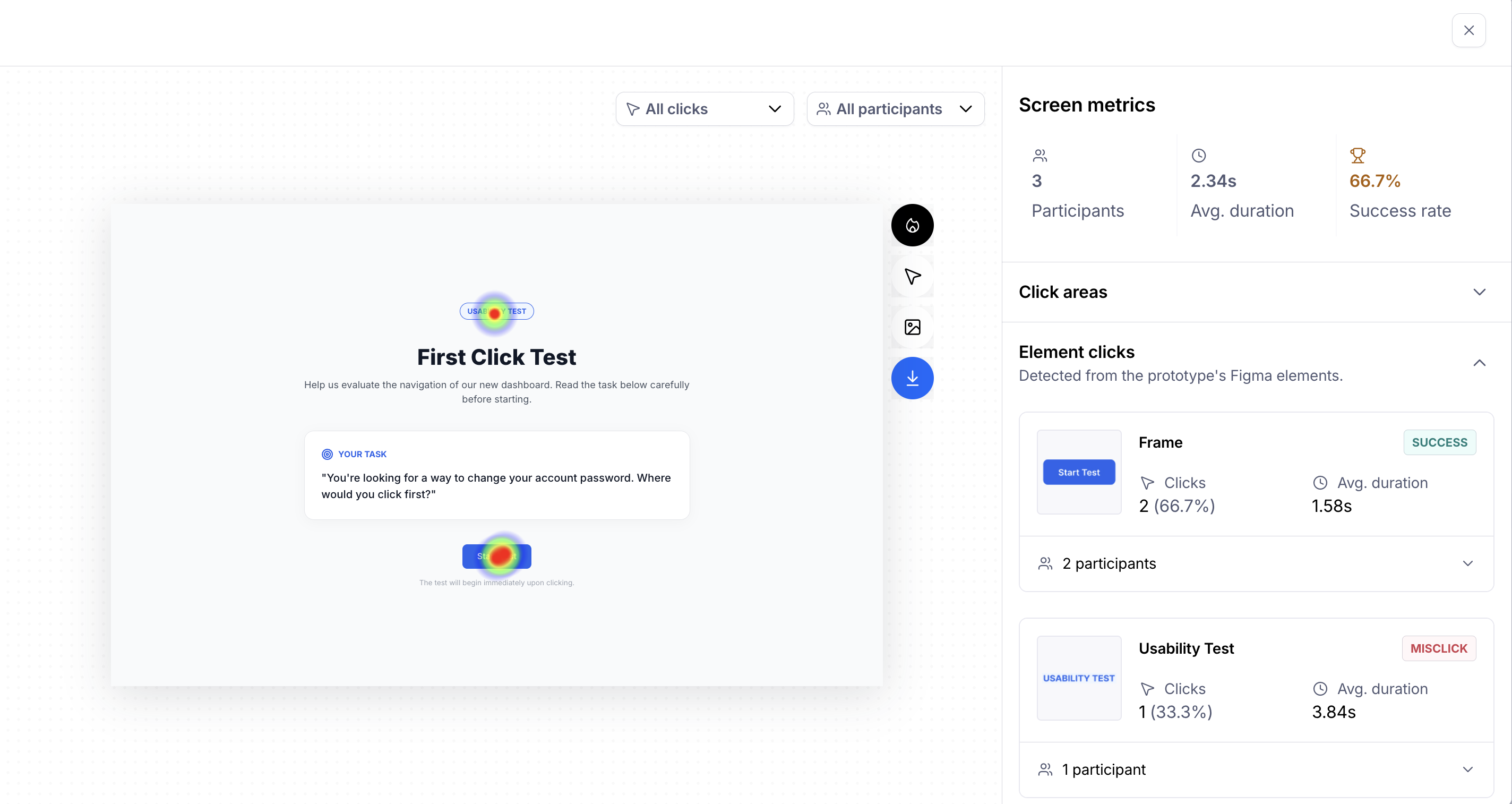
Use these insights to identify whether participants understand where to go first, whether key elements are discoverable, and where the design may need improvement.
Still need help?
If you have any questions or concerns, please let our Support team know — we'll be happy to help!