Creating a dedicated page to test Figma prototypes in Maze
Last updated: August 5, 2026
How your Figma file is structured directly affects how your prototype loads and performs in Maze. Large or complex files can become memory-intensive, which may slow down loading, reduce stability during testing, or cause prototypes to crash, particularly on iOS devices.
Creating a dedicated, lightweight version of your prototype helps prevent these issues and ensures participants can complete your study without interruptions.
This guide walks you through how to prepare your Figma file for testing and what to do if performance issues persist.
Why memory usage matters
Figma uses WebAssembly memory (WASM) to render objects. Every device has a memory limit, and when a file uses too much of it, prototypes may load slowly, appear unresponsive, or crash. This is more common on iOS devices, which enforce tighter memory constraints for browser content.
Keeping your prototype as lightweight as possible helps Maze load your screens consistently and ensures a smoother participant experience.
How to create a dedicated testing prototype
To avoid performance issues, we recommend creating a separate version of your prototype specifically for testing.
1. Copy only the frames you need
Create a new Figma file and copy over only the frames required for your study. Remove any exploration work, archived flows, unused components, or other elements that aren’t relevant. This keeps memory usage low and helps prevent unexpected behavior during testing.
2. Set the right permissions
You must set a supported permission for your Figma file. Otherwise, the import will fail.
Updating these settings after import will prevent participants from opening the maze.
Learn more about the supported permissions for importing and testing Figma prototypes
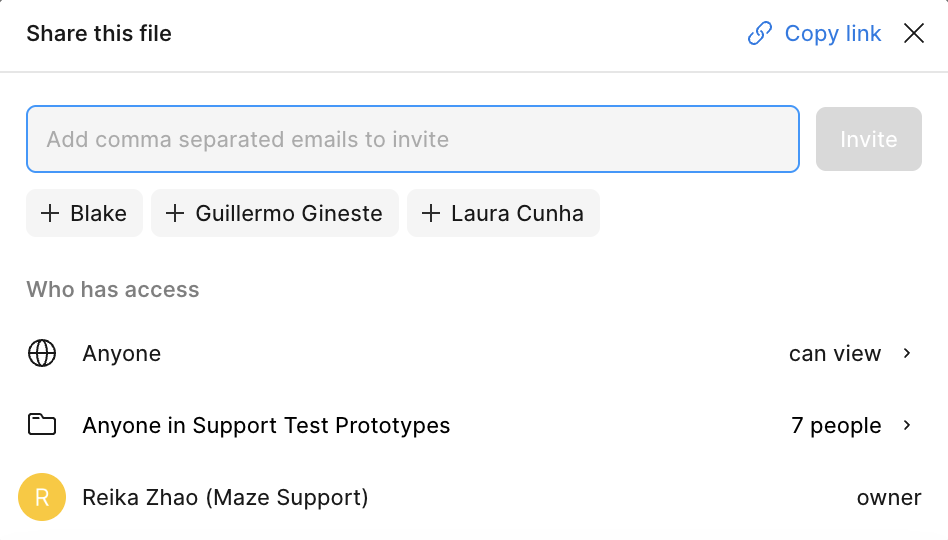
3. Add a note for collaborators
Add a clear note in the test file indicating that it’s linked to a published study. This helps teammates avoid editing or experimenting in the file during an active test, which can introduce errors or disrupt participants.
Optimize your testing file
Compress images
Figma doesn’t compress images automatically. Uploading high-resolution or unoptimized images can significantly increase your file size and slow down prototype loading.
Compress images before uploading them to Figma.
Use JPG for photographic images; PNG can produce larger file sizes for high-color images.
Plugins like Downsize can help compress or convert images quickly.
As a quick fix, copy images as PNG (⌘⇧C) and paste them back into the same container. This replaces the original with a more compressed version.
Our Figma integration may display image warnings even after unoptimized images have been removed from your prototype. If you've confirmed the flagged images are no longer present, you can safely ignore the warning or create a new Figma file and copy your prototype over to eliminate the warning entirely.
Limit the size and number of frames
Large frames or too many frames can affect both importing and testing. Figma must render each frame as an image, which increases memory usage.
Keep frames sized appropriately for the device or flow you’re testing.
Avoid very tall frames: iOS devices limit the size of images they can display, and oversized frames may fail to load.
Include only the frames needed for your test.
Instead of duplicating frames to show different states, consider using overlays or interactive components when possible.
Delete hidden layers
Hidden layers add unnecessary memory and can cause errors when importing your prototype into Maze.
To remove them:
Select your frames in Figma and run Detach all nested instances.
With the frames still selected, use a plugin such as Delete Hidden Layers to remove all hidden content.
This reduces file size and helps your prototype load more smoothly for participants.
Streamline custom fonts
Custom fonts increase the size of your Figma file because each font needs to be downloaded in the participant's device before viewing your prototype.
Limit the number of custom fonts you use. Reduce the size of large font files where possible. Convert custom icon fonts to outlines to avoid loading full font files.
Depending on their size, large custom fonts may prevent prototypes from loading on mobile devices, so keeping them lean is especially important for mobile studies.
For more guidance, see:
Using a website test as a fallback for prototype performance issues
Very large or complex prototypes may still load slowly or crash during testing, especially on devices with strict memory limits. If you continue to see instability after optimizing your file, using a website test block may offer a more reliable alternative.
A website test may be suitable if:
Your prototype includes many frames or heavy assets
You see repeated issues on iOS devices
Participants report crashes or unresponsive screens
Because website tests load content directly in the browser, they avoid the memory overhead of embedded prototypes.
Impact on results
Prototype-specific metrics, such as heatmaps and misclick insights, aren’t available. Website tests are best used as a fallback when optimization isn’t enough to ensure a stable participant experience.
If your prototype performs well across devices, we still recommend using a prototype test so you can access the full set of prototype insights.
Preview
Previewing is a great way to ensure your study flows nicely, and that your users see what you want them to see.
Testing your study beforehand will help ensure you and your team are completely happy with the content and performance. Please note that certain changes aren’t allowed after publishing a study.
To preview a draft study:
Open the study builder.
Click on the Preview button in the top right corner.
To preview a published study, you can also disable participant tracking in the study link options.
This will allow you to see how your participants will experience your study without recording any data.
Troubleshooting Figma issues
When importing and using Figma prototypes, you might run into certain issues. Follow our advice to ensure your prototype works as expected in Maze.
Learn more about troubleshooting Figma errors
Still need help?
If you have any questions or concerns, please let our Support team know — we'll be happy to help!