Team Discoverability
Last updated: September 23, 2026
You may notice that employees can still create personal accounts in Maze, outside of your team. This may result in company work being scattered across different accounts, without visibility or control from team managers.
Our Discoverability section (located in Team settings) helps prevent this situation by allowing you to control how people in your organization can find and join your team.
Who can use this feature
Our "Join automatically" feature is available on free teams. Our "Request to join" feature is available on paid teams.
Control how people in your organization can find and join your team.
To assist people in your organization in finding and joining your team, the Owner or an Admin of the team will need to make your team discoverable. Here's how to do so:
Make sure the relevant team is selected.
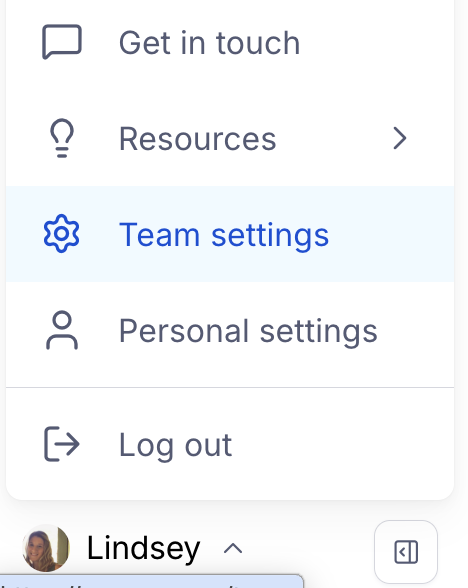
Click your avatar at the bottom left corner of the side navigation, and click Team Settings.
In the Team tab, scroll to the Discoverability section, located between Pending requests & invitations and Members.
Paid Teams
Under Discoverability, choose the option that applies to your plan:
Invite only (hidden) — Only invited members can join the team
Request to join — People signing up with your team’s email domain, for example @maze.design, can request to join the team.
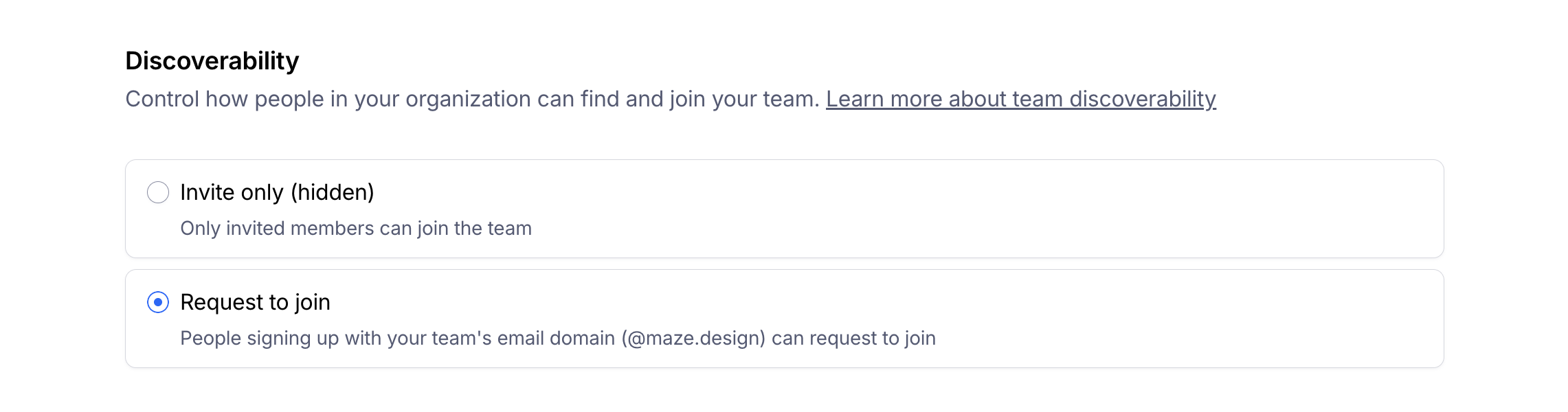
If SCIM is enabled, members are managed directly through your identity provider. If SSO is required, only invited members can join the team.
Free Teams
Under Discoverability, choose the option that applies to your plan:
Invite only (hidden) — Only invited members can join the team
Join automatically — People signing up with your team’s email domain, for example @maze.design, can join automatically.
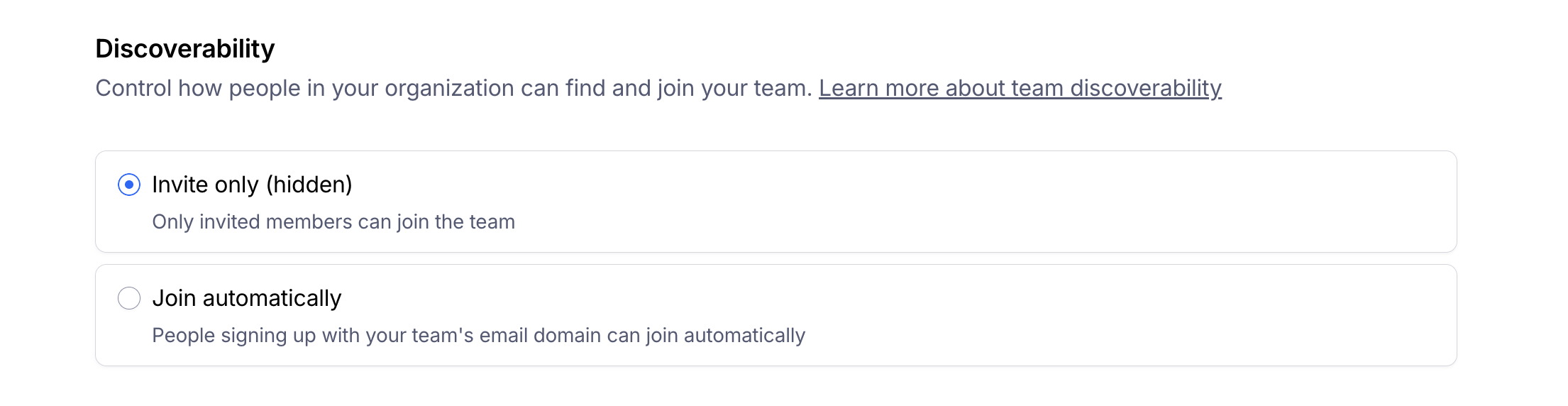
At the moment, it isn't possible to capture multiple domains. Only the domain of the person who makes the team discoverable is captured. If you'd be interested in capturing multiple domains for your team, please let us know!
Requesting to join a team
During the signup process, Maze will confirm if the new user is using an email address that is associated with your company domain. If so, they'll have the option to request access to the team.
To do so, they'll need to follow these steps:
Sign up with your company email address via app.maze.co.
Click on the verification link in your email to verify your account. This step is required to activate your Maze account.
If Mazes finds any teams associated with your company's email domain, you will see a list of teams you can join.
Click Request to send an access request. This will send a request to the team owner.
Click Complete sign-up to finish creating your account.
Requesting access will not immediately add the user as a team member. The owner or an admin of the team should follow the steps to add that user to the team.
Managing pending requests
When someone requests to join your team, the team owner receives a notification via email with the subject line "[requester's email] is requesting to join your team".
Clicking the Add to team button on that email will open the team settings. From there, add the requester to the team:
Scroll until you see the Team Members list.
If your paid team has any free seats, you’ll see their corresponding email fields under 'Available seat(s)'. If you don't see any available seats, follow the steps to purchase additional seats.
Enter the email of the person you want to add. If needed, click the drop-down to define their role.
Click Send invite to send the user an invitation email to join the team.
Once the user accepts the invitation in their email, they'll become a member of the team.
Making your team hidden (invite only)
To go back to manual invites for new members, the owner or an admin of the team needs to disable discoverability:
Make sure the relevant team is selected.
Click your avatar at the bottom left corner of the side navigation, and click Team Settings.
In the 'Team' tab, scroll down to the Discoverability section.
Click Invite only (hidden). This means only invited members can join the team.
Still need help?
If you have any questions or concerns, please let our Support team know — we'll be happy to help!