Managing your team
Last updated: September 14, 2026
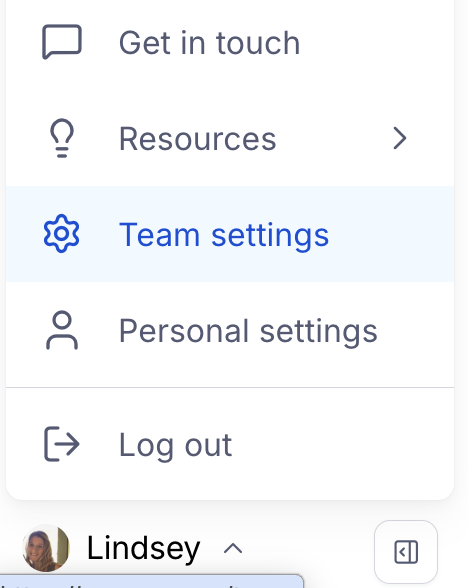
To access your team settings, click your avatar at the bottom left corner, and then click Team Settings. Please make sure that the relevant team is selected.
Team management
Create a new team
To create a new team, please follow the steps in this article: How to create a team
Change the team name and icon
To rename your team and change the team icon, please follow these steps: Updating your team name and icon
Change the team owner
A team owner may transfer ownership as needed under the Team settings. Learn more here: Transfer ownership of your account to another team member. If the team owner has left the company associated with the Maze team, please reach out to our Support team for assistance in getting account ownership transferred.
People
Add and remove members
To add members to your team, please refer to this article: How to invite team members. Learn more about the available permissions for each role
To remove members, check out Removing team members
If you've purchased an additional seat for a member, simply removing that member will keep the seat open. You'll still be charged for that unused seat in your upcoming billing unless you remove it. Learn more in this article: Removing unused seats
Enable/disable domain capture
Domain Capture makes your team more easily accessible to employees that sign up with your company's email domain.
Learn more about consolidating your team's accounts with Domain Capture
Change roles
To change the role of a team member, check out Assigning and changing roles
Credits
Buy credits
Get the credits you need to hire participants for moderated and unmoderated studies.
Credit History
Review credits used, per study.
Campaigns
Set your email settings for your Reach campaigns
Custom email domains
Enter the domains you own and want emails to be sent from. Adding your own domain may help increase responsiveness. You'll need to update DNS records with your domain registrar to verify.
Plan
Upgrade your team
To upgrade your team to a paid plan, check out this article: How do I upgrade my team?
Please note that a team can only be upgraded by its owner.
To re-upgrade after a cancellation, please follow the steps in this article: How do I reactivate my subscription?
Update your card details
If you need to update your card information, see: How to update your billing information
Download your invoices
Your subscription invoices can be downloaded directly from your Maze account by the team owner or an admin. Invoices are not sent automatically by email.
Learn more about downloading your invoices/receipts
Cancel your subscription
All Maze subscriptions renew automatically either monthly or annually, depending on the billing option you selected when upgrading.
If you want to cancel your paid subscription, please contact our Support team. Learn more here: How do I cancel my subscription?
Connected websites
In order to add an in-product prompt or run a live website test, you need to connect your website to Maze. You’ll do this by installing a unique tracking code that allows Maze to run these features on your website.
Learn more about installing the Maze snippet on your website
Integrations
Amplitude
The Amplitude integration in Maze allows you to target in-product prompts to specific user groups (i.e. cohorts).
Learn more about the Amplitude integration
Slack
The Maze integration for Slack allows you to get real-time updates in a Slack channel of your choice whenever someone completes studies within a project.
Learn more about the Slack integration
Transcripts
Translate participant study transcripts into a single language
SSO
Single Sign-On (SSO) allows your team to authenticate using a single identity provider (IDP) (e.g. Okta, Azure, OneLogin...) for your organization.
Maze offers SSO as a feature for Enterprise plan customers who require their team members to log into Maze using their own identity provider.
Learn more about setting up SSO for your team
Still need help?
If you have any questions or concerns, please let our Support team know — we'll be happy to help!