Creating Highlights
Last updated: August 31, 2026
Highlights let you save key quotes and non-verbal reactions (ie: confusion, delight, frustration).
How to create a Highlight from Clips
Highlights can be created from anywhere you see your Clips transcripts. You can create highlights from either the Results or Participants tab from the Analyze page.
To create a highlight:
Navigate to the Analyze page and select the Participant tab.
Notice the generated transcripts under 'All Responses' on the right hand side. Select the part of the transcript that you want to highlight, add your notes for the highlight and click Add highlight.
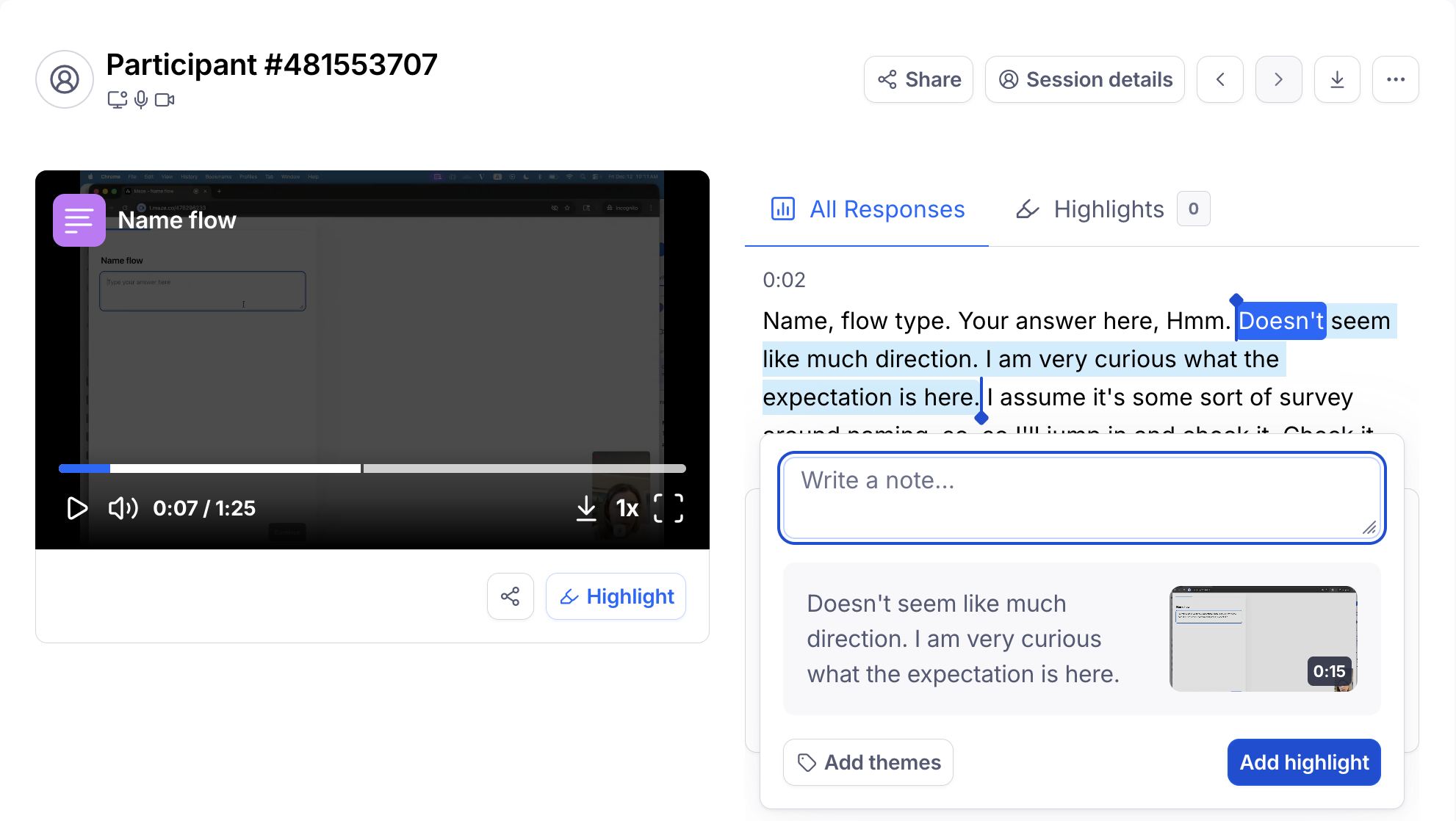
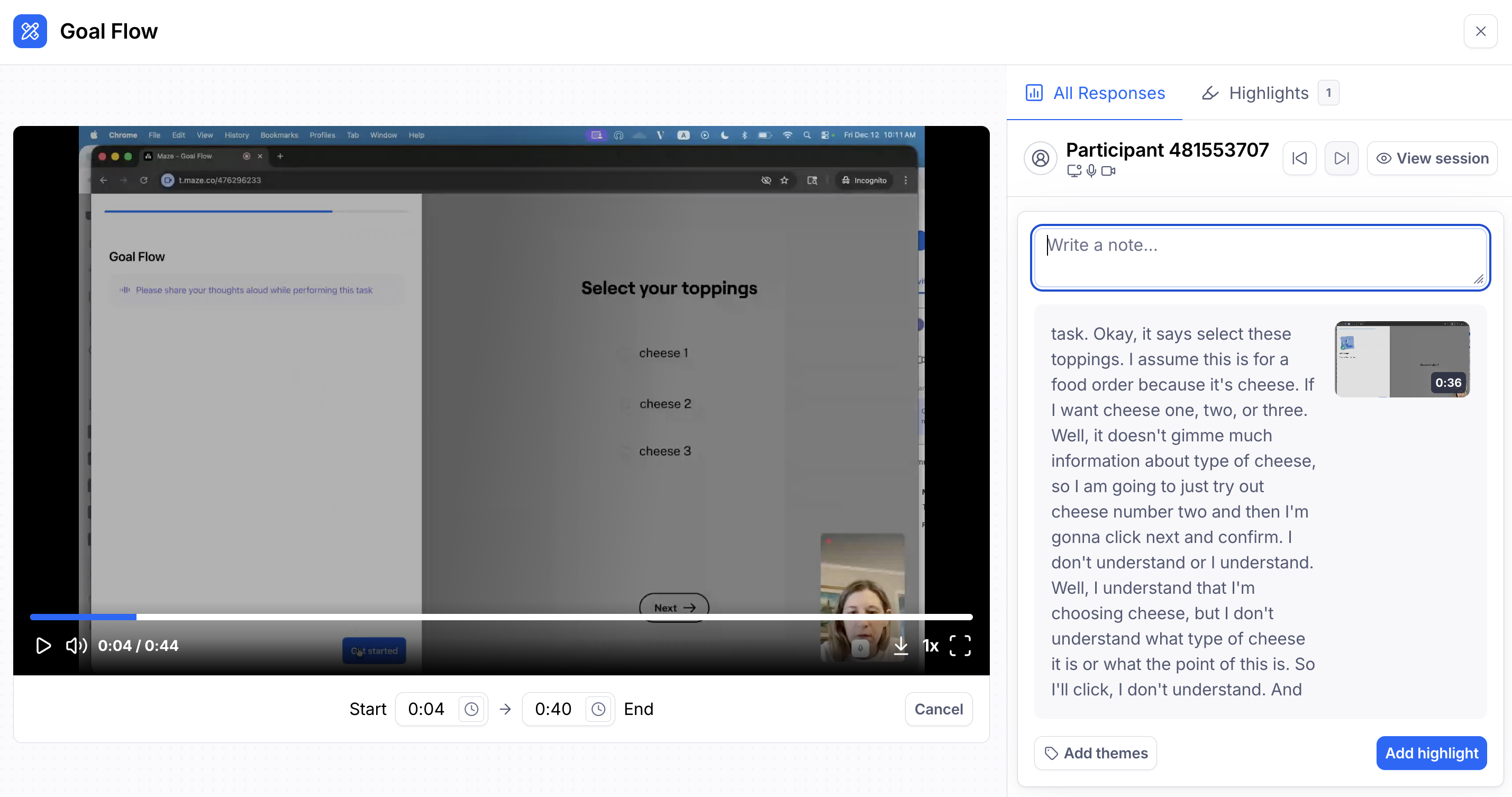
If you need to highlight a piece of the clip that doesn't have a transcript because no audio was captured, click the Highlight button beneath the clip, choose the part of the clip that you'd like to highlight by selecting a Start and End time, add your notes for the highlight and click Add highlight.
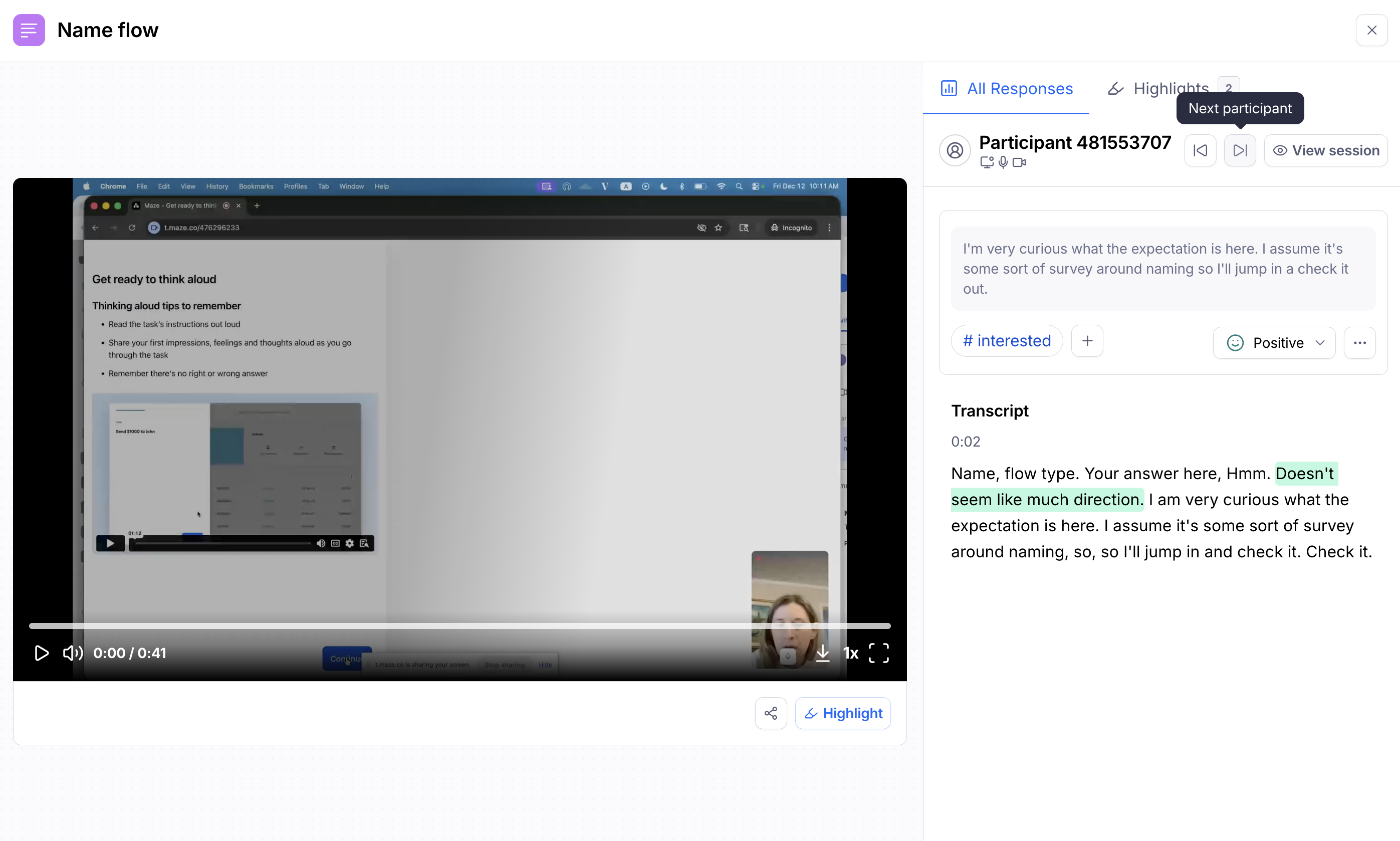
Highlights can also be captured from the Results tab by scrolling down to the responses section, clicking the play button on the clip to view all of the clips/transcripts for a specific block. Select the piece of the transcript that you'd like to highlight, add your notes for the highlight and click Add highlight.
Where can I find my Highlights?
Created highlights can be accessed from a few different locations in your workspace:
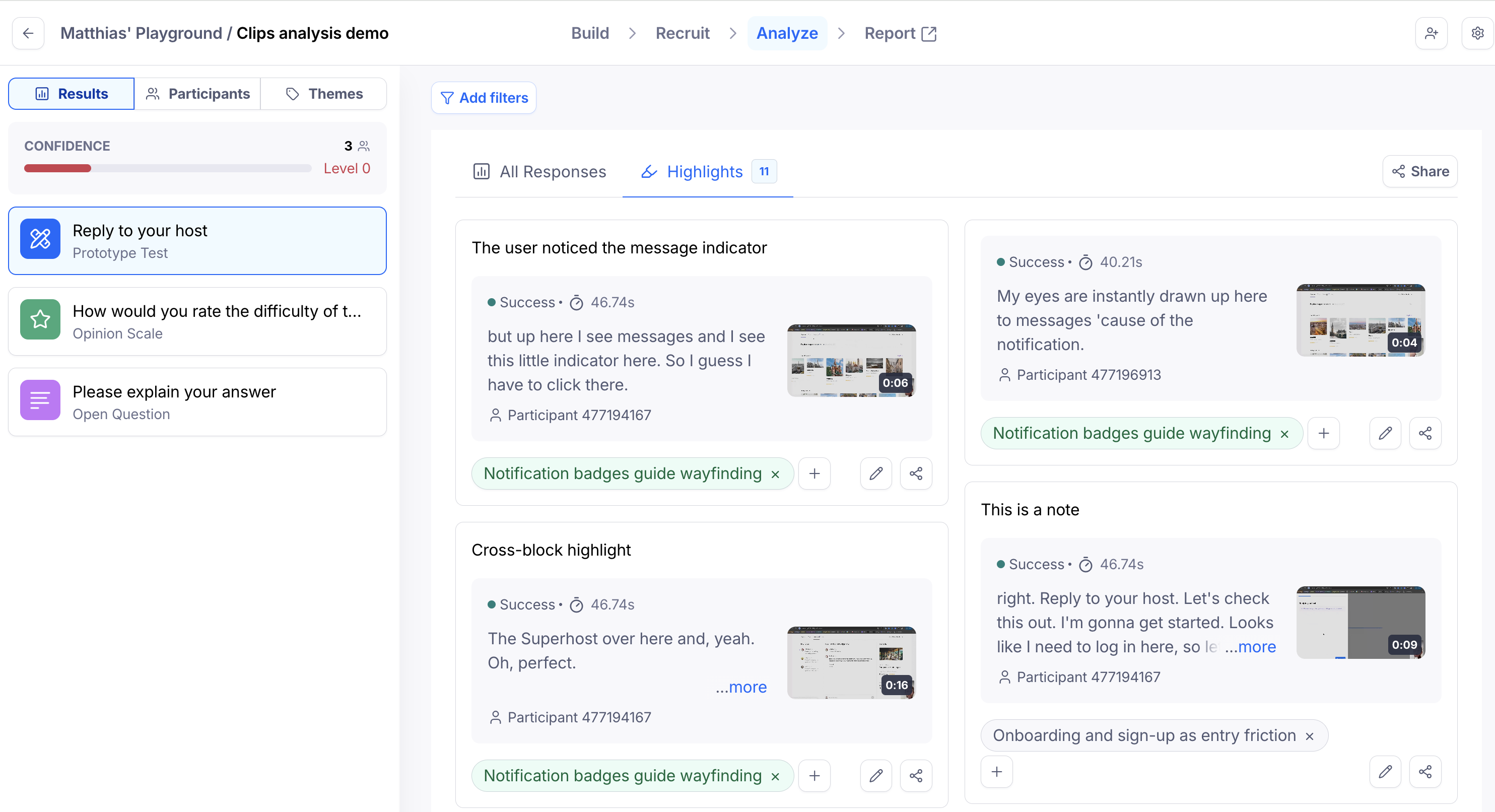
Highlights tab in block results
From the Analyze page, select the Results tab, scroll to the responses section and click the Highlights tab.
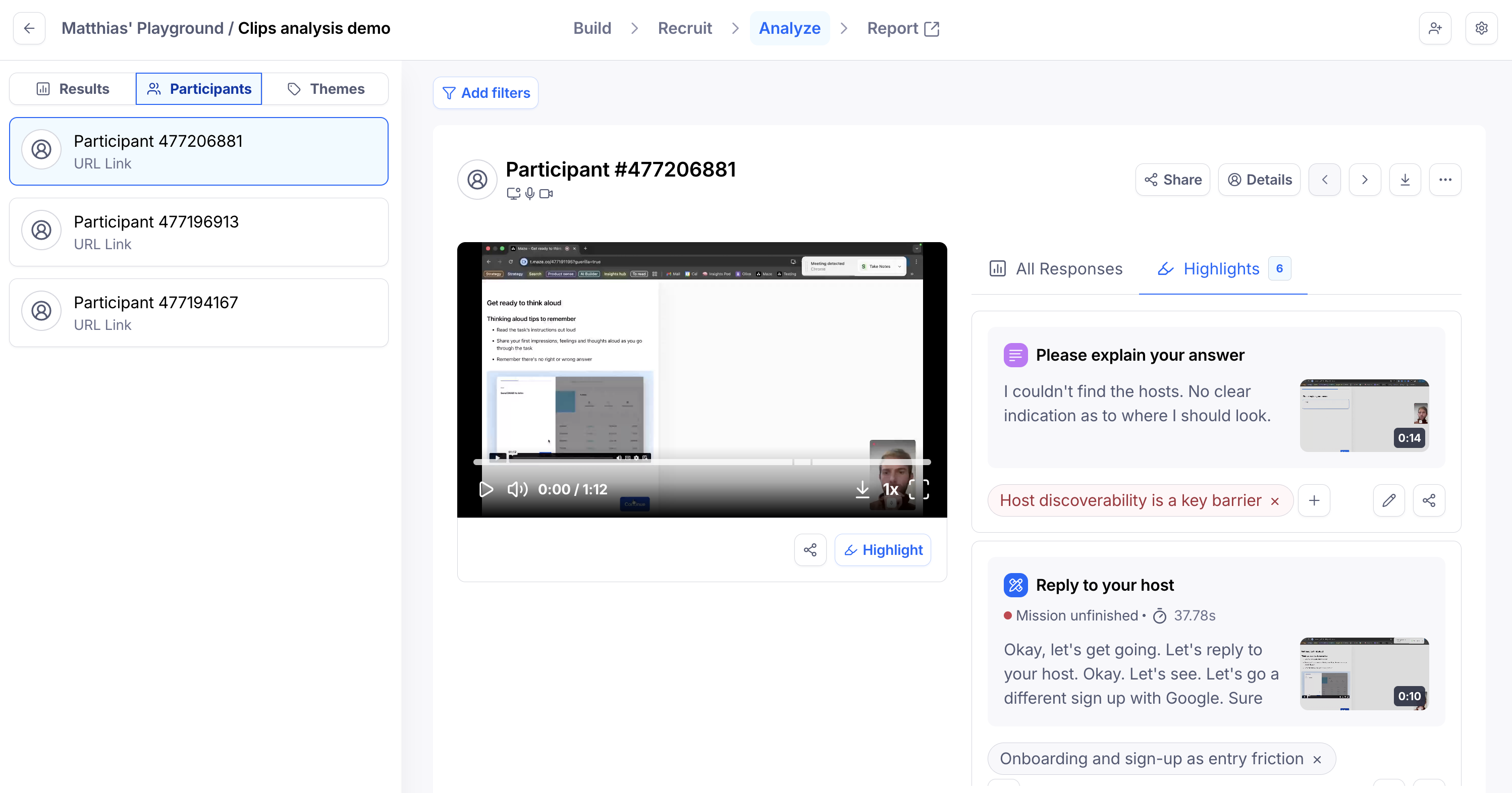
Highlights tab in participant details page
From the Analyze page, select the Participants tab, then select the Highlights tab on the right hand side.
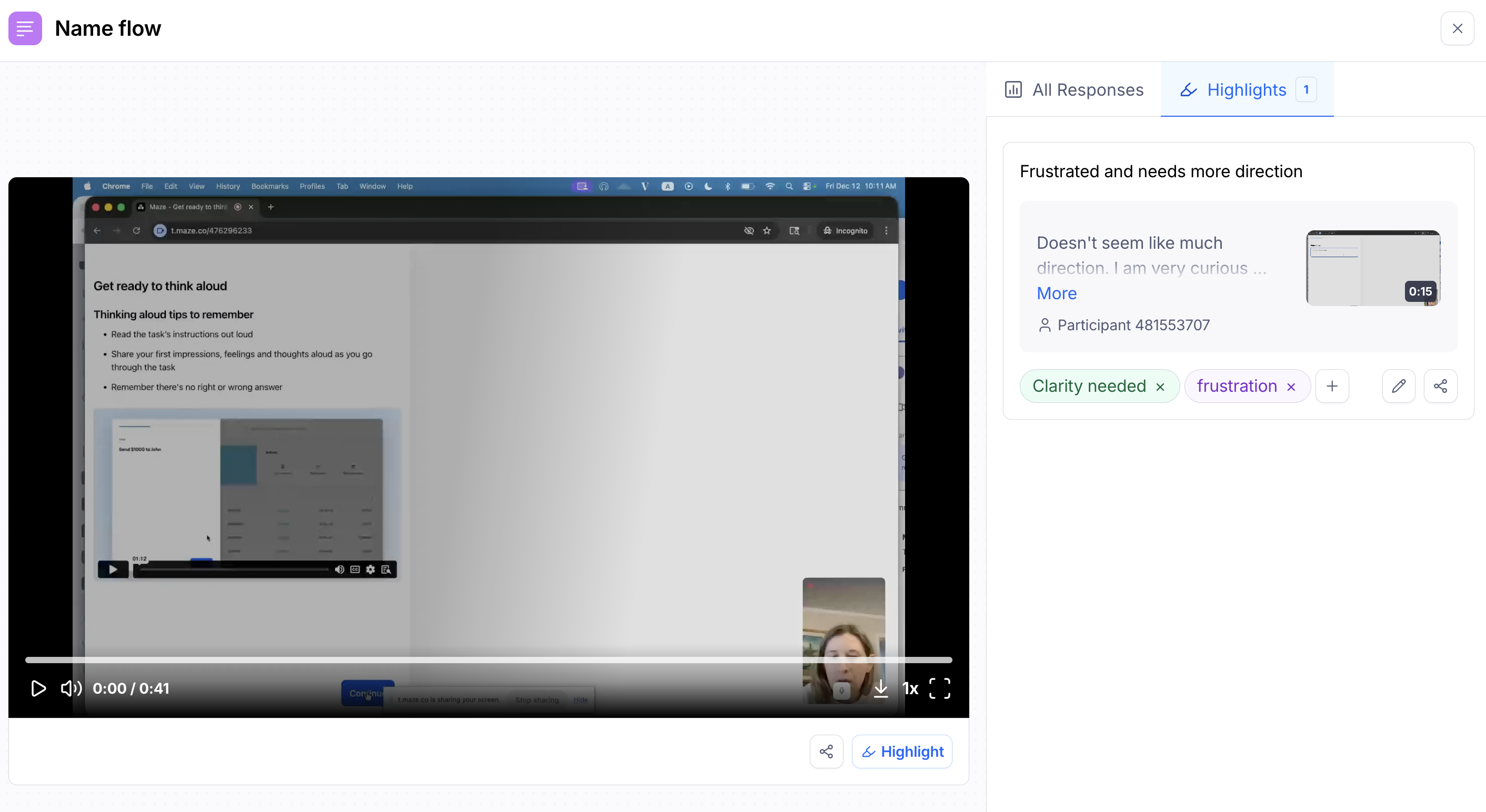
Highlights tab in Clips modal
From the Analyze page, select the Results tab, scroll to the responses section, click to open the Clip and select the Highlights tab.
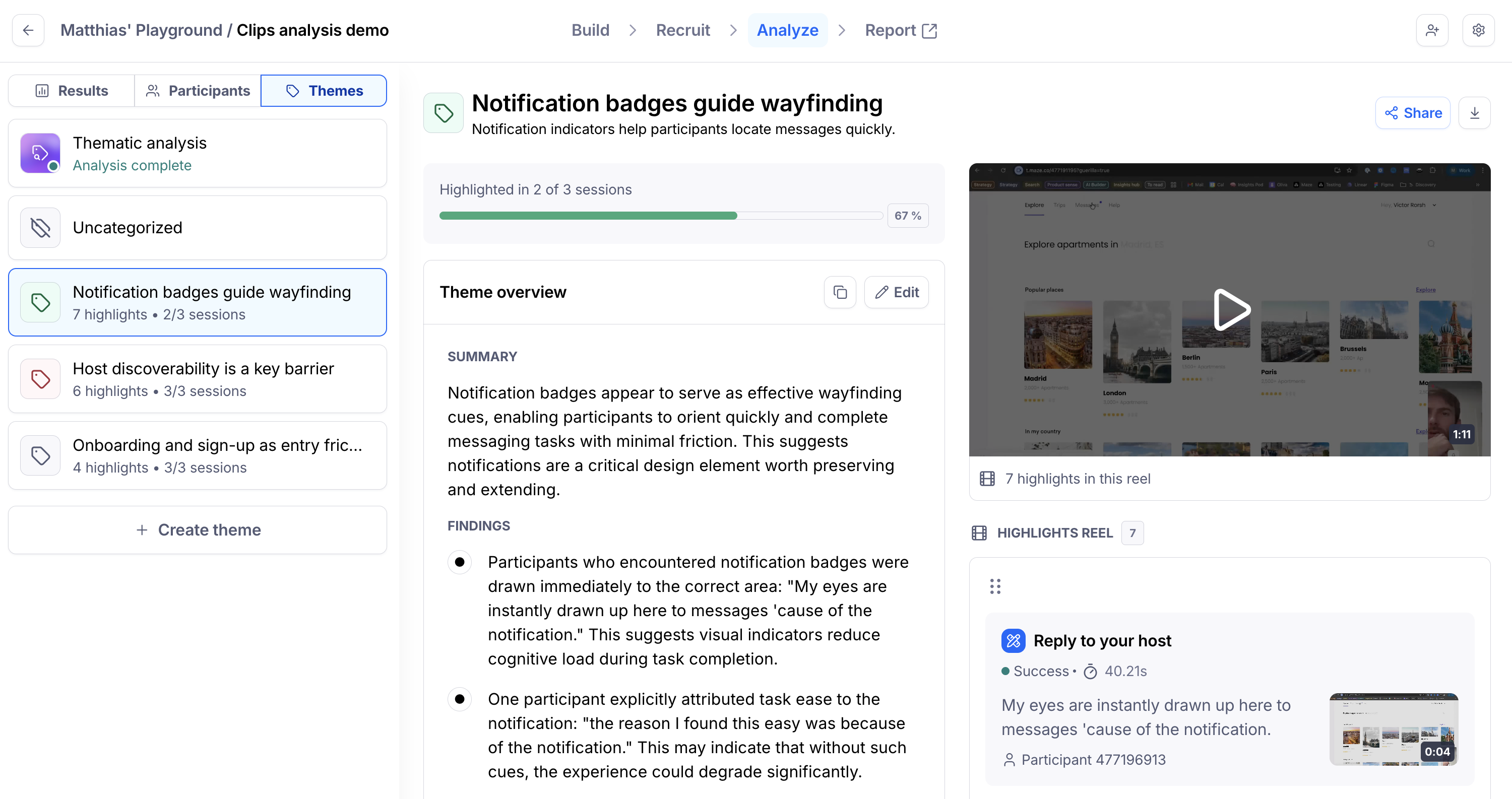
In the Themes tab
From the Analyze page, select the Themes tab, select a theme that has a highlight denoted and access all highlights on the right hand side.
Sharing my Highlights
Highlights can be shared via direct link, embedding in other tools, or downloaded as video files. Highlights enable context preservation when sharing since you can watch the clip and see the related block responses alongside it.
Direct Link
Click the share link button at the bottom of the highlight or above the clip (if on the themes tab) to open the highlight preview modal.
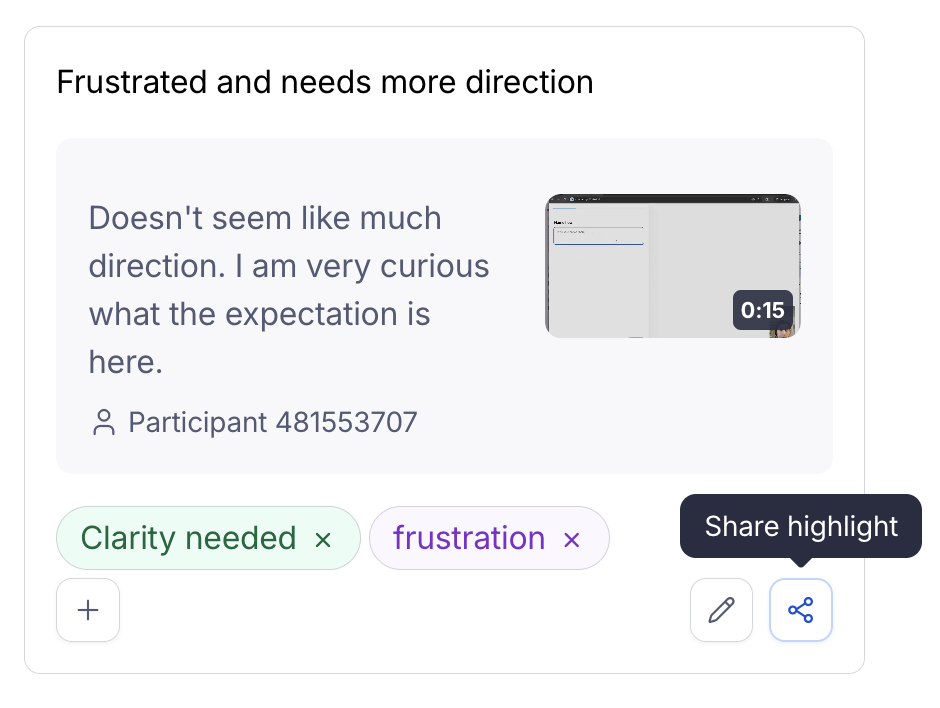
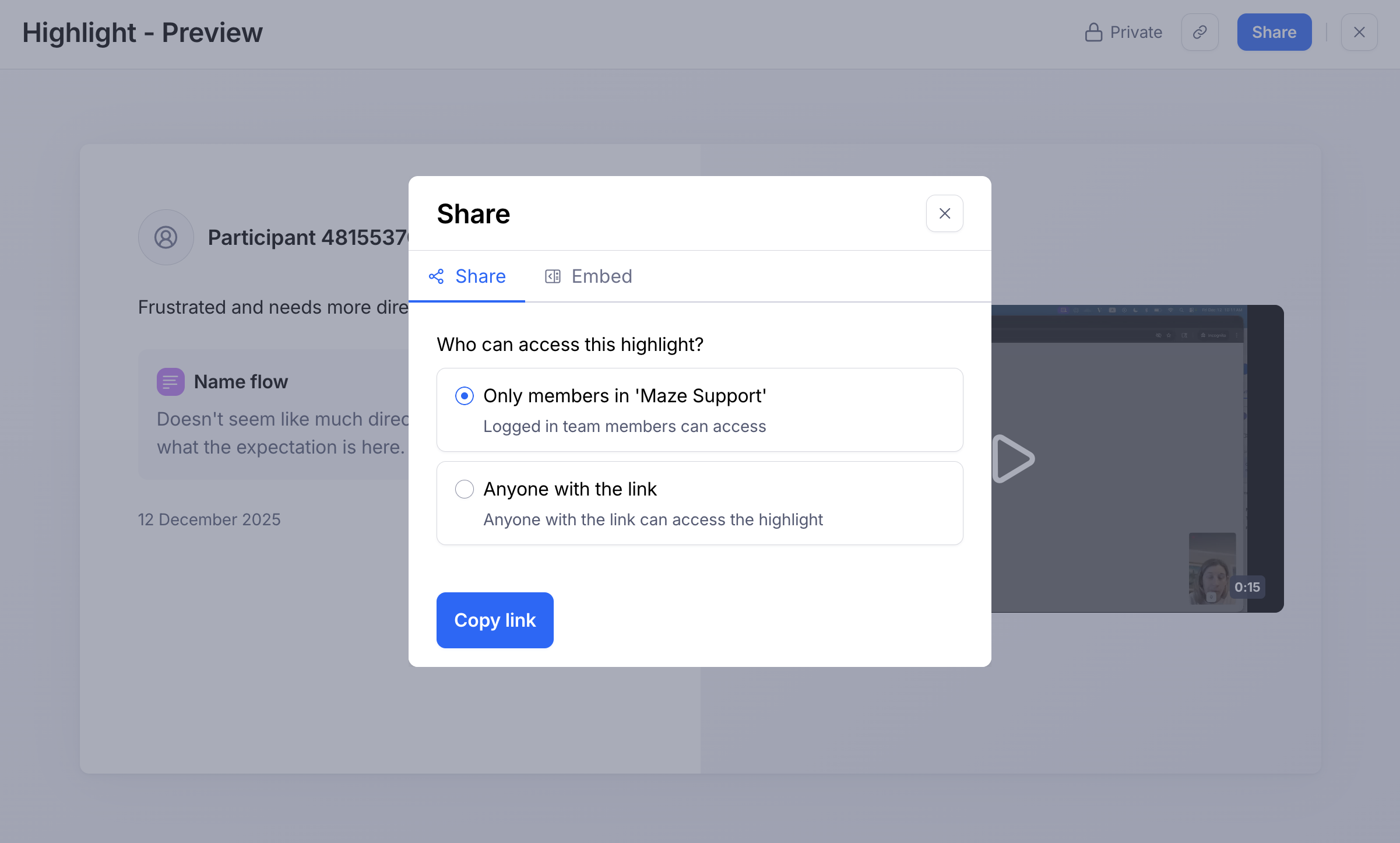
Click the blue Share button and choose which share access you'd like for the highlight link - Only members in your team or Anyone with the link.
Embedding in other tools
Click the share link button at the bottom of the highlight or above the clip (if on the themes tab) to open the highlight preview modal.
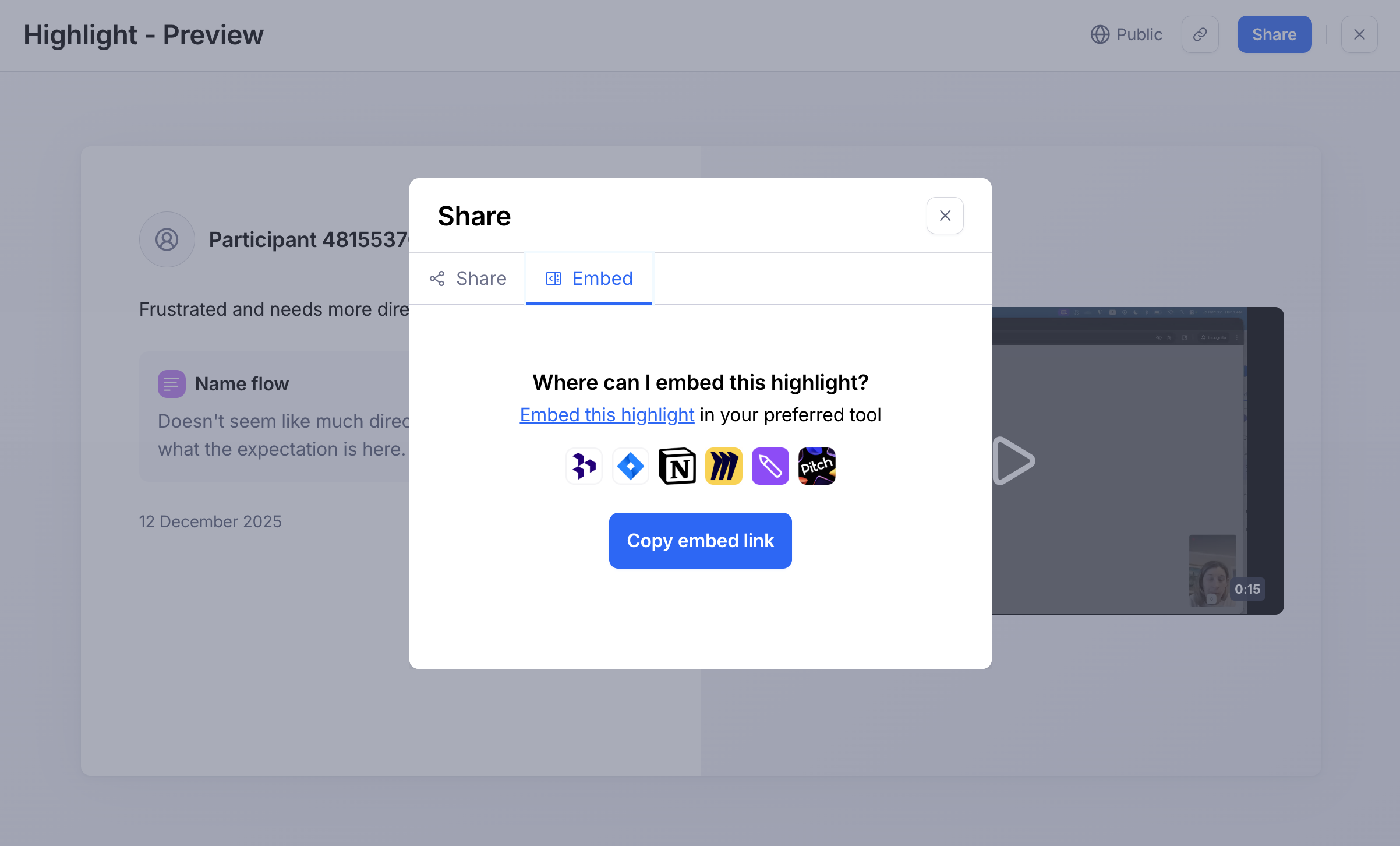
Click the blue Share button, ensure 'Anyone with the link' is selected, select the Embed tab and click Copy embed link. Paste the link in your desired tool of choice.
Still need help?
If you have any questions or concerns, please let our Support team know — we'll be happy to help!