Importing your contacts into Reach
Last updated: September 11, 2026
Reach is Maze's participant management tool. You can use it to build and manage a database of participants, create segments, and send targeted campaigns with studies.
This article will walk you through how to add contacts to Reach.
Limits
Users on the Professional plan (legacy) and the Team plan can add up to 2000 participants.
Enterprise plan users can add up to 1 million database participants. Each import file must not exceed 20.000 participants at a time.
How to add participants to Reach
To add contacts to your Reach database, click the Add participants button.

Manually add a participant
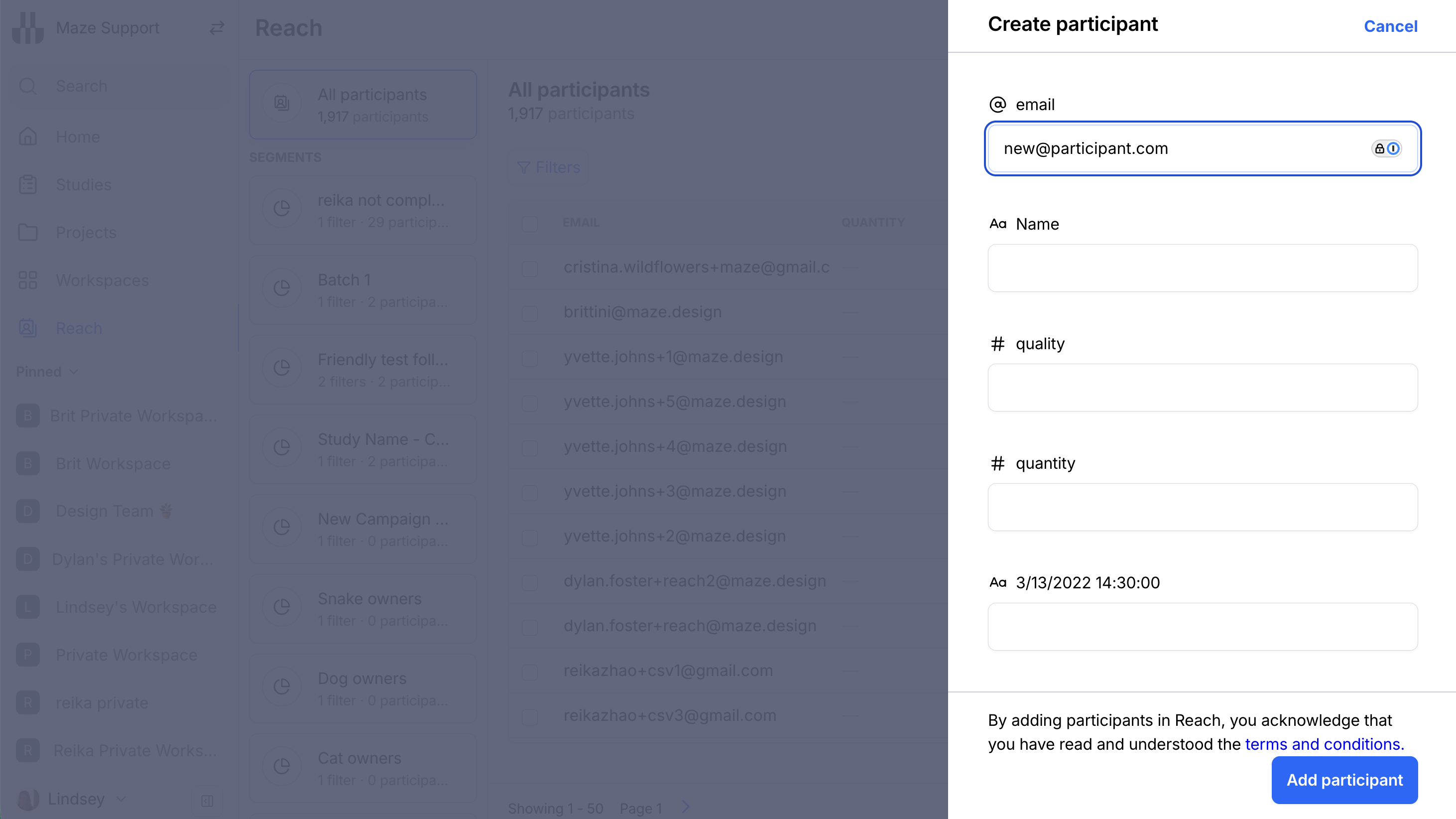
Click Manually add to add a one-off participant.
Enter their email and any other details, and click Add participant to save the new participant.
Upload a CSV with your contacts
Before you start, you'll need a CSV with your contacts:
If you already have your contacts in other systems, such as Google Sheets or Mailchimp, you can export a CSV file from there. Learn more
Alternatively, if you don't have the desired list of contacts within a third-party tool yet, you'll need to manually source the emails and other relevant information. Learn more
If you need a sample database with dummy data to test Reach internally, click Download 'Sample.csv' when opening your empty Reach database. You can then import that sample file into Reach.
Once you have your CSV, you can import it into Reach. Here's how you do it:
Log in to your Maze account and ensure you have selected the relevant team.
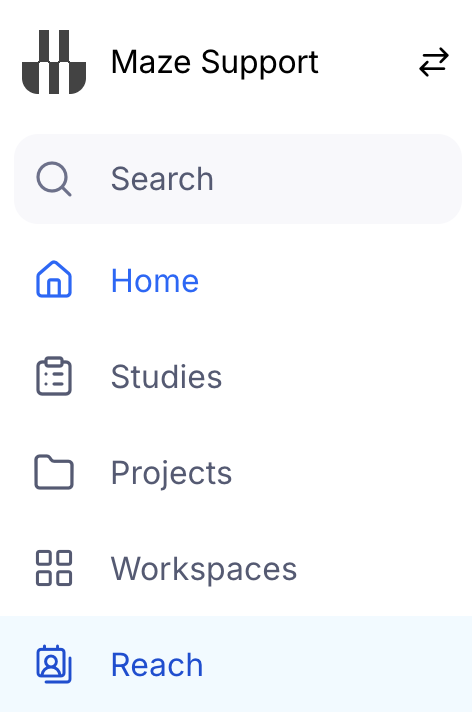
In the navigation panel on the left side, open Reach
Click Add participants.

Select Upload.csv and choose the file you'd like to upload, and click Open.
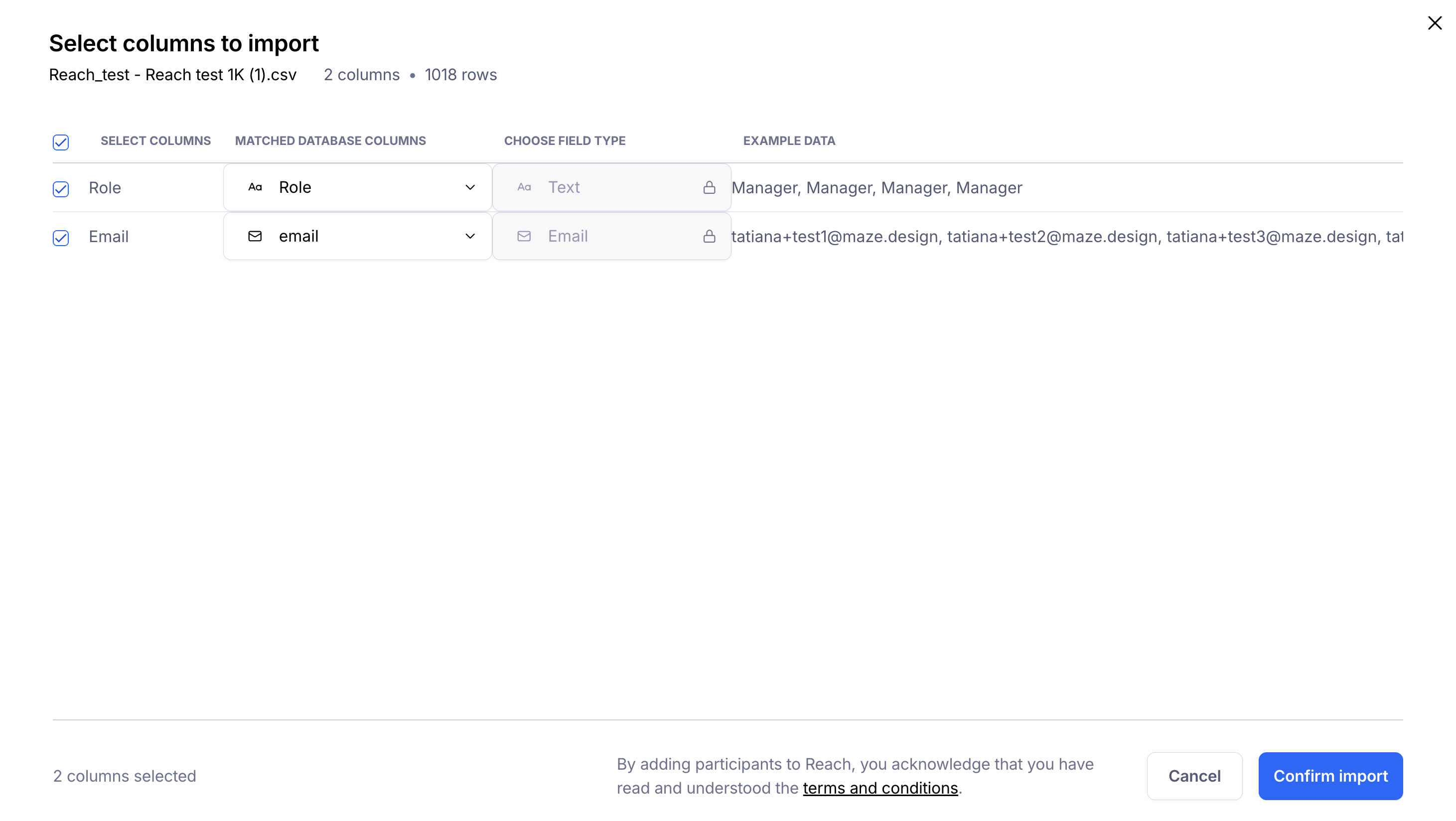
Select which columns in the CSV to import using the checkboxes, and match them with the appropriate Reach field type and click Confirm import.
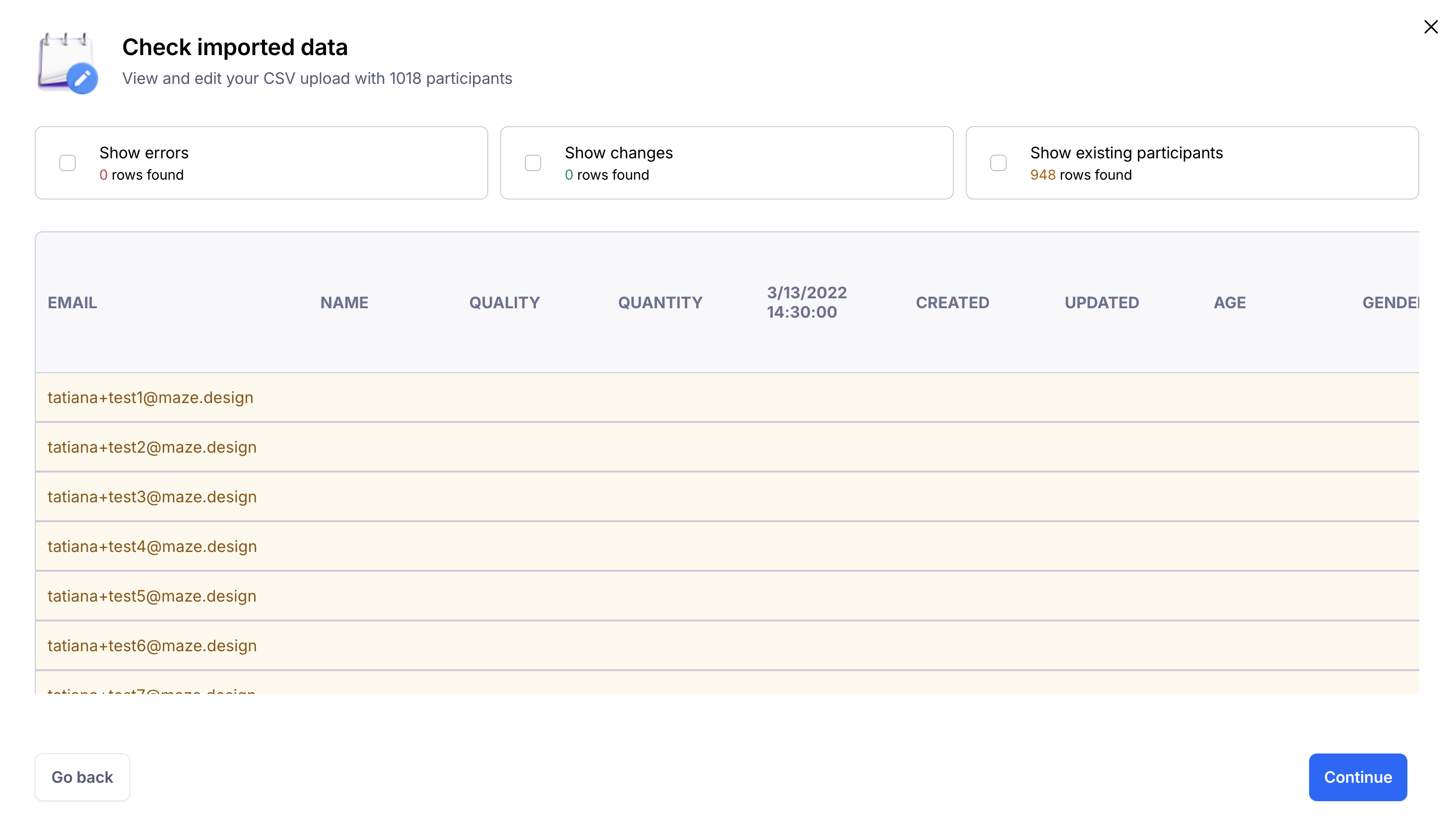
Once you're done, review the preview of your imported data and edit anything. as needed.
If everything looks good, click Continue to confirm the submission.
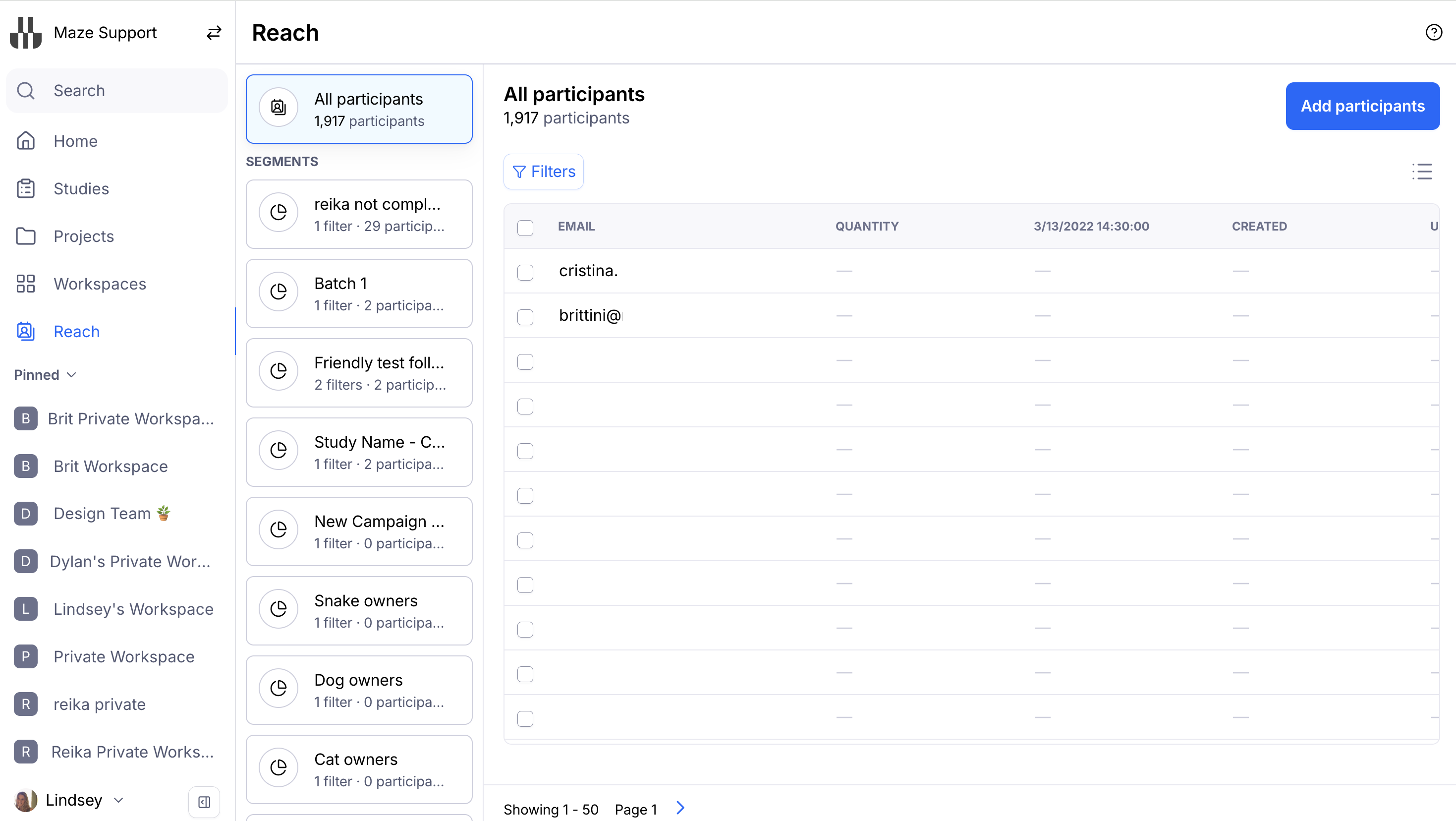
You'll be taken back to the database, where you'll see all participants already imported into Maze. Click each entry to open the participant profile. Here you can see more information, edit details, and delete that individual participant. Learn more about editing your Reach database
After importing your first contacts, you're ready to start building segments and sending out campaigns.
Supported field types during CSV import
Supported field types include:
Email
Text
Numeric
Percentage
Boolean
Date with time
Date
Import additional contacts & edit your database
After the initial import, repeat the steps to import a new CSV file to perform the following bulk/mass actions:
Add more participants in bulk
Add new columns to your database
Edit participants in bulk
Learn more about editing your Reach database
Still need help?
If you have any questions or concerns, please let our Support team know — we'll be happy to help!