Editing your Reach database
Last updated: September 11, 2026
Reach is Maze's participant management tool. You can use it to build and manage a database of participants, create segments, and send targeted campaigns with studies.
Once you've added your contacts, you can edit your database.
How to edit participant data in Reach
Mass editing
To edit existing participants in bulk, import a new CSV file with the updated data.
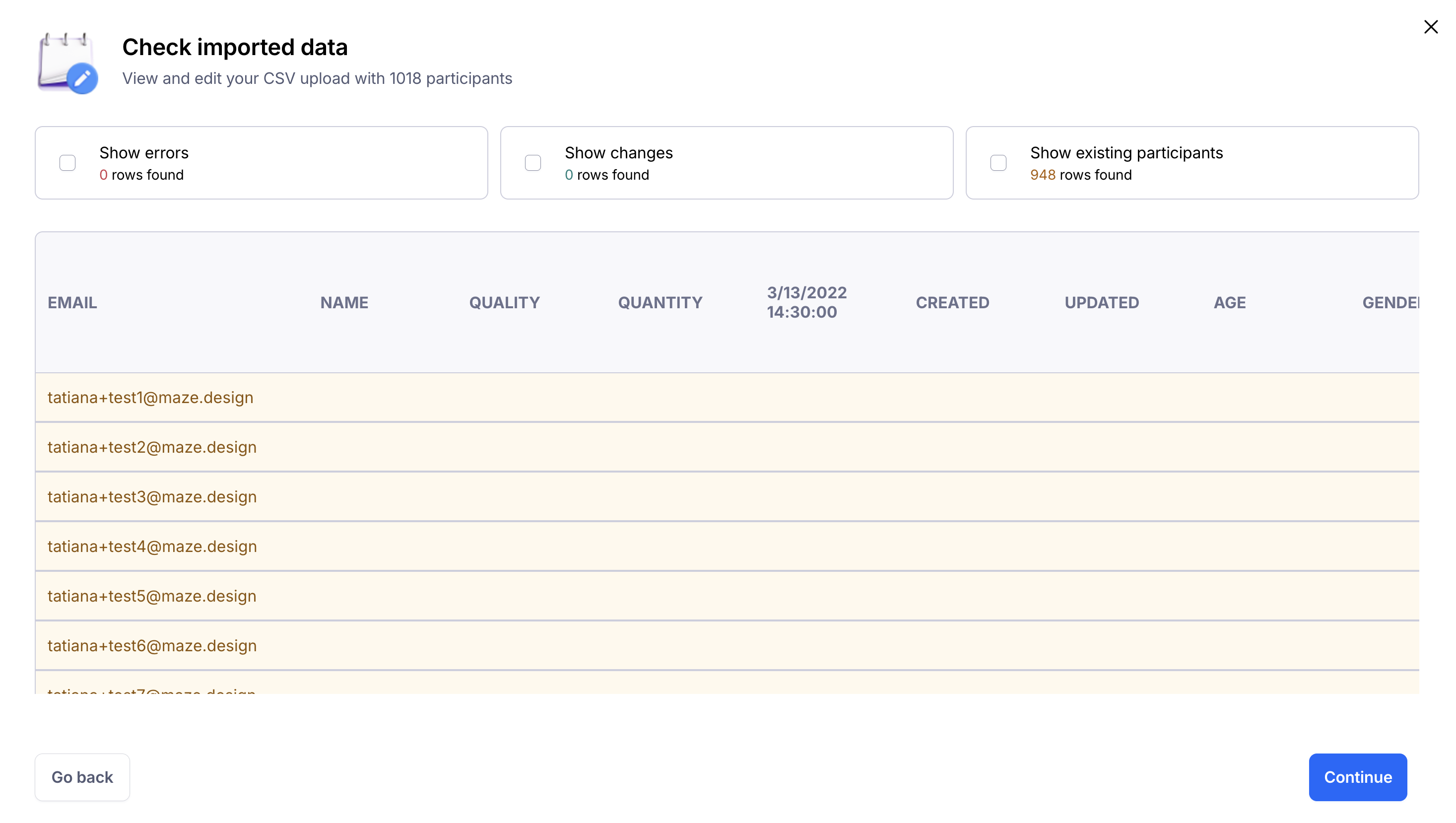
Before confirming the import, you will review the changes. The existing participants will appear with a yellow background; the new values appear highlighted in green.
Click the Show changes checkbox to see only the rows with updated values.
Importing a CSV file into a Reach database may overwrite/delete existing data. The newly imported CSV will erase any populated fields in the original database if the corresponding fields in the CSV are empty.
One-off editing
To edit the details of an individual participant in Reach:
Click their corresponding row in the database to open the 'Participant profile' modal.
Under 'Details', click the Edit icon.
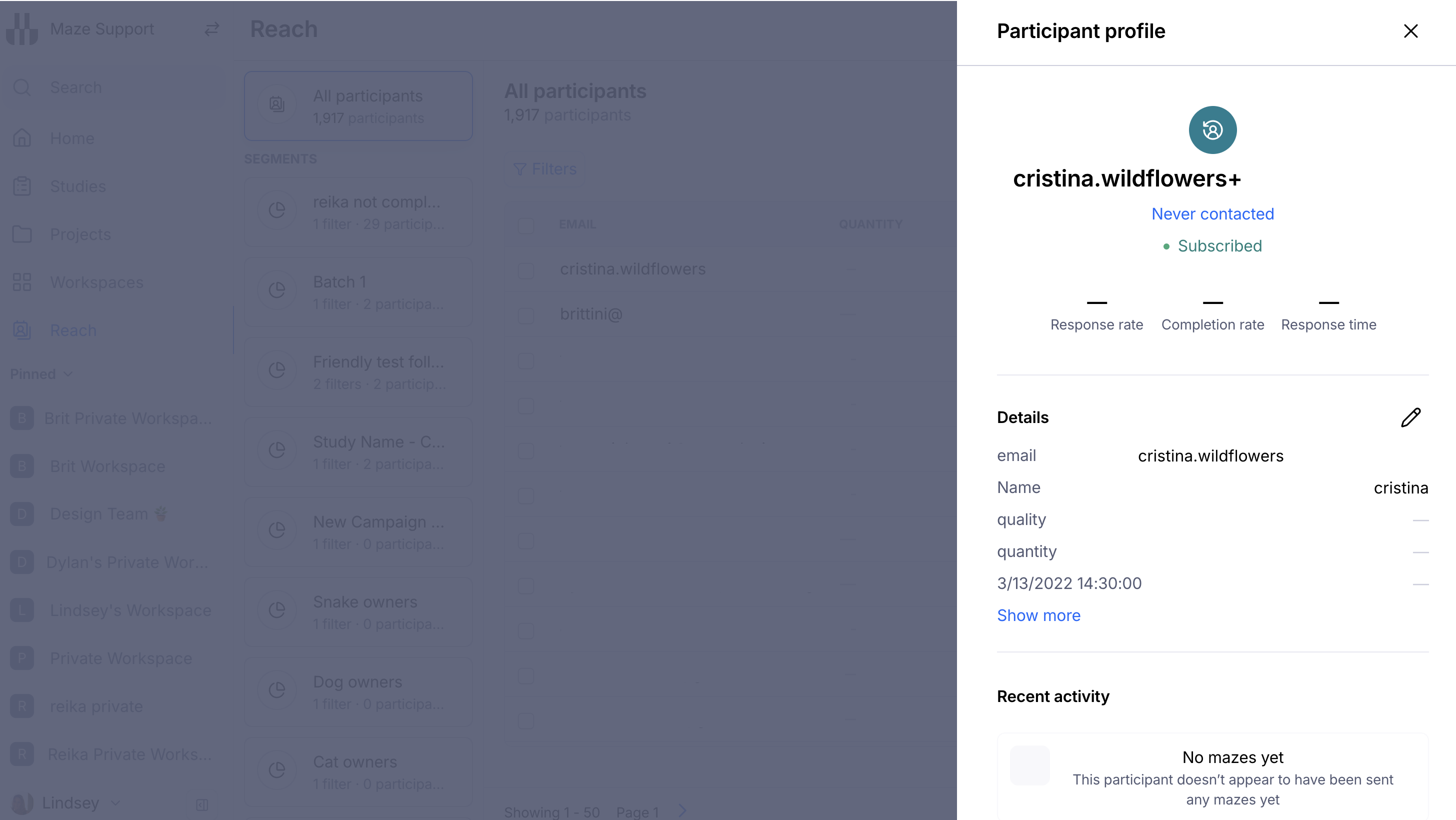
Update the details and, when you're done, click Save changes.
How to add new columns to your database
Manually
To add a new column directly to your database:
Scroll all the way to the right and click the + icon (Add new column).

Add a name for the column and choose the column type: Select, Multi-select, Text, Numeric, Boolean, Date with time, or Date.
When you're ready, click Create.
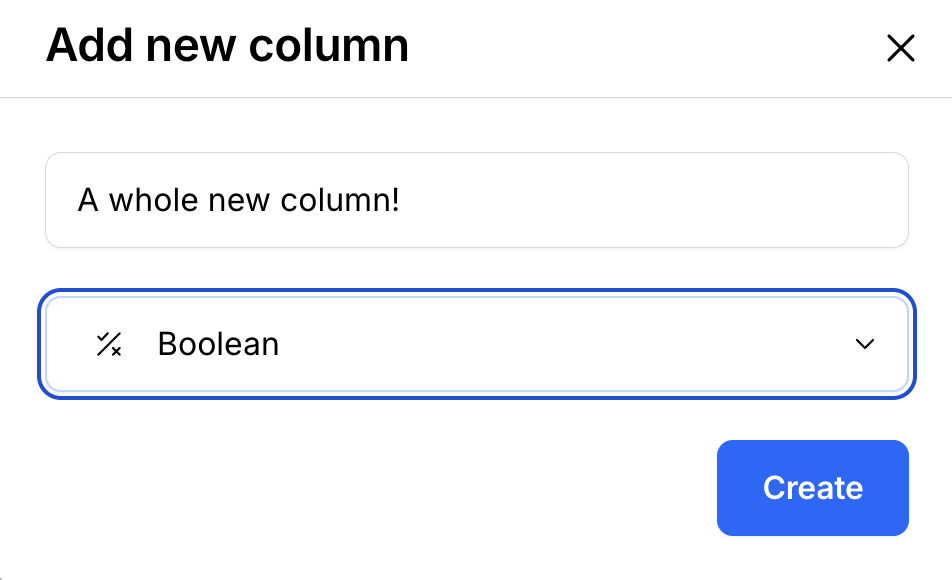
The new column will appear at the end of your database fields, before the metrics columns.
CSV
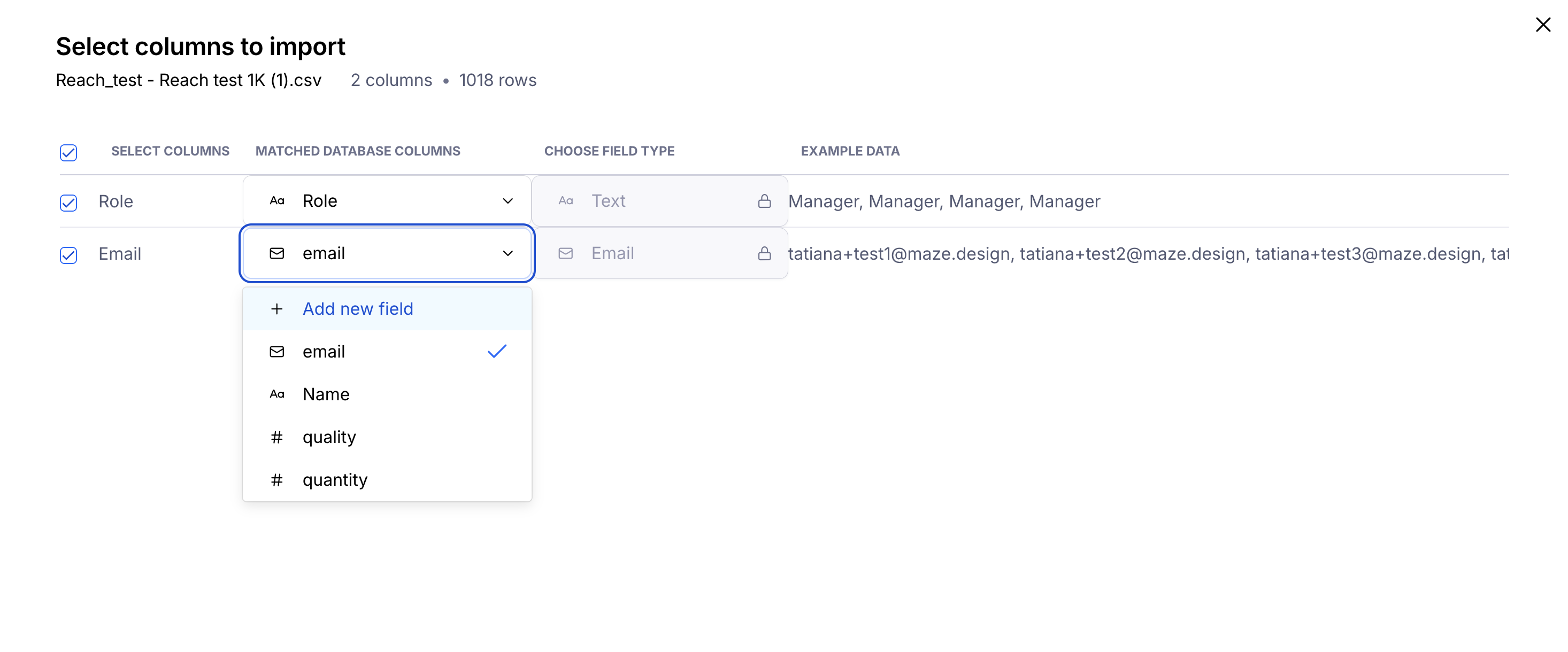
If an imported CSV has extra columns, you'll have to either map them to an existing database column or add a new column into the database.
To do so, select the option + Add new field from the dropdown and select the field type (Text, Numeric, Boolean, Date with time, or Date).
How to edit columns in your database
Edit columns
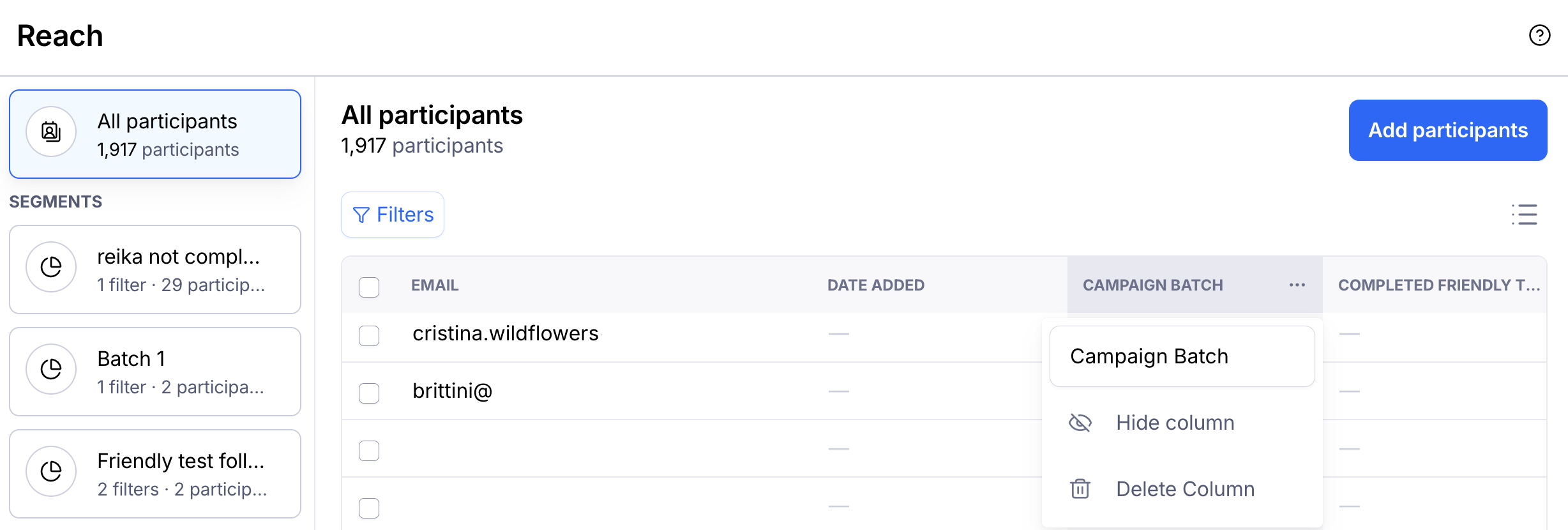
Hover over each column header to reveal the More (•••) menu. Click the menu to:
Rename the column
Hide the column from view
Delete the column from the database
If you've added tags, you can also manage them from this menu
Toggle the visibility of your columns
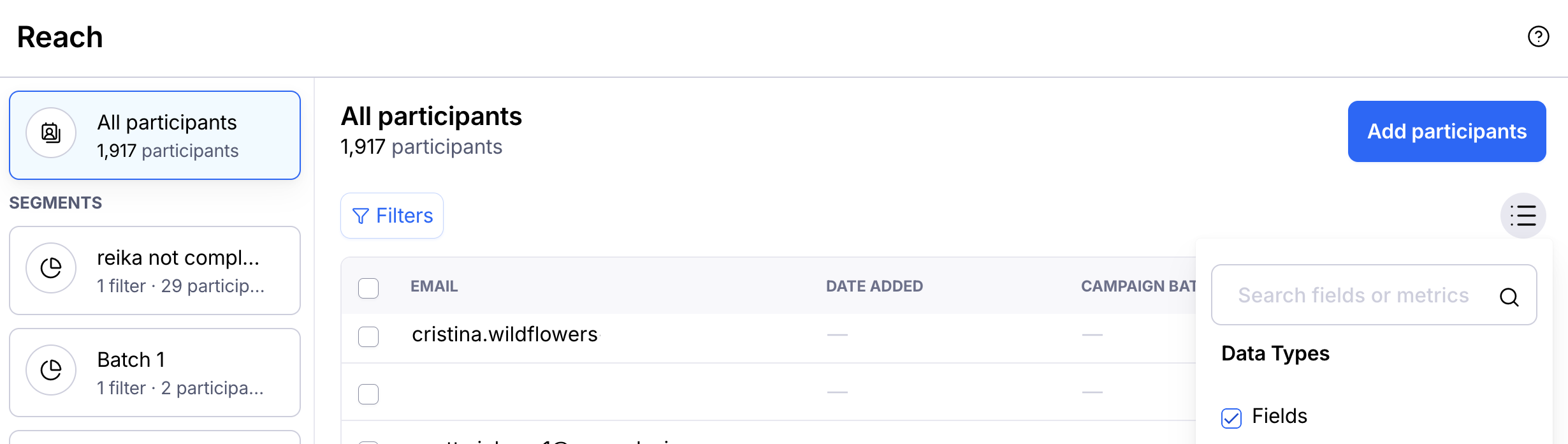
To quickly hide or show columns, click Fields.

Use this menu to hide/show custom fields (e.g., name, ID, etc.) and study metrics (e.g., completion rate, average response time).
How to delete participants from Reach
Deleting a participant will permanently remove their profile in Reach, as well as their study results records.
Learn how to remove participants from your Reach database
Still need help?
If you have any questions or concerns, please let our Support team know — we'll be happy to help!